Finnoto basics
A tour of the Finnoto portal: modules, navigation and the screens you will use every day.
Last updated on
Transcript
Hello, everyone.
Today, we will understand what the no to employ portal looks like. Here, you see the dashboard. On the top of it, here's the raise expense button through which you can raise reimbursement and vendor expense, if you have been given the role to do so. This is the product switch.
If you have access to the Finox portal, you can select and go to the Finox portal. Now when you click on the name of your organization, you can see different or you can see an option to switch organization.
Here is the list of all the organizations attached.
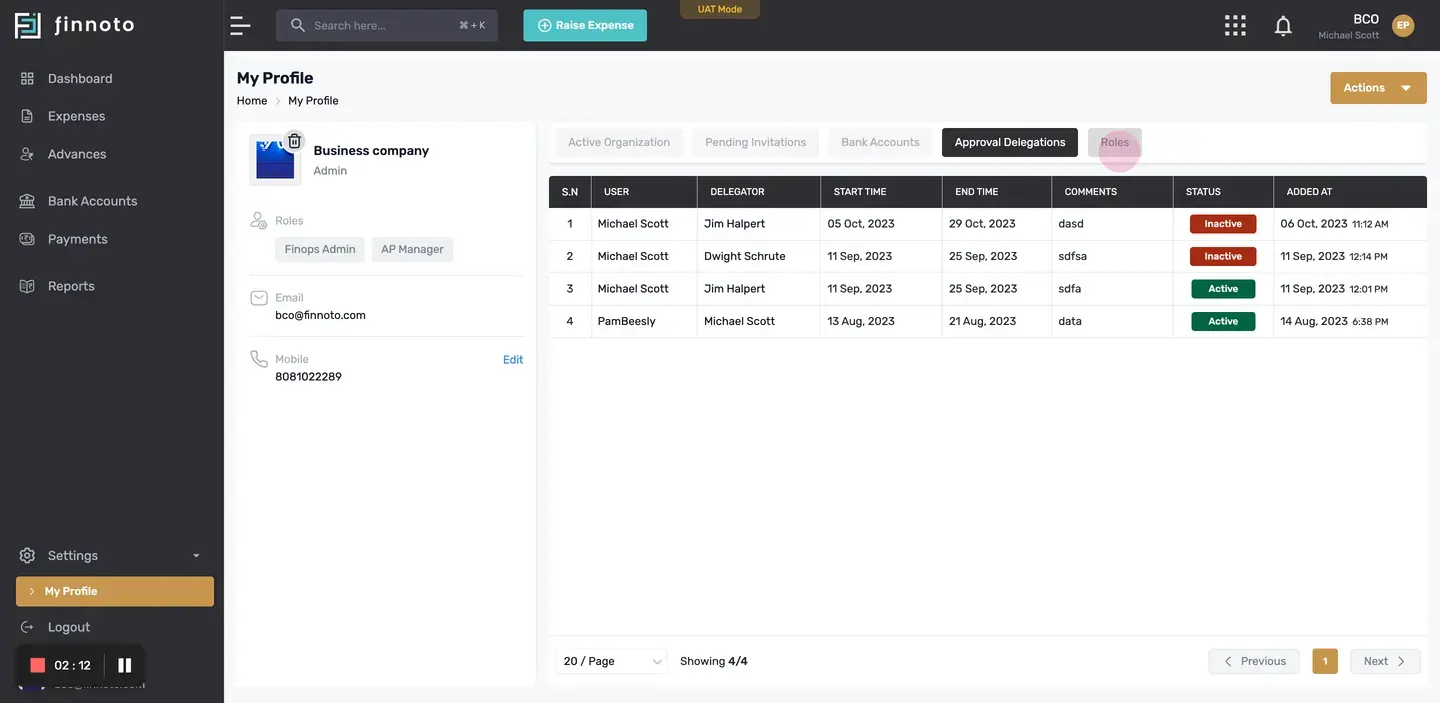
You can select a particular organization and get access to it. Here is the microphone option where, from where, you can access the my profile, which represents your name, your rules, and all the other details that you have entered while creating the profile page.
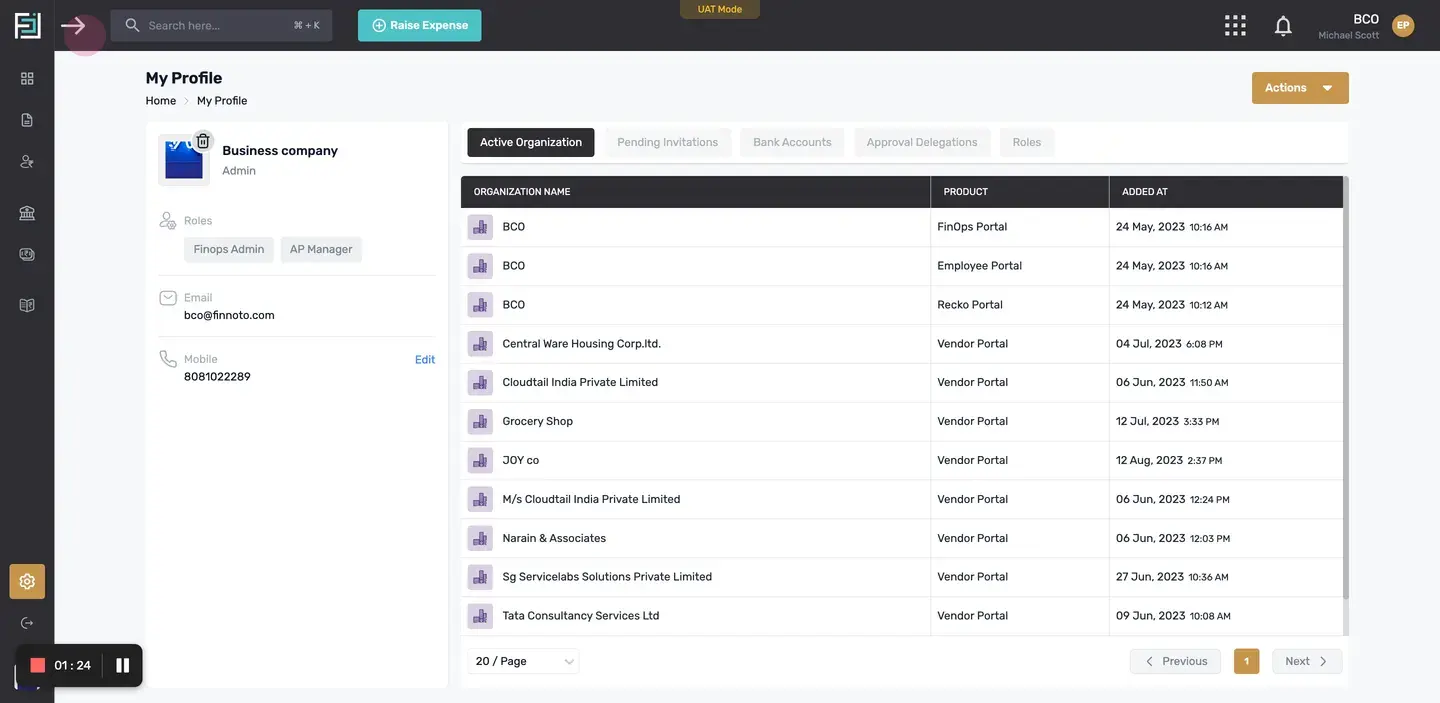
Apart from this, on clicking on this arrow, you can expand the menu and see all the options clearly.
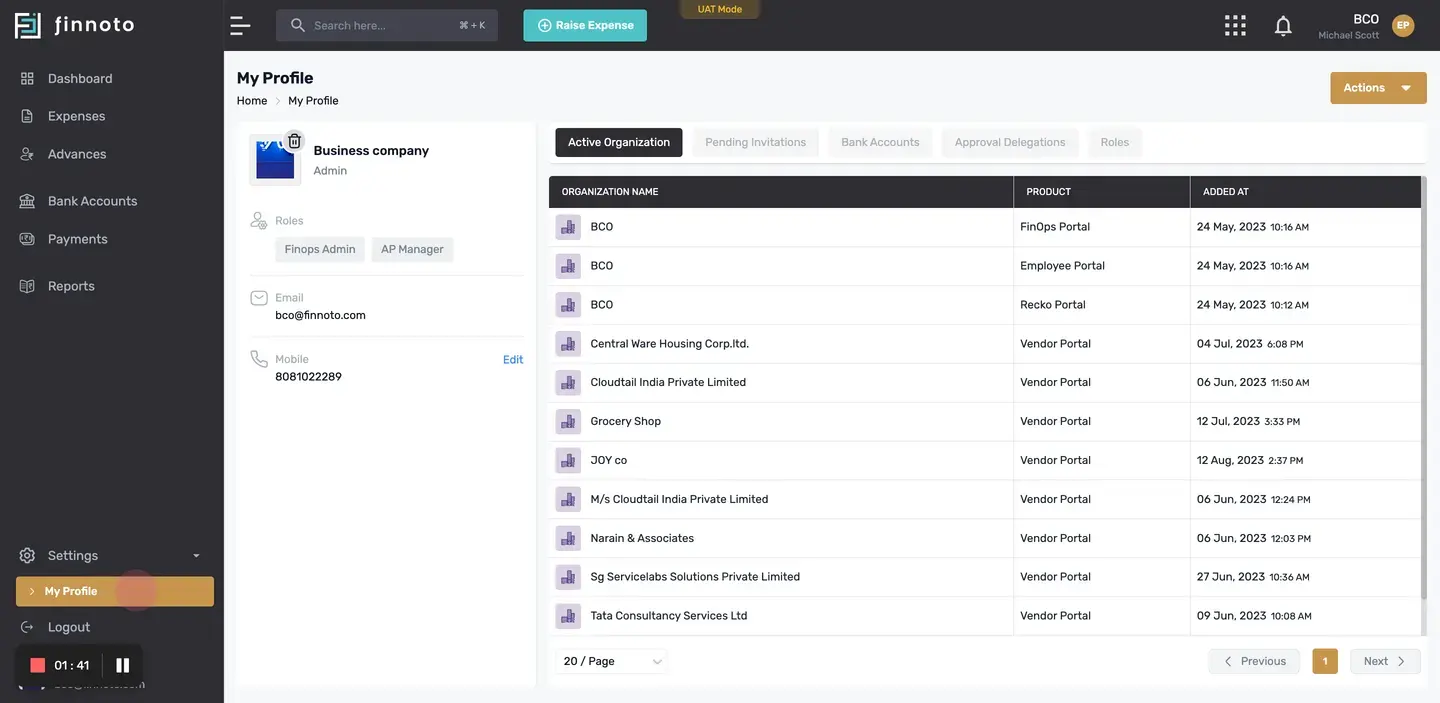
Again, from settings, you can access the my profiles page.
From the log out button, you can log out from your account. Now, on the microphone page, you can see edit mobile number.
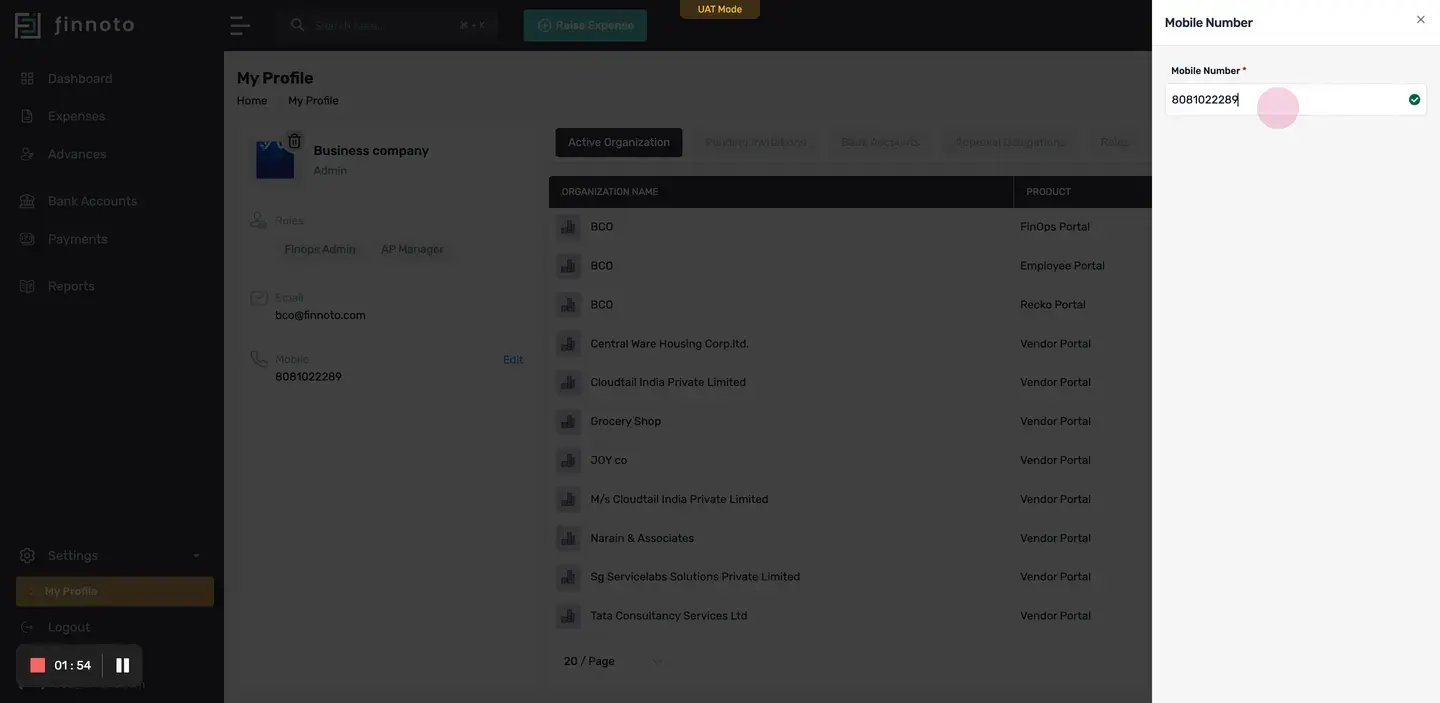
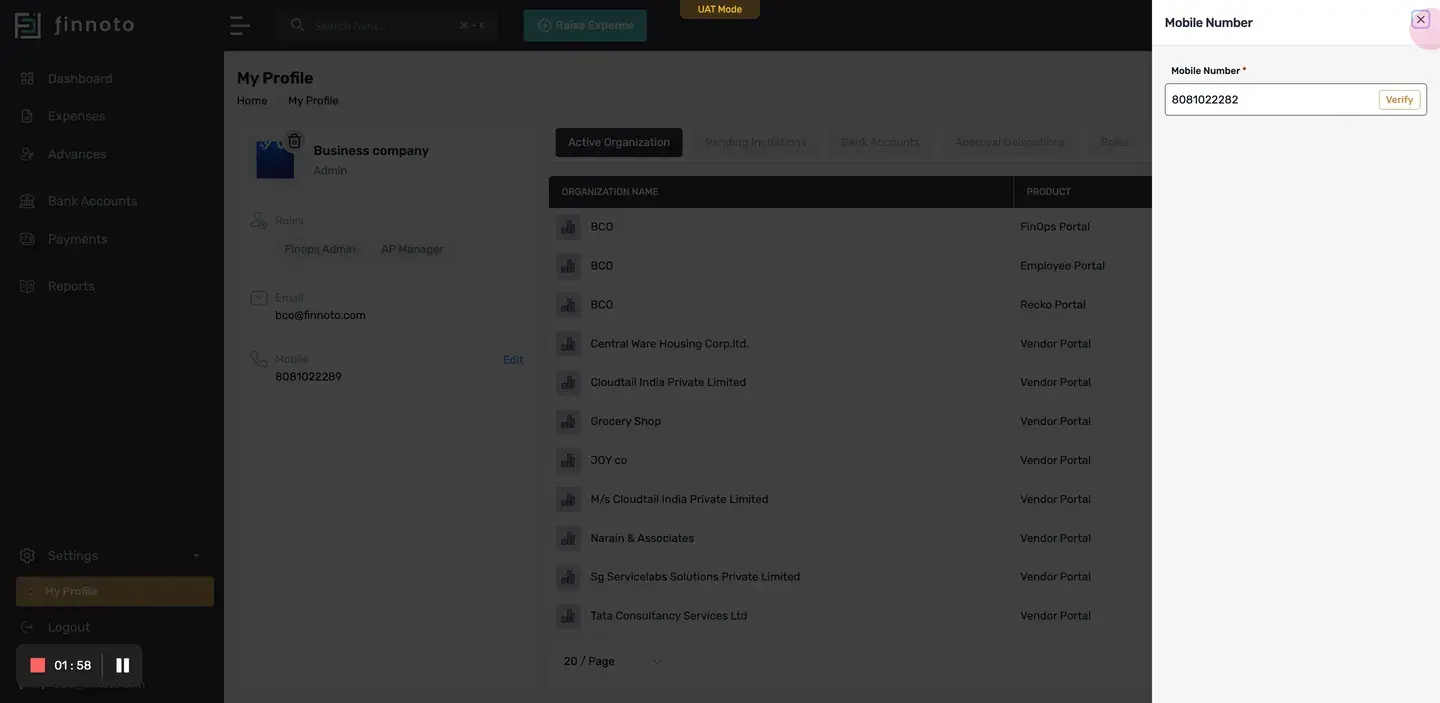
From here, you can add or edit your mobile number by verifying it, and entering the OTP sent to your mobile number.
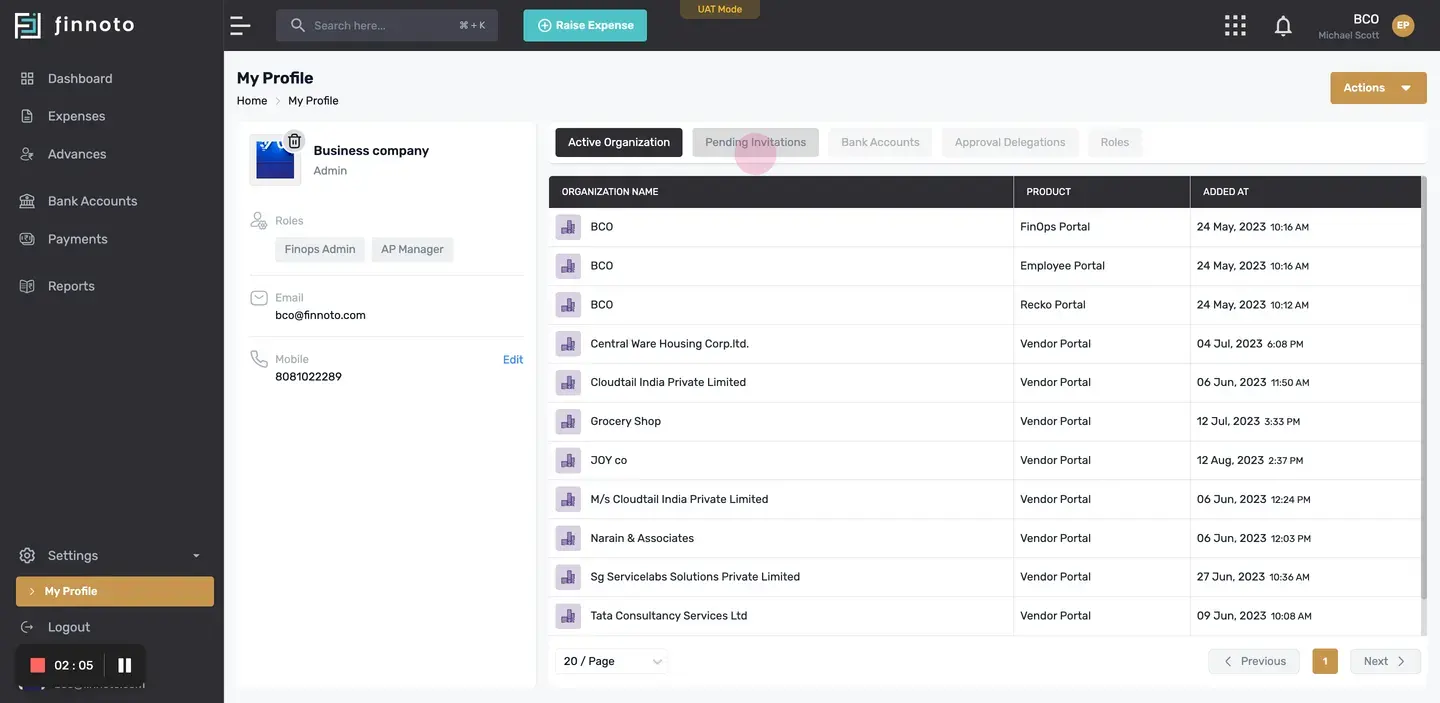
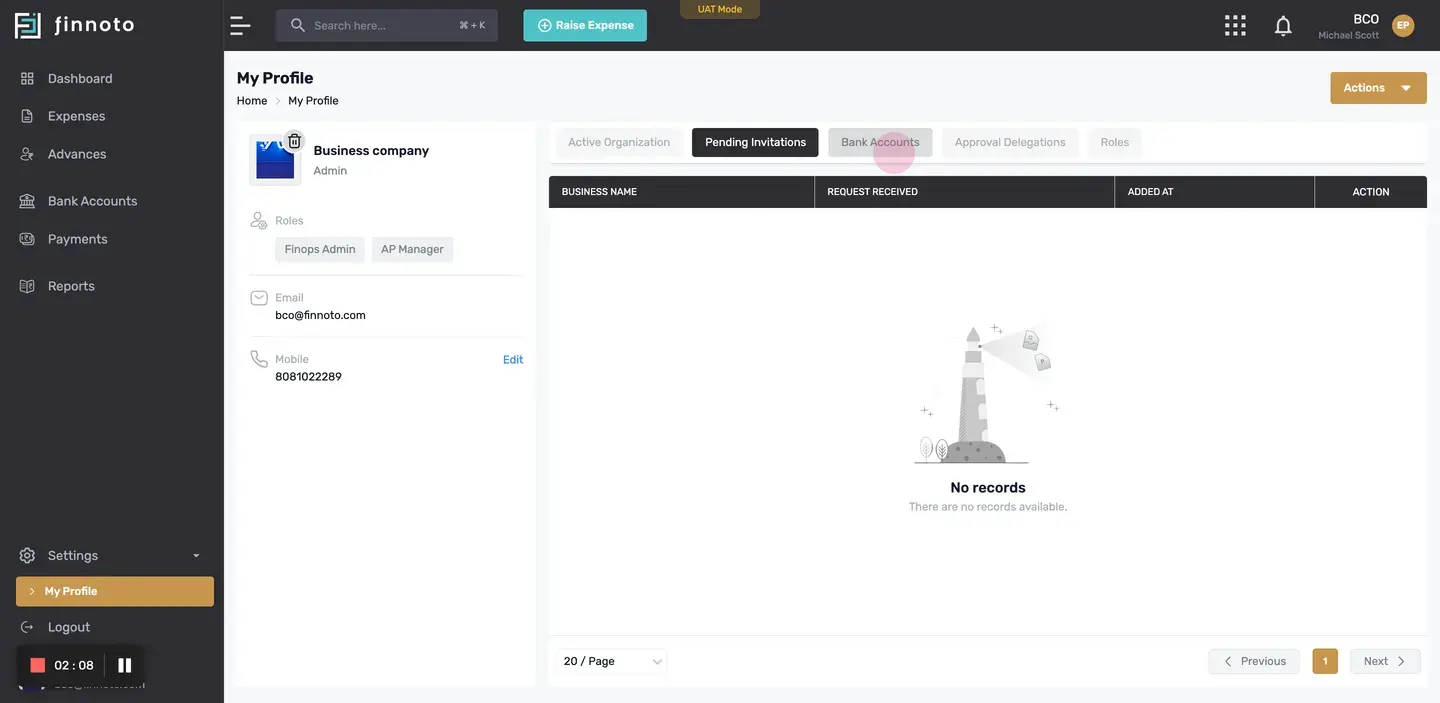
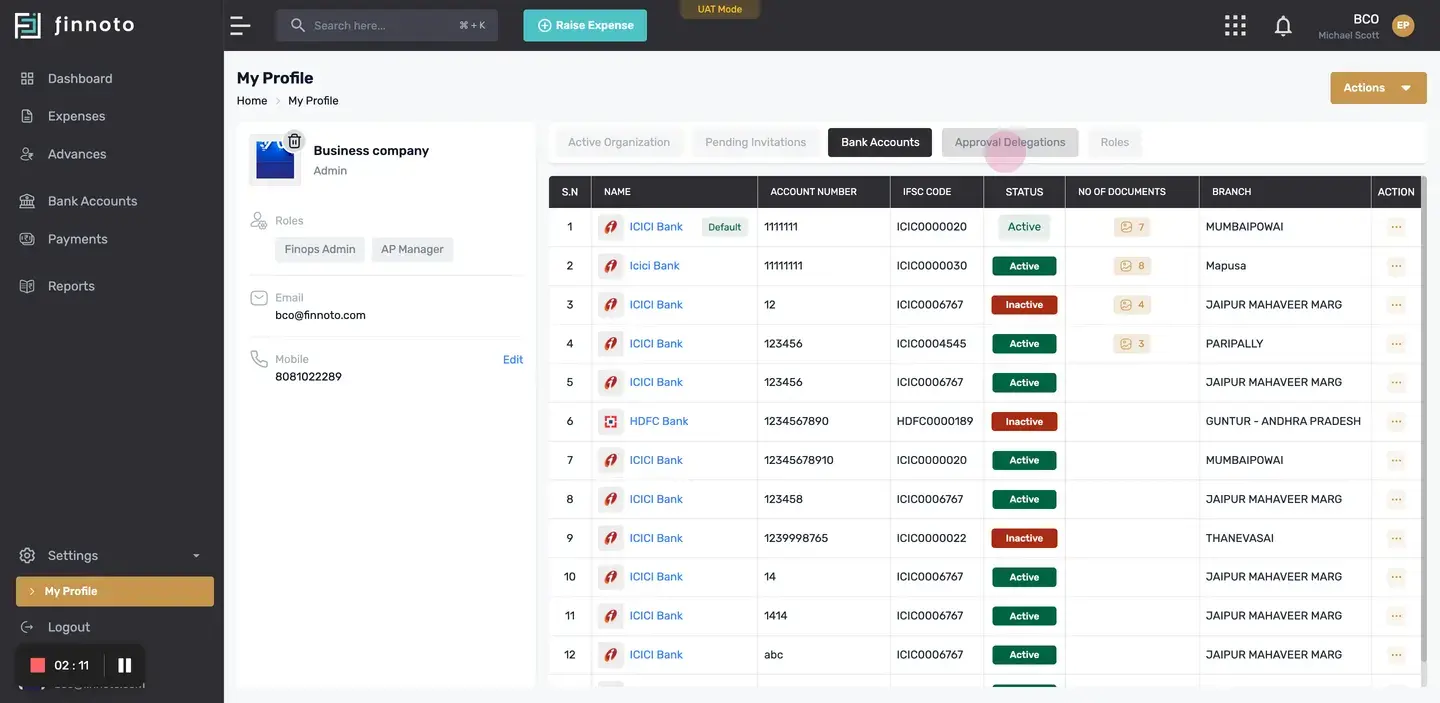
Similarly, you can see all the necessary details that is pending invitations, if any, your bank account, approval delegations, rules assigned to you.
Thank you.
Hello, everyone
Today, we will understand what the no to employ portal looks like. Here, you see the dashboard. On the top of it, here's the raise expense button through which you can raise reimbursement and vendor expense, if you have been given the role to do so. This is the product switch.
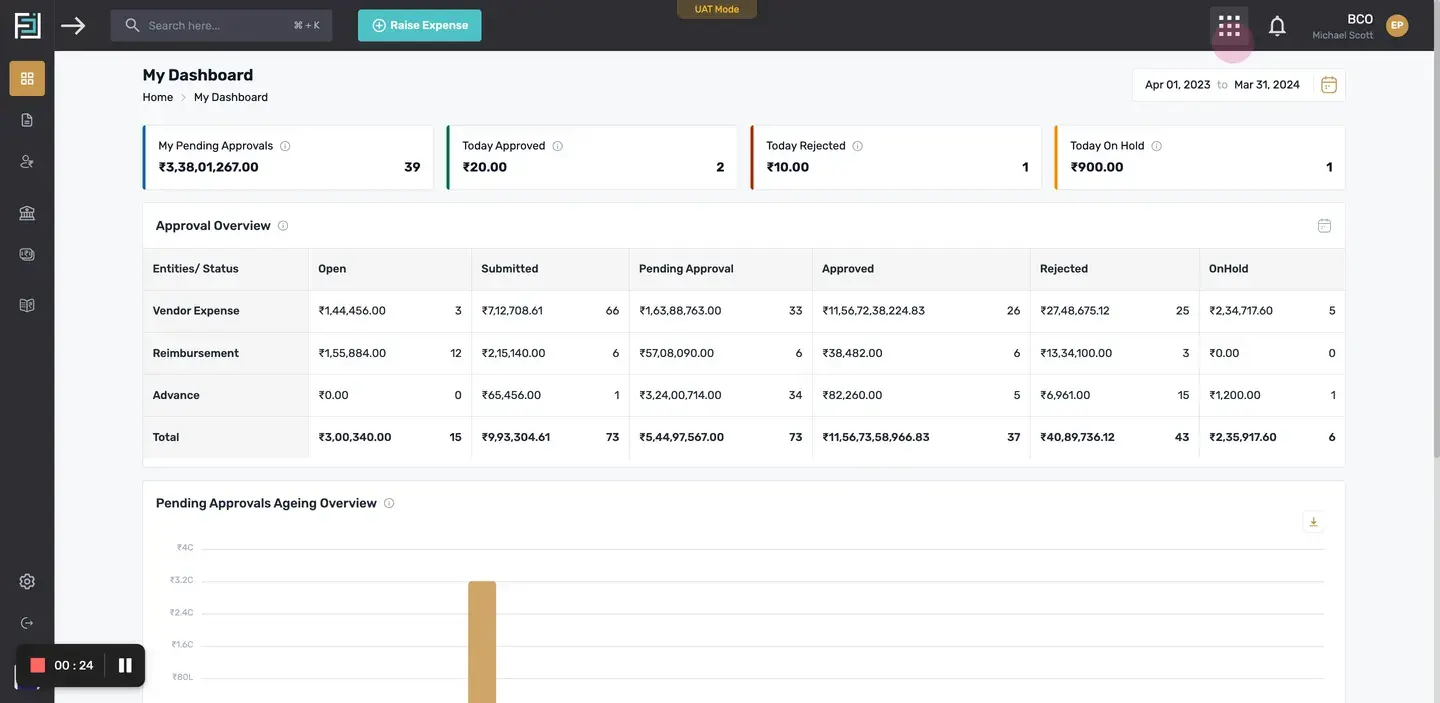
If you have access to the Finox portal, you can select and go to the Finox portal. Now when you click on the name of your organization, you can see different or you can see an option to switch organization.
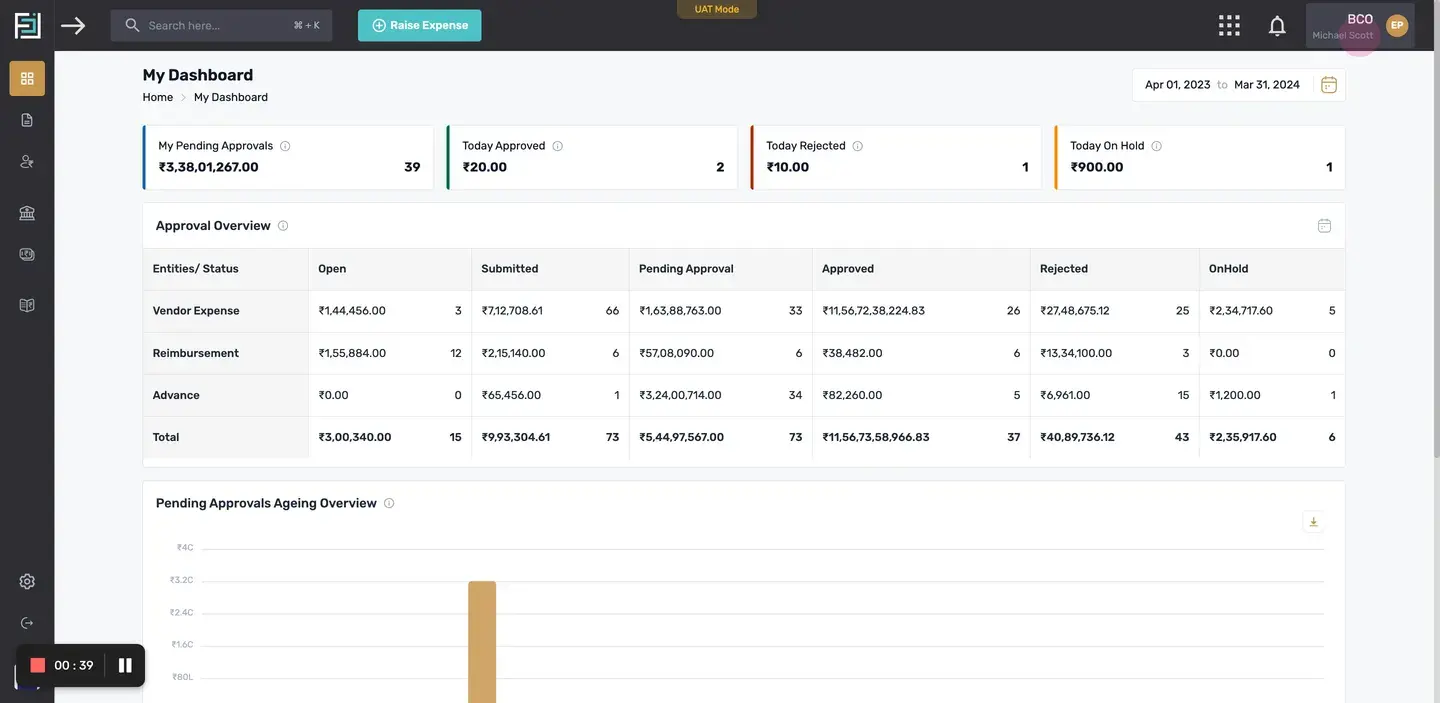
Here is the list of all the organizations attached
You can select a particular organization and get access to it. Here is the microphone option where, from where, you can access the my profile, which represents your name, your rules, and all the other details that you have entered while creating the profile page.
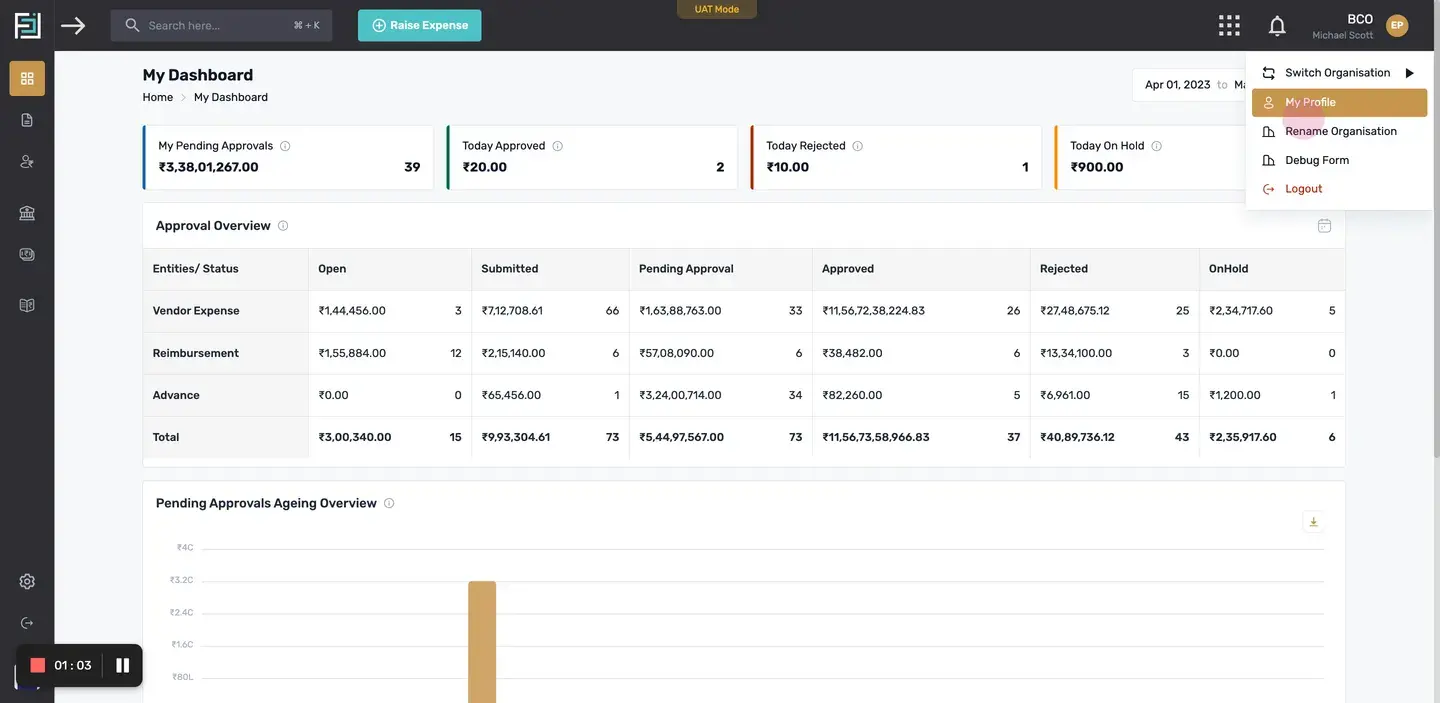
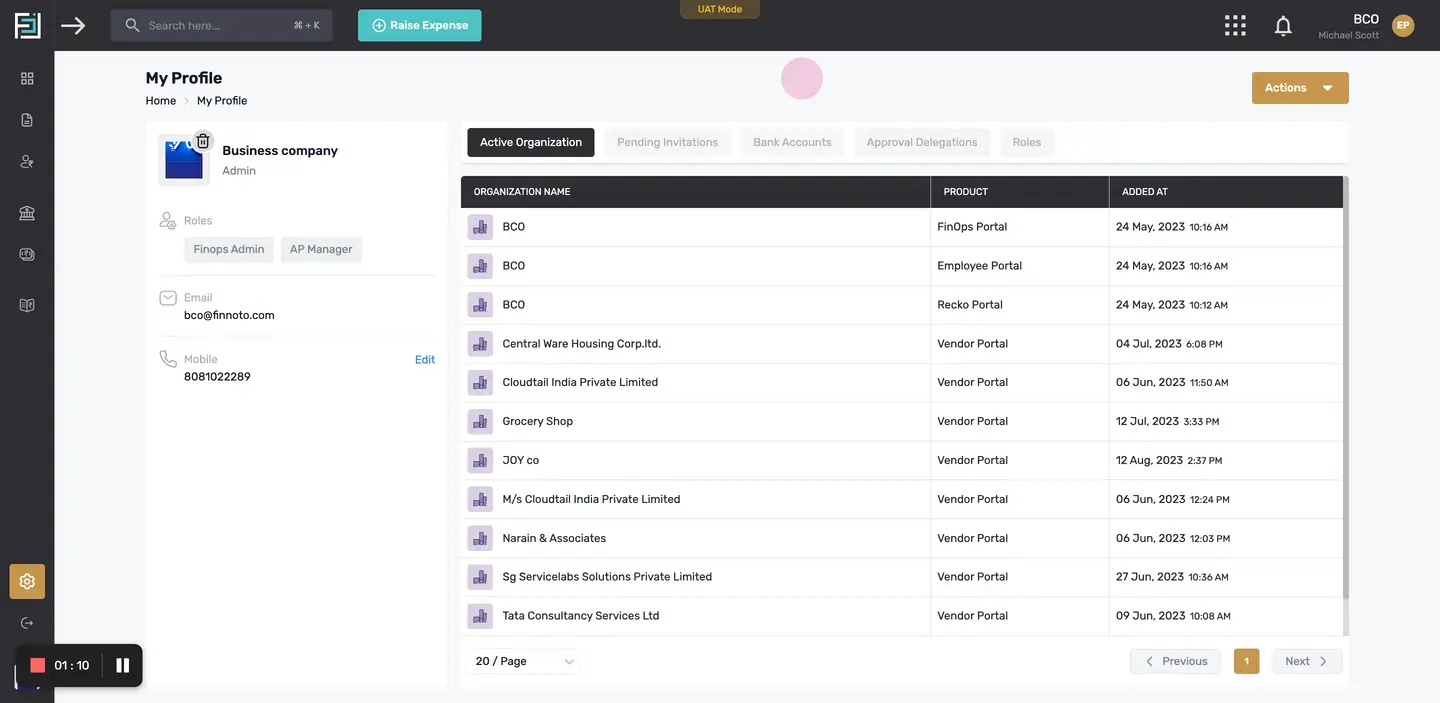
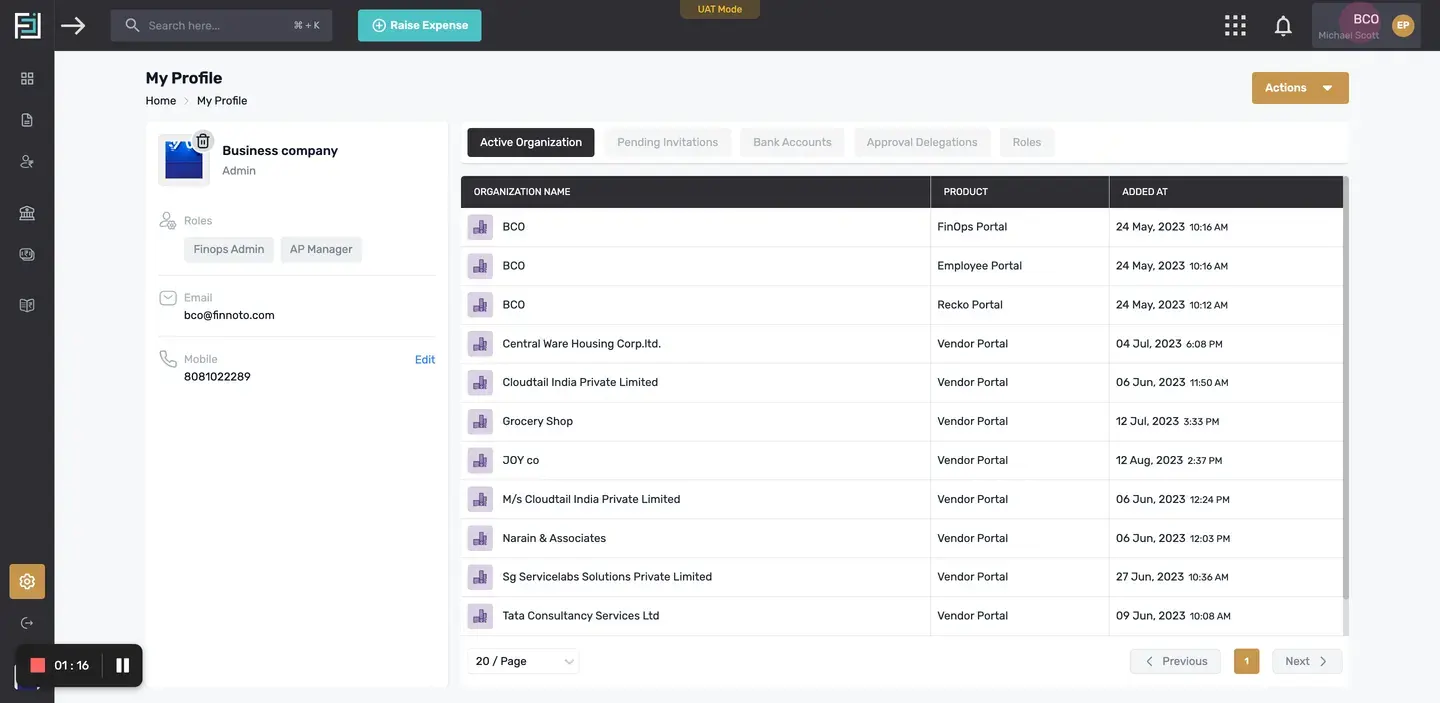
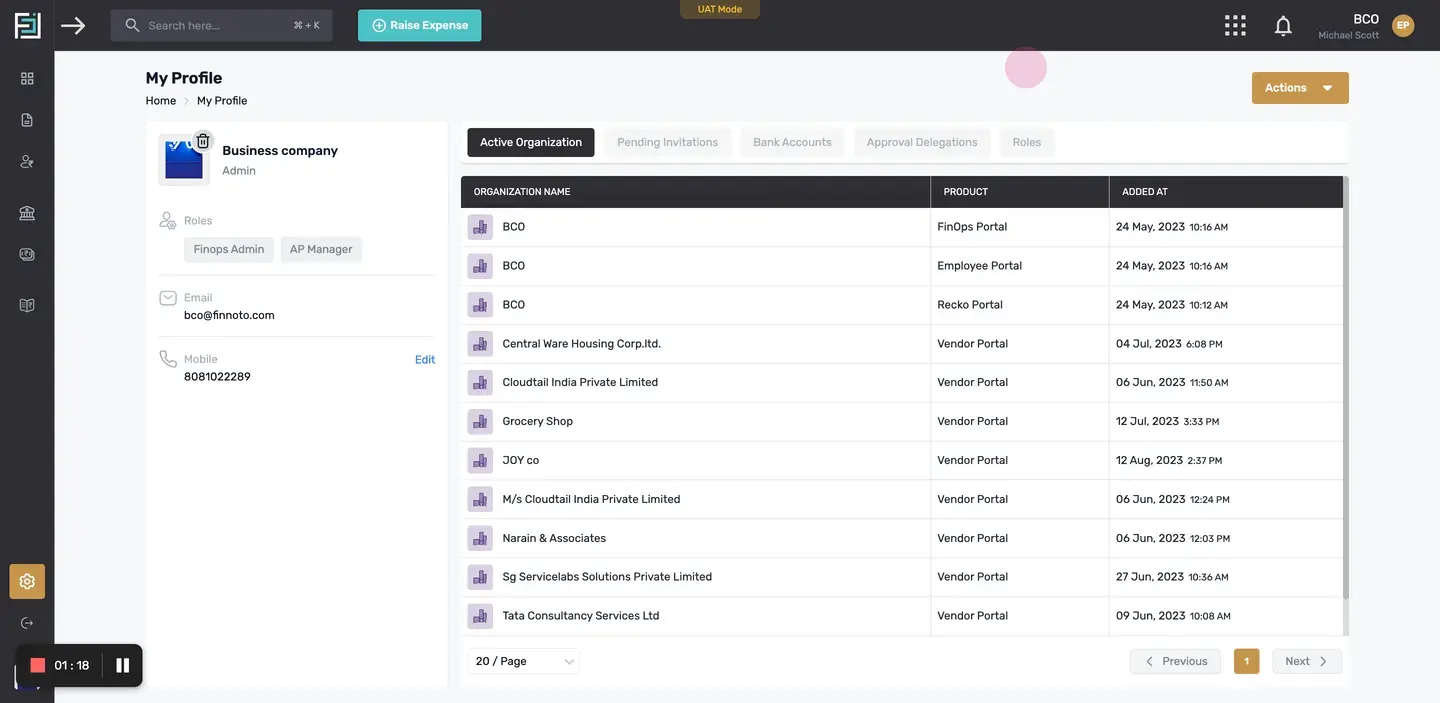
Apart from this, on clicking on this arrow, you can expand the menu and see all the options clearly.
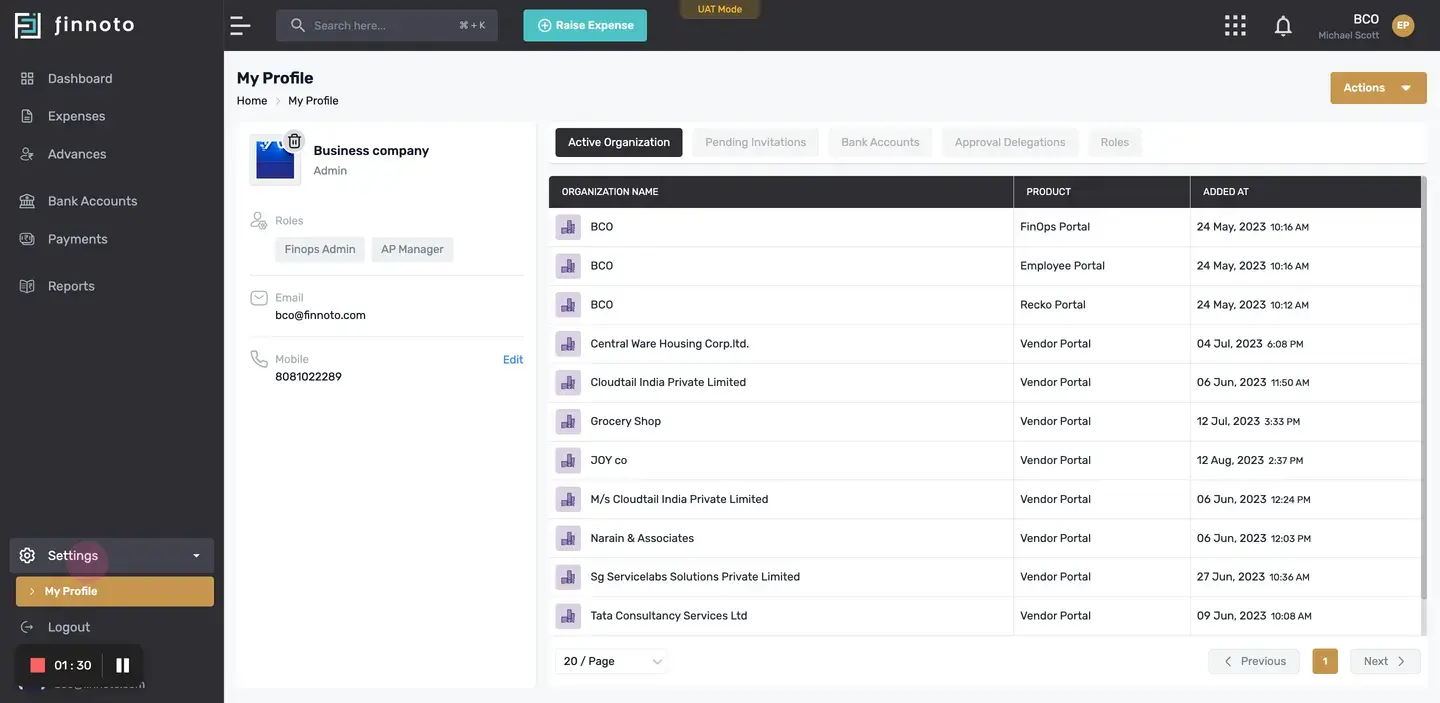
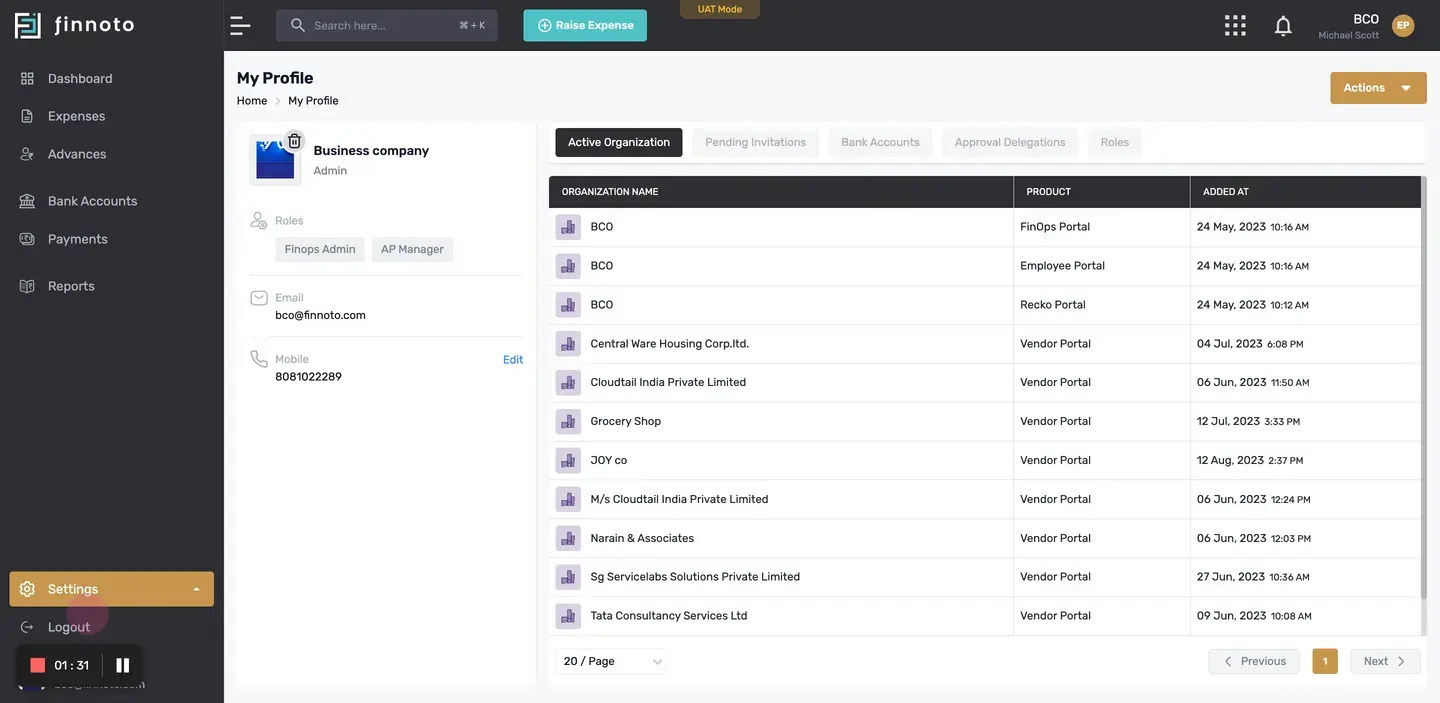
From the log out button, you can log out from your account. Now, on the microphone page, you can see edit mobile number.
From here, you can add or edit your mobile number by verifying it, and entering the OTP sent to your mobile number.
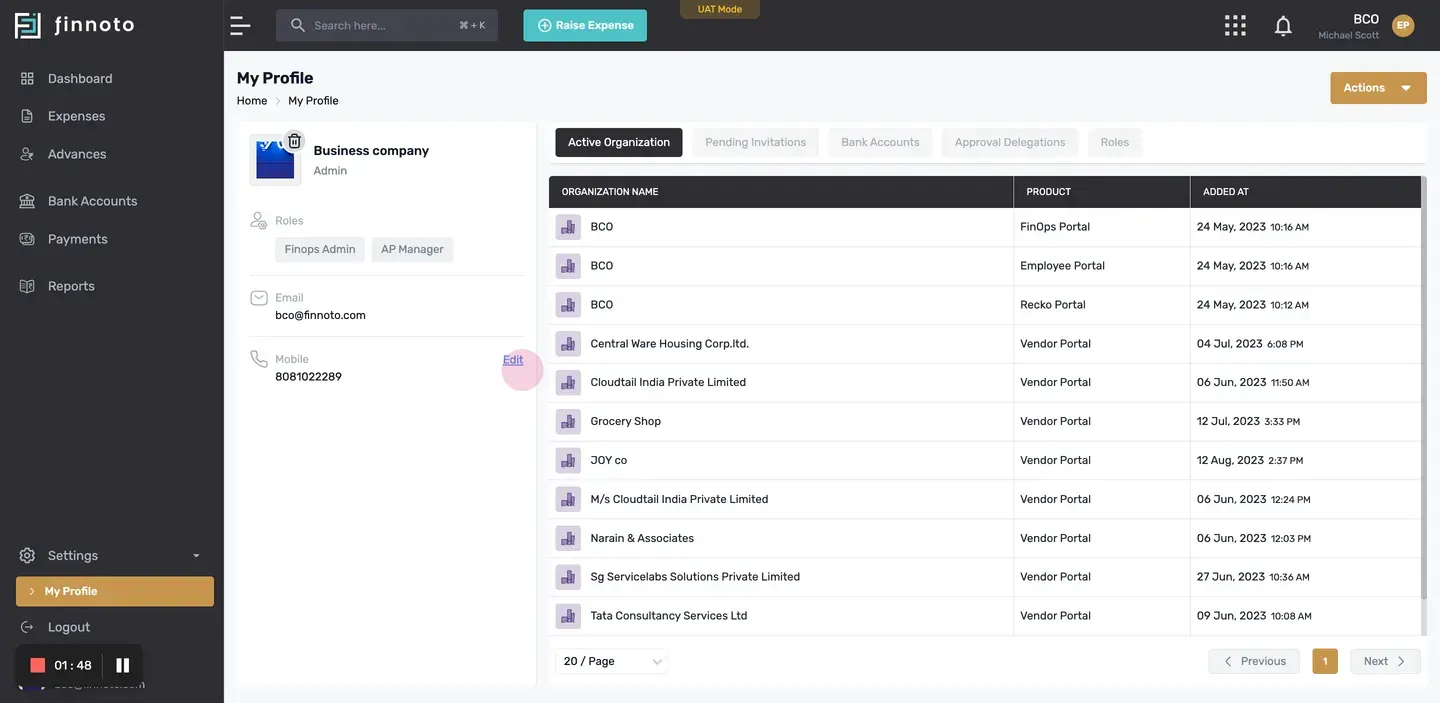
Similarly, you can see all the necessary details that is pending invitations, if any, your bank account, approval delegations, rules assigned to you.
Thank you.