Attach expenses to credit-card transactions
Link each corporate-card transaction to its expense so card statements reconcile cleanly.
Last updated on
Transcript
Hello,Everyone! Today, we're excited to introduce you to a powerful feature Credit Card Settlements on Finnoto. This feature empowers you to seamlessly attach expenses related to transactions made through credit cards. To explore these enhancements, let's dive into it.
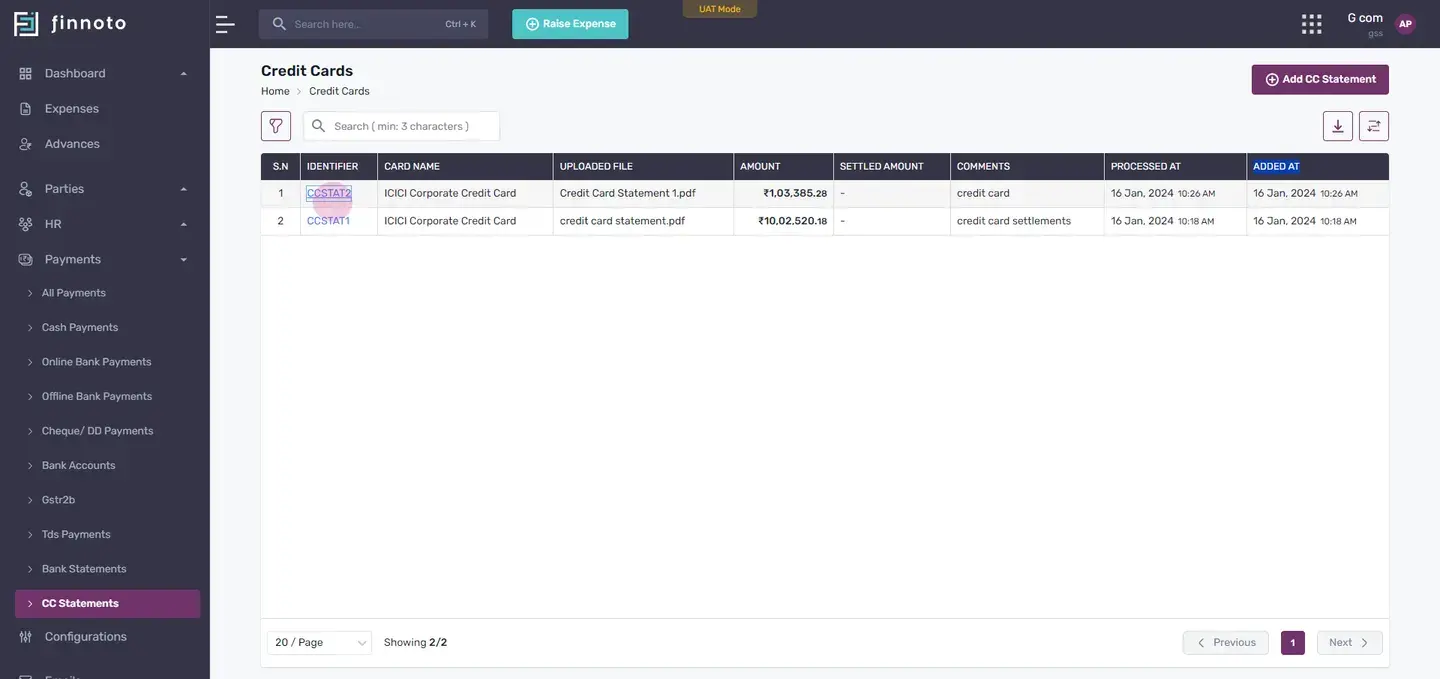
First, navigate to the payments menu. From here, select 'cc statements'. This shows all the uploaded credit card statements. To upload a credit card statement click on 'add cc statement' in the top right corner.
In this form, select your credit card, enter a comment, choose your statement, and click 'save'. Your statement will now be processed. When processing is complete, you can see all the line items of that statement. If you need to check uploaded statements, just click the back button to display all of them.
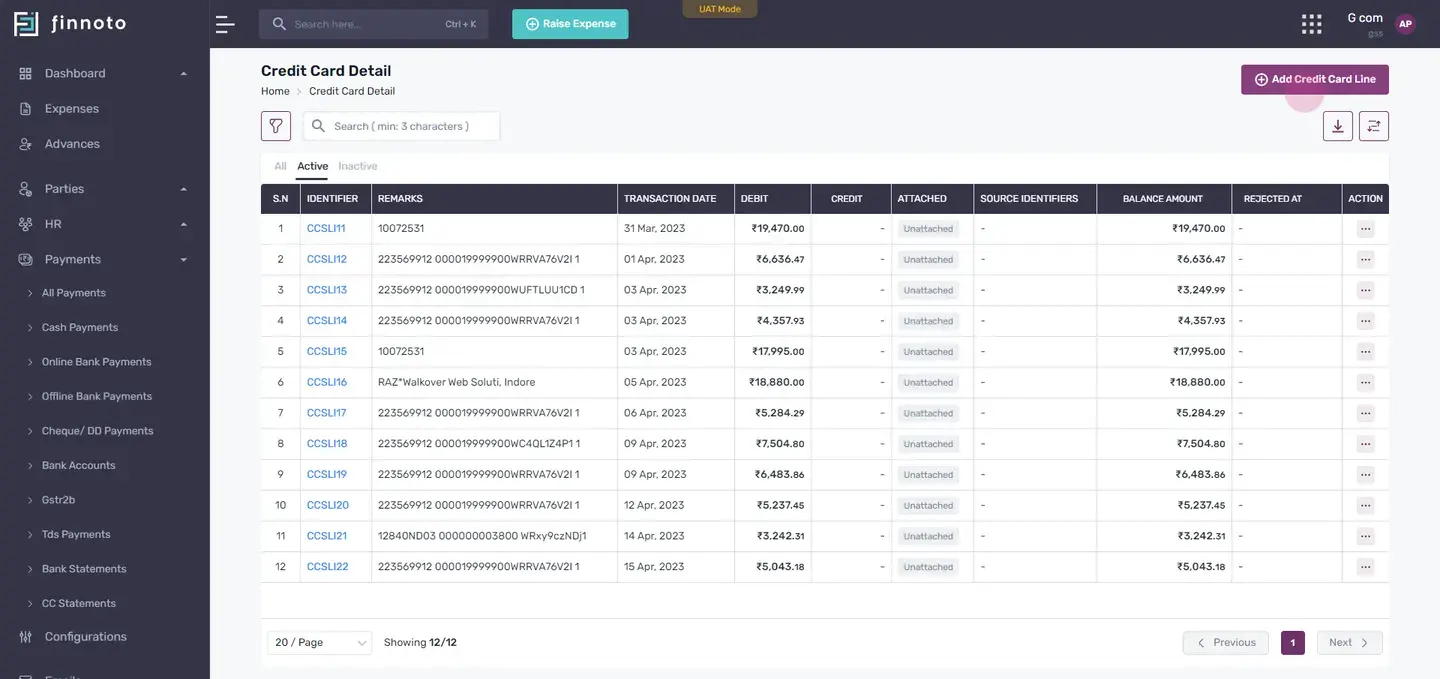
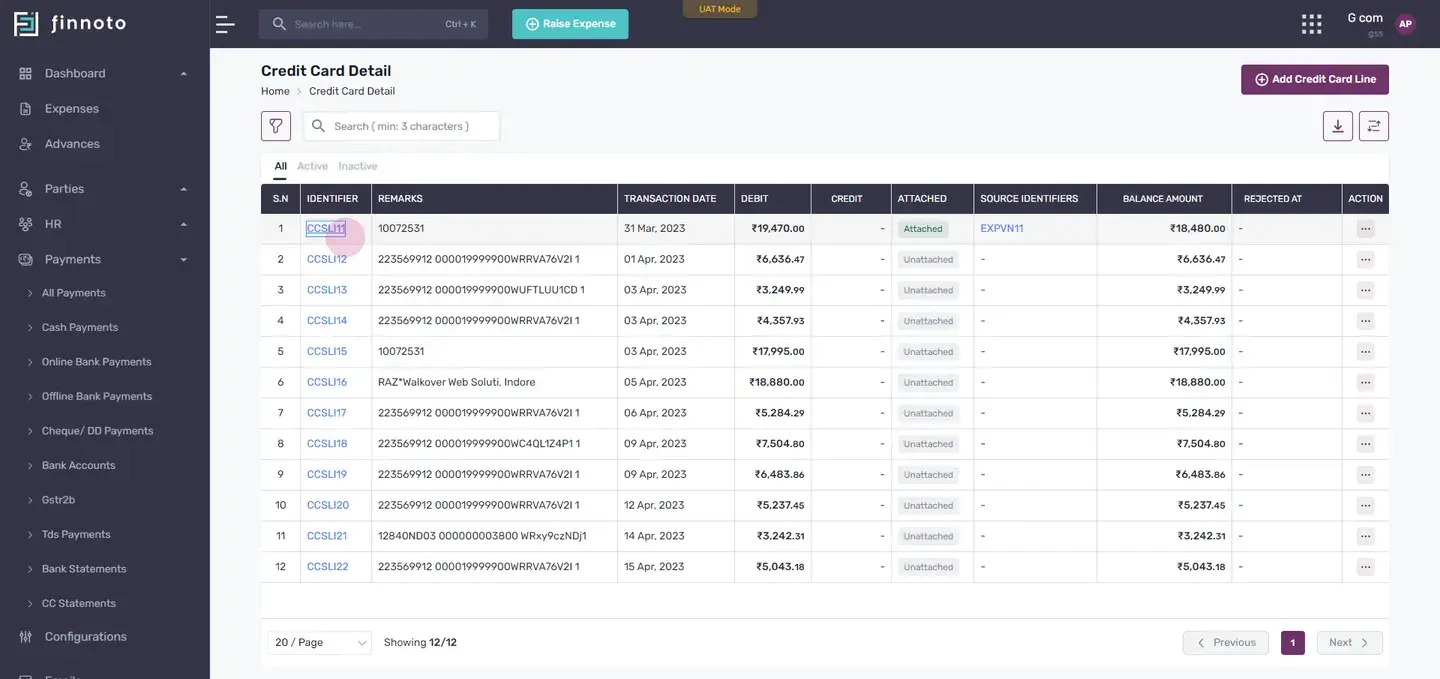
To download a uploaded statement, simply click on the file name under uploaded file column. Now, click on a particular identifier. This will show all the credit card line items. If any of the cc statement line is missed during the upload, simply add it with the 'add credit card line' option.
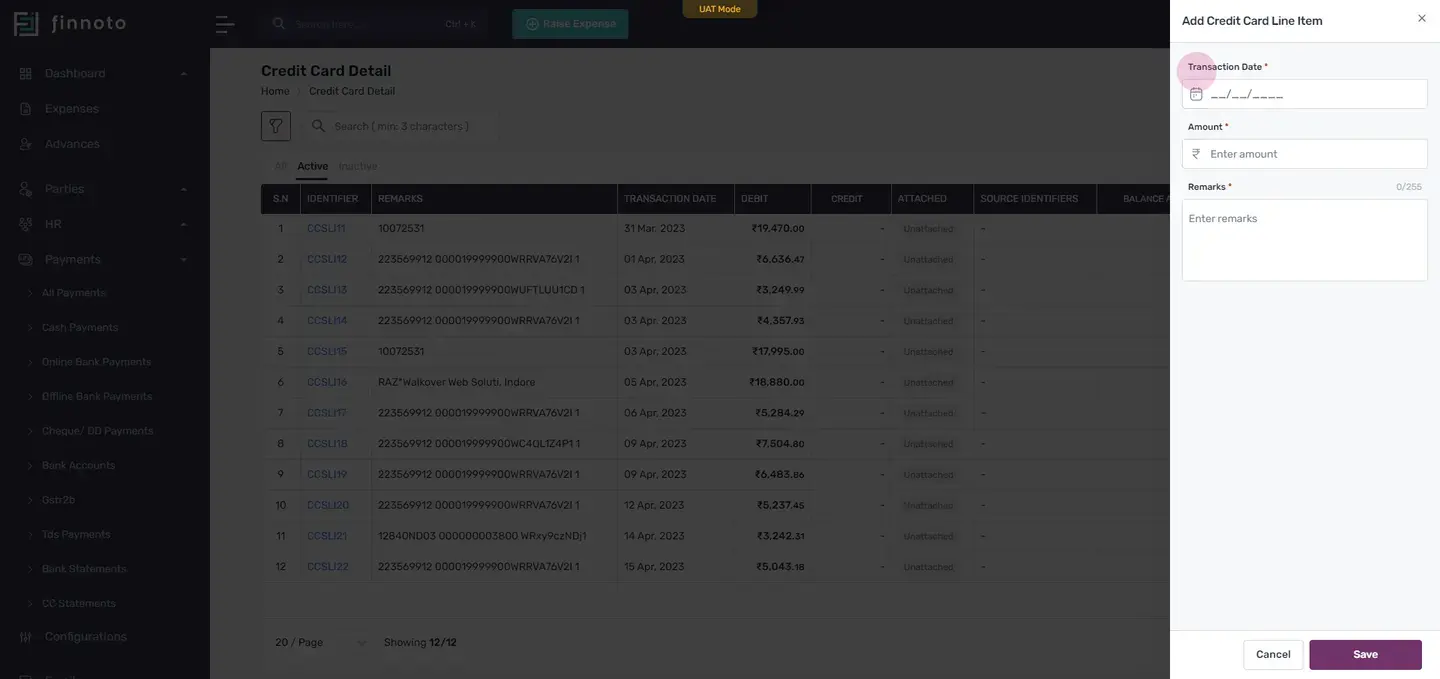
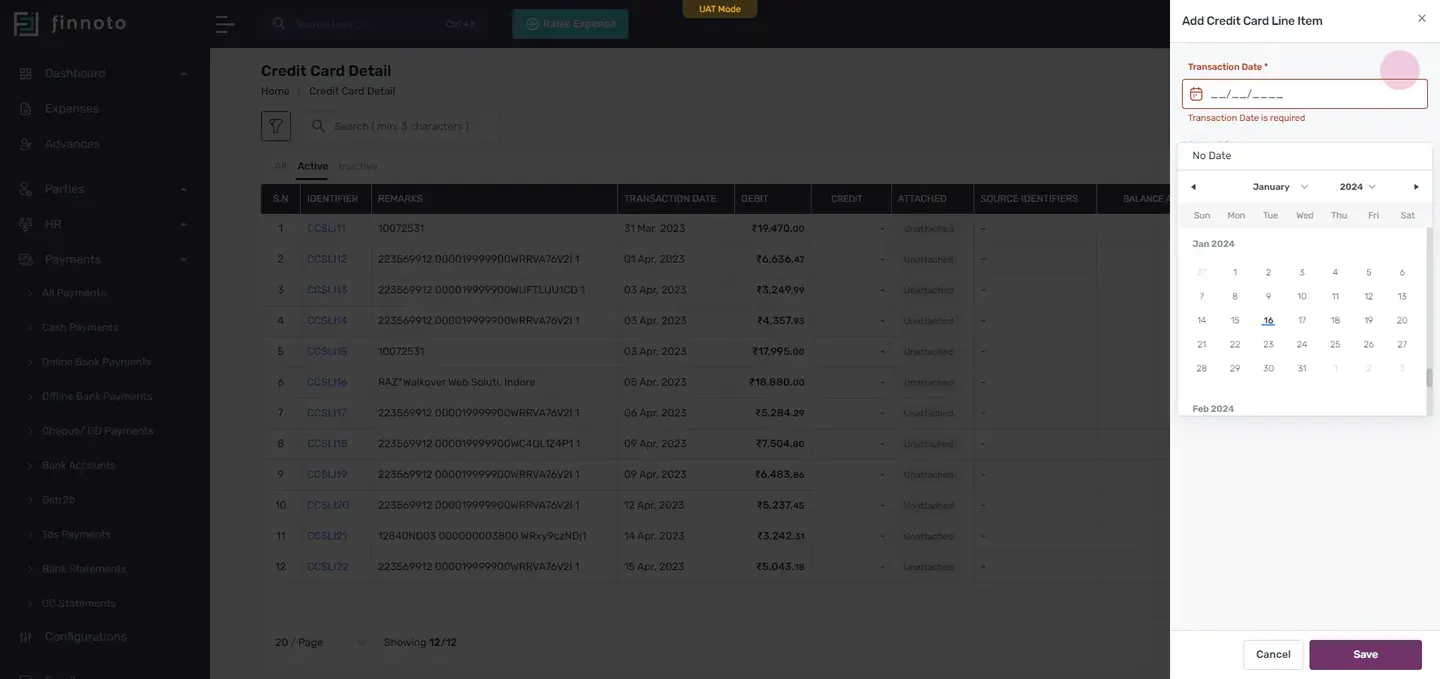
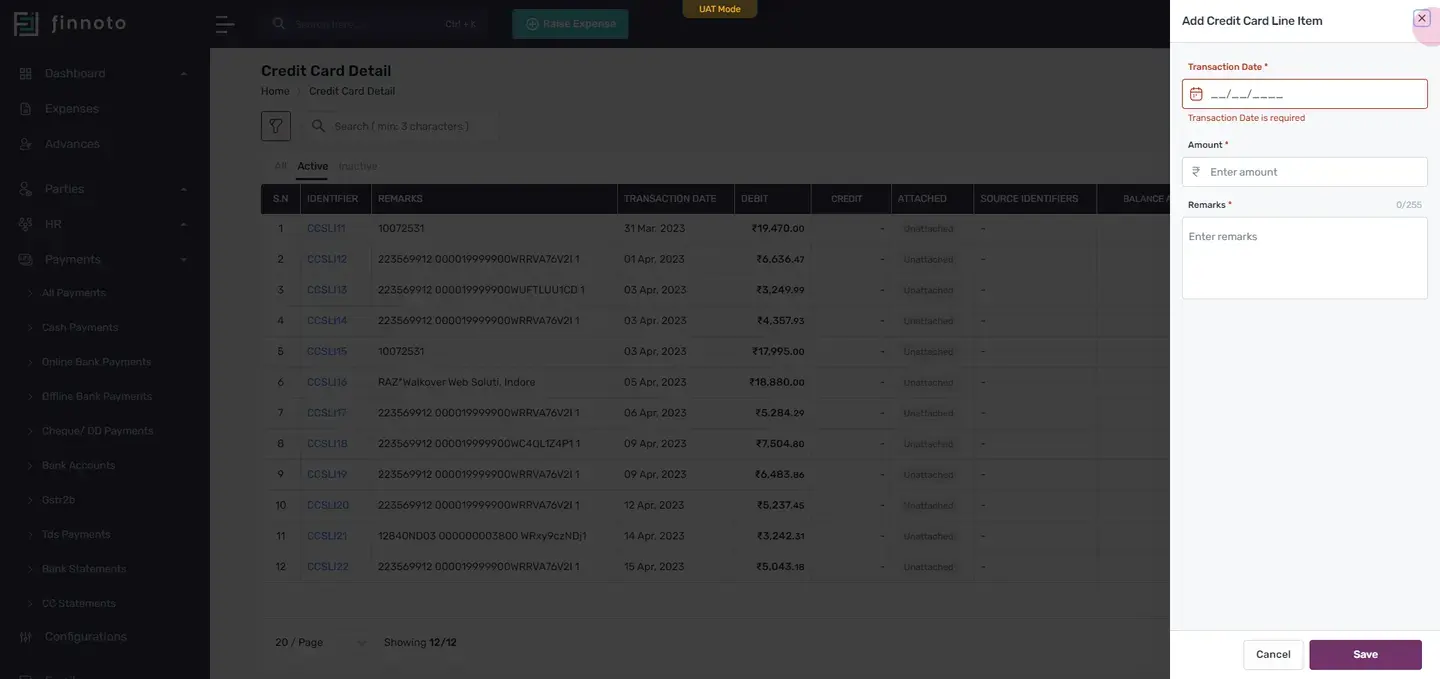
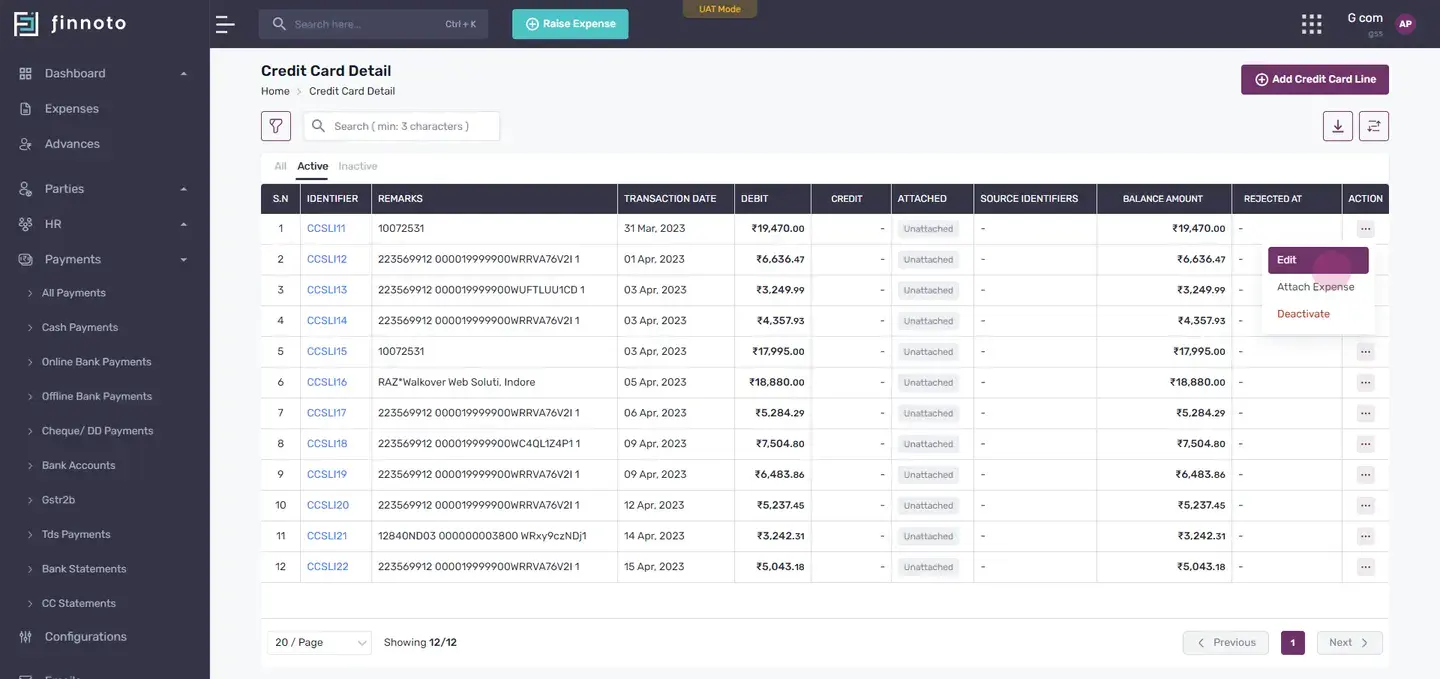
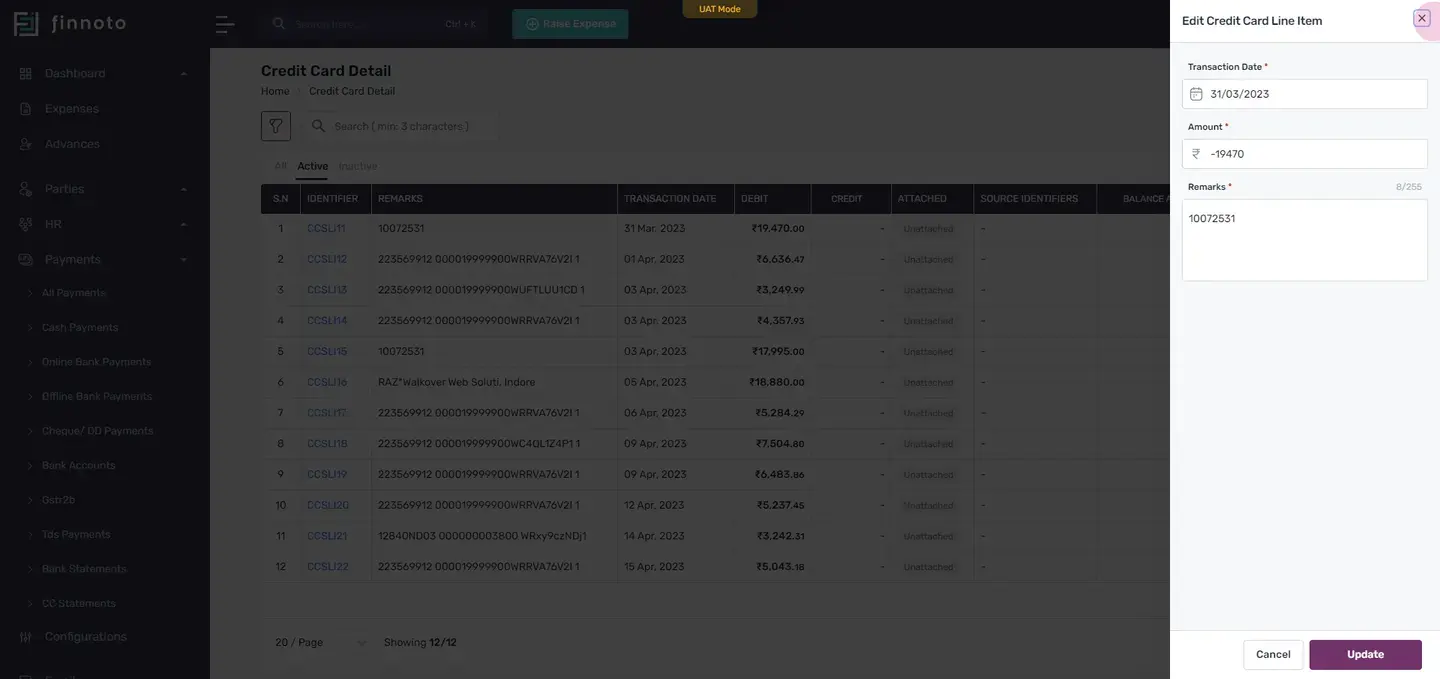
You do this by entering the transaction date, the amount, adding a remark and hit save. Your missing line item will be added in the list. Now the actions column gives you three options. First is to edit,You can edit the line item by entering the transaction date, the amount, and add remarks.
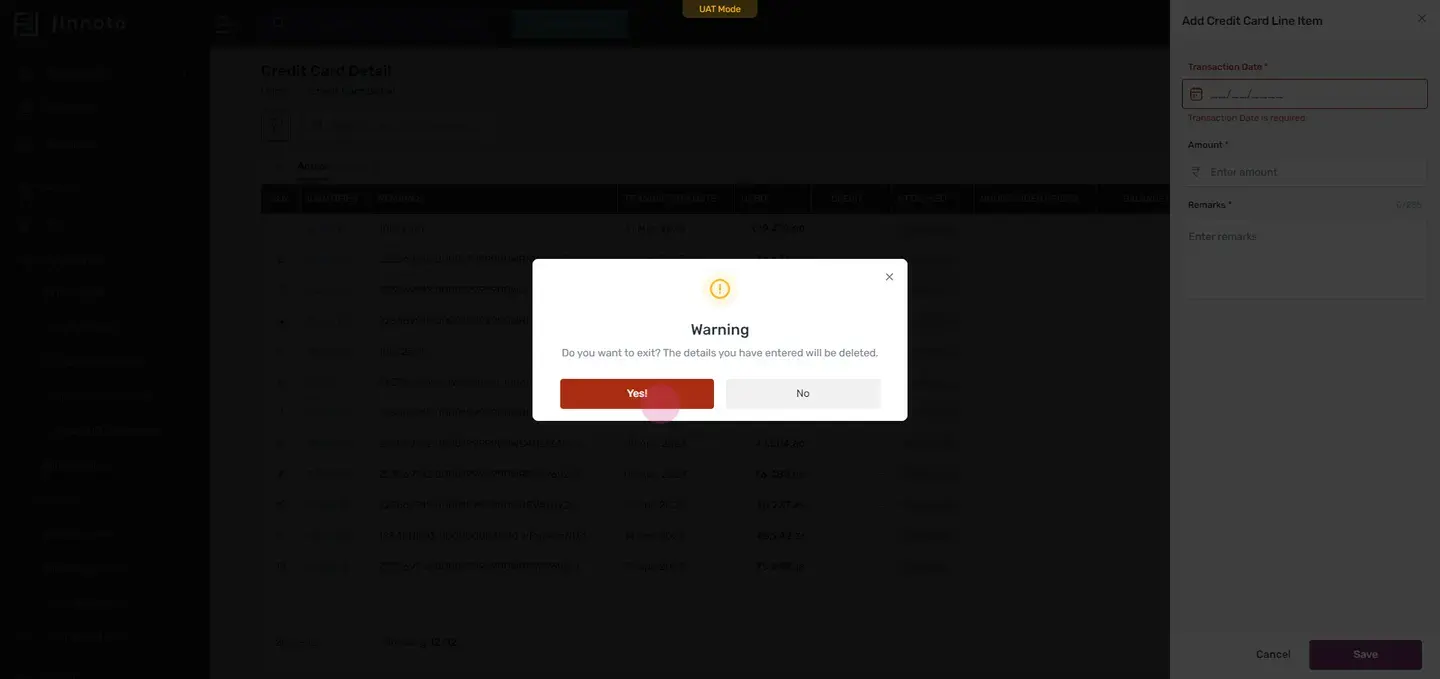
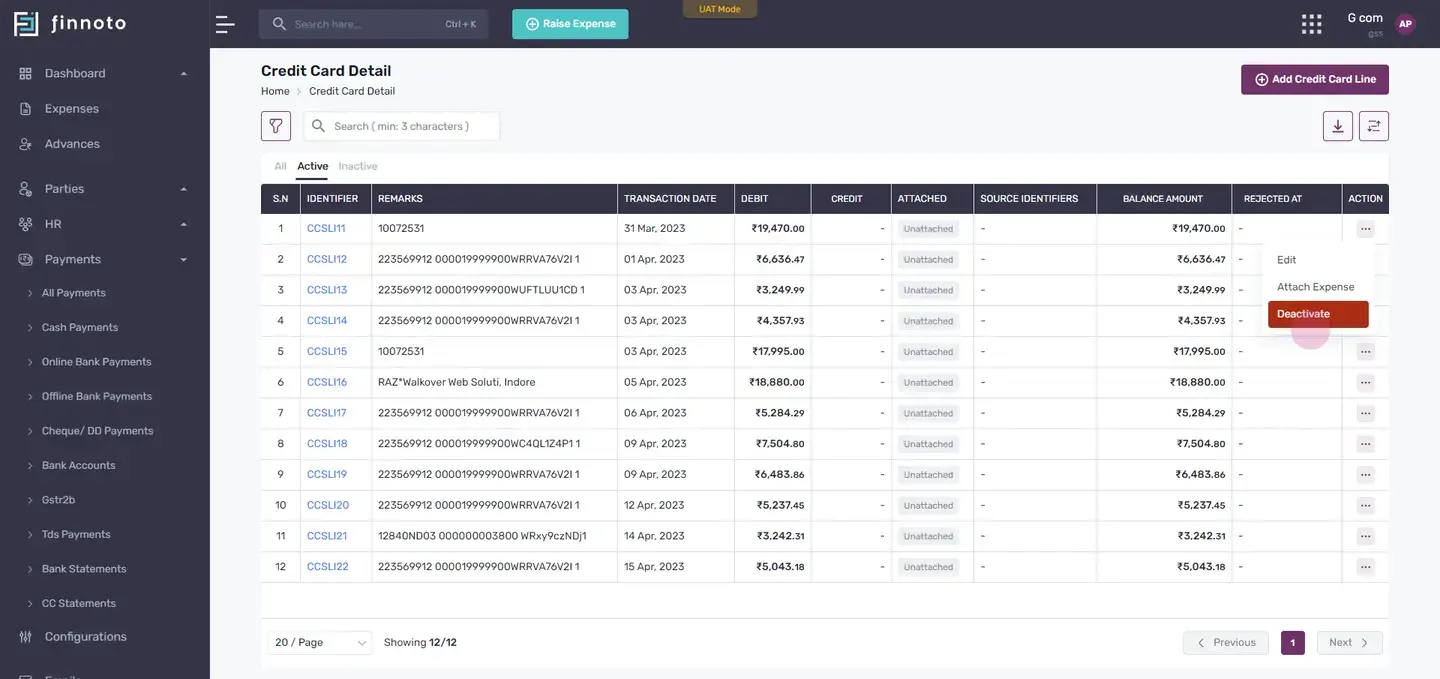
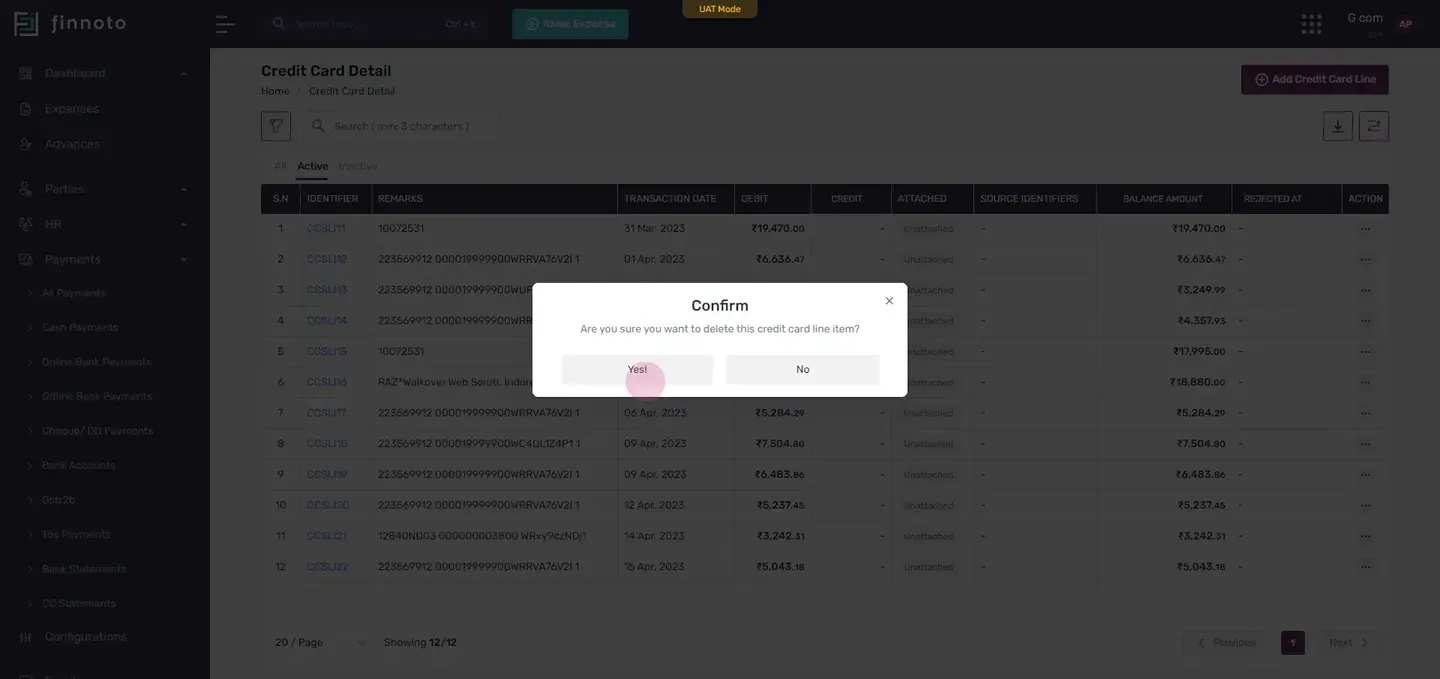
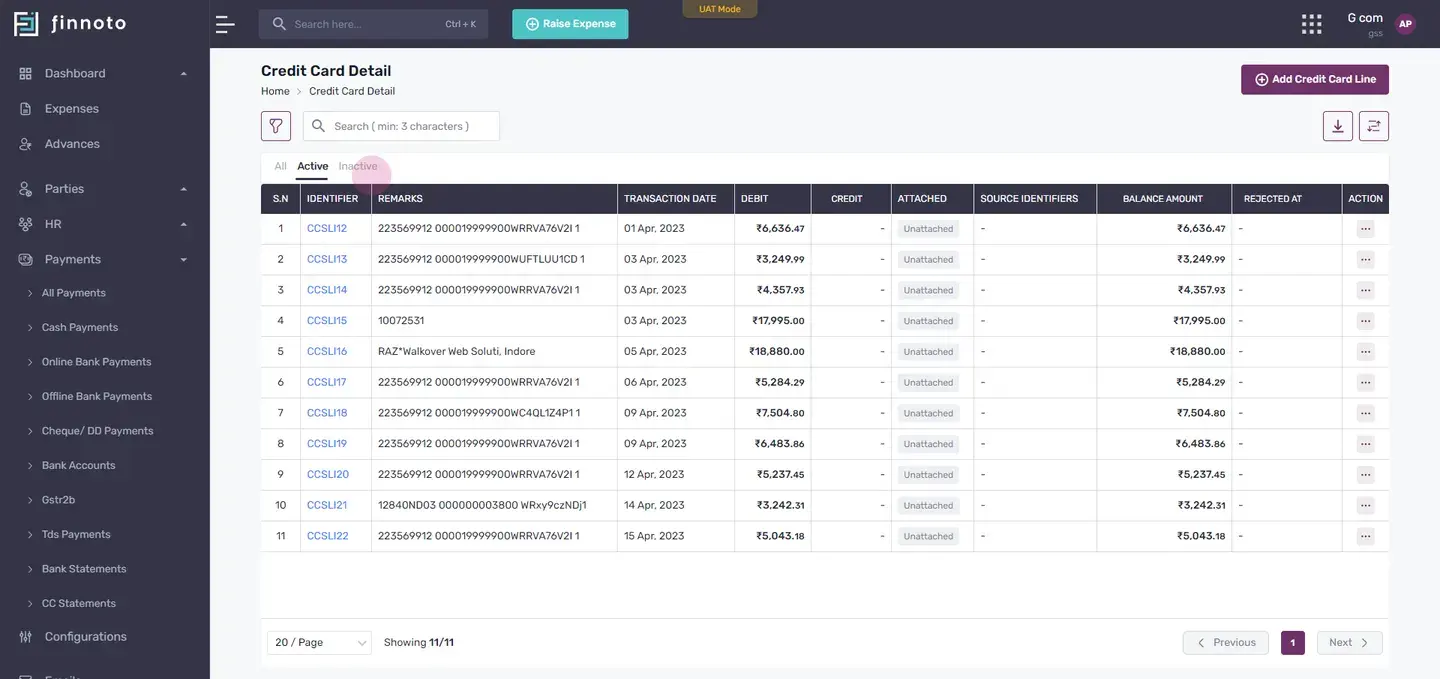
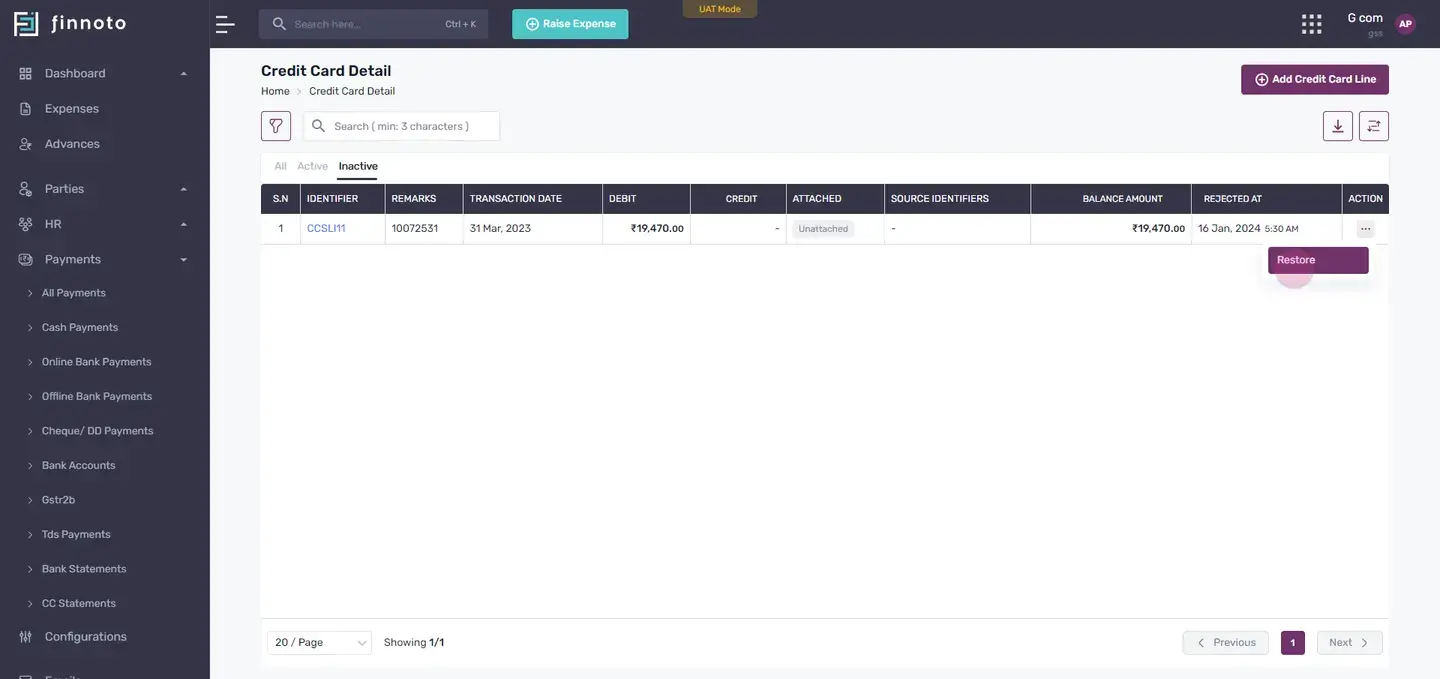
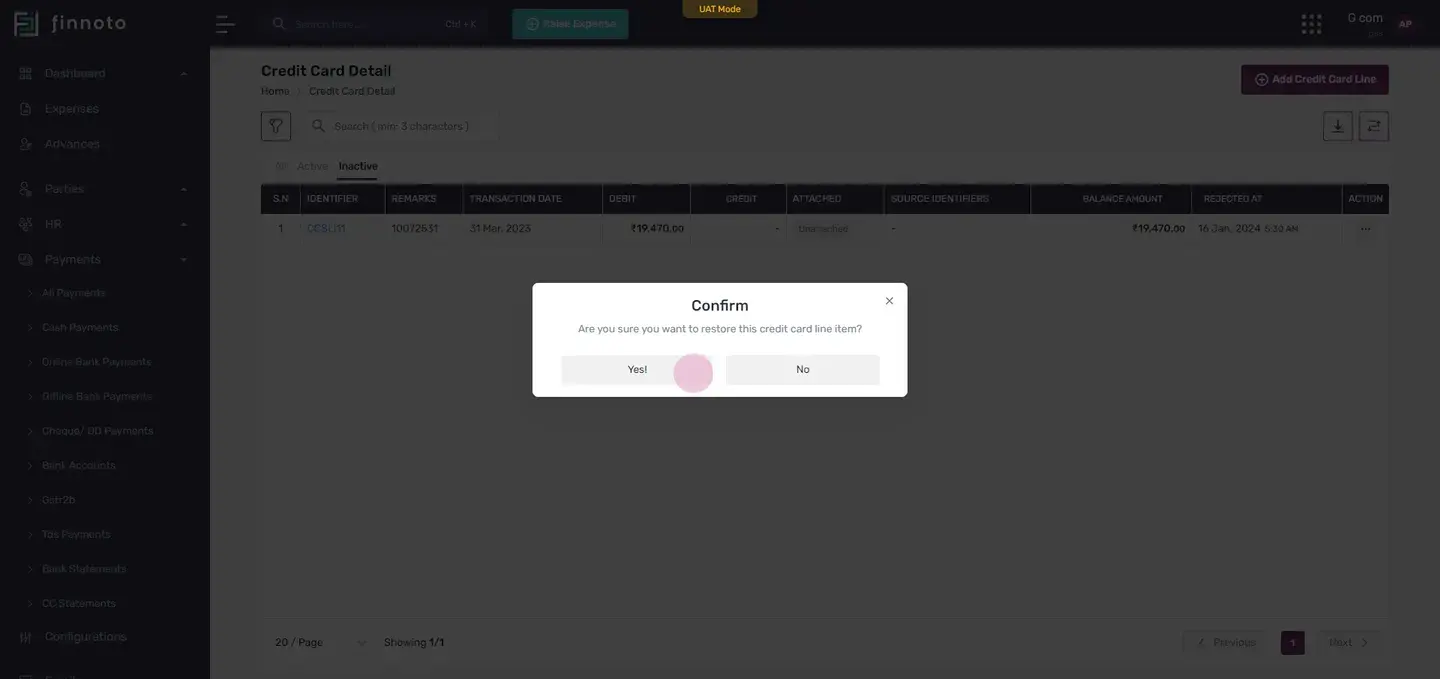
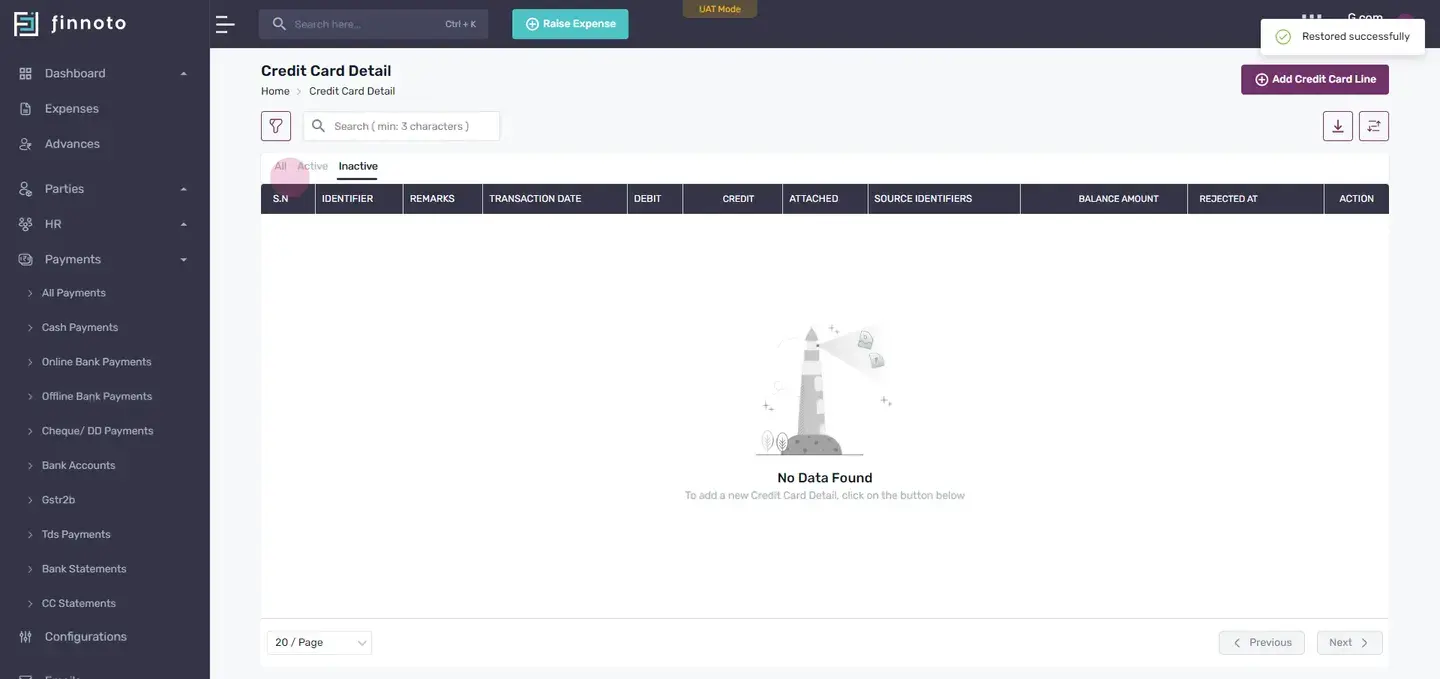
Once you're done, click 'update'. To deactivate a line, click on 'deactivate'. This moves the line to the inactive tab. To restore a deactivated line, click on 'actions', then 'restore'.
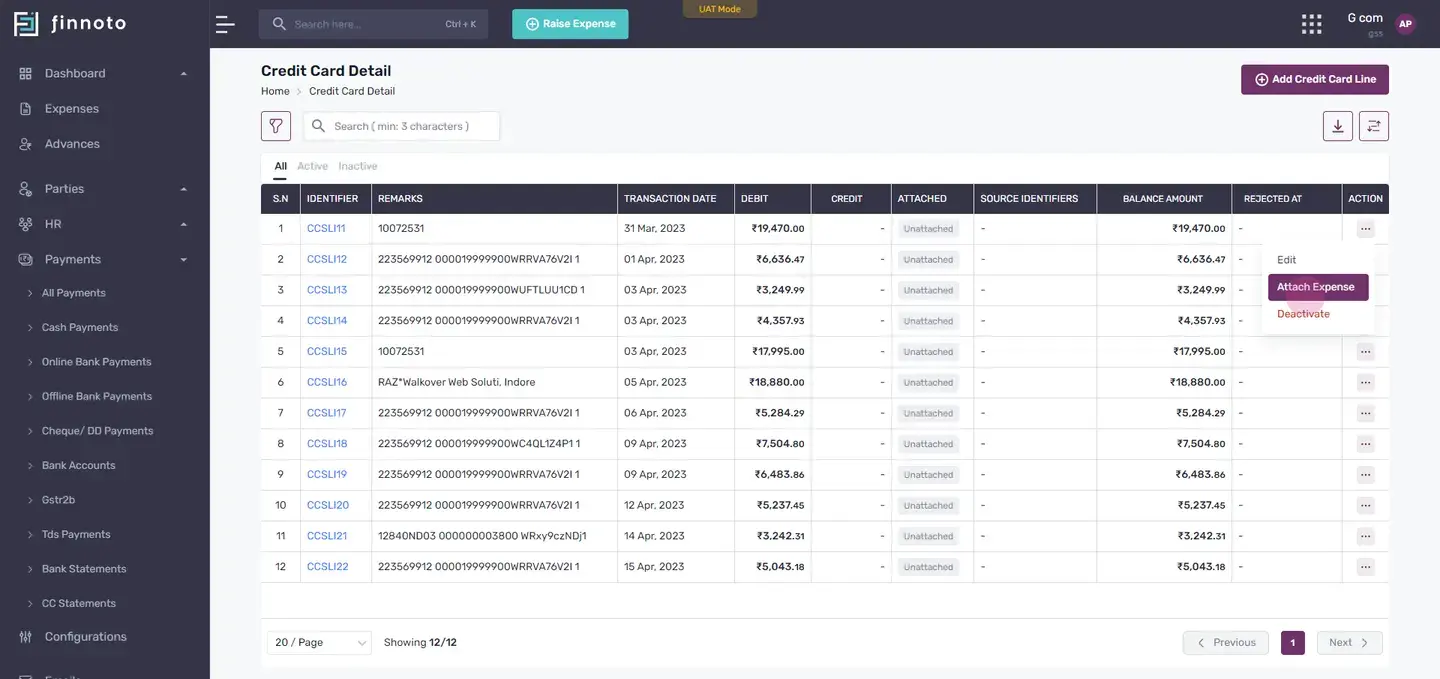
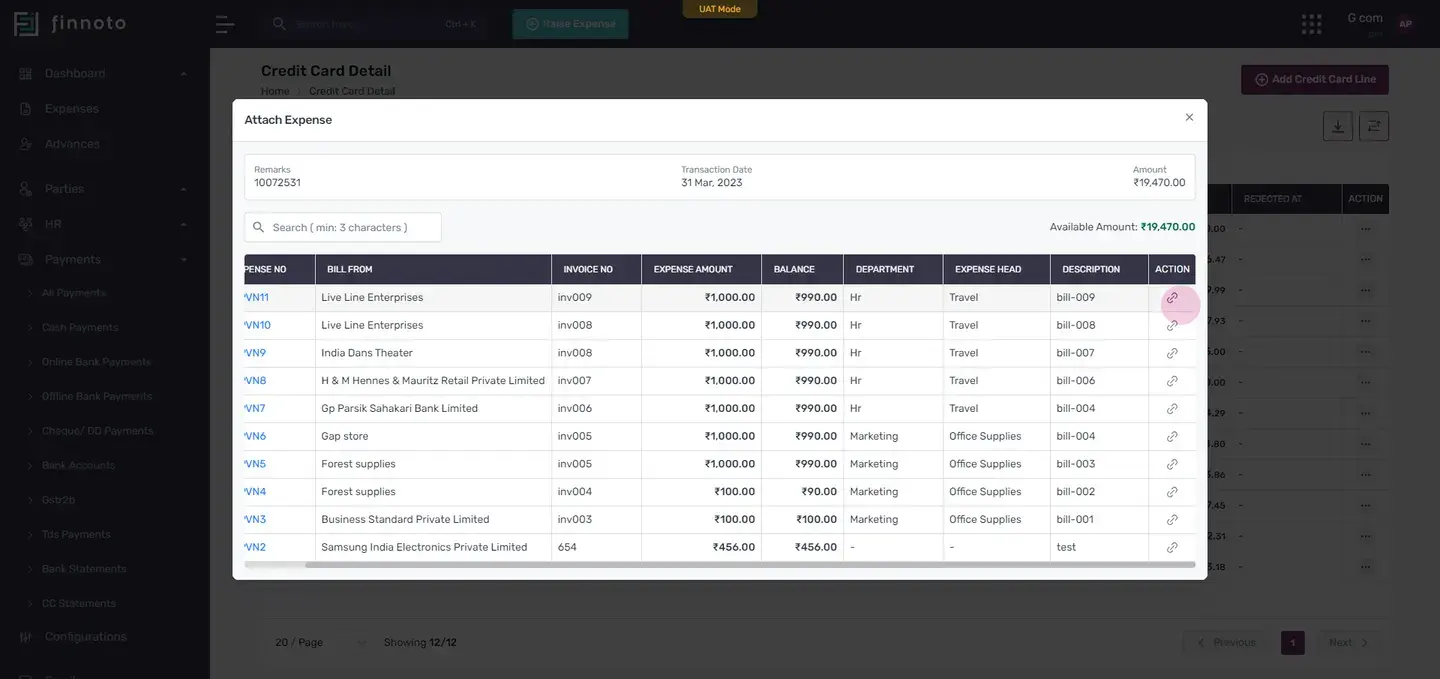
Now, if you wish to attach an expense to a cc line item, click 'attach expense'. This will display the remark, the transaction date, and the amount for the selected credit card line item. You can search for an expense number using the search bar. To attach an expense, click on the actions button, then click 'attach'.
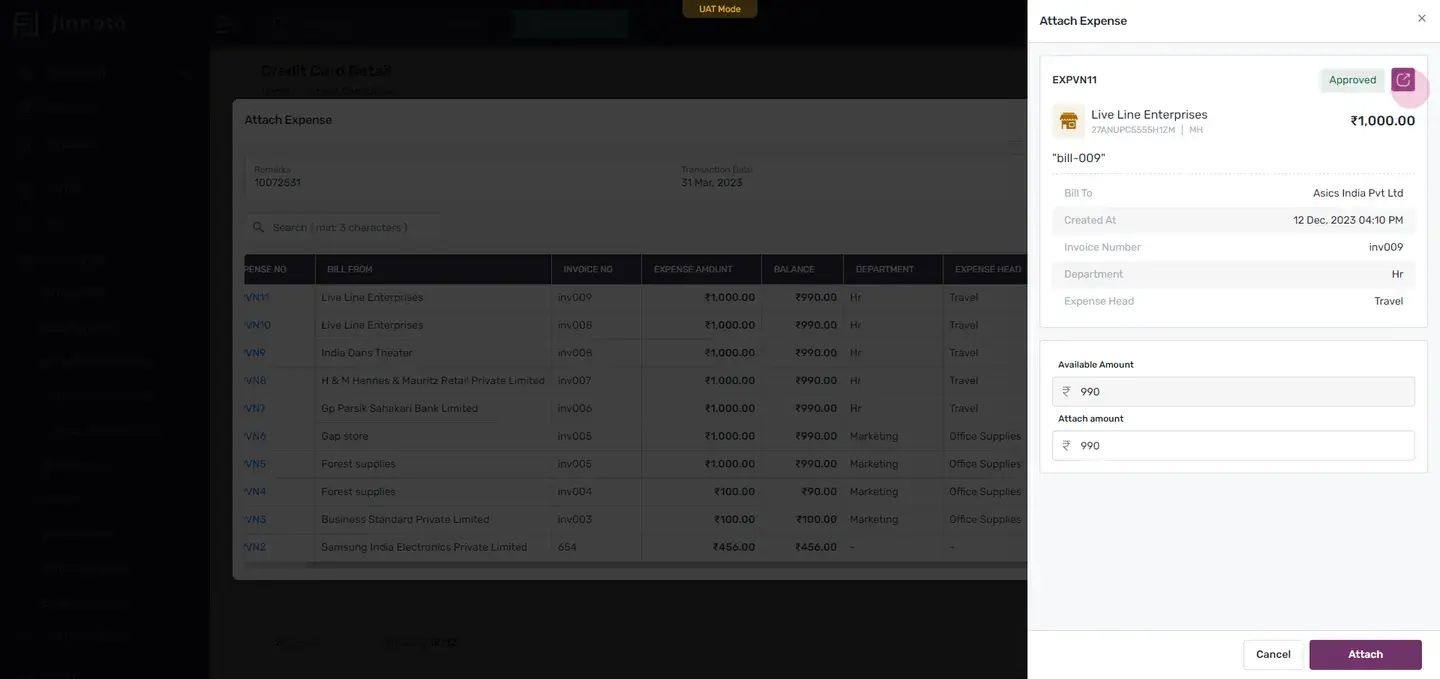
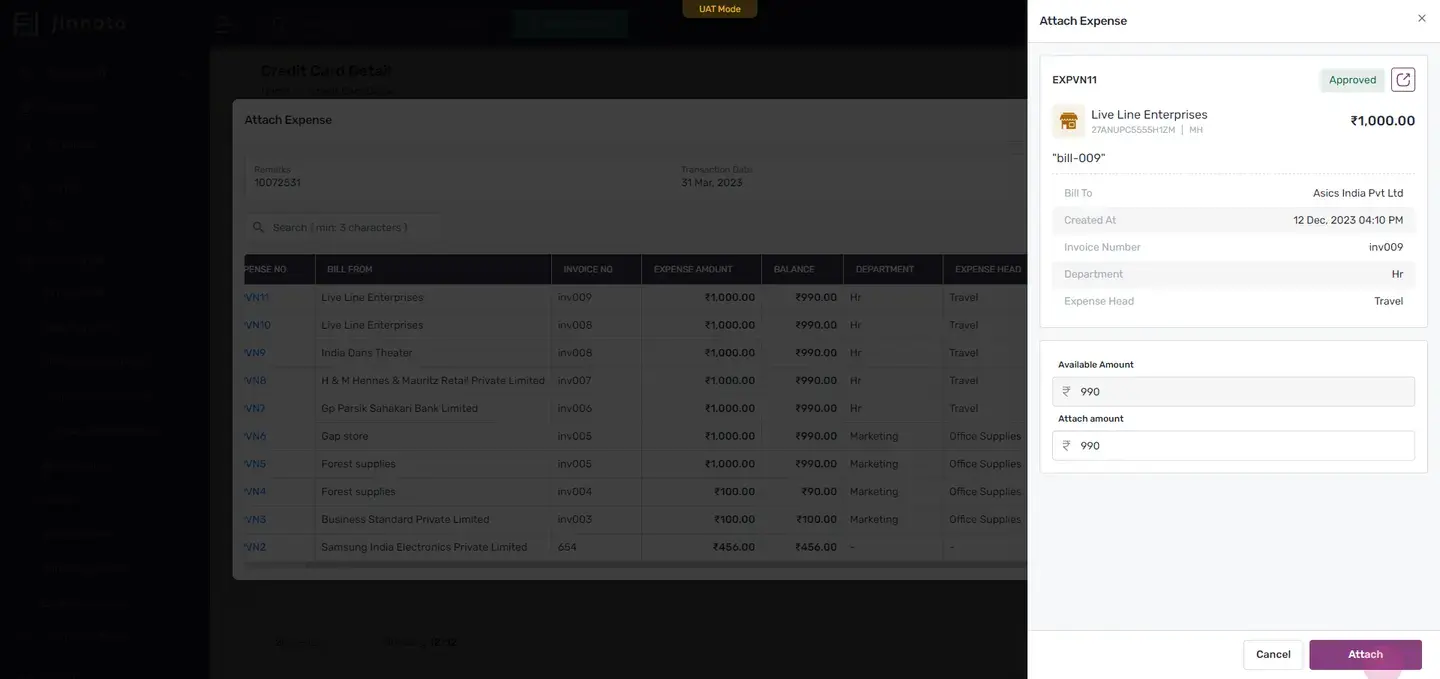
This will display the details of the expense. If you want to view more details about the expense, click on navigation icon. The balance amount of this expense is nine ninety. You can use it to attach it to the credit card.
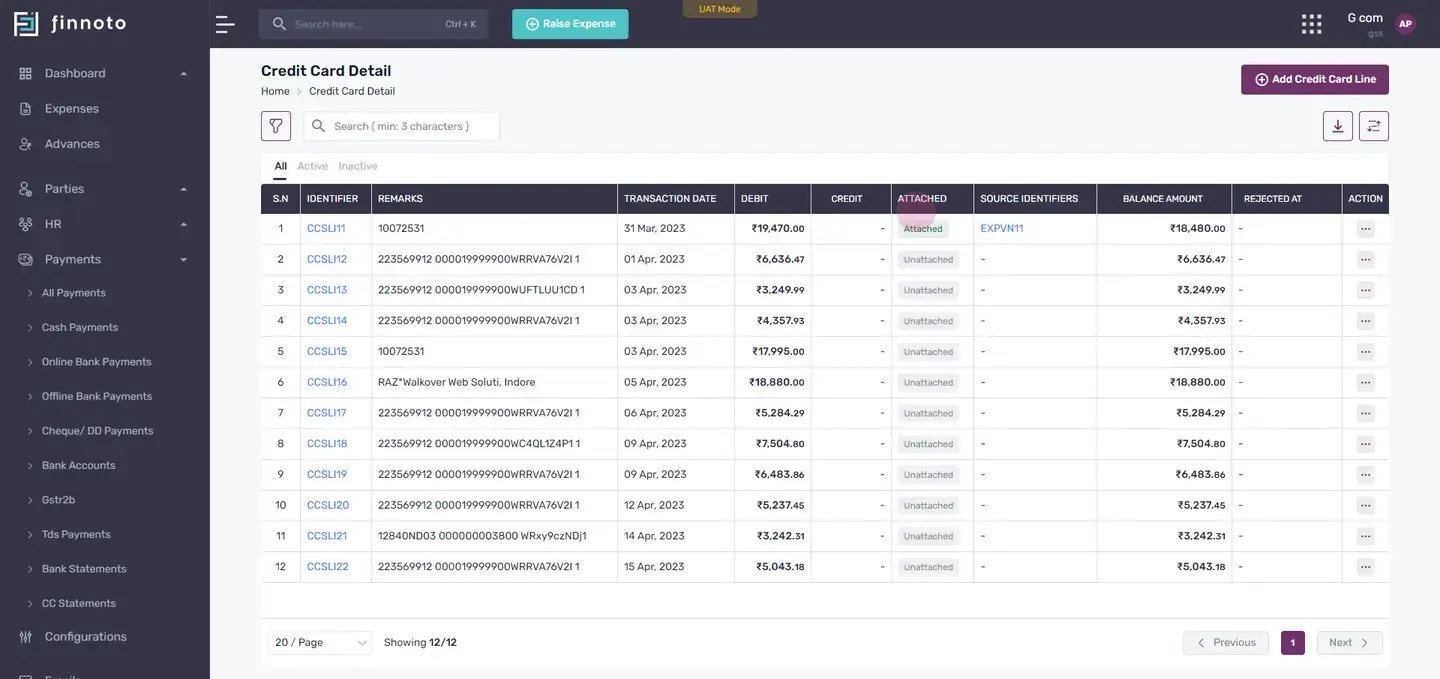
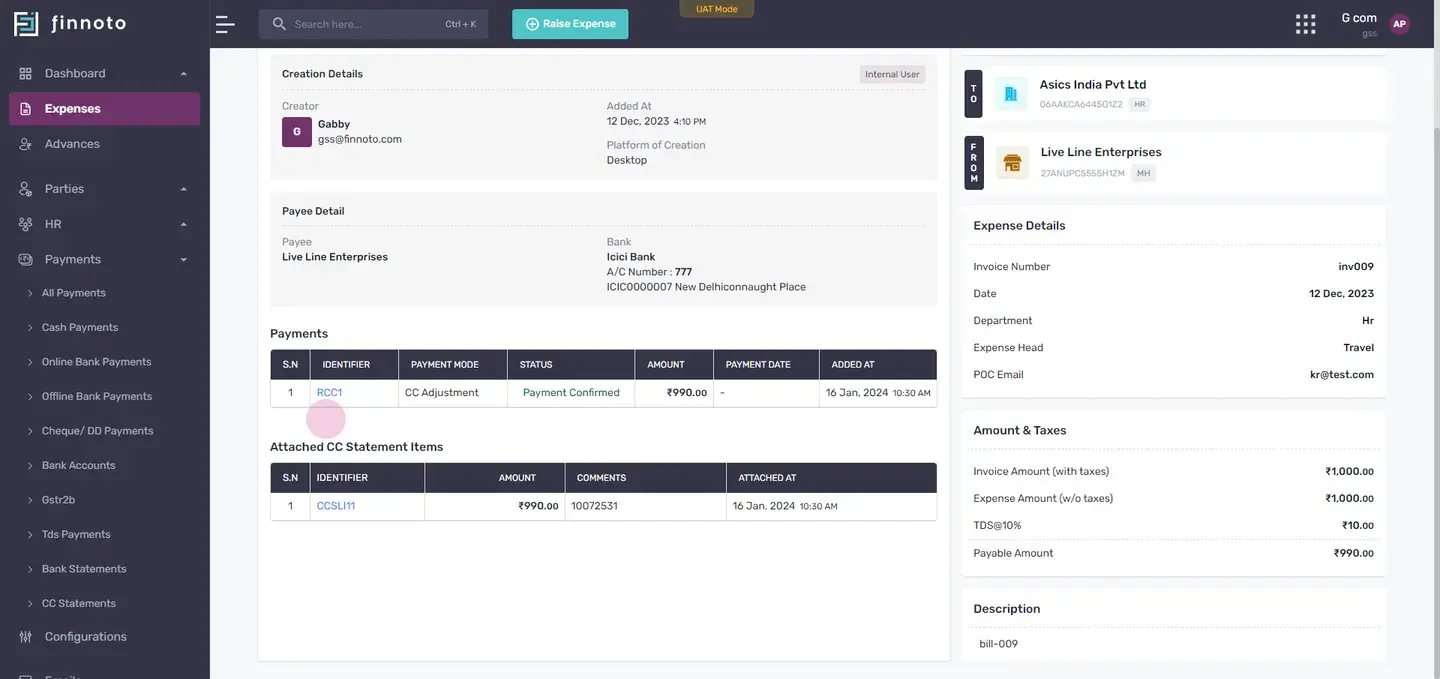
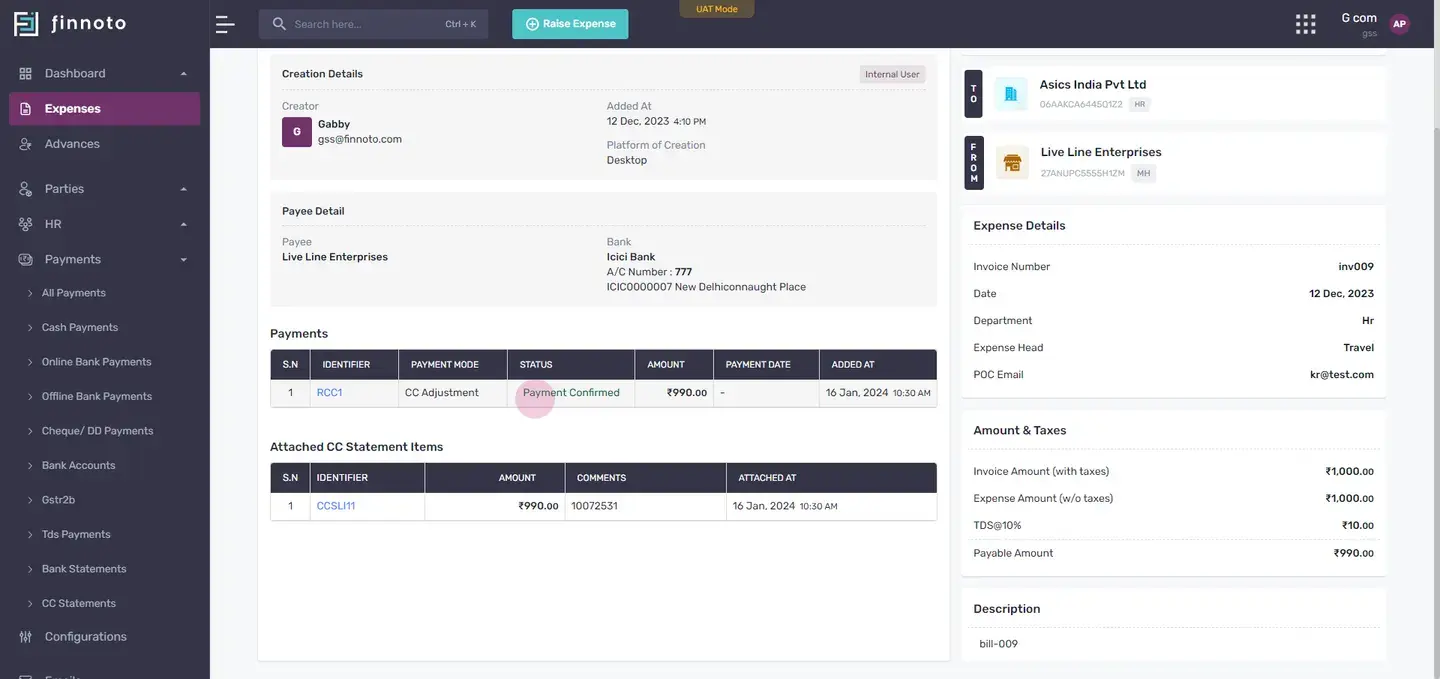
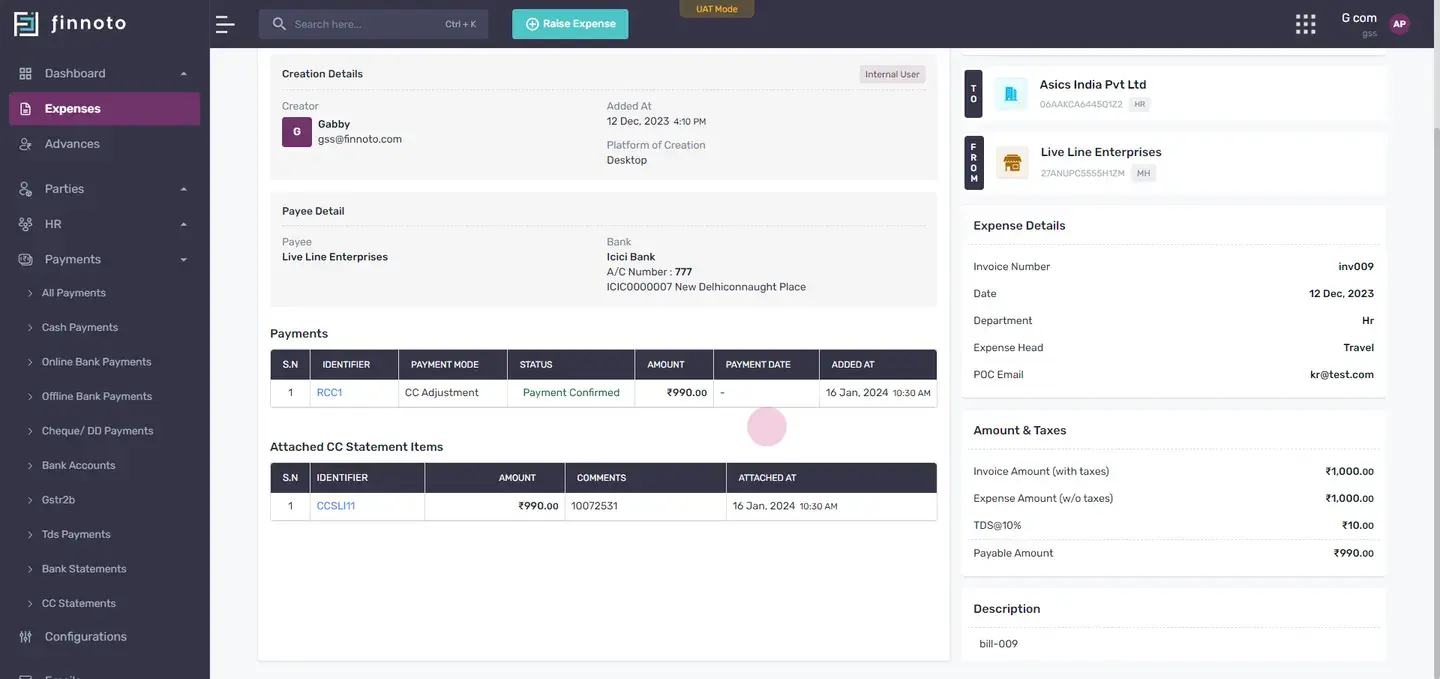
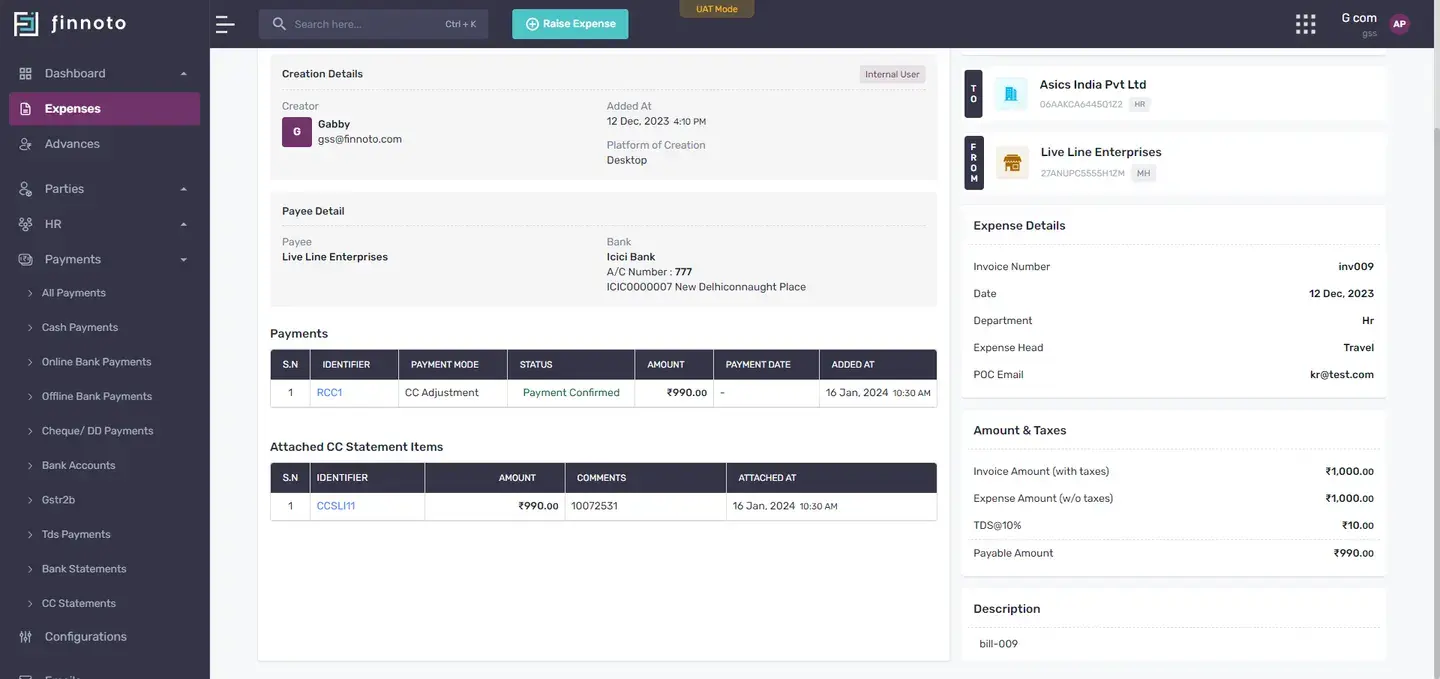
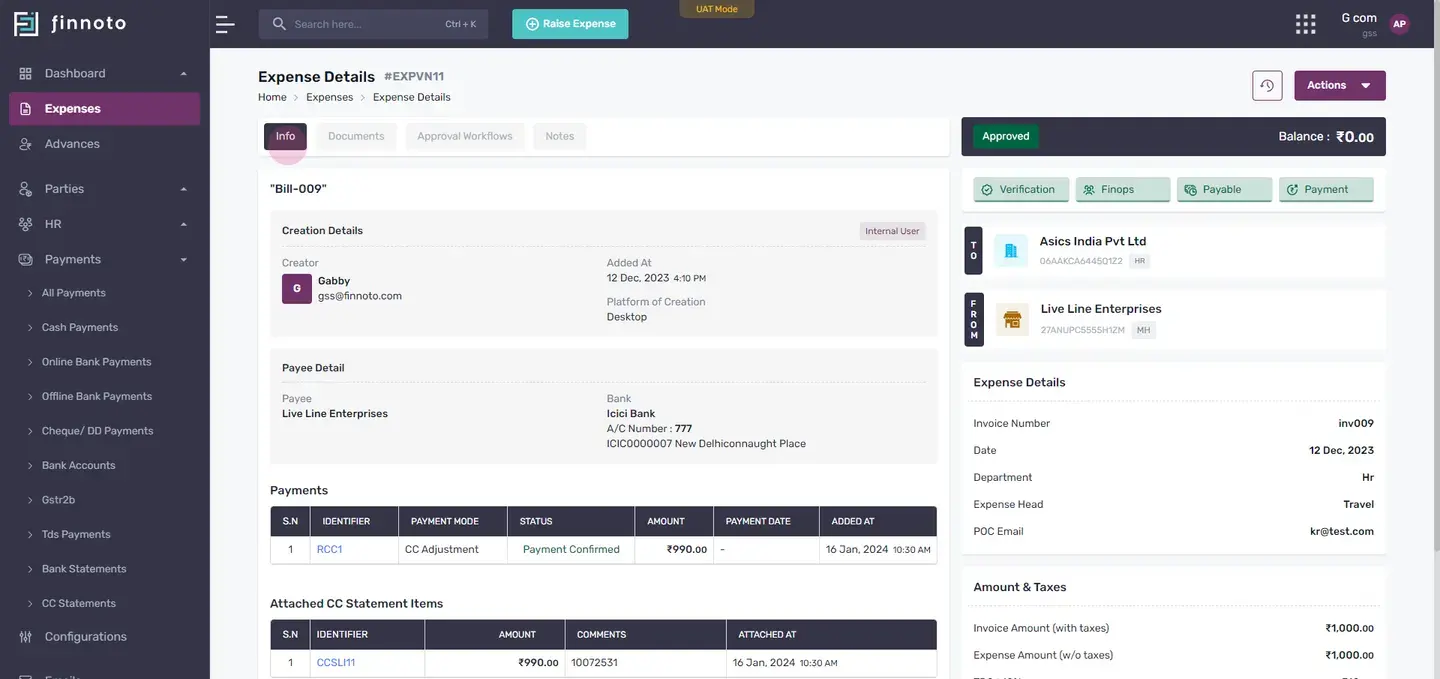
Once attached, the 'attach' column will show an 'attached' tag, and the identifier of the expense will appear in the source identifiers column. Clicking on it will show the expense detail. Clicking on navigation icon will redirect you to the expense page. Here, you can see that is this expense issettled, the balance is zero, and in the payment section, you can see the receipt number, payment mode, status, and other details.
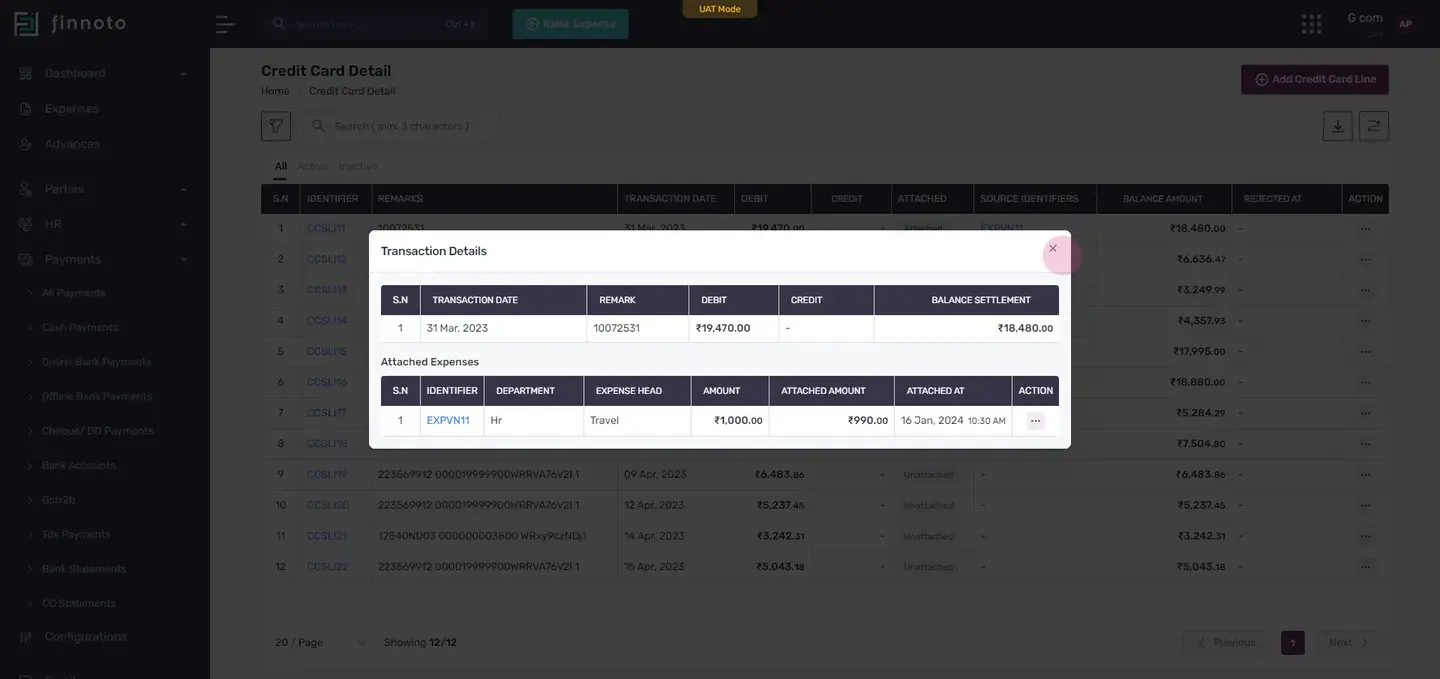
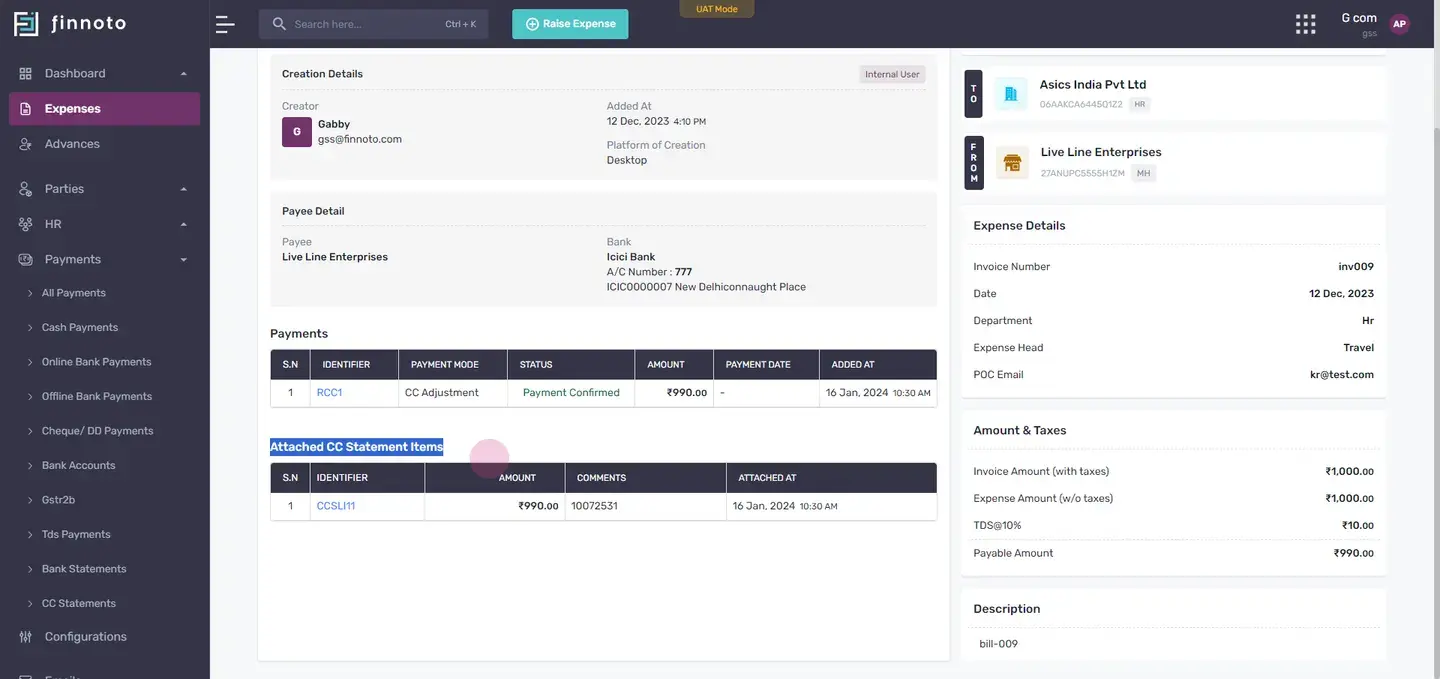
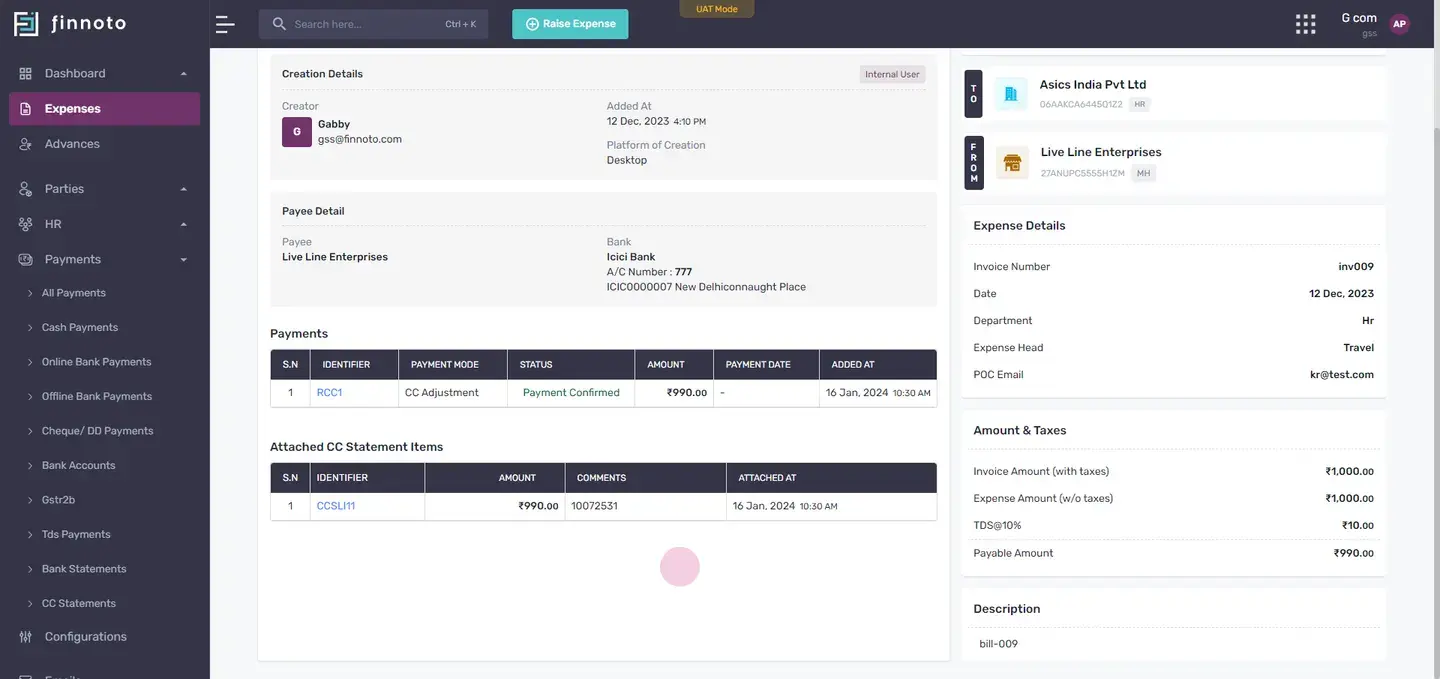
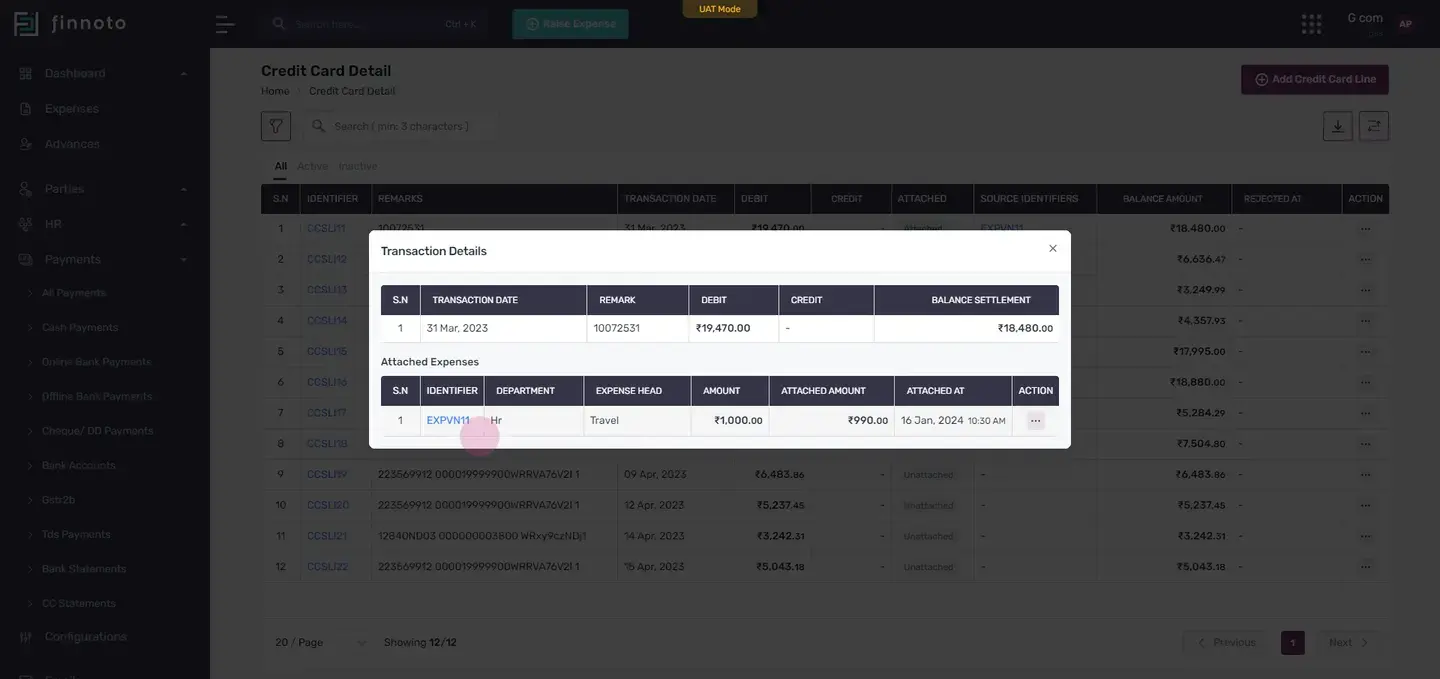
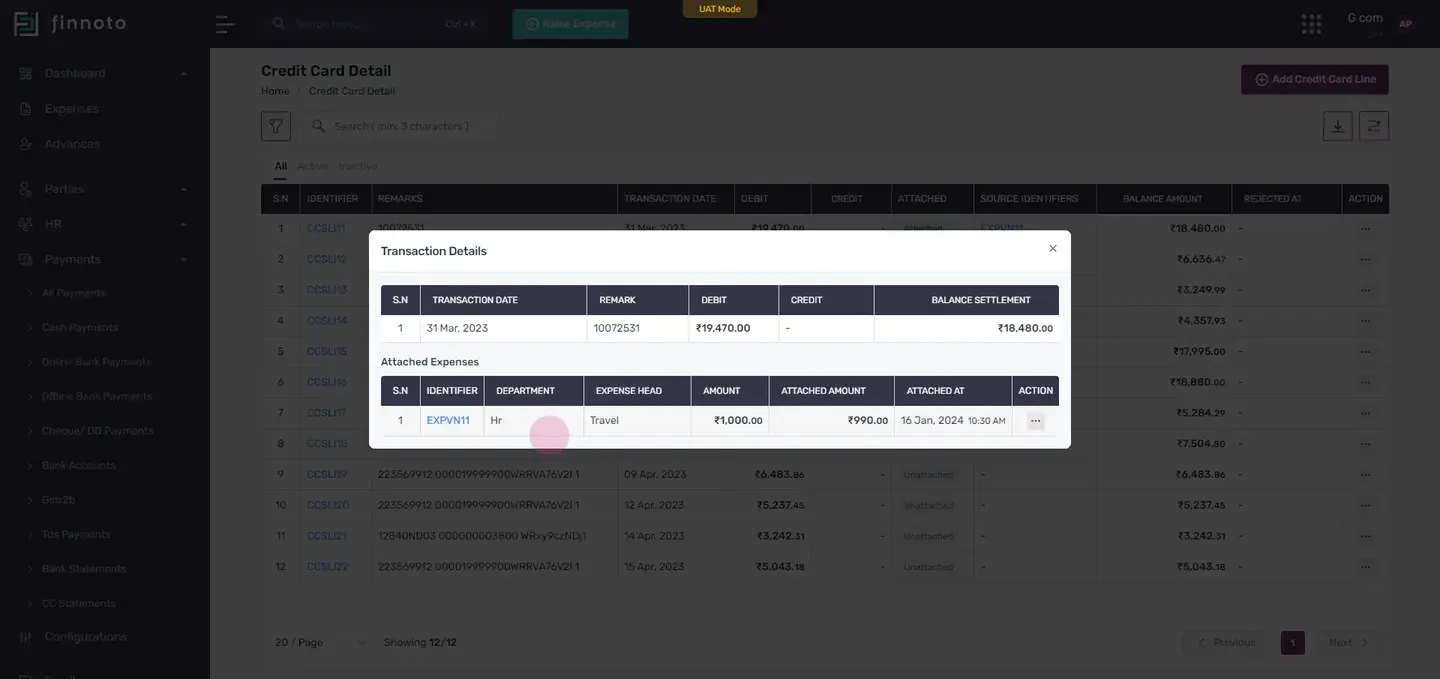
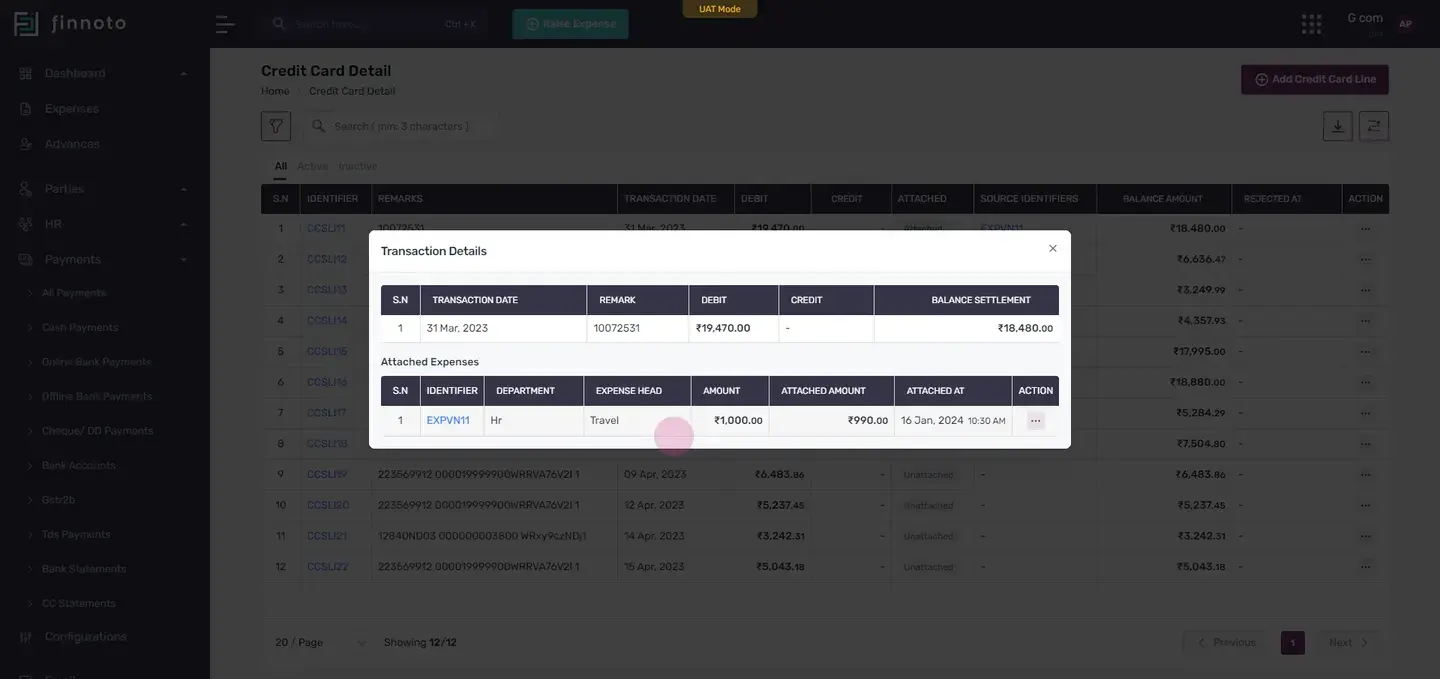
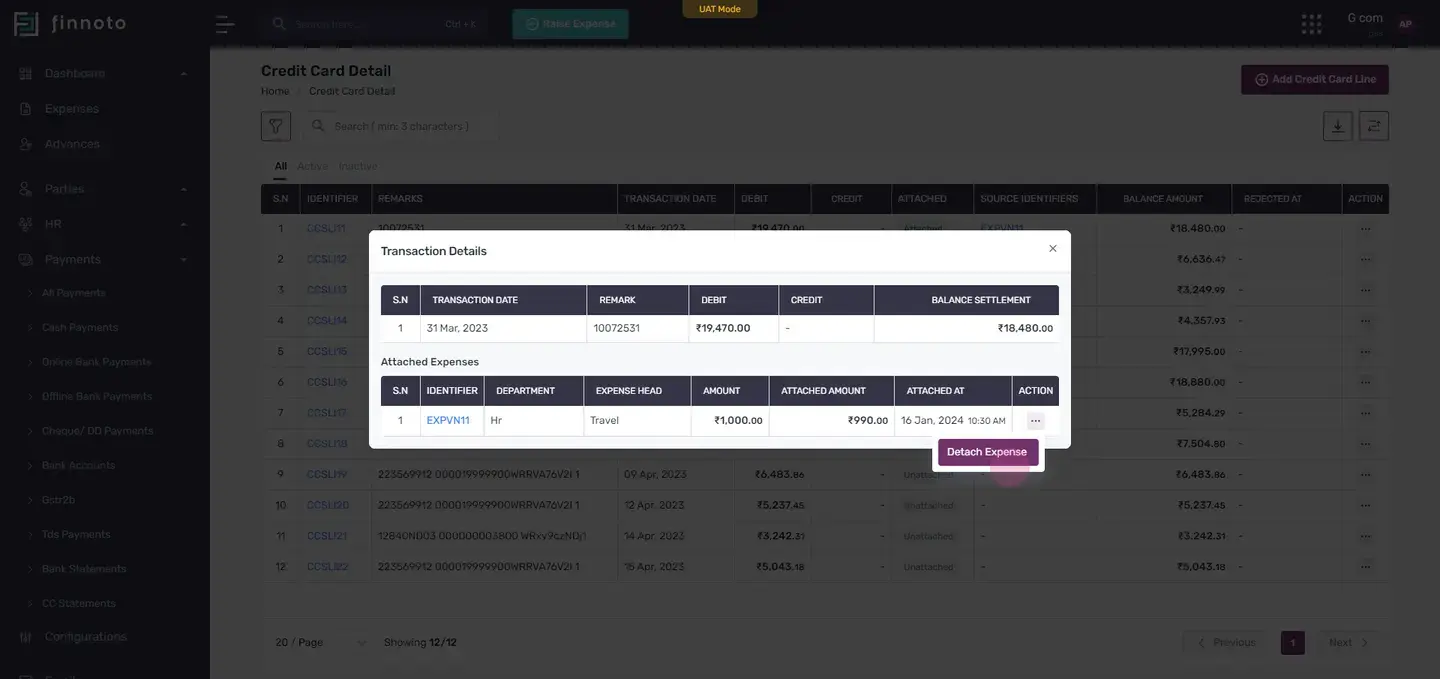
The attached cc statement section will show the identifier of the credit card line item attached. Clicking on the identifier of the credit card line item brings up the transaction details, such as the expense number, department, expense head, amount, time of attachment, and the attached amount. If you need to detach an expense, click on 'actions', then hit 'detach expense'. That's it for now.
We hope you find the credit card statement feature on Finnoto useful. Thanks for watching.
Welcome to our latest guide on a powerful new feature within Finnoto software - credit card settlements. This allows you to easily attach expenses related to transactions made through your credit card. Let's delve into the details of how to use this feature.
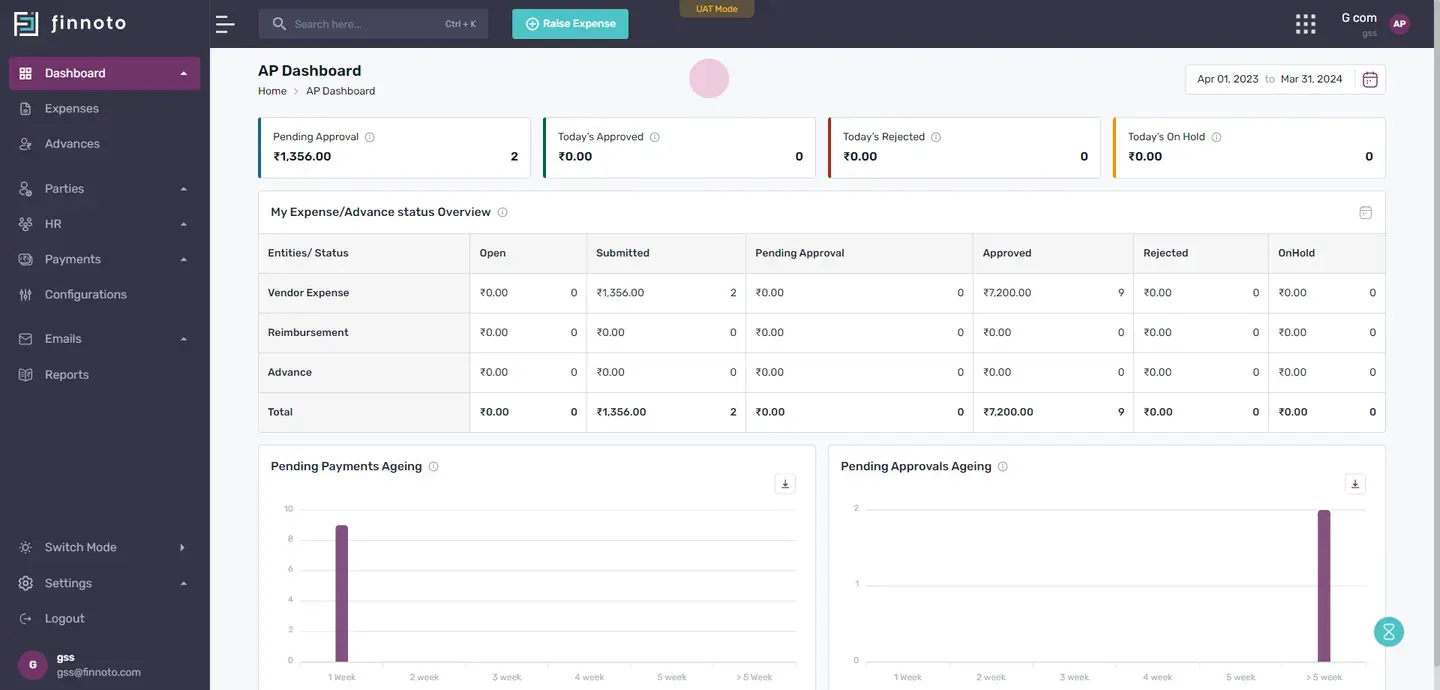
To begin, navigate to the payments menu.
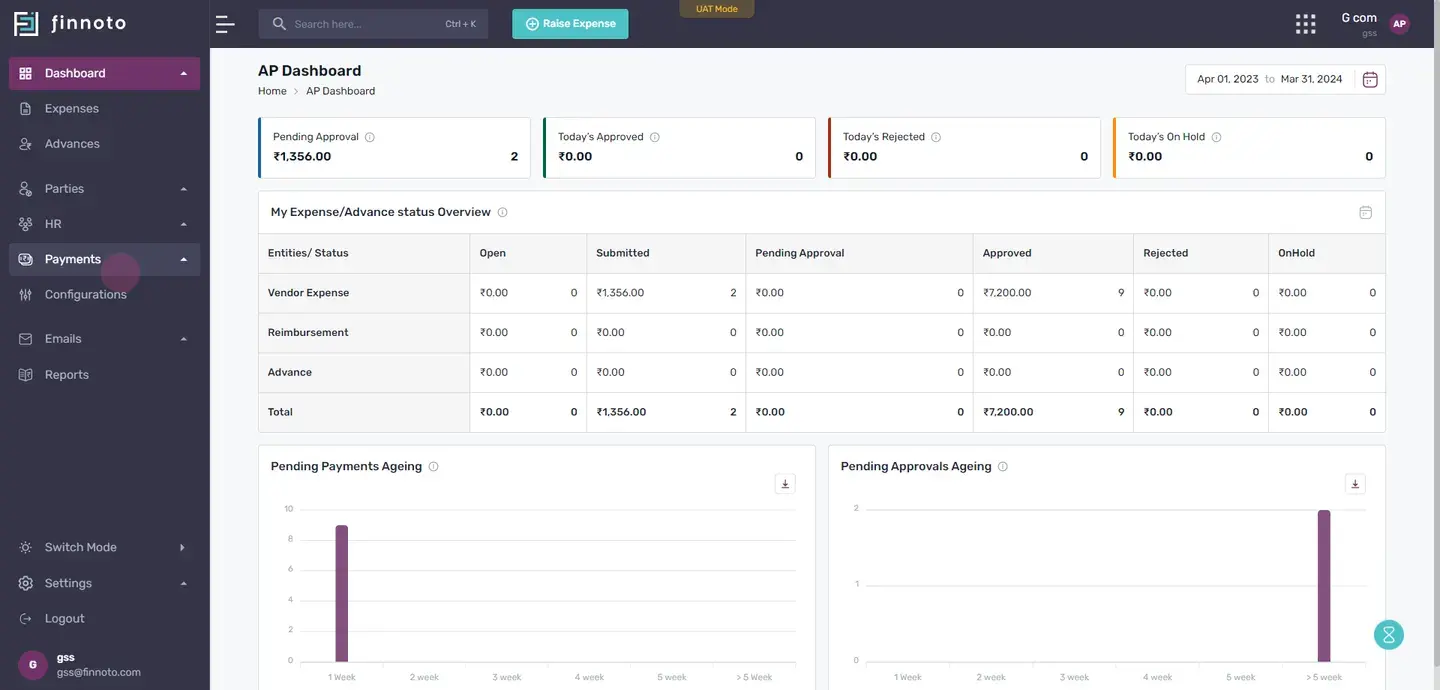
From the payments menu, select the option for 'cc statements'.
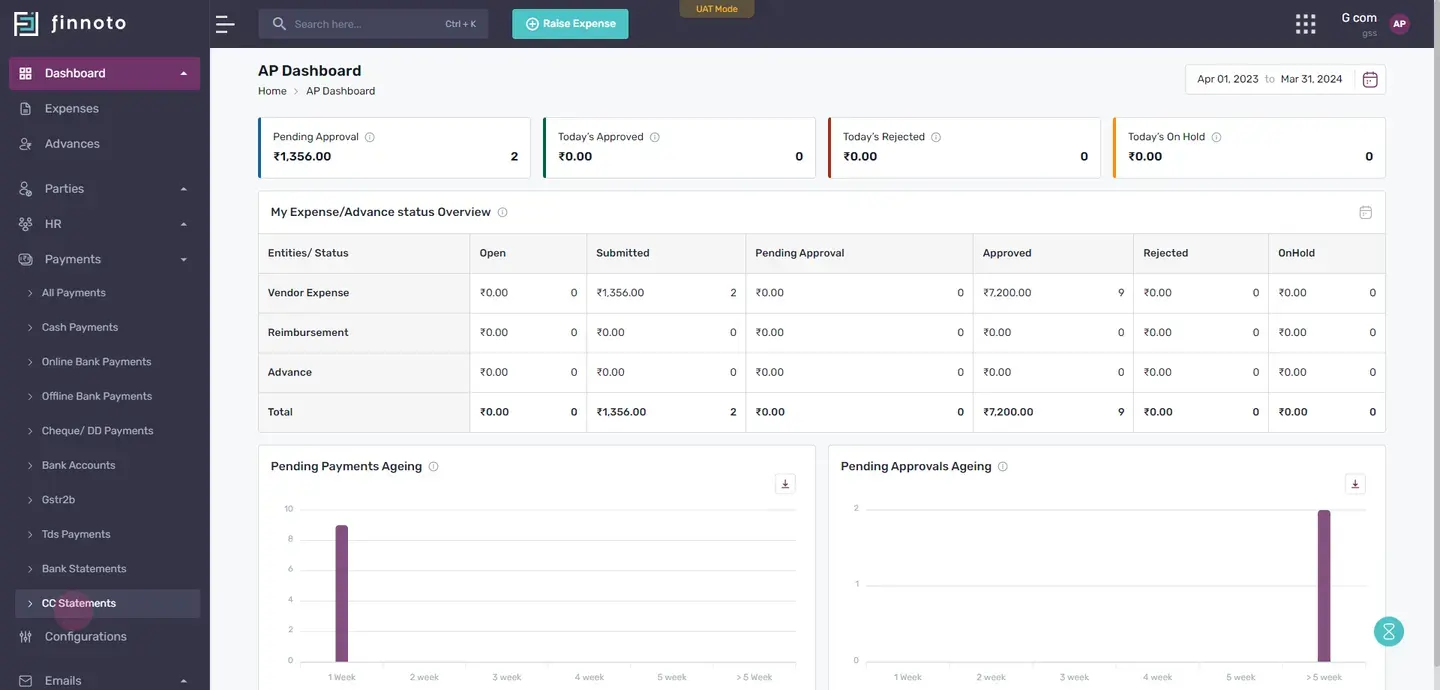
On this page, you can view all uploaded credit card statements. To add or upload a new credit card statement, click on the 'add cc statement' button located in the top right corner.
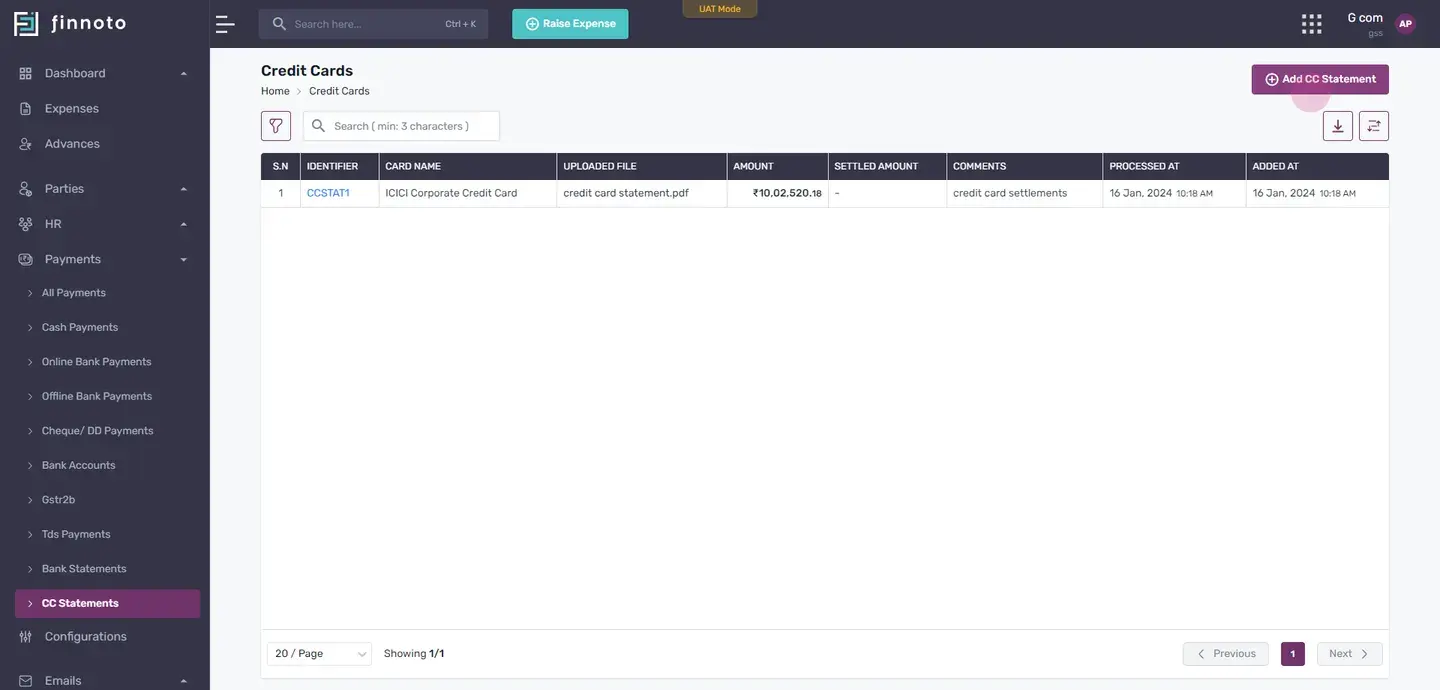
In the form that appears, select 'credit card'.
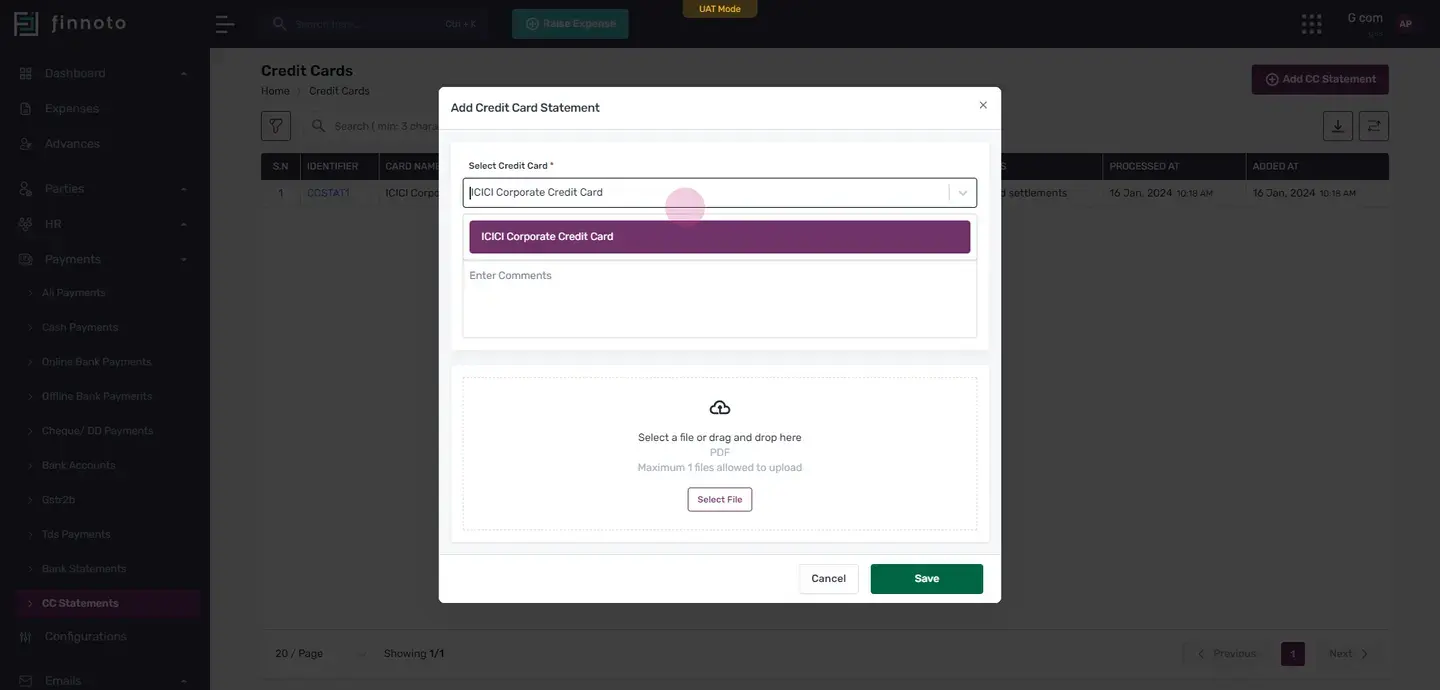
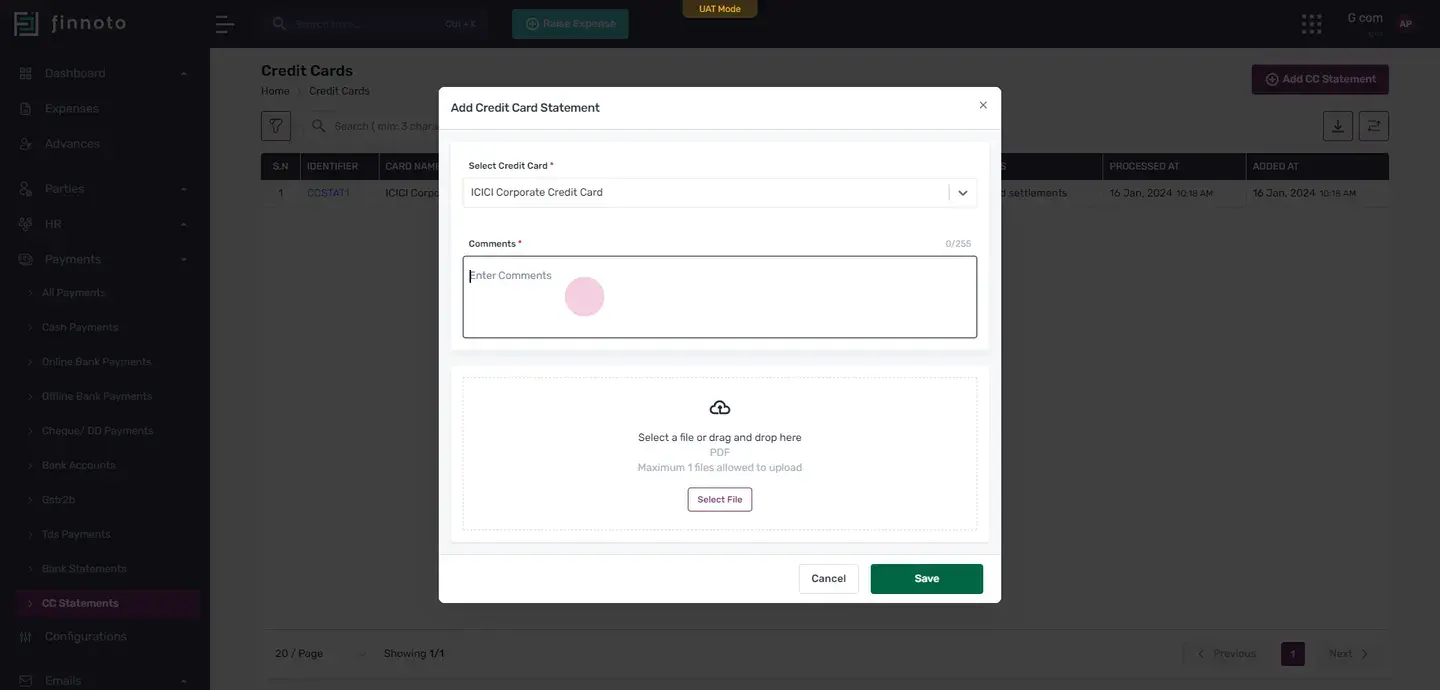
Next, enter a comment, select your statement, and click on the 'save' button.
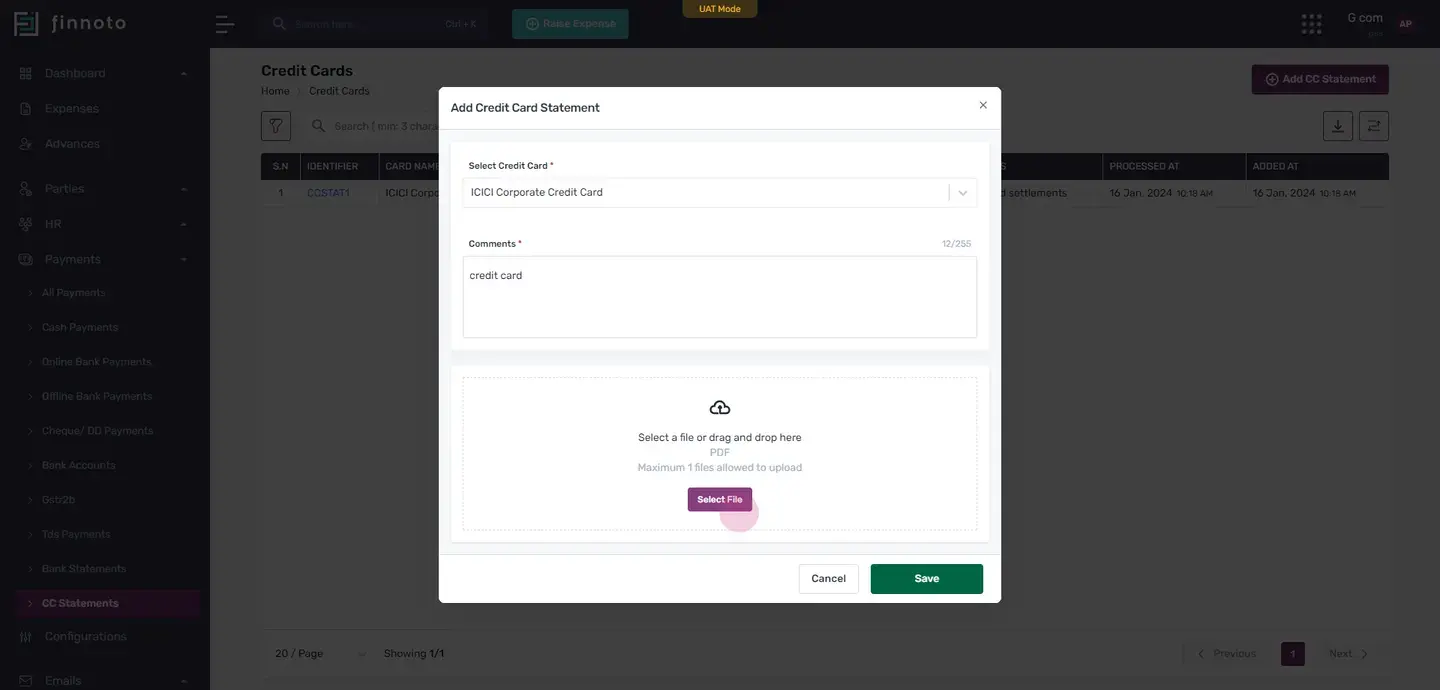
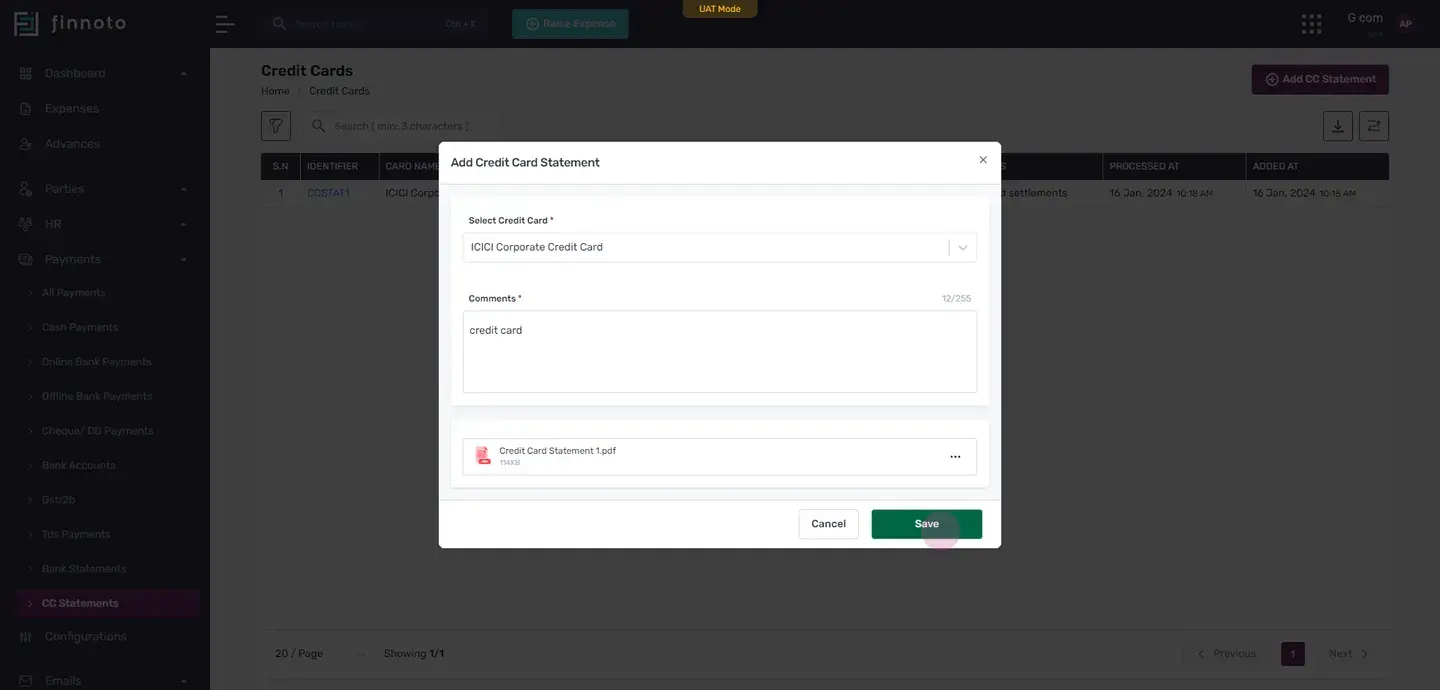
After saving, your credit card statement will begin processing. Once completed, you can view all line items of that particular statement. To view previously uploaded statements, simply click on the 'back' button. If you wish to download a statement, just click on it.
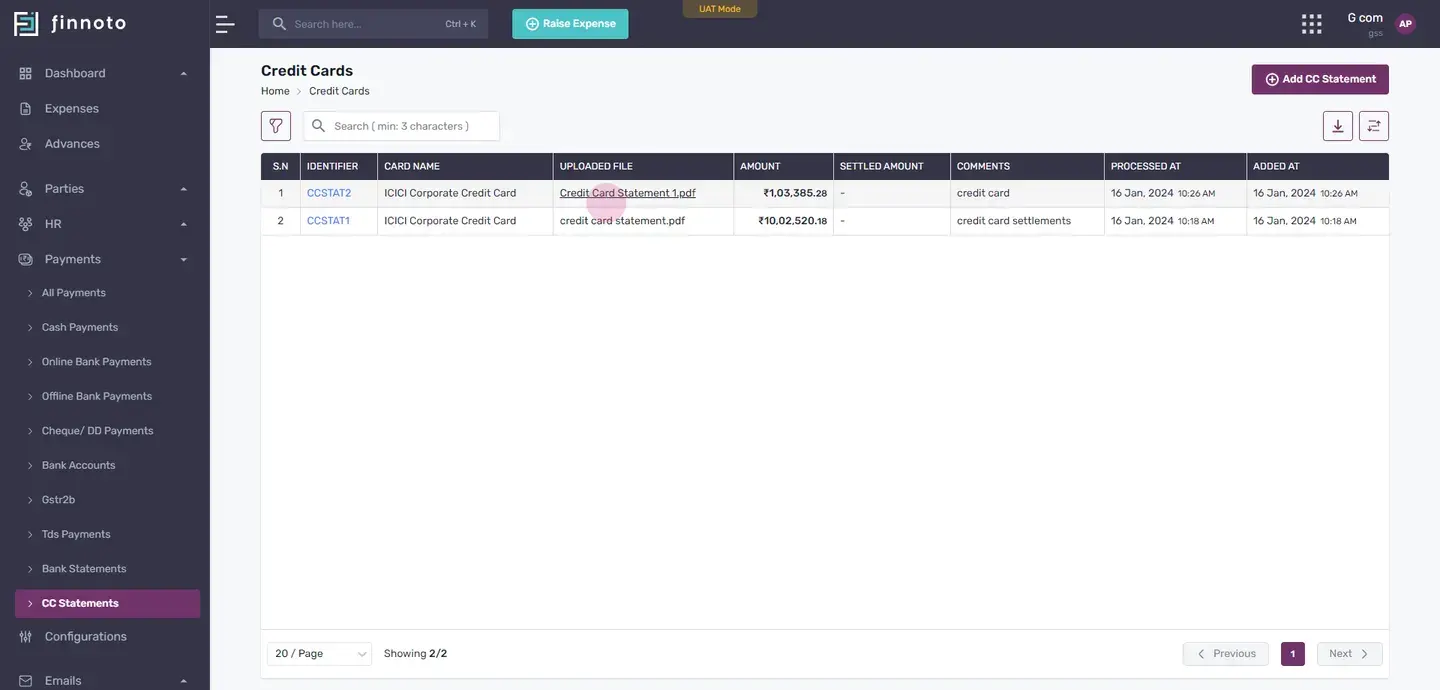
In the overview, you can see the amount, comments and other details.
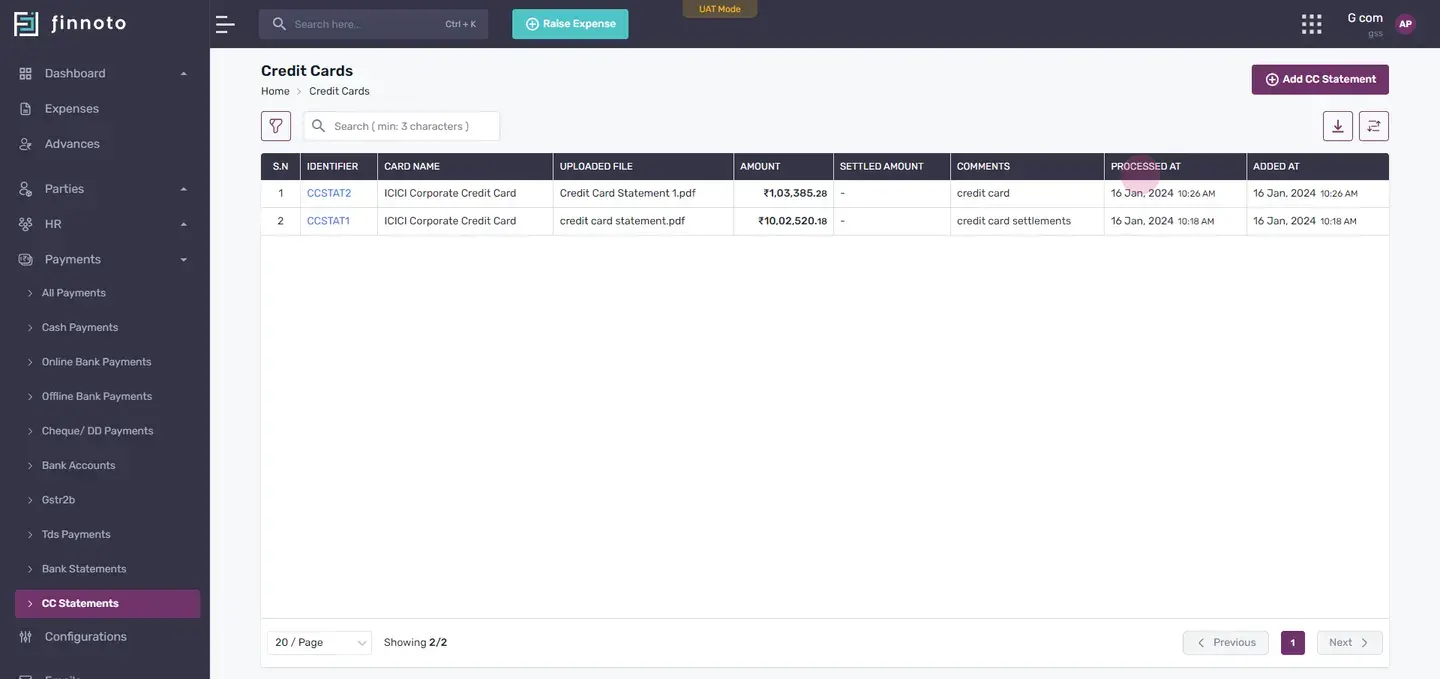
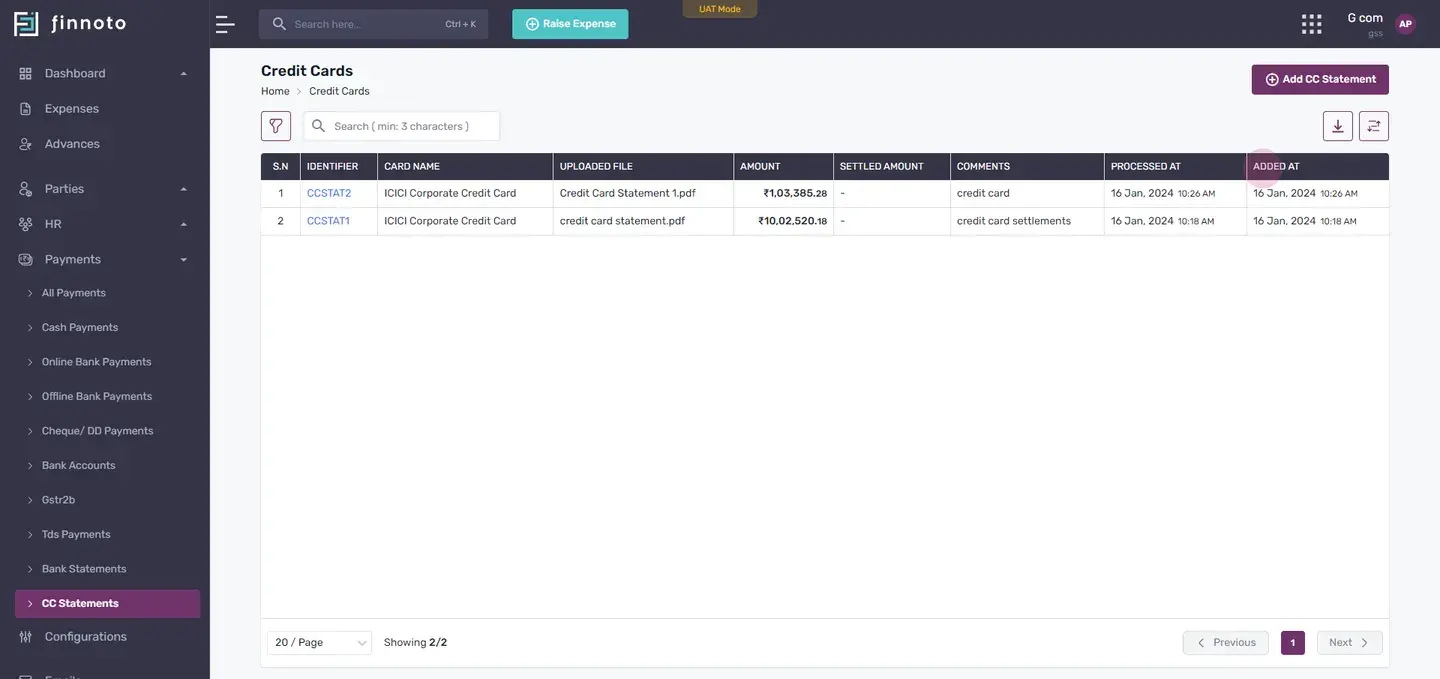
Click on the identifier of your choice.
On this page, you can view all the credit card line items. If any line item was missed during the retrieval process, it can be added manually by using the 'add credit card line' option located in the top right corner.
By entering the transaction date, amount, and a remark, you can add the missing line item.
For each identifier, you will find three options in the actions menu: edit, deactivate, and restore.
By clicking on 'edit', you can adjust the transaction date, amount, and remarks. Click the 'update' button to save changes.
To deactivate a line item, click on the 'deactivate' option. This will move the line item to the 'inactive' tab.
To reactivate a deactivated line item, click on 'actions' and then 'restore'.
To attach an expense, click on 'attach expense'.
You will then be able to see the remark, transaction date, and amount.
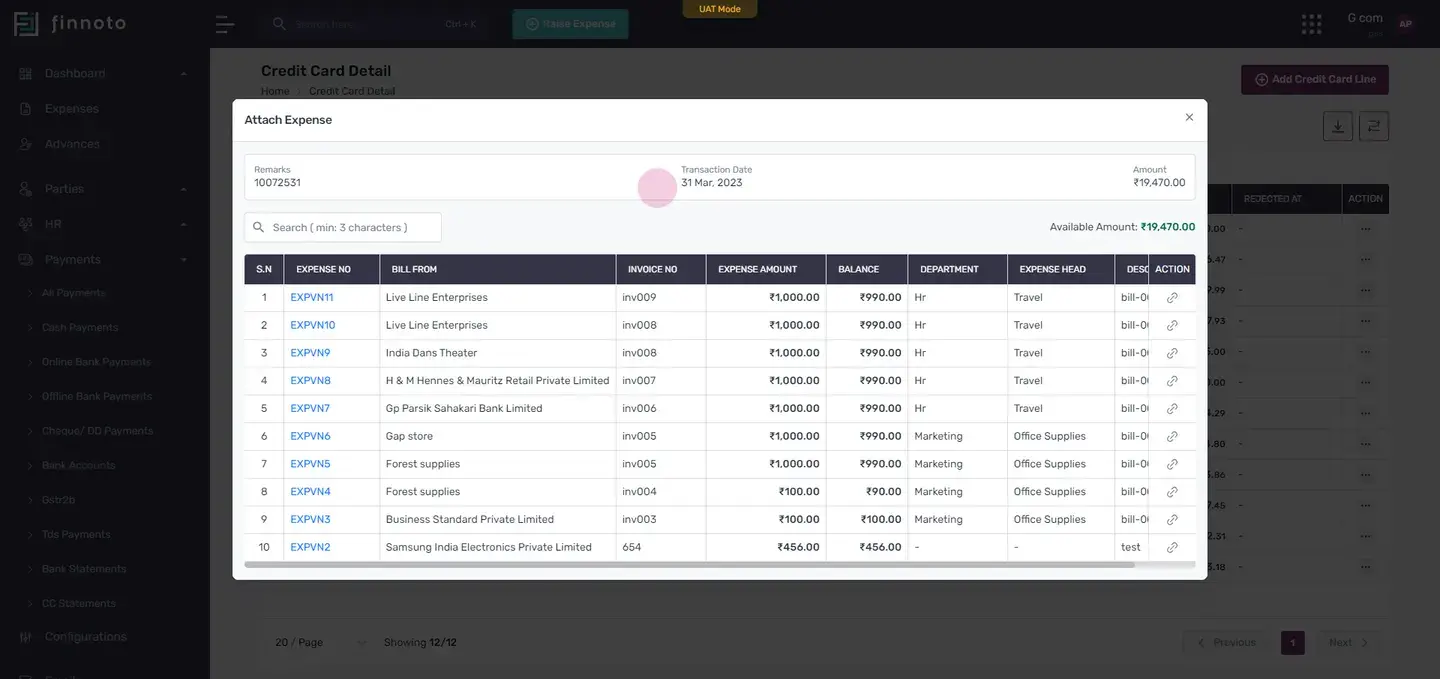
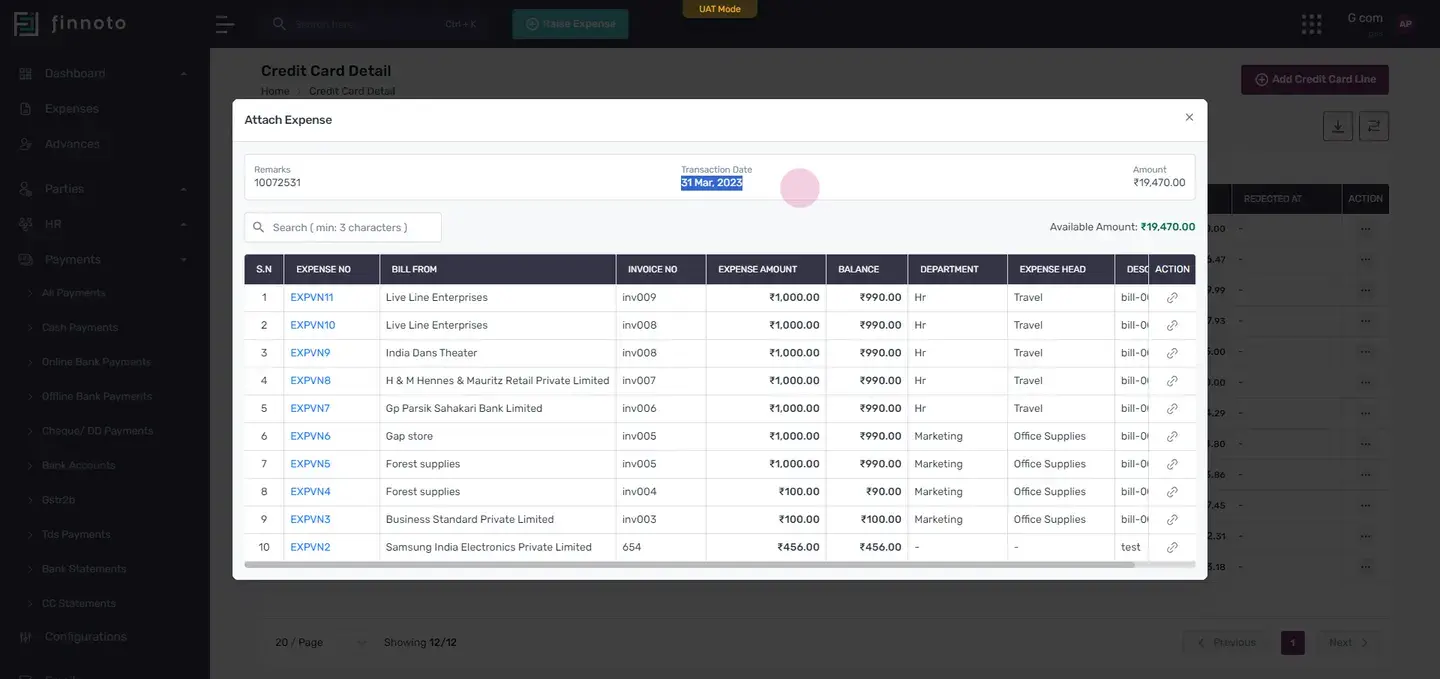
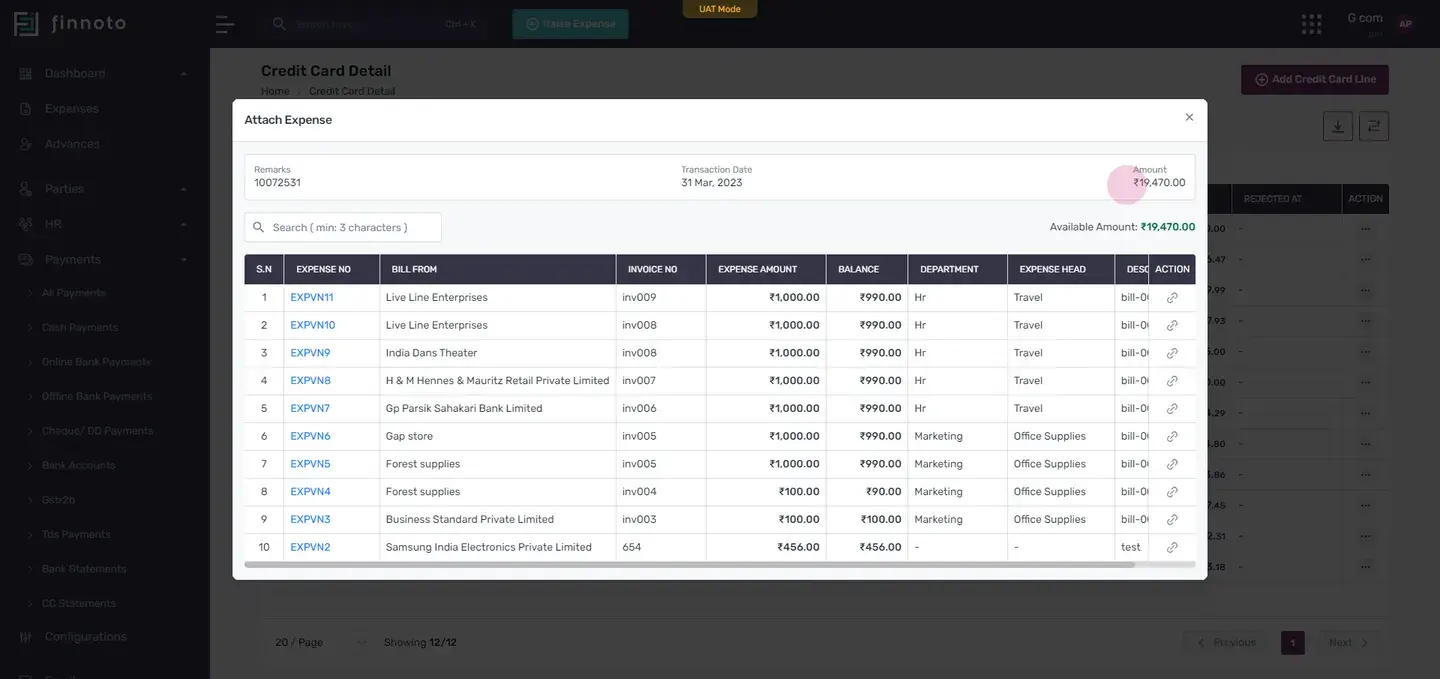
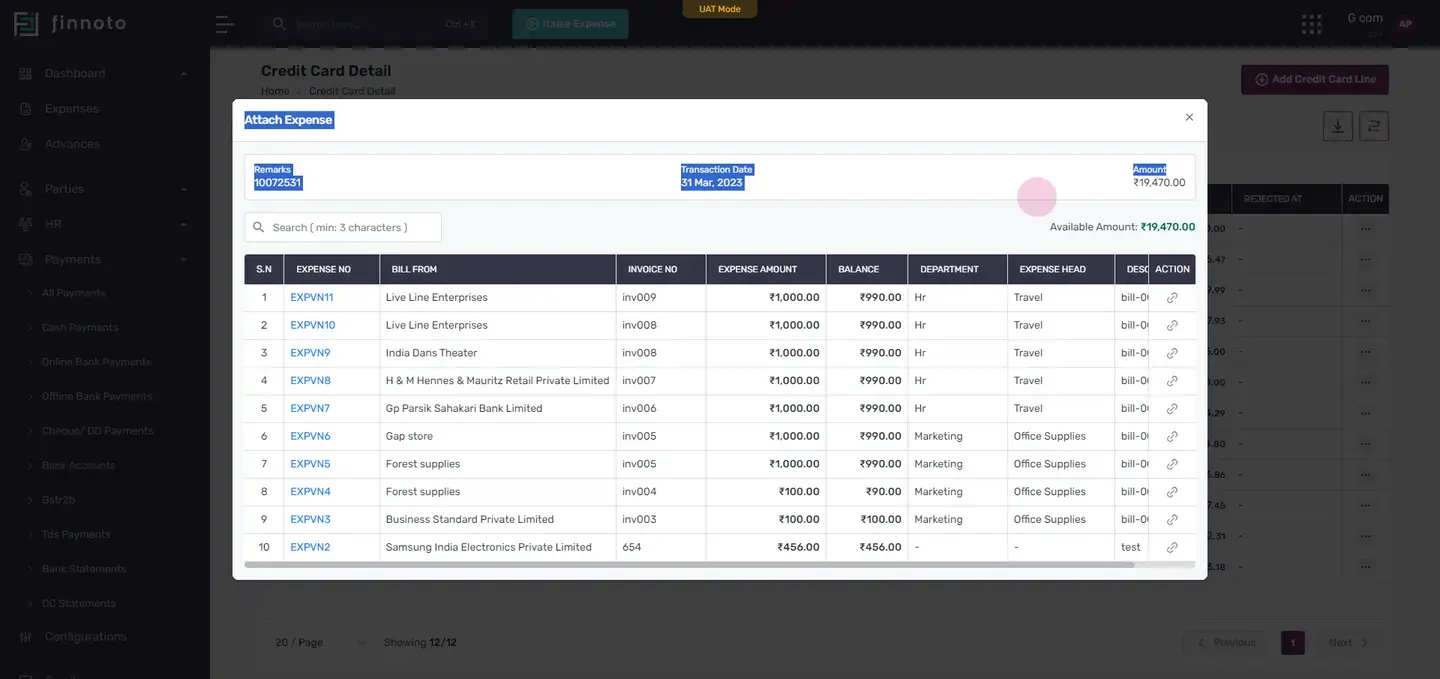
You can search for the expense number using the search bar.
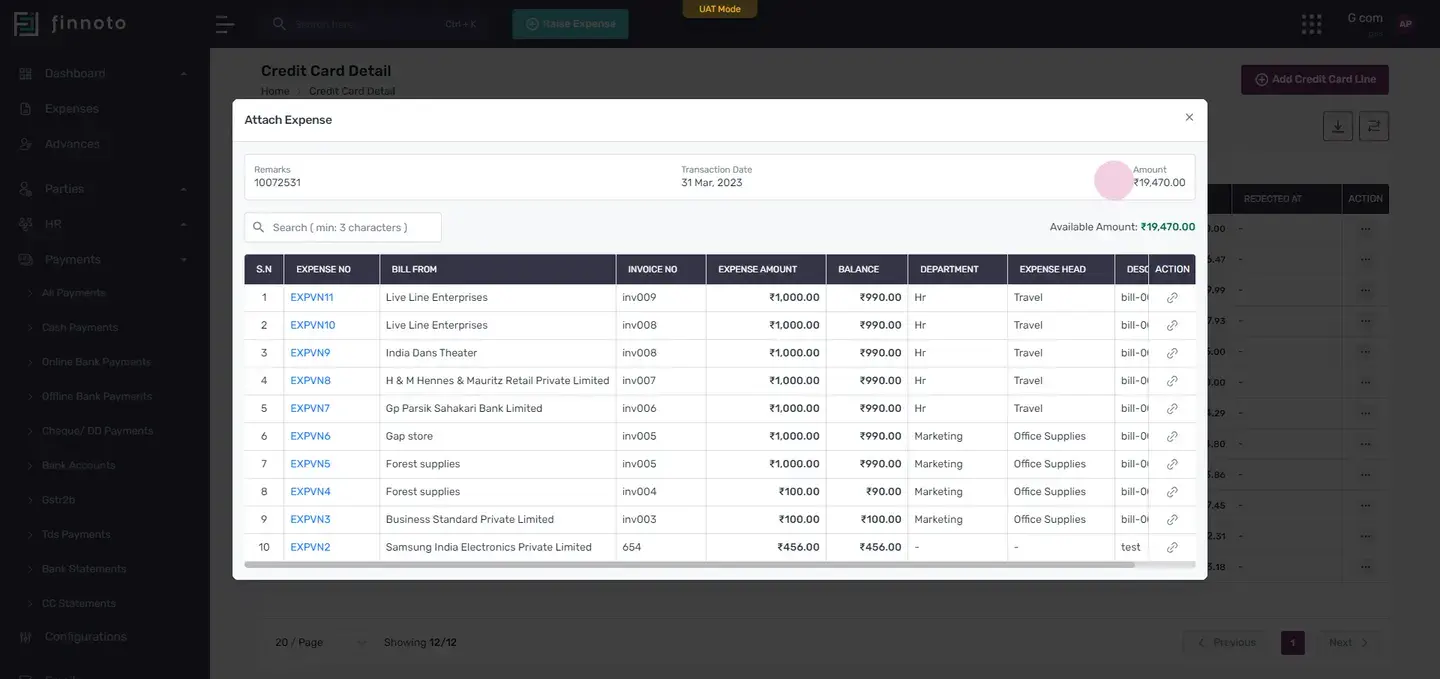
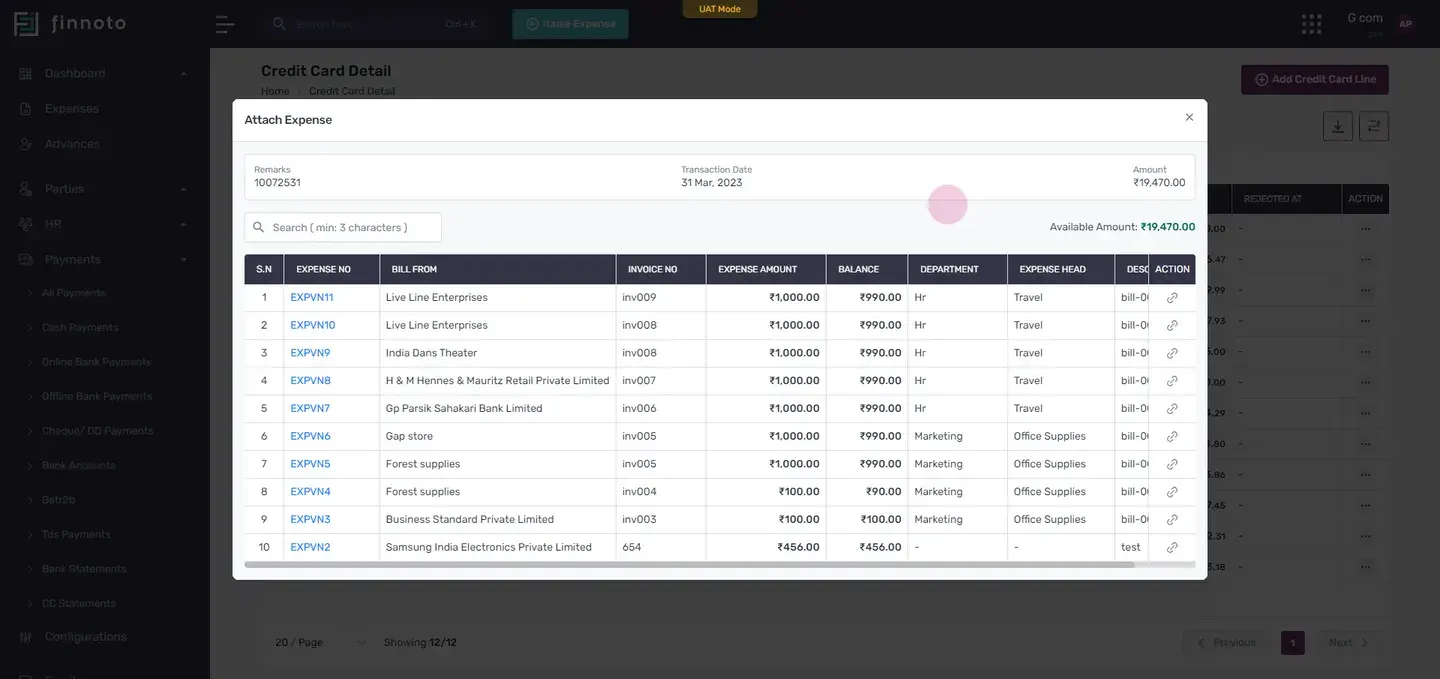
To attach an expense, click on the 'actions' button and then 'attach'.
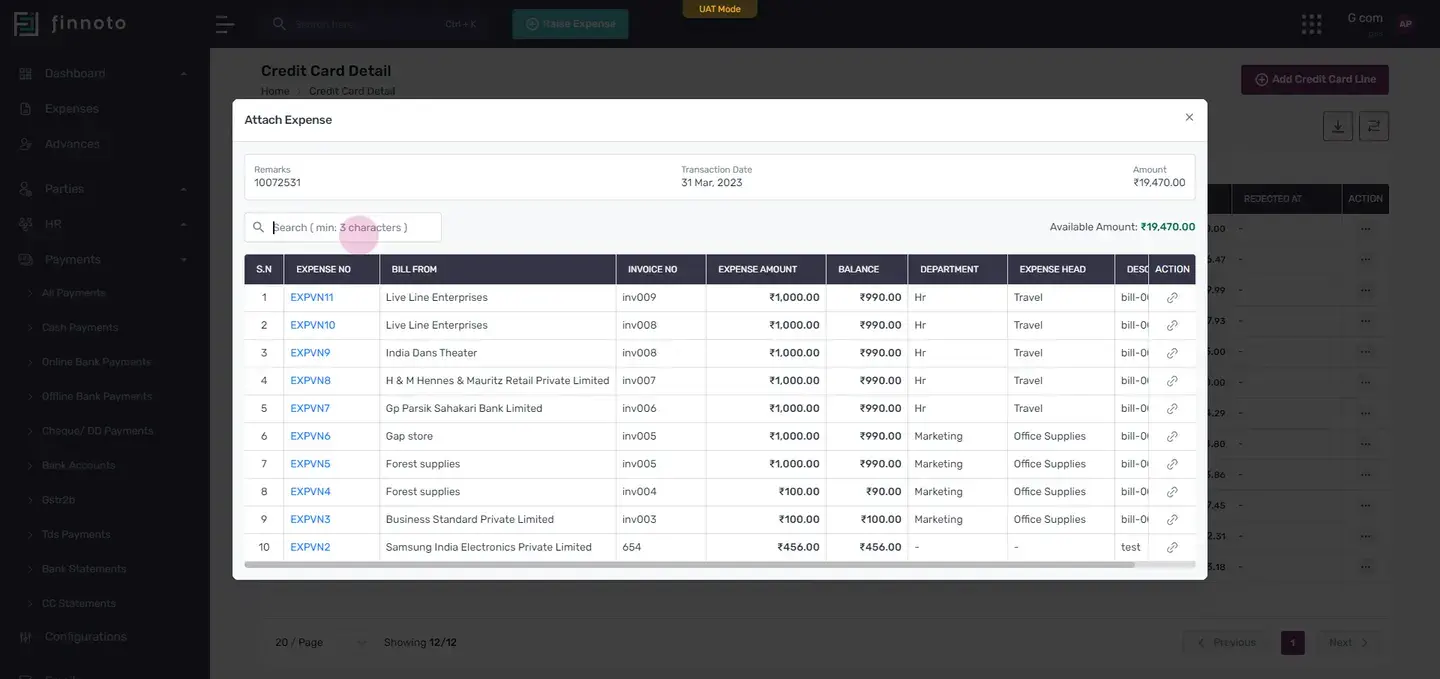
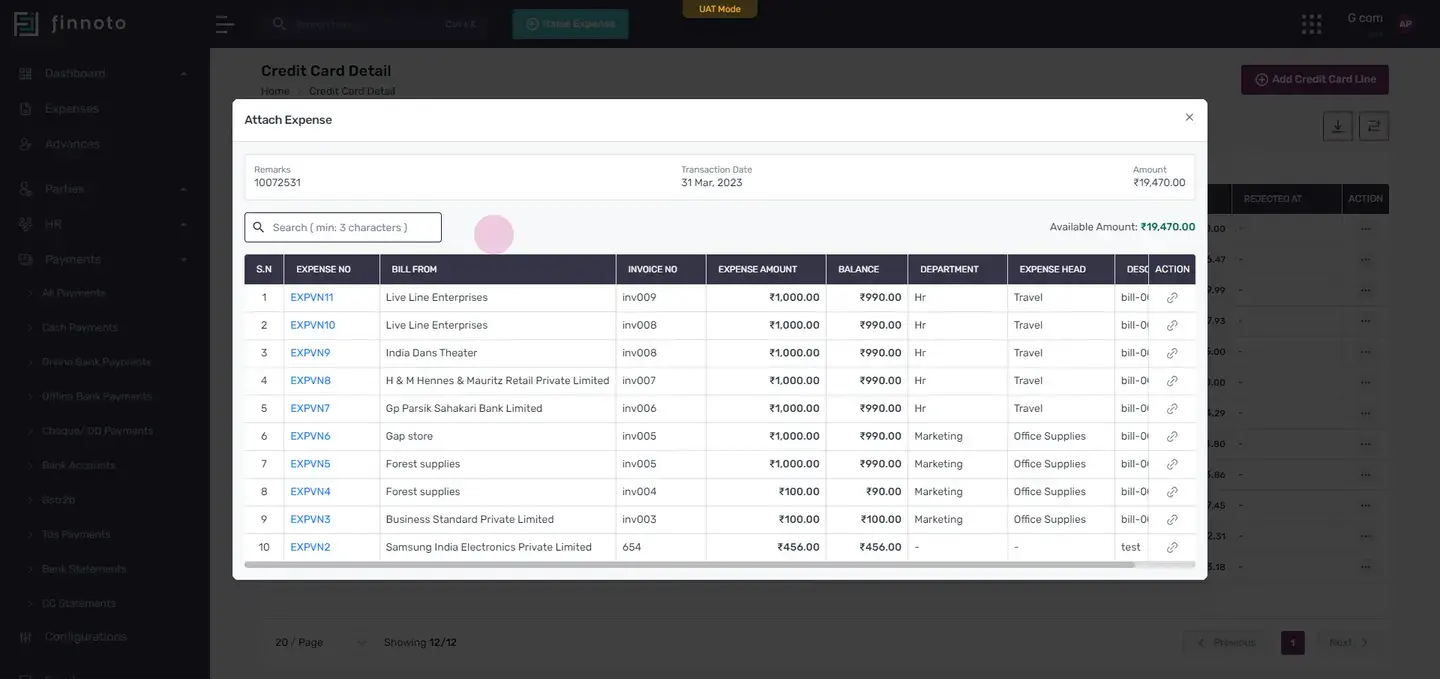
Once attached, the expense details will appear. For more information on a particular expense, click on its icon to be redirected to its page.
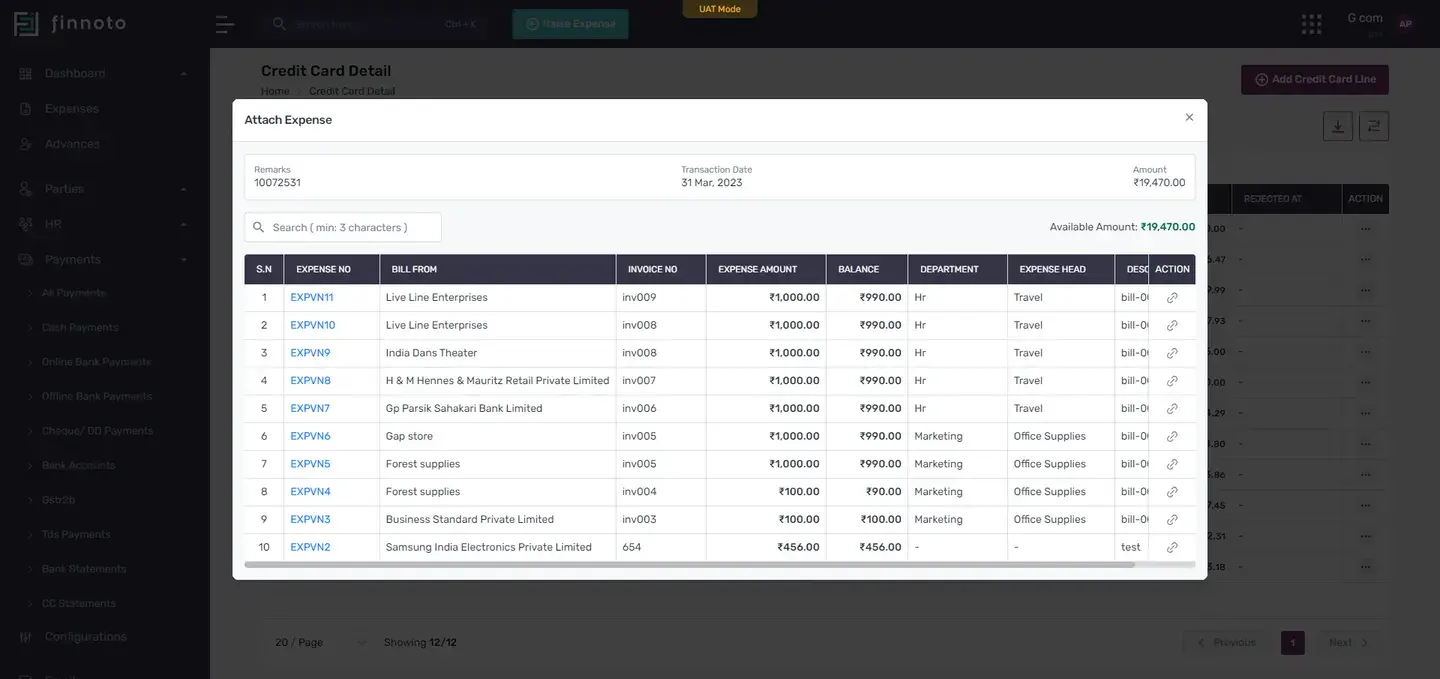
After attaching an expense, you will see a 'attach' tag in the attach column. The identifier of the expenses attached will be visible in the source identifiers.
Clicking on the identifier will redirect you to the expense details.
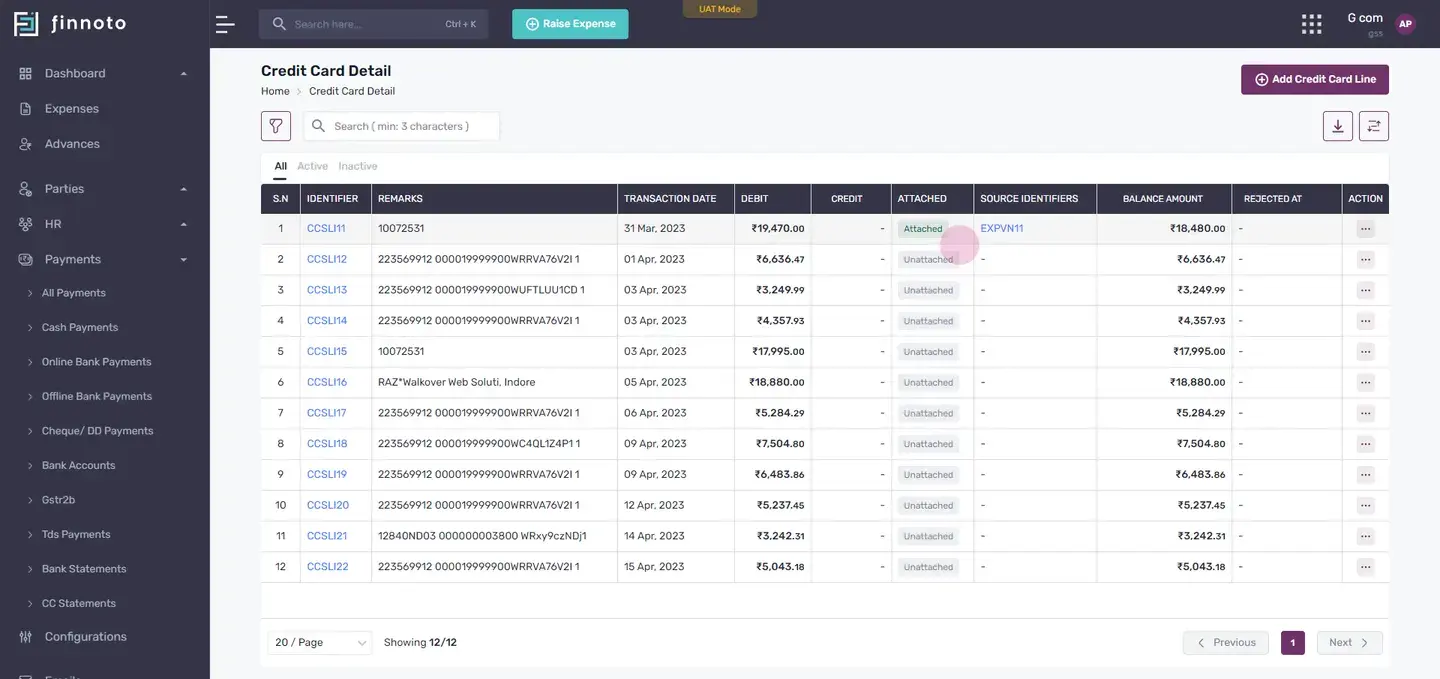
In the payment section of the expense details, you can see the receipt number, payment mode, status, amount, and additional details.
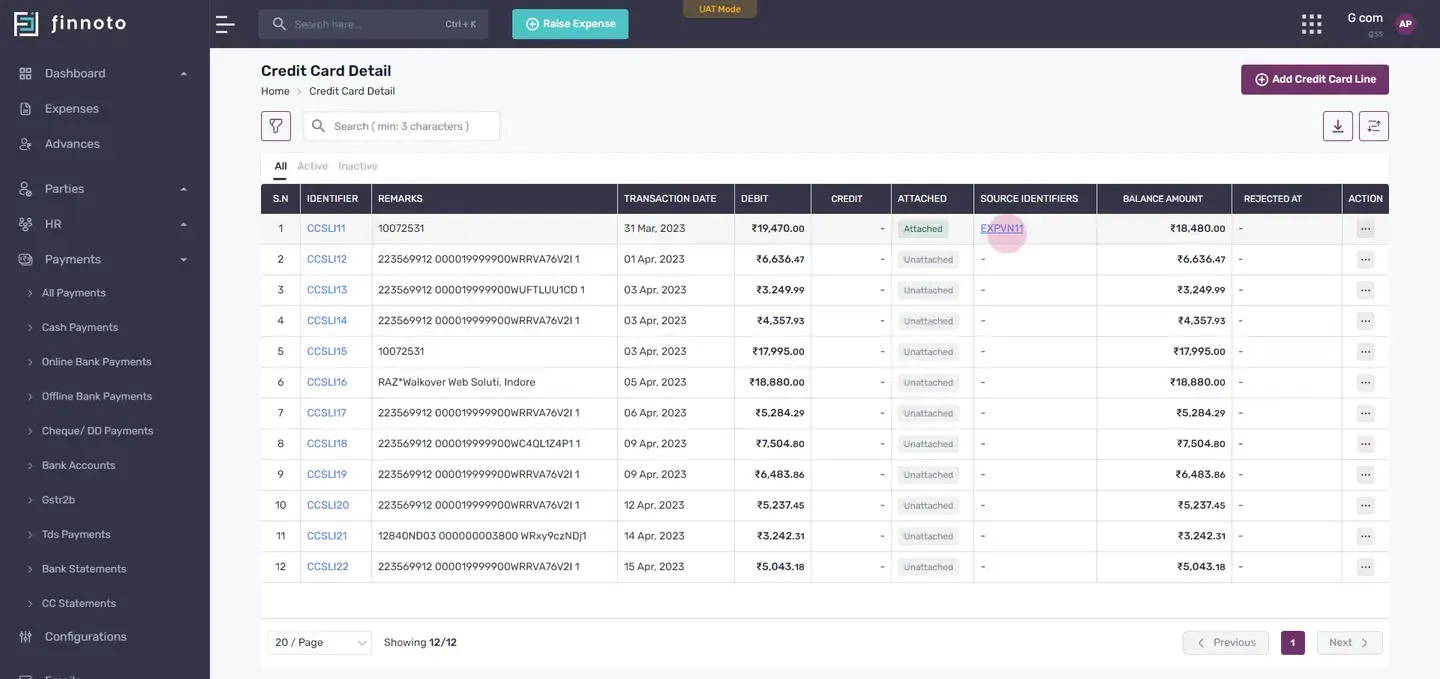
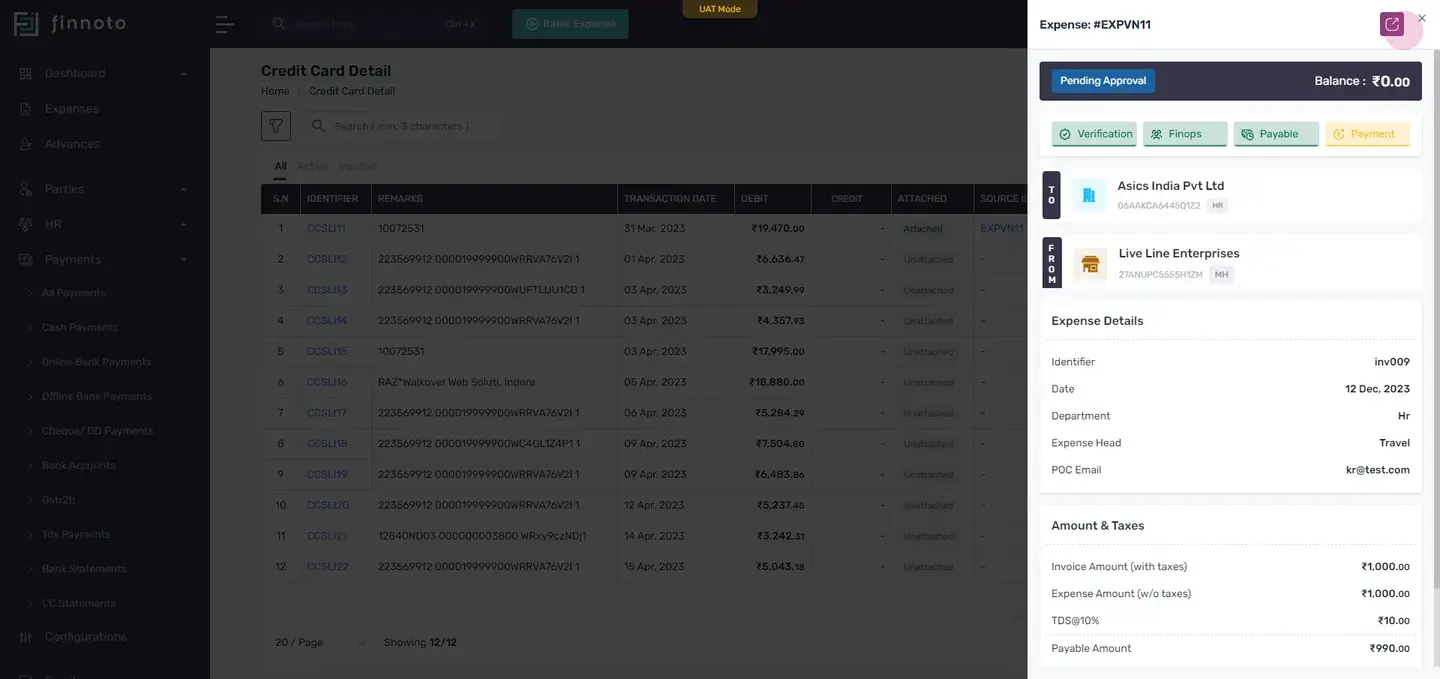
In the attached cc statement items, you can see the identifier with which the expense is attached.
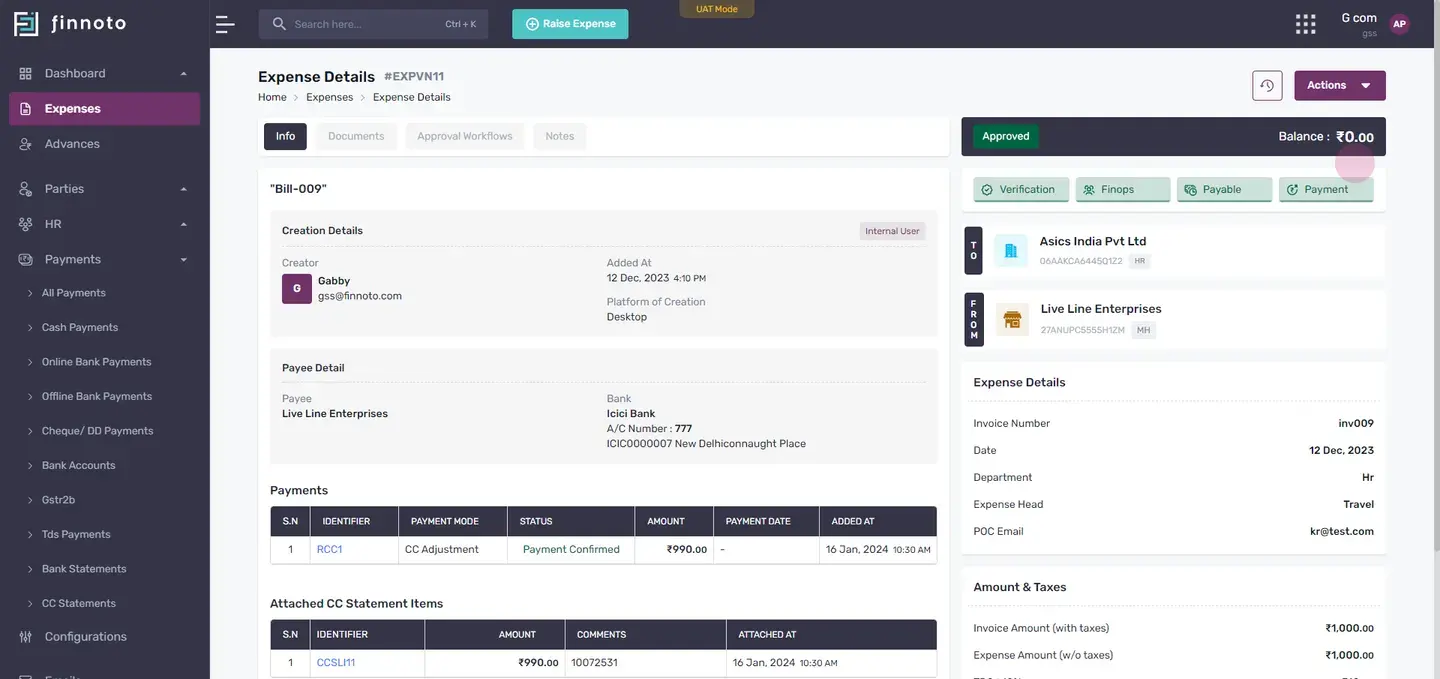
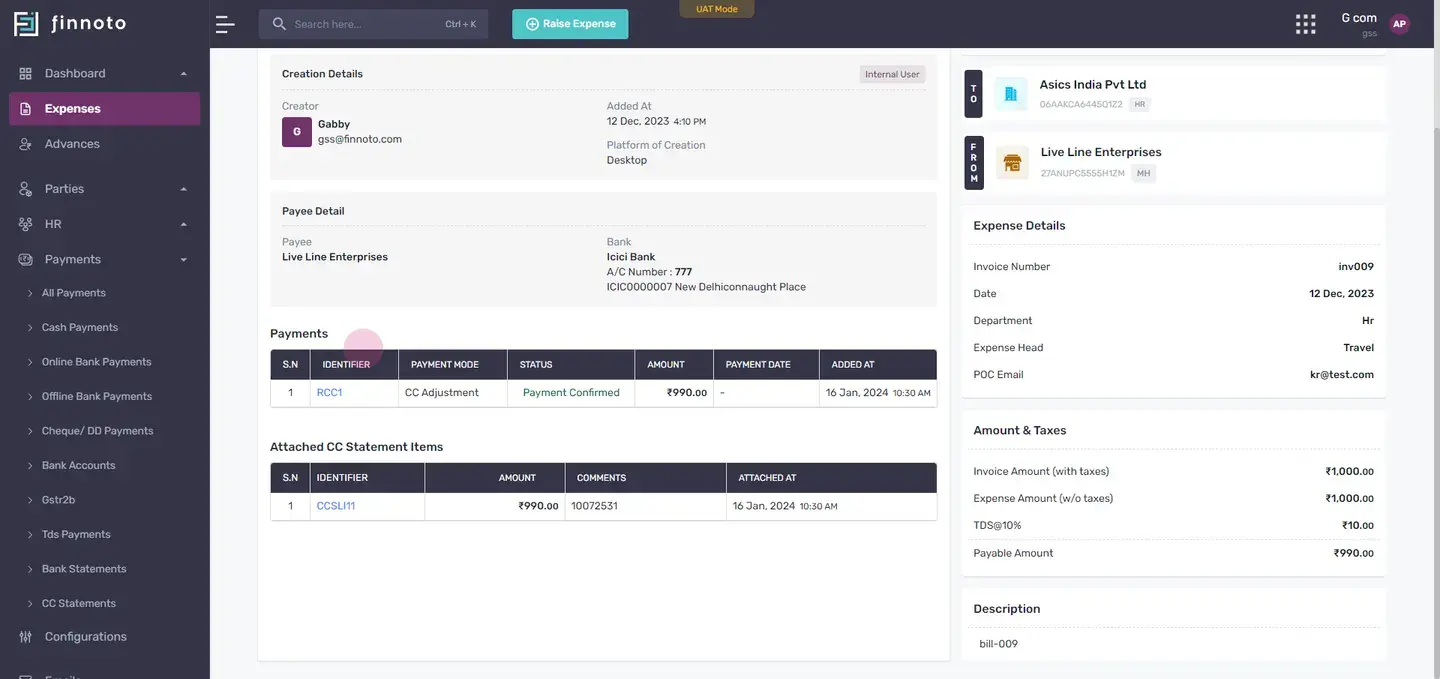
Clicking on the identifier of a credit card line item will allow you to view the transaction details.
If you wish to detach an expense, click on the 'actions' button and then 'detach expense'.
This concludes our guide on using the credit card settlements feature on Finnoto. It's our hope that you find this feature useful and it enhances your experience with our software.
Thank you for taking the time to read this guide.