Raise a reimbursement
Claim money you spent on the company's behalf from the employee portal.
Last updated on
Transcript
This article will guide you through the process of raising a reimbursement from the Finnoto employee portal.
Follow the steps below to successfully raise a reimbursement.
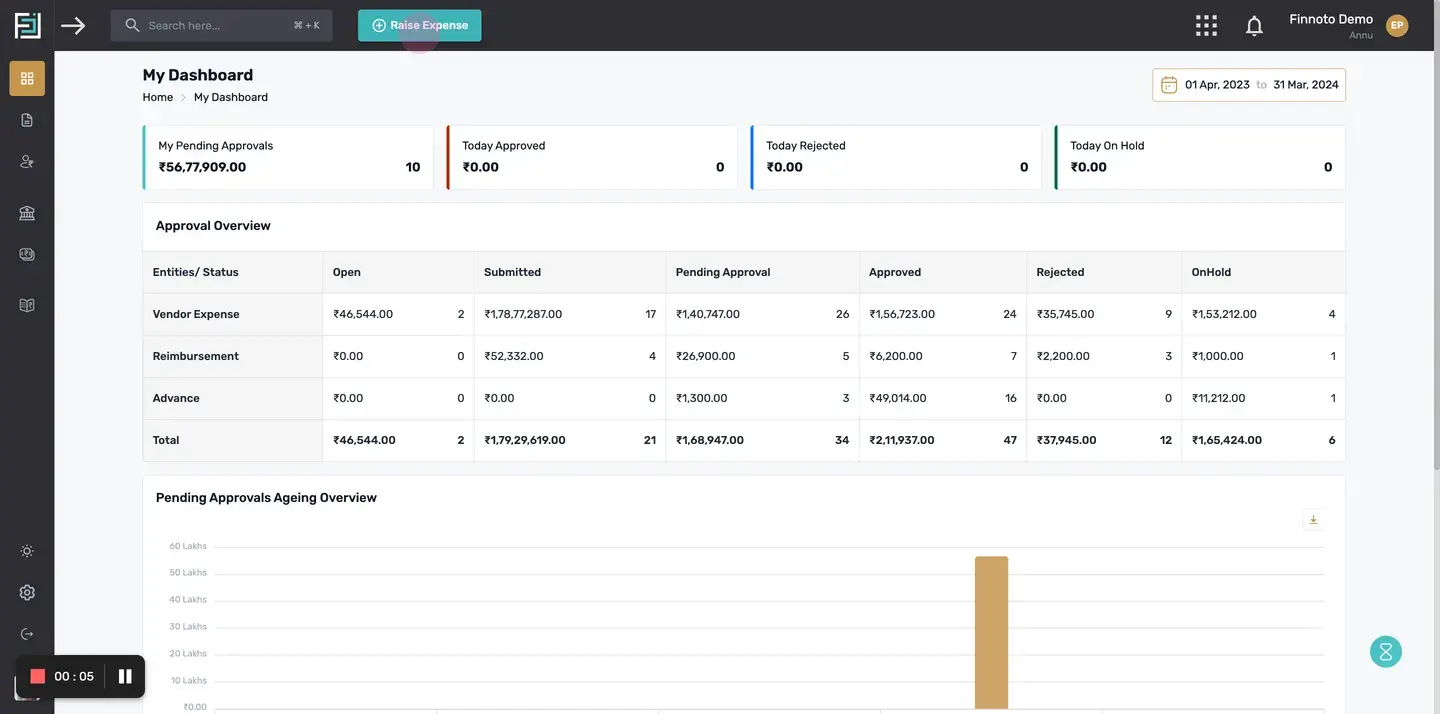
Click on the "Raise Expense" button.
Click on the "+Raise Expense" button given on the top of the portal.
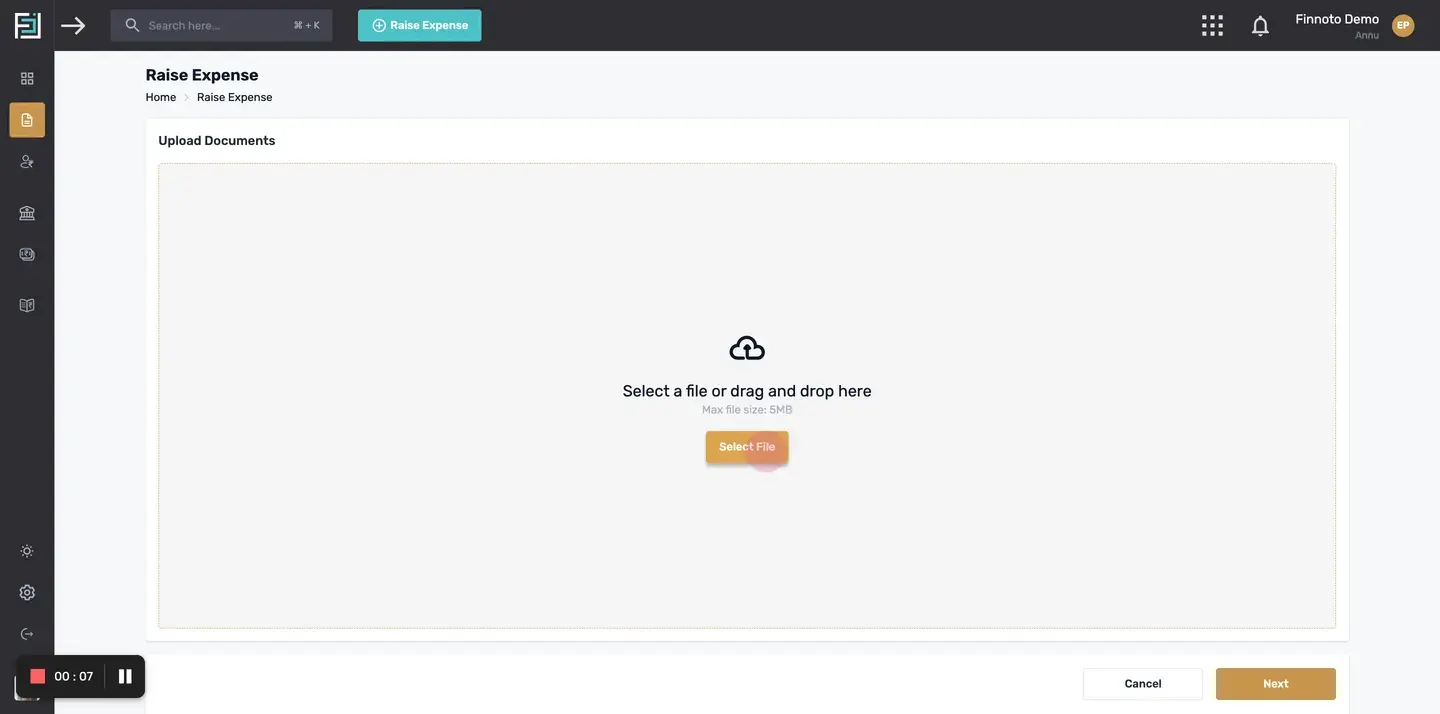
Upload a relevant document or file from your computer.
The "Upload Documents" page will open. Here, you can select a file or drag and drop the file (e.g., receipts). Click on the "Next" button.
View the uploaded document.
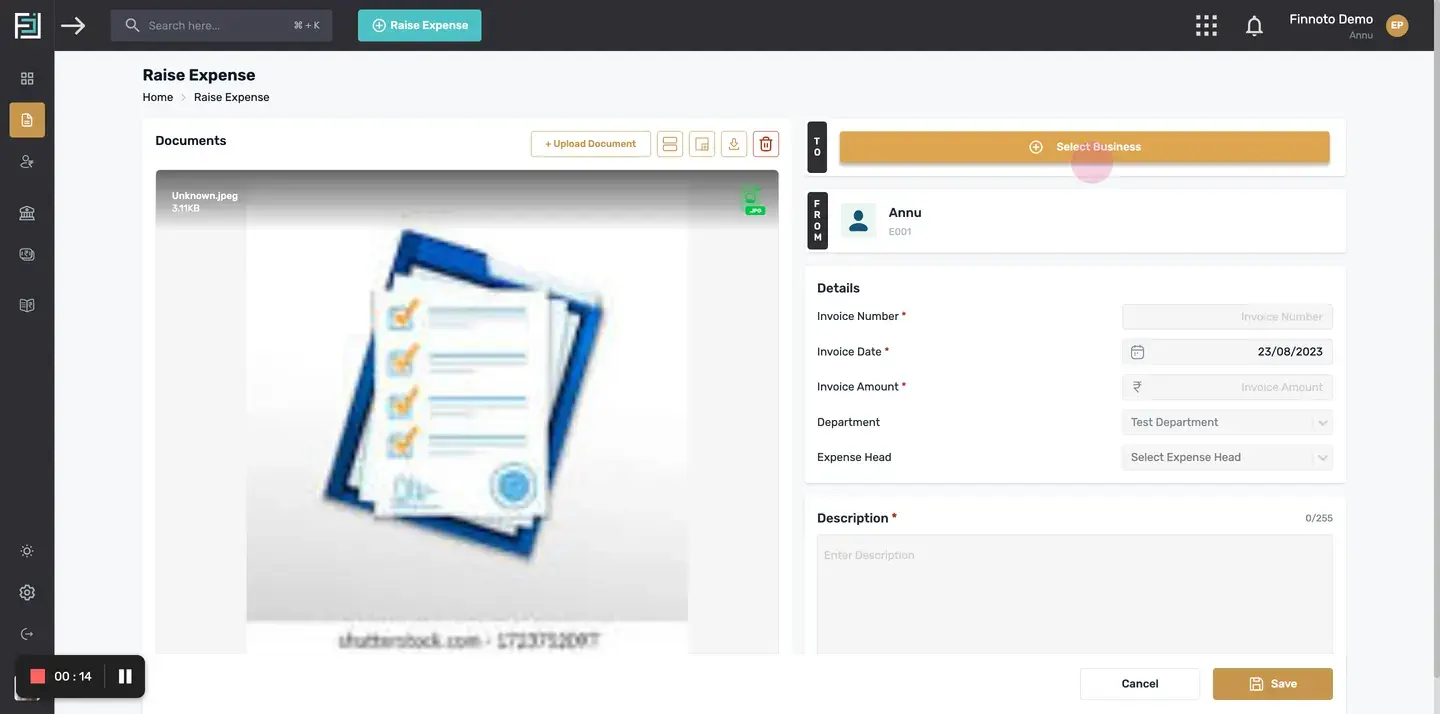
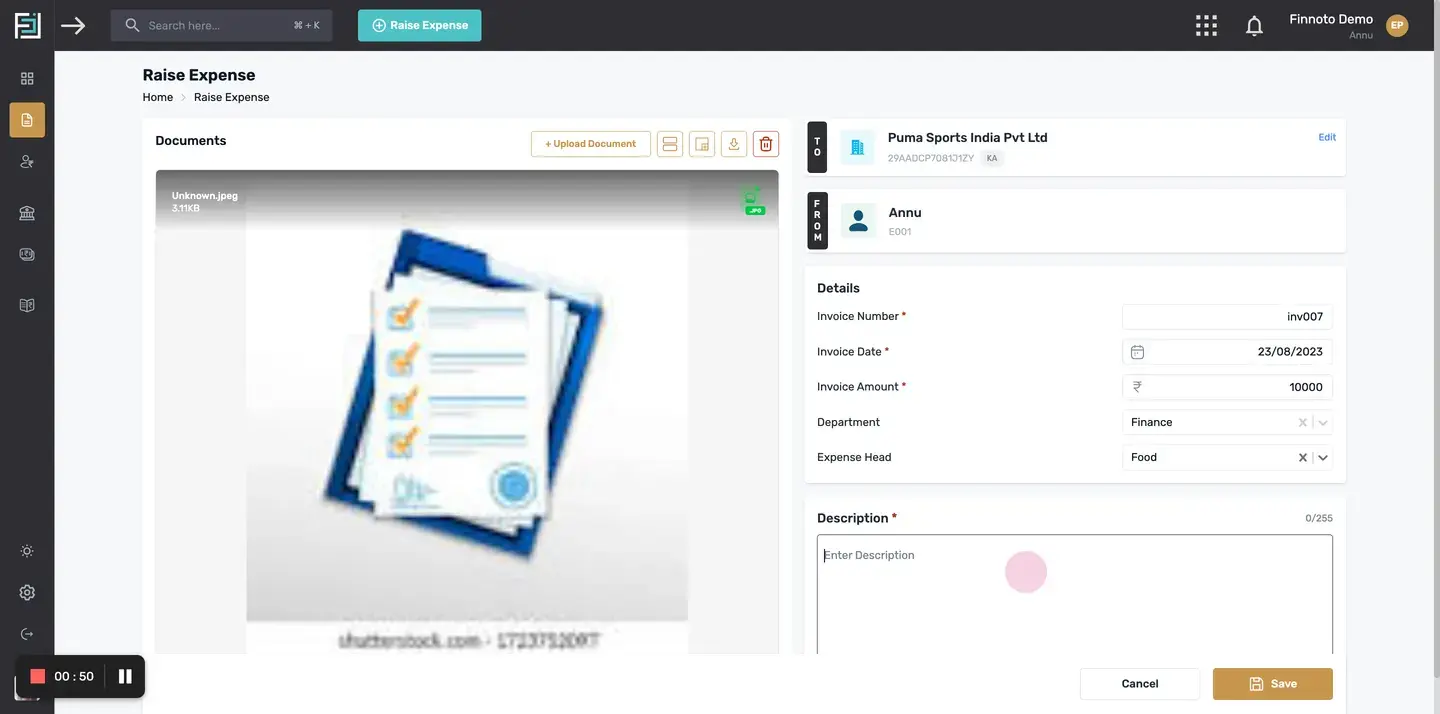
On the left side of the page, you can see the uploaded receipt or document.
Access document options.
Above the document, there are buttons for uploading more documents, table view, zooming in/out of the document, and downloading the document.
Select the business.
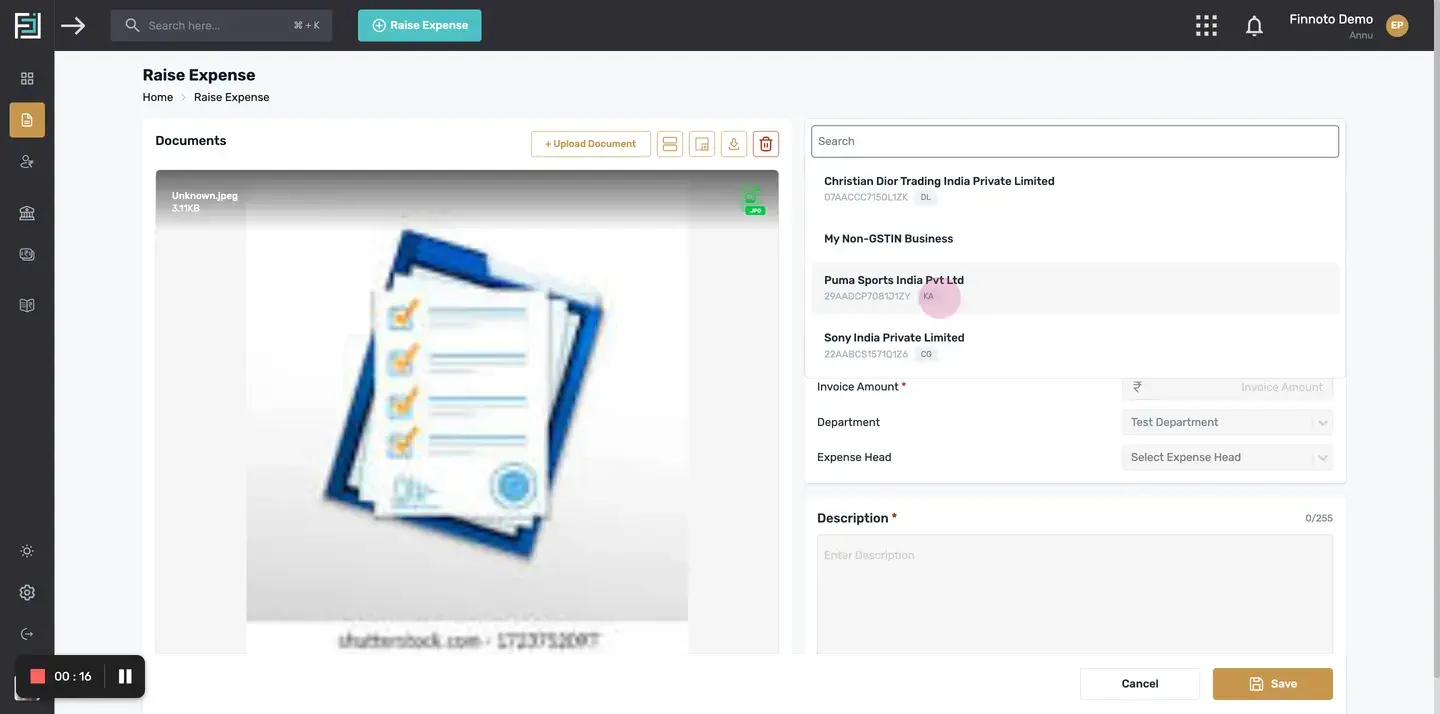
In the "To" field, click on the "+Select Business" button. A list of all your added businesses will appear. Select the appropriate one.
Select the employee.
In the "From" field, the name of the employee creating the reimbursement is automatically selected.
Fill in reimbursement details.
Enter the Invoice Number.
Select the invoice date from the calendar by clicking on the corresponding field. Enter the Invoice amount of the reimbursement.
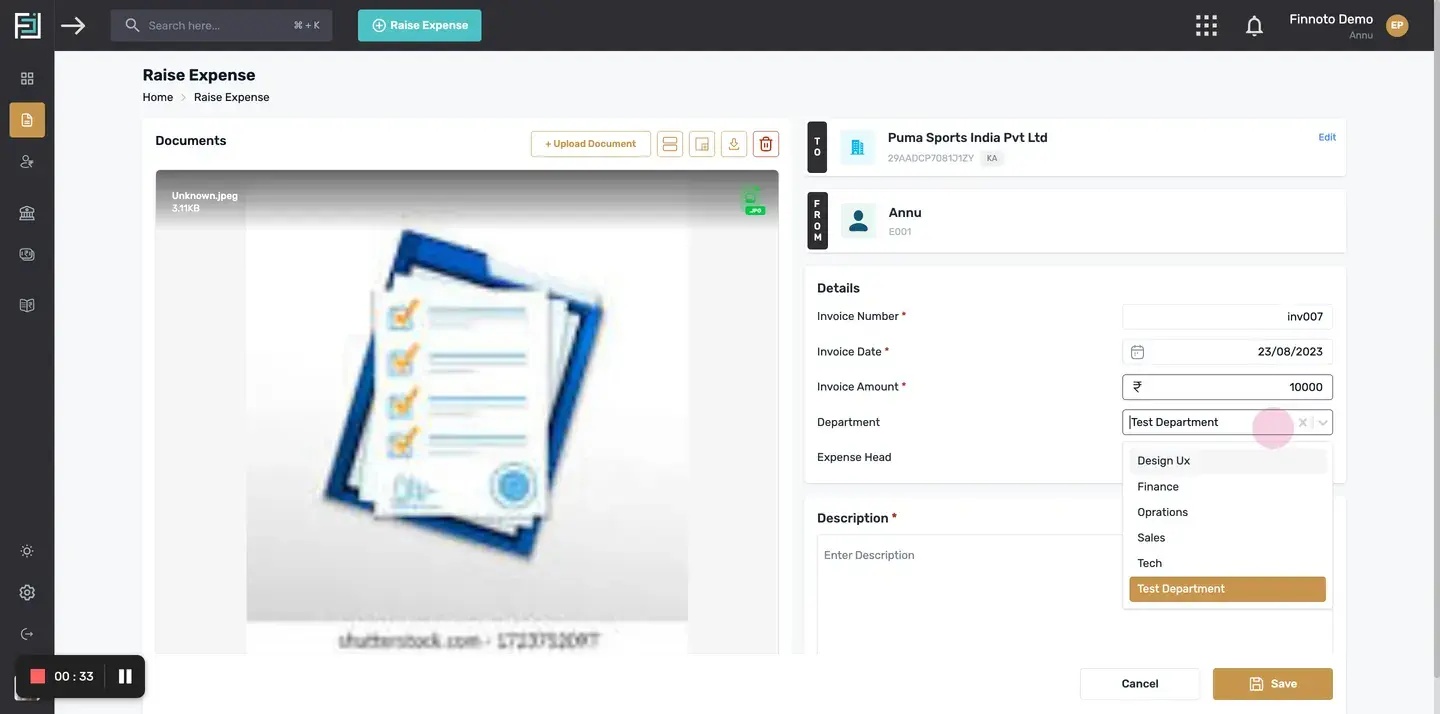
Select "Department" from the drop-down menu.*Note:* The system will automatically fetch the department of the employee raising this reimbursement. However, if you wish to make changes, you can select the desired department from the dropdown menu.
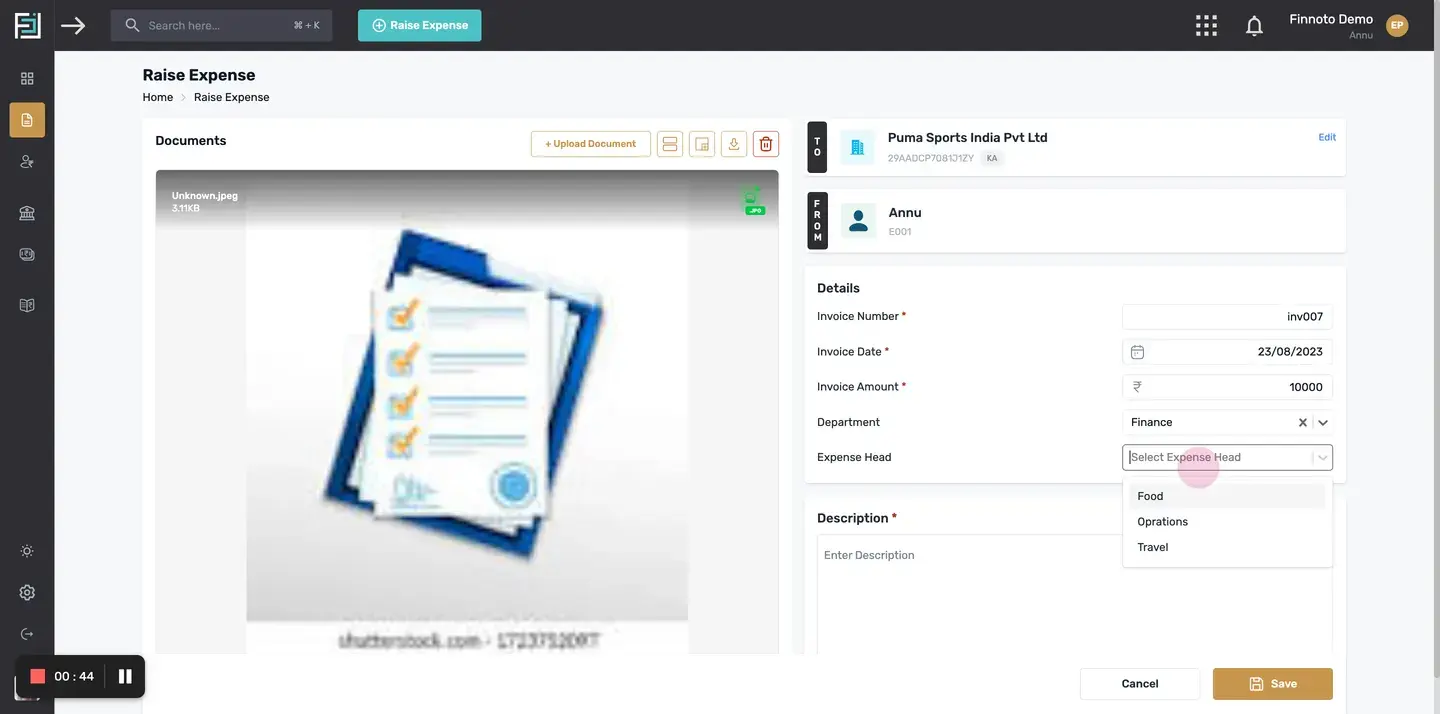
Choose "Expense Head" from its dropdown menu.
Enter a description.
In the Description card, write the description of the reimbursement. This field has a character limit of 255.
Save your reimbursement.
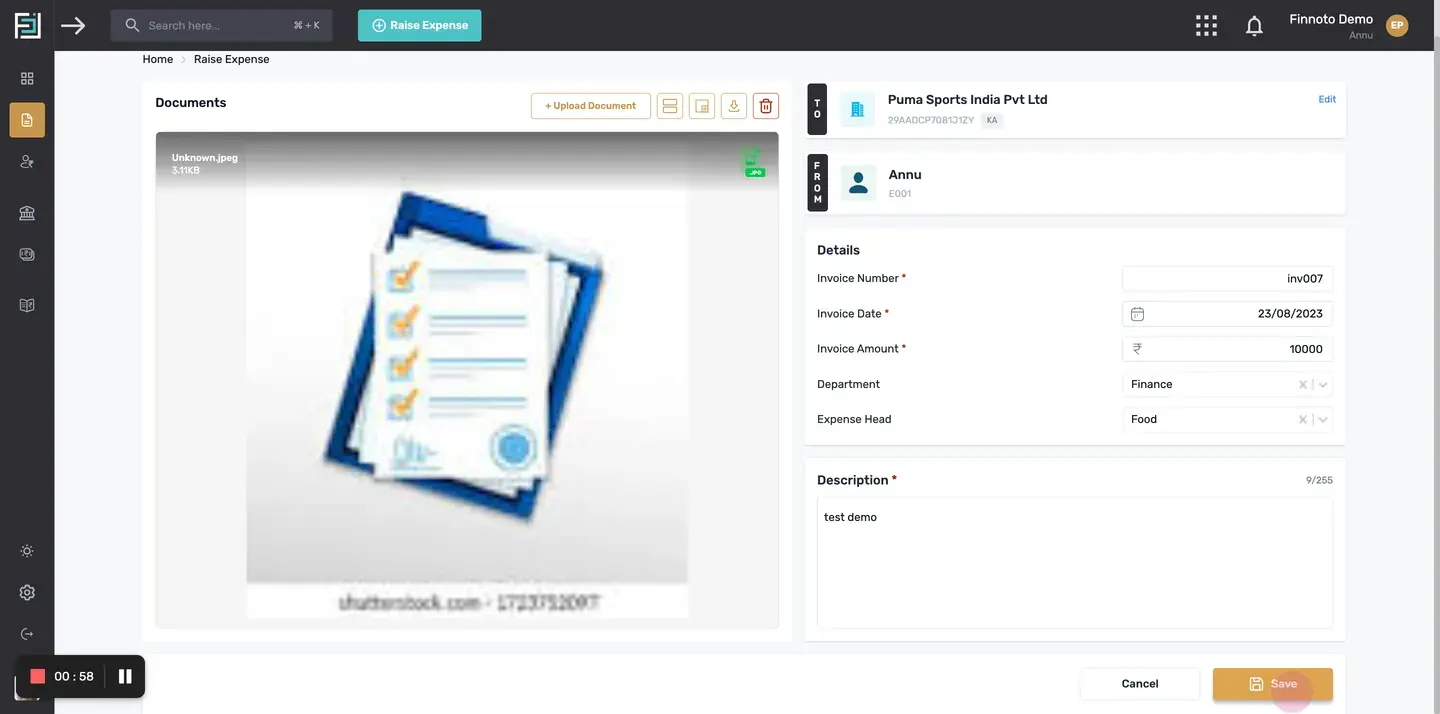
After filling in all the details, click the save button to save the reimbursement.
Congratulations! You have successfully raised a reimbursement using the Finnoto's Employee portal.
How to Raise a Reimbursement from the Employee Portal of Finnoto?
This article will guide you through the process of raising a reimbursement from the Finnoto employee portal.
Follow the steps below to successfully raise a reimbursement.
Click on the "Raise Expense" button
Click on the "+Raise Expense" button given on the top of the portal.
Upload a relevant document or file from your computer
The "Upload Documents" page will open. Here, you can select a file or drag and drop the file (e.g., receipts). Click on the "Next" button.
Note: Uploaded documents in formats such as xlsx, xls, csv, doc, docx, and txt will be displayed in a tabular view.
View the uploaded document
On the left side of the page, you can see the uploaded receipt or document.
Access document options
Above the document, there are buttons for uploading more documents, table view, zooming in/out of the document, and downloading the document.
Select the business
In the "To" field, click on the "+Select Business" button. A list of all your added businesses will appear. Select the appropriate one.
Select the employee
In the "From" field, the name of the employee creating the reimbursement is automatically selected.
Fill in reimbursement details
- Enter the Invoice Number.
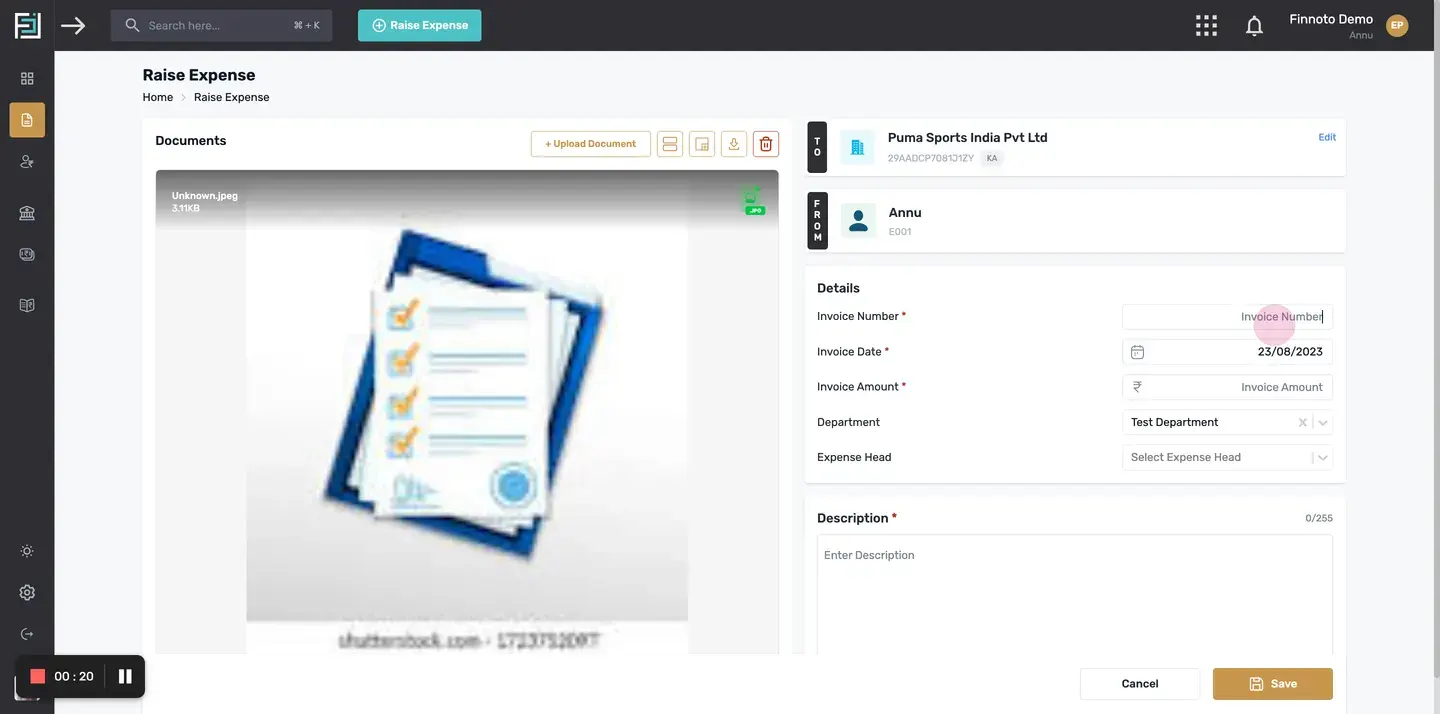
- Select the invoice date from the calendar by clicking on the corresponding field.
- Enter the Invoice amount of the reimbursement.
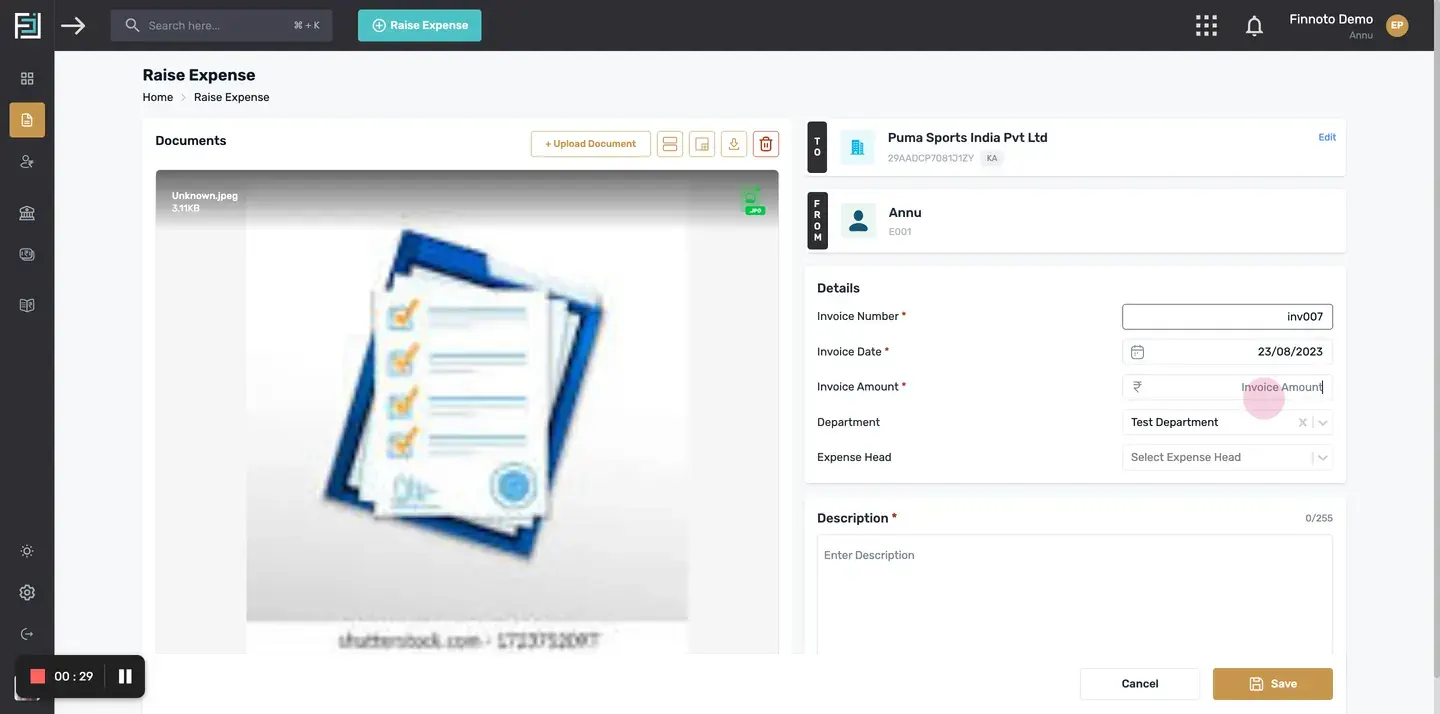
- Select "Department" from the drop-down menu.Note: The system will automatically fetch the department of the employee raising this reimbursement. However, if you wish to make changes, you can select the desired department from the dropdown menu.
- Choose "Expense Head" from its dropdown menu.
Enter a description
In the Description card, write the description of the reimbursement. This field has a character limit of 255.
Save your reimbursement
After filling in all the details, click the save button to save the reimbursement.
Congratulations! You have successfully raised a reimbursement using the Finnoto's Employee portal.