Create a purchase request and generate a purchase order
Raise a purchase requisition, get it approved, and turn it into a purchase order for the vendor.
Last updated on
Transcript
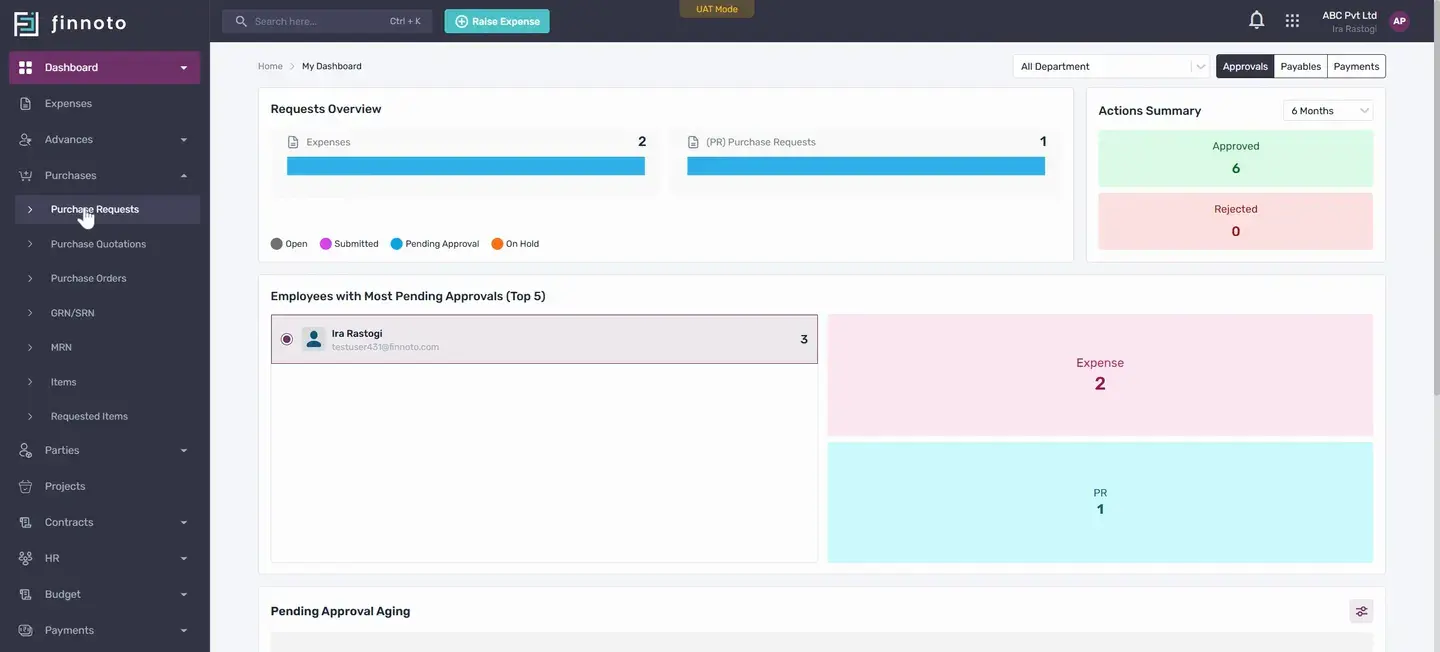
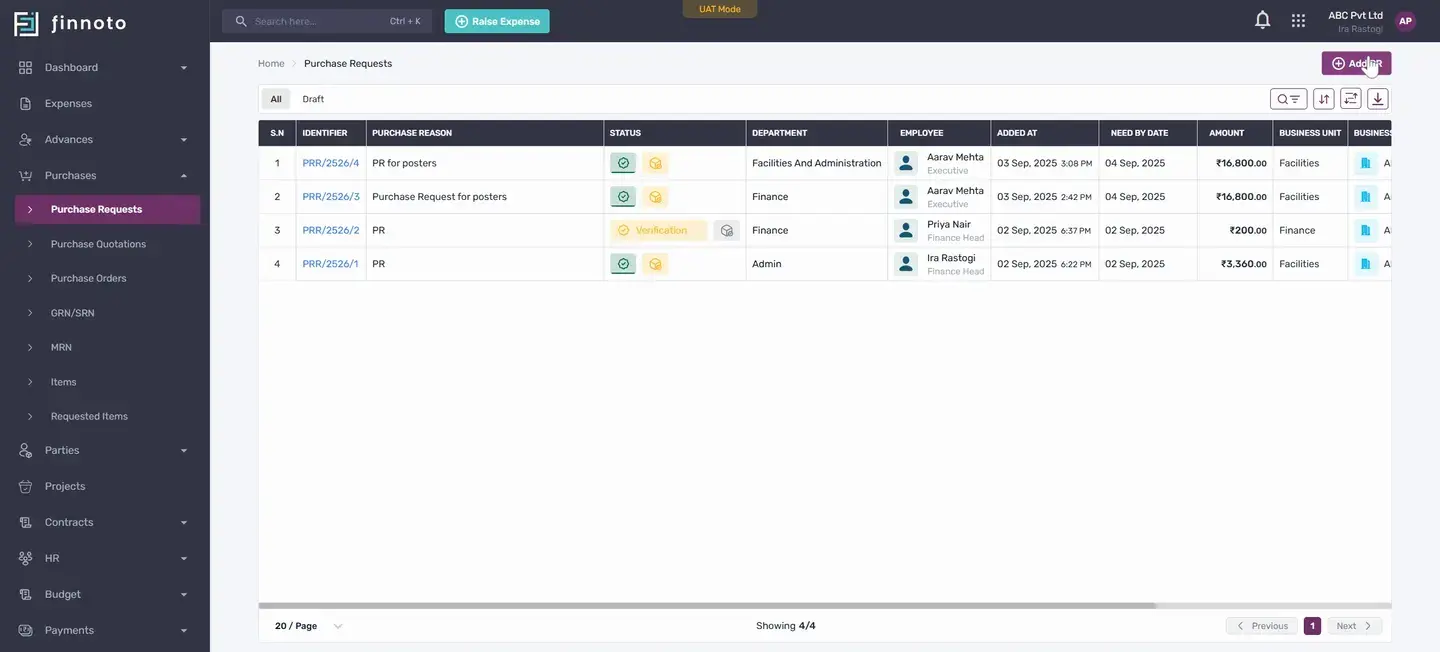
Hello everyone. Today we will learn how to create a purchase request on Finnoto, and from that purchase request, how to generate a purchase order. First, we need to navigate to the purchases module. From this module, we click on the purchase request, and from the Add PR button, we will see the create purchase request form.
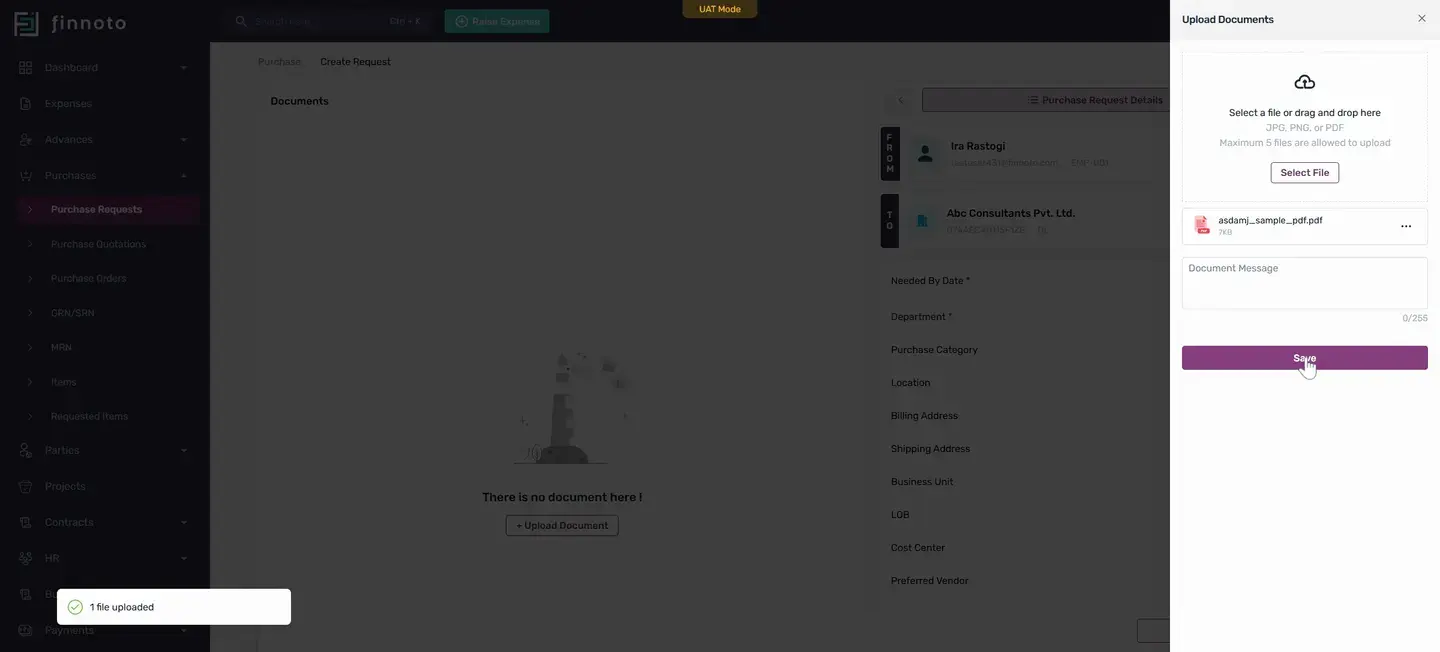
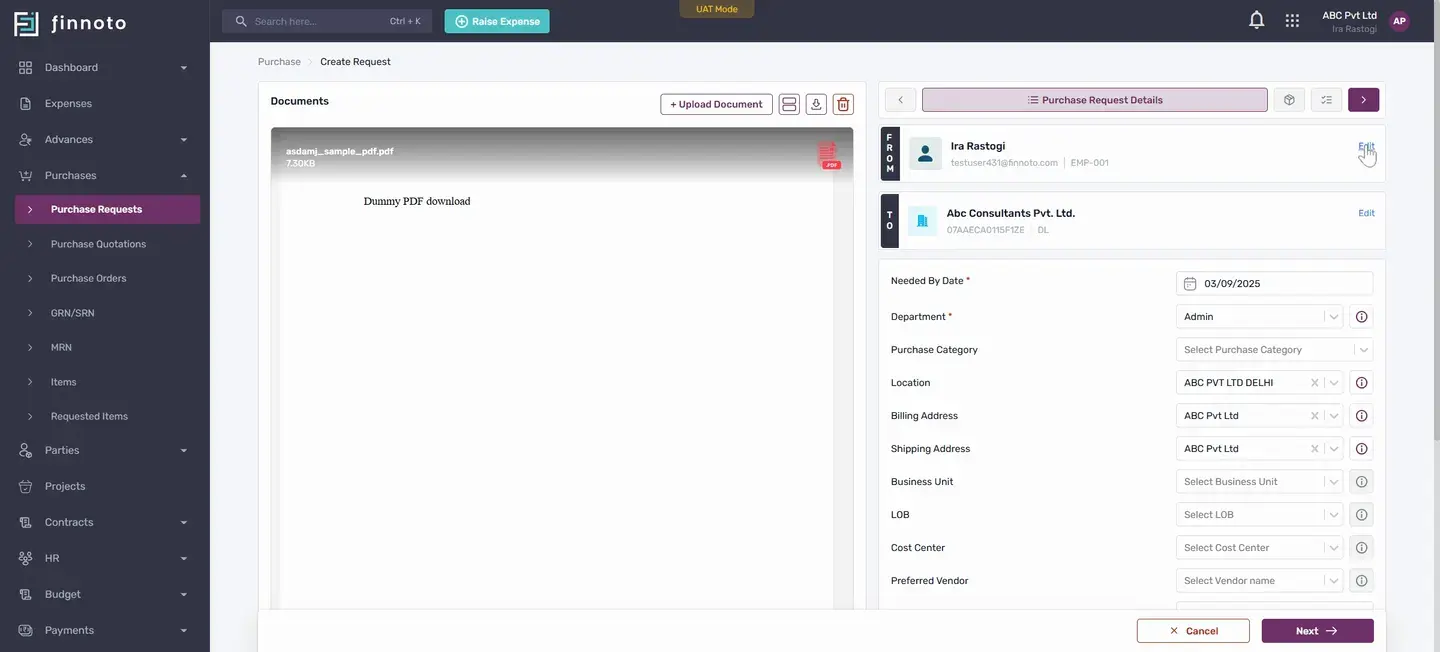
In this form, if we want to upload any document, we can upload it. This is optional. Once uploaded, we save it here. If we are AP users, we get the option to edit the 'from' field.
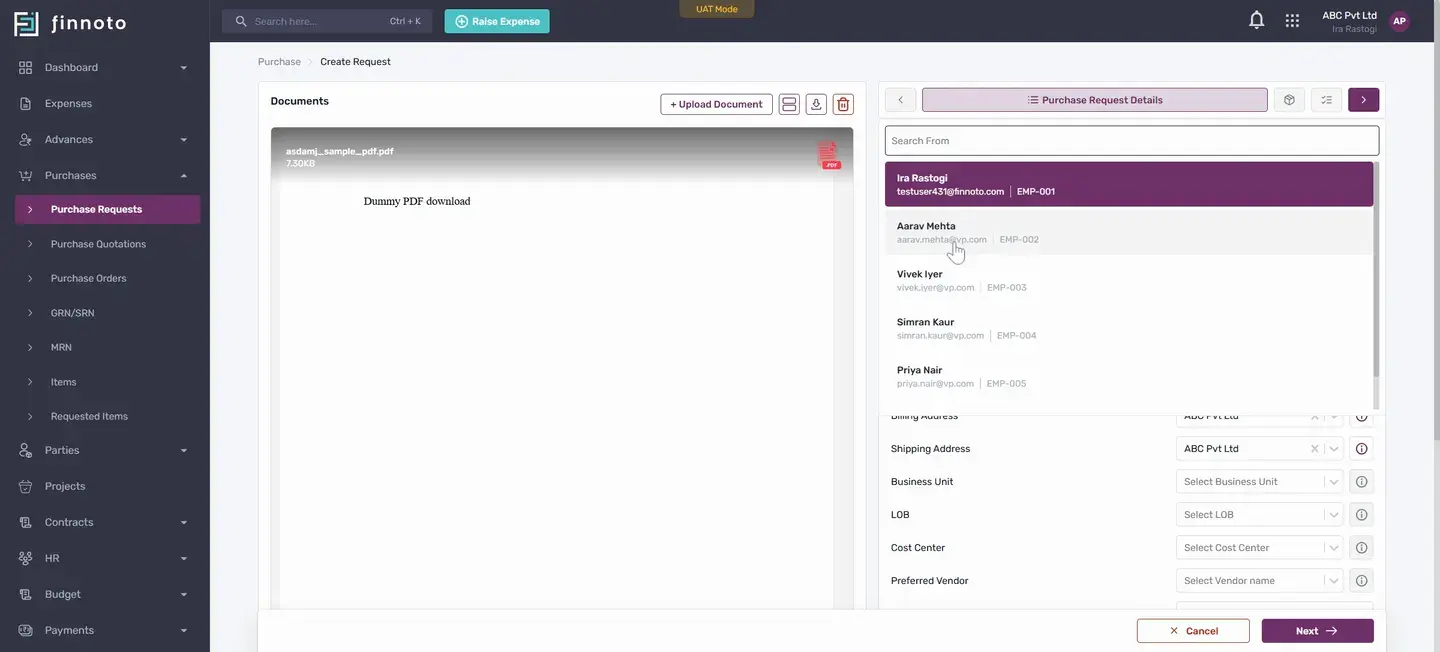
For regular employees, our name is automatically fetched and cannot be edited. The 'to' field is editable. If there are multiple businesses, we can select the business to share our PR with. So here, if we change it, and these are our two businesses.
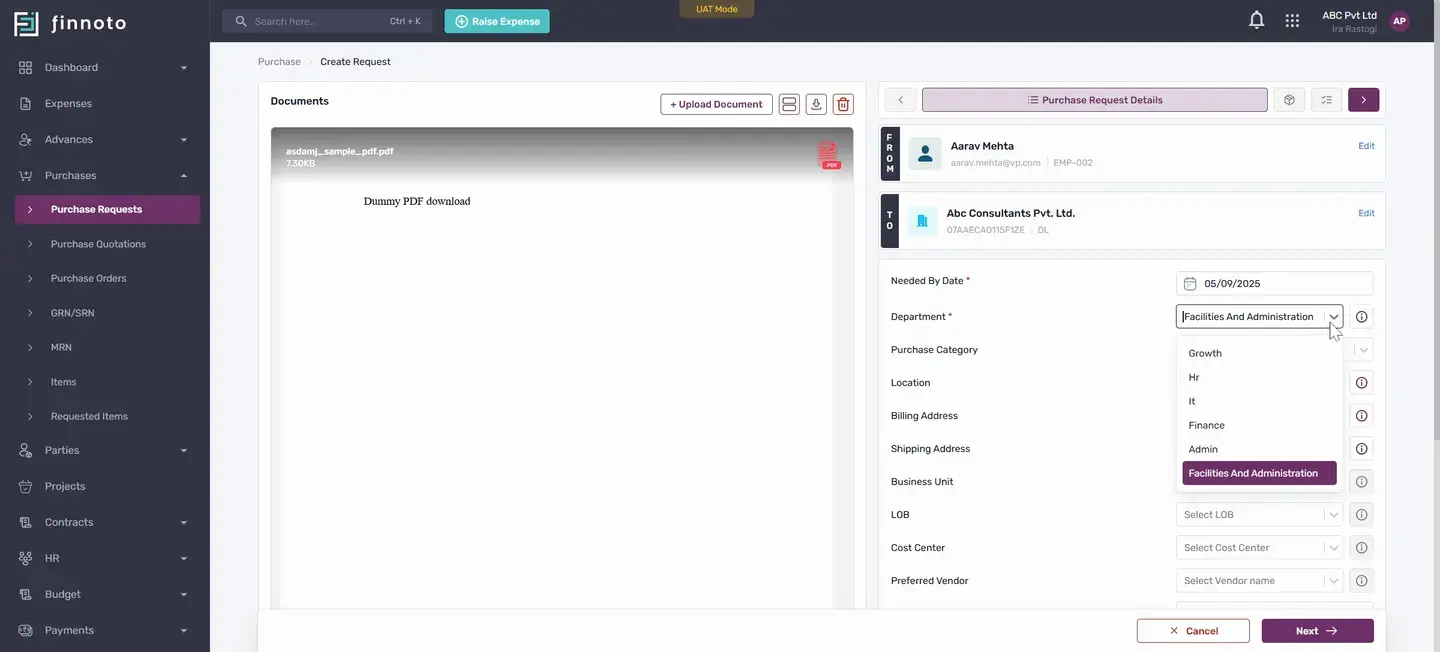
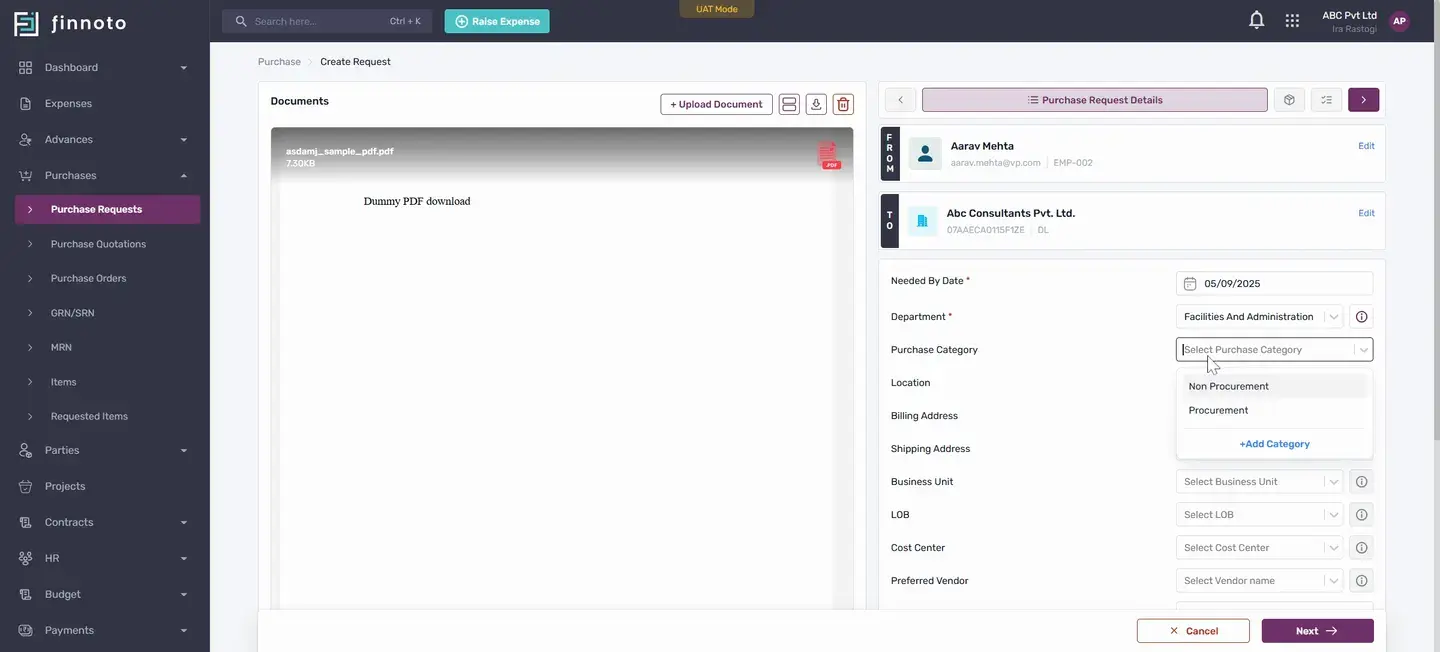
The first field is 'needed by date' where we enter when we need this request fulfilled. In the department field, the department is automatically fetched based on our department, but if we want to change it, the full list appears and we can change it from here. The next field is the purchase category. If we want to categorize our purchases, we can select it from the list.
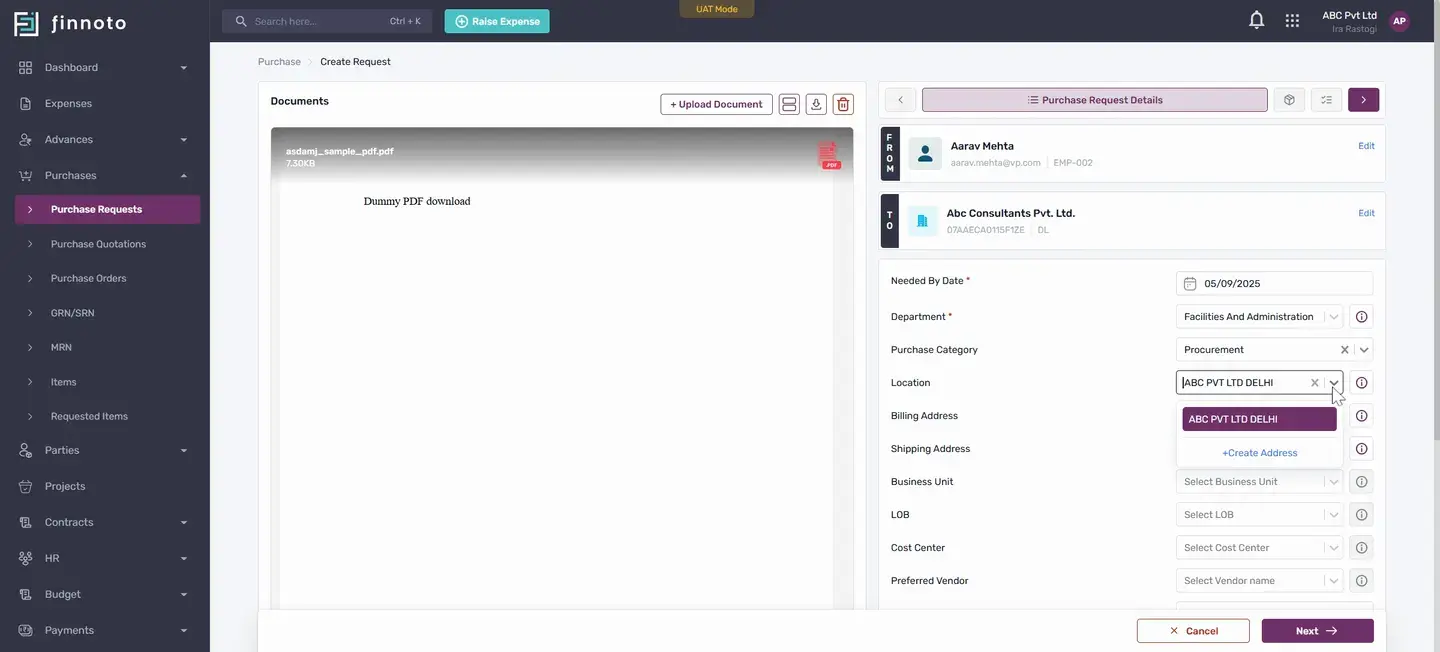
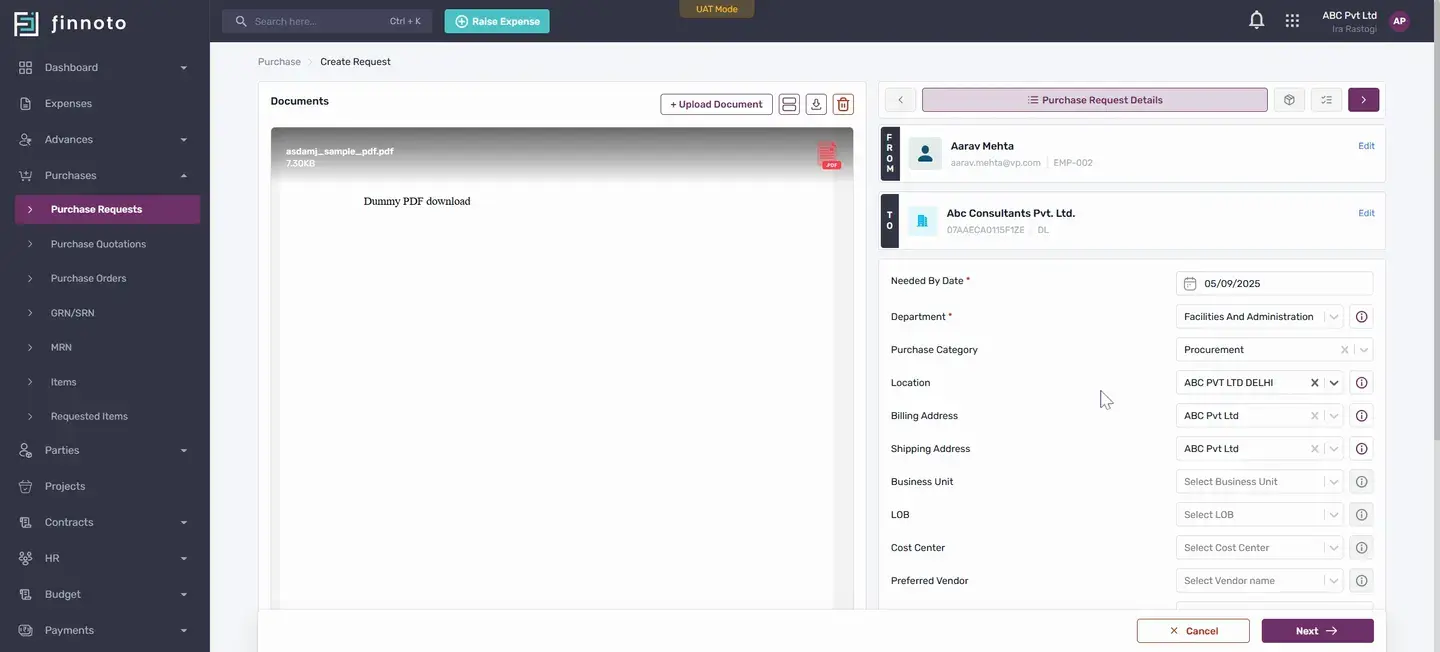
Location, billing address, and shipping address are automatically populated from our business selection. If we want to edit or select another location we can create it or select it from the dropdown. For business unit, if there are business units, we can add them. This is also optional.
Similarly, LOB and cost center can be added. In the preferred vendor section, we will see all vendors available on the portal. If we want to enter a preferred vendor, we can add it or skip it. If we want to enter the Zoho reference ID, we can add it or skip it.
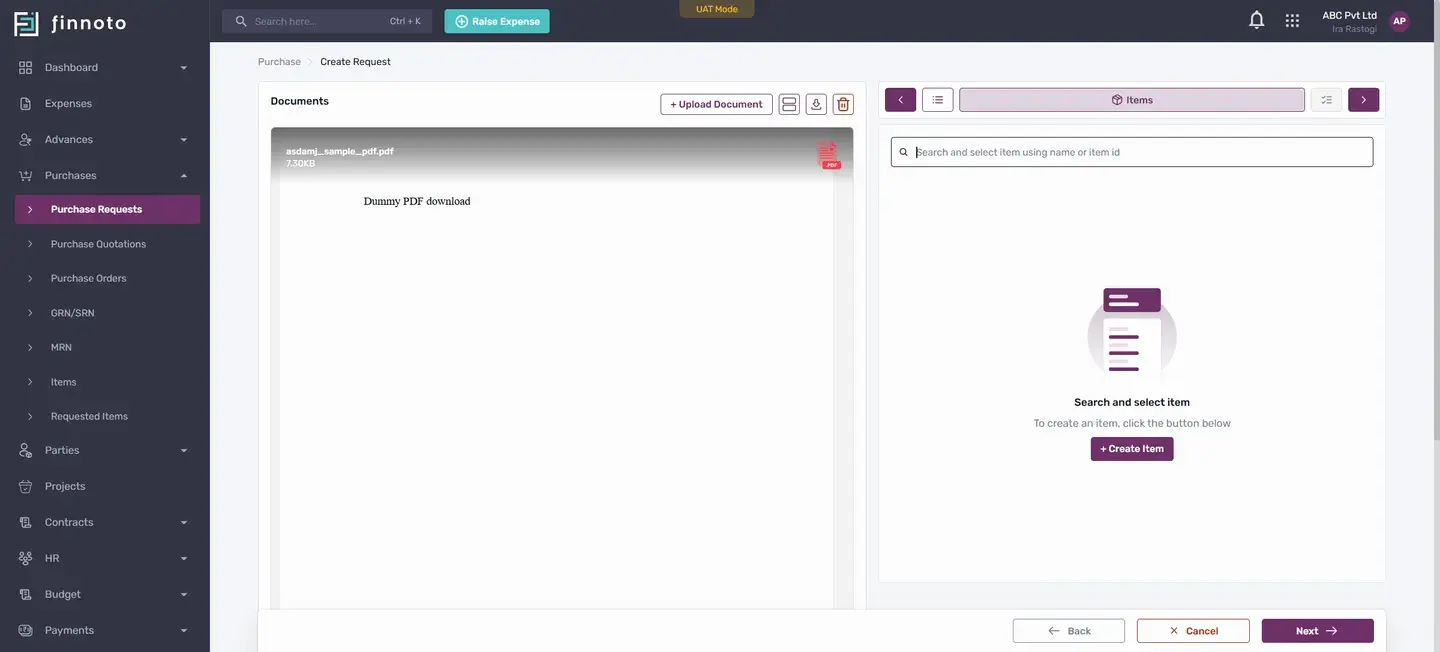
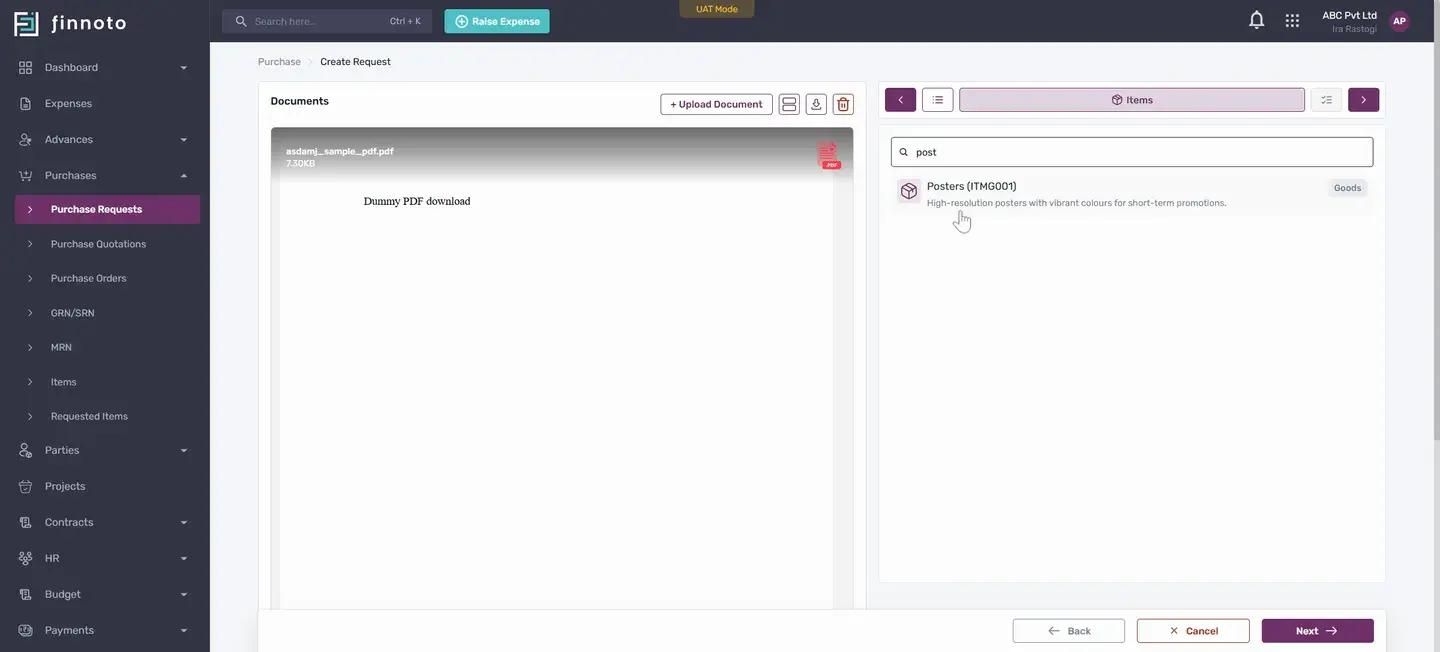
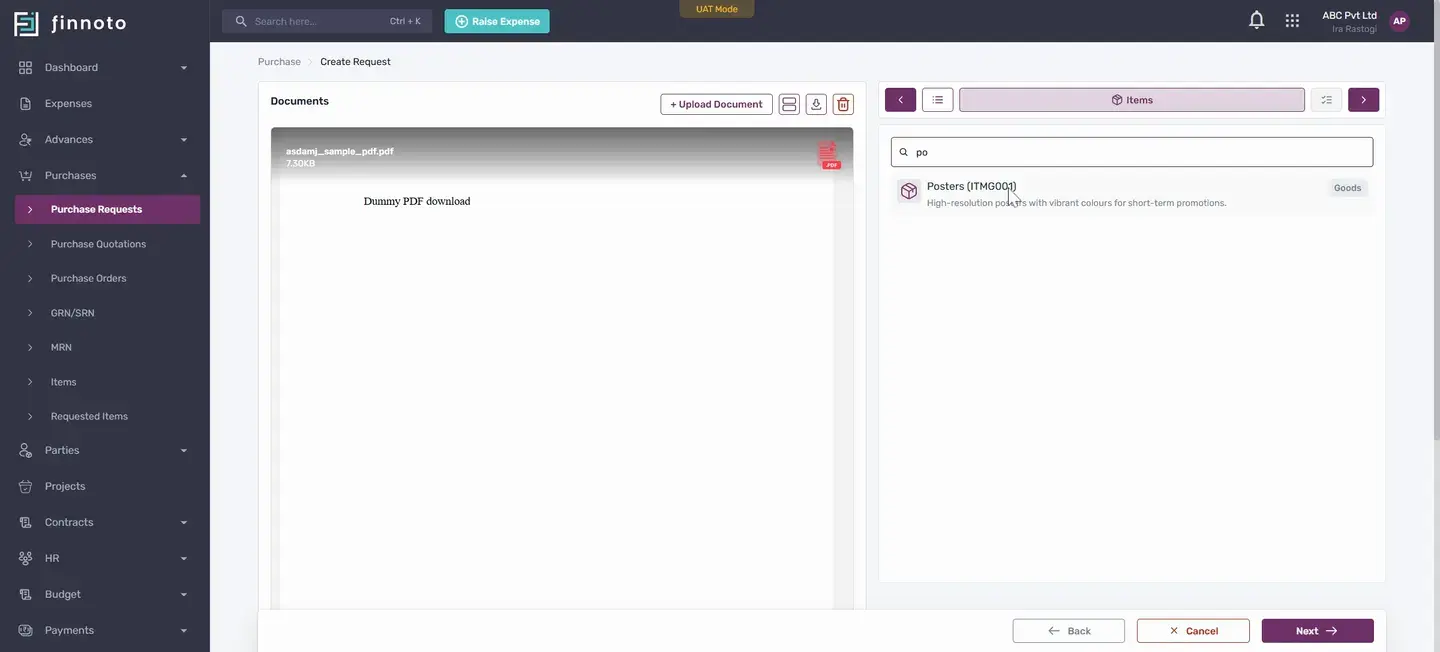
In the purchase reason, we mention the reason for the request and then proceed. In the search and select item section, we can search by item name or item ID. These items are from our organization's catalog, which is shown in the items section. By using the item code or name, we can find the item.
If we want to add a new item, we have the option to create it. This item will be added to the catalog. Here, the item is added. We can see the details here.
These details are pre-filled because they were entered during item creation or catalog entry. The price, GST, and HSN code are filled from the items catalog. Once we select the item, details are automatically populated. If we want to edit, we have the option.
We can change the rate, quantity, GST, and select other details like GL, business unit, cost center, LOB, and location for this item. We can also add comments. After clicking next, we see the item summary with the total amount. If we want to edit or delete, we have those options.
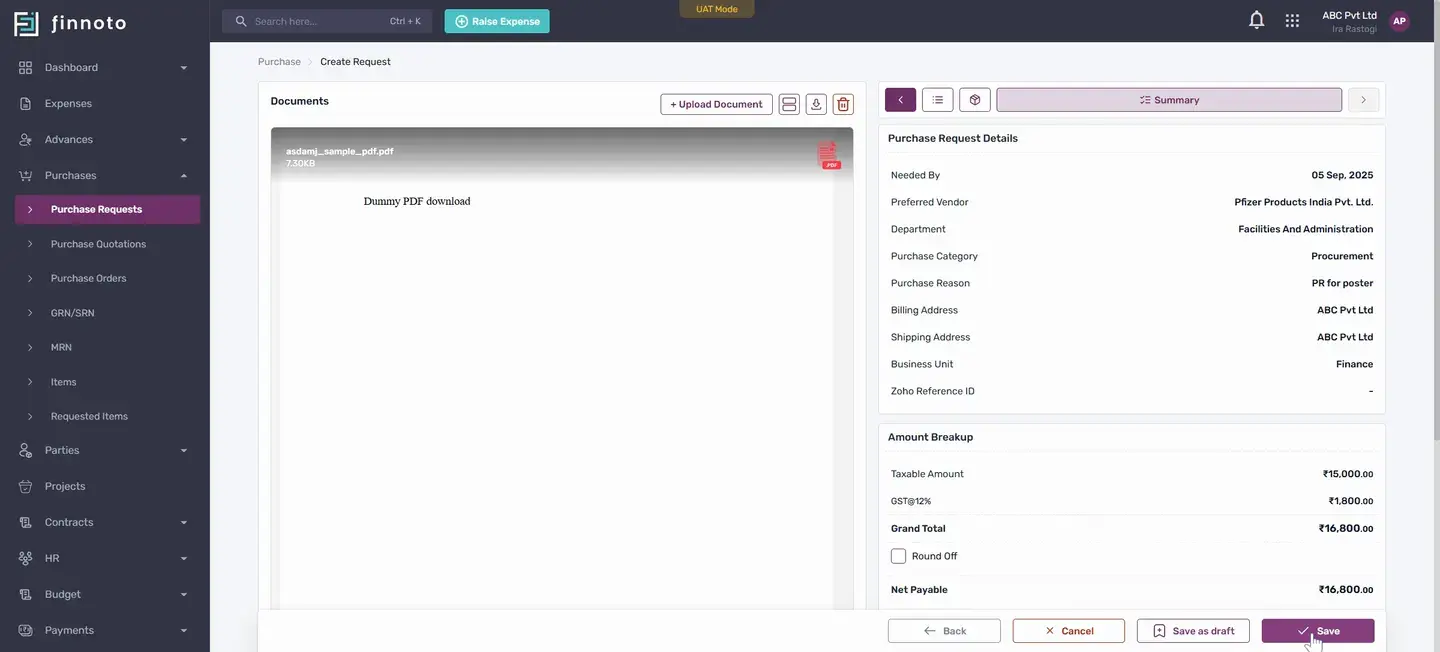
On going next, in the summary, we see all purchase details entered. Now we have two options: save as draft, which allows us to edit and submit later. For now, we will submit using the save button. Once done, the purchase request is created.
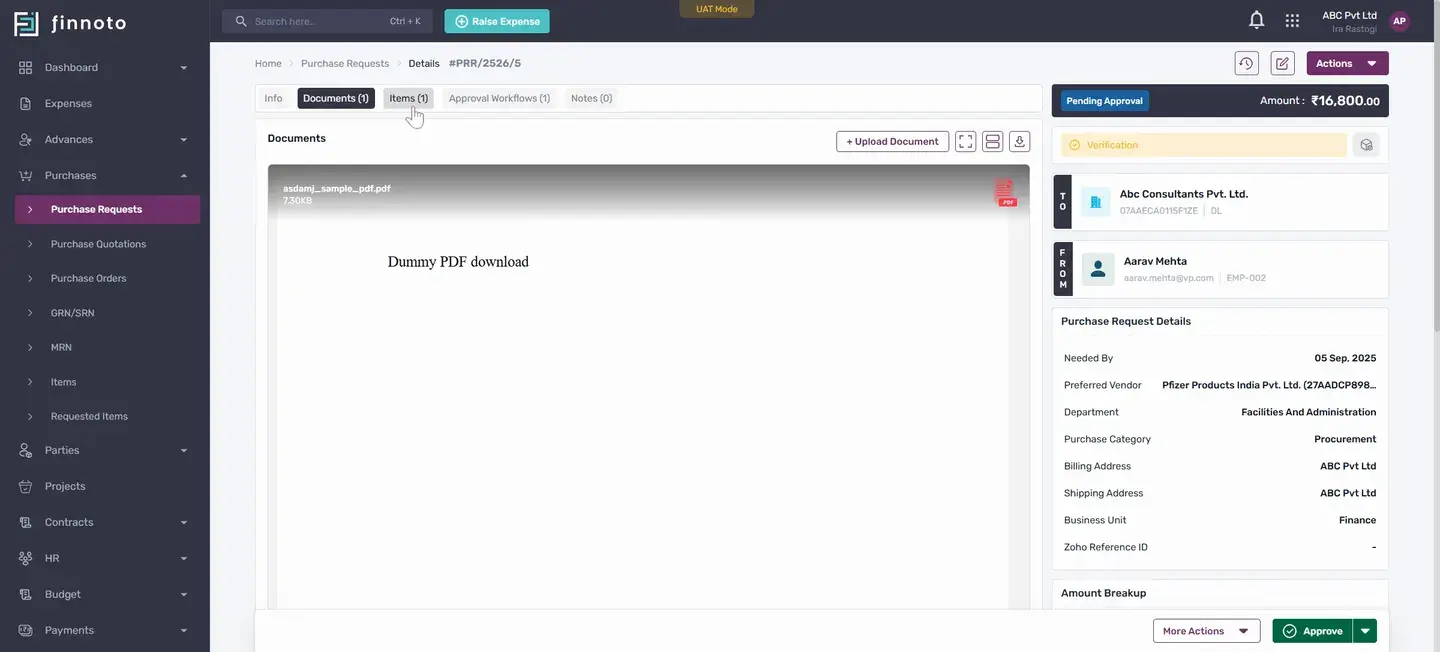
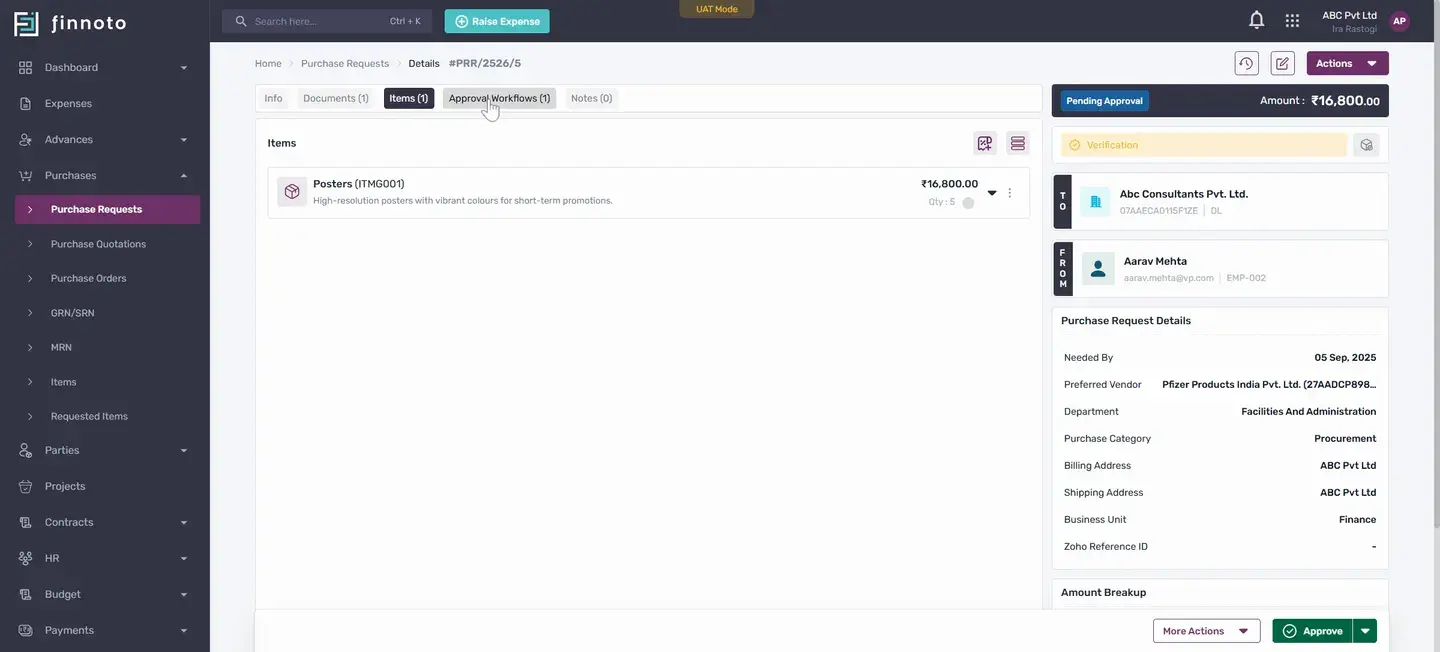
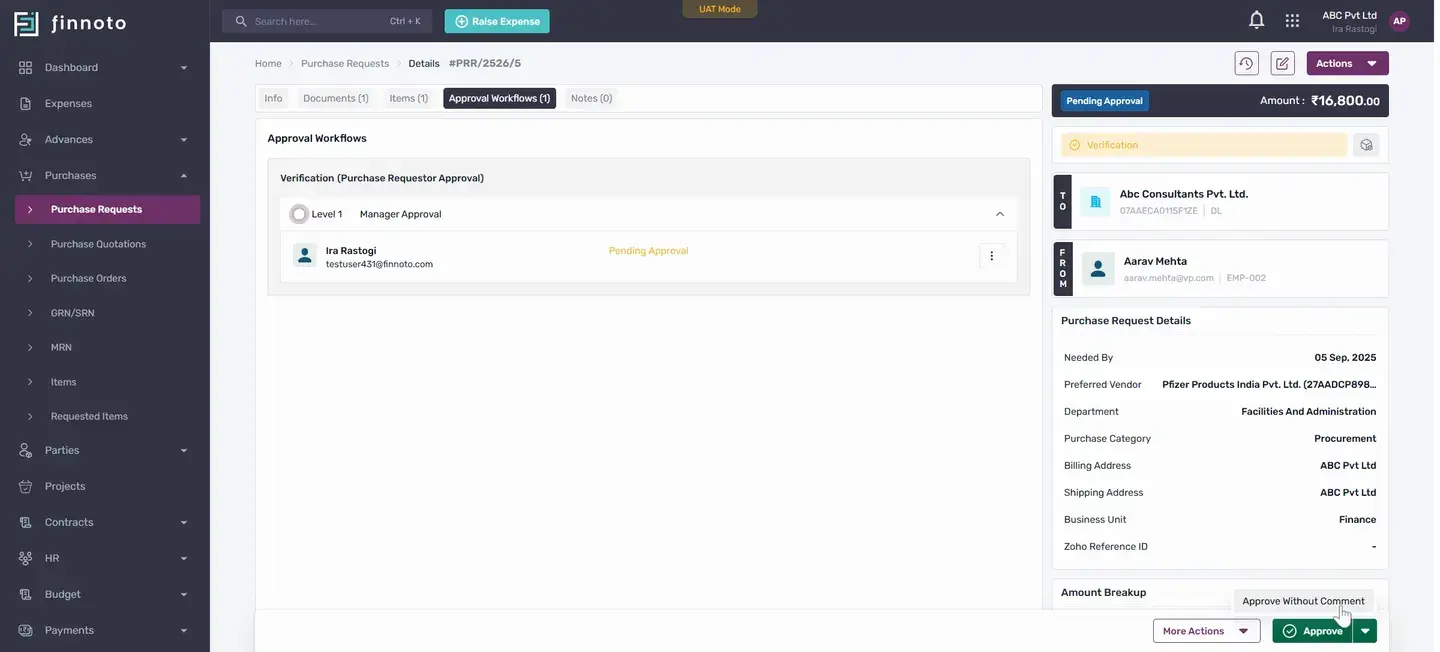
Under the document tab, the document will appear. Under the Items tab, items will show up. In the approval workflow, if any is set for the PR, it will show here. We can see the approval workflow is in pending approval because it needs approval from a approver.
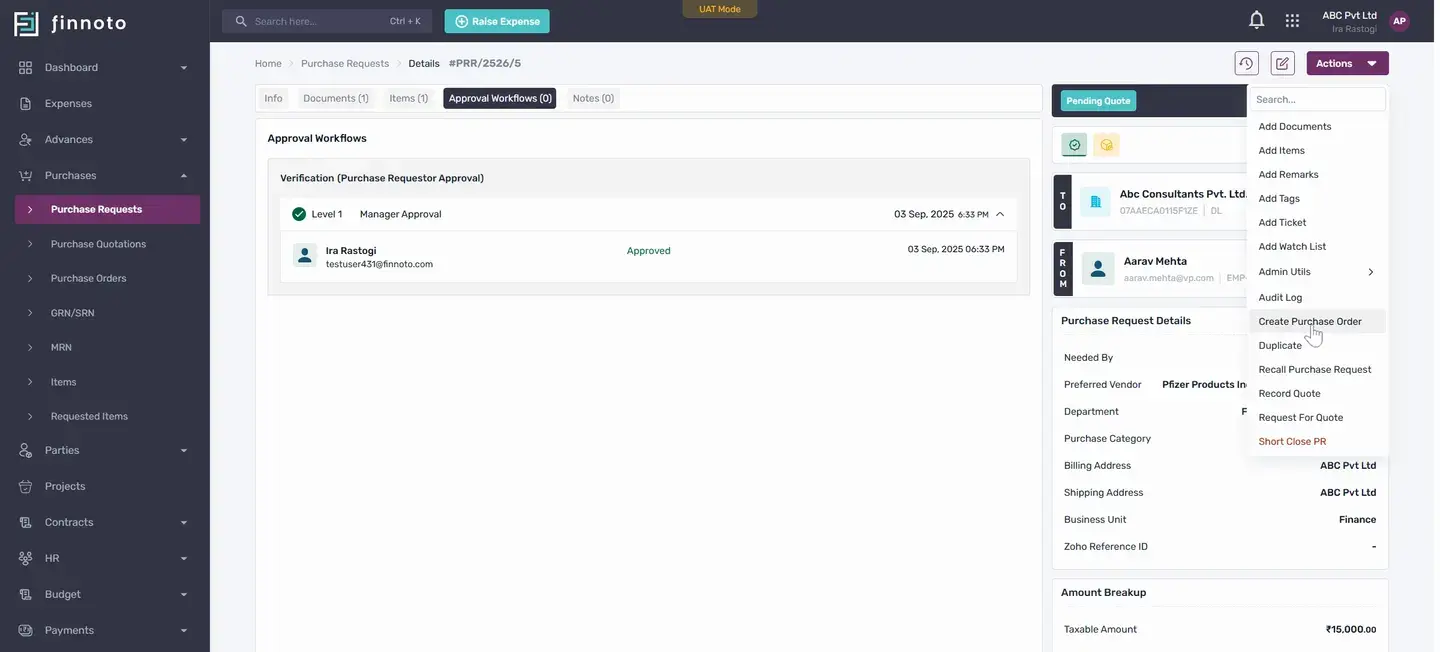
If we approve this, after approval, the status changes to pending Quote. When it's in pending quote state, we get the option to create a purchase order from this PR. By using create PO, we generate a PO. All details from the PR are fetched.
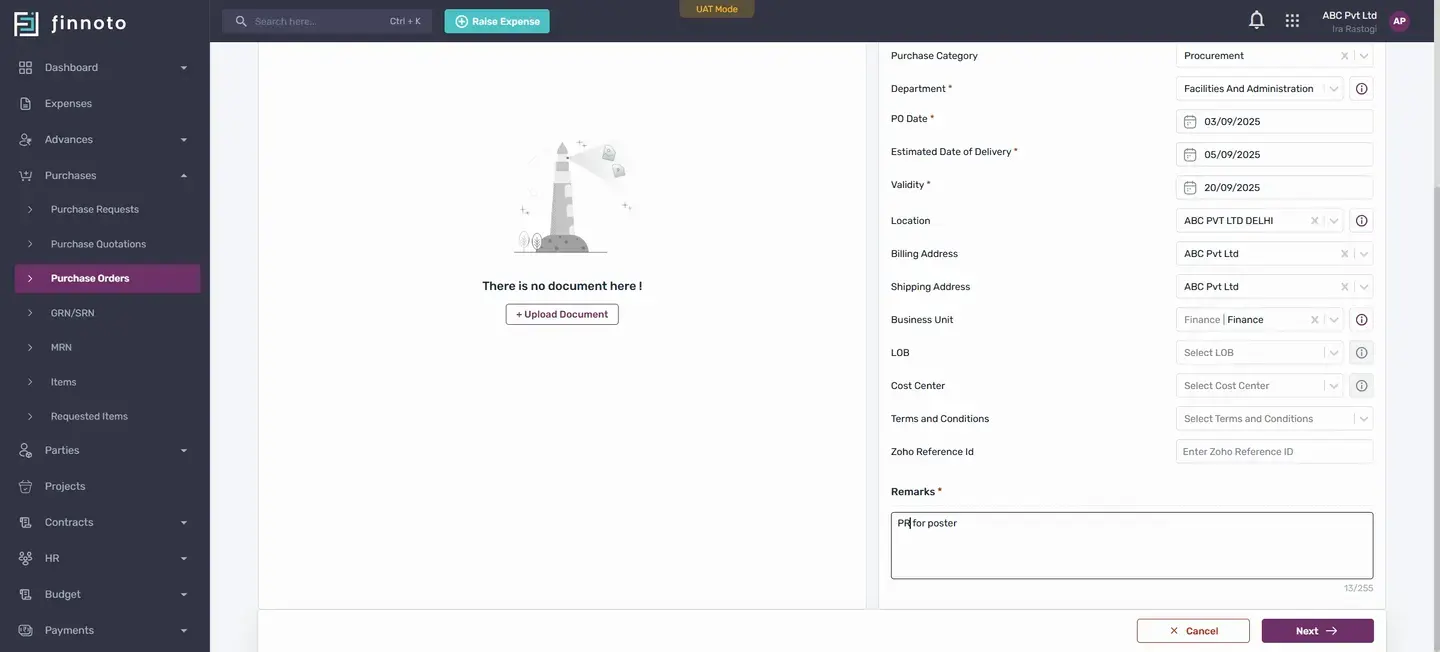
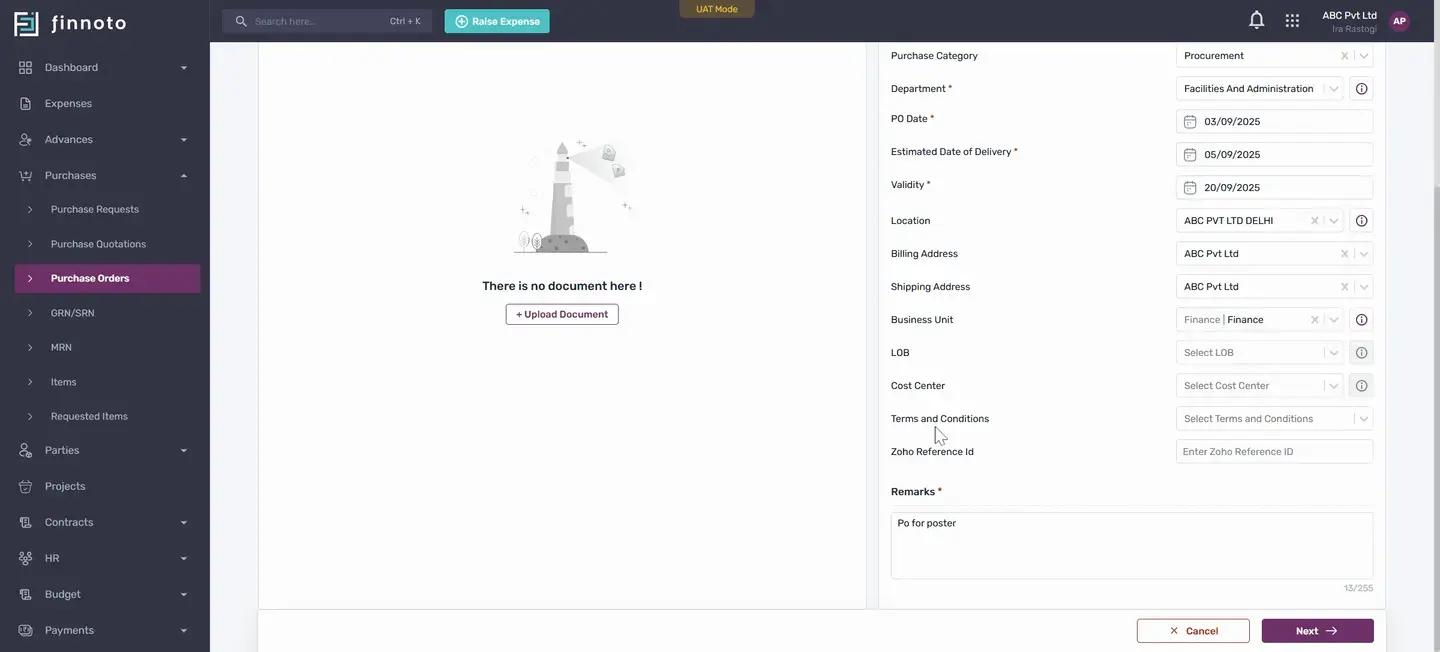
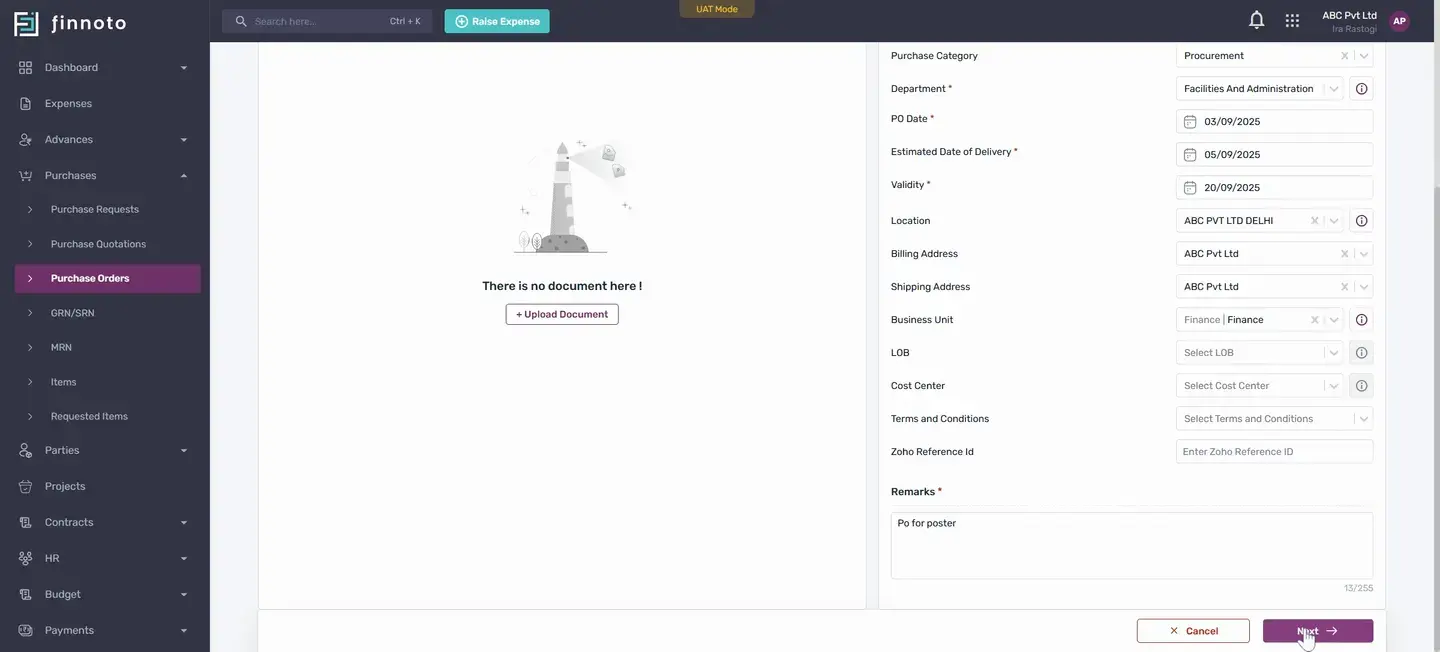
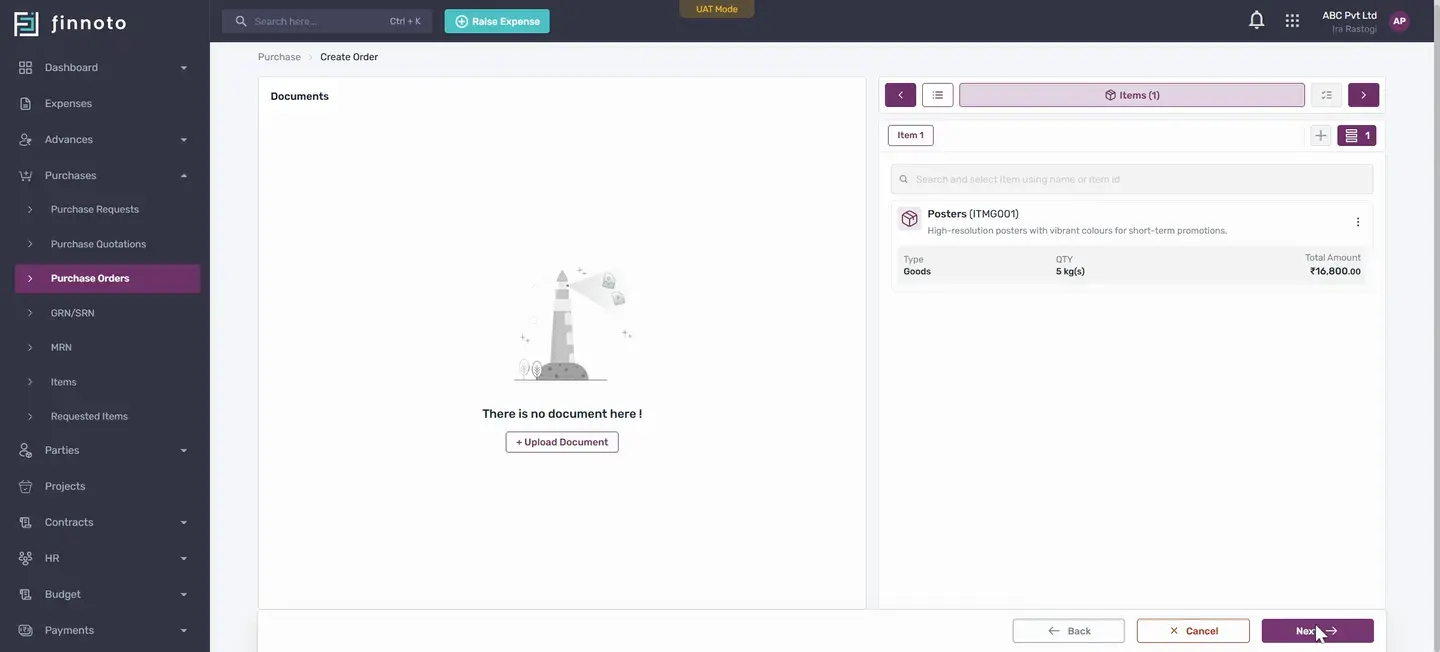
If we want to edit, we can do it anytime. If we want to add terms and conditions, we can add them. These terms and conditions are set from the configuration section. Going next, the item is populated.
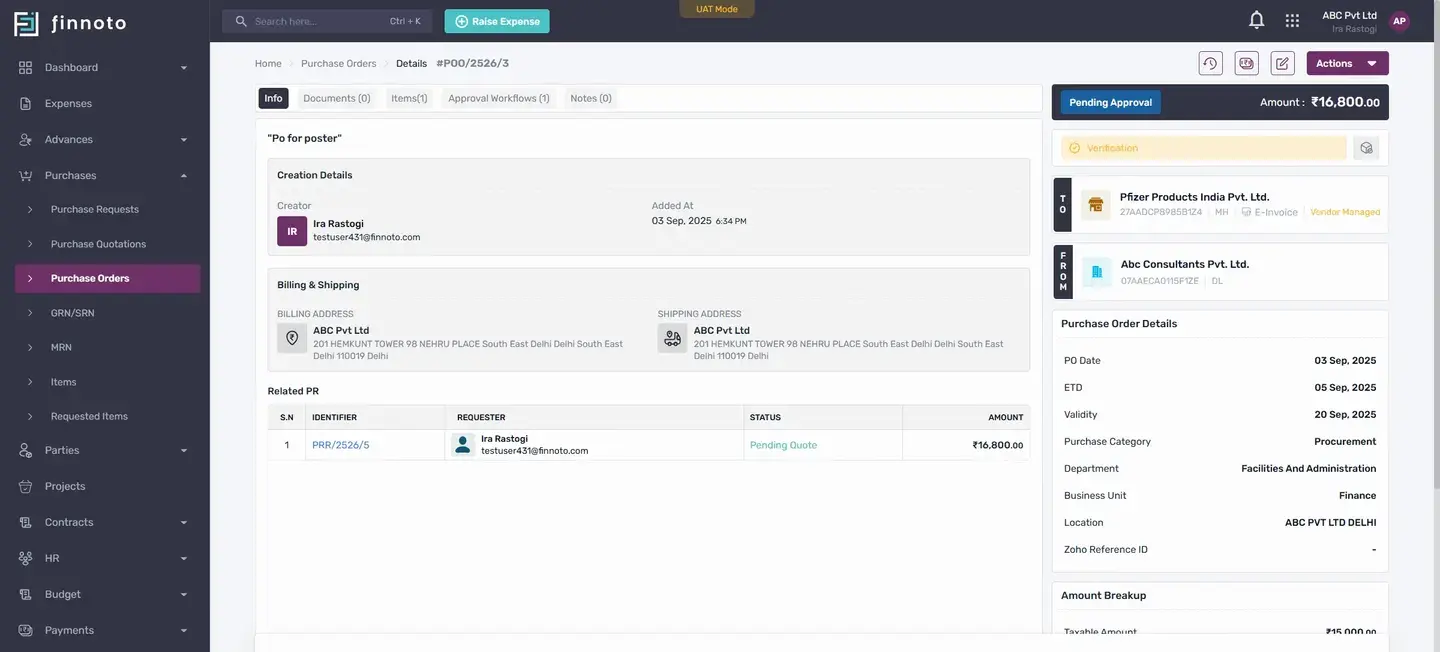
If we want to edit or replace this item, the option is here. On going next, by using the save button, we save the PO. Once the PO is saved, on the PO detail page, we can see the related PR, where the PR identifier is visible. Clicking it navigates to the PR from which this PO was created.
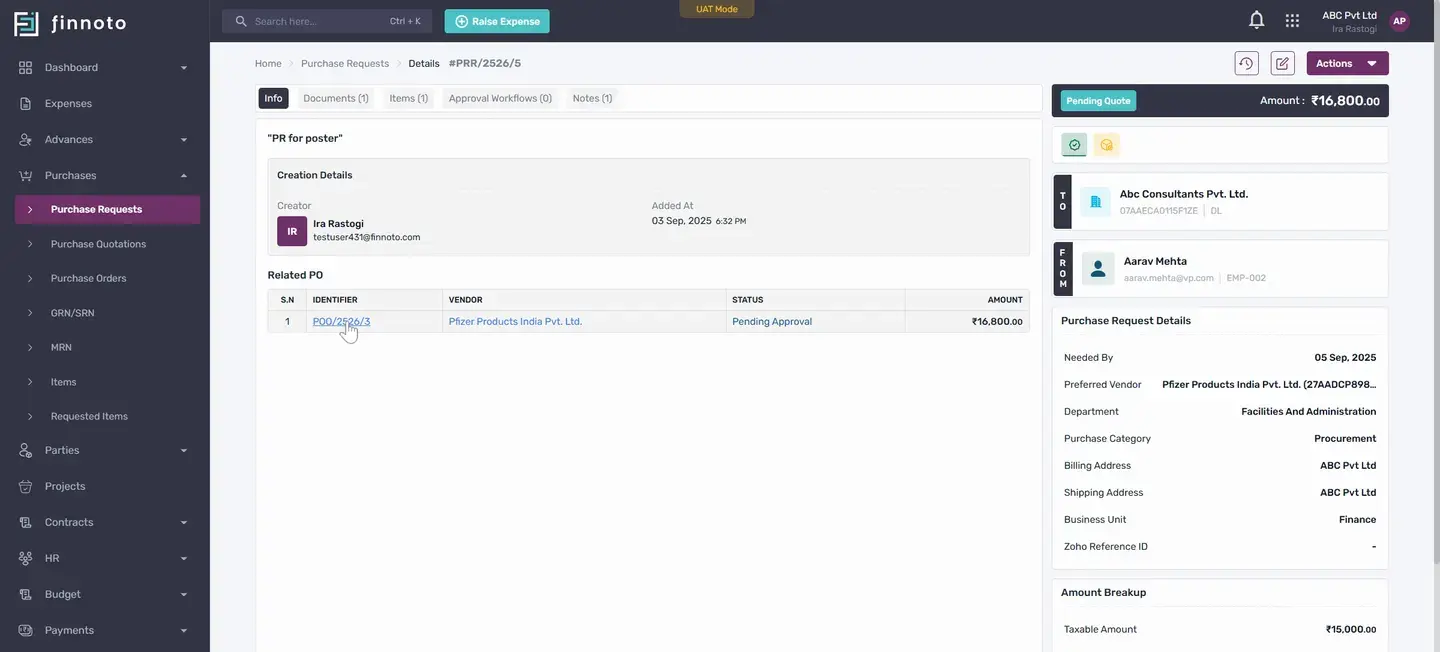
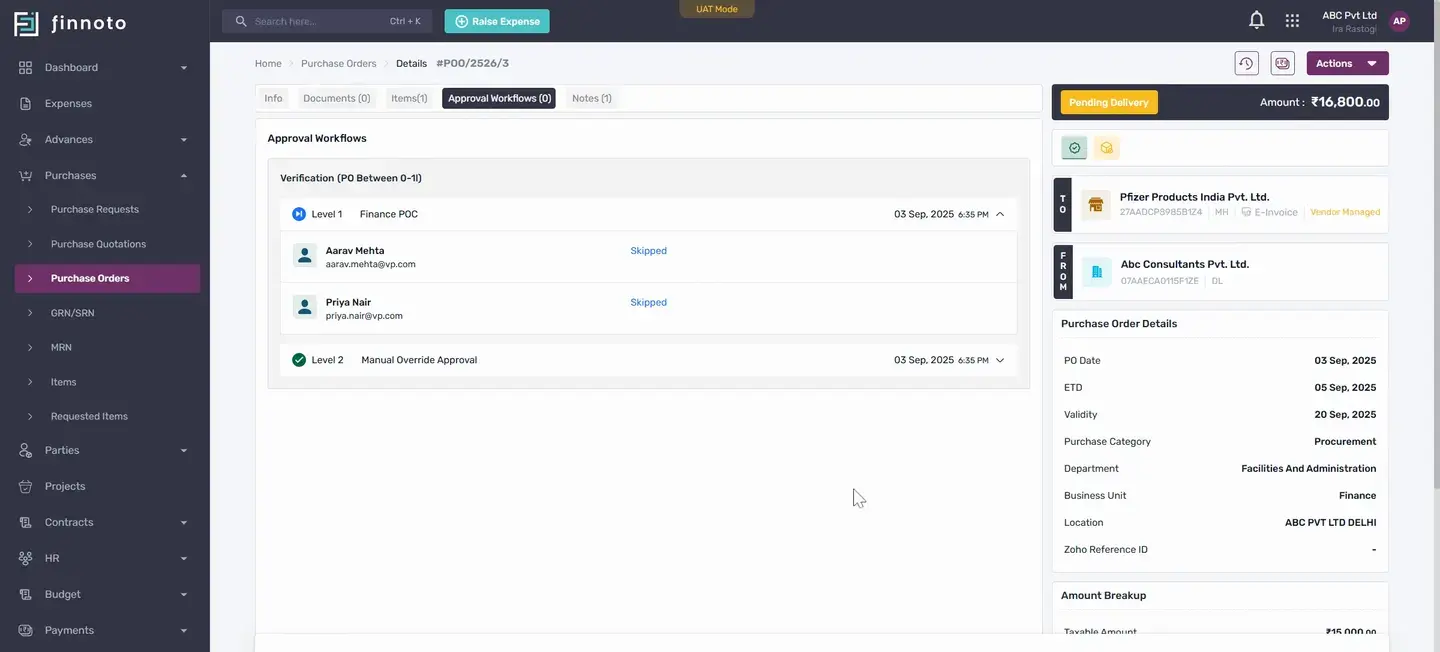
In the PR, the related PO is also shown, and clicking it takes us to the PO. In the PO, we can see the Documents tab, Items, and Approval Workflow. If there is an approval workflow like in PR, it appears here. Once approved and the status changes to pending delivery, we get the option in the pending acknowledgment state.
Once it's acknowledged by the vendor (if vendor managed) or by the AP user), and the PO is in pending delivery state, we get the option to create G R N S R N. This is how, from the PR, a PO is generated, and from the PO, we can create a G R N S R N. We will cover the next process like PO to G R N S R N to Expense creation in our upcoming videos. Thank you for watching this video.
Hello everyone
So today we will learn how to create purchase request on Finuto and from that purchase request how to generate a purchase order. So for this first navigate to the purchases module.
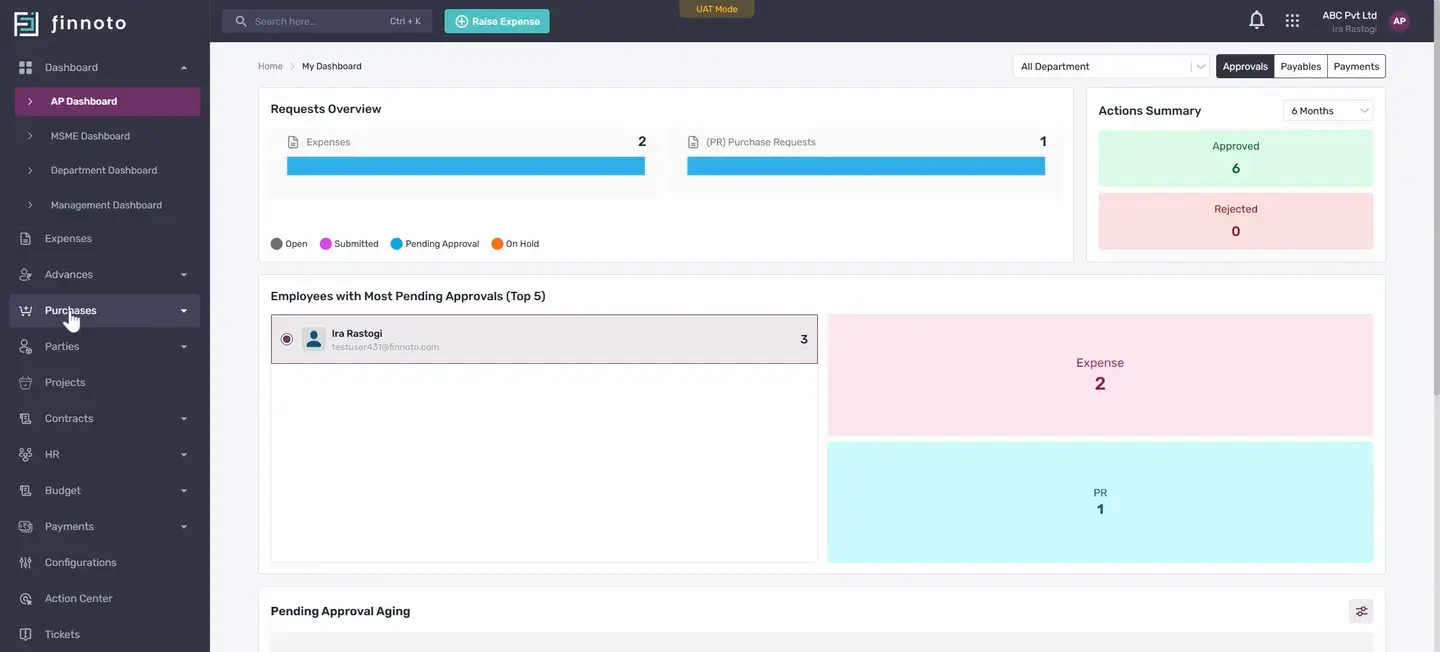
From this module click over the purchase request and from the Add PR button you will be able to see the create purchase request form here.
In this form if you want to upload any document, you can upload it.
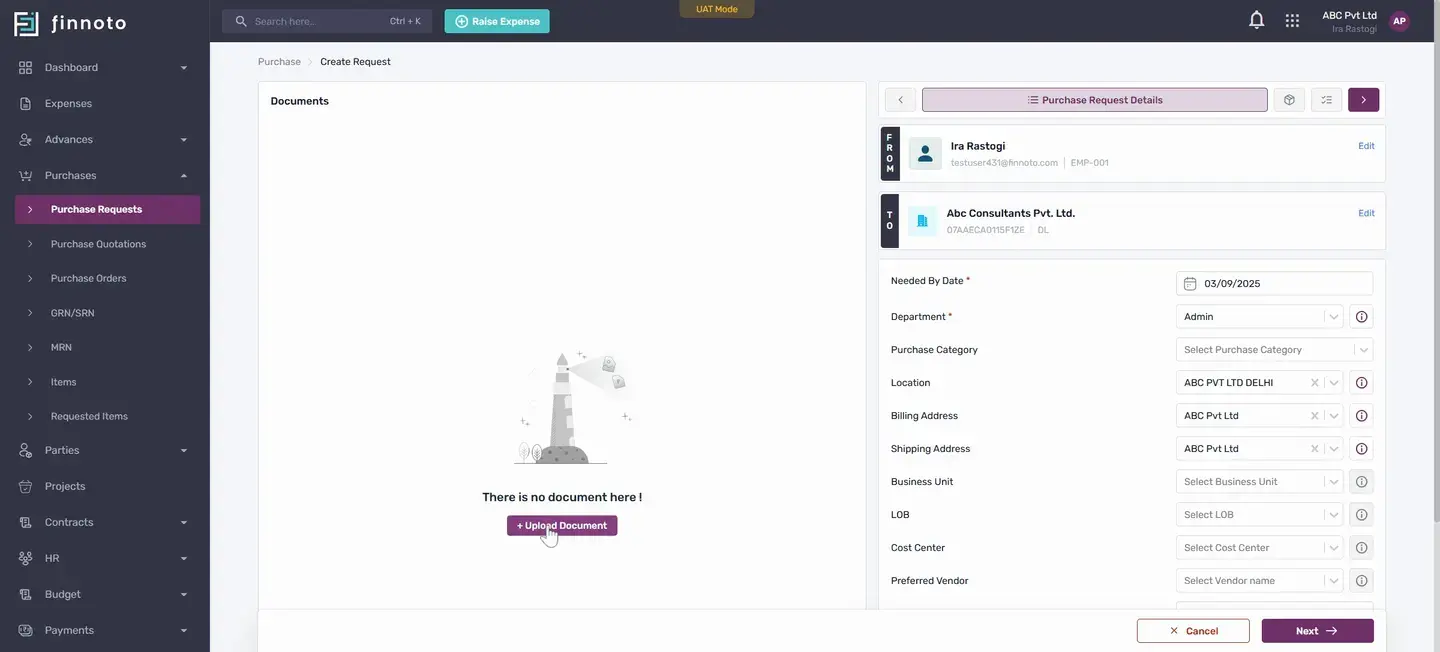
If you are an AP user you will get a option to edit the from field. But if you are a regular employee, your name will be automatically fetch over here. That cannot be editable. But the two field is editable. If there are multiple businesses, you will be able to select the business you want to share the your pr.
So here like here if I'm changing it and this is my two business.
So this the first field is needed by date till when you need this request to be fulfilled that you have to enter over here in the department field this department is automatically fetched based on the employees department.
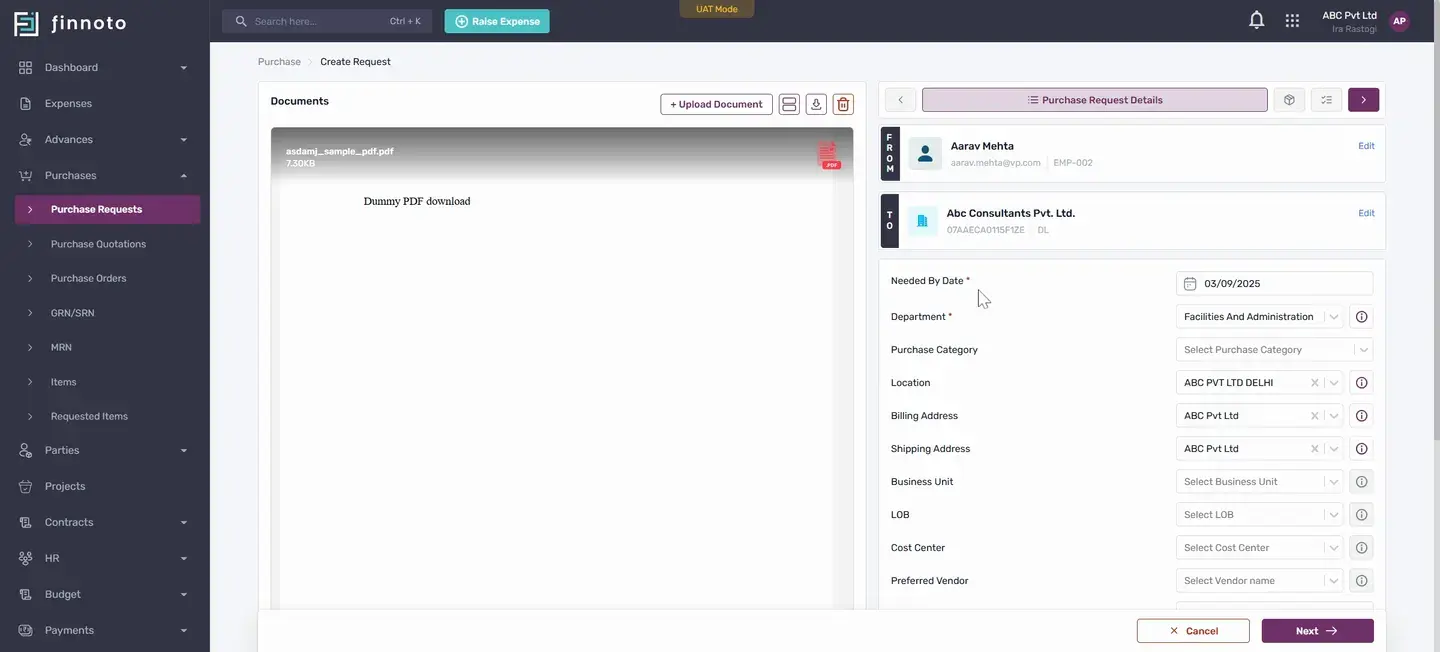
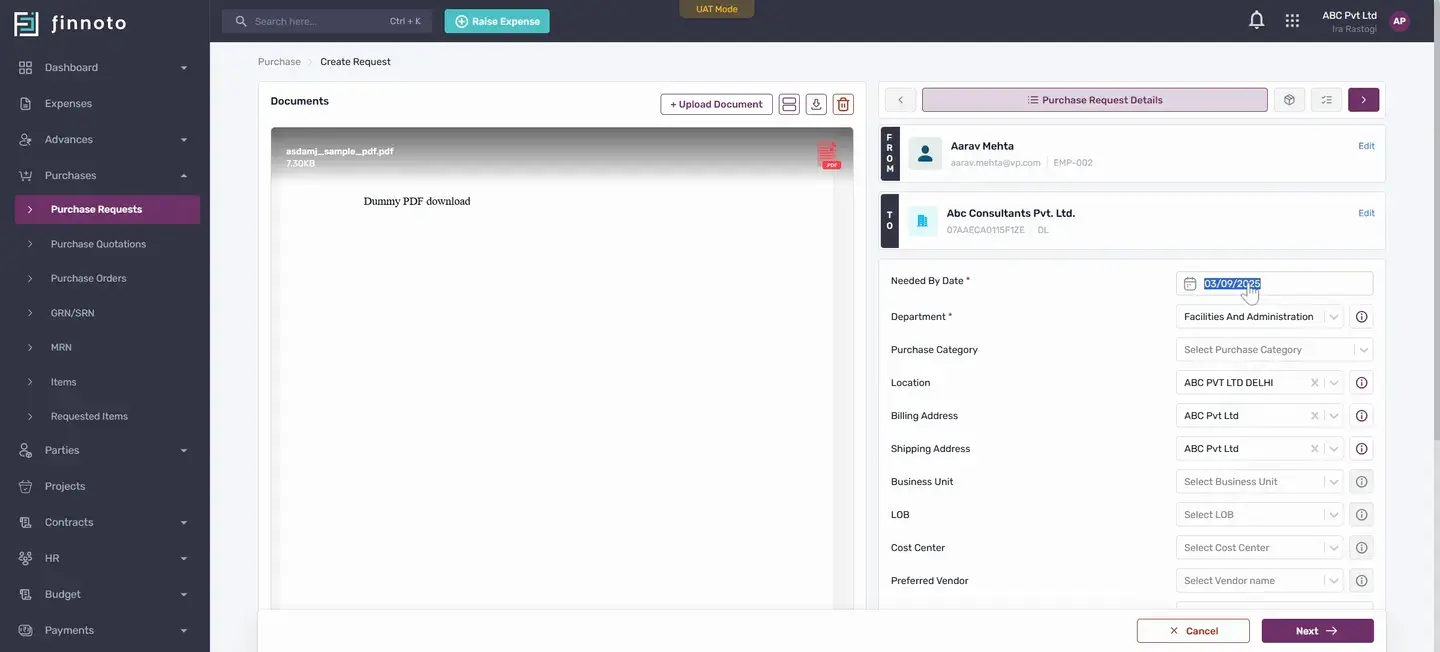
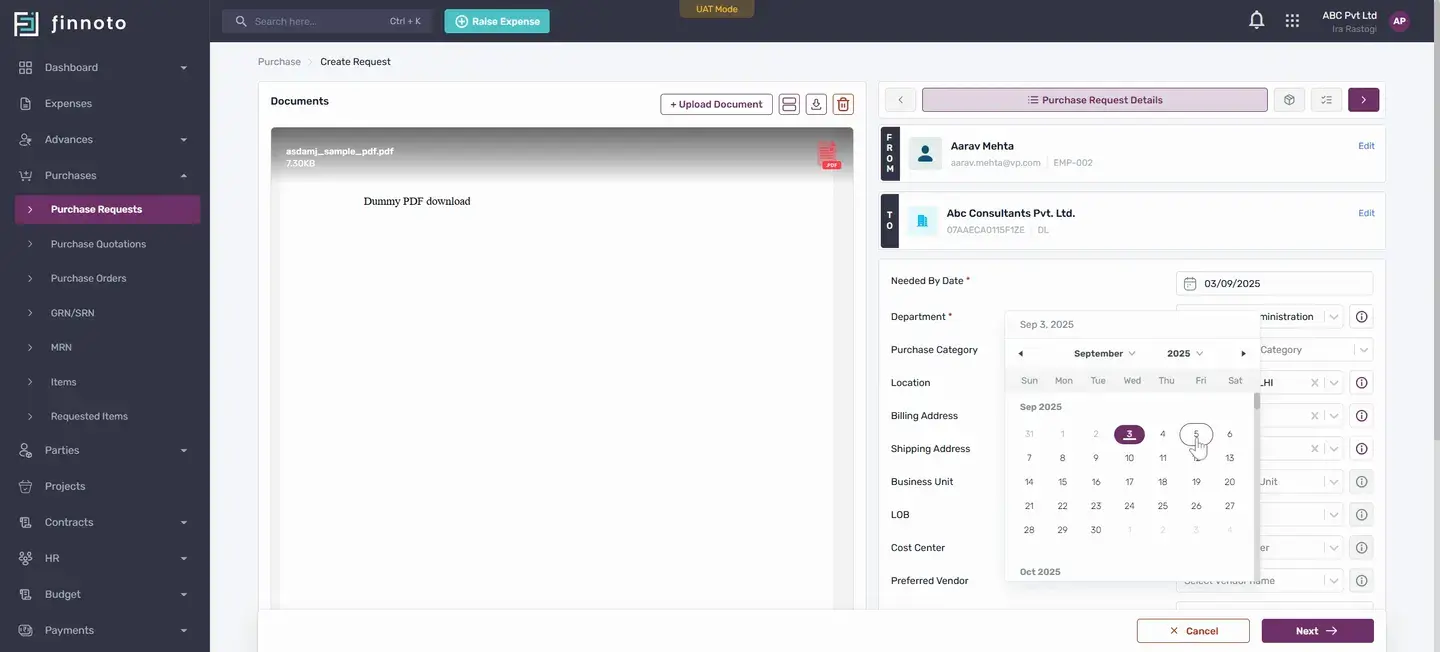
But if you want to change it, the whole list is coming and we can change it from here.
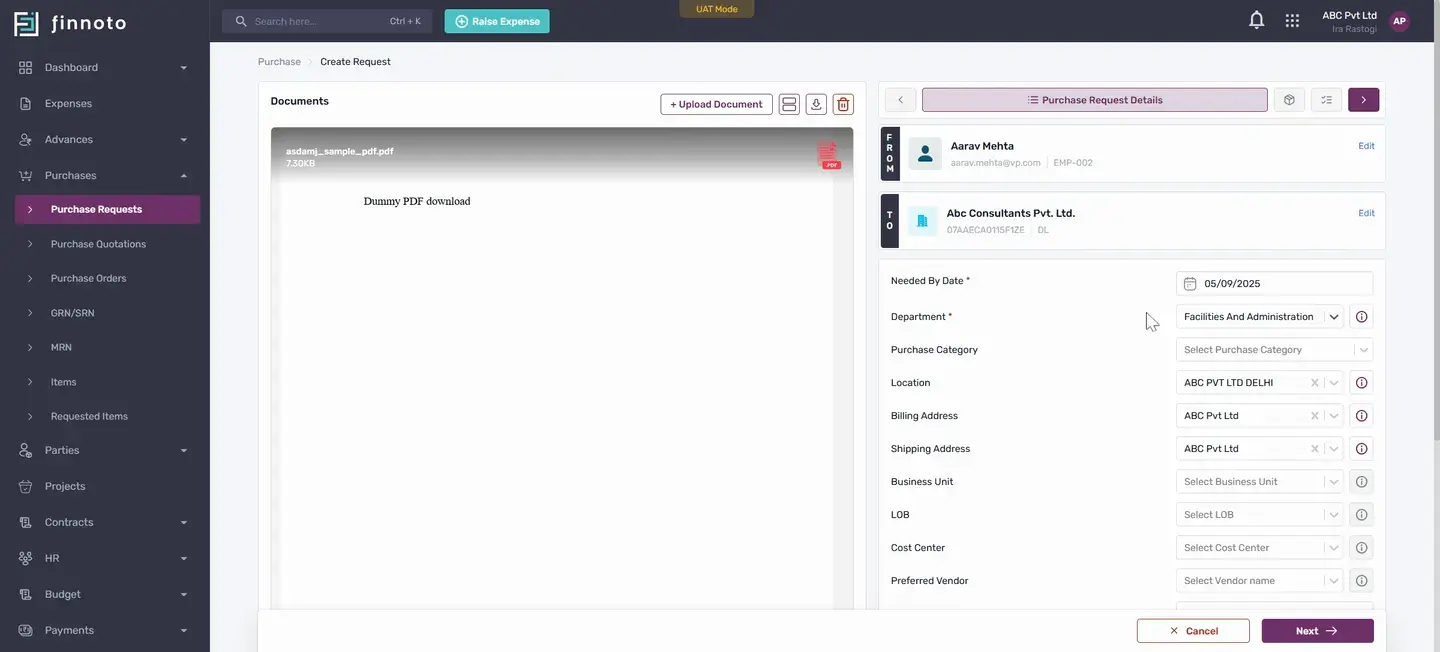
The other field is the purchase category
If you want to categorize your purchases and it's then you can select it from the list Location, billing address and shipping address will be automatically populated from your.
Thus from the selection of the business in case if you want to edit it and if there is any other location available then also you can create it or you can select it from the drop down business unit.
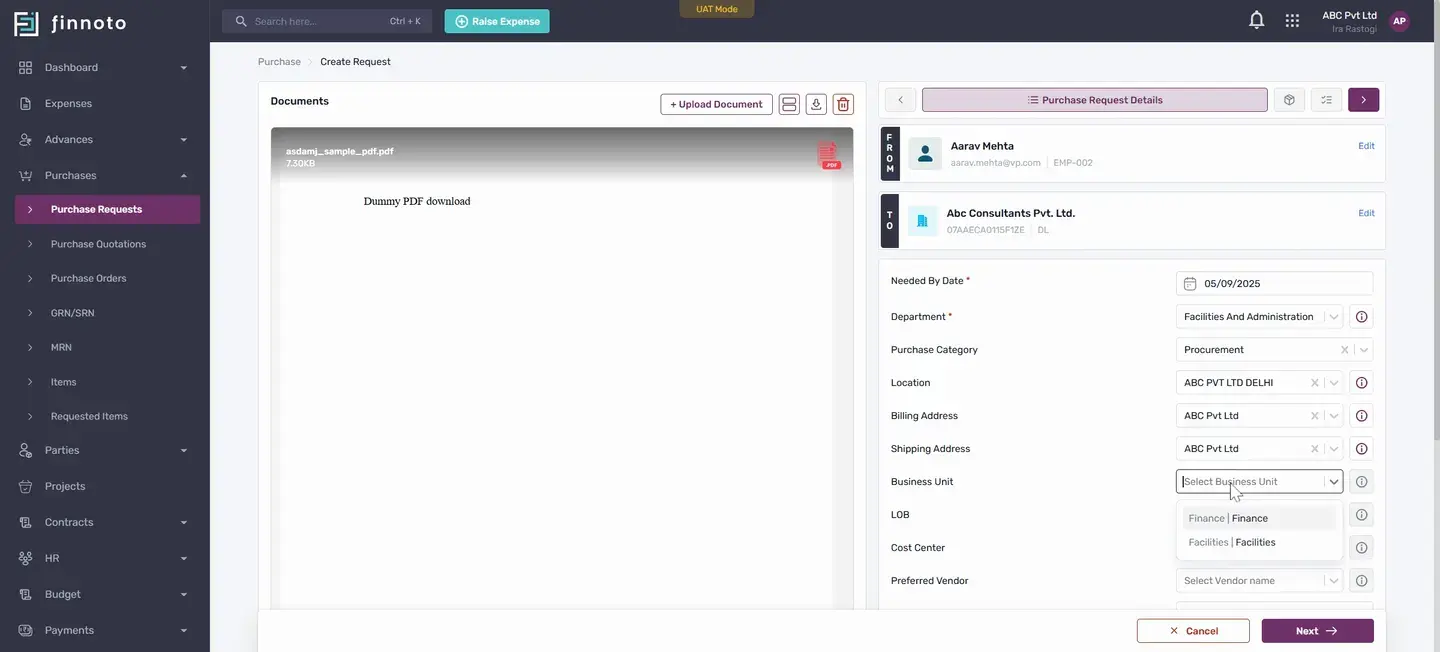
Although it's also not a mandatory field
Similarly LOB Cost center can be added and in the preferred vendor section here you will be able to see all the vendors which are available on the portal.
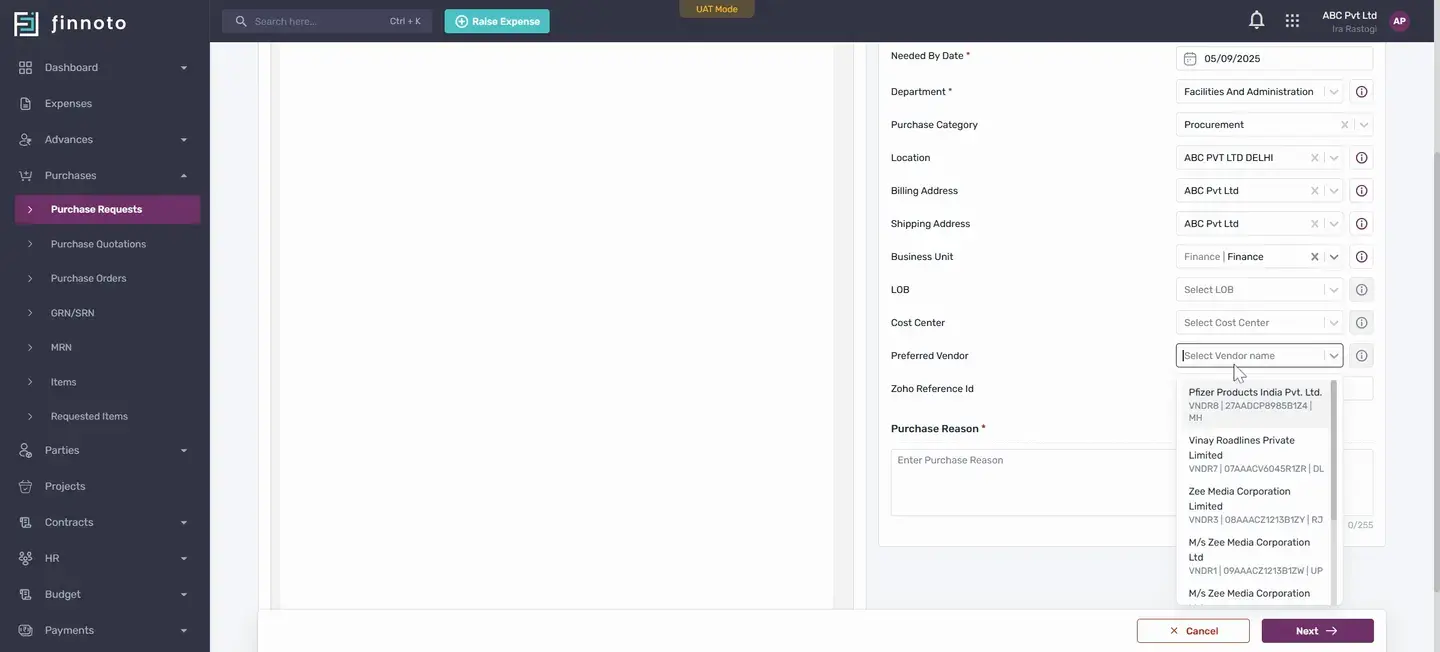
So if you want to enter any preferred vendor you can add it or either you can skip skip it as well. Similarly if you want to have enter the Zoho reference id.
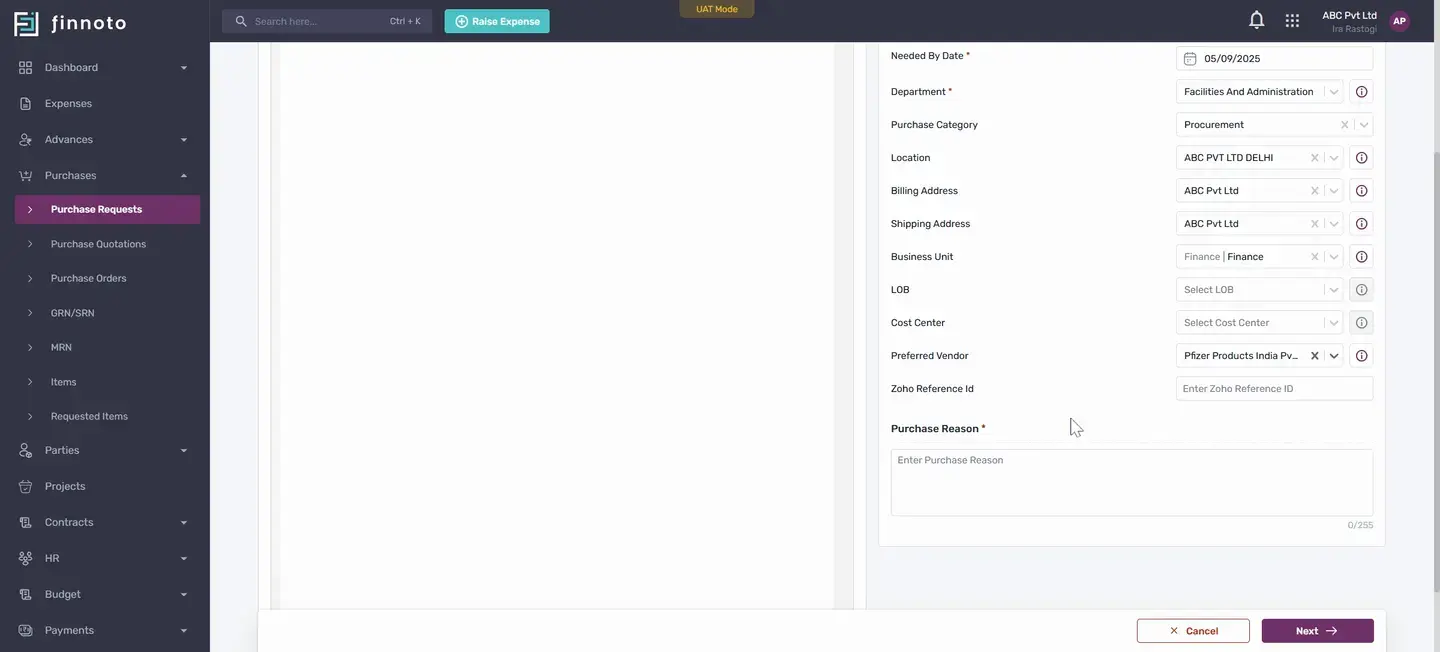
If you have then you can enter else you can skip this as well. In the purchase reason you have to mention the reason for the request and then you can proceed with the next here in the search and select item you can search the item by the item name or by the item id.
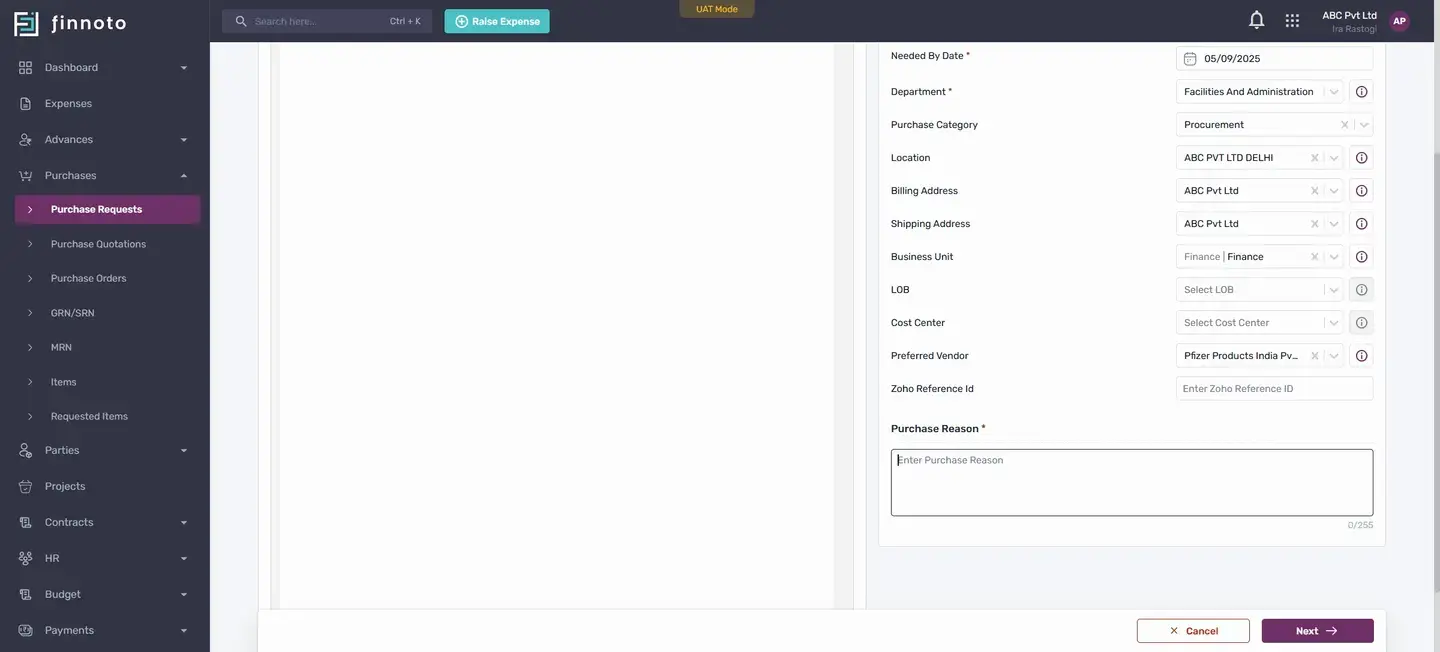
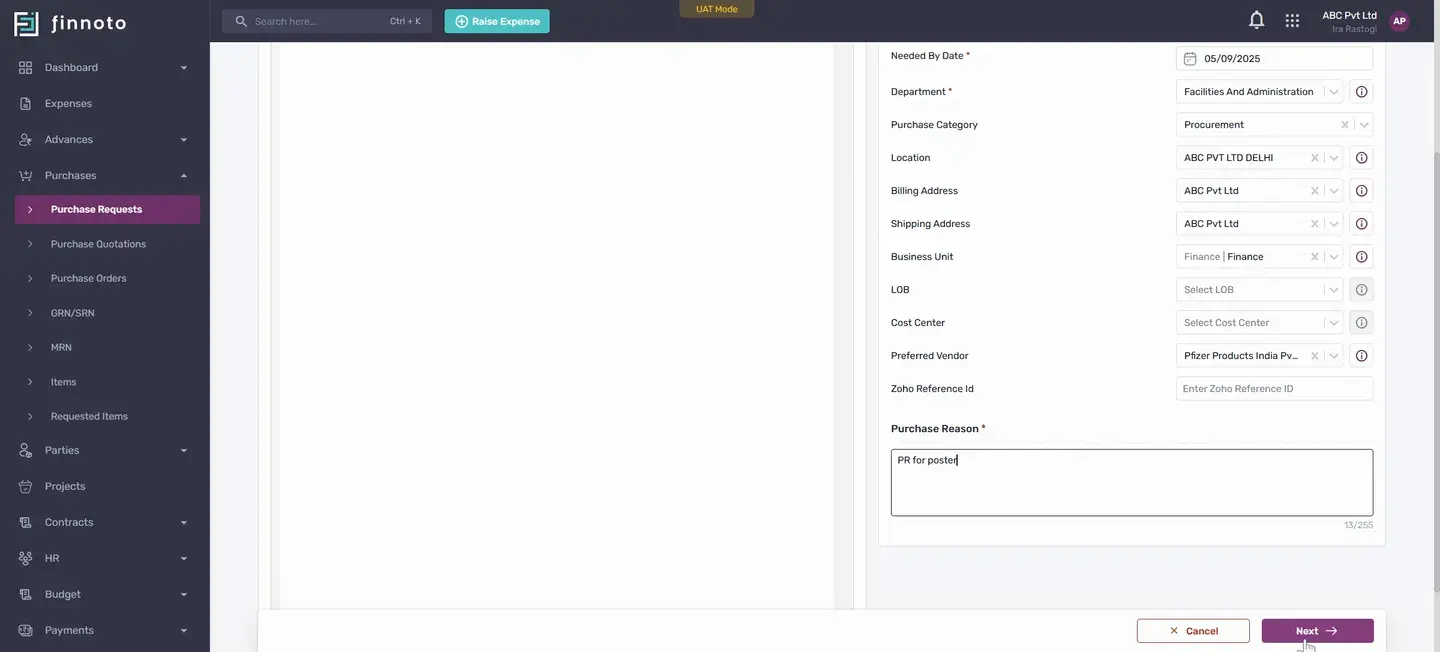
These items will be the items that are available in your organization's catalog which is present over here in the items card. So by using the item code or by using the name you are able to see this in case you want to add a new item, create a new item, then also you have the Option to create item.
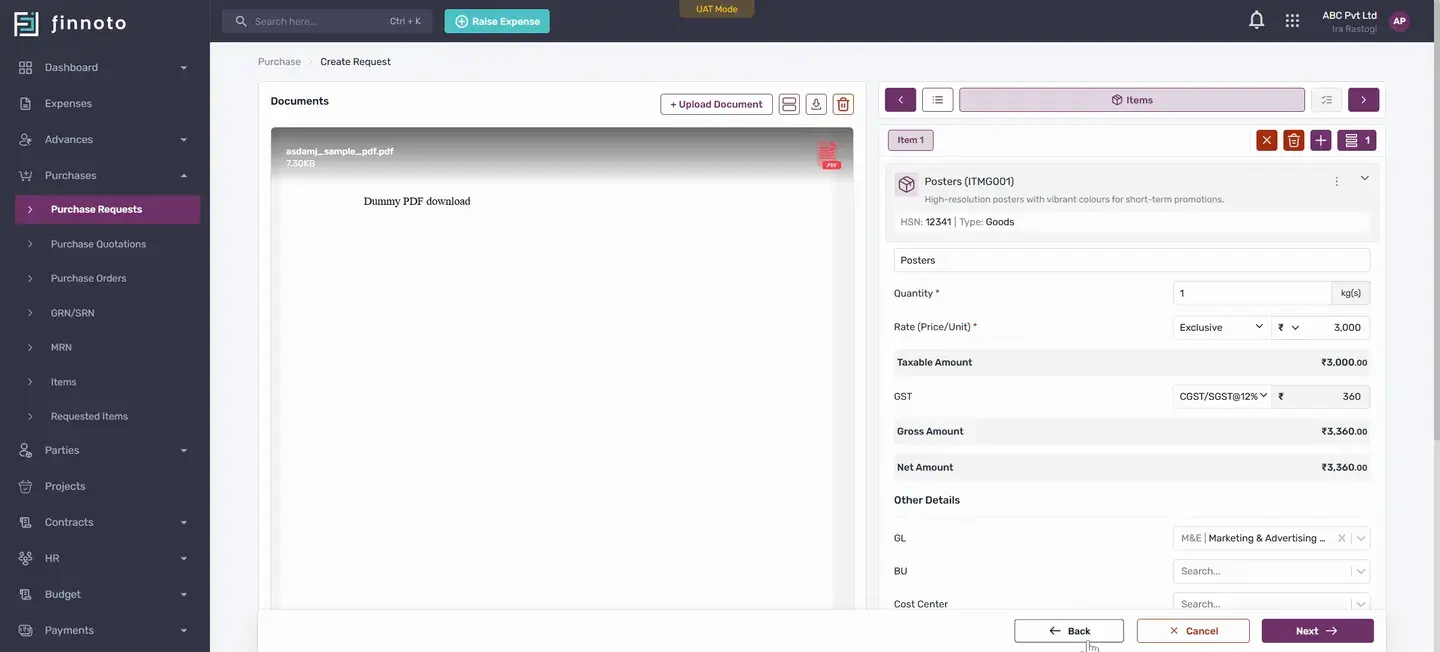
You can see the details over here
These details are coming as pre filled because during the creation of the item or on the entering the items in the catalog here, these details have been filled. Like the price is filled and the GST is associated with this item is filled and the HSN code. These kinds of things will be filled from the items catalog.
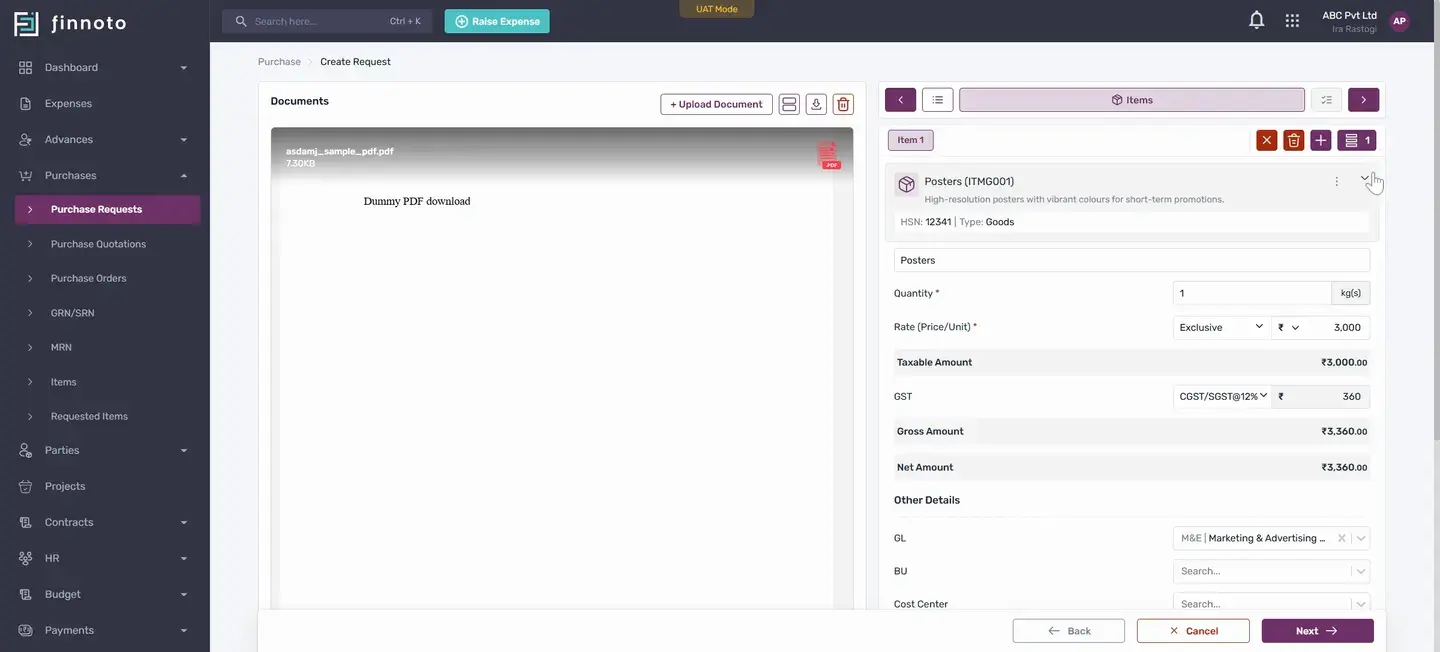
And once you will opt it that item it will be automatically populated. But in case if you want to edit it, you have the option to edit it.
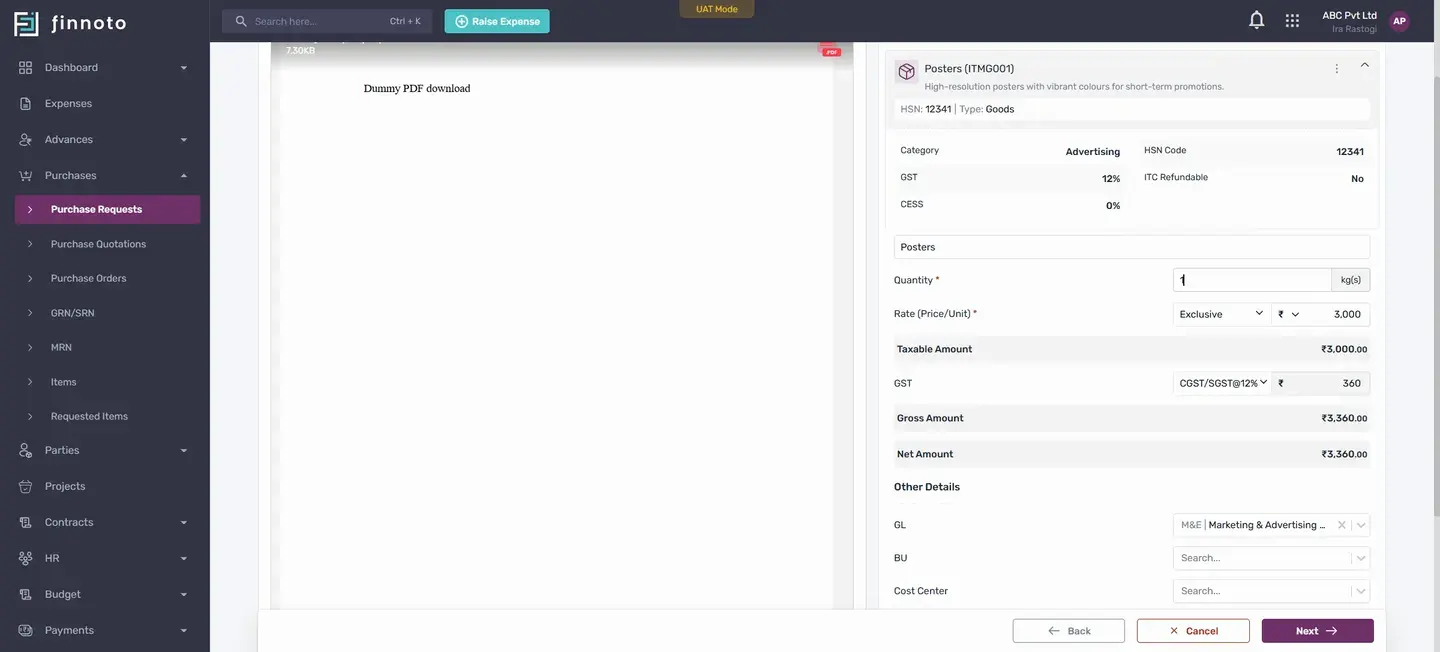
Like you can change the rate, you can change the quantity GST you can select in other details we have the option to enter the GL Business unit cost Center LOB location.
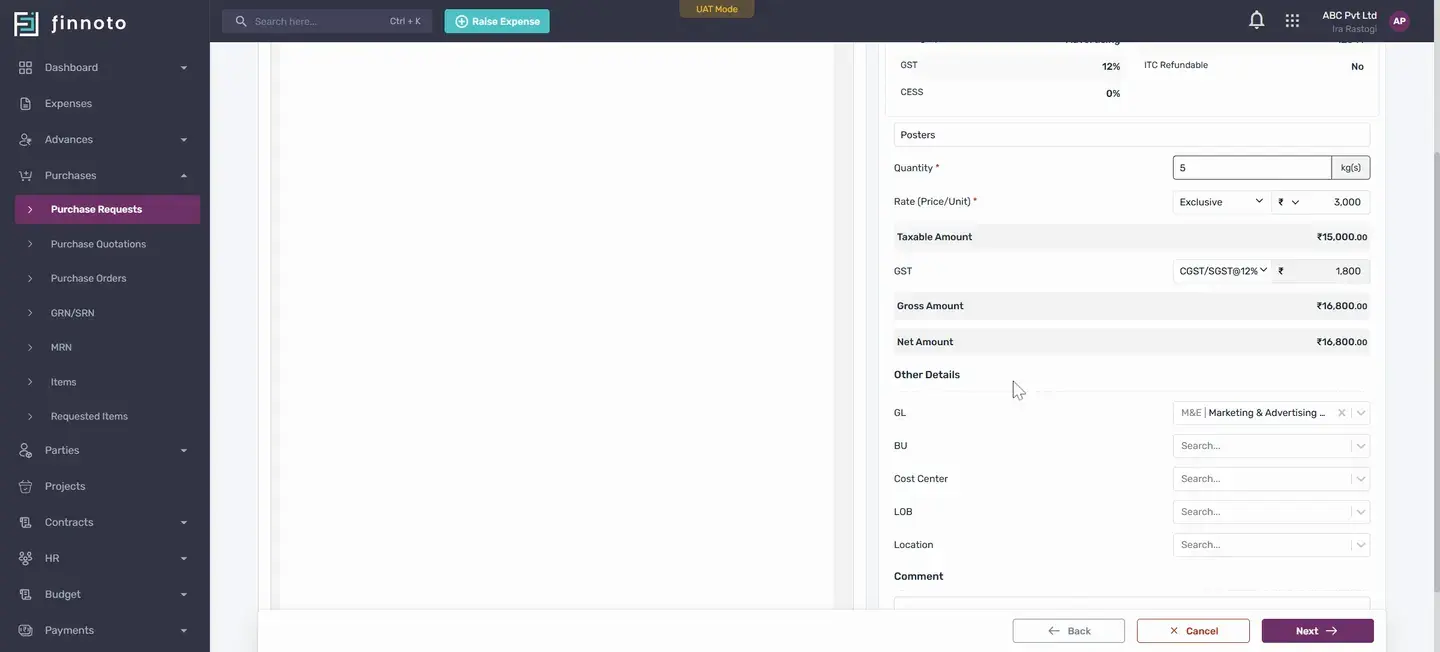
If you want to enter these things for this particular item, you have the option to select it anytime and you can put comment as well.
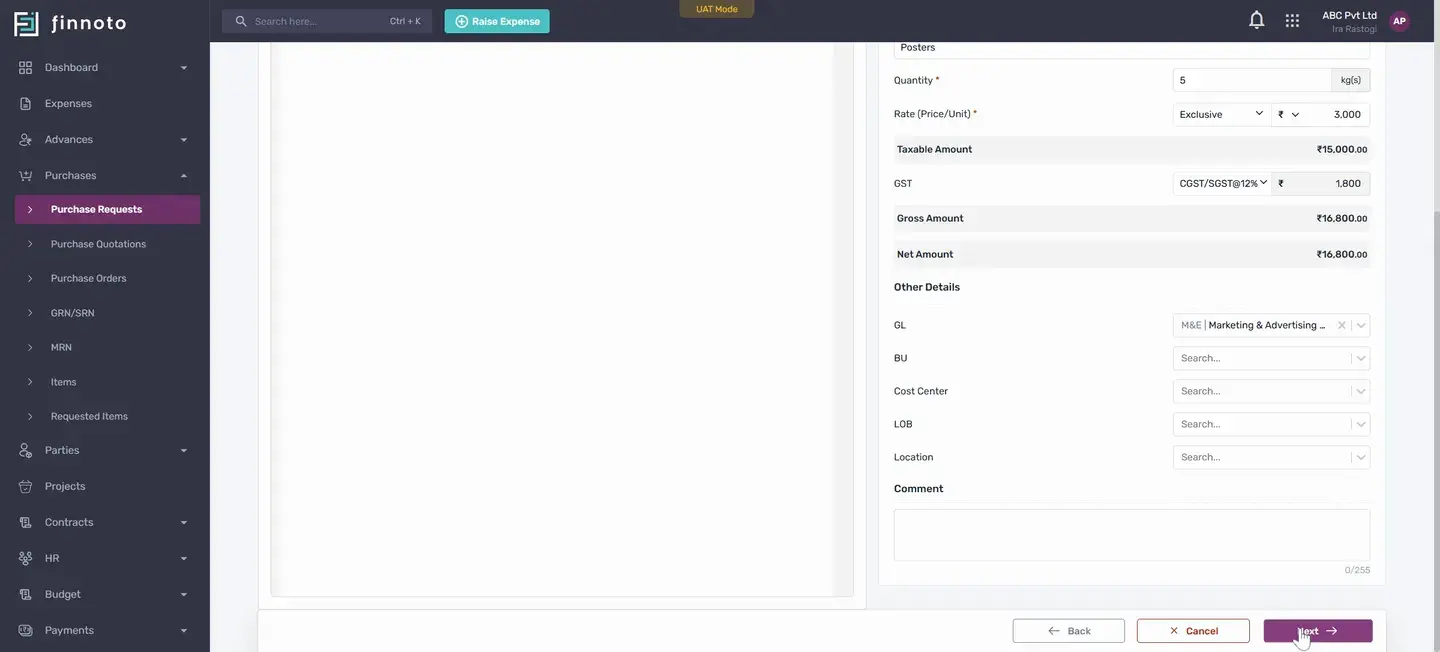
Now after clicking over the next you can see in the item summary here the item is coming with the total amount. In case if you want to edit it or delete it, you have the option to edit it or delete it.
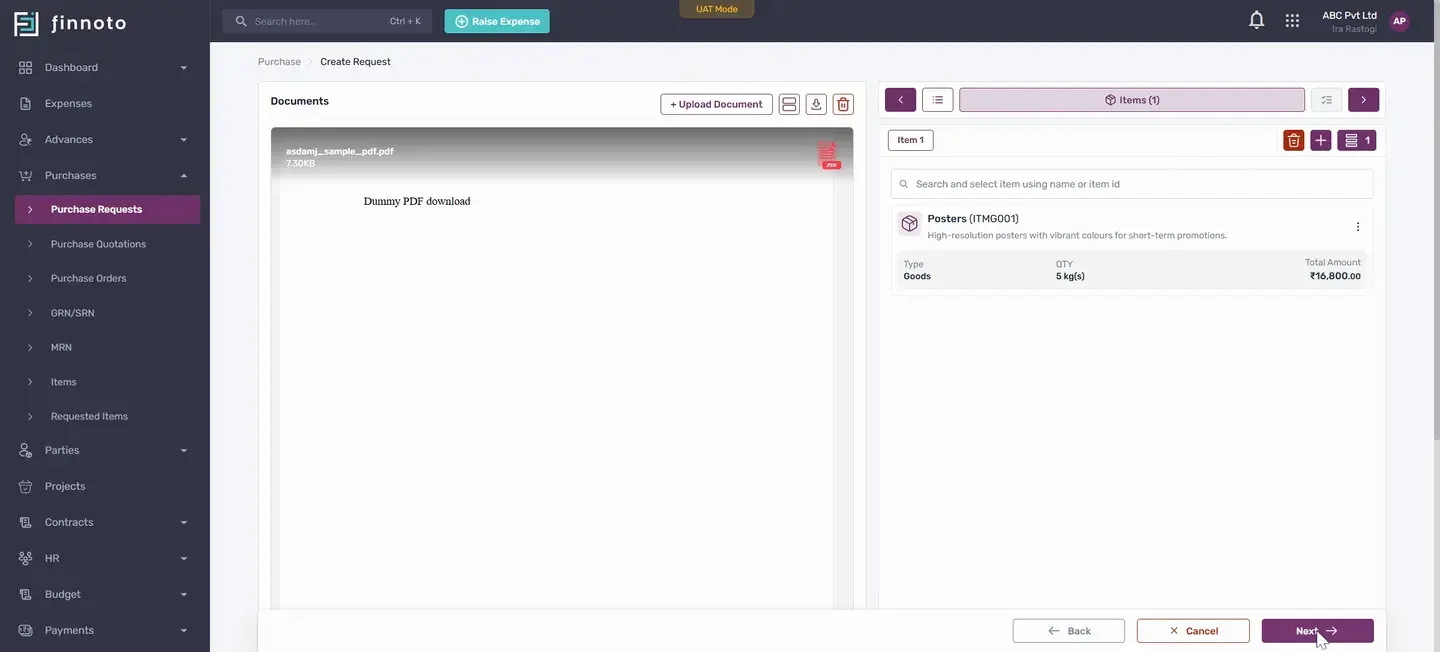
On going next here in the summary you will be able to see the whole summary of the purchase details which you have entered.
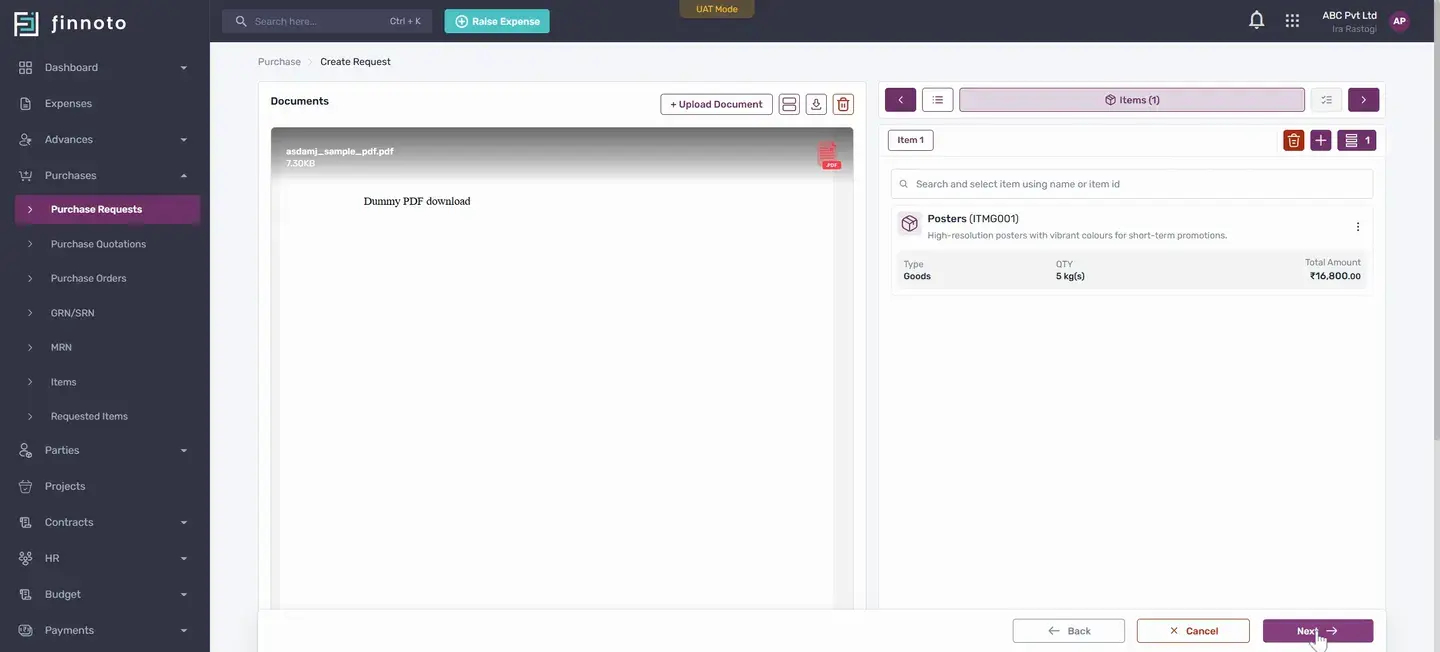
And now you have two options
Either to save it as a draft or later it can be edited and submitted. And the second option is to submit. For now I am going to submit by using the save button.
Once this is done, this purchase request has been created and you can see under the document, that particular document will come under the Items tab, that item will come and in the approval workflow, if there is any approval workflow that is set for the PR that will come.
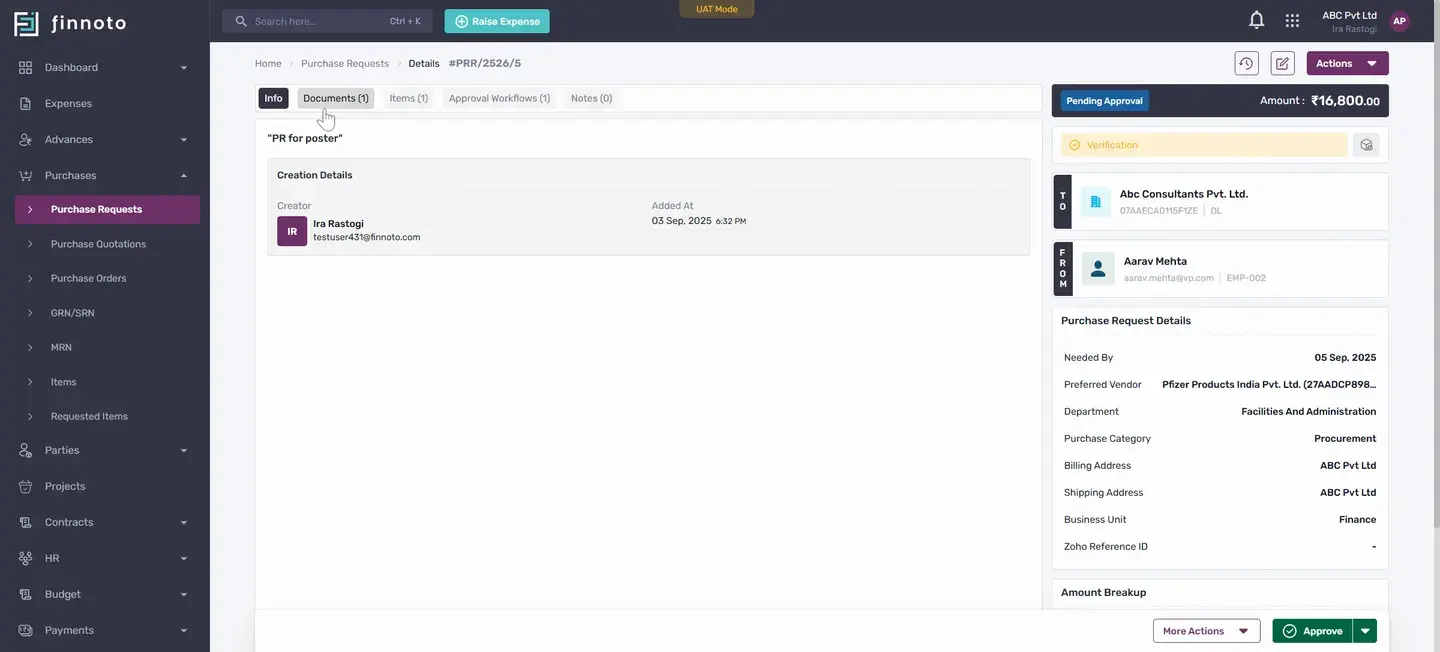
So here you can see the approval workflow is in a pending approval state because it's required the approval of this particular user. So if I'm approving this after it got approved, the status will be changed to the pending port.
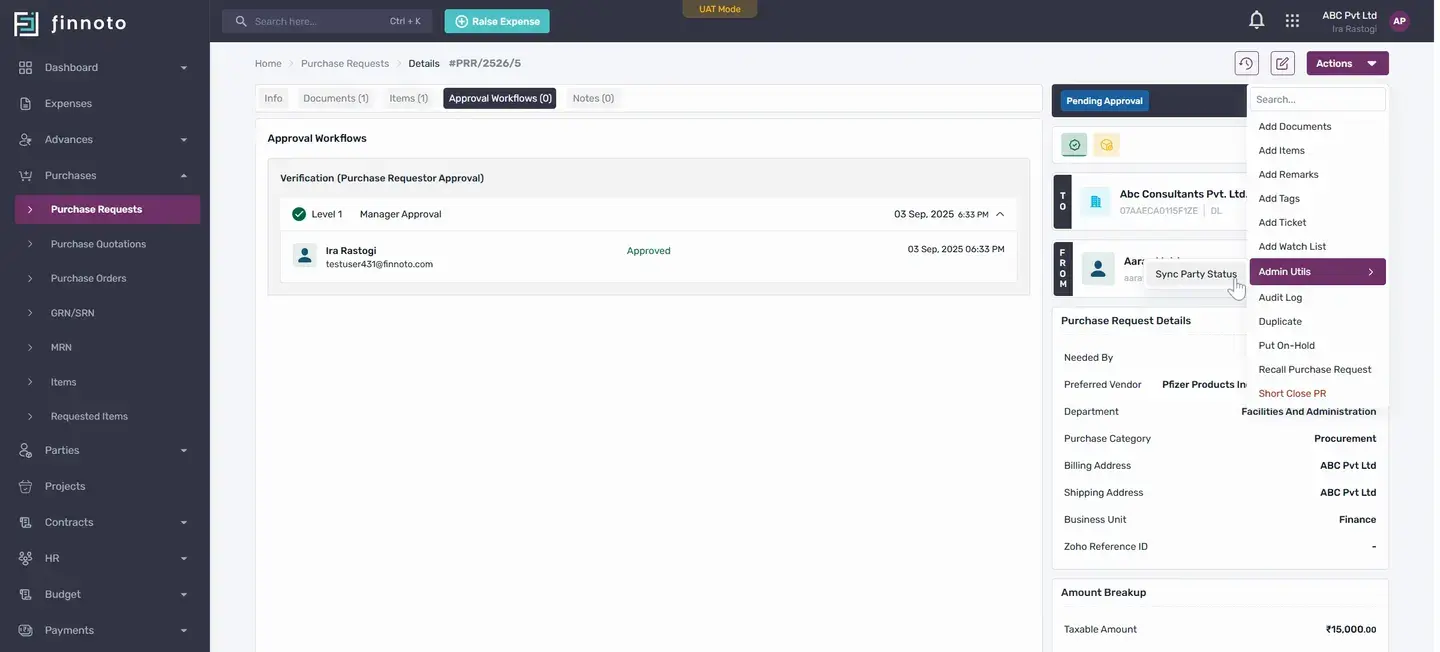
Once it's in the pending port state, you'll get the option to create a purchase order from this pr. So by using this option create po, we are able to generate a po.
All the details from the PR will be fetched
As you can see, in case if you want to edit it, you have you can edit it anytime. And if you want to add any terms and condition, then also you can add the terms and condition.
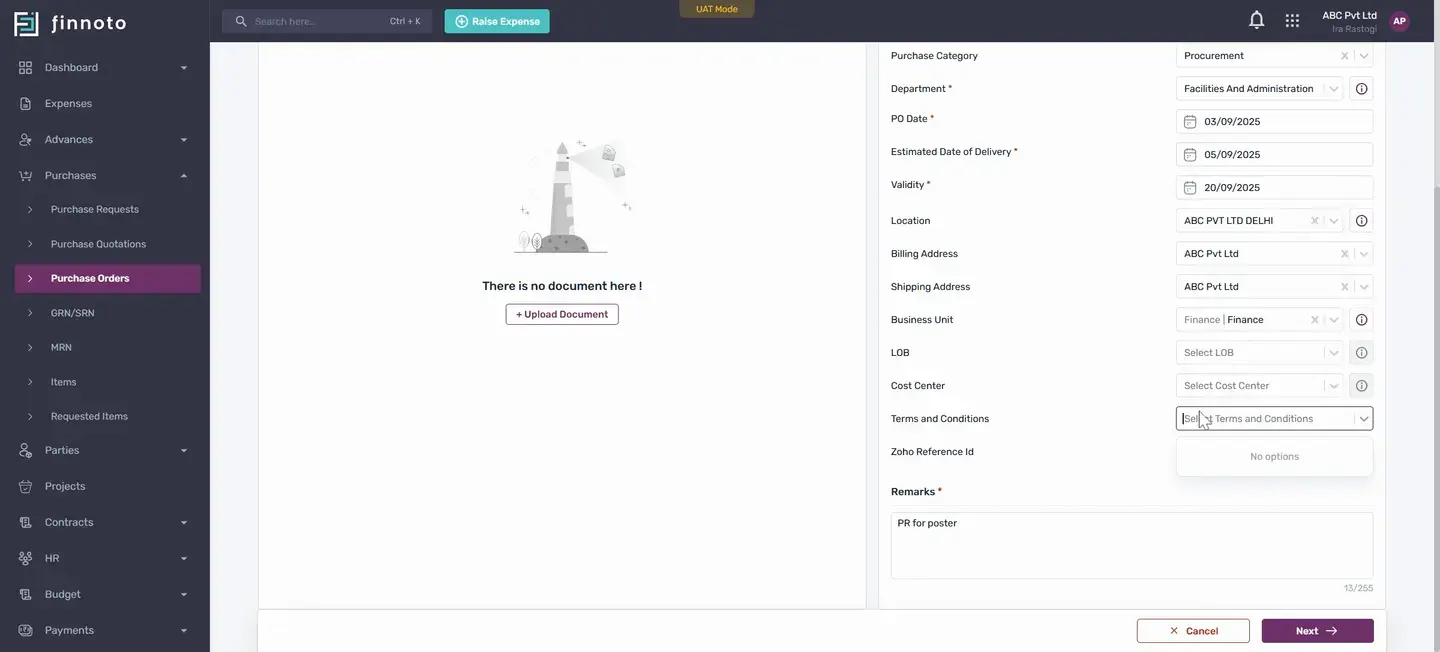
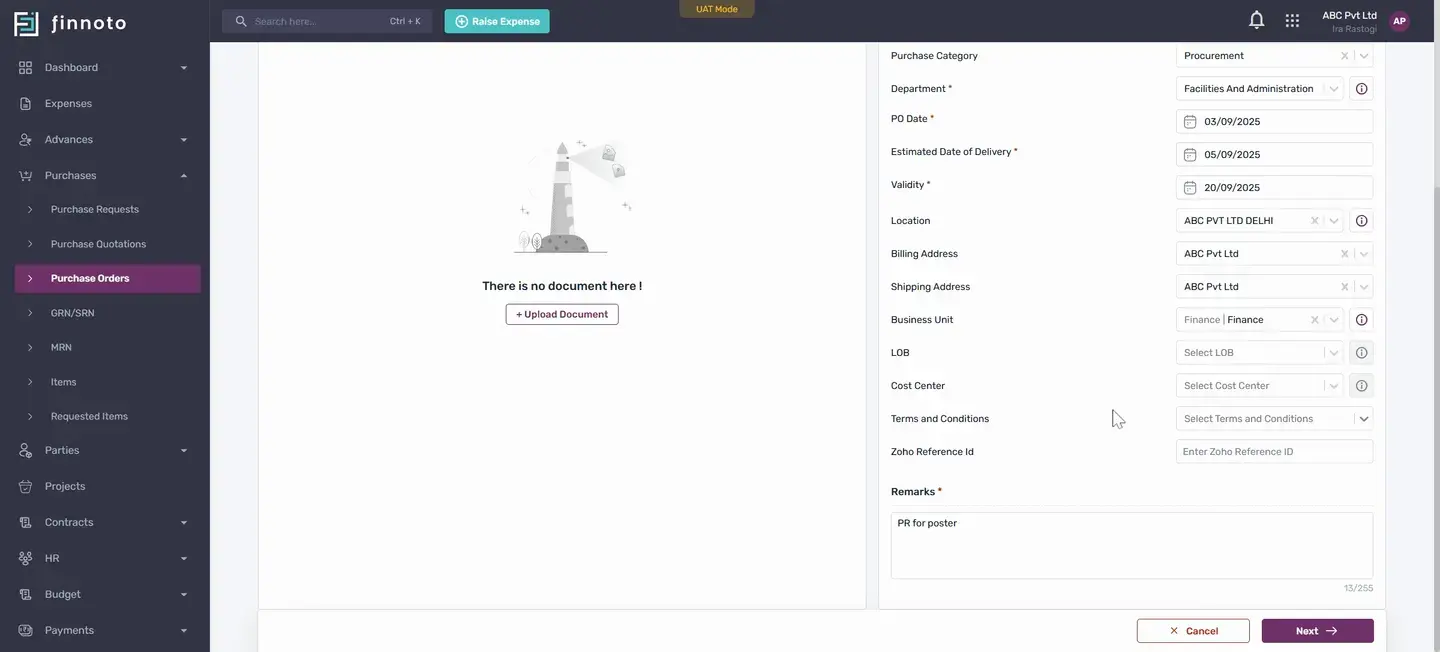
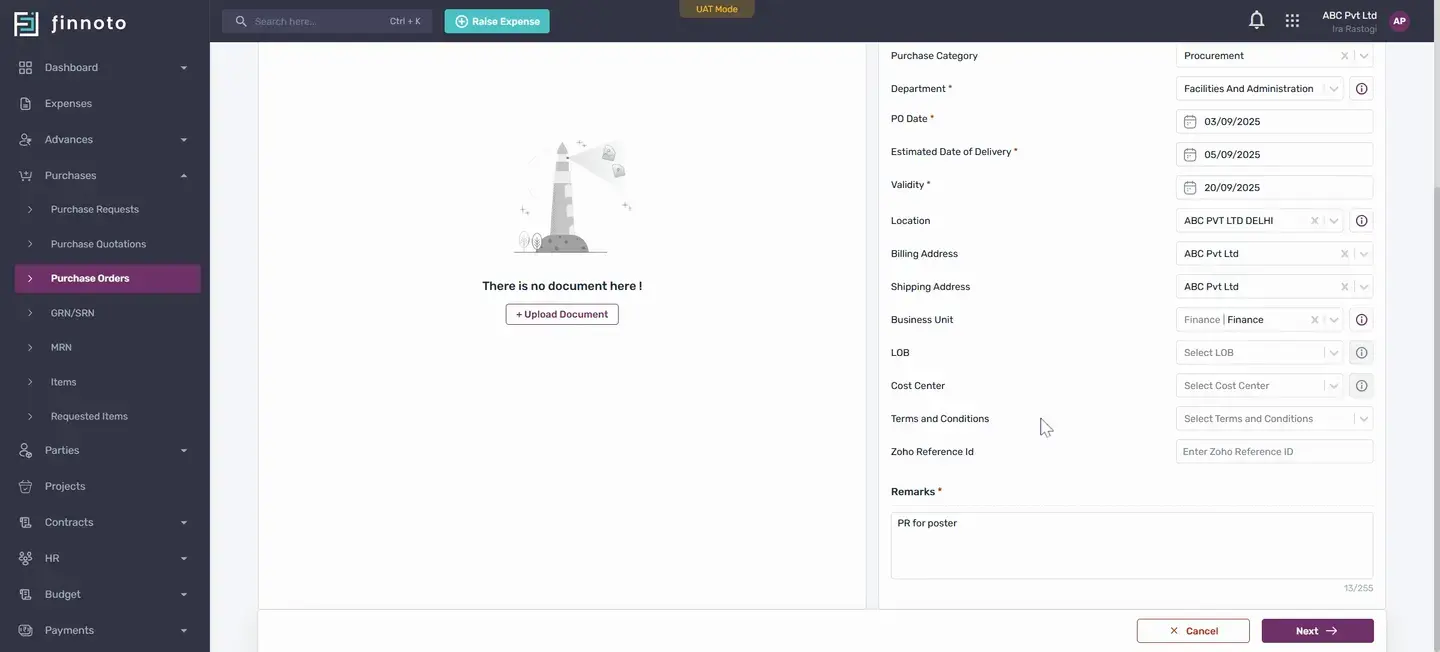
Okay, these terms and condition will be set from the configuration section.
Going next here that particular item is populated
If you want to edit it or if you want to replace this item. This option is coming over here on going next and by using the save button you are able to save the pod.
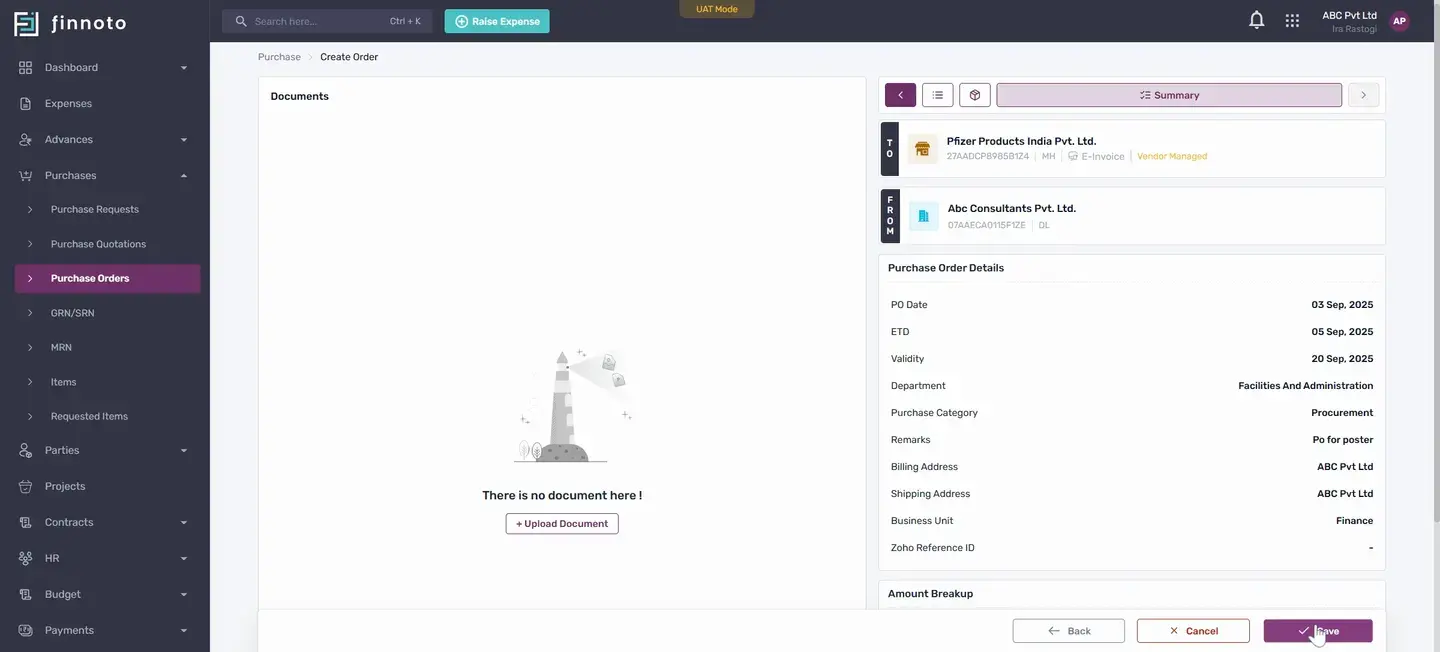
So once the PO is saved in the detail page of the PO you will be able to see the related PR where you will be able to see the identifier of the PR and if you click over it it will navigate to the PR from which this PO has been created.
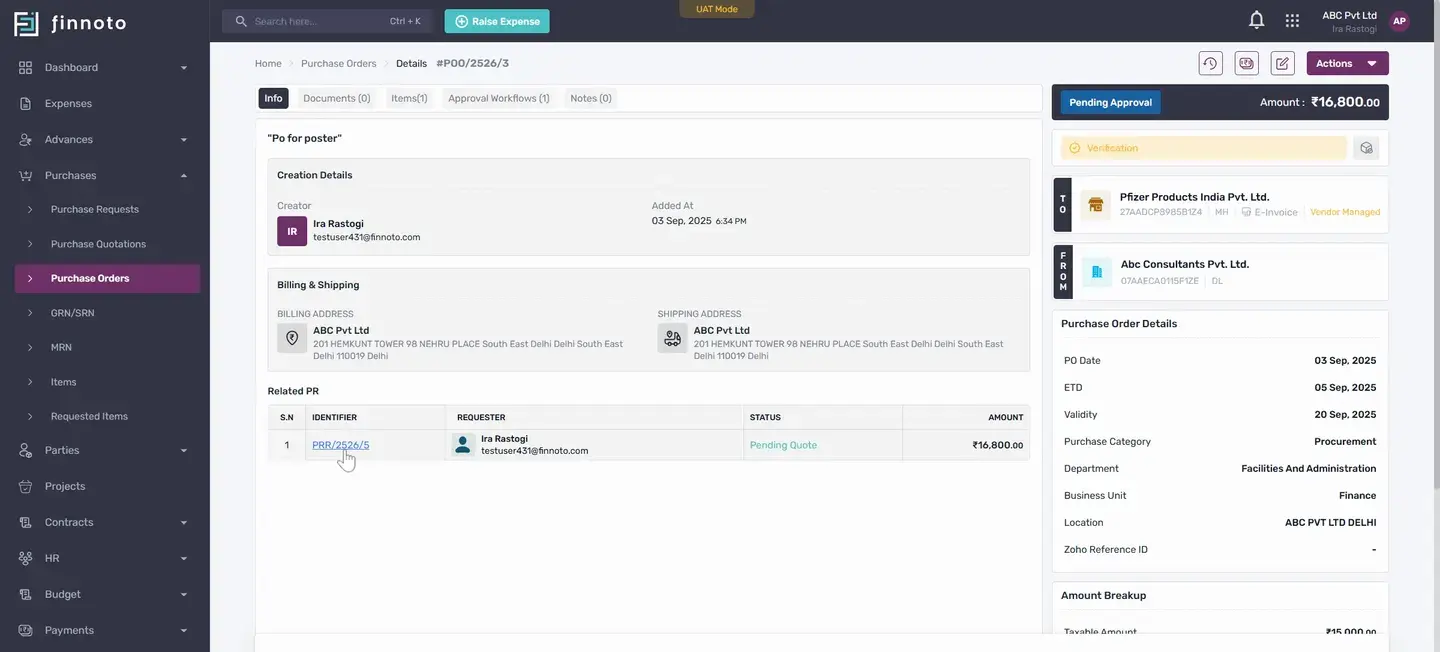
And if in the PR the same related PO is coming and on clicking over it you will be navigating to the po.
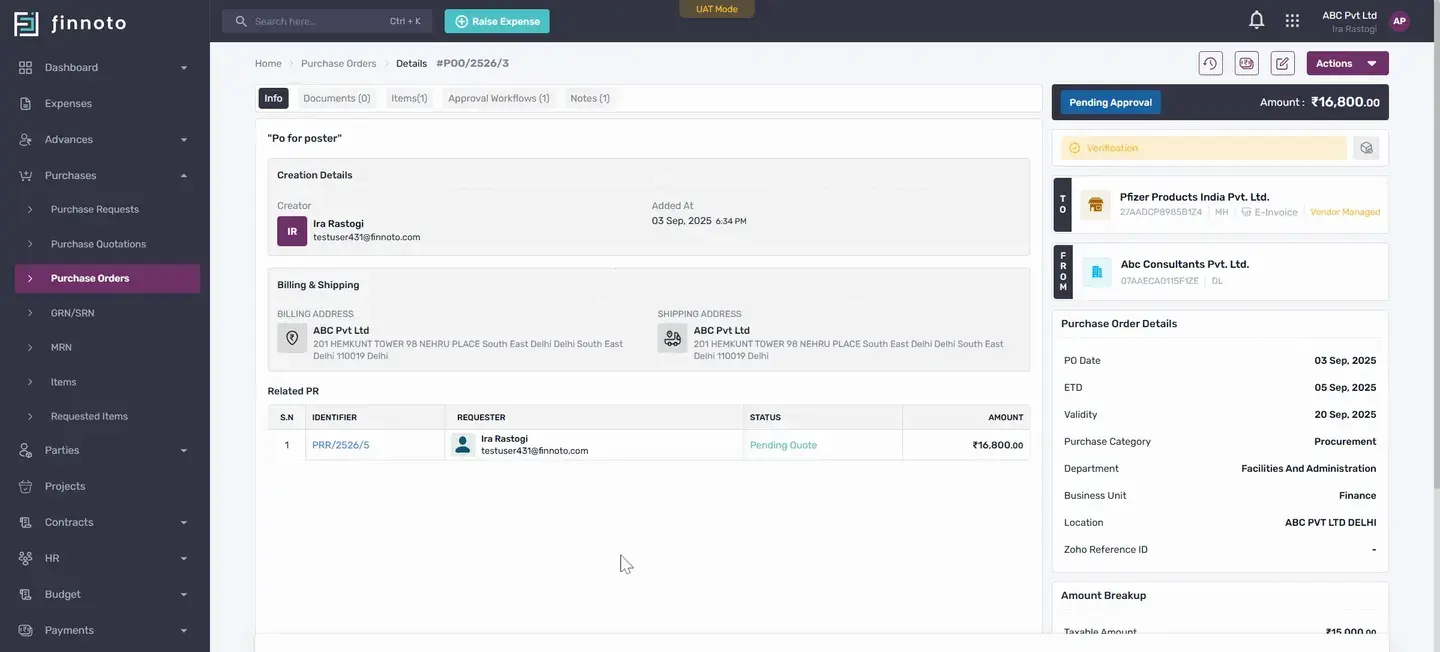
So here in the PO you will be able to see the Documents tab Items Approval Workflow if there is any approval workflow like in PR it will appear over here and once it's approved and the status here changed to the pending delivery then we have the option in the pending acknowledgment state.
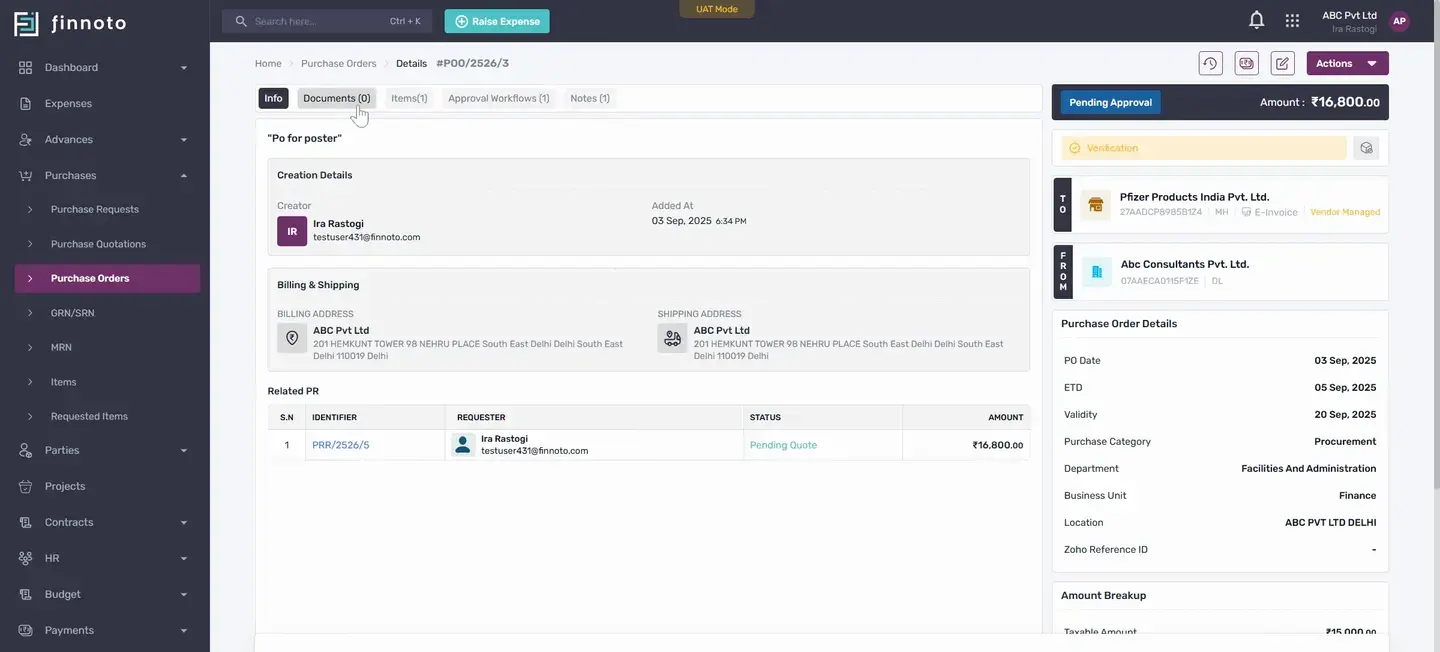
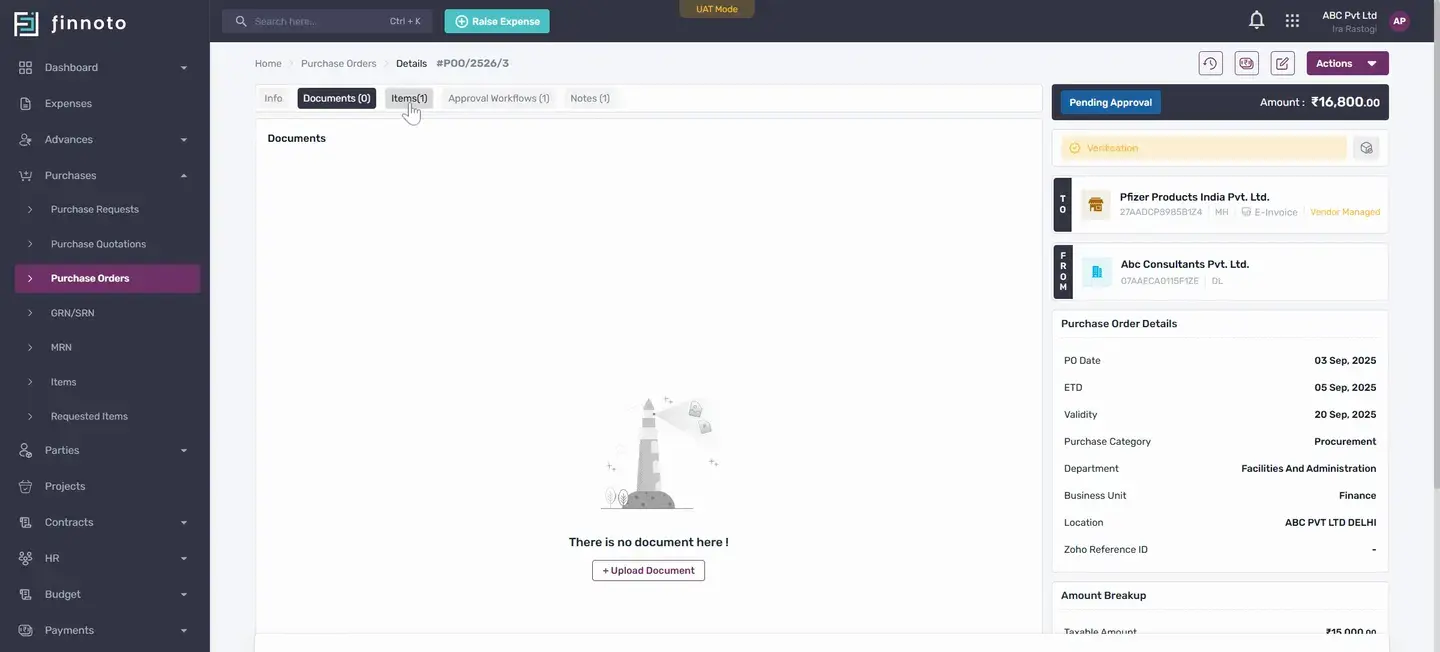
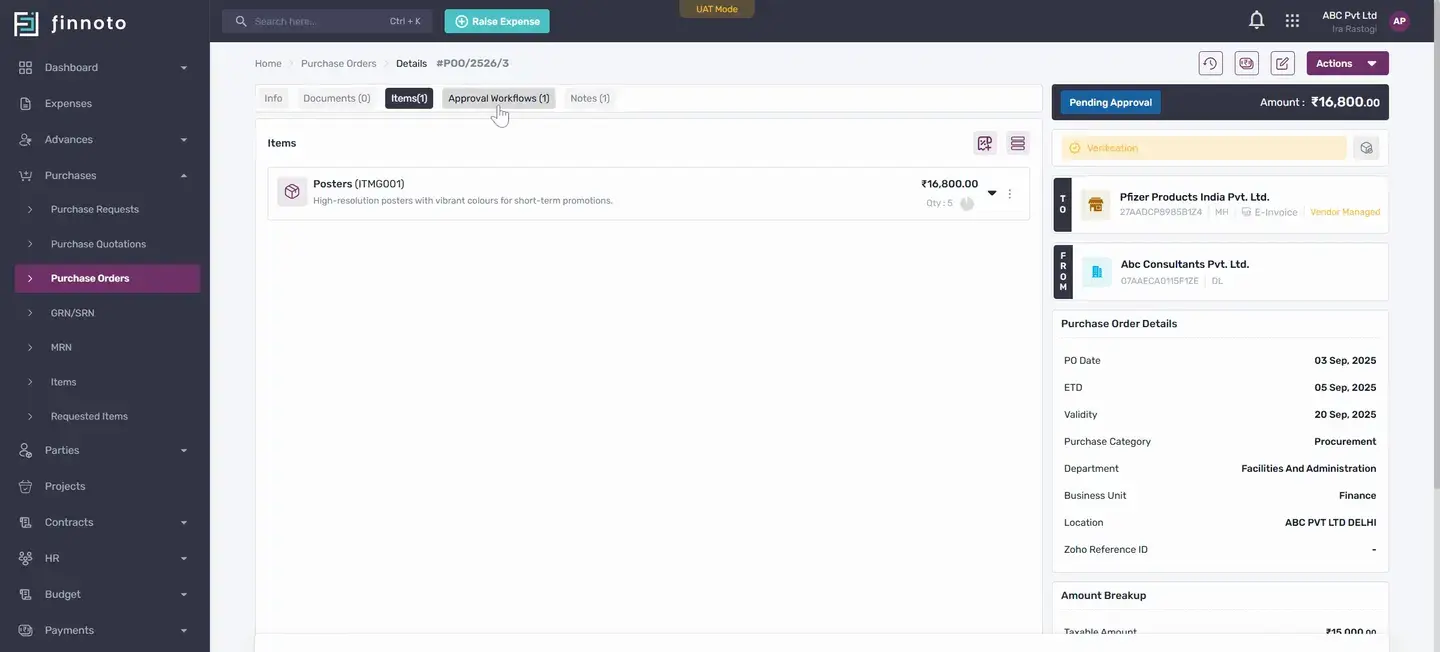
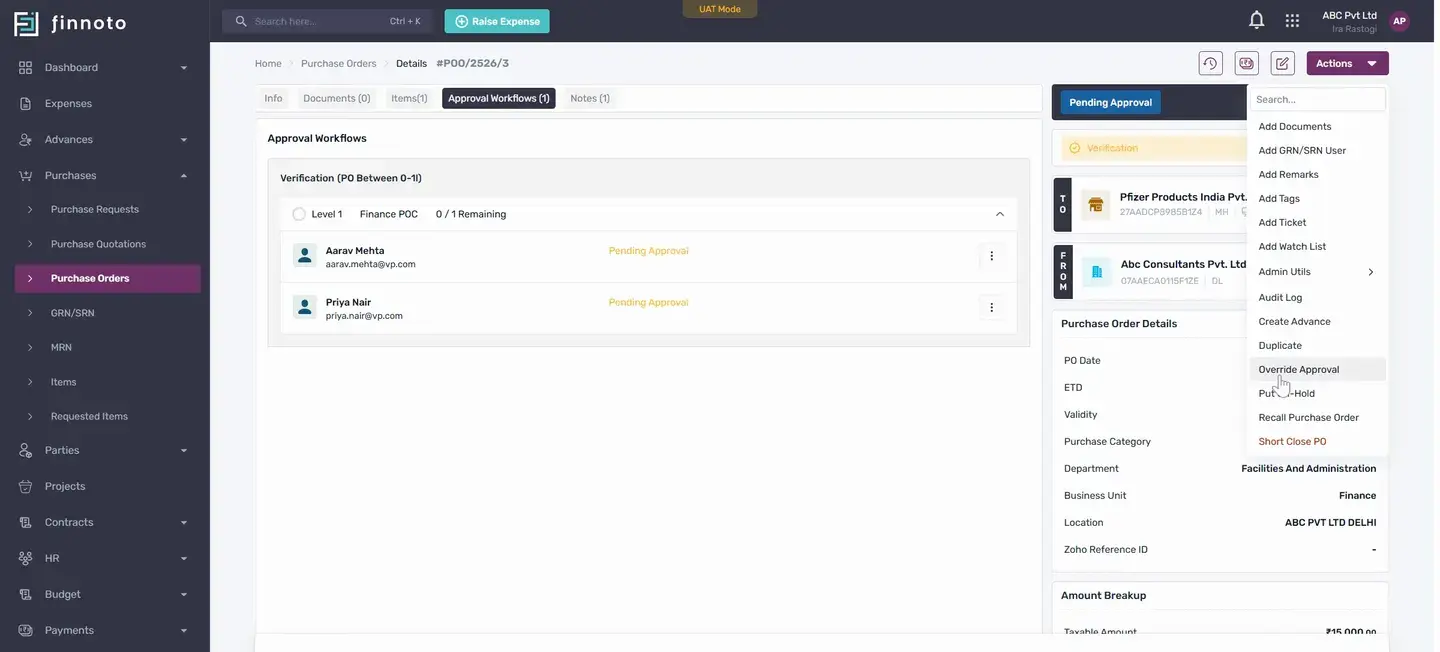
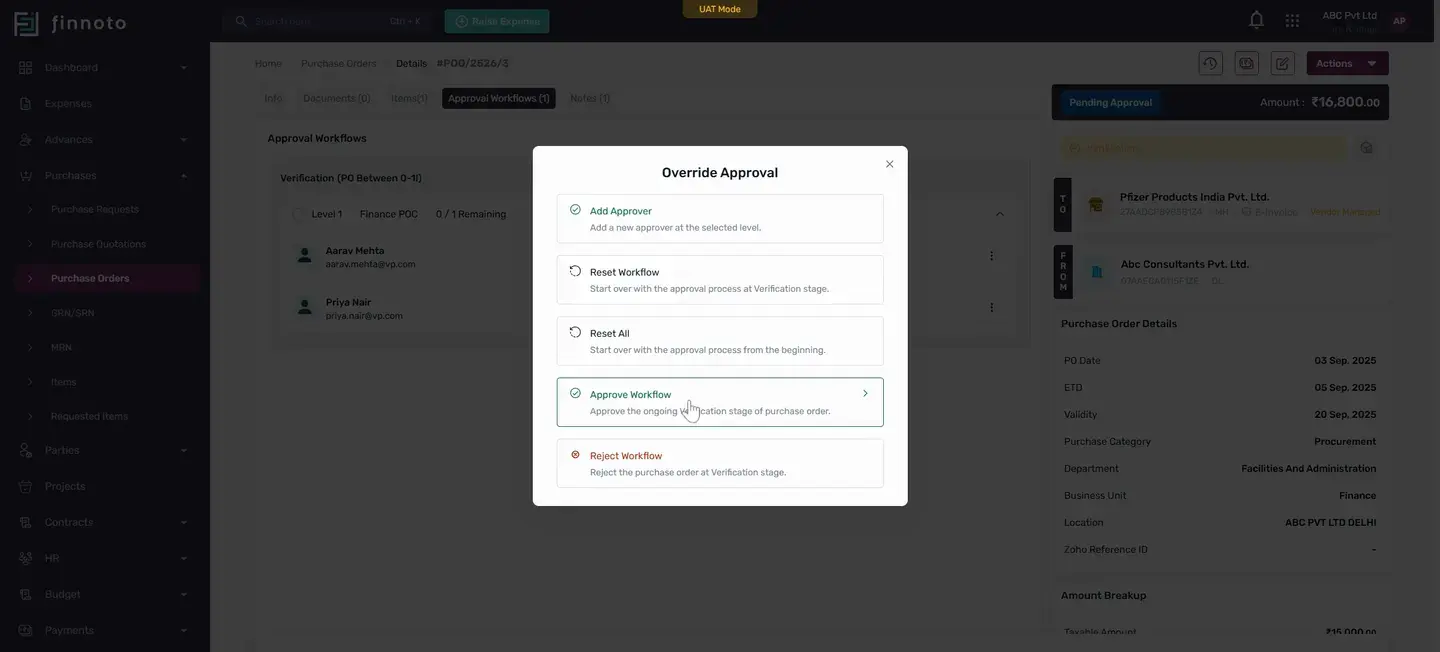
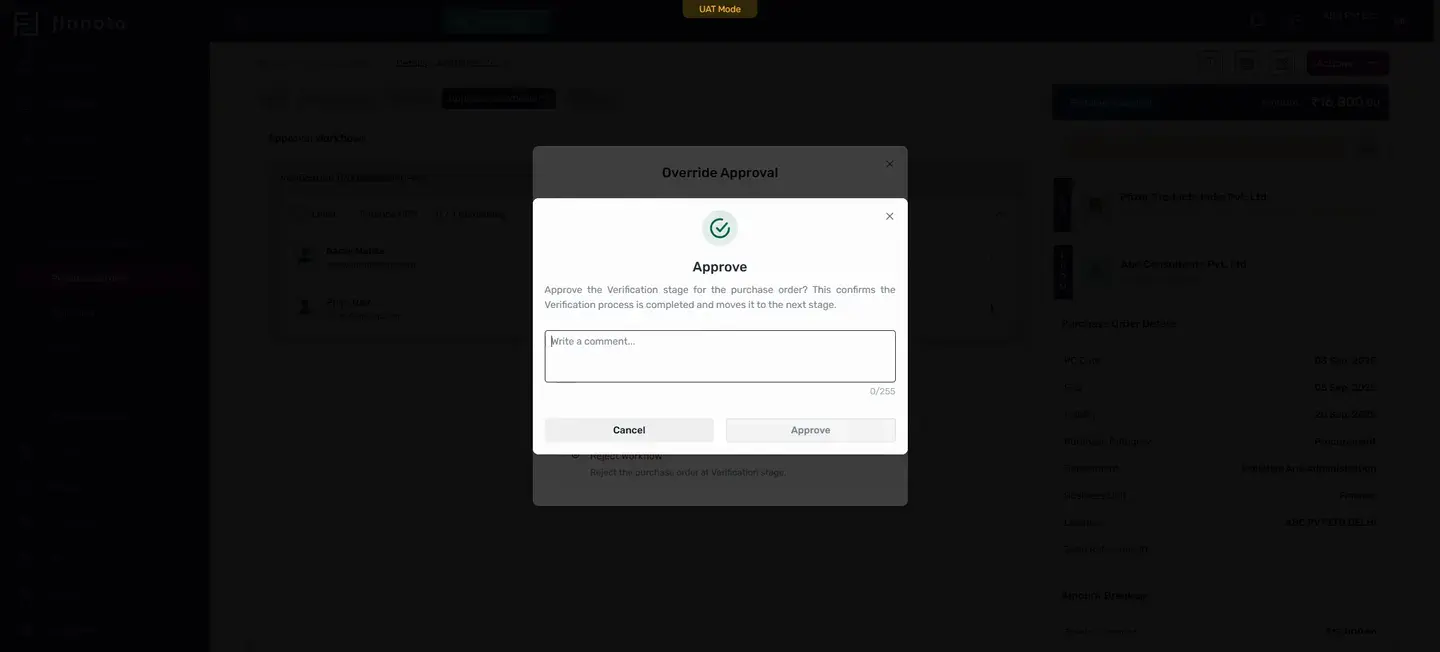
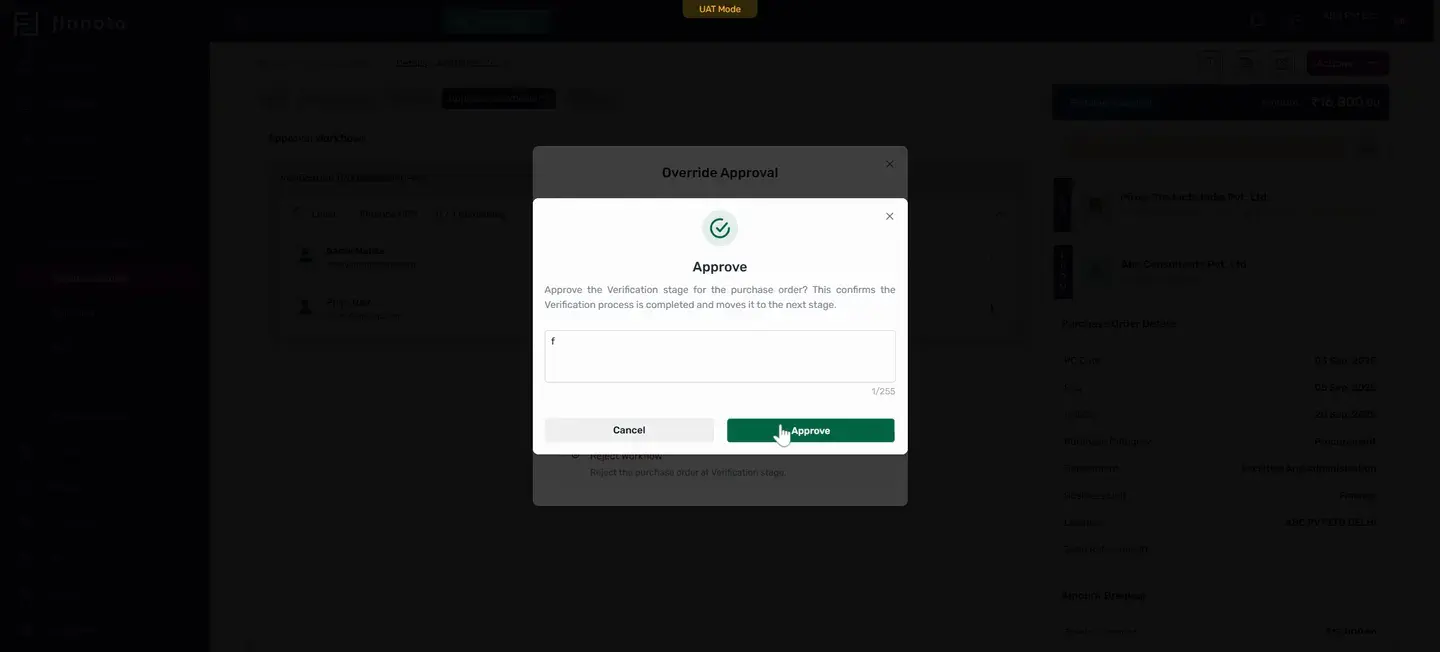
And once it's acknowledgment acknowledged by vendor, if it's a vendor managed or if it's acknowledged by the AP user then once it's in the pending delivery state, when the PU is in the pending delivery state here we are getting the option to create GRN srl.
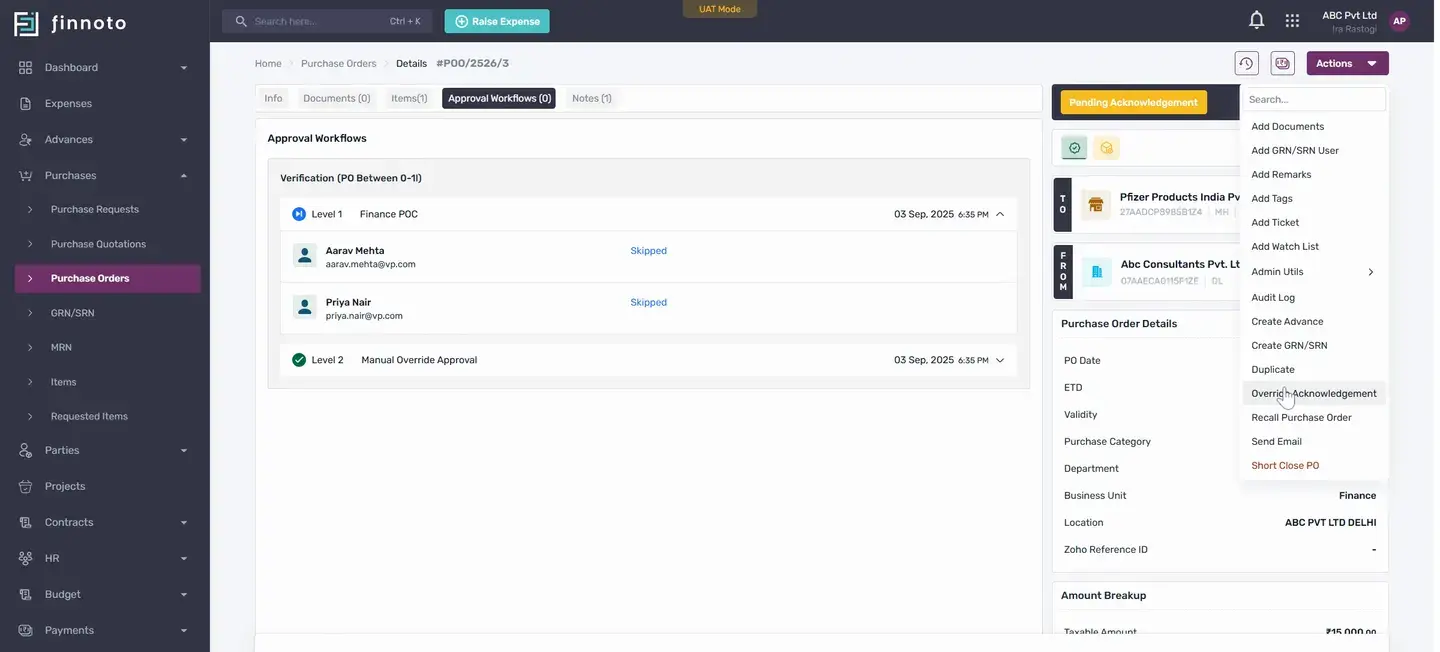
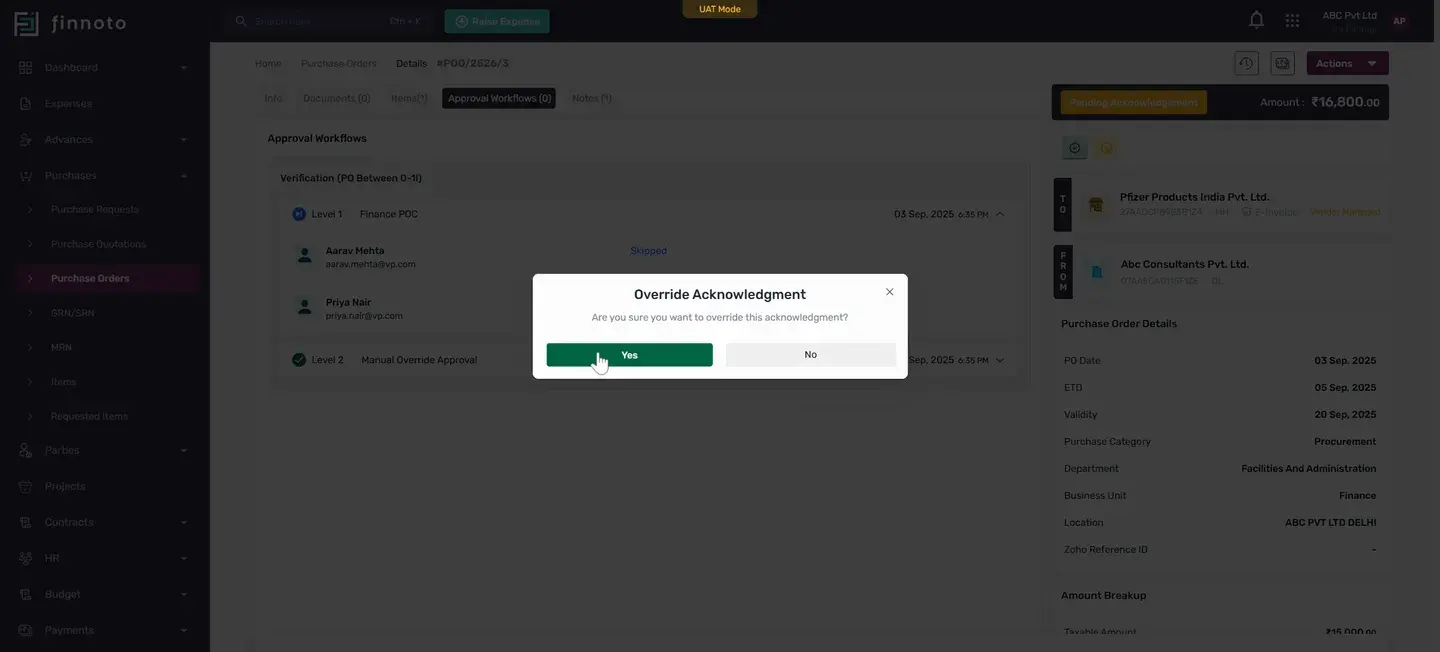
So this is how from the PR a PO is generated and from the PO we can create a GRN srn. So this we will take over in our next videos where we'll proceed with the further processes of GRN SRN PO to GRN SRN to expense creation.
So thank you for watching this video.