Create a GRN/SRN from a PO and raise the expense
Record goods or services received against a purchase order, then generate the expense from that receipt.
Last updated on
Transcript
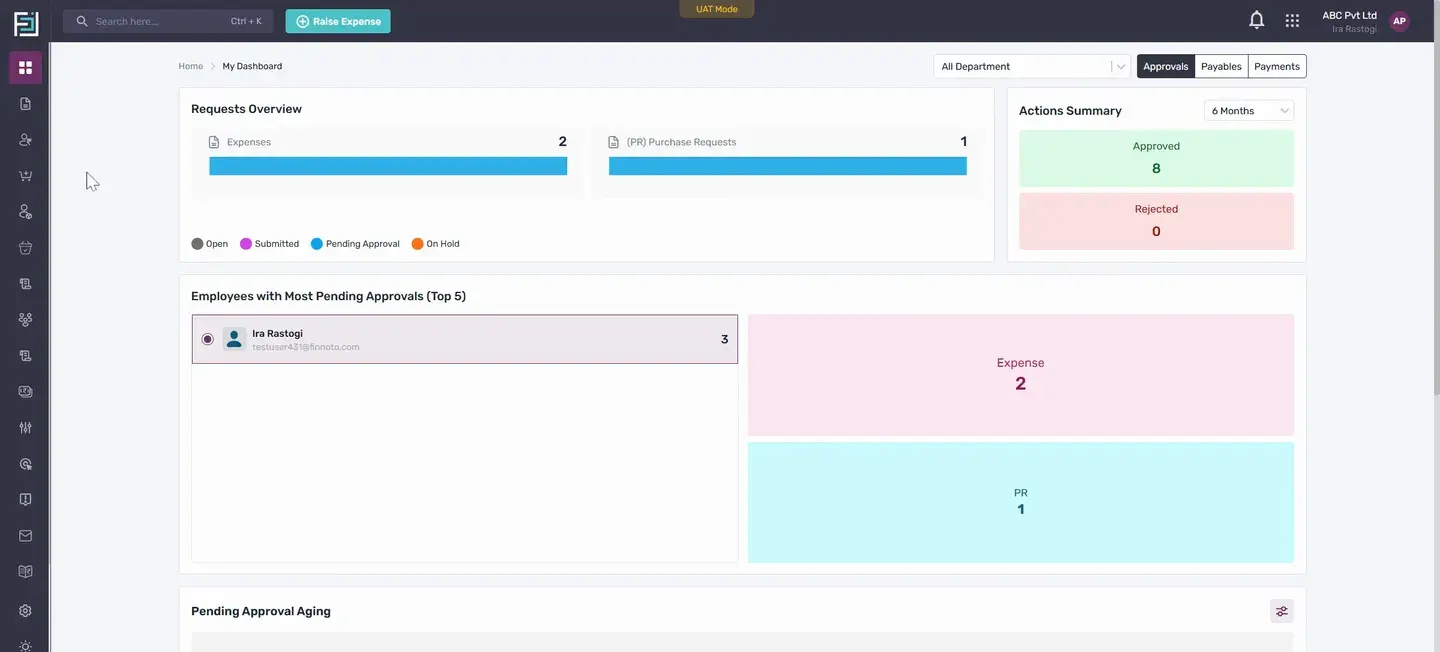
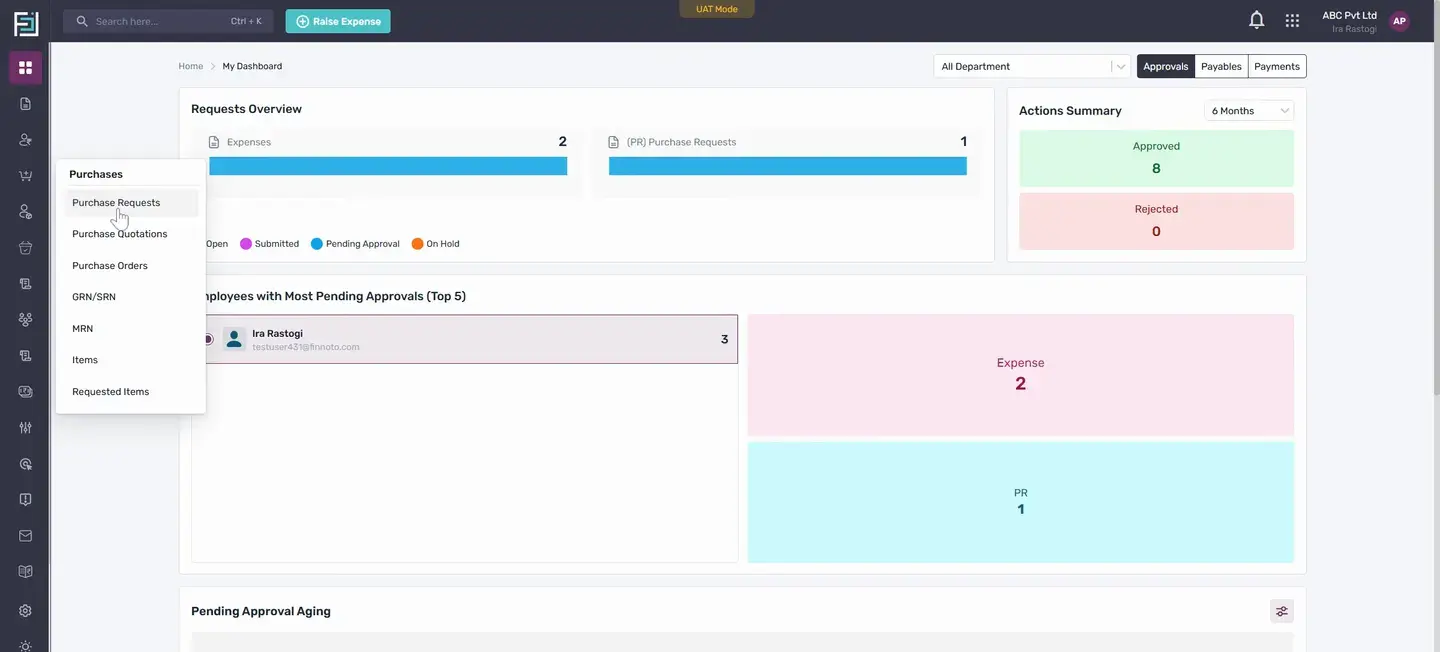
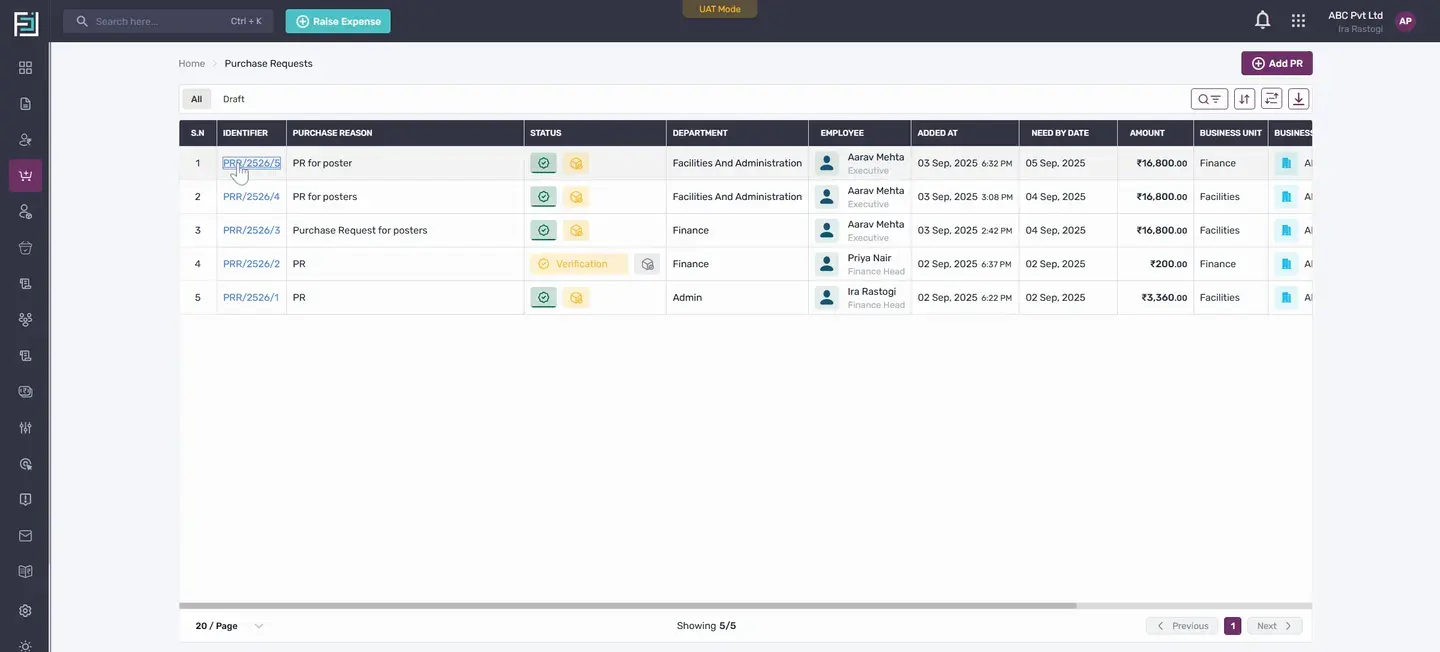
Hello everyone. Today, we will learn how to create a GRN SRN from a PO and how to create an expense from the GRN SRN. As we discussed earlier, we have already shown how to create a purchase request and how to generate a PO from this request. Now, let's look at how to create a GRN SRN from the purchase order.
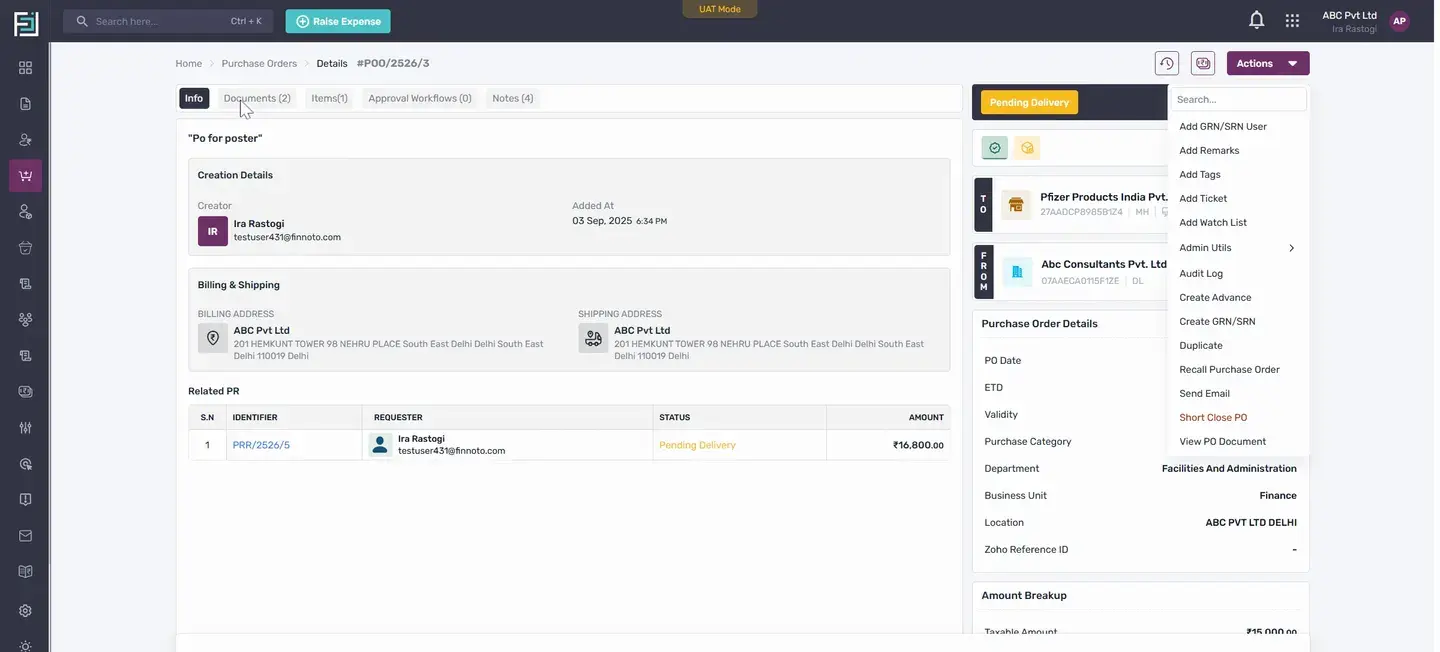
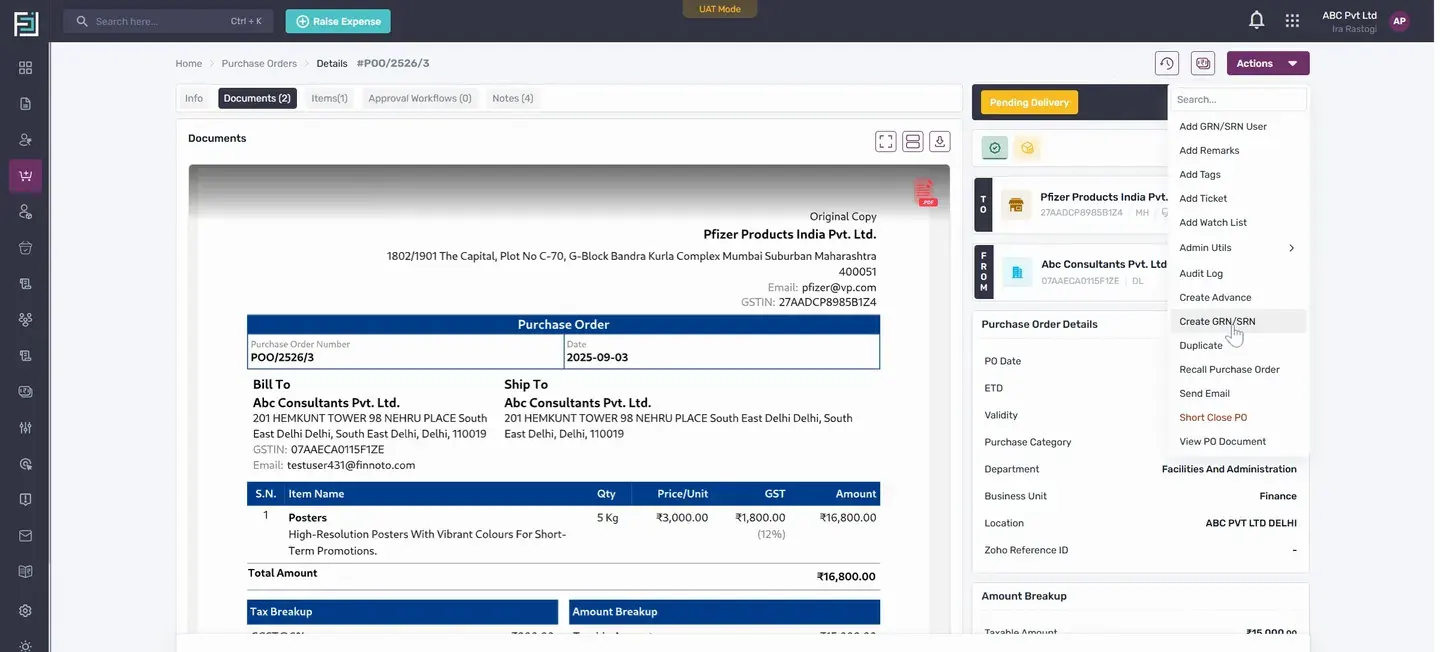
As mentioned before, when the PO is in a pending delivery state, we get the option to create a GRN SRN under actions. We also have the option to record or create an advance at this stage. If we want to add a GRN SRN user, we can do it here. When the PO is in a pending delivery state, a document from the PO is automatically generated in PDF format.
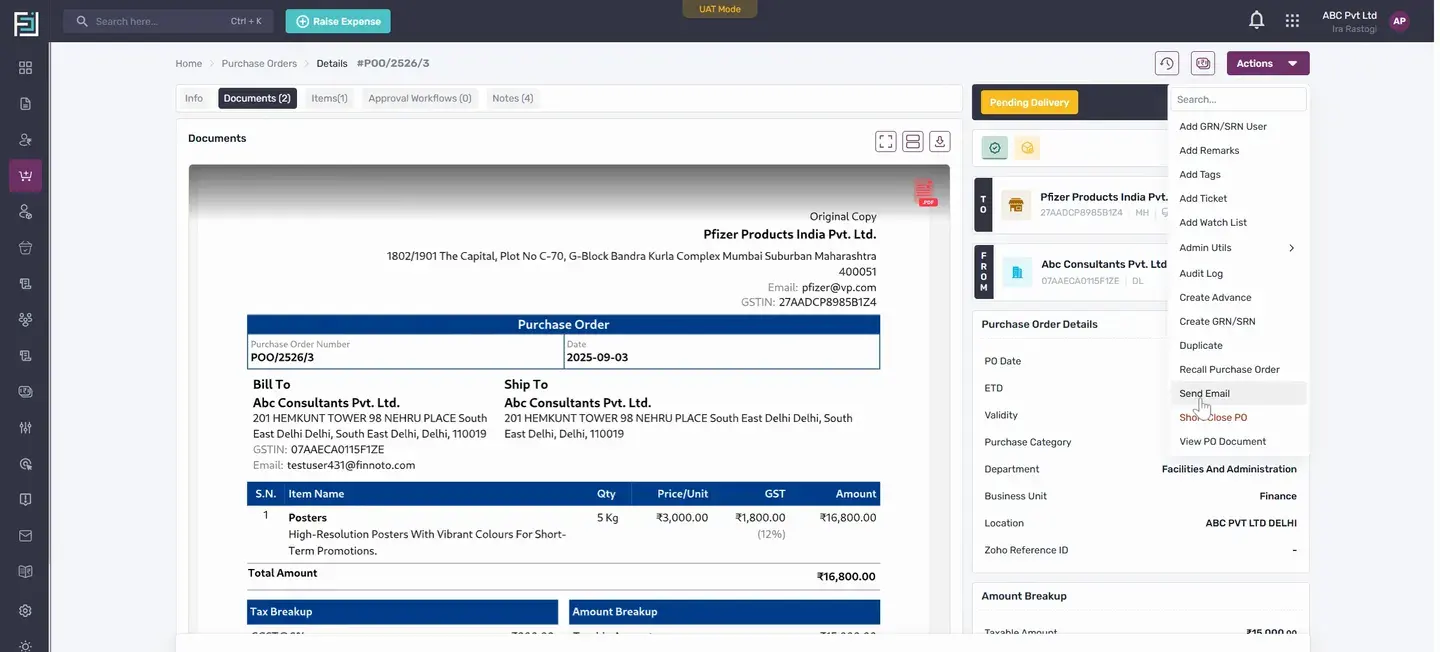
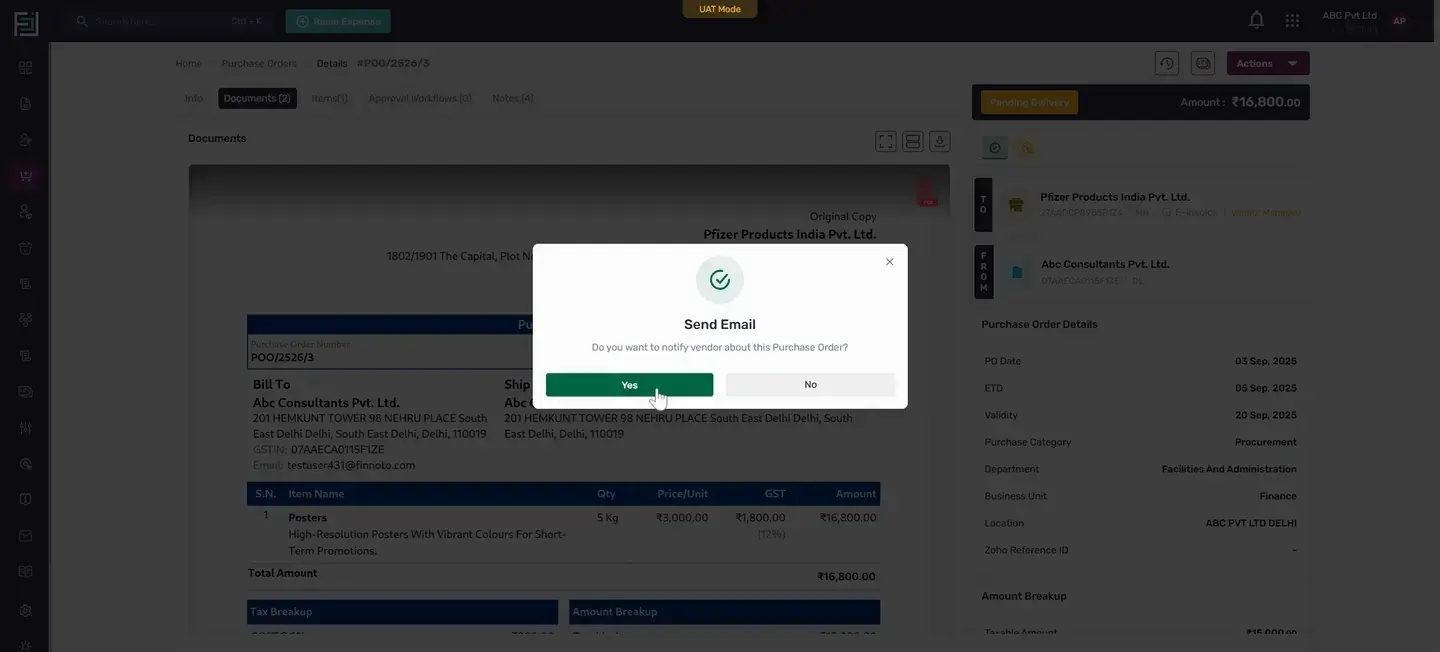
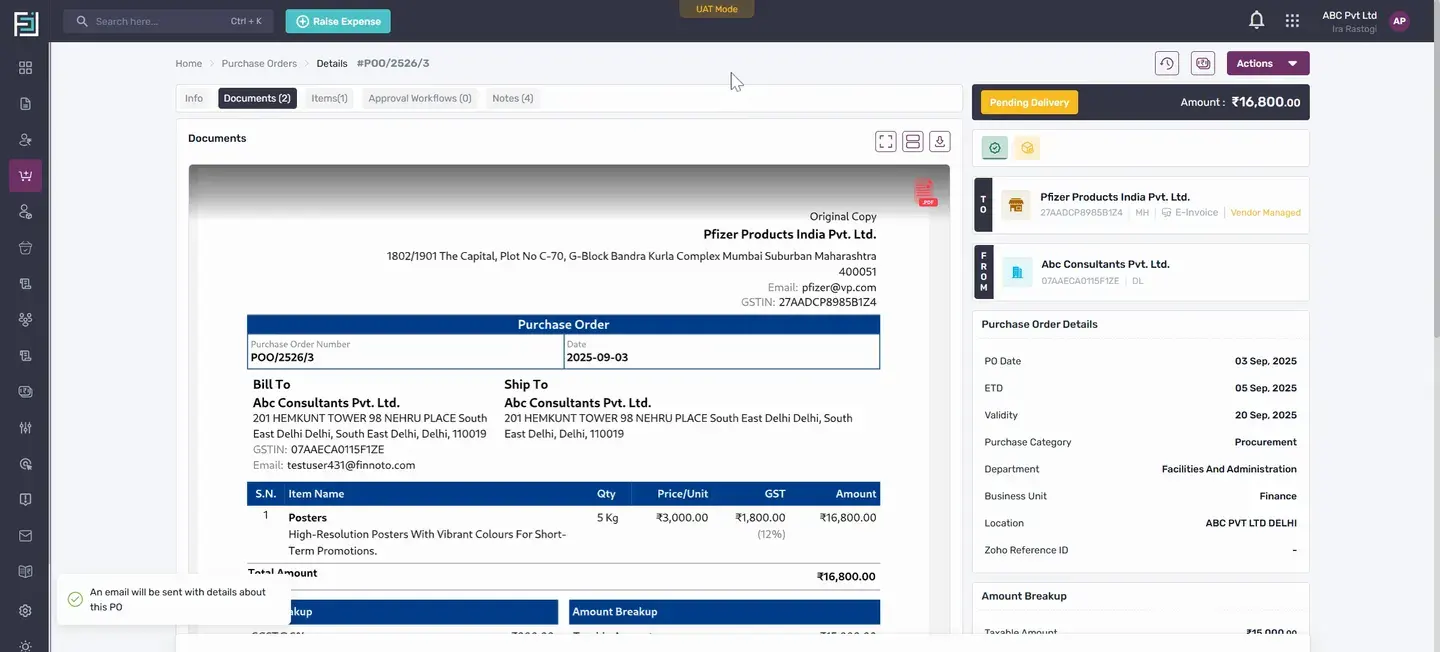
We can share this with the vendor using the "Send Email" option. This option lets us notify the vendor about the purchase order and send the purchase order document. This way, an email goes to the vendor. To create a GRN SRN, we click on "Create GRN SRN".
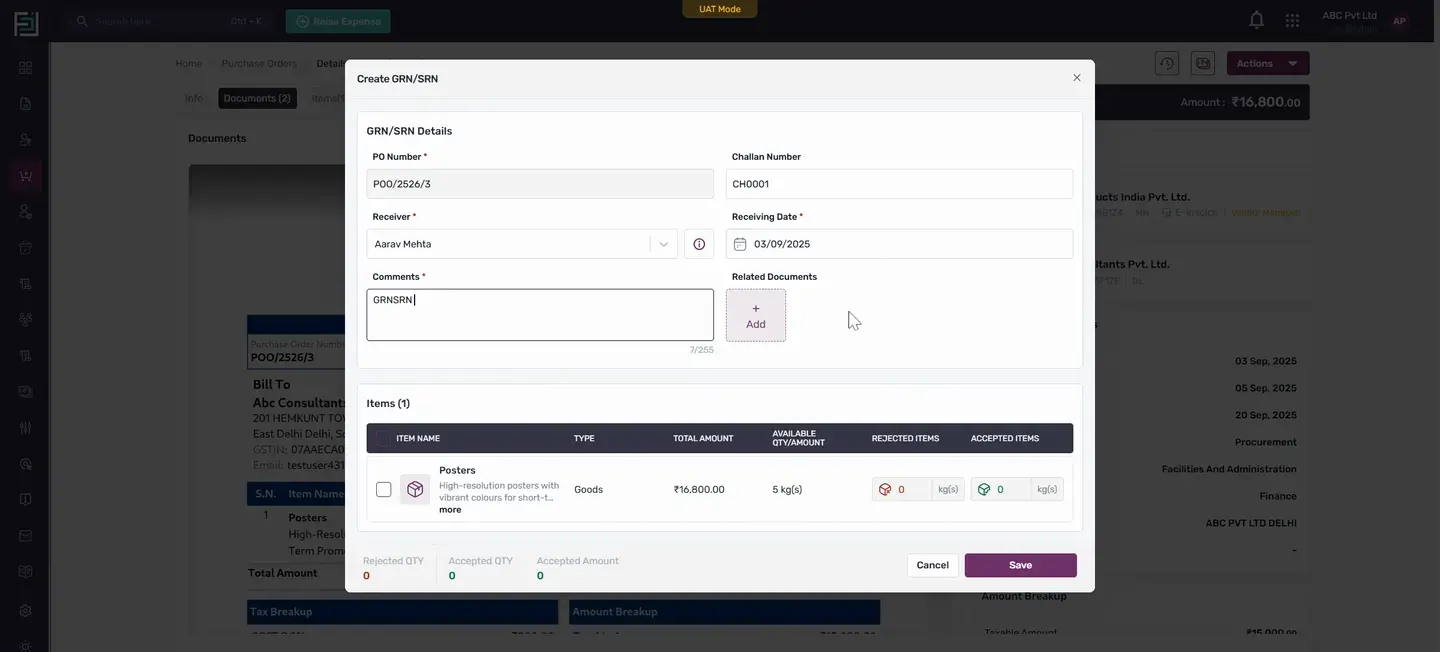
In the Create GRN SRN form, the PO number is filled in automatically. If there is a Chalaan number, we can enter it or skip this step. We need to select the receiver and enter the receiving date. If we want to attach any documents, we can use the "Add" button.
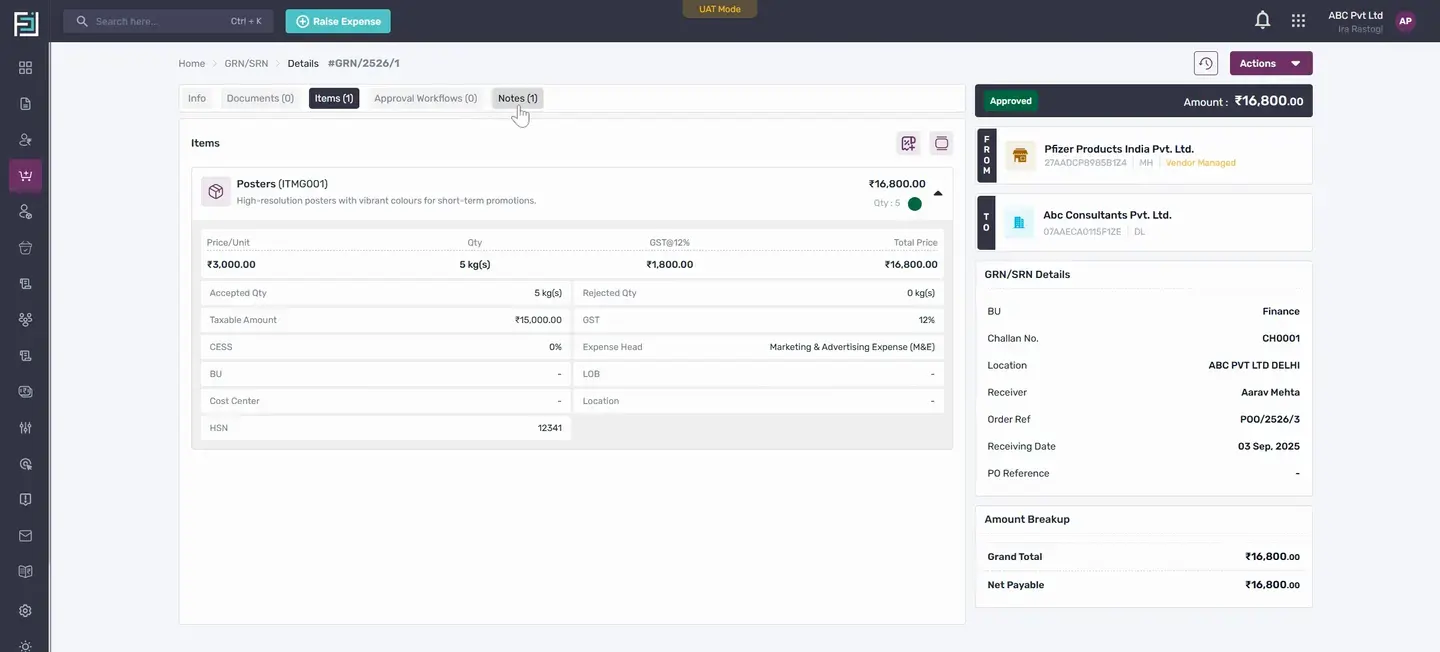
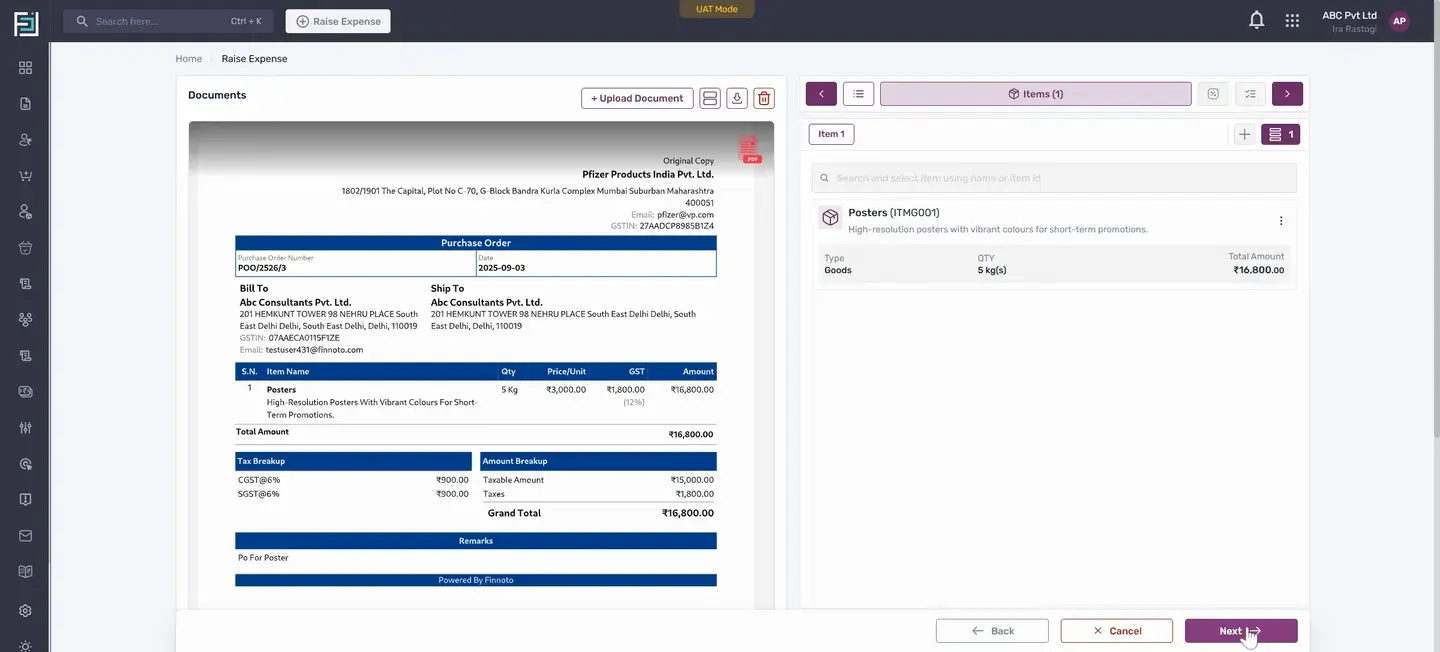
The items in the PO show up under the item section. We select the item and check the item details. The required quantity in the PR was 5 kilograms, and it was the same in the PO. In the GRN SRN, we can accept or reject based on the product received.
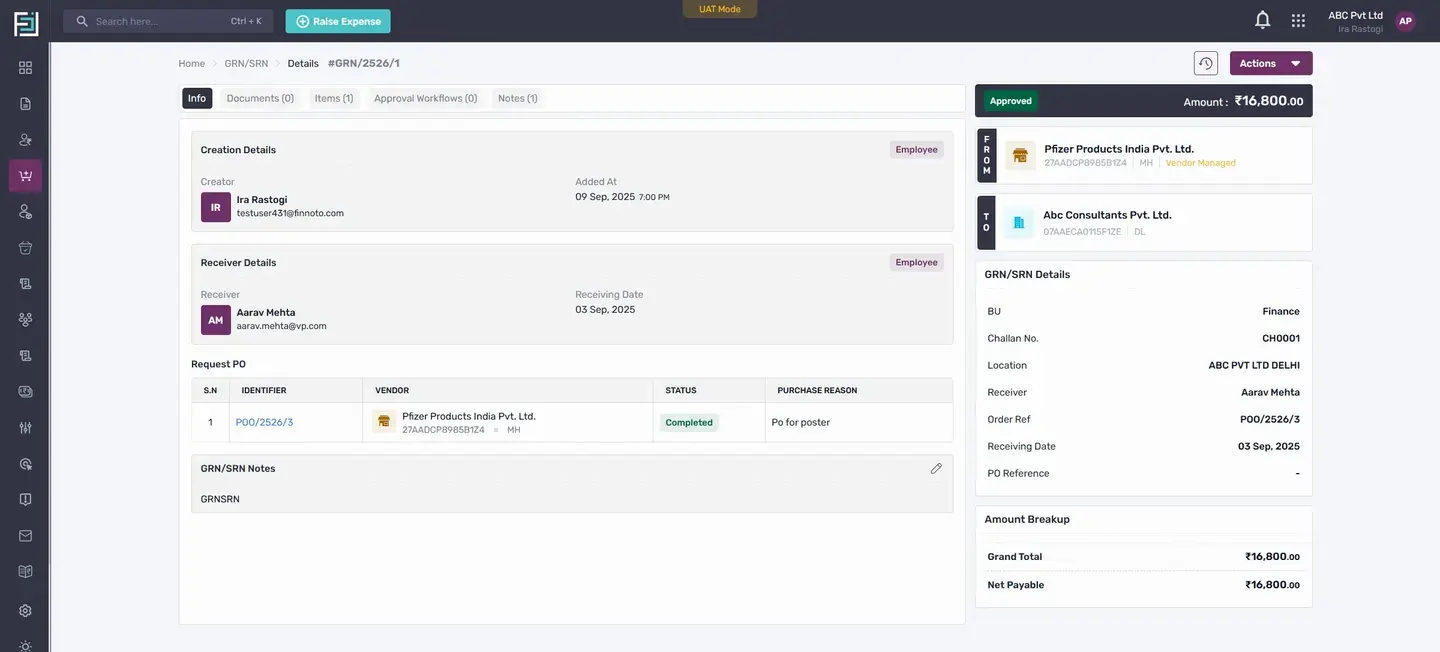
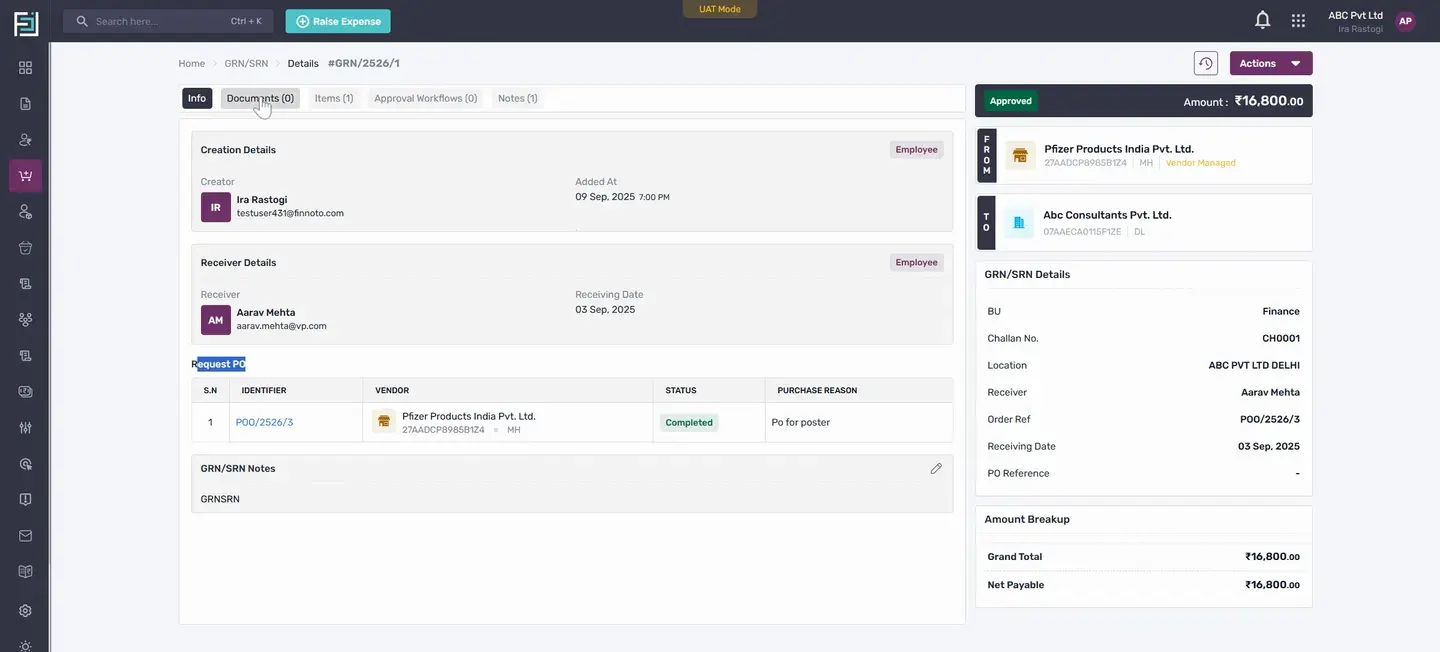
If we enter "5" and save, we can see that the GRN SRN is generated from the PO. From the GRN SRN, we can see that no workflow is set. If a workflow is set up, just like PR and PO, we need to follow the approval process until it is approved. Here, in the Info tab, under the request PO table we can see, the related PO, and the PO's status, which changes to "completed" once the GRN SRN is generated from the PO.
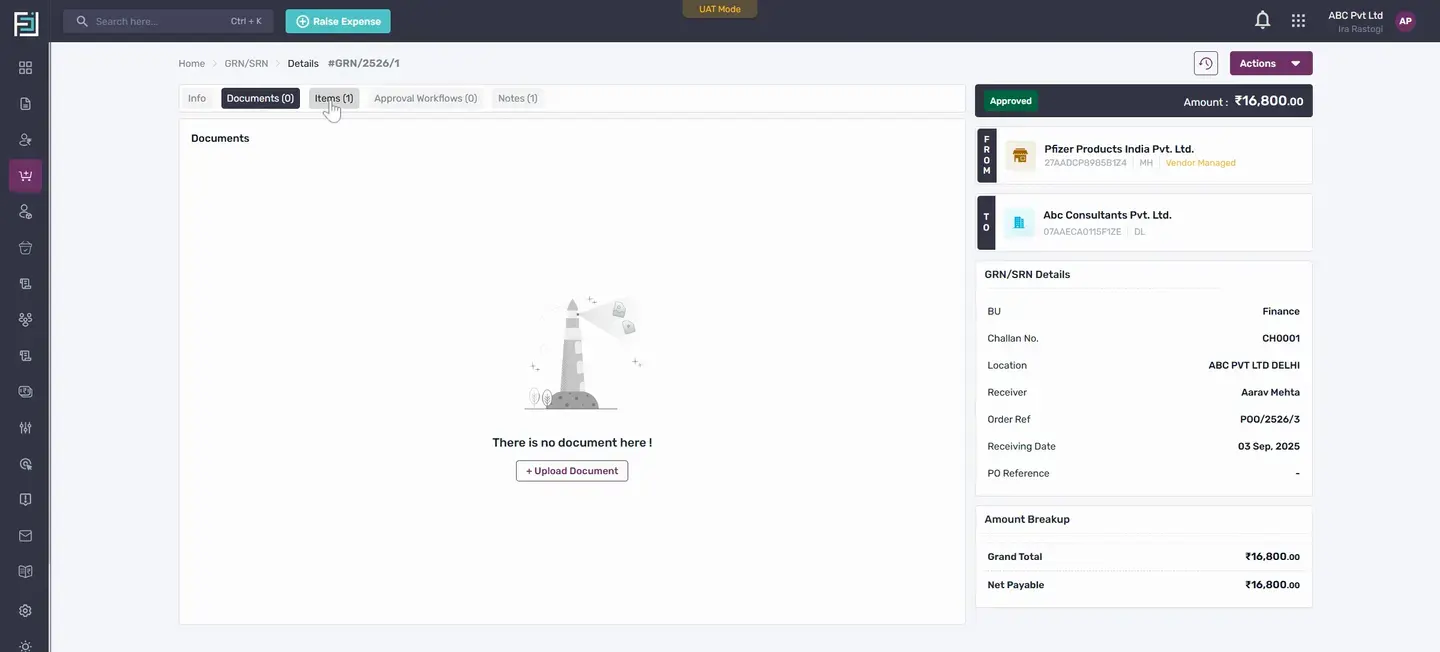
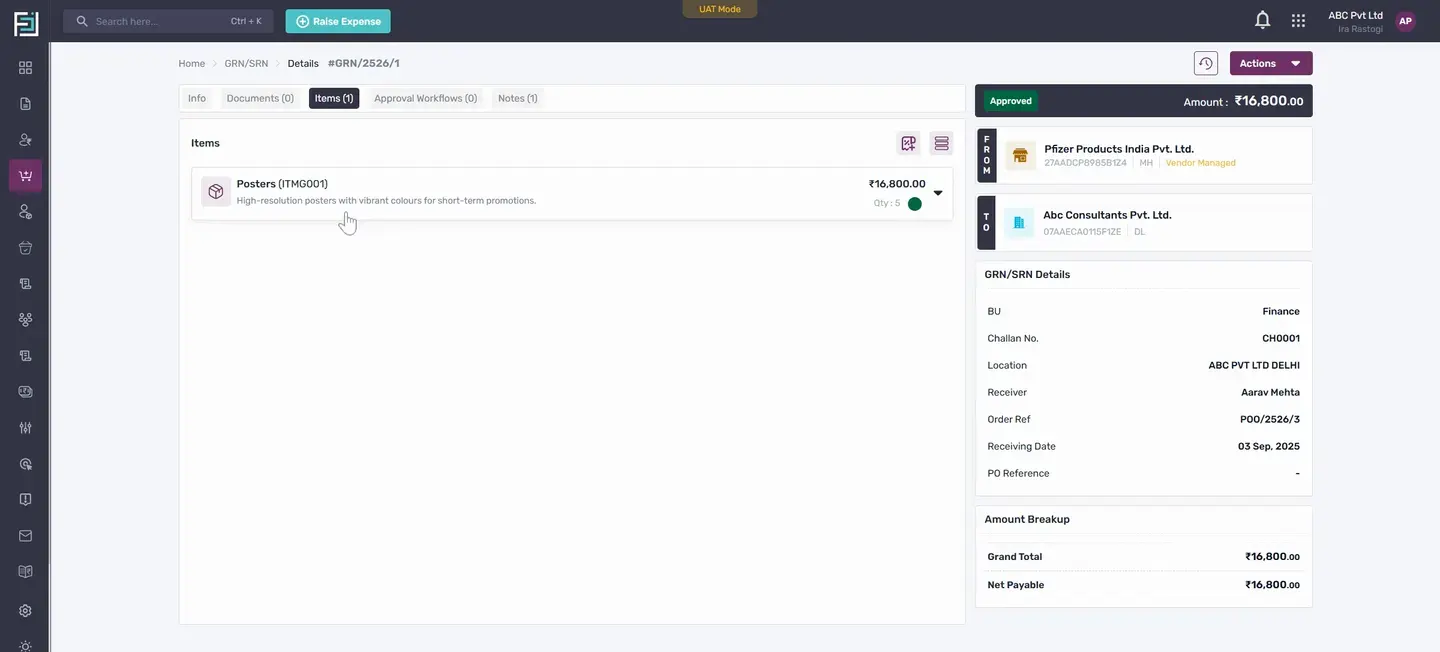
This is if all items are covered in the GRN SRN. In the document section, an auto-generated PDF will appear soon. In the Items section, we can see the items for which we created the GRN SRN. If any notes are present, they will show up in the note section.
, we can see the generated GRN SRN receipt document. Once the GRN SRN is created and approved, we can view the details. In the Actions section, we have the option to attach an expense. If an existing expense exists between the vendor and the client, we can attach that to this GRN, or we can create a new expense.
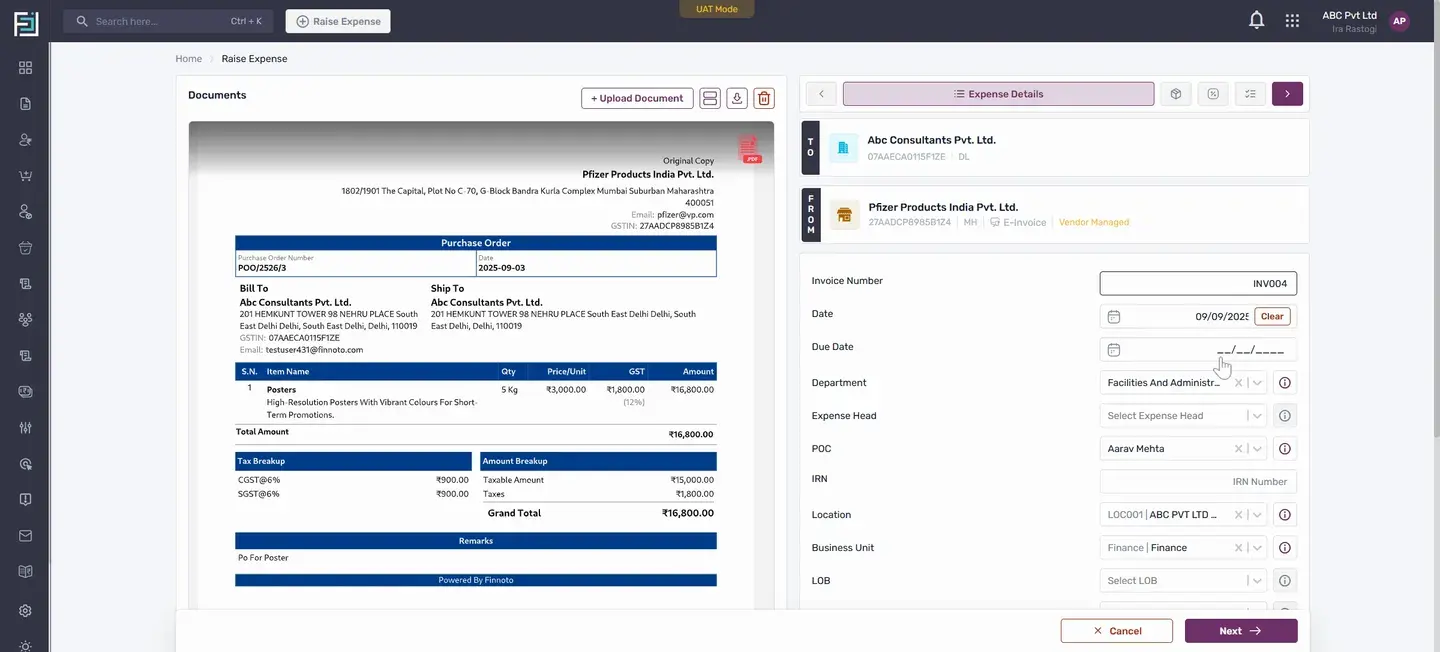
For now, we will create a new expense. We need to select the document file here. Once it is uploaded, all the details appear in the expense. The only required information is the invoice number.
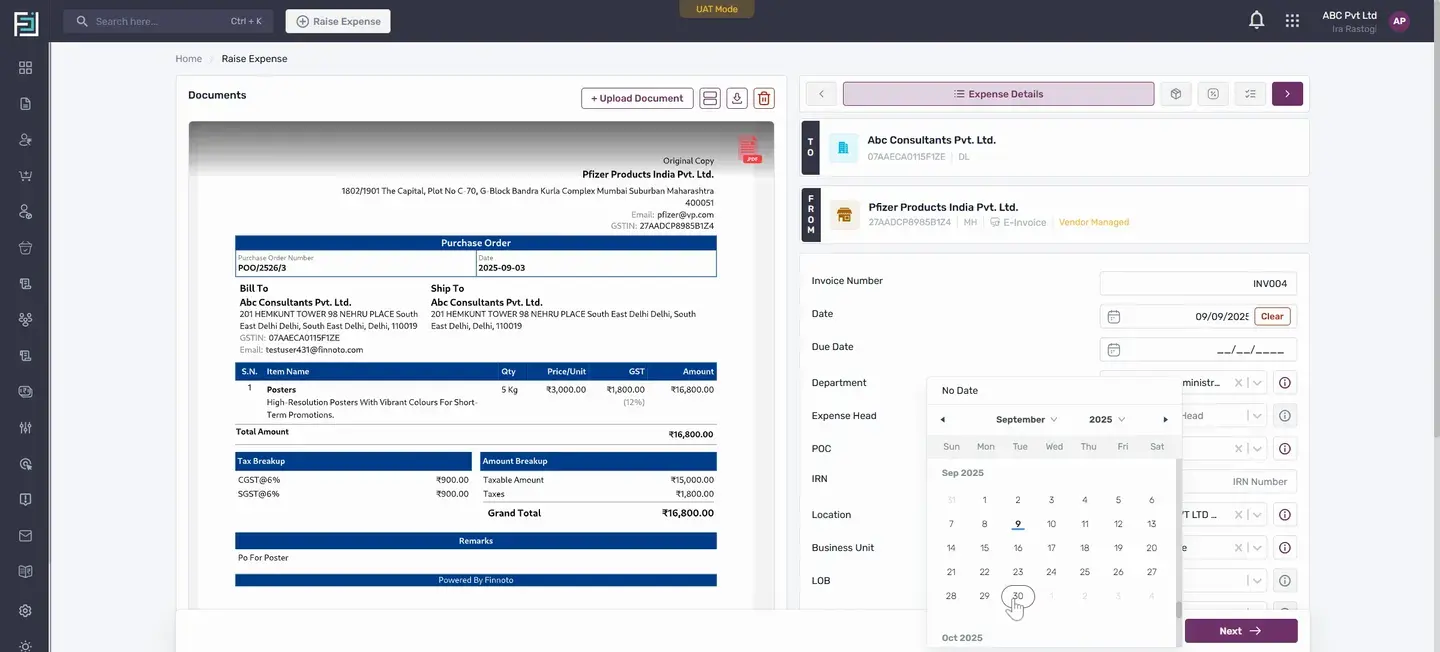
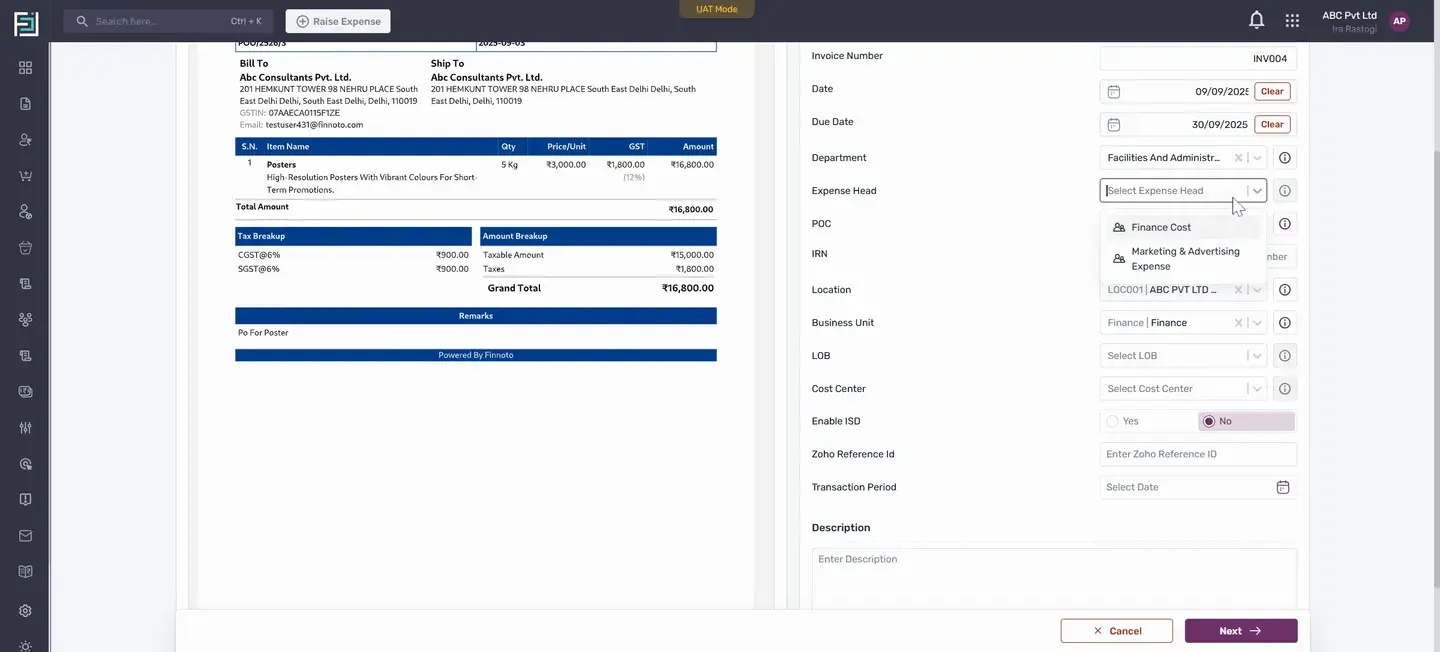
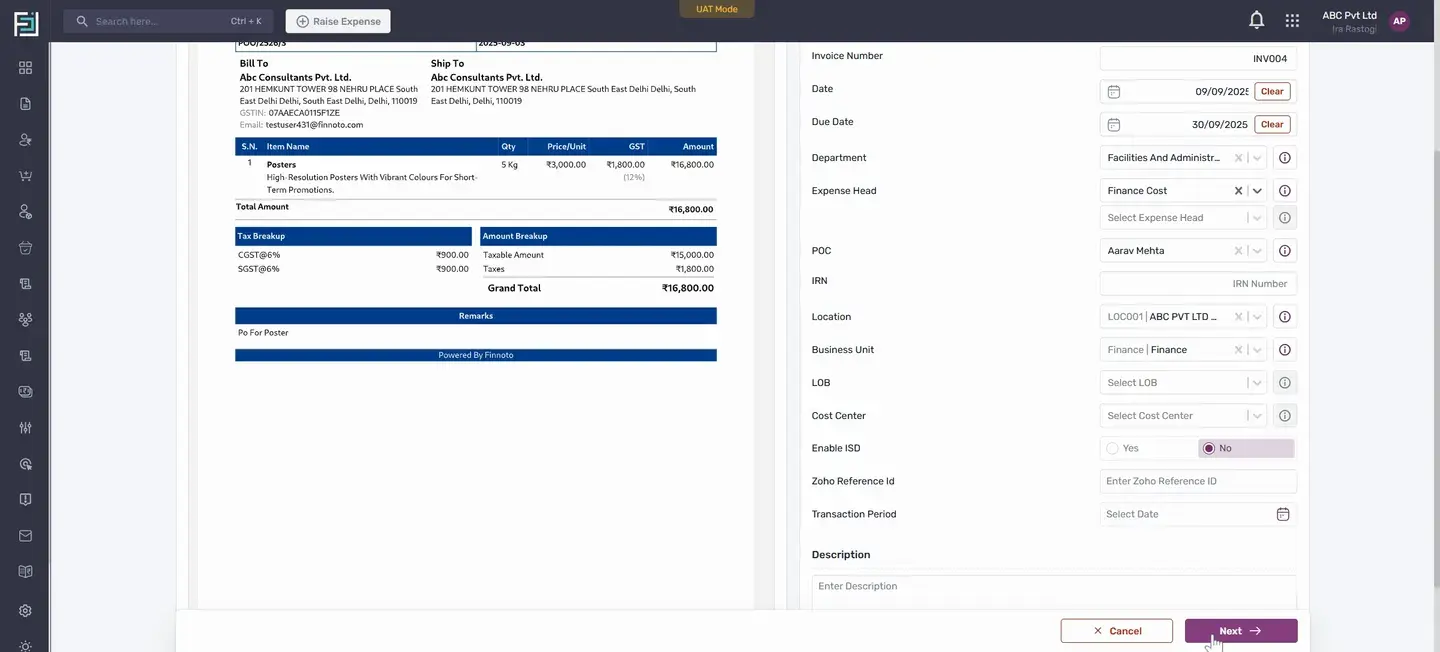
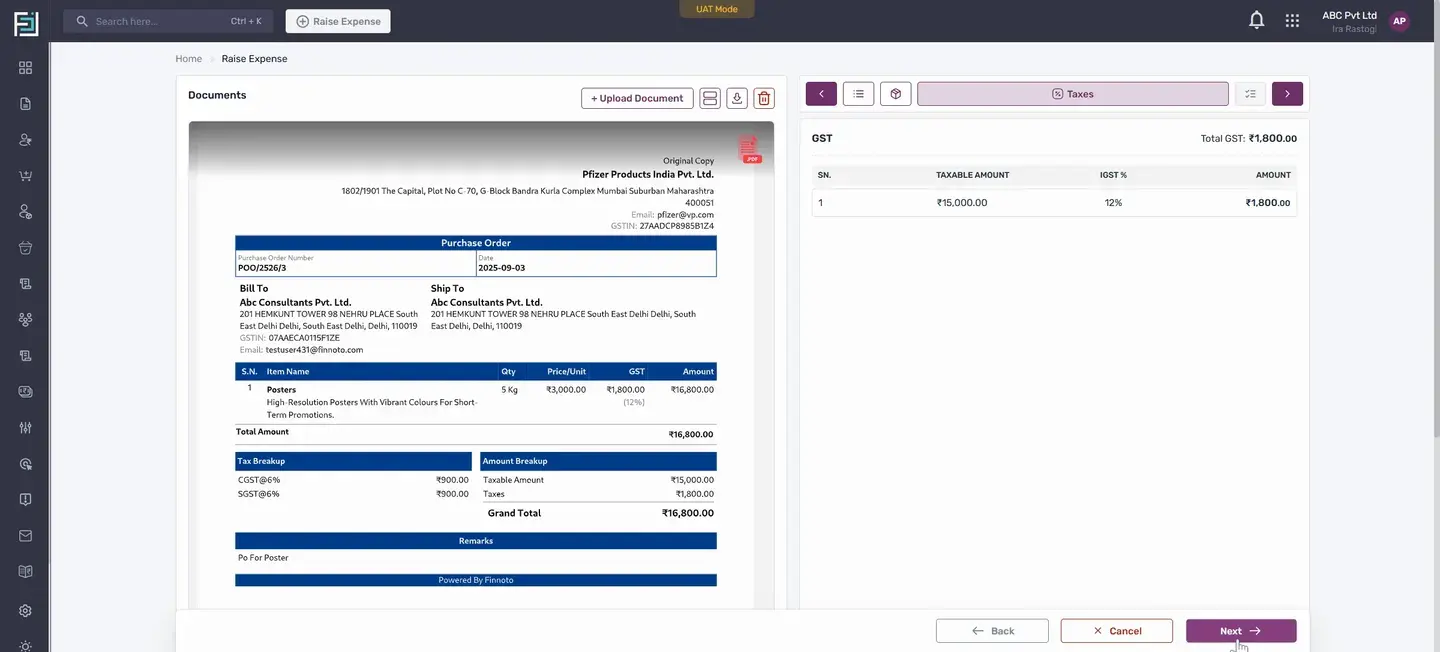
If we enter the due date, the department is filled in automatically. The expense set POC is already attached, and location and other details are filled as per the PO. Moving forward, we can see the item that is in the GRN SRN. Next, we can view the GST amount and the total GST.
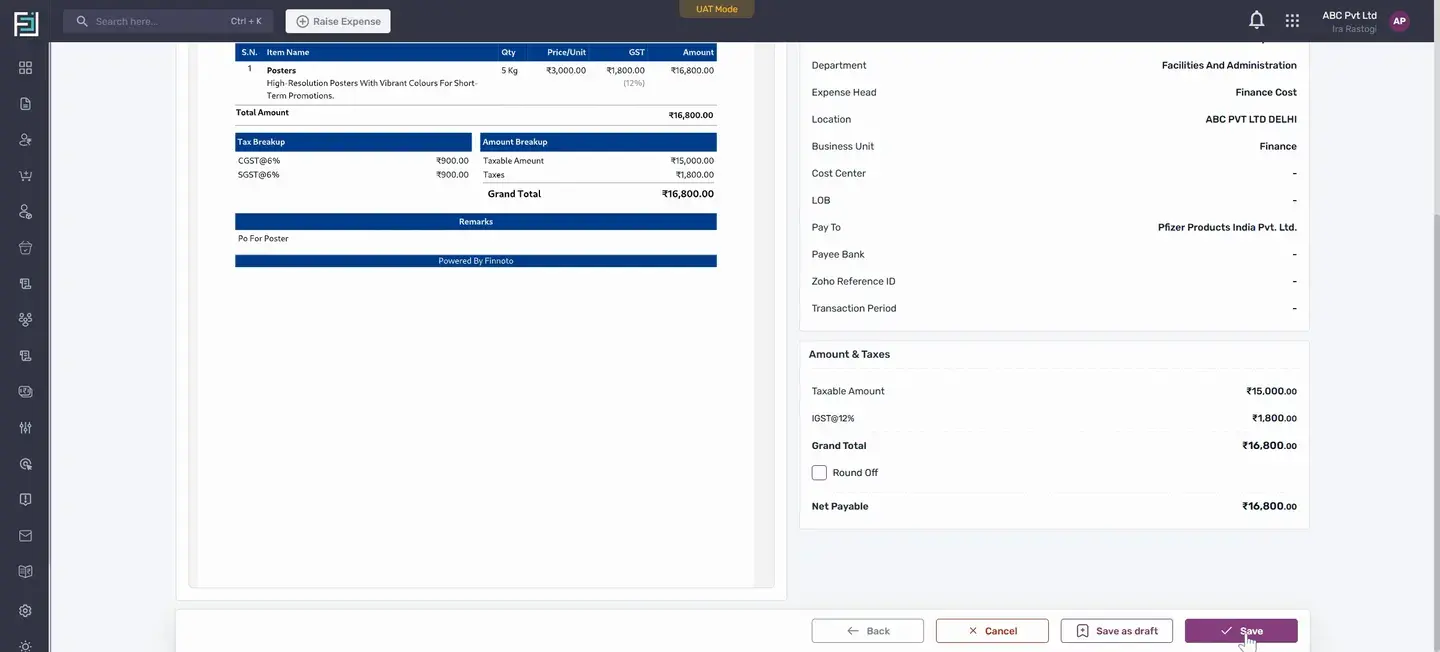
In the summary, we can see other details entered during the creation of the expense. To submit, we just use the save button. If we want to save it as a draft, that option is available. For now, we are submitting it.
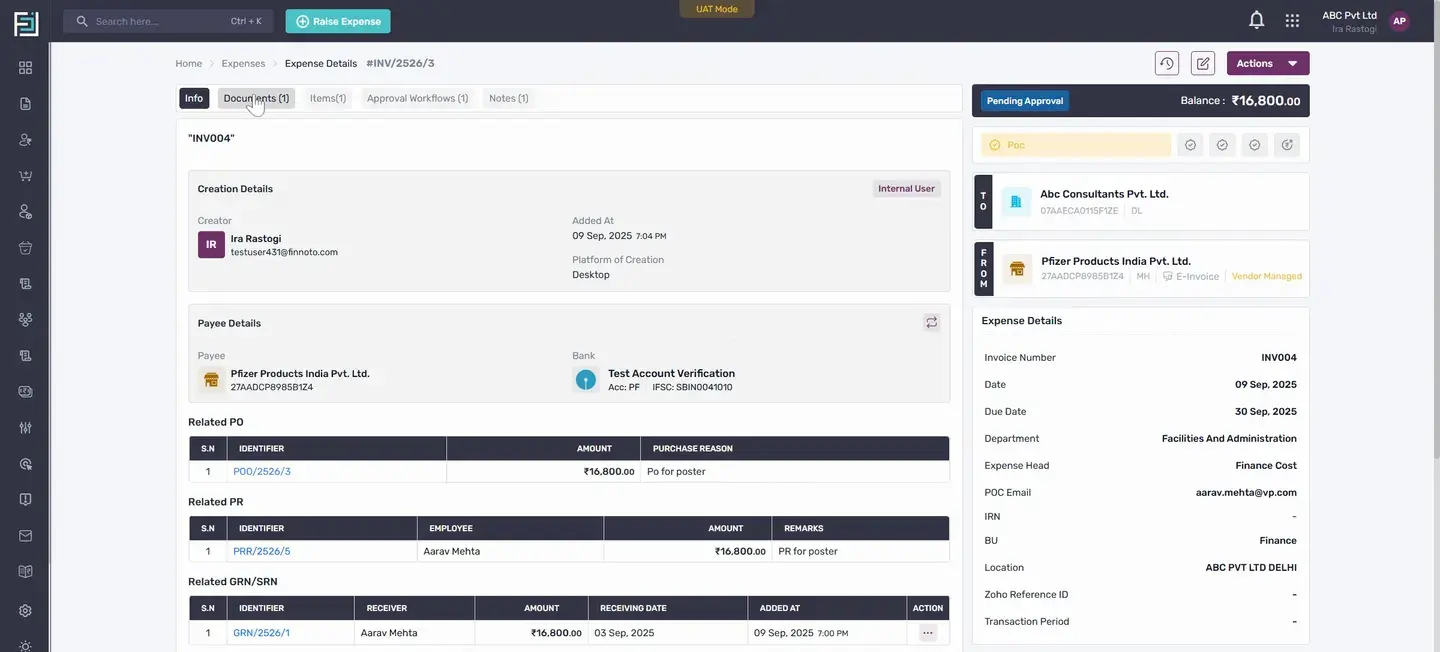
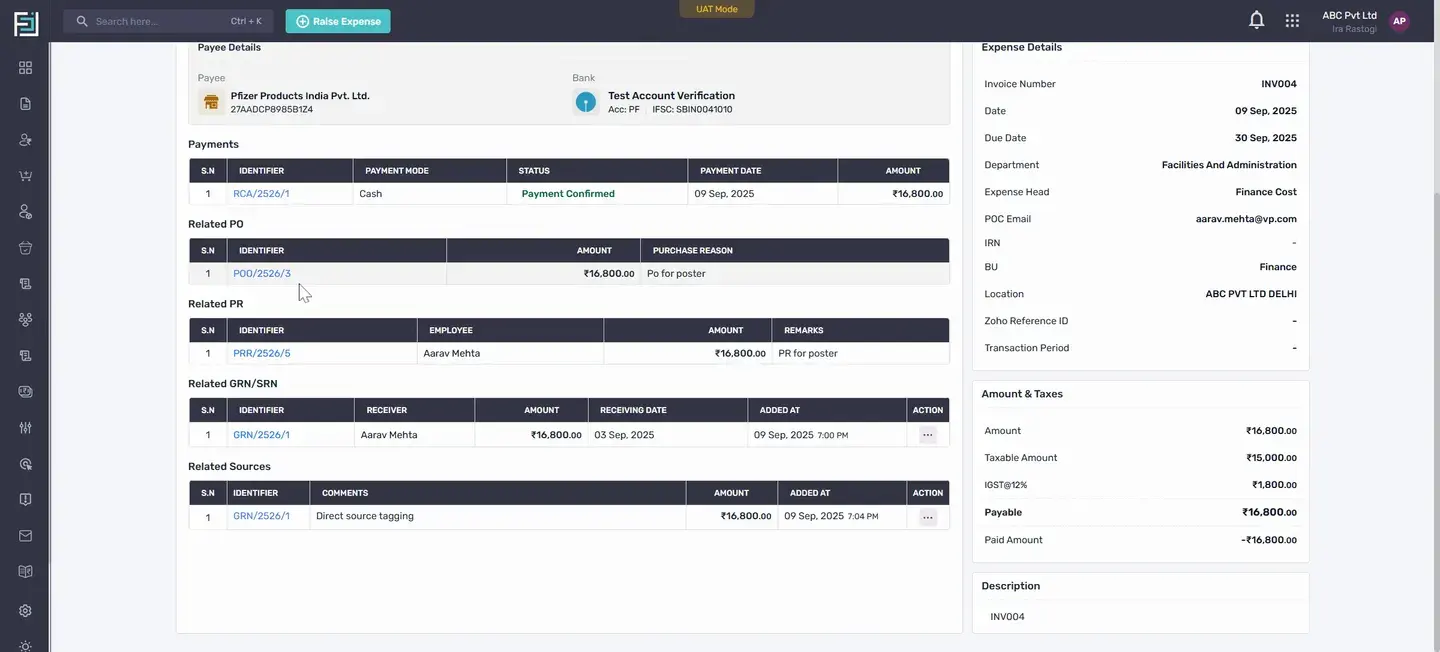
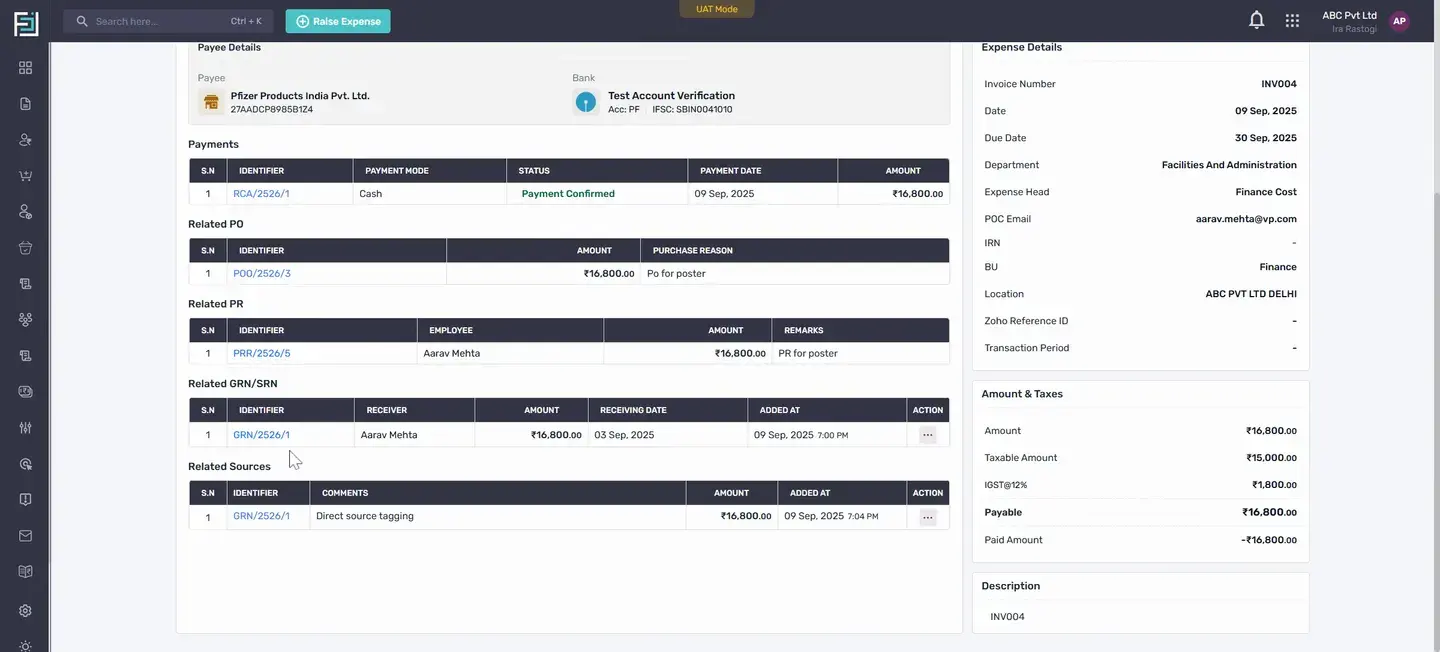
Once the expense is saved, it is done. Under the Info tab, we can see the related PO, PR, and GRN SRN. By clicking on the identifier, we go to the current document. In the Document section, we find the document.
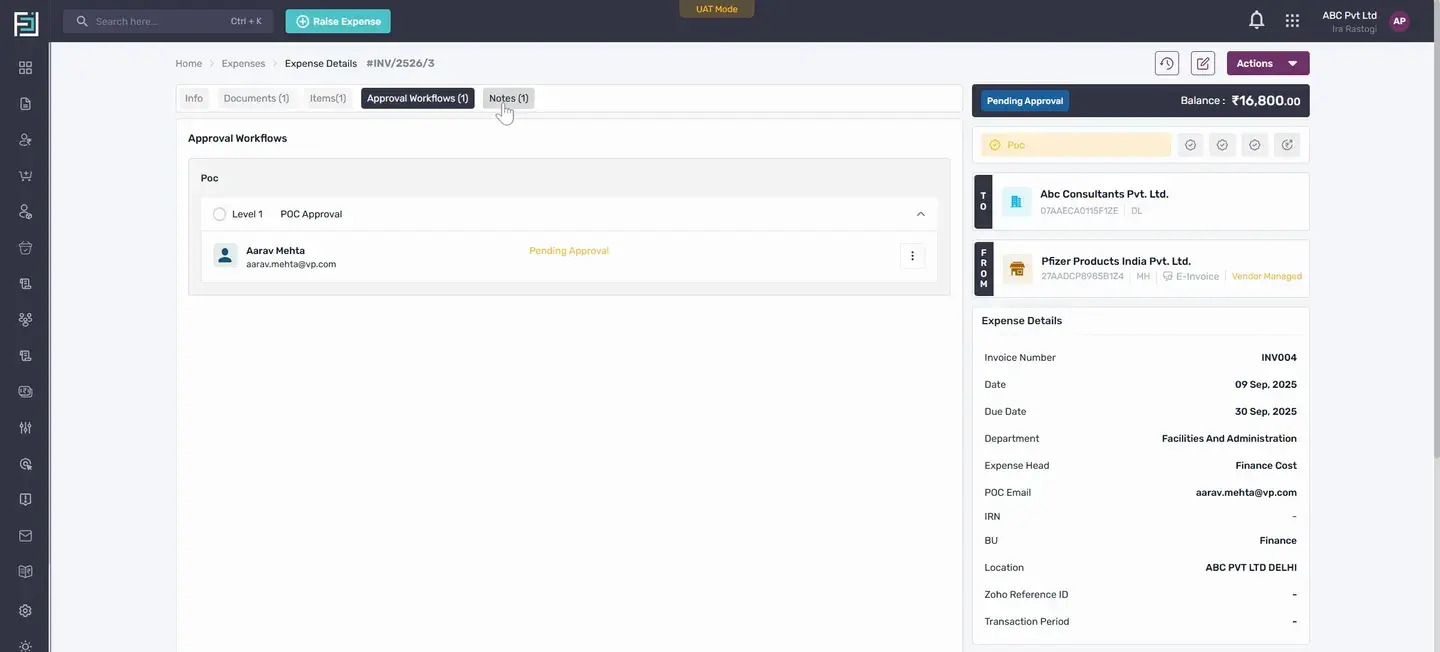
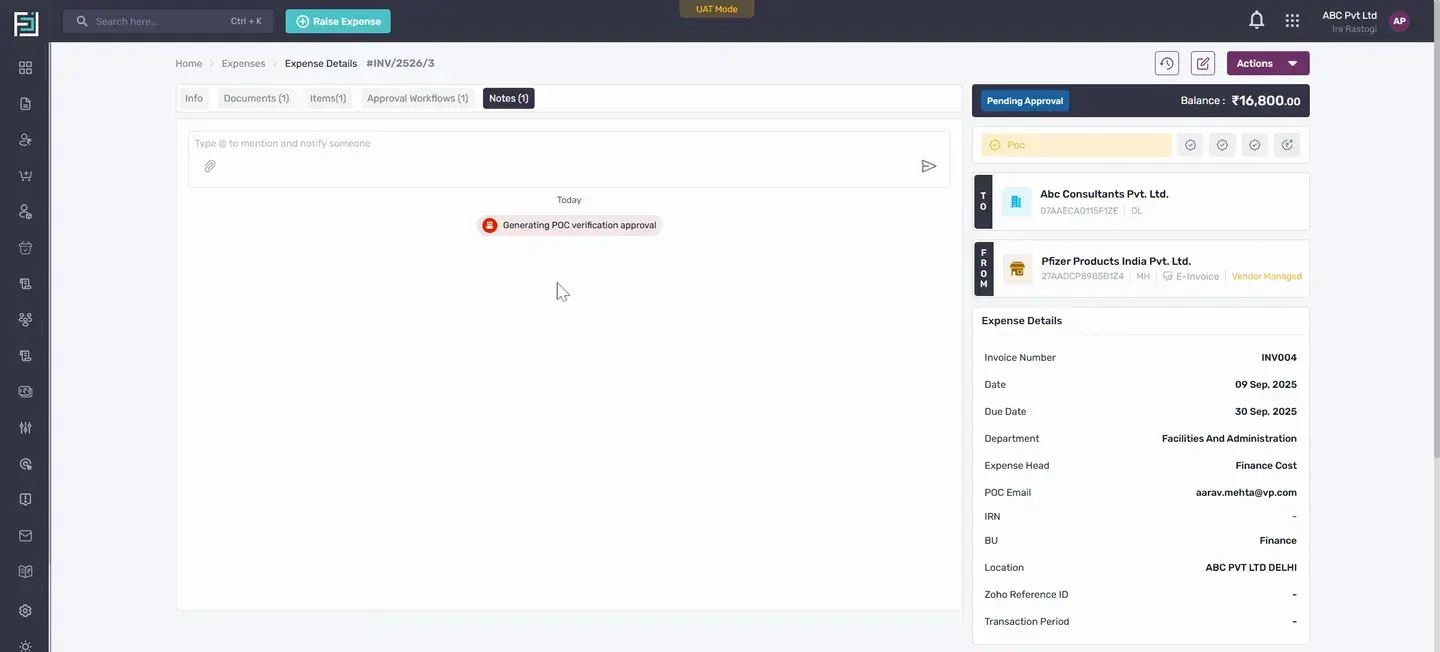
In the Item section, we see the items. If there is an approval workflow set for invoice approval, it will show up here. In the Notes section, we can see the generated approval workflow. Once the invoice is approved by the approvers, it can be paid.
We will show this by approving the invoice. After approval, the option to record payment becomes available. By going to payment and selecting the mode of payment, we can record the payment. With this, the entire process is completed.
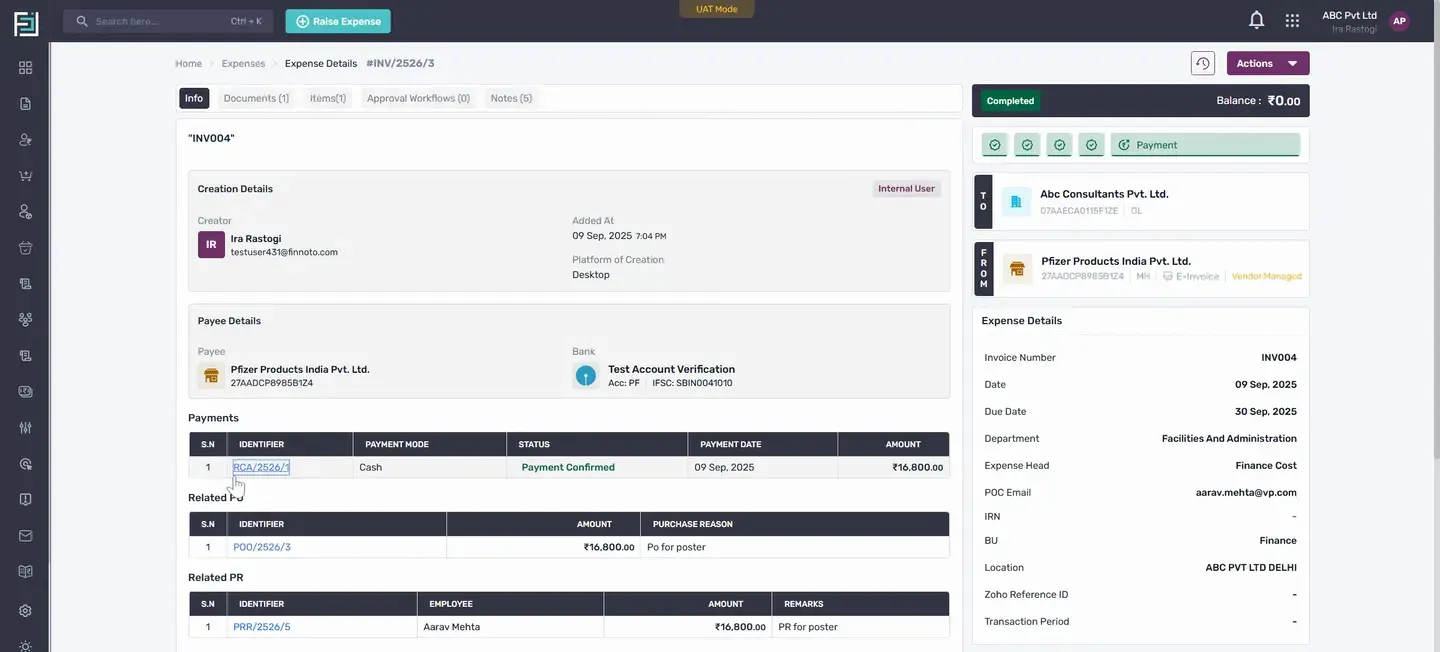
It starts with the PR, from which the PO is generated. From this PO, a GRN SRN is created. From this GRN SRN, the invoice process is completed. Once the payment is made, we can see the payment details under the Payments table.
This is how we proceed with the creation of GRN SRN from the PO and the creation of expenses from the GRN SRN. Thank you for watching this video.
In this tutorial, you'll learn how to create a GRN SRN from a Purchase Order (PO) and generate an expense from the GRN SRN.
Start by recalling our previous discussion on creating a purchase request and generating a PO from it.
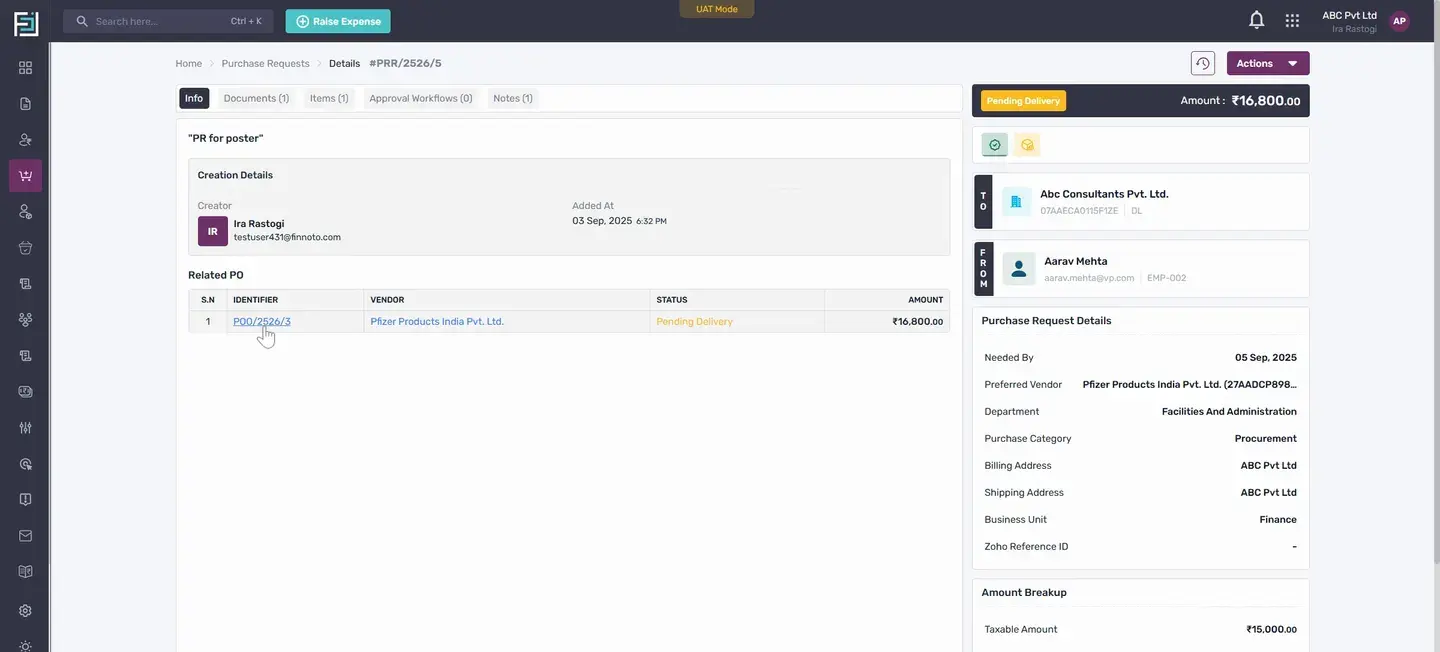
Now, let's create a GRN SRN from the PO. When the PO is in a pending delivery state, you'll see an option to create a GRN SRN under actions.
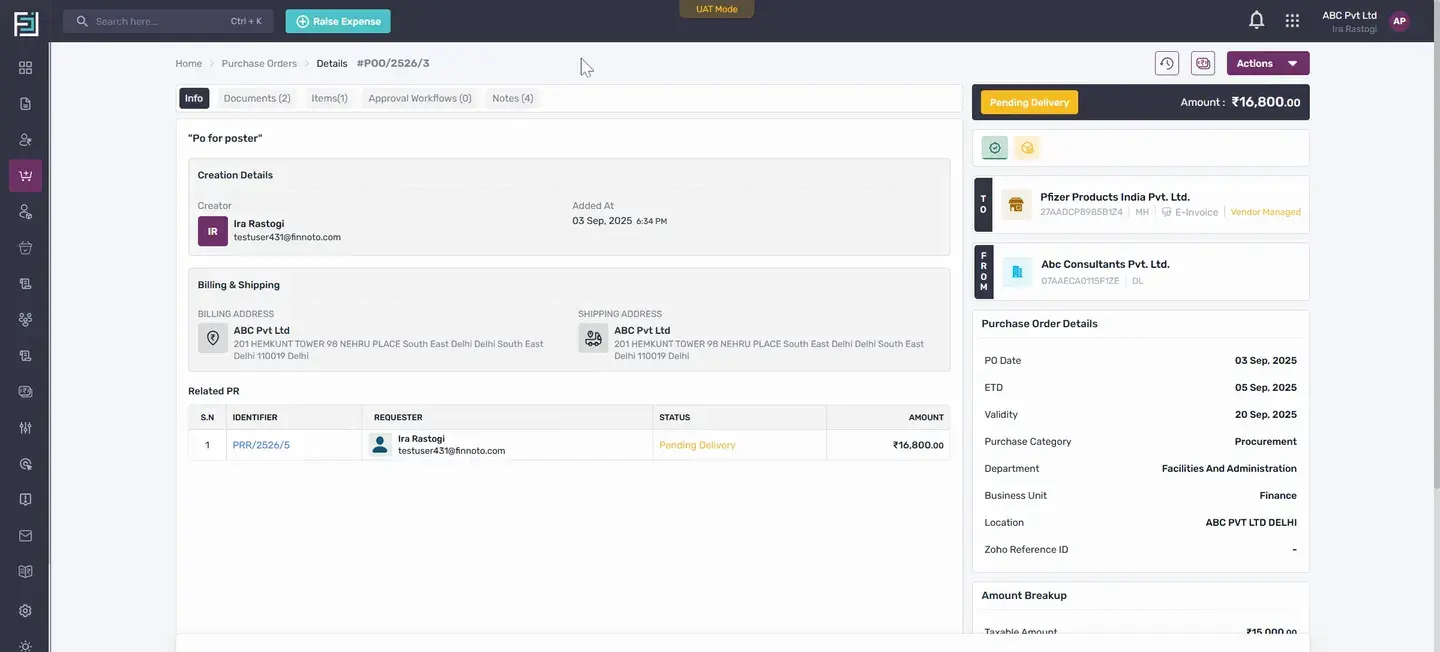
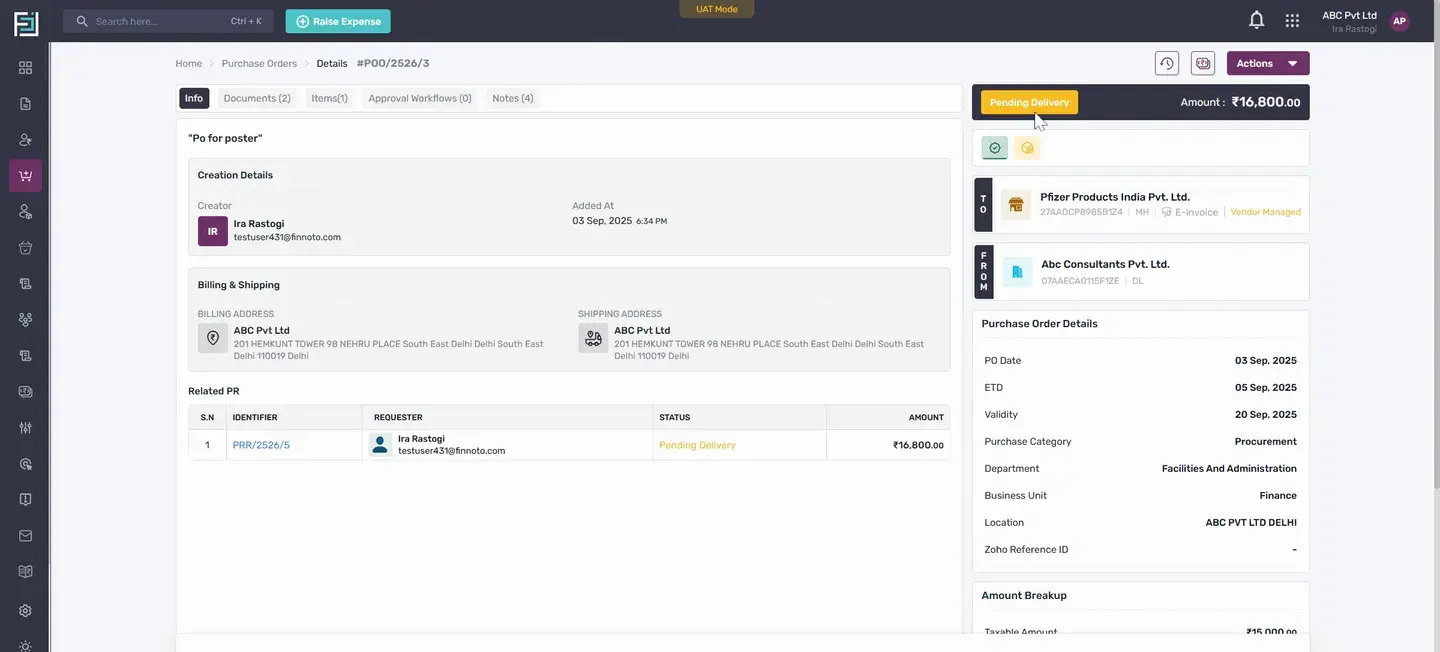
In this state, you also have the option to record or create an advance, or add a GRN SRN user.
A document from the PO is automatically generated in PDF format. Share this with the vendor using the Send Email option.
In the Create GRN SRN form, the PU number is automatically fetched.
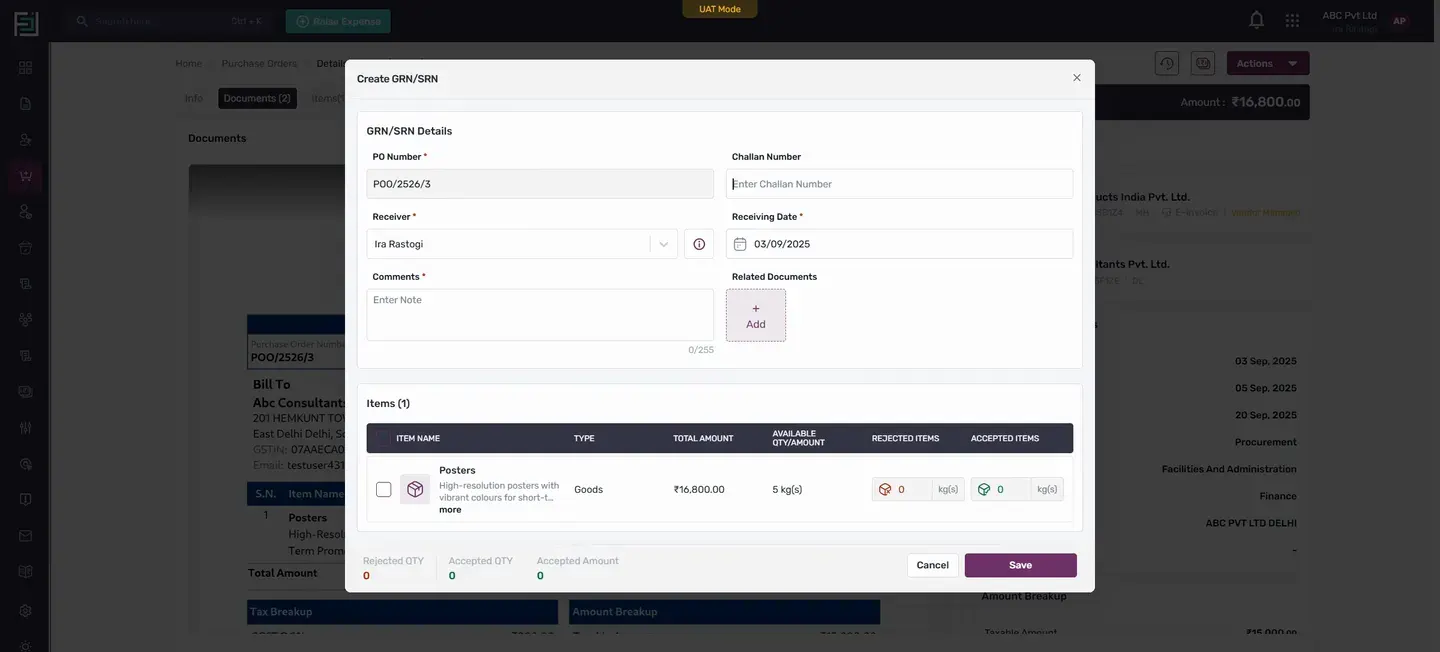
Enter the Chalan number if available, select the receiver, and enter the receiving date.
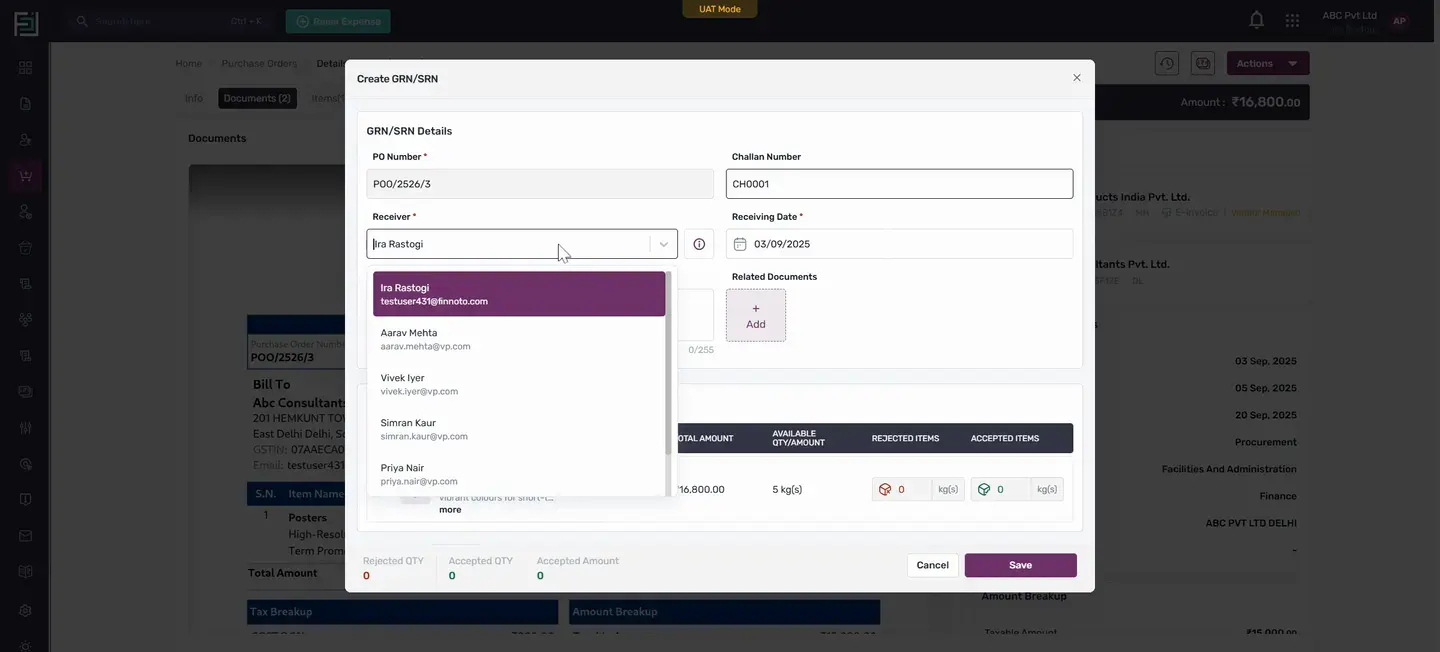
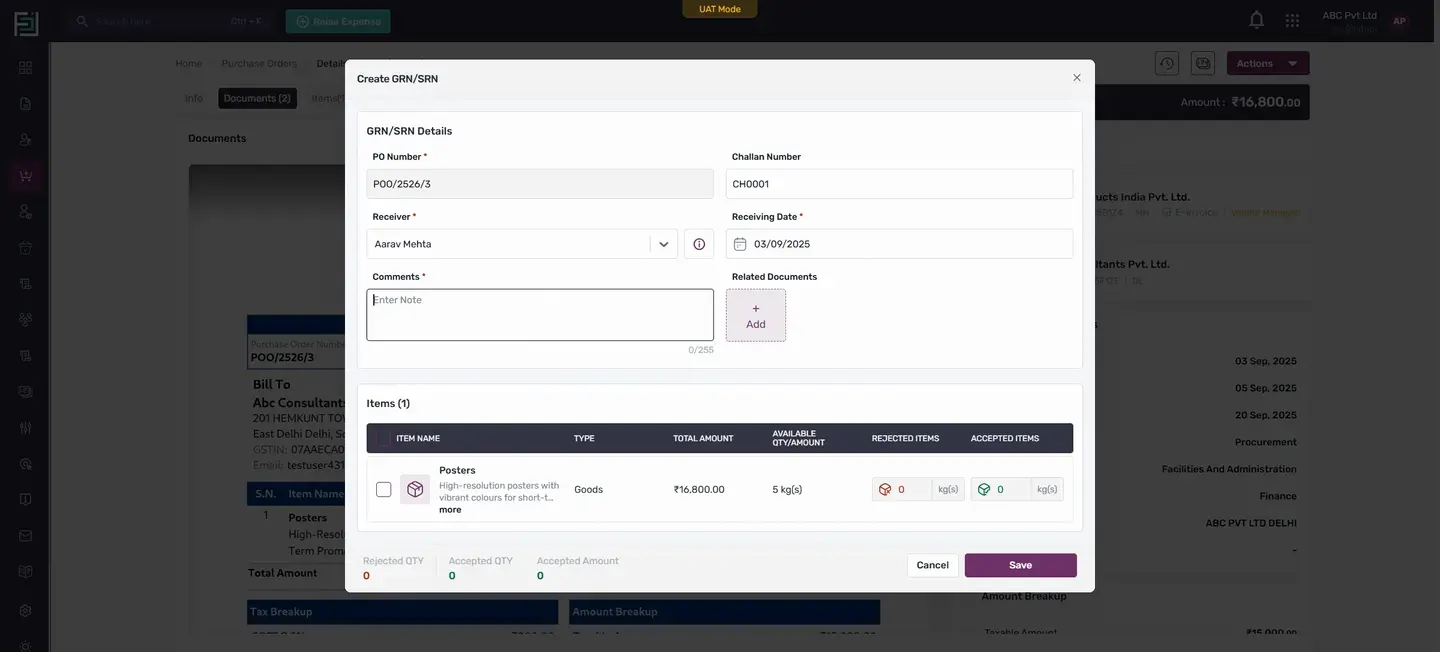
You can add any comments or attach documents using the Add button.
The items in the PO are reflected under the item section. Select an item and check its details.
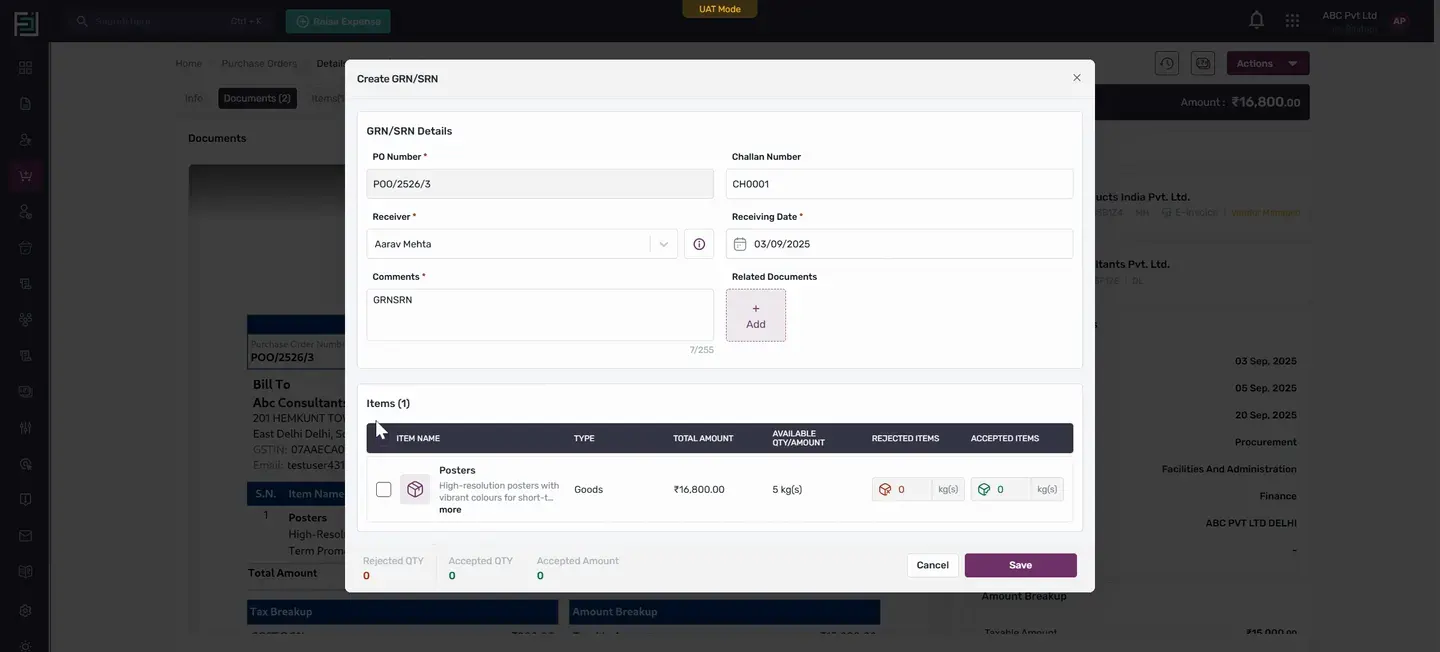
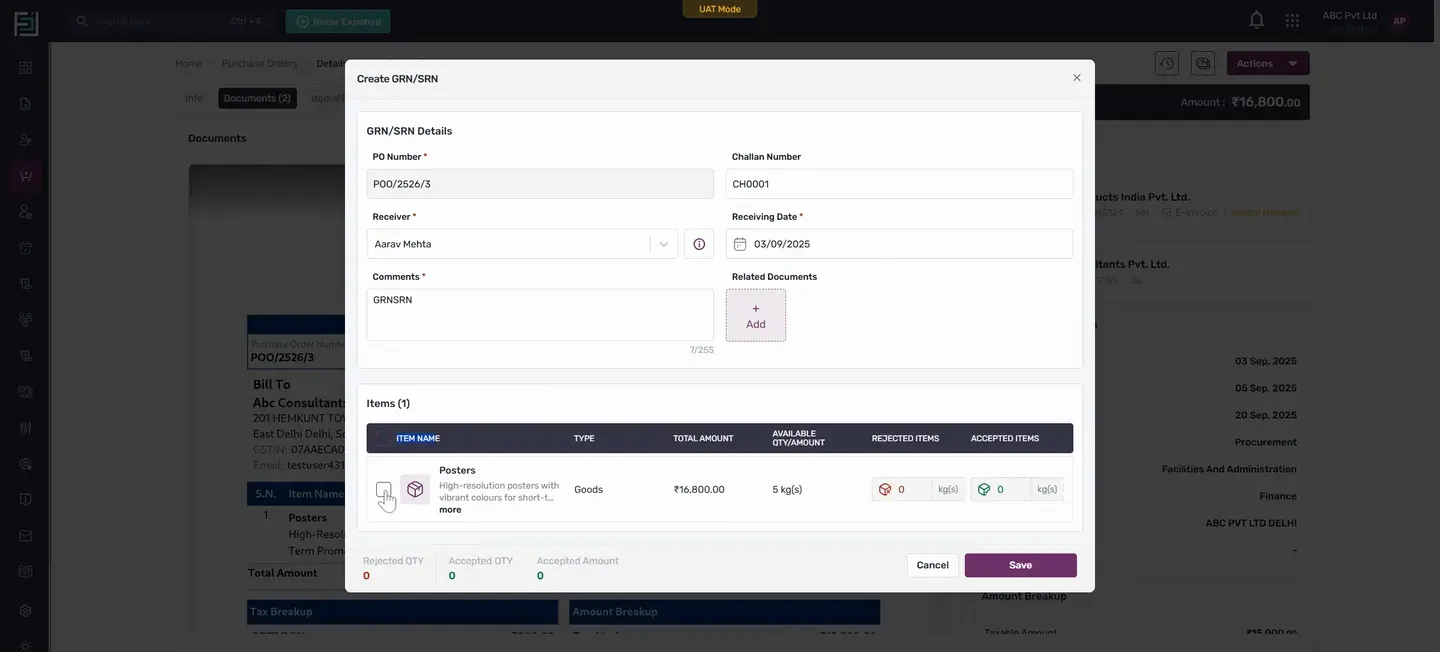
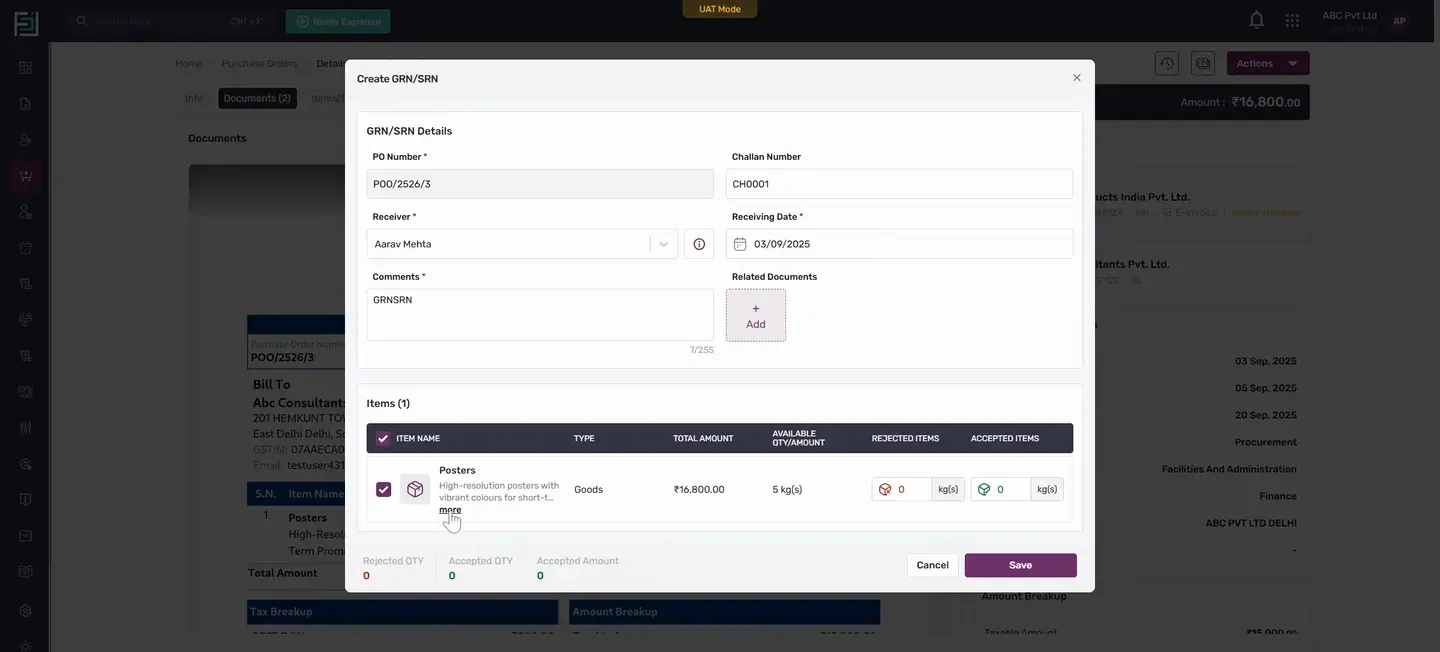
The total required quantity in the PR was 5 kgs
In PU also it was 5 kgs. In the GRN SRN, you can accept or reject as per the product received.
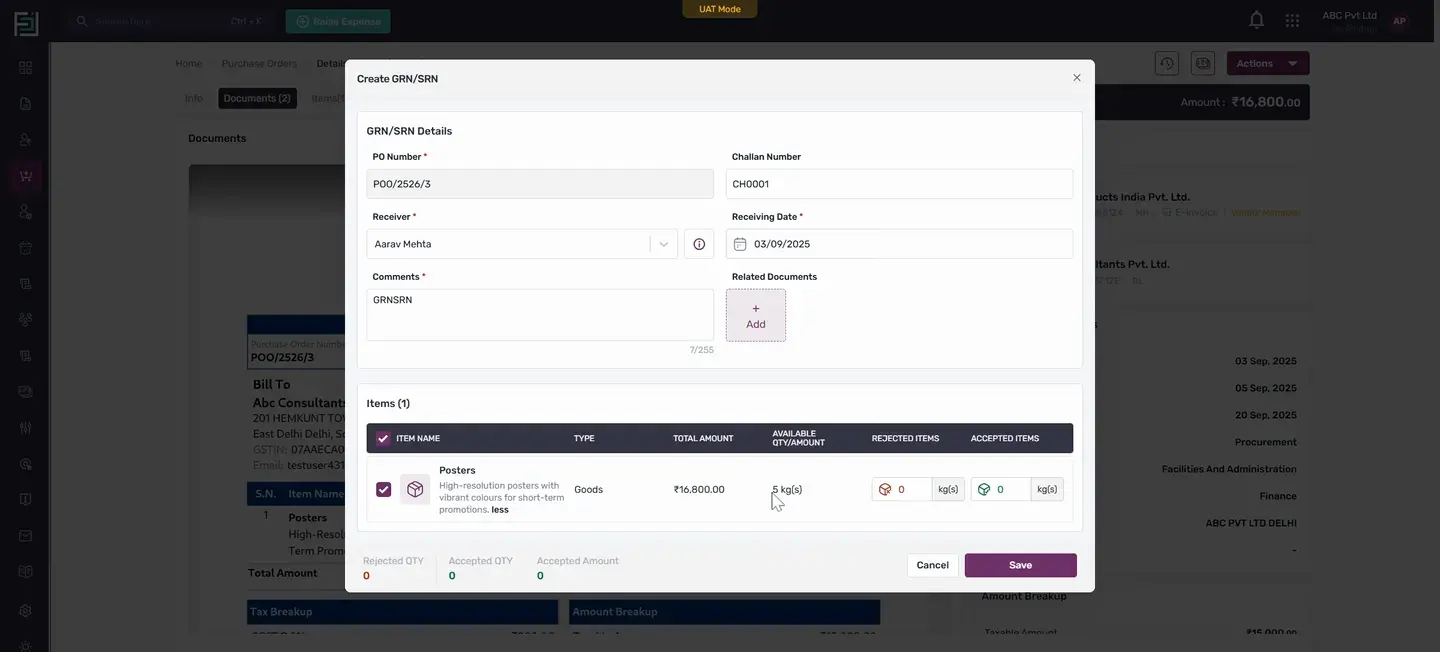
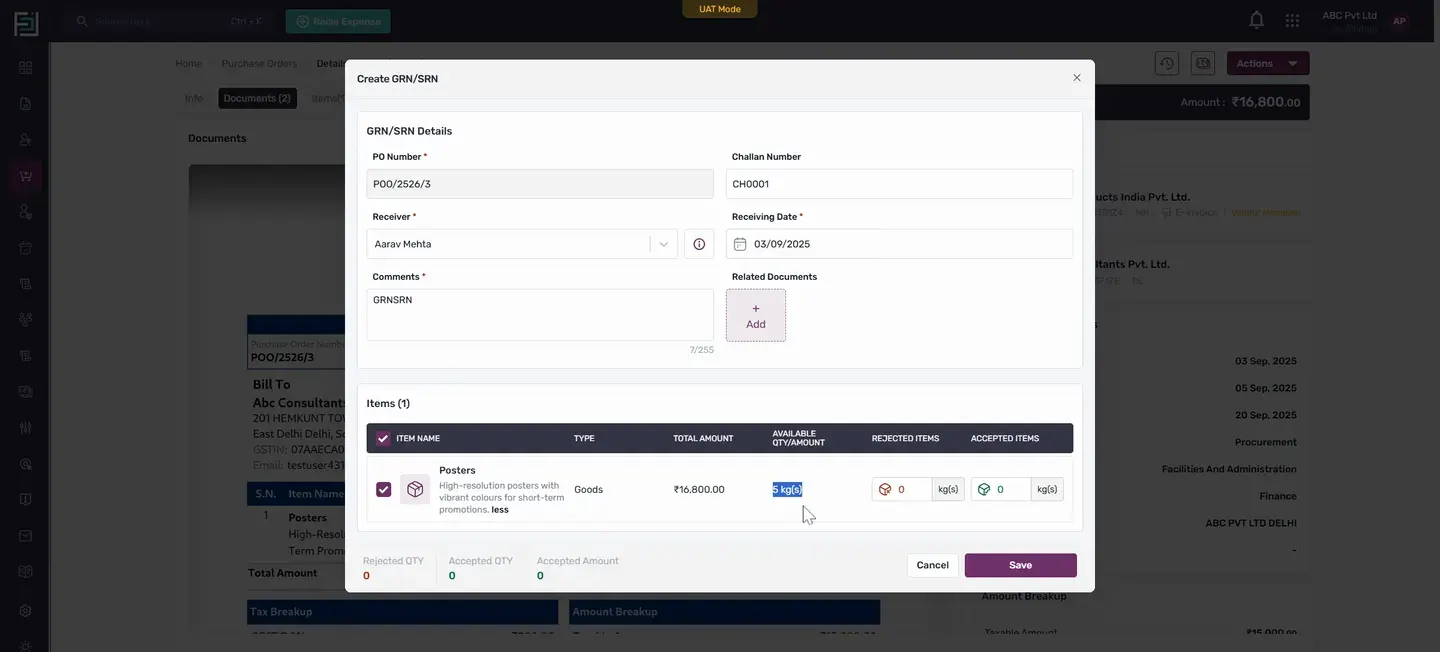
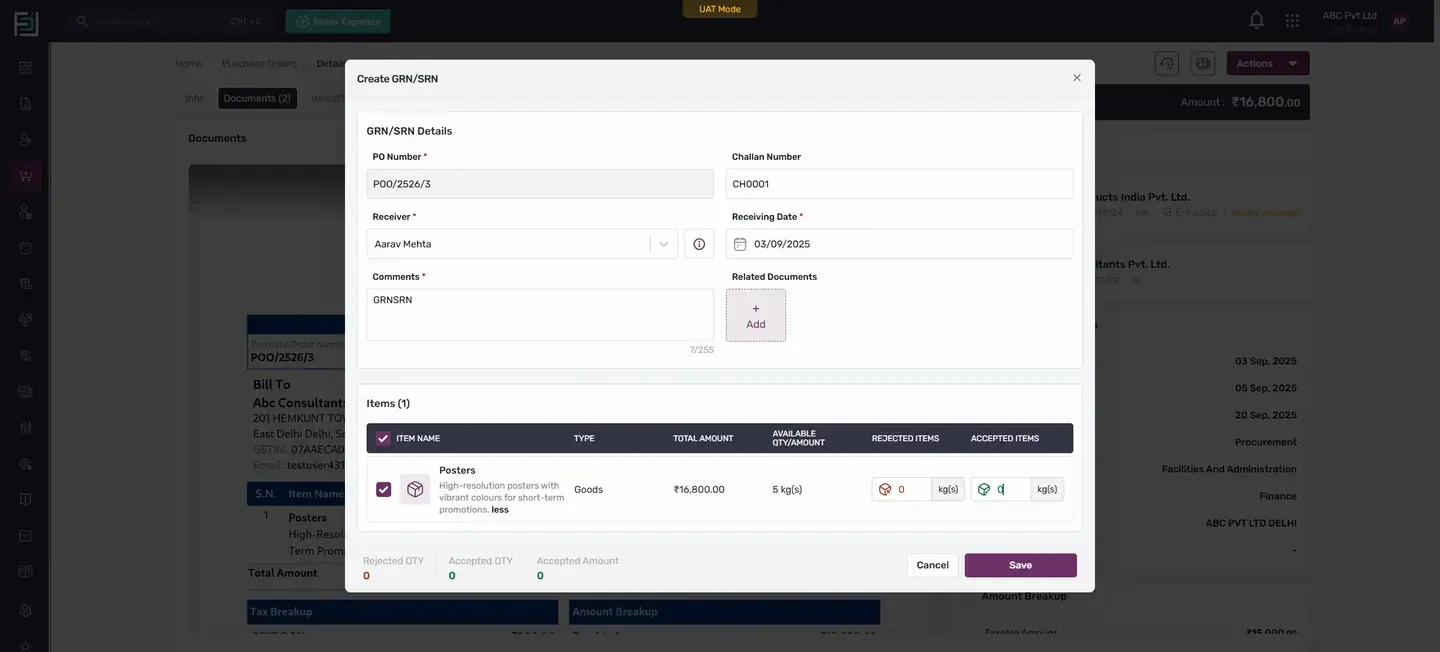
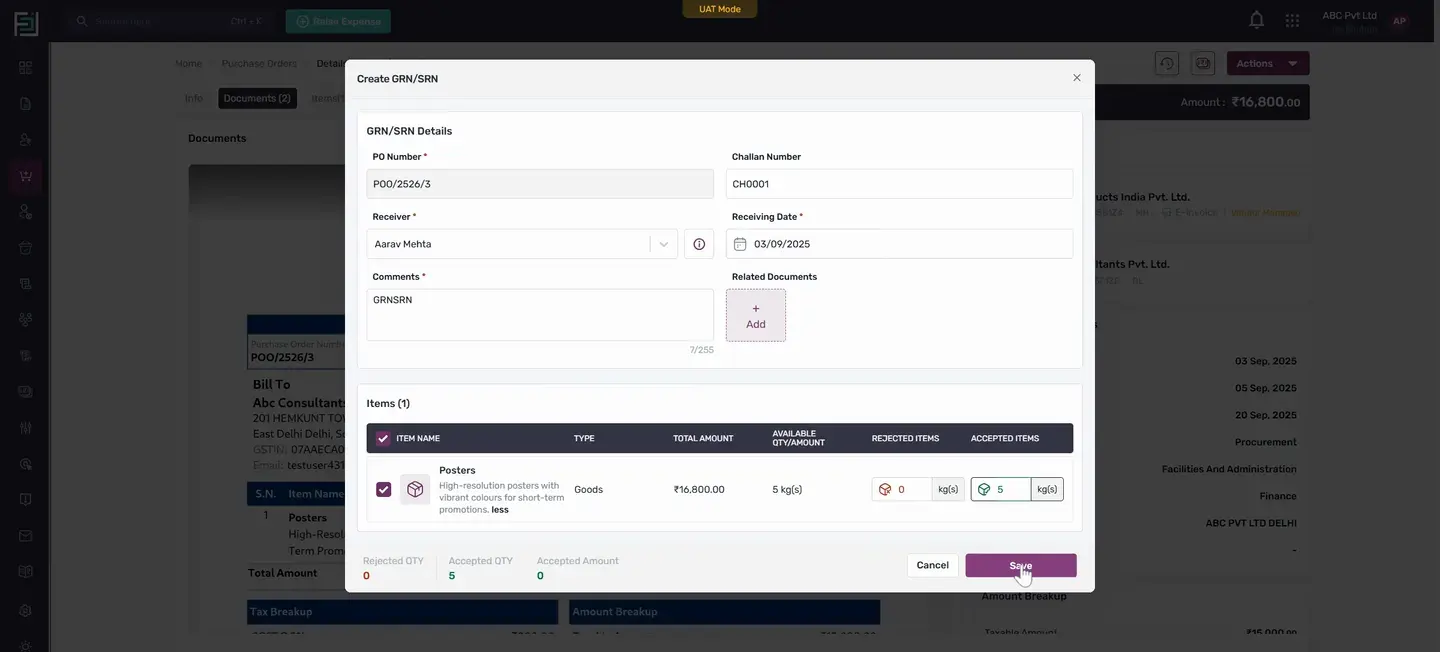
After saving, you'll see the GRN SRN generated from the PO.
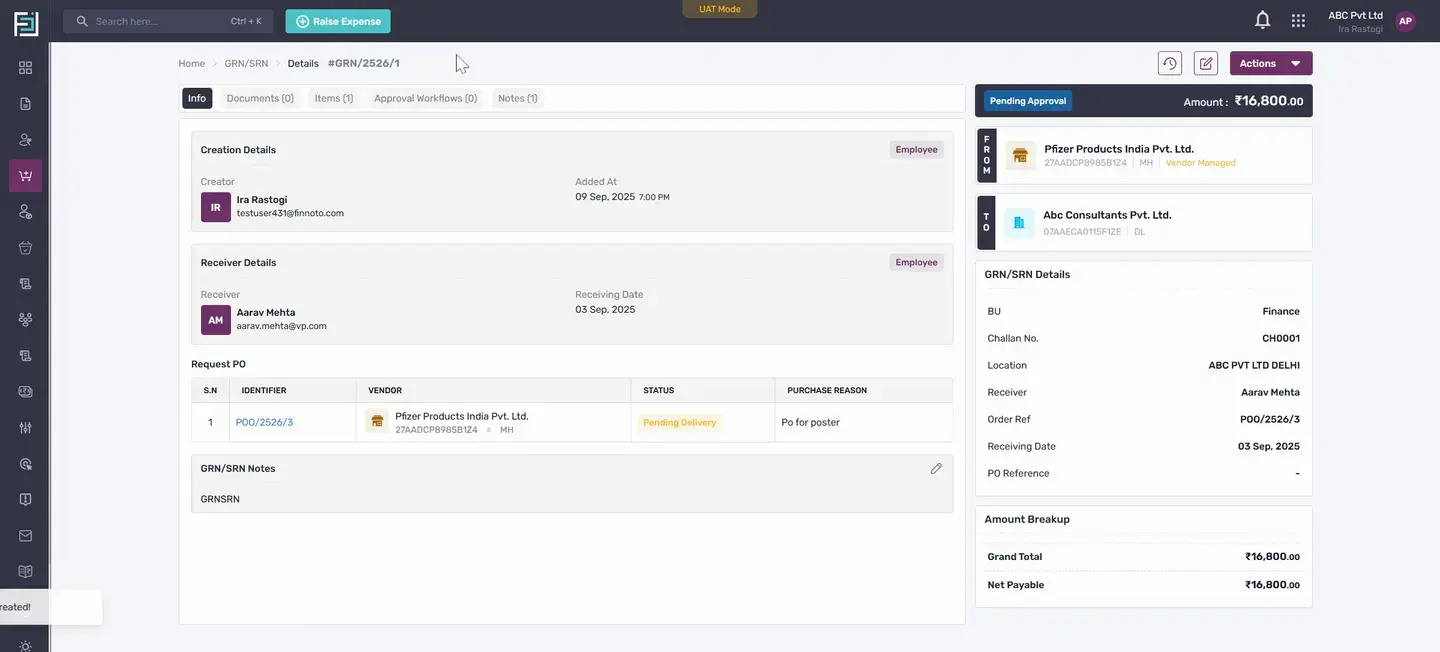
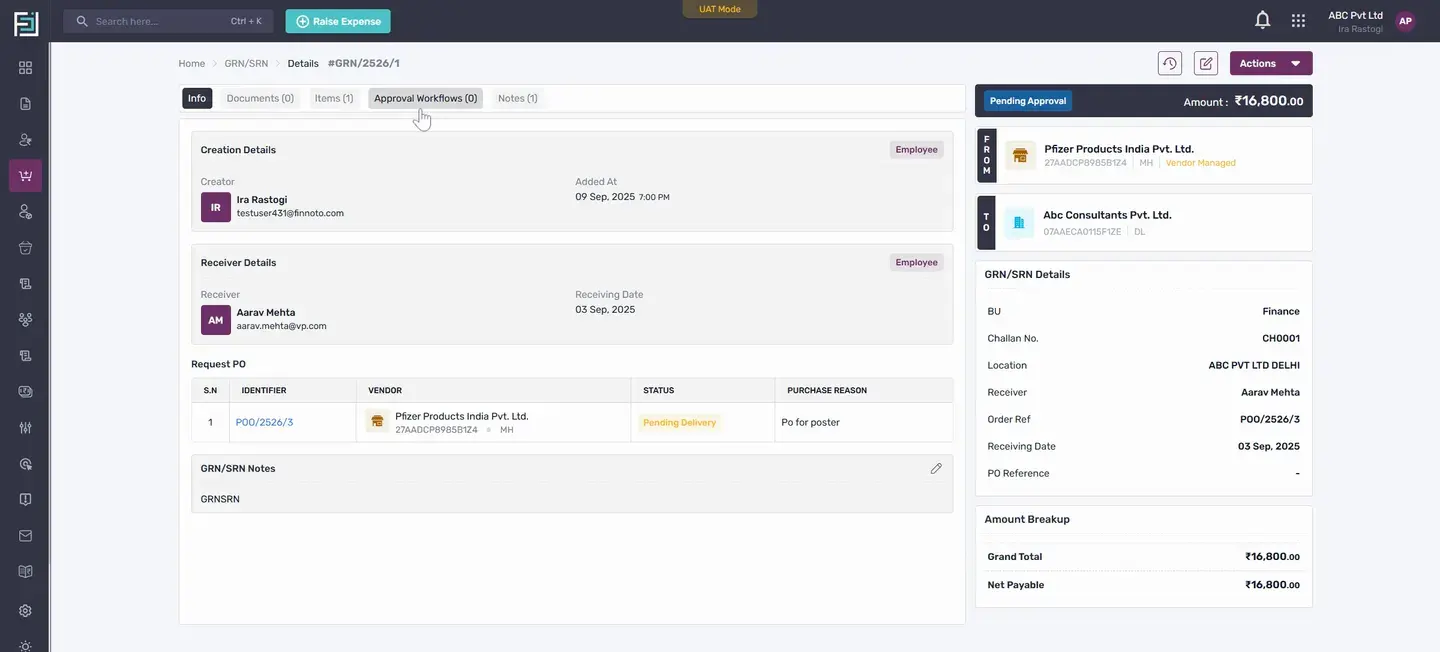
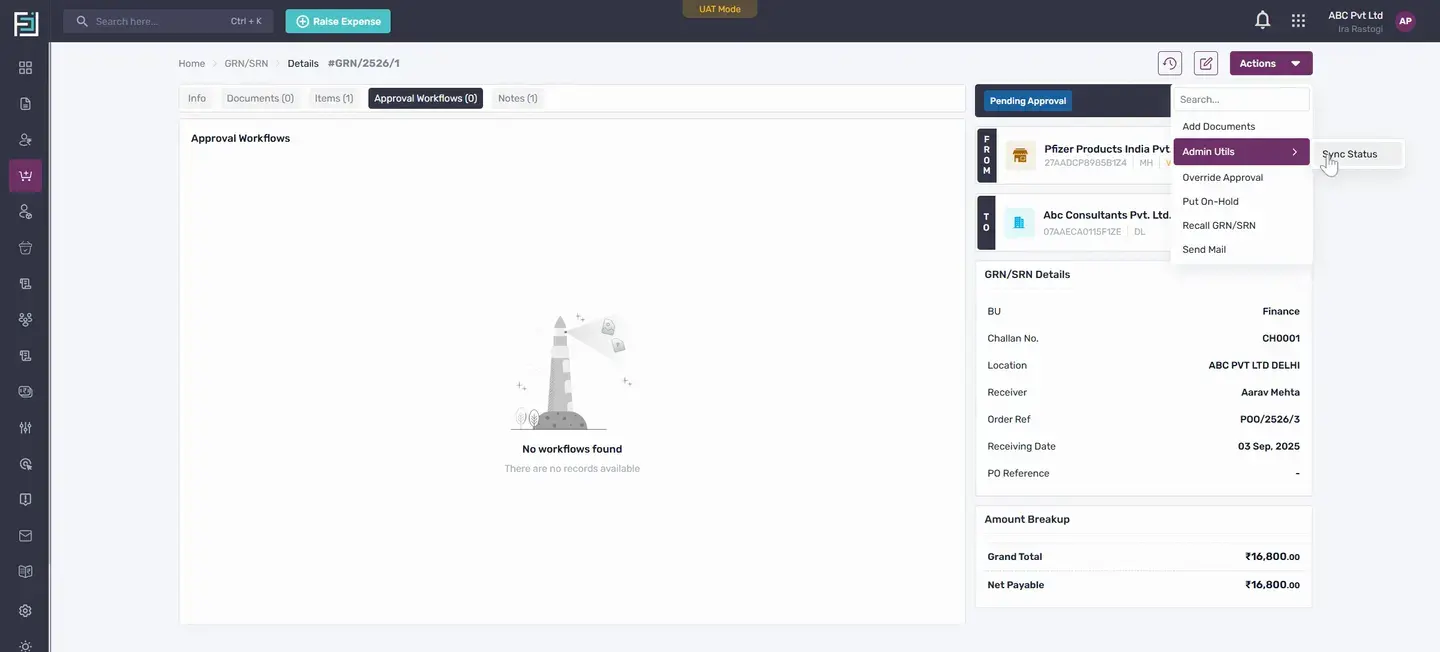
If there's a workflow set, follow the approvals to get it in the approved state.
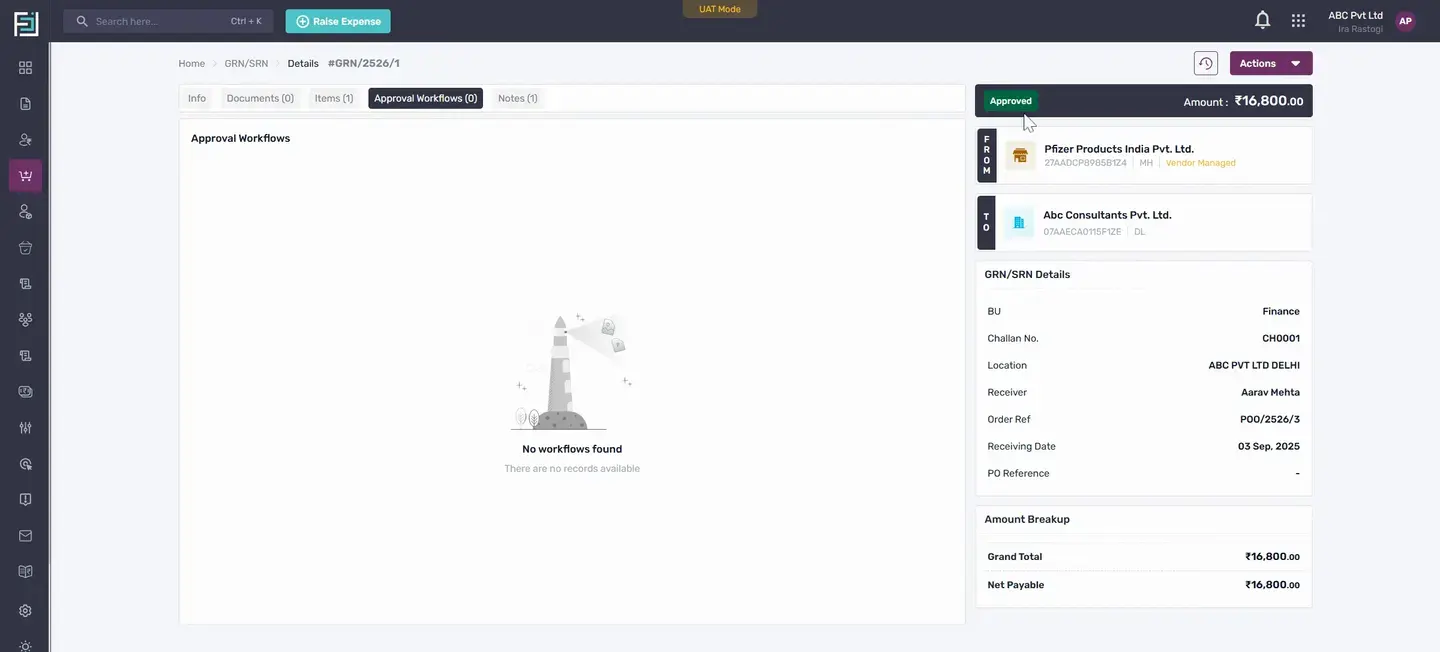
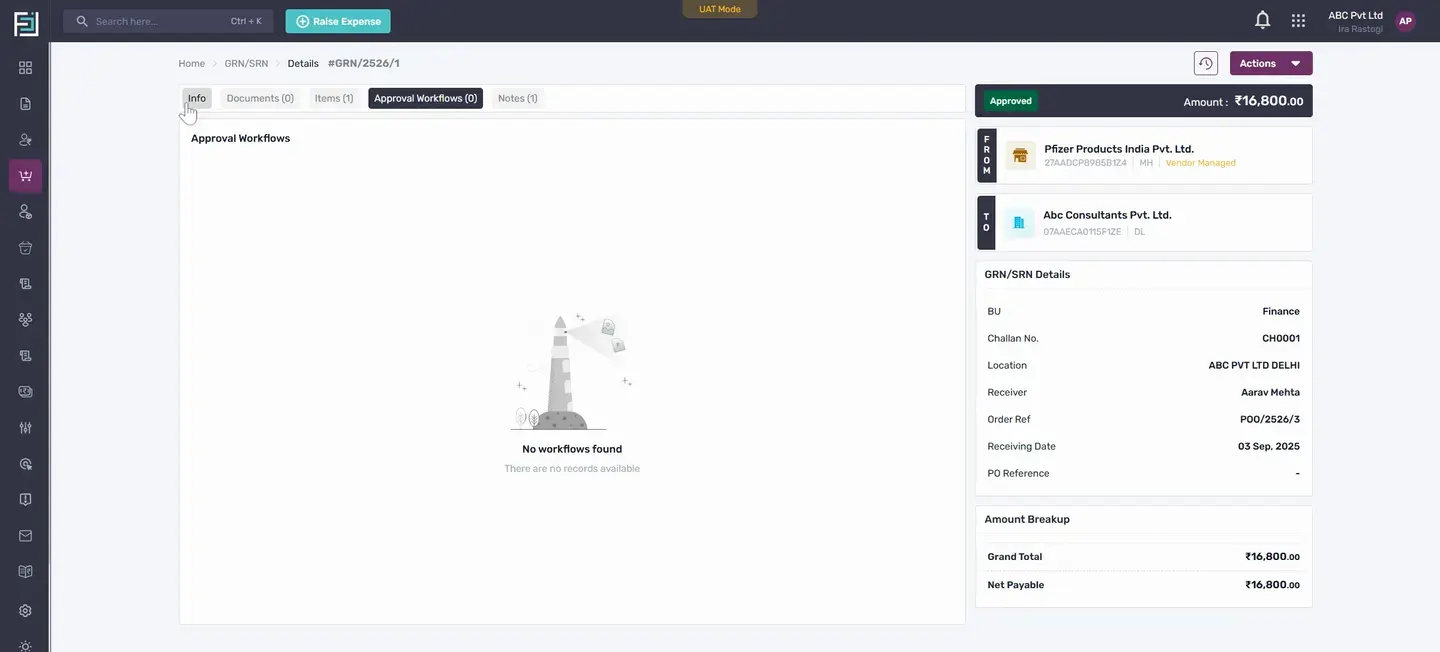
In the Info tab, you'll see the requested PO, the related PO, and the PO status changed to completed after the generation of GRN SRN.
In the Items section, you'll see the items that you've created in the GRN SRN.
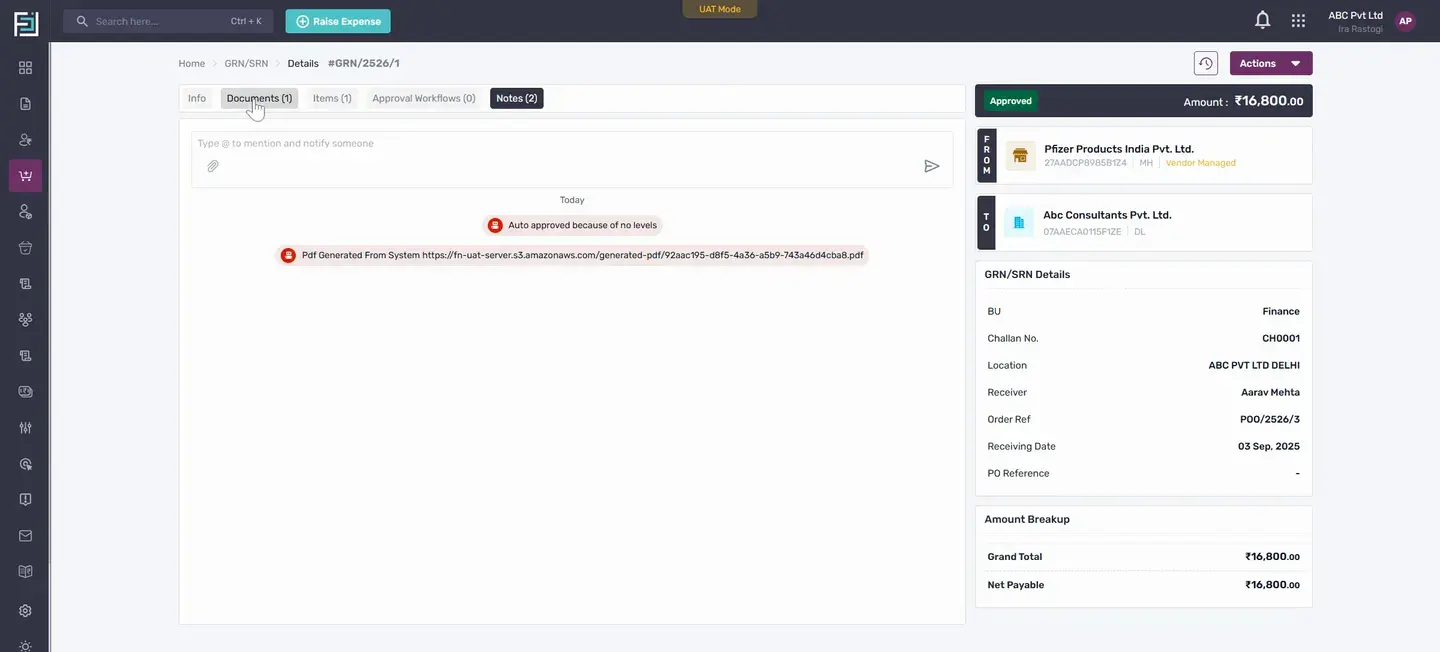
Under actions, you have the option to attach an expense
You can either attach an existing expense between the vendor and the client or create a new one.
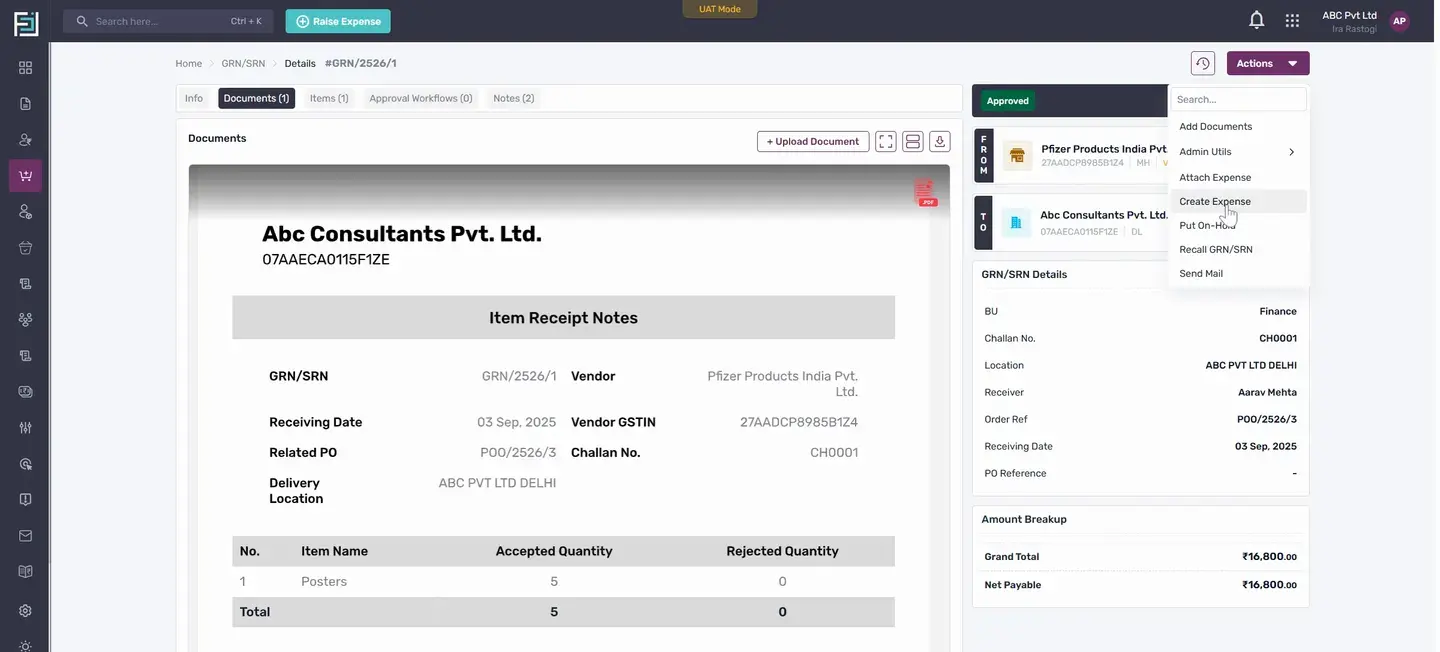
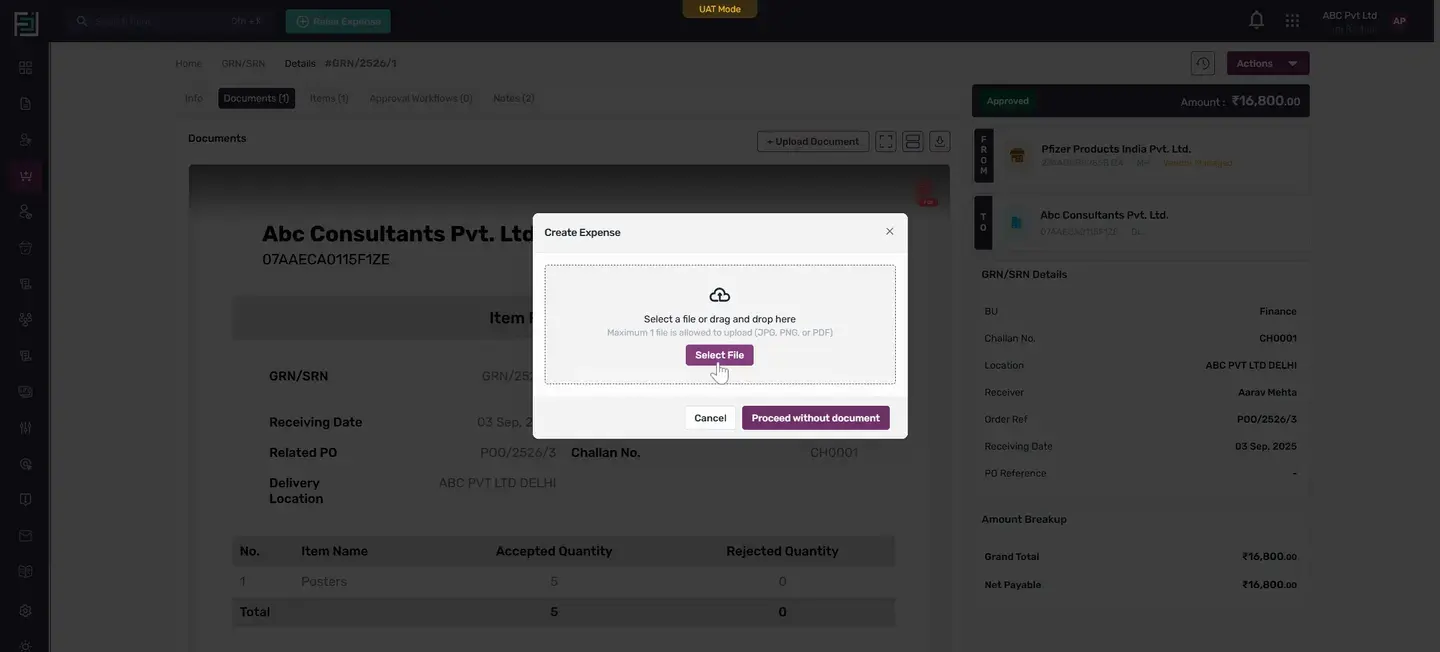
Once uploaded, all details will appear in the expense.
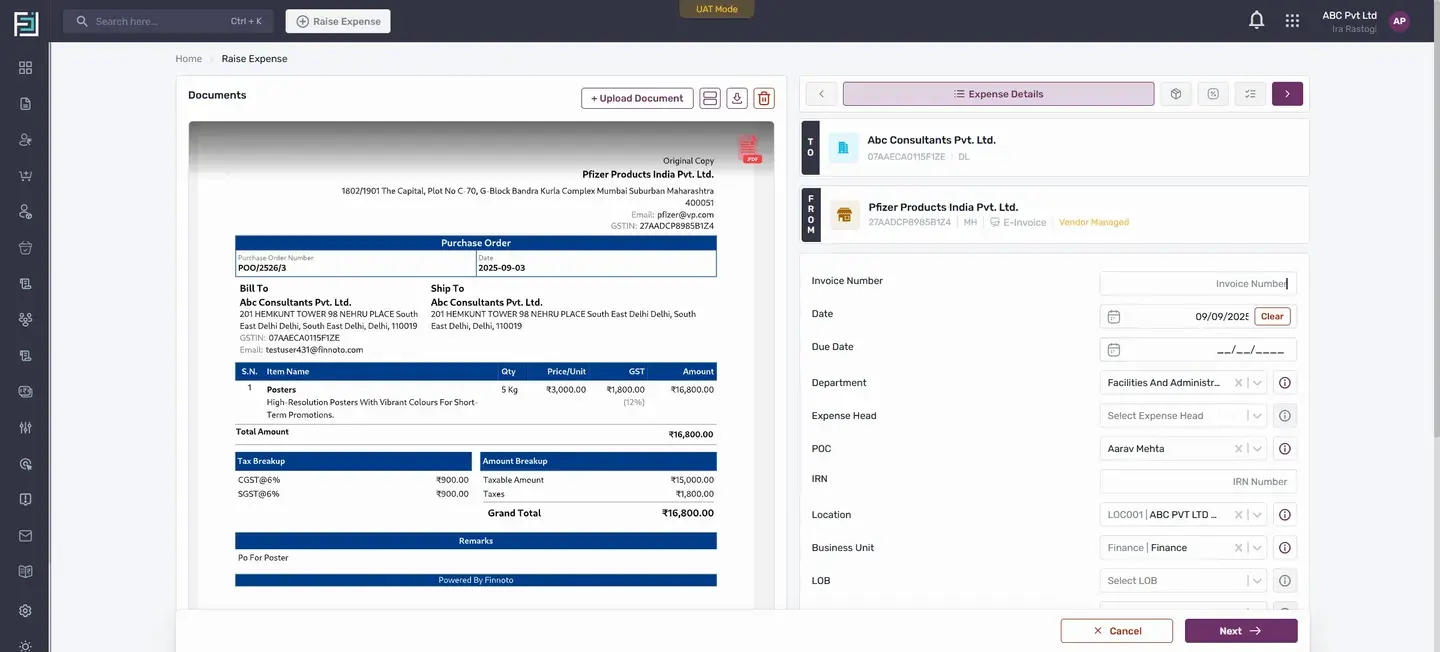
Next, you'll see the GST amount and the total GST.
In the summary, you'll see other details mentioned during the creation of the expense.
Once saved, under the Info tab, you'll see the related PO, PR, and GRN SRN.
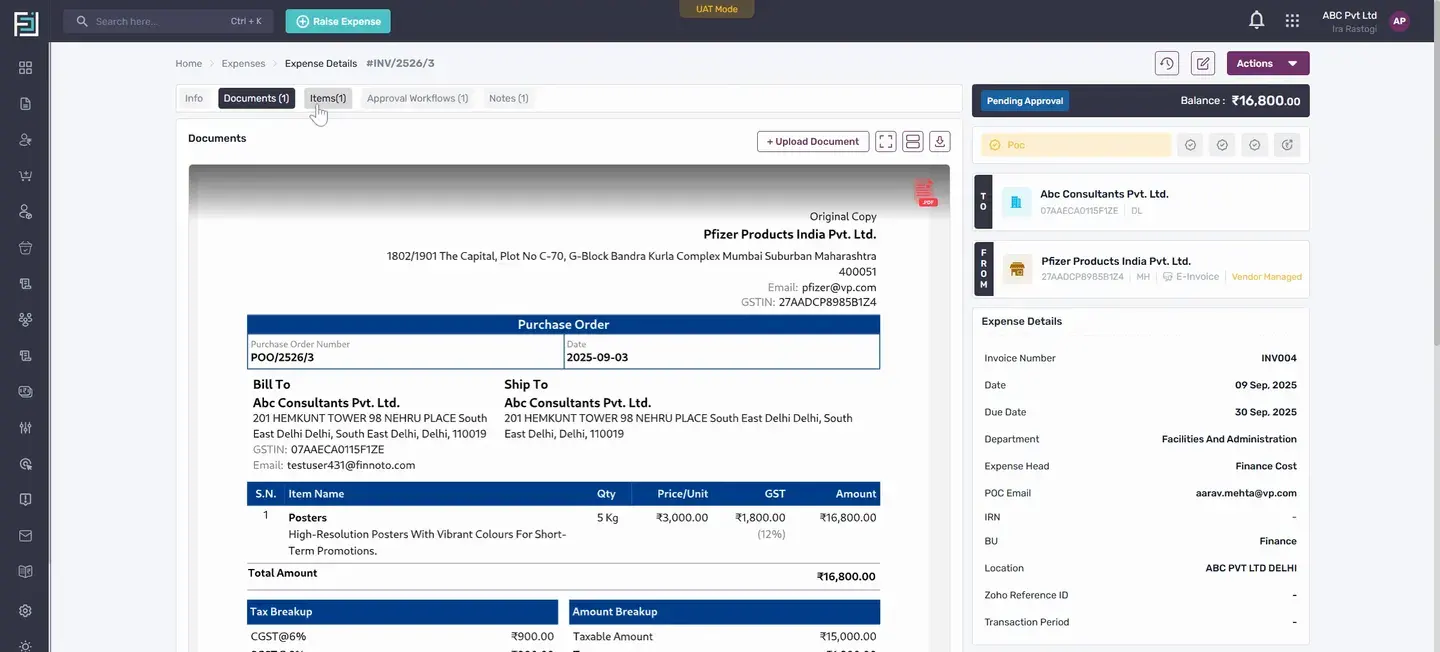
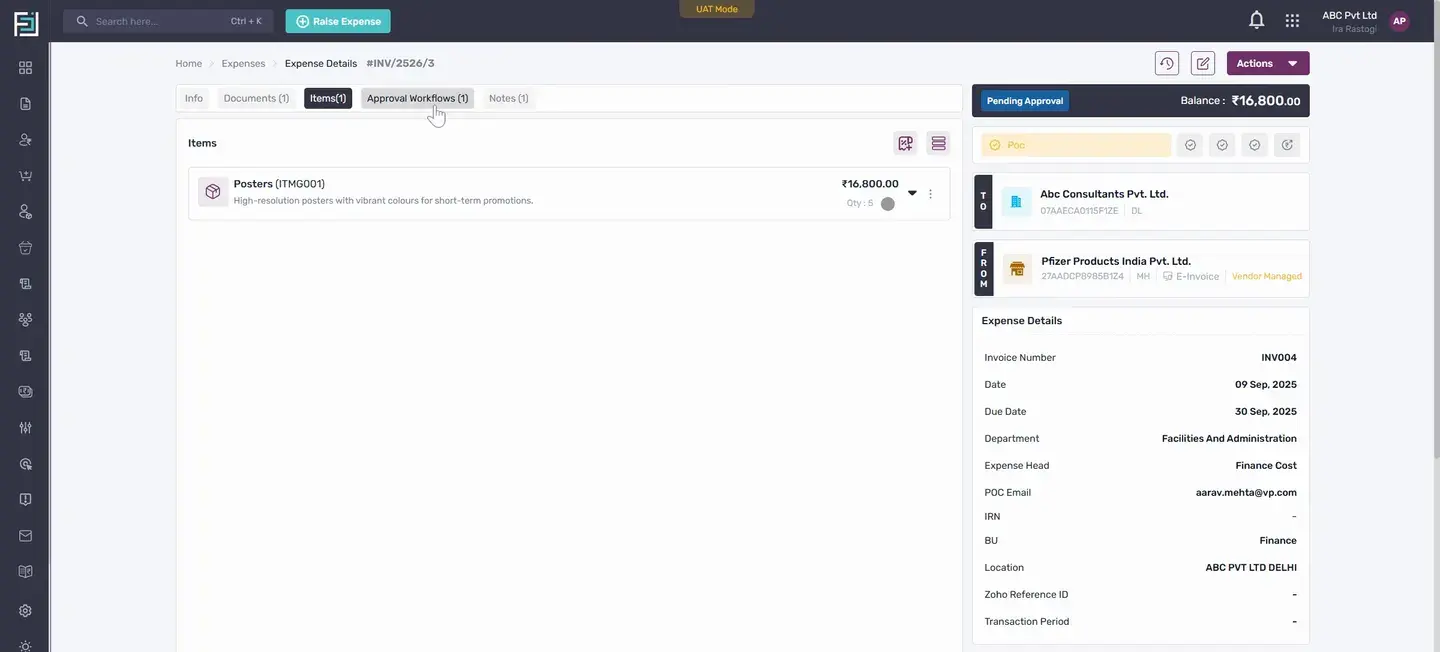
If there's an approval workflow set for the invoice approval, it will appear here.
Under notes, you'll see the approval workflow that has been generated.
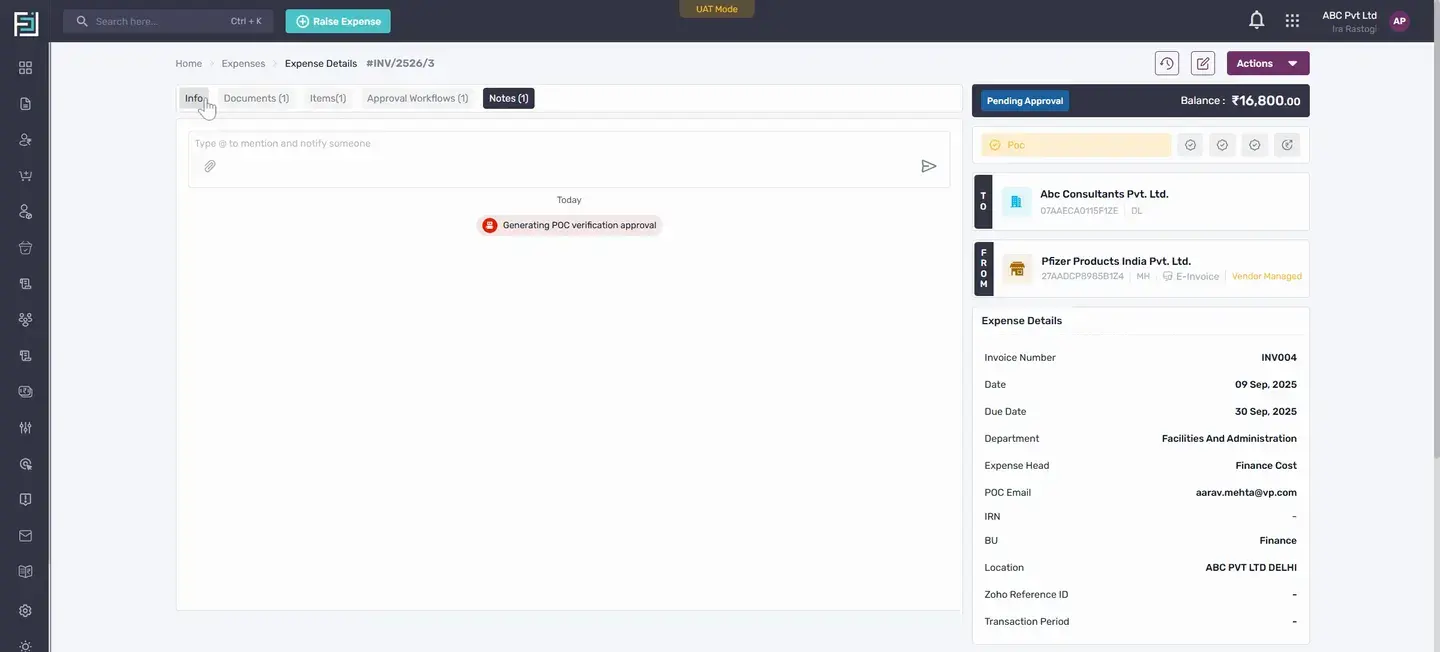
Once approved, you get the option to record payment.
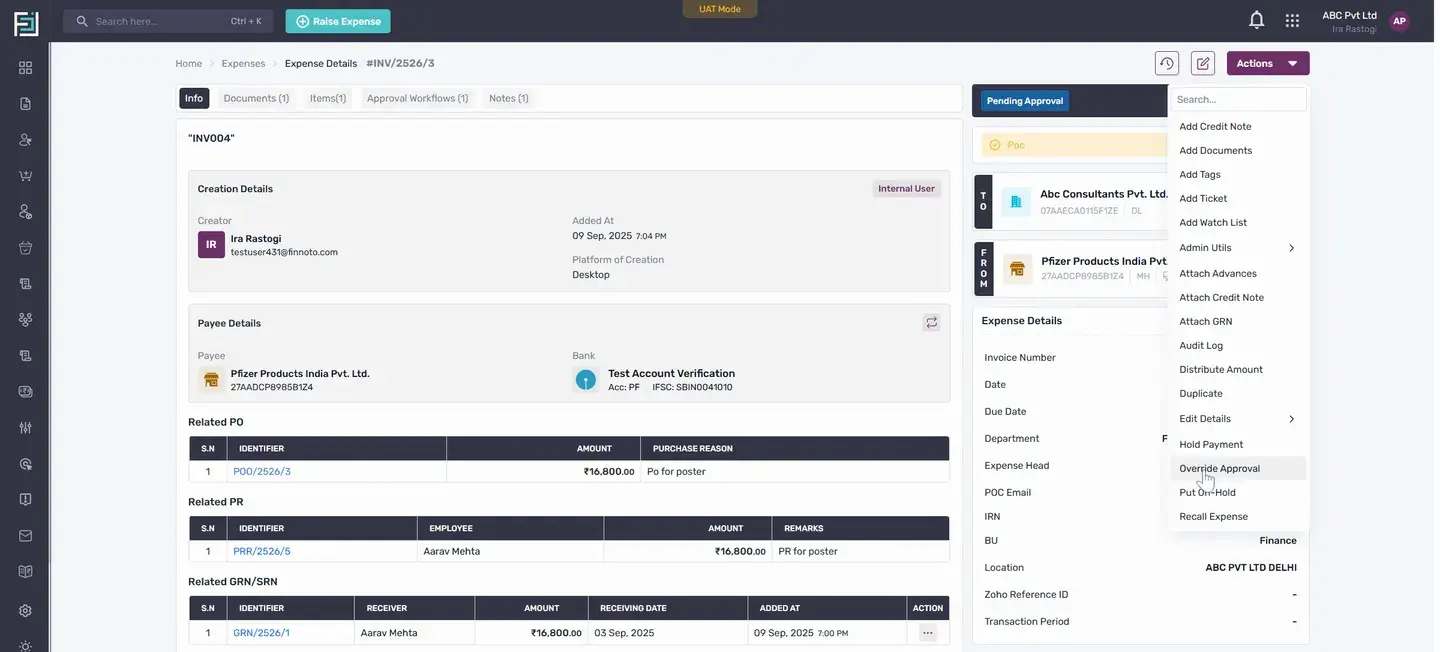
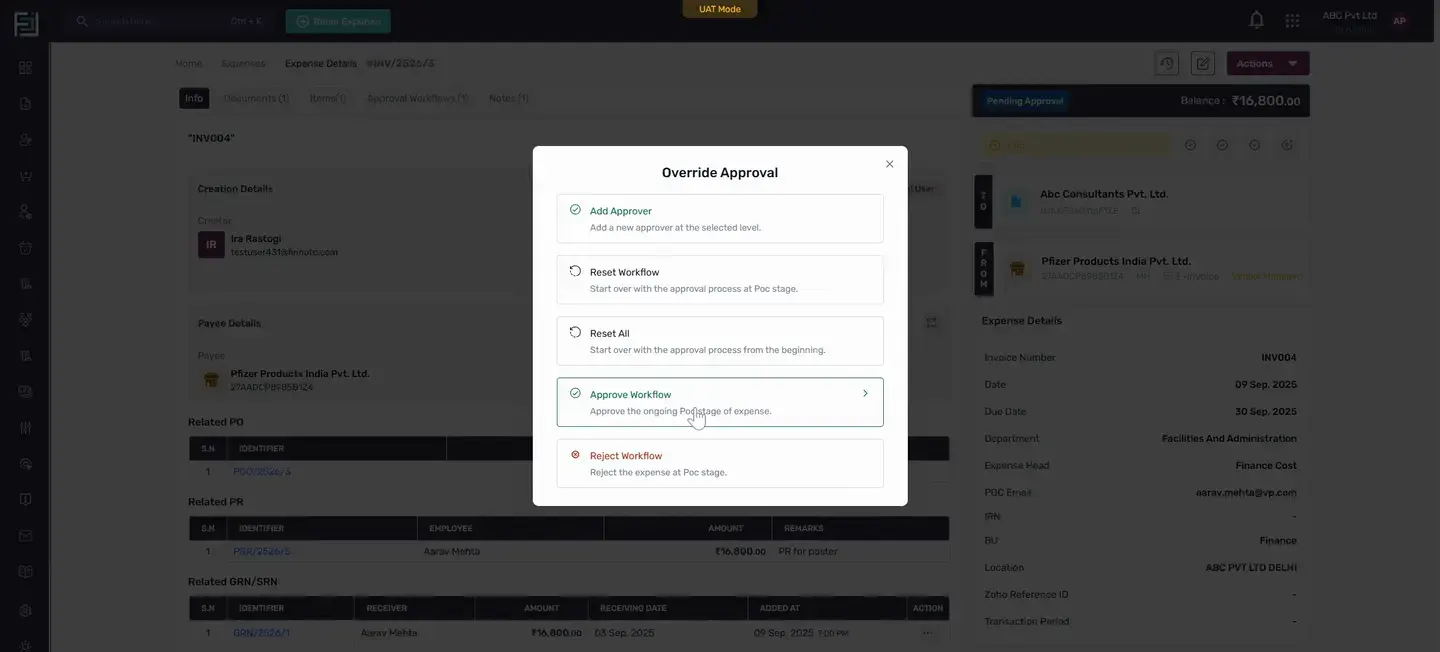
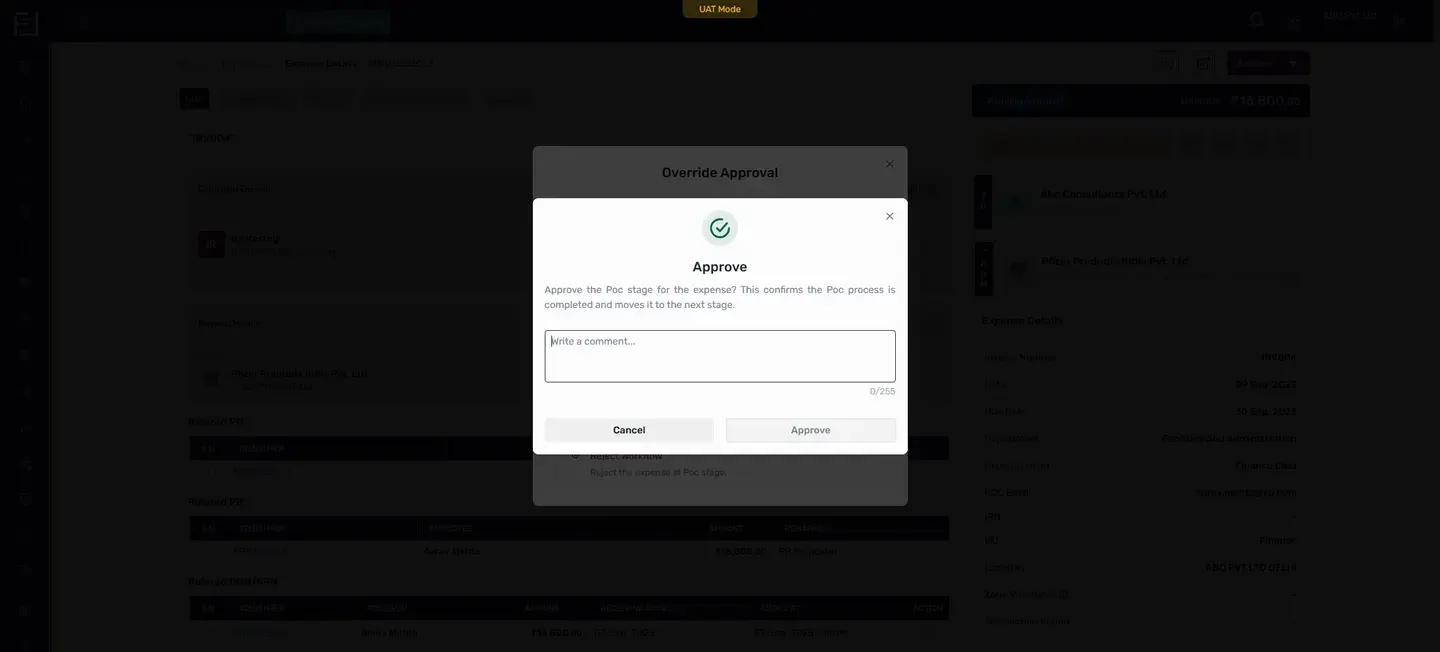
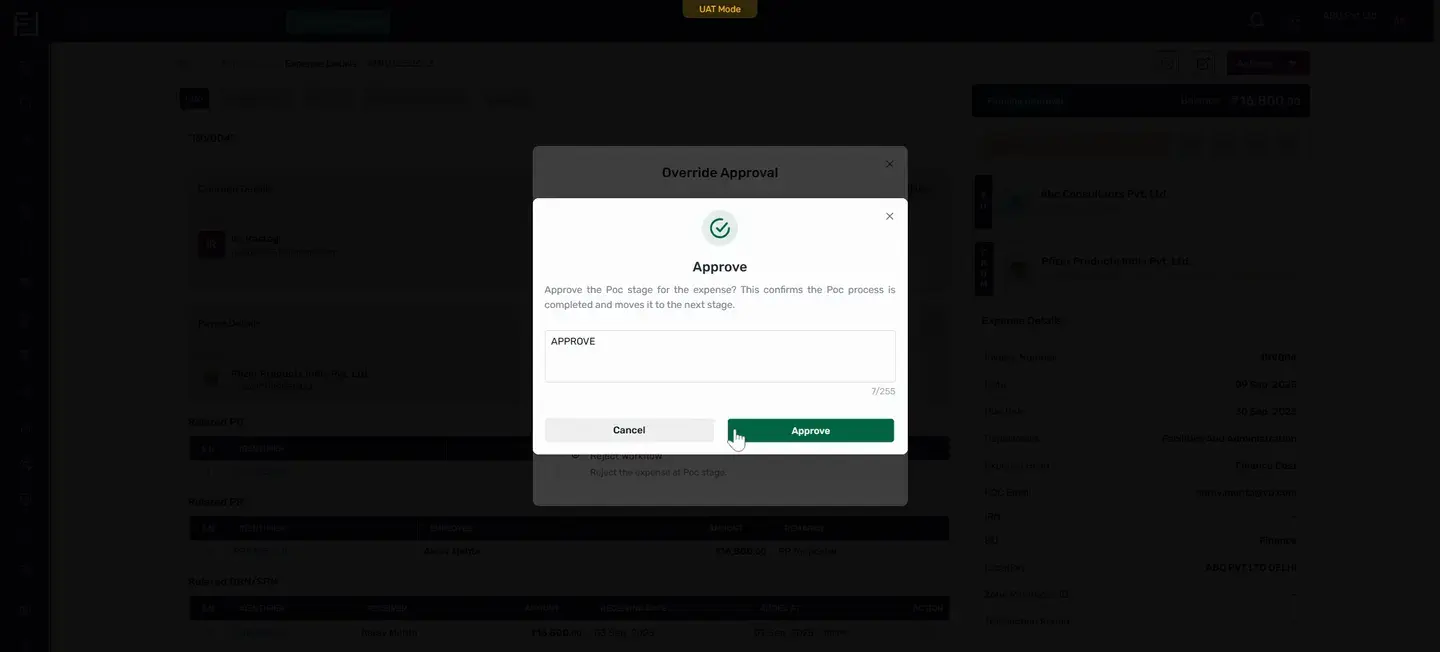
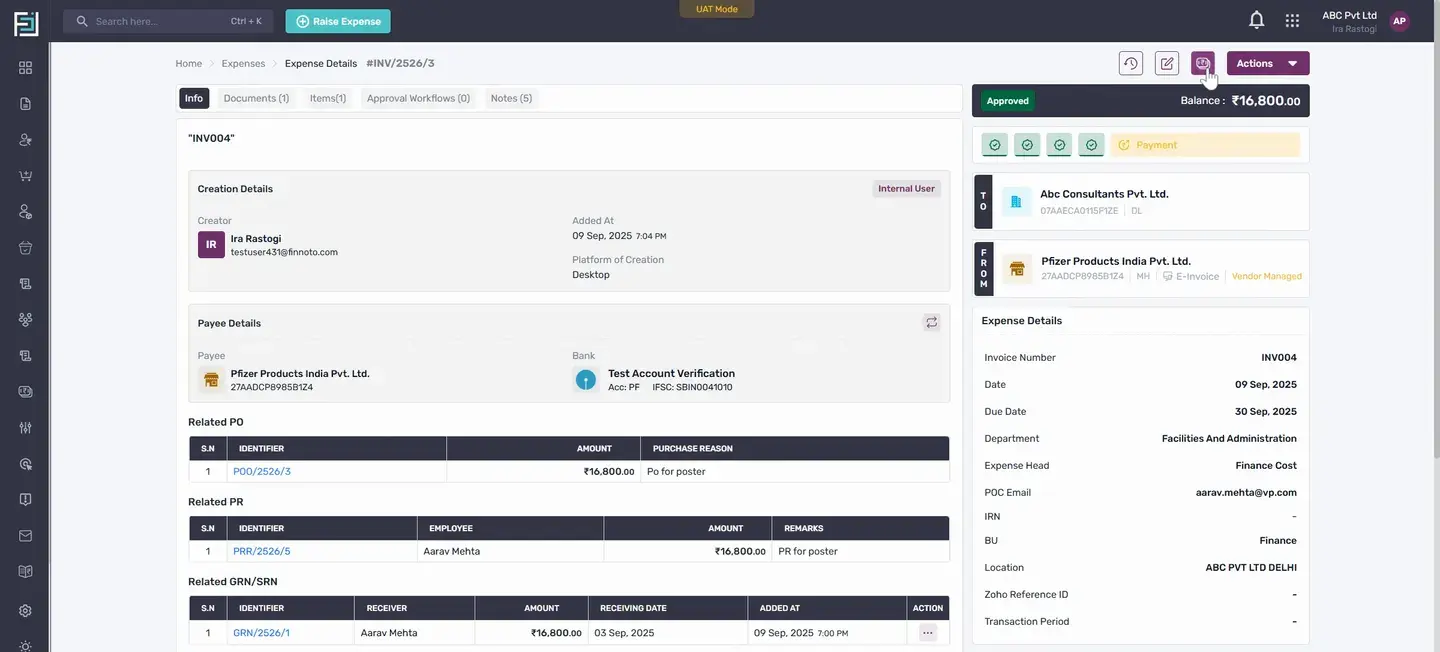
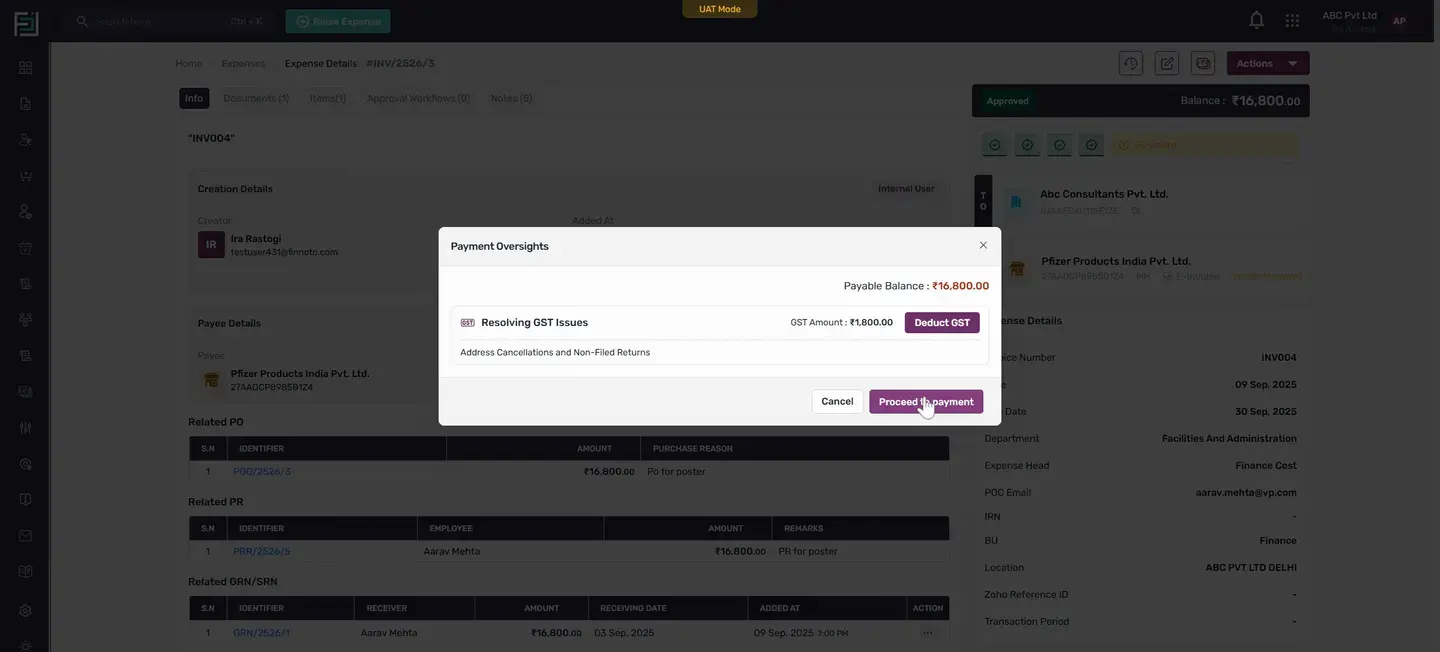
After recording the payment, the whole process is completed.
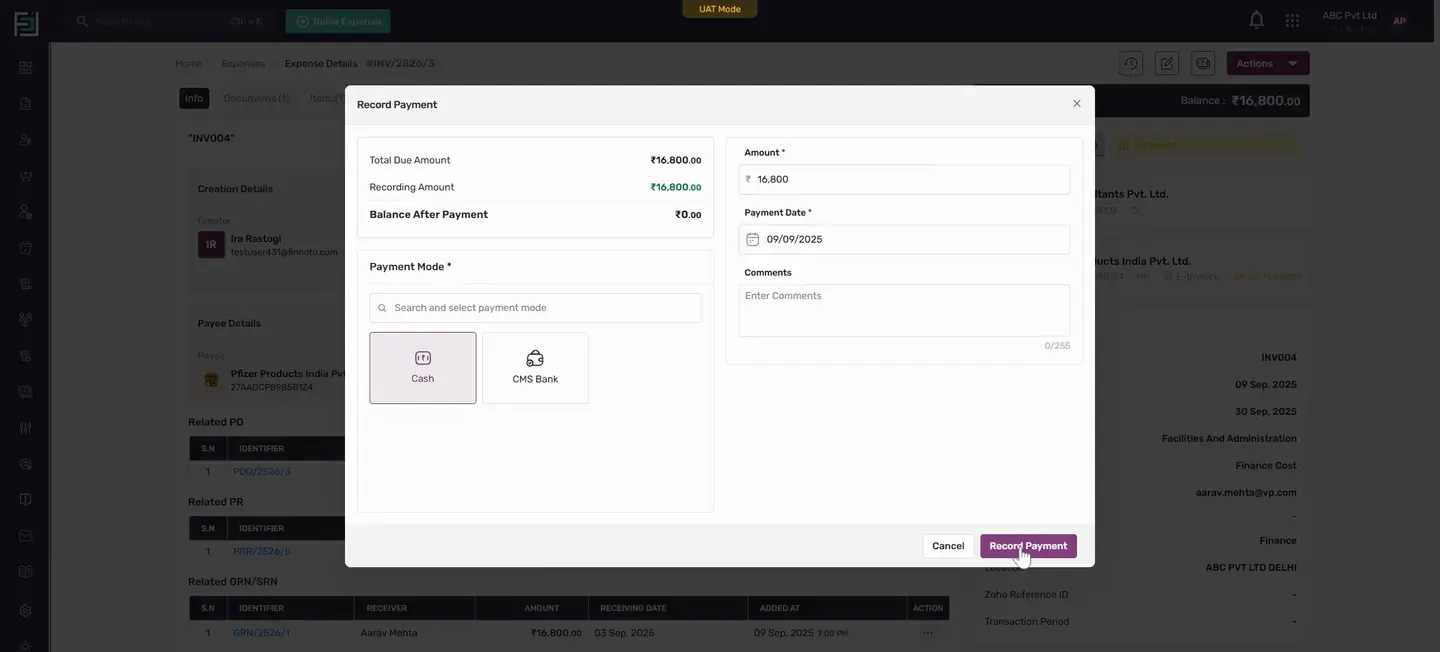
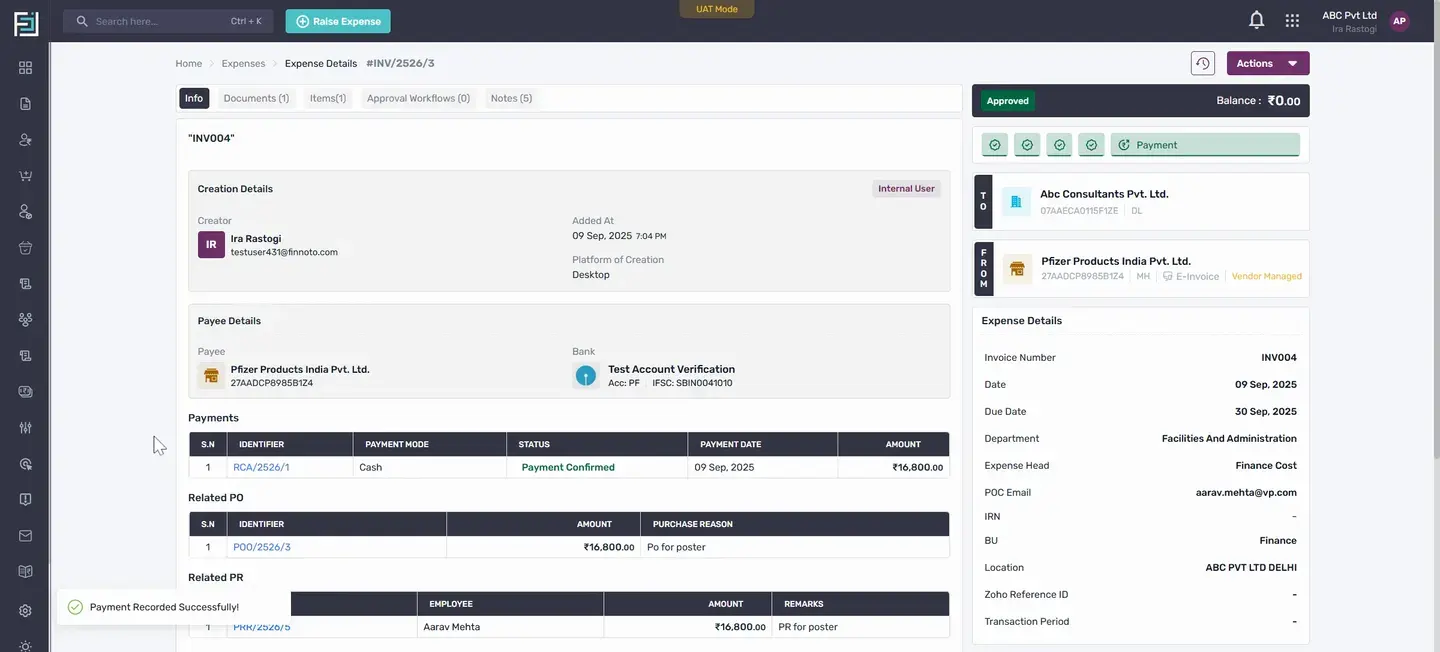
The process started from the PR, from which the PO was generated. From this PO, a GRN SRN was created and from this GRN SRN, the invoice was completed. Once the payment is done, you can see the payment details under the payments table.
That's how you create a GRN SRN from a PO and generate an expense from the GRN SRN.