Raise an invoice in a foreign currency
For vendors: submit an invoice in a non-INR currency from the vendor portal.
Last updated on
Transcript
Hello, everyone, and welcome to today's tutorial. Today, we will be walking you through the process of raising an invoice in international currency on phinnoto's vendor portal. So let's dive right in. The first step is to log in to your phinnoto's vendor portal using your valid credentials.
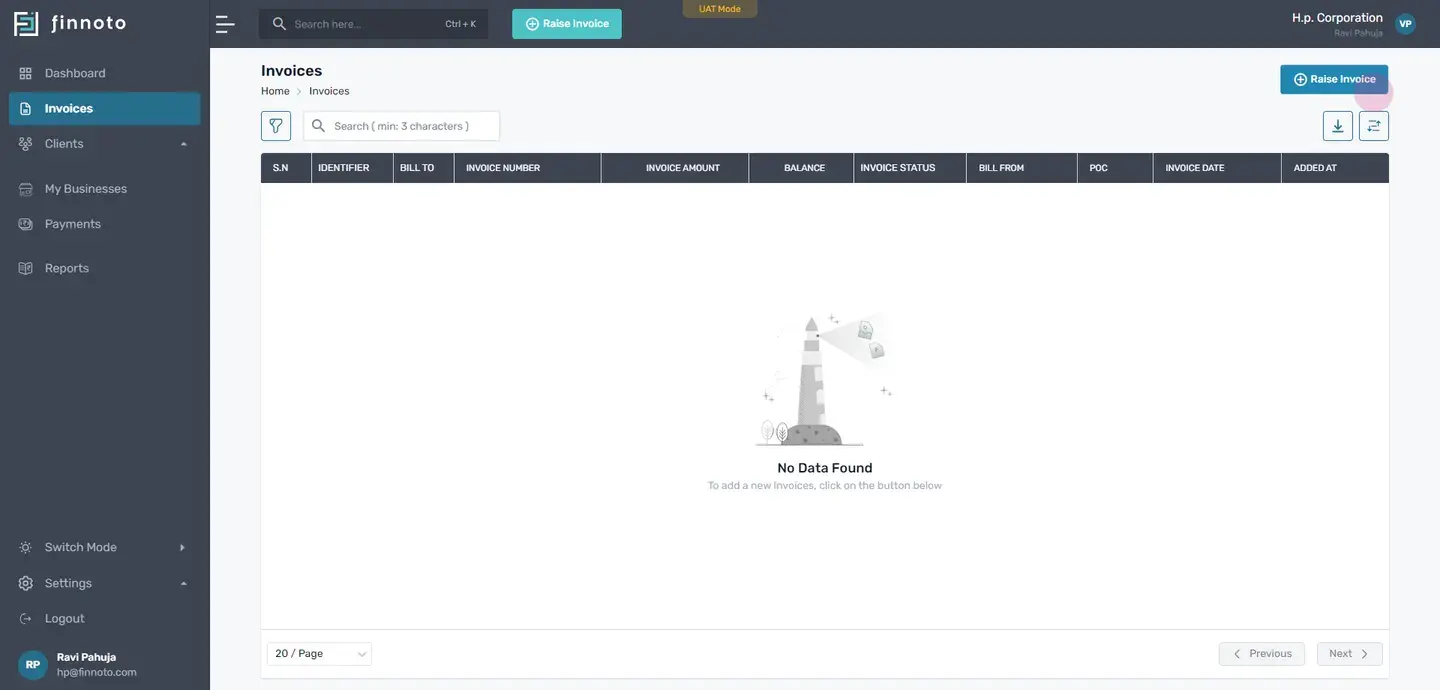
Once you are logged in, navigate to the dashboard. On the dashboard, locate the raise invoice button. You can also find this button inside the invoices section on the top right corner. Now click on the raise invoice button.
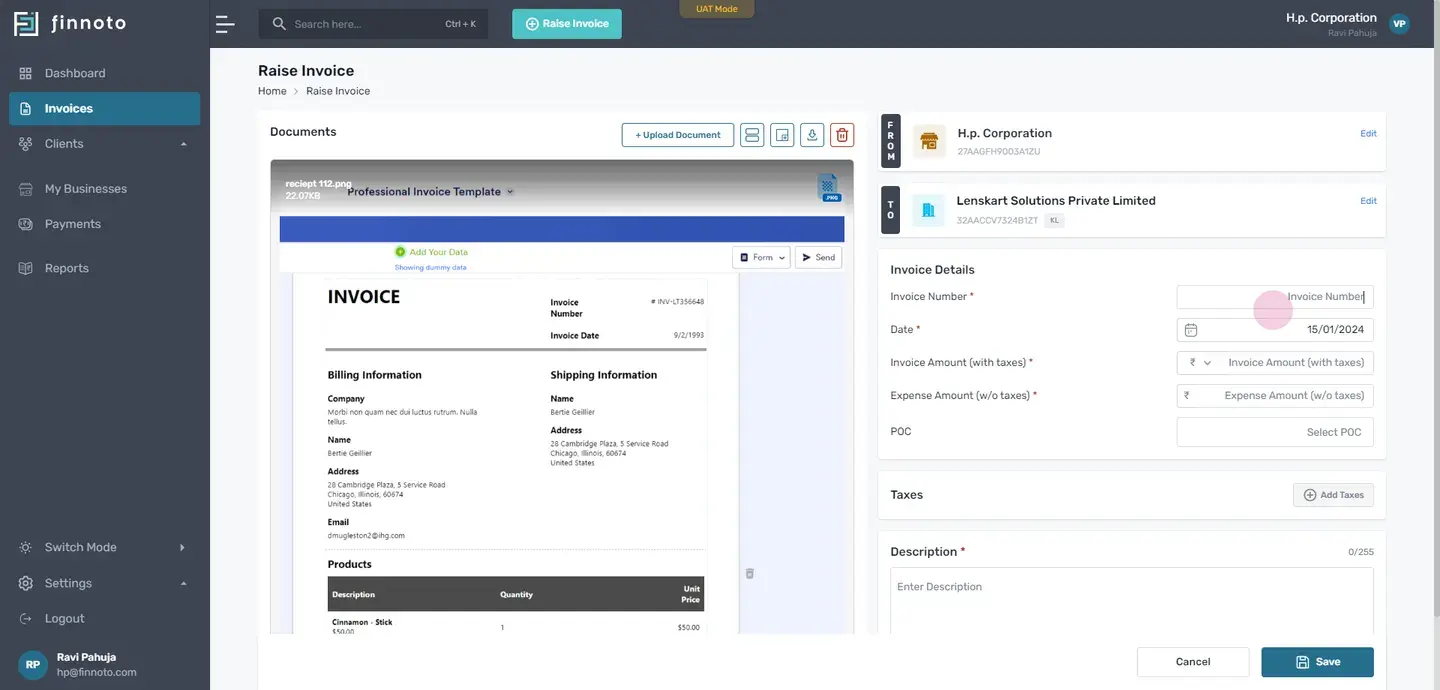
Now select the bill receipt you want to attach with the invoice. You will then be redirected to a form where you will find your business details, your client's business detail. Now enter the invoice number. Select your invoice date.
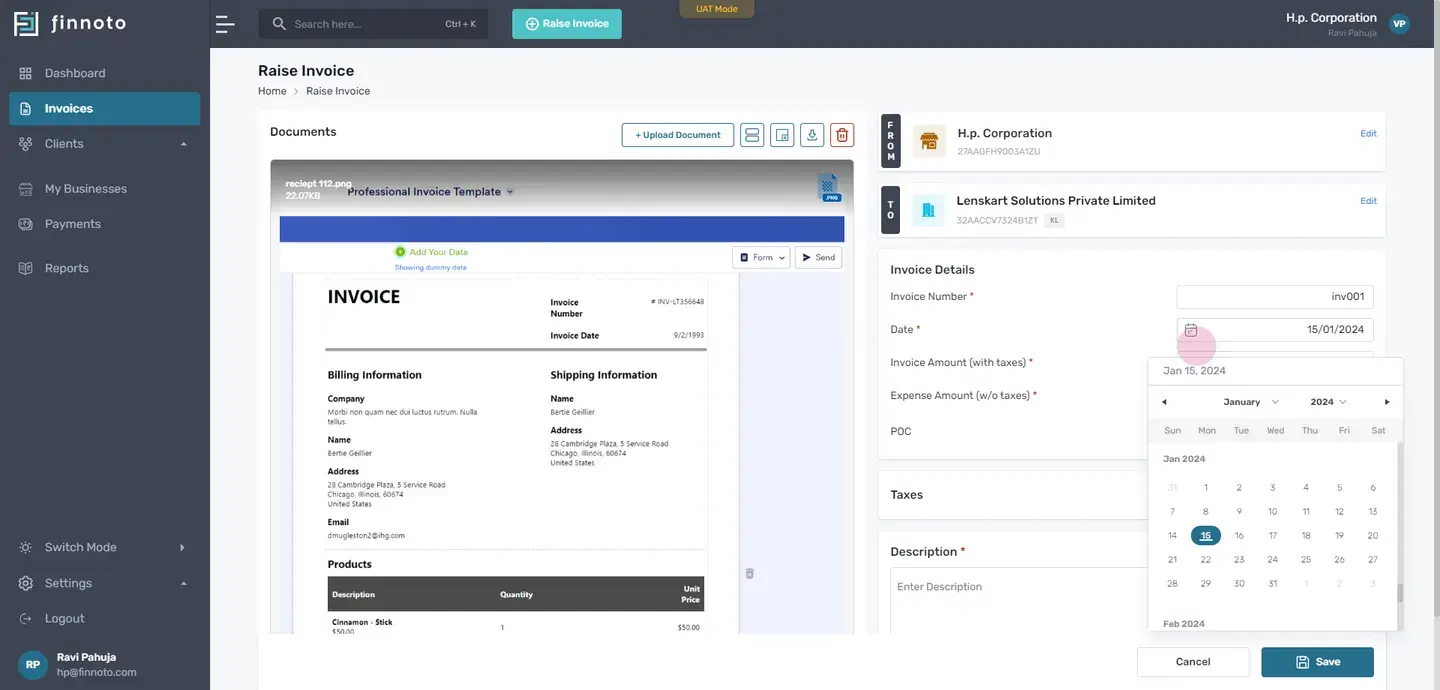
The current date is auto fetch. But in case you want to change the date, you can use the calendar icon, and you can select the date accordingly. Now choose the international currency you wish to invoice in. Please note that the available currencies options are influenced by your client's preferences, ensuring a seamless invoicing process.
Here, you can check the exchange rate of that currency. Phinnoto's provides a real time exchange rate. This step ensures accurate billing based on the latest conversion rates. Enter the amount enter the expense amount without taxes.
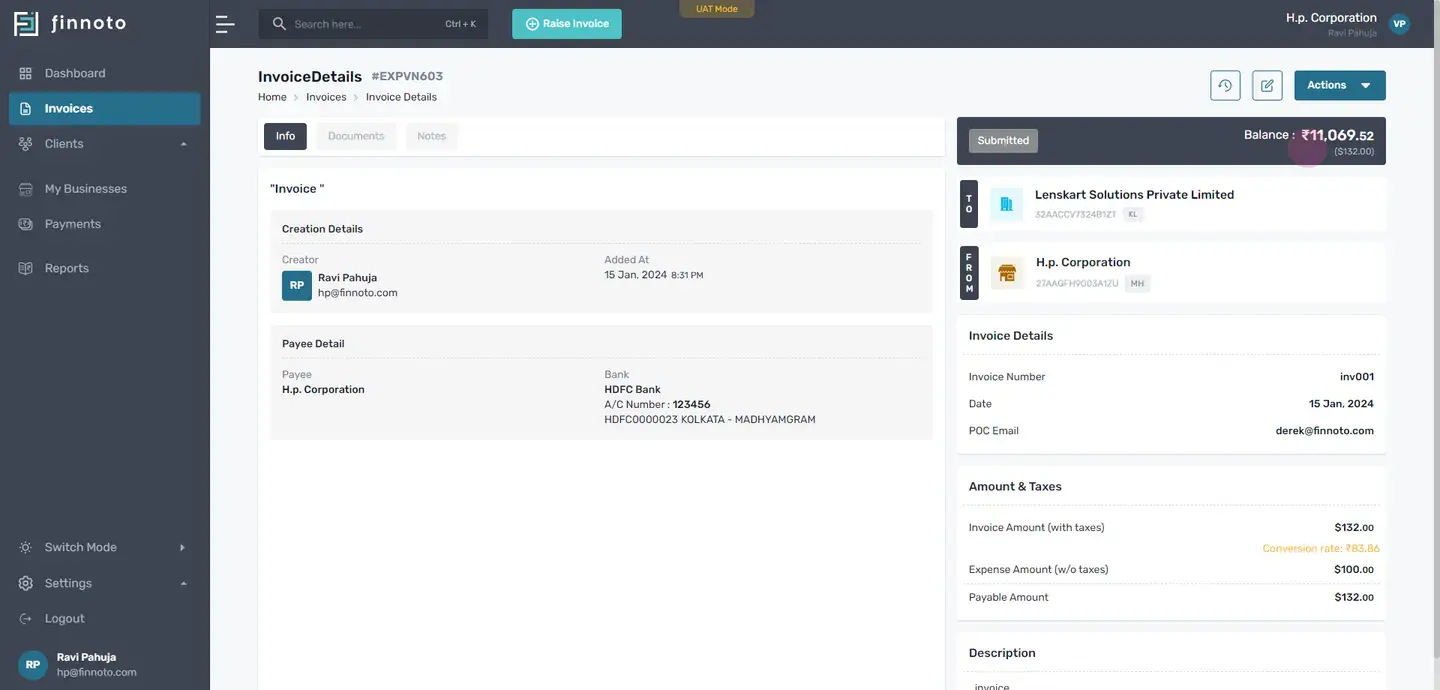
Select the pee oo see. If you want to add taxes, you can add it from here. Add a description and click on the save button. Once the invoice is saved, you can view the save invoice on the detail page of that invoice.
This provides you a comprehensive overview and serves as a record for your transaction. And there you have it. Raising an invoice in international currency on phinnoto's vendor portal is a straightforward process. Thank you for watching this video.
Hello, everyone, and welcome to today's tutorial
Today, we will be walking you through the process of raising an invoice in international currency on Finuto's vendor portal. So let's dive right in. The first step is to log in to your Finnoto vendor portal using your valid credentials.
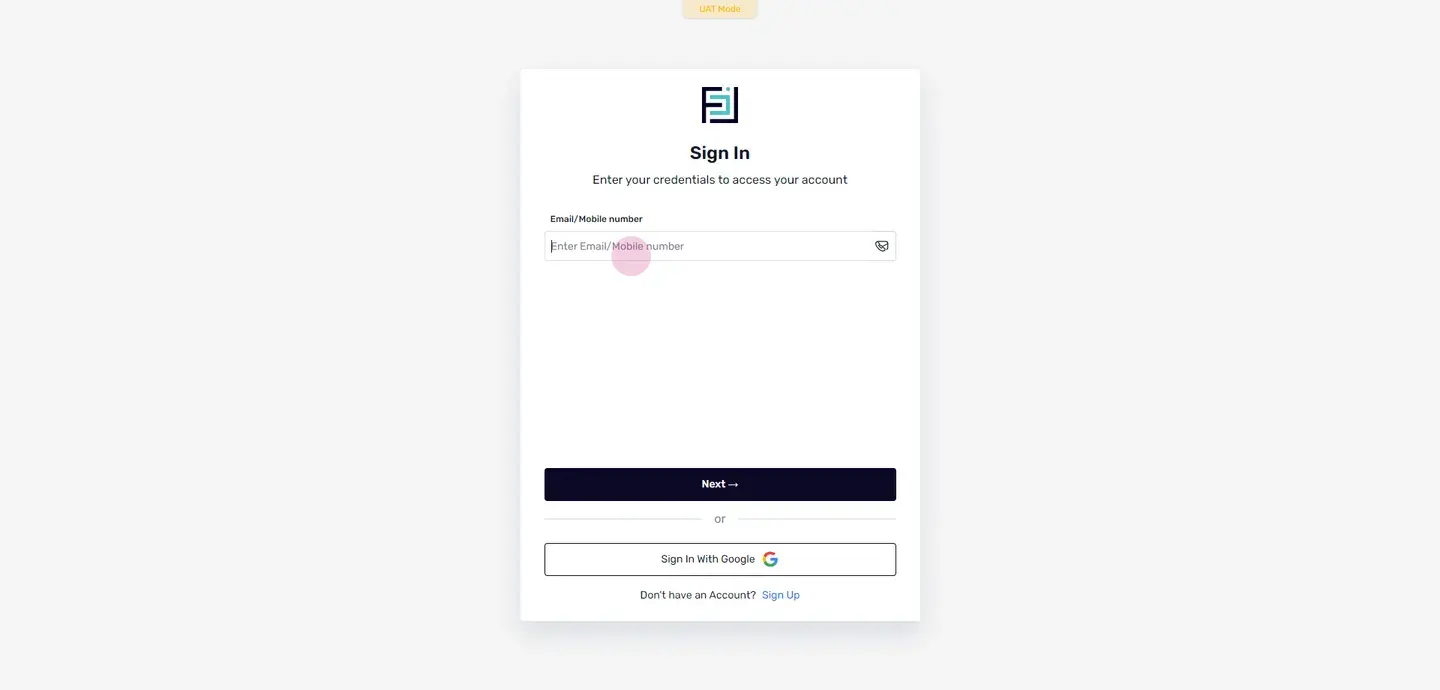
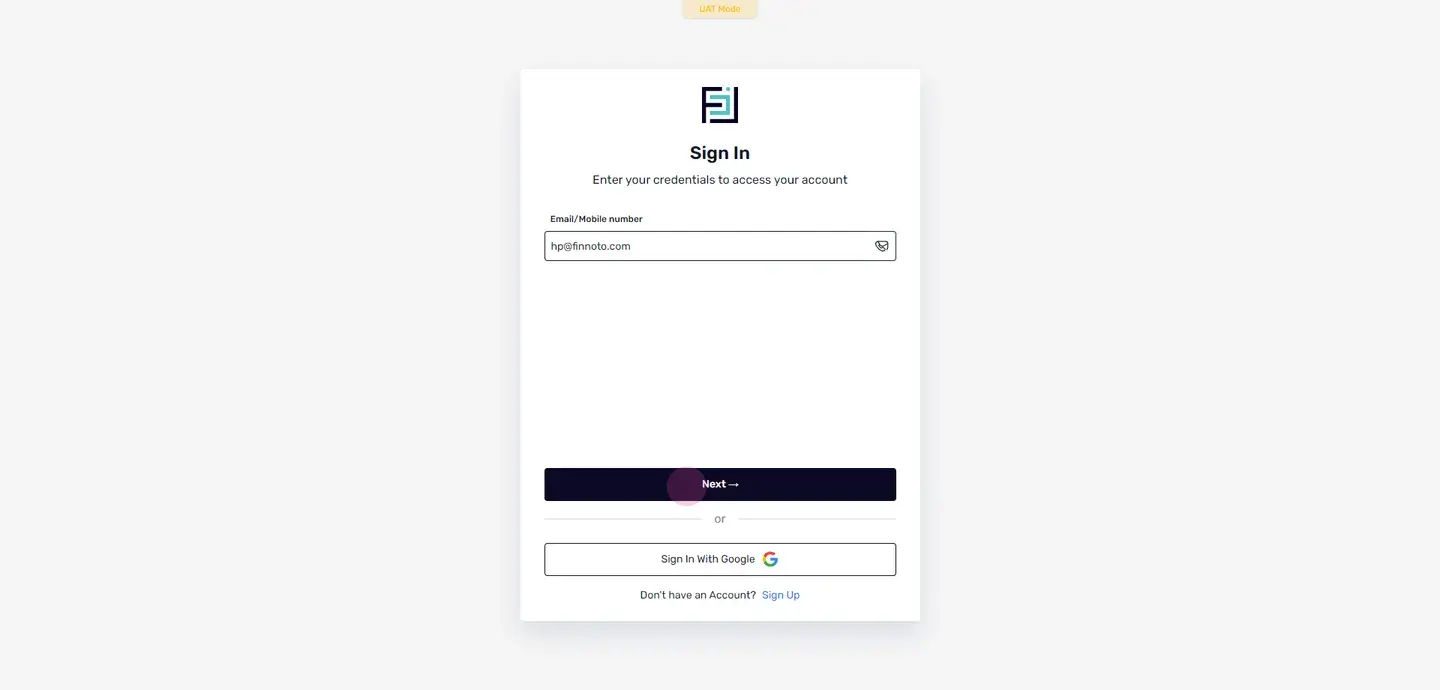
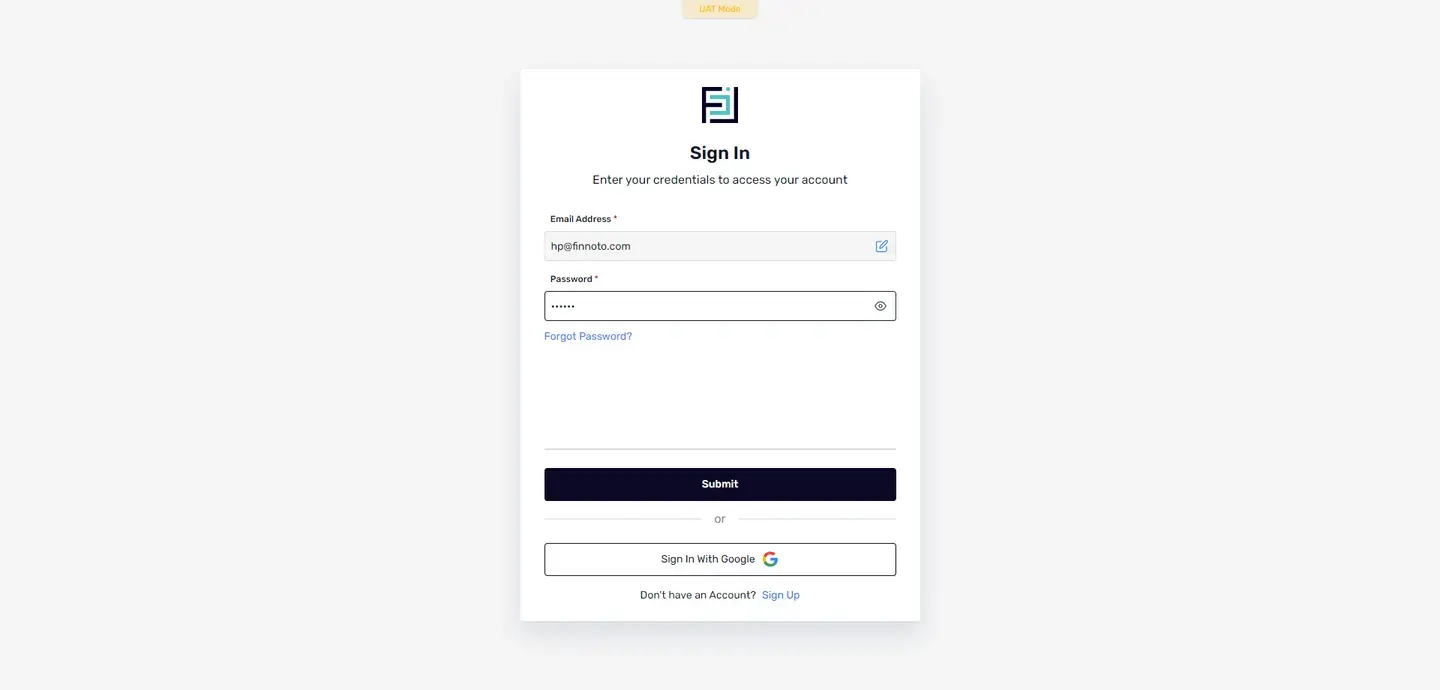
Once you are locked in, navigate to the dashboard.
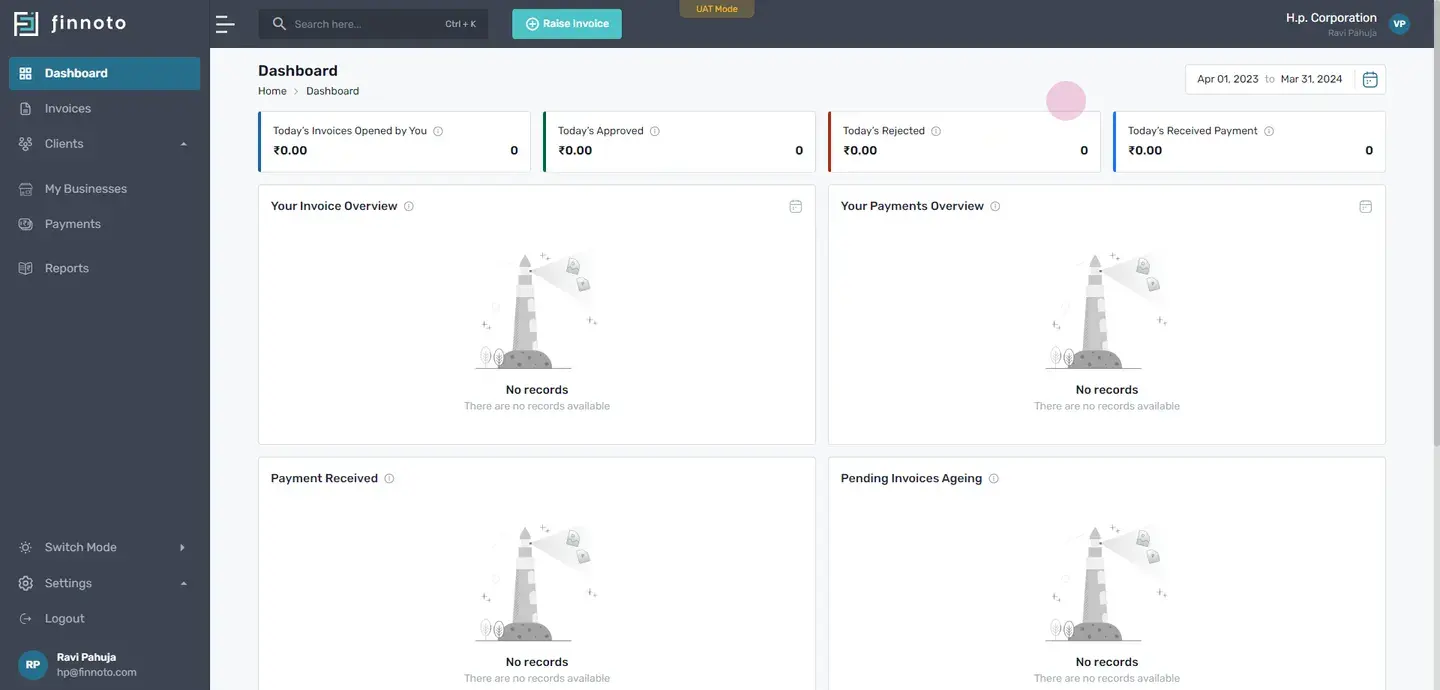
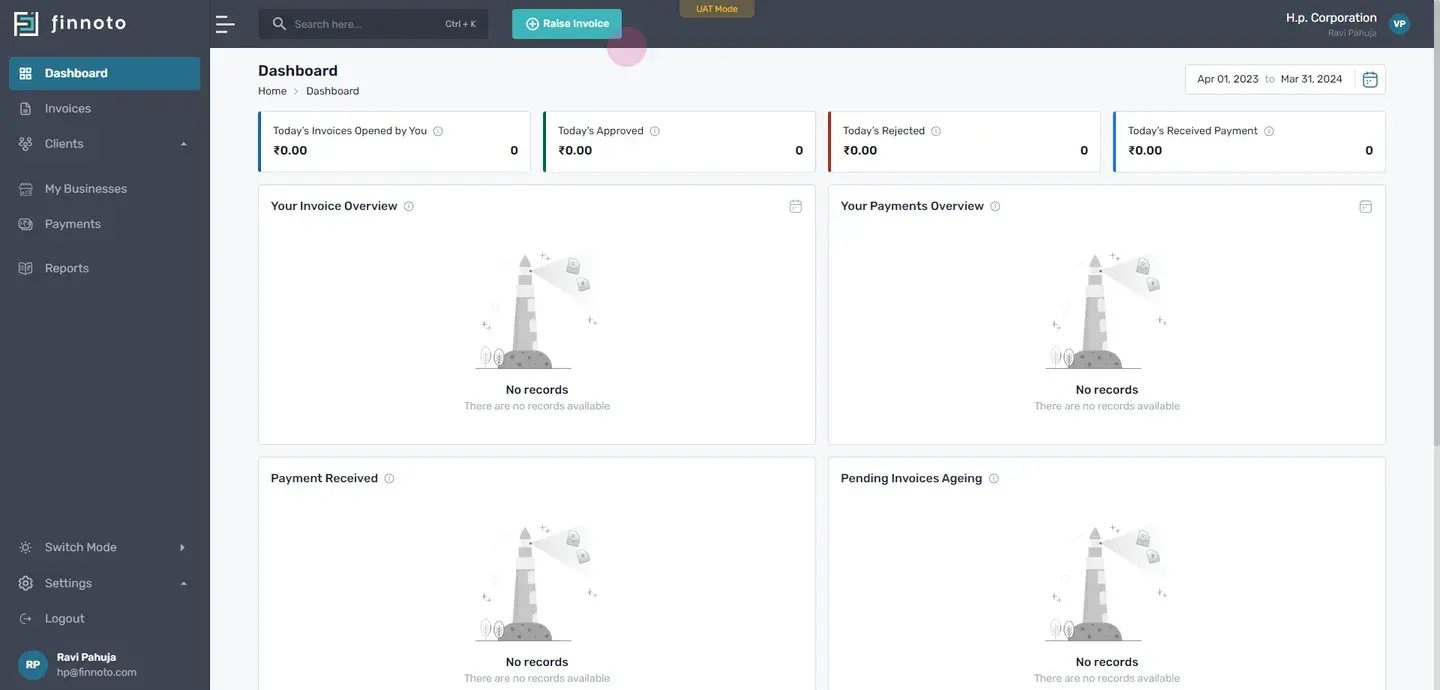
You can also find this button inside the invoices section from the top right corner.
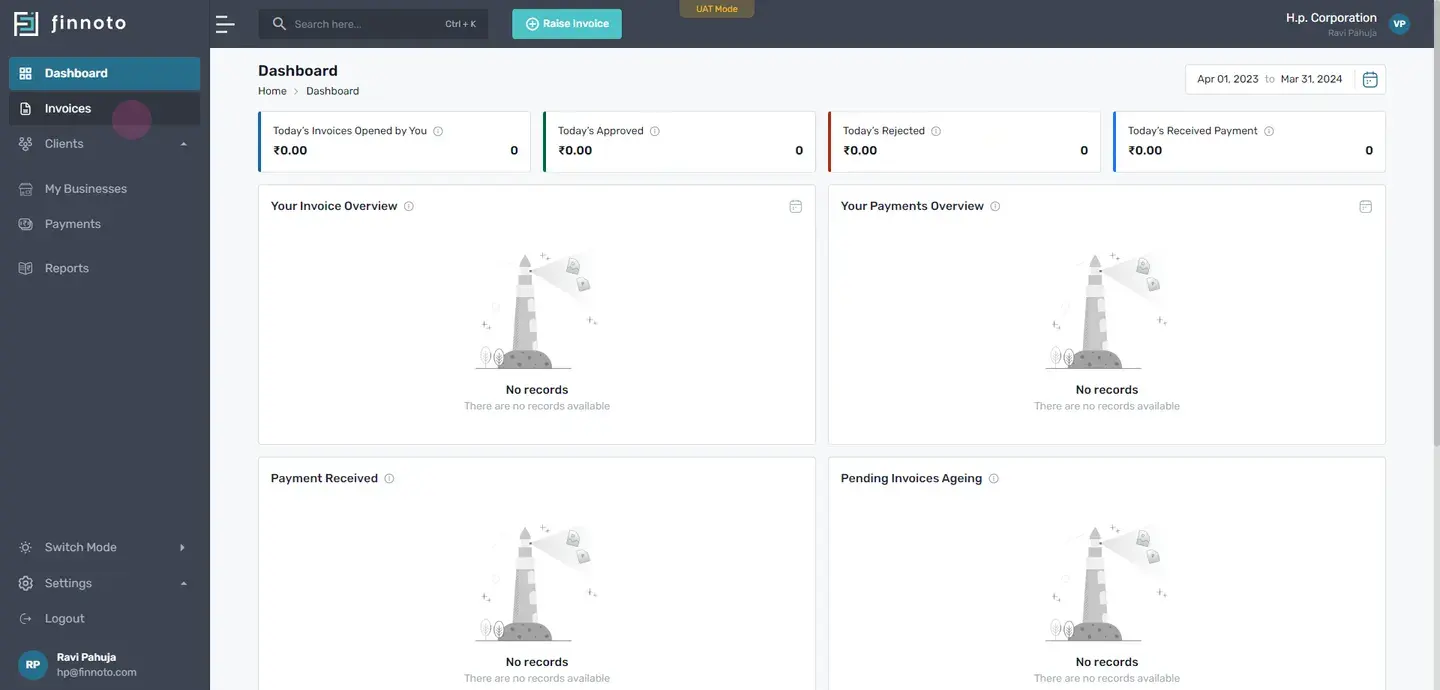
Now click on the raise invoice button.
Now select the bill receipt you want to attach with the invoice.
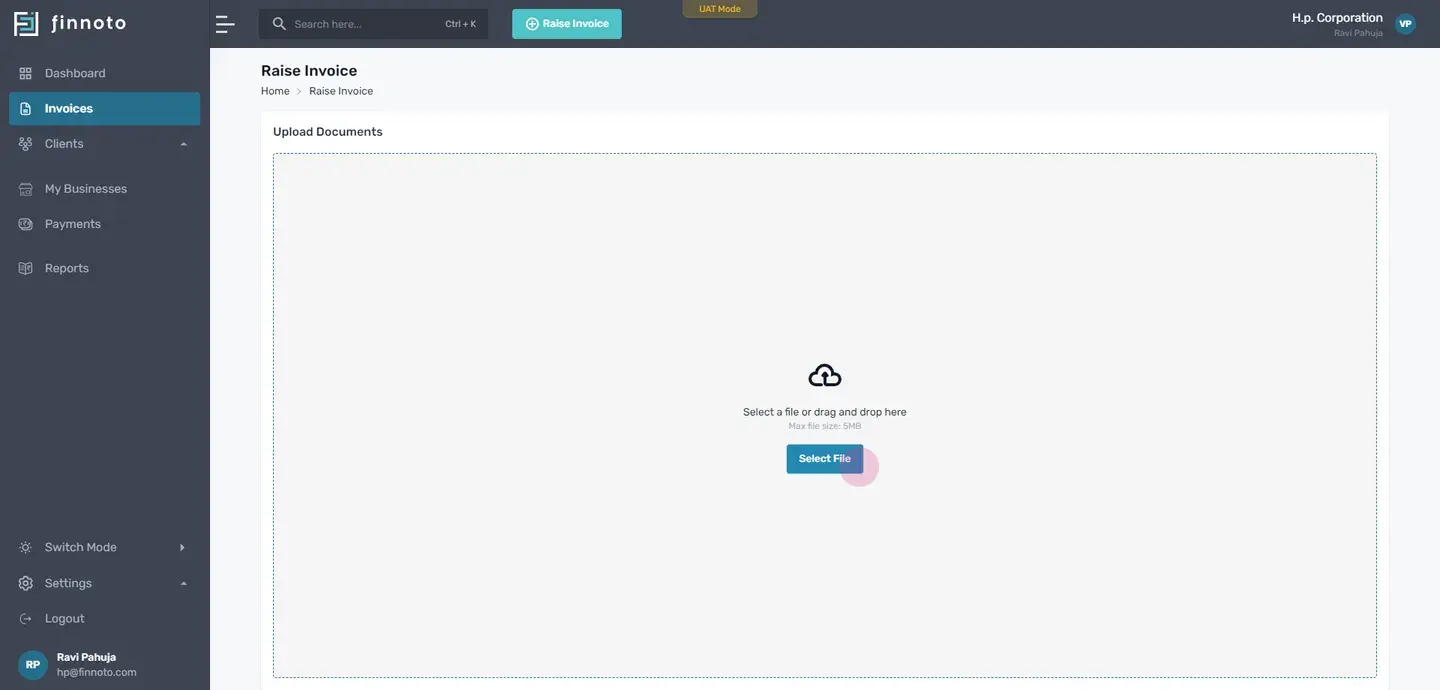
You will then be redirected to a form where you will find your business details, your client's business detail.
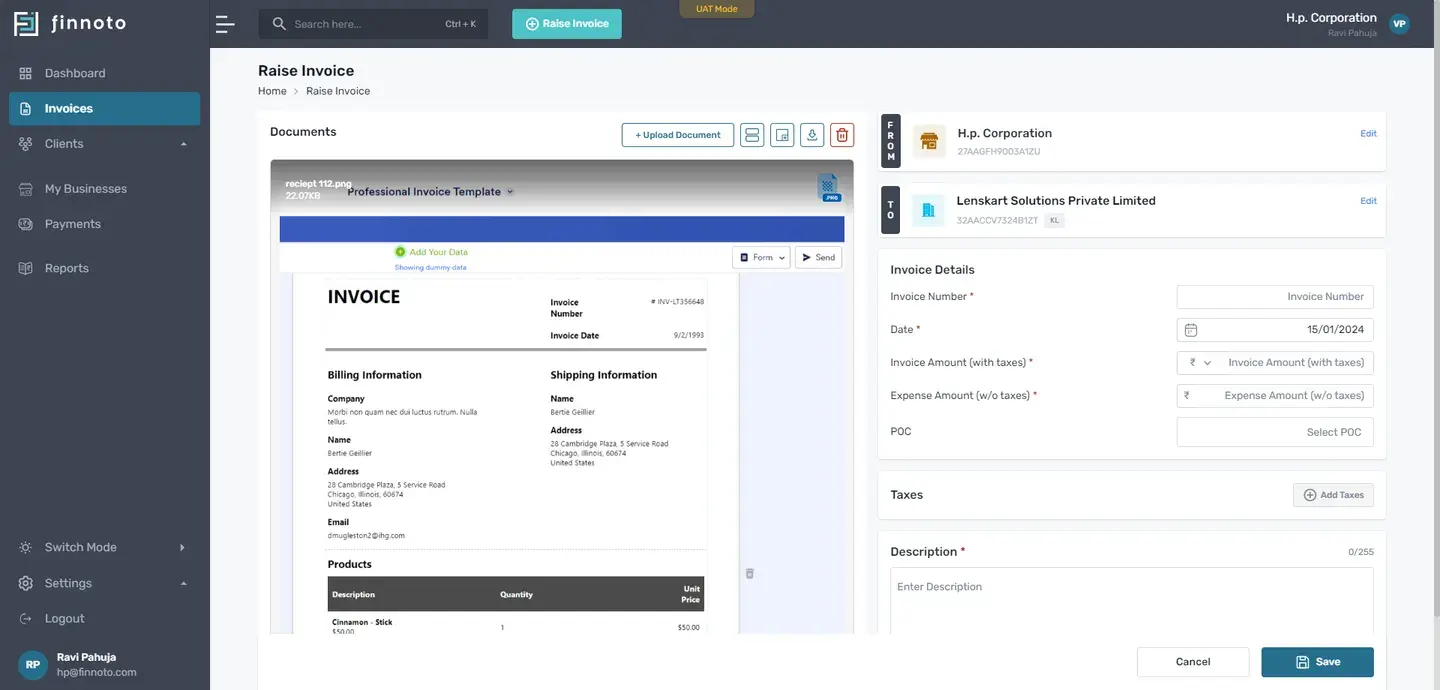
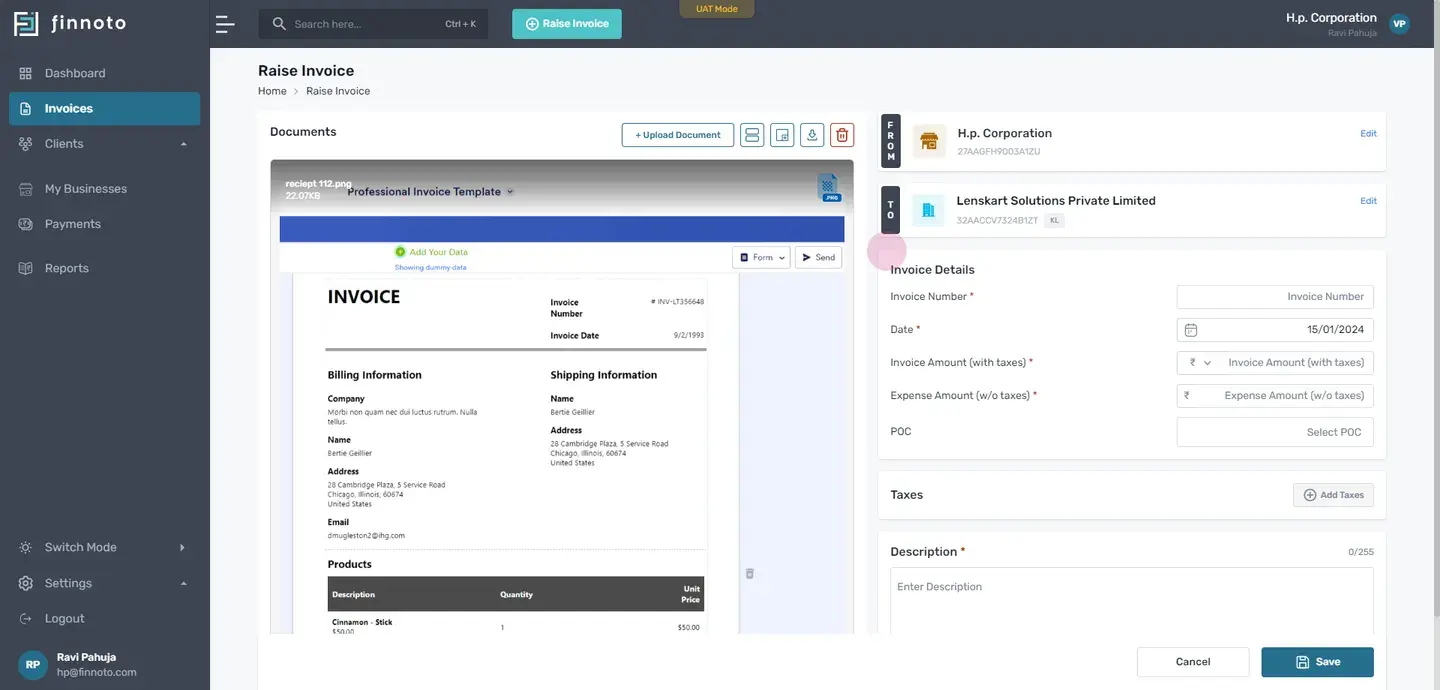
Now enter the invoice number.
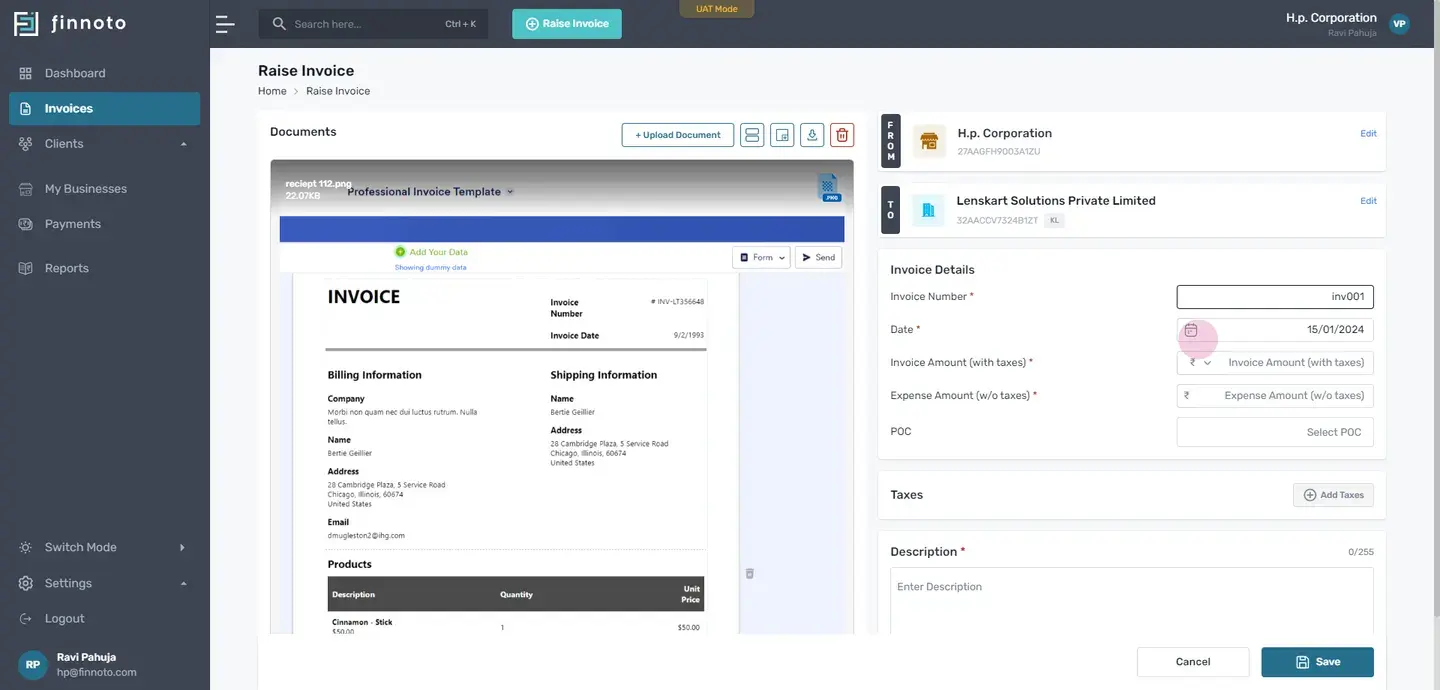
The current date is auto fetch
But in case you want to change the date, you can use the calendar icon, and you can select the date accordingly.
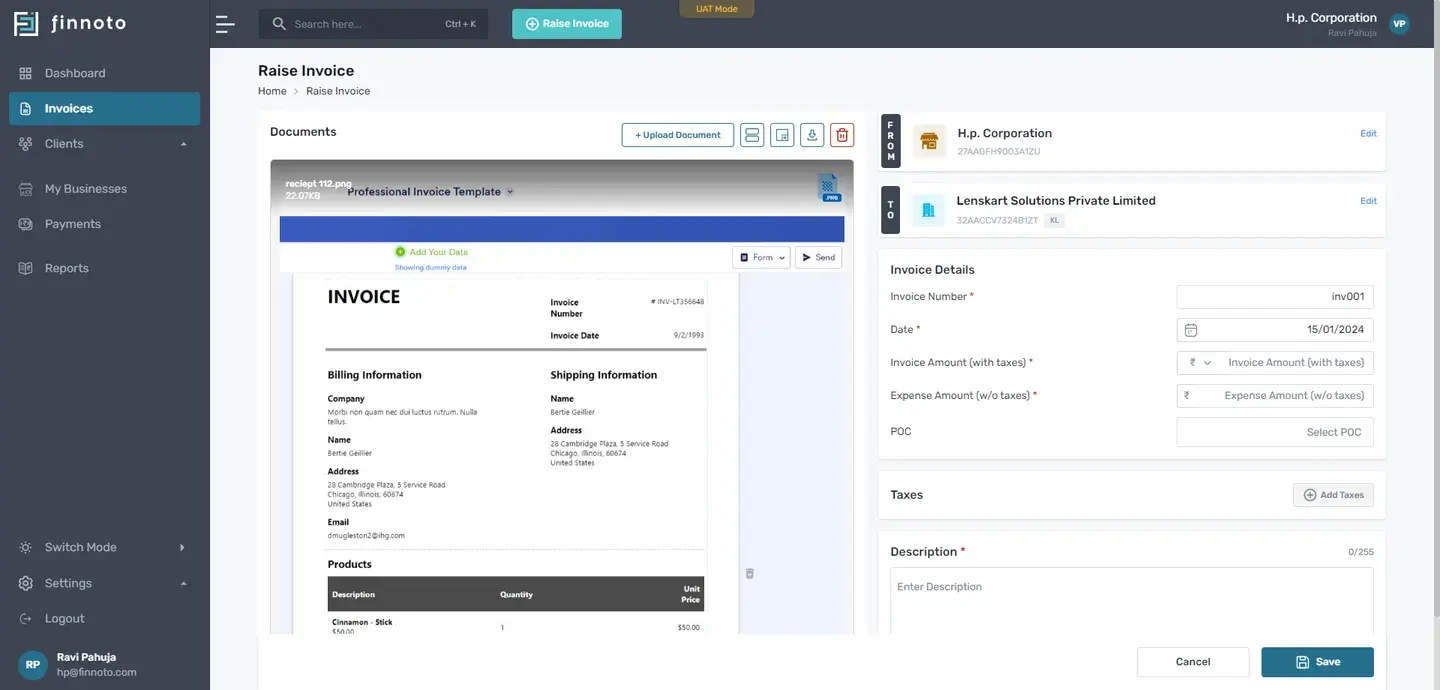
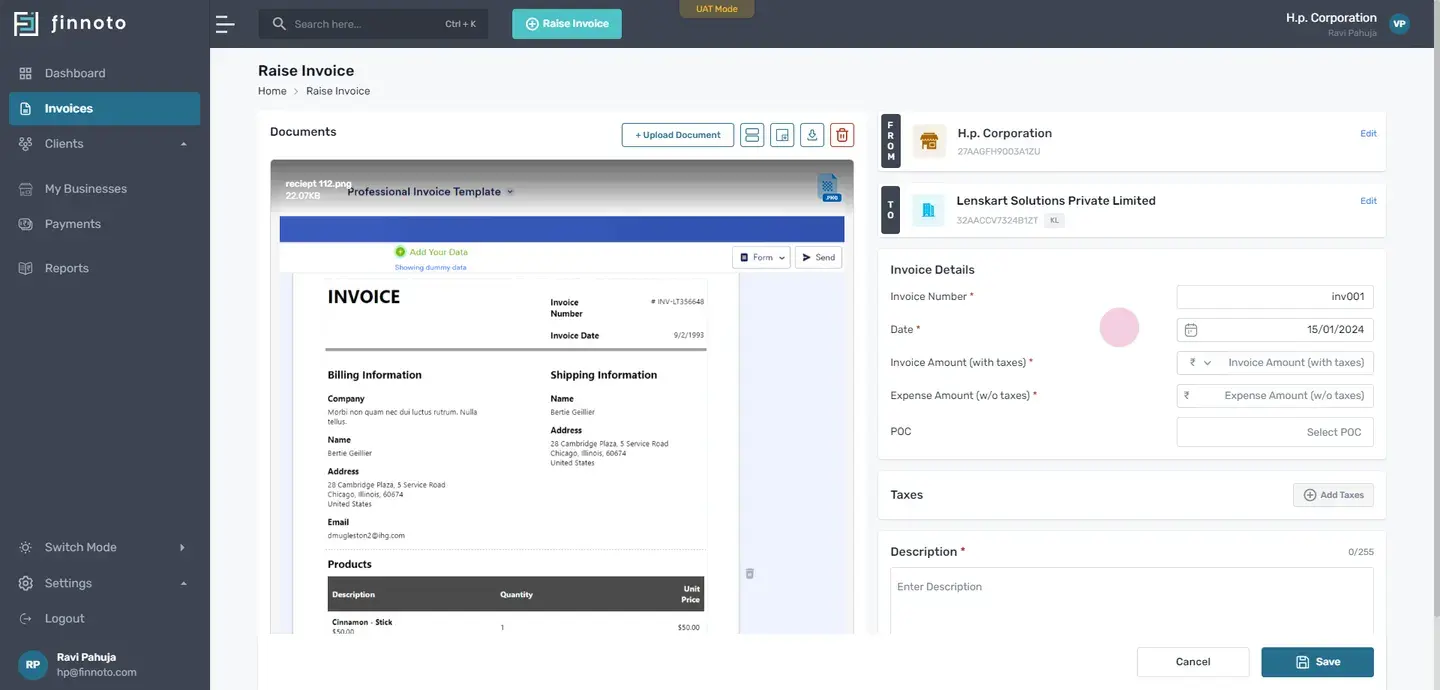
Now choose the international currency you wish to invoice in.
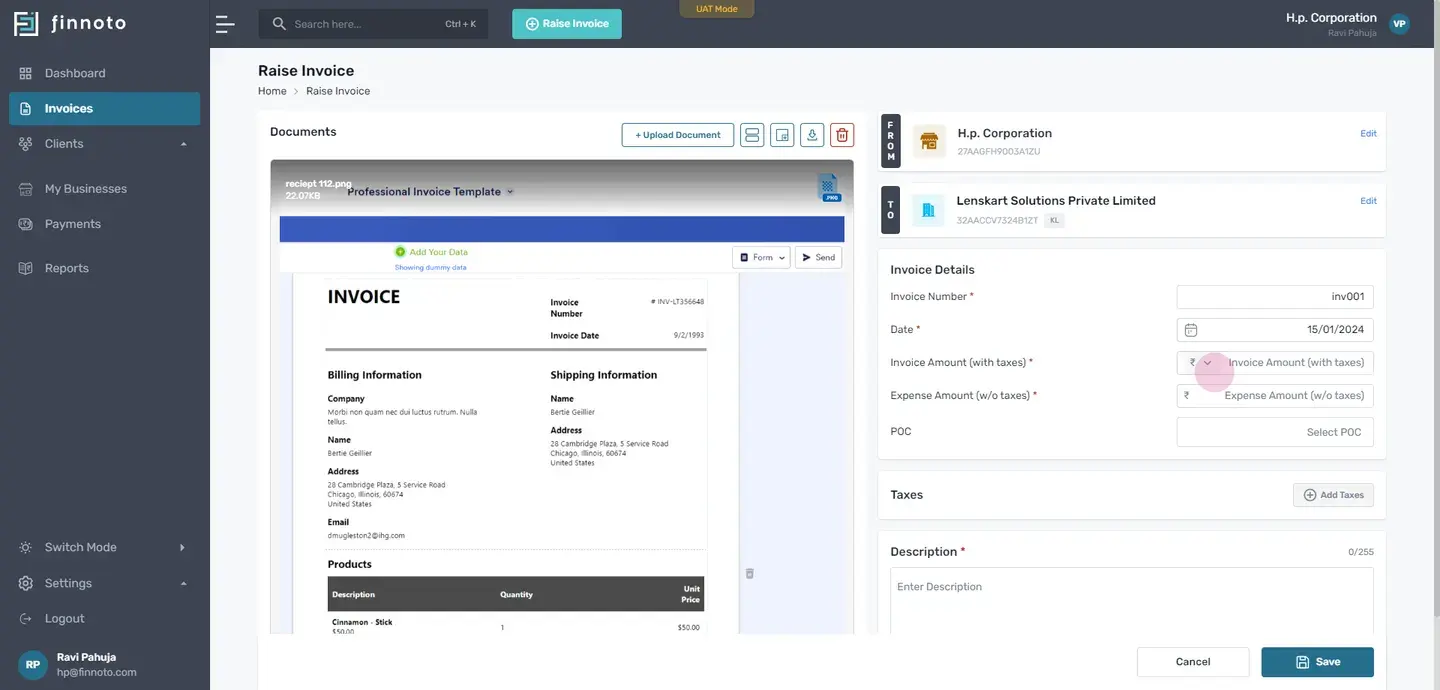
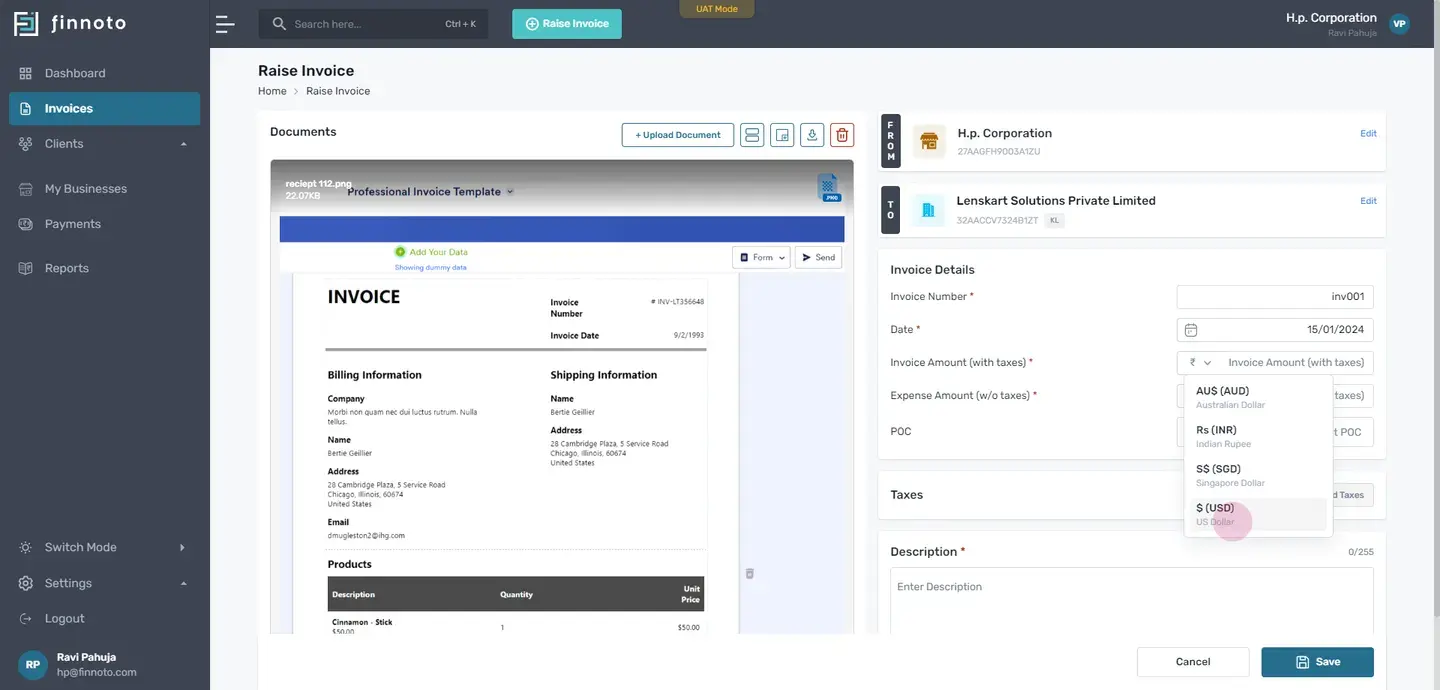
Please note that the available currencies options are influenced by your client's preferences, ensuring a seamless invoicing process.
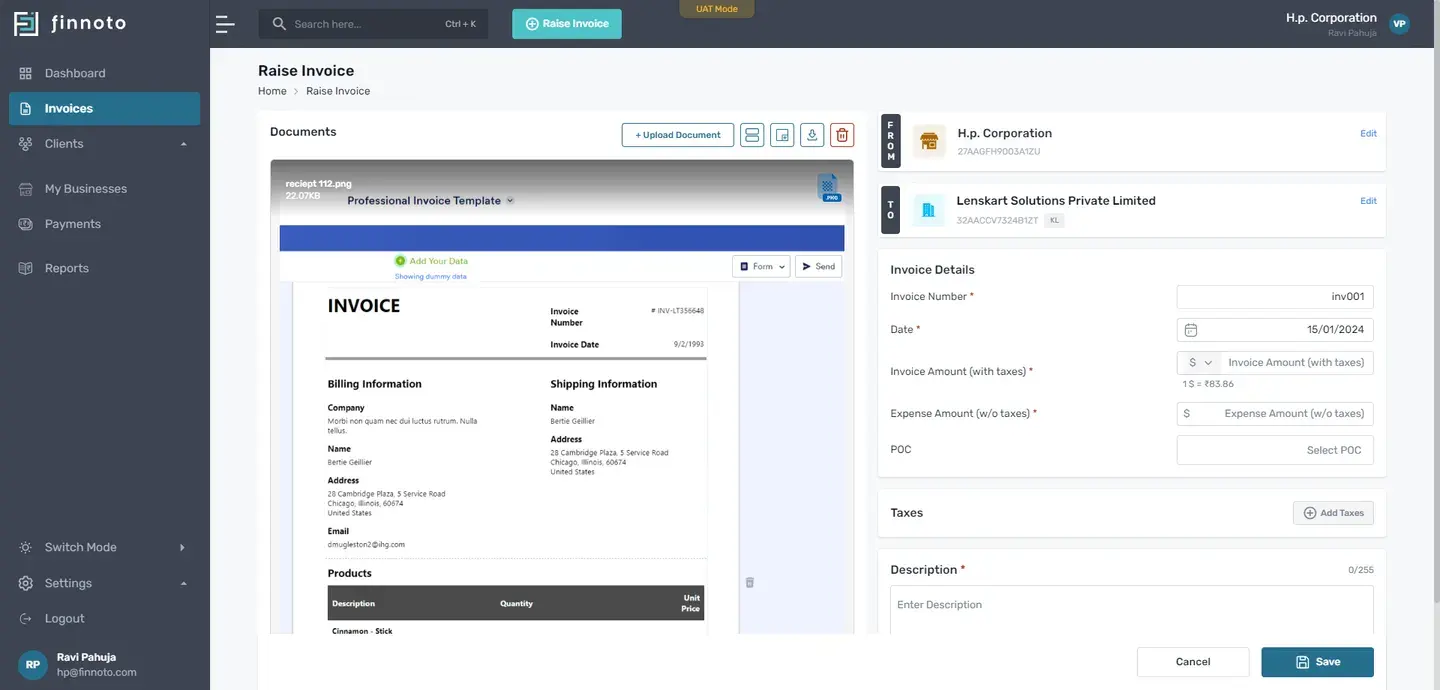
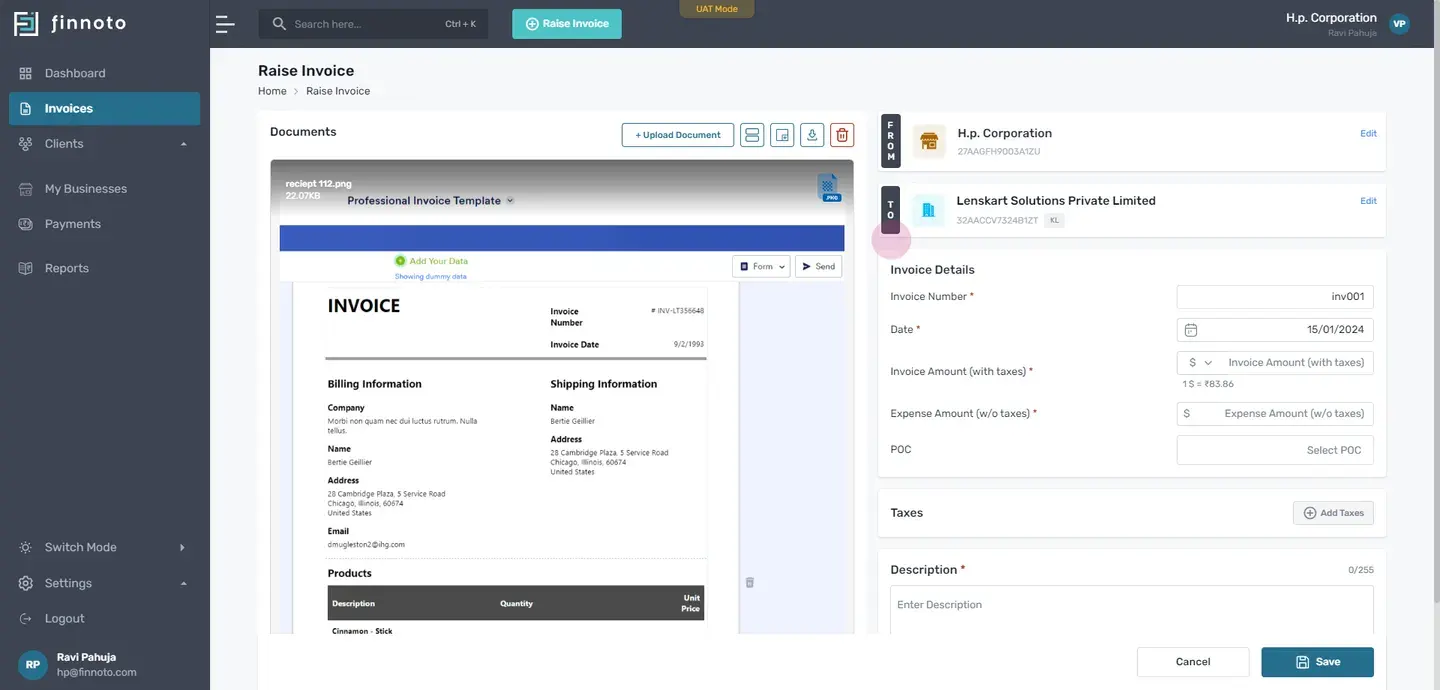
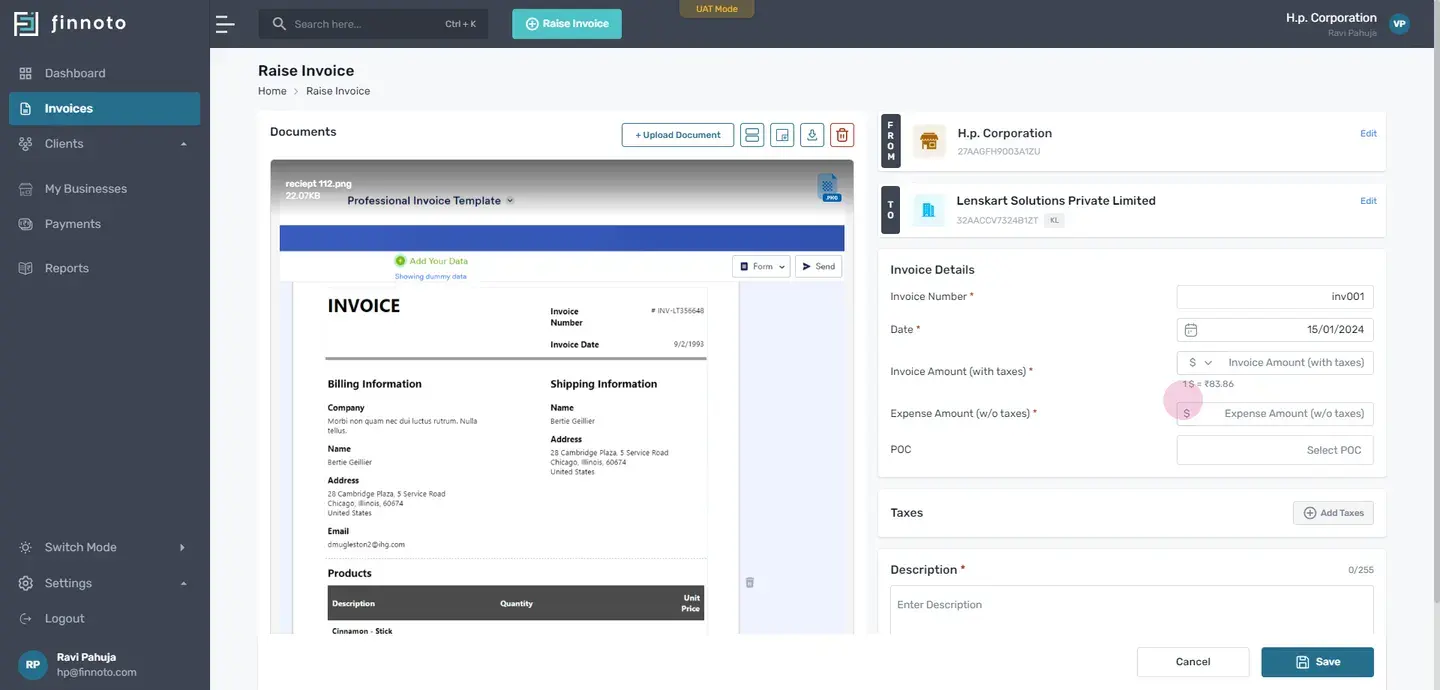
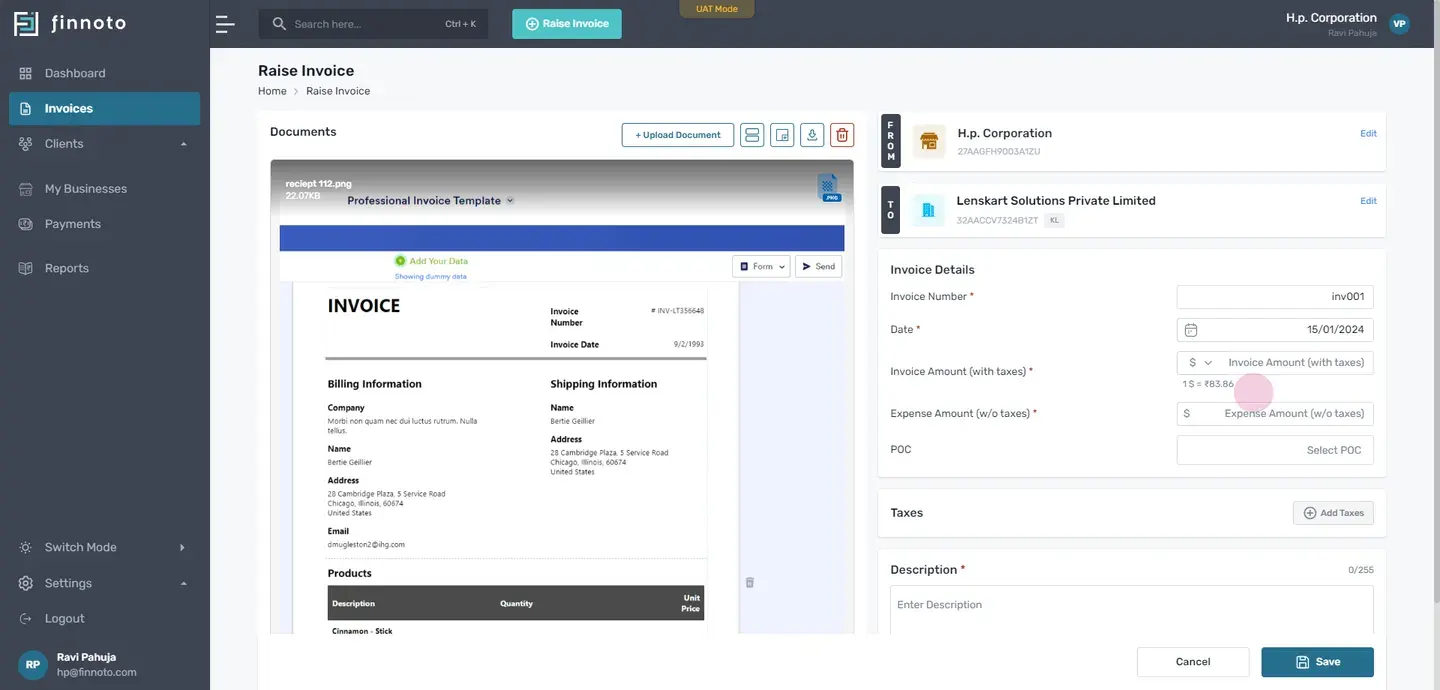
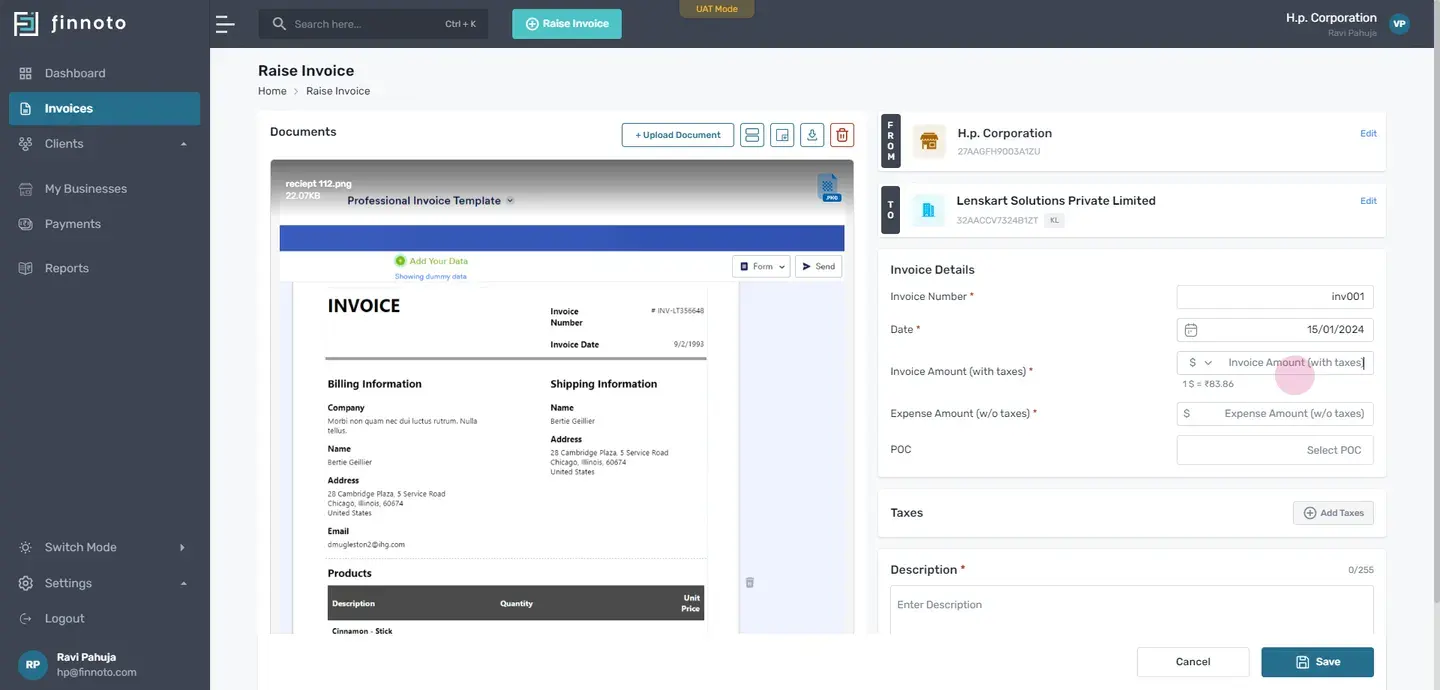
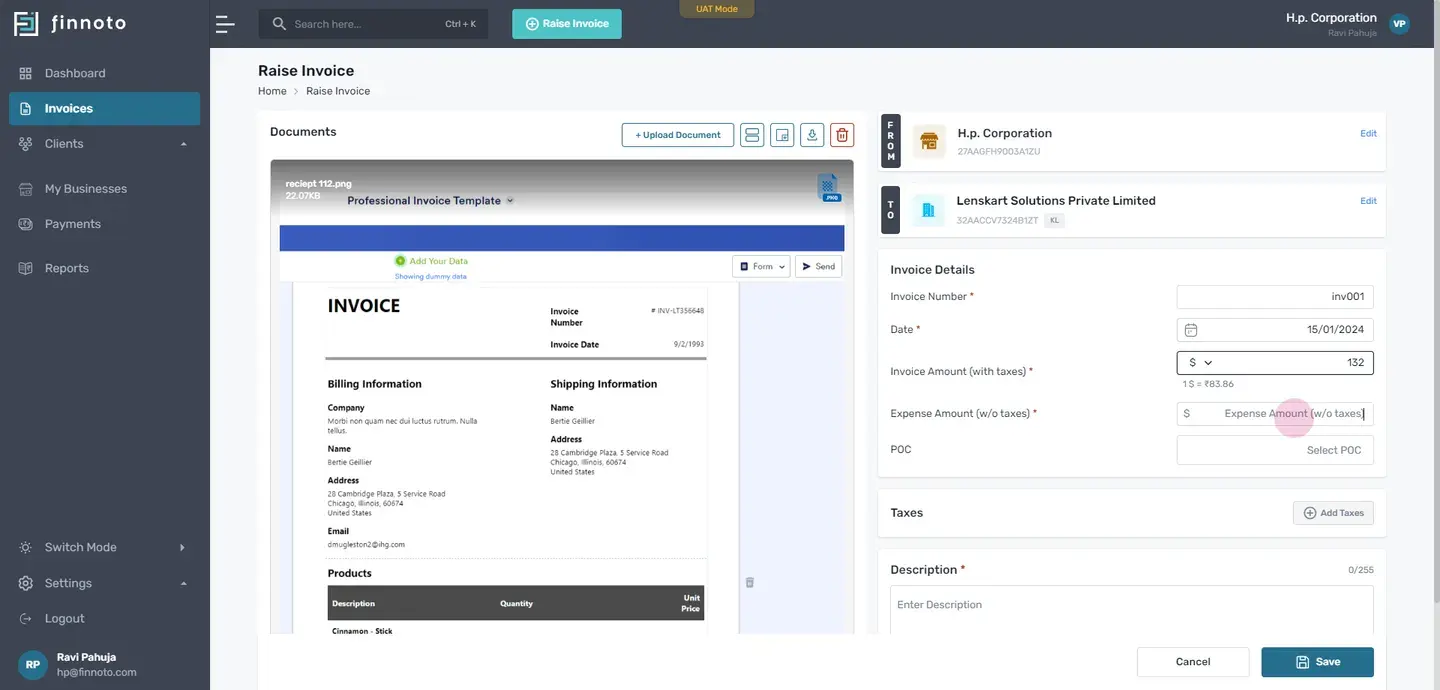
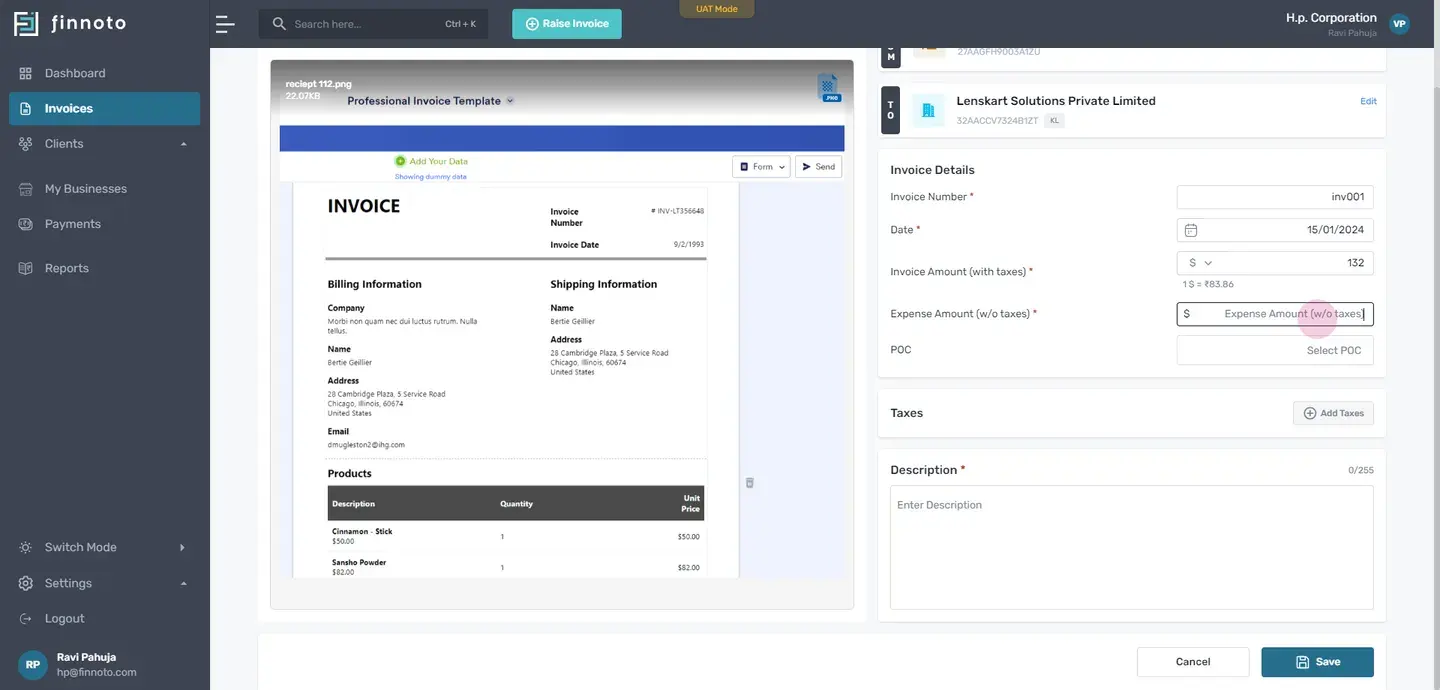
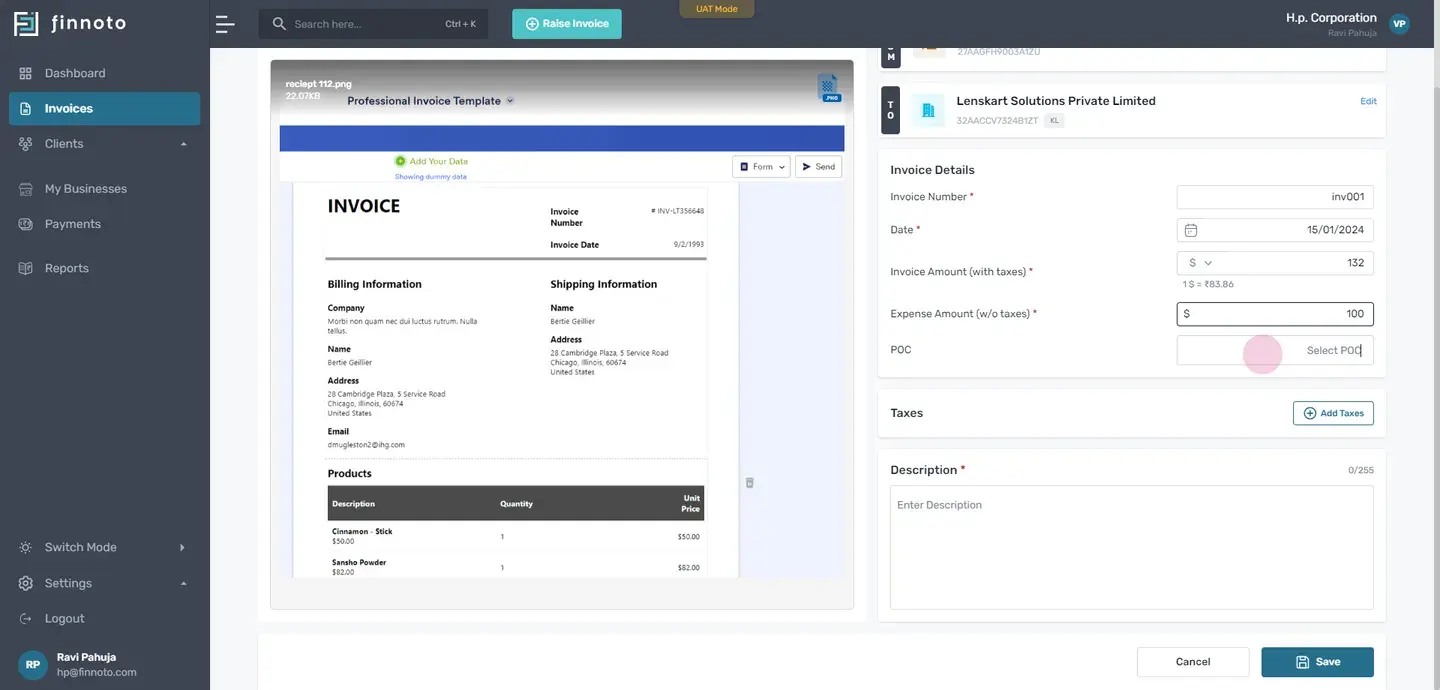
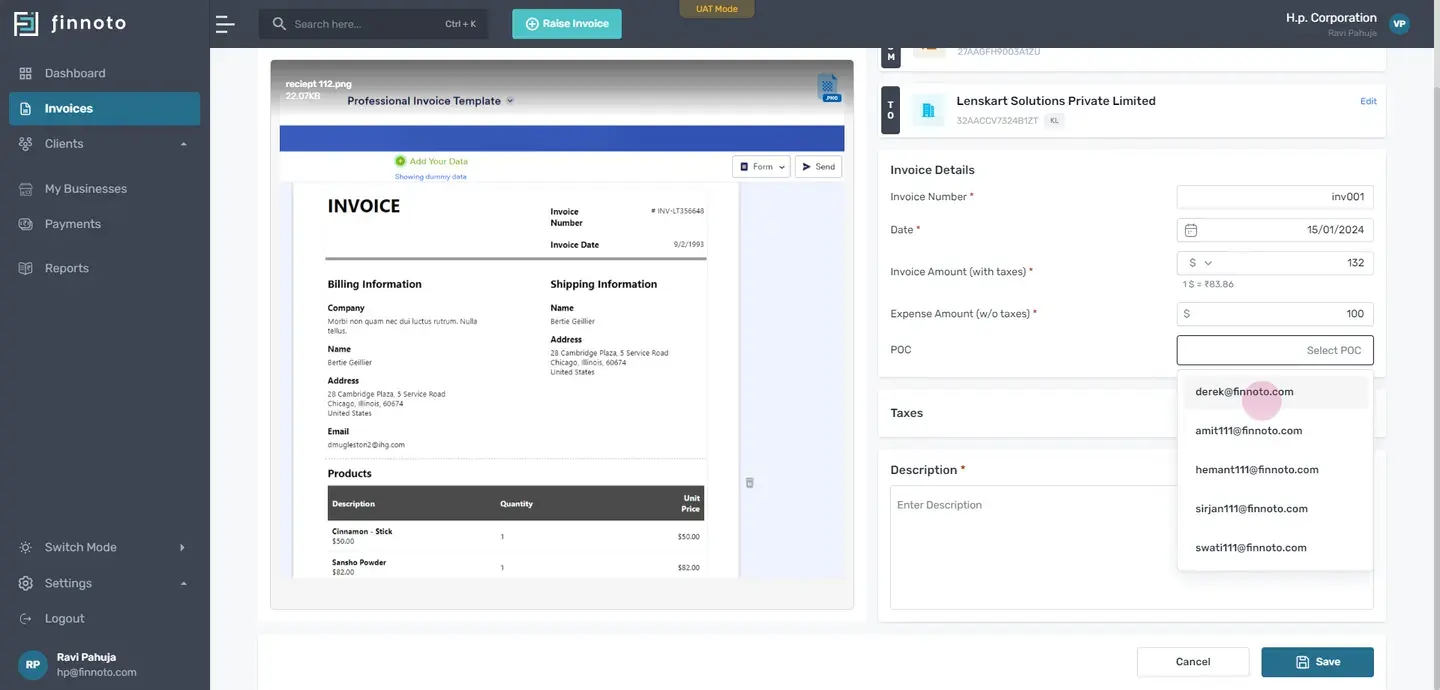
If you want to add taxes, you can add it from here.
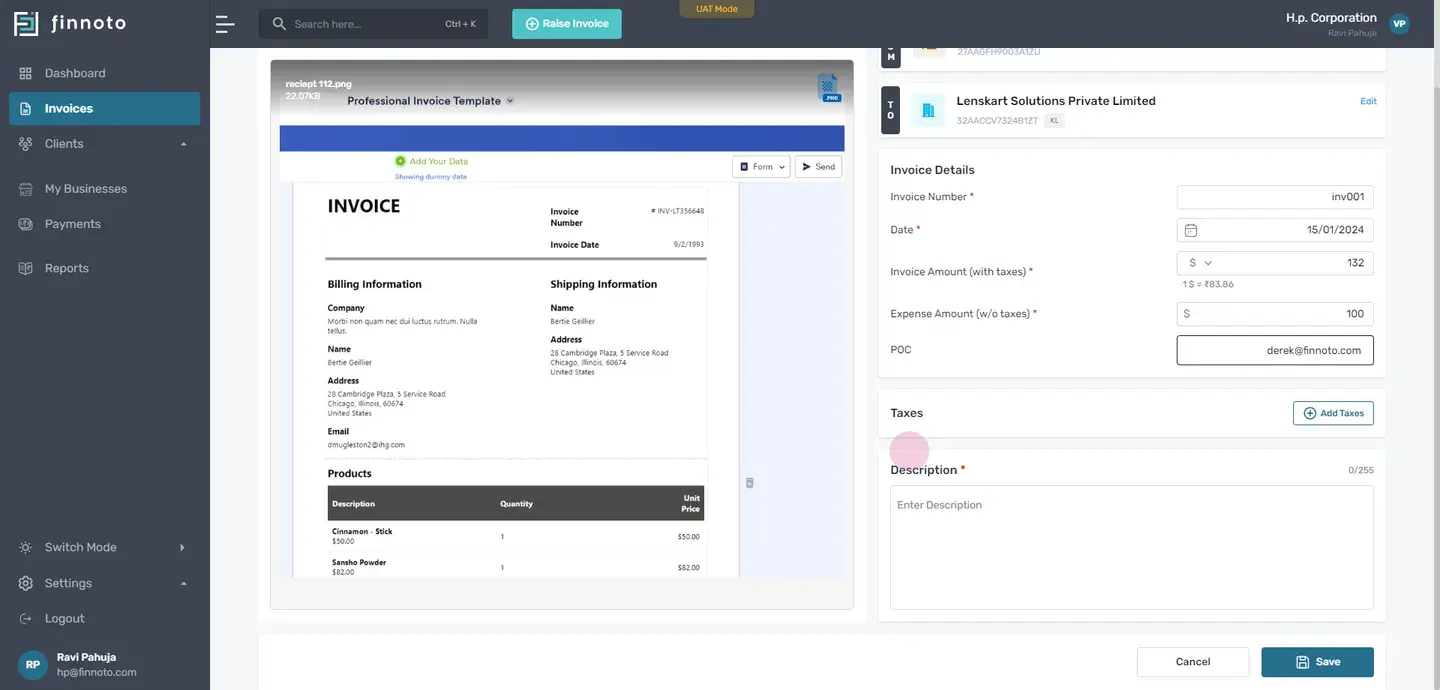
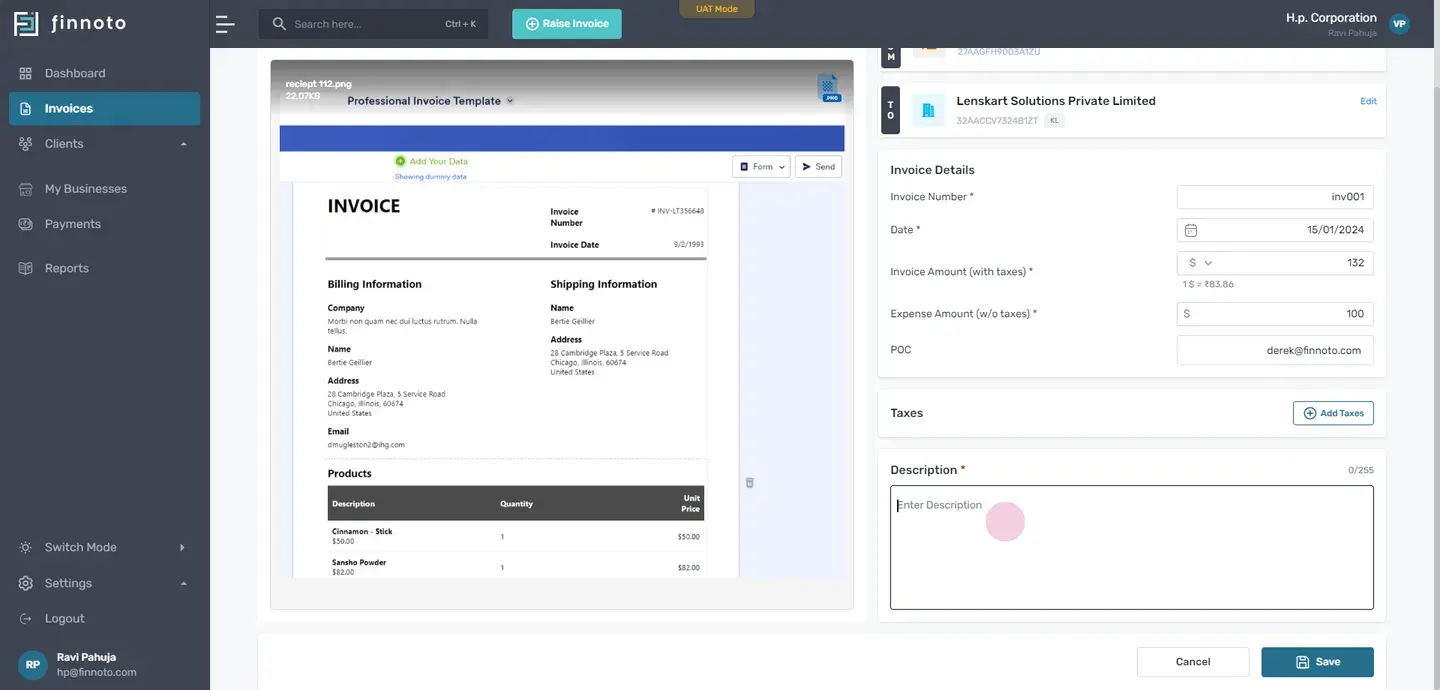
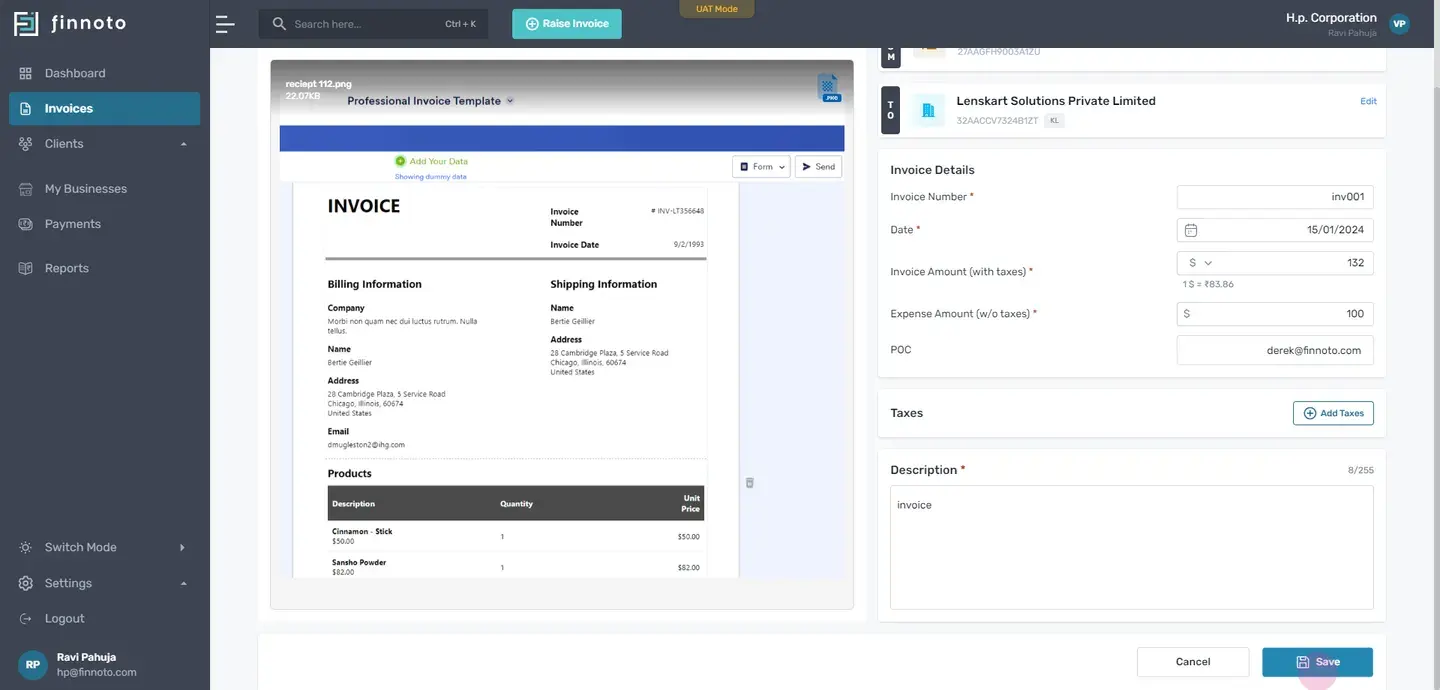
Once the invoice is saved, you can view the save invoice on the detail page of that invoice.
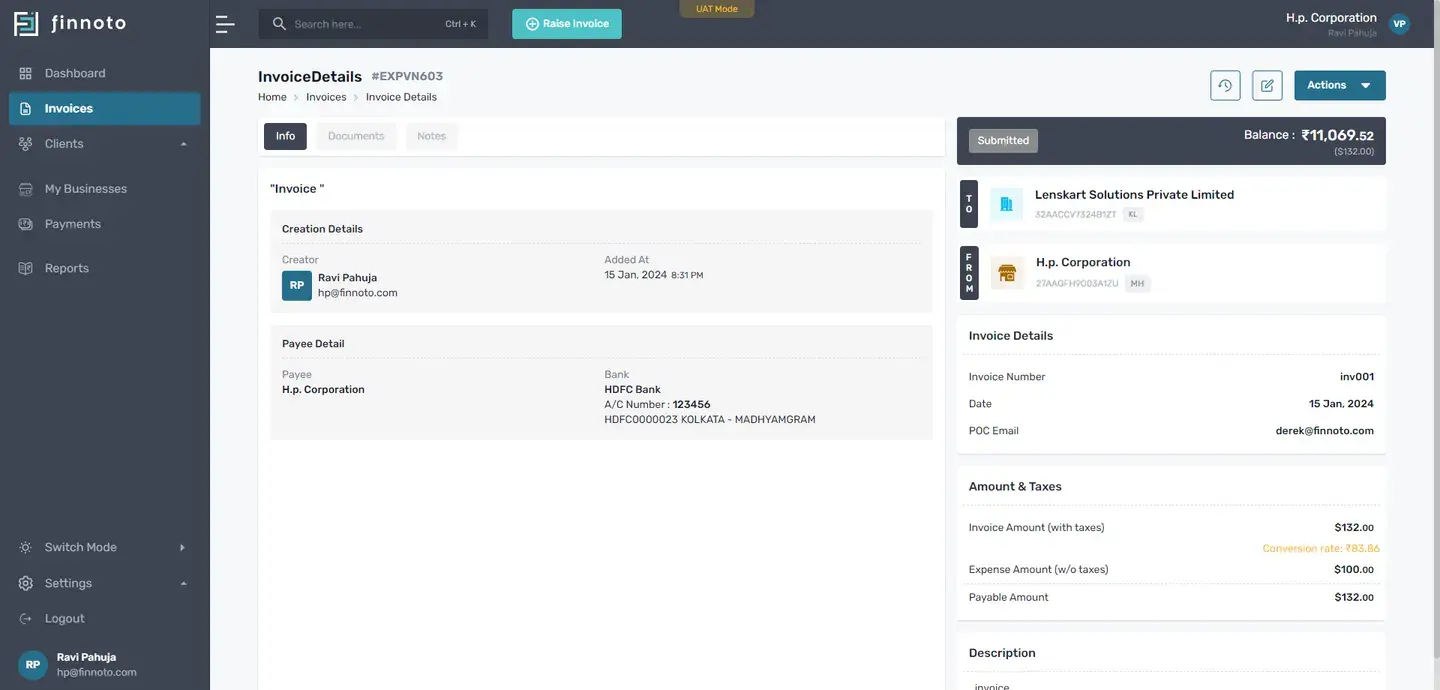
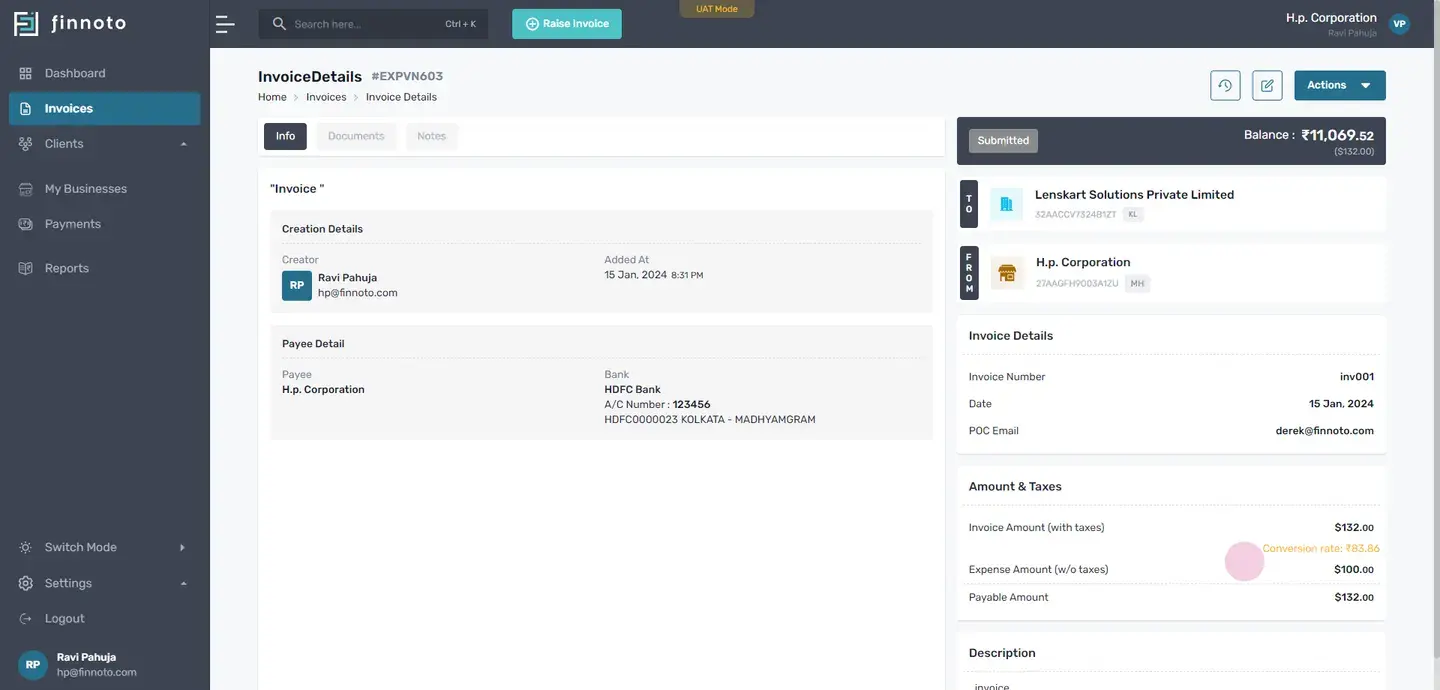
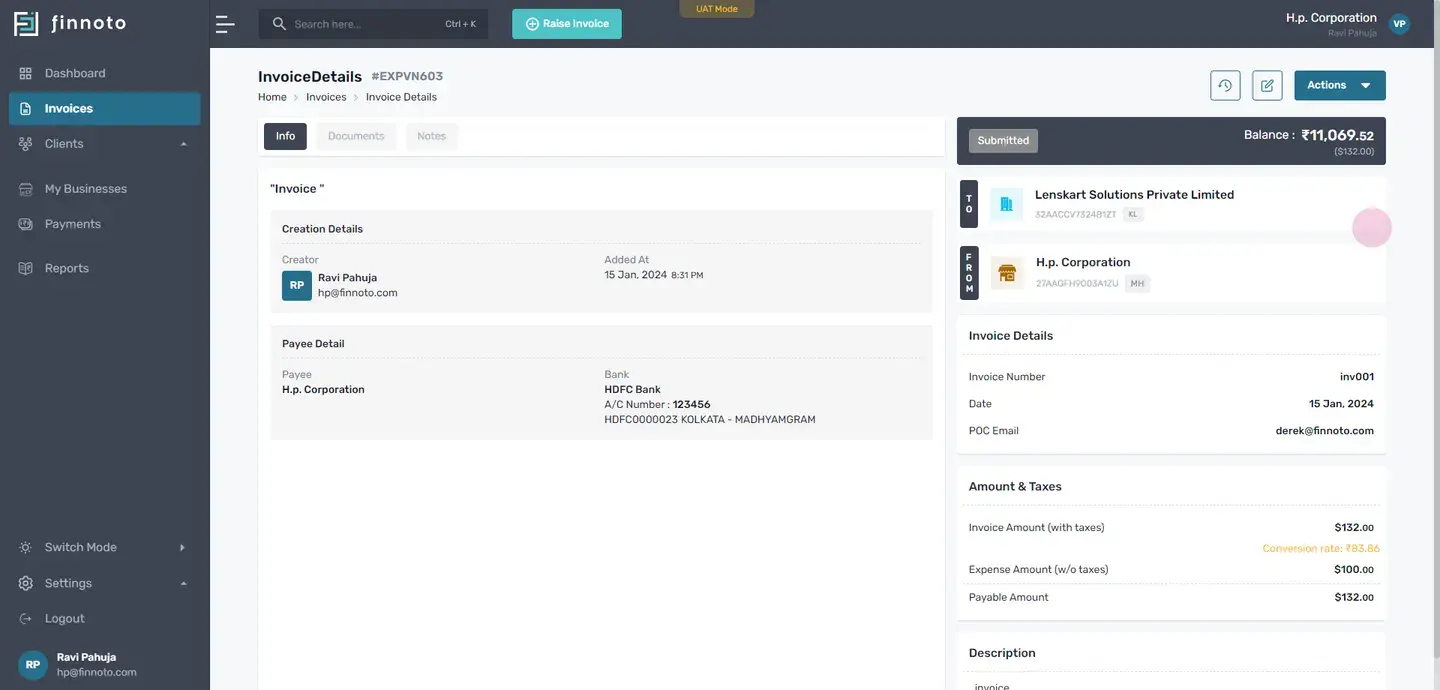
This provides you a comprehensive overview and serves as a record for your transaction. And there you have it. Raising an invoice in international currency on Finnoto vendor portal is a straightforward process.
Thank you for watching.