Raise an invoice from the vendor portal
For vendors: submit an invoice against your customer's purchase order from the Finnoto vendor portal.
Last updated on
Transcript
How to raise an Invoice on Finnoto portal through Vendor Portal?
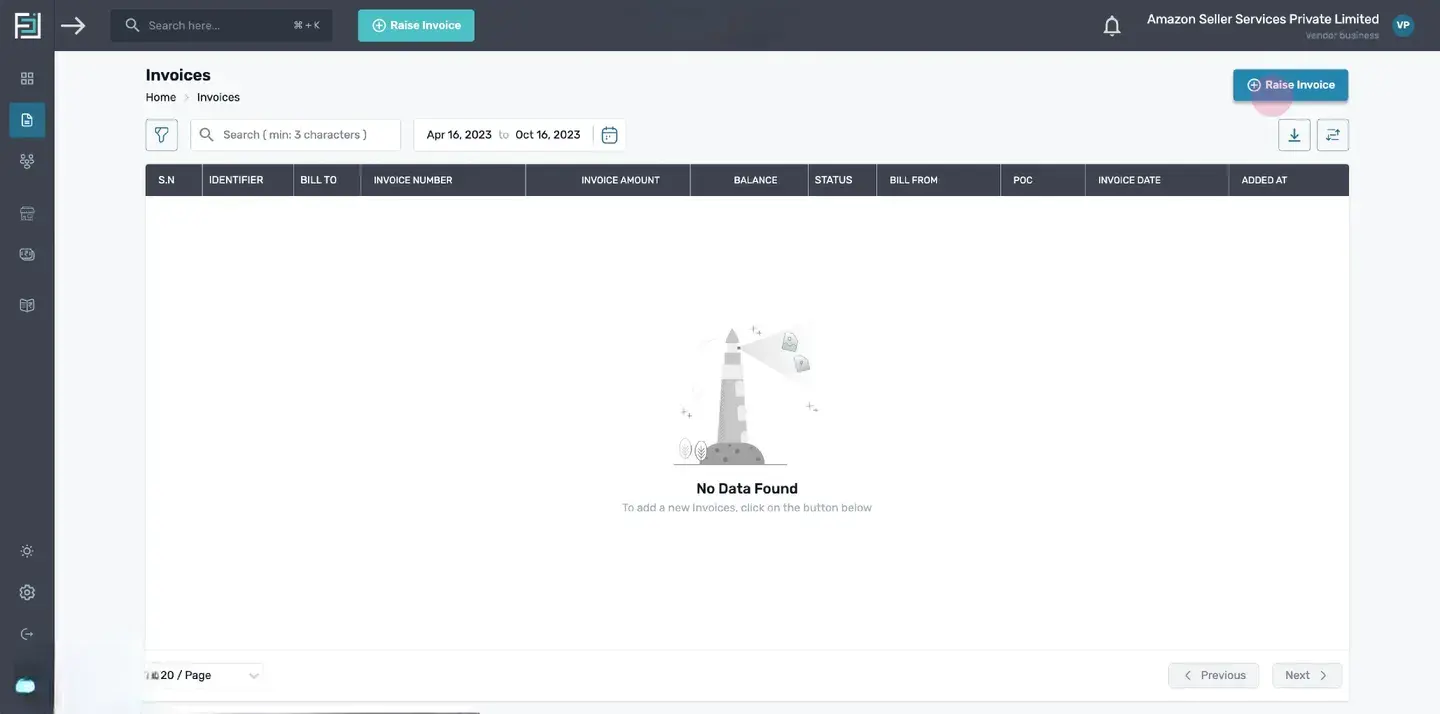
To initiate the invoice creation process, either click the "Raise Invoice" button at the top of the homepage or navigate to the "Invoices" menu and select the "+Raise Invoice" button.
Upload Document.
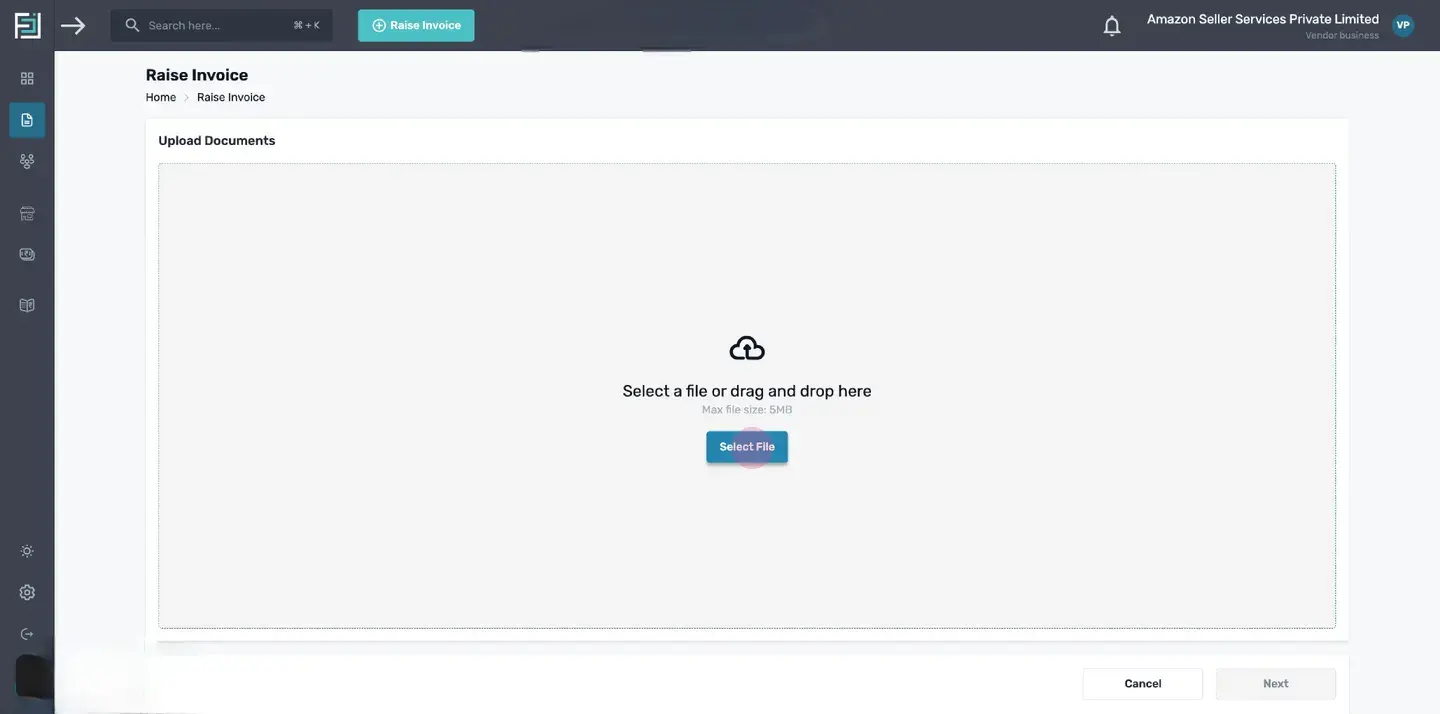
The "Upload Documents" page will open. Here, you can select a file or drag and drop the file (e.g., receipts). Click on the "Next" button.Note: Uploaded documents in formats such as xlsx, xls, csv, doc, docx, and txt will be displayed in a tabular view. On the left side of the page, you can see the uploaded receipt or document. Above the document, there are buttons for uploading more documents, table view, zooming in/out of the document, and downloading the document.
Invoice Form.
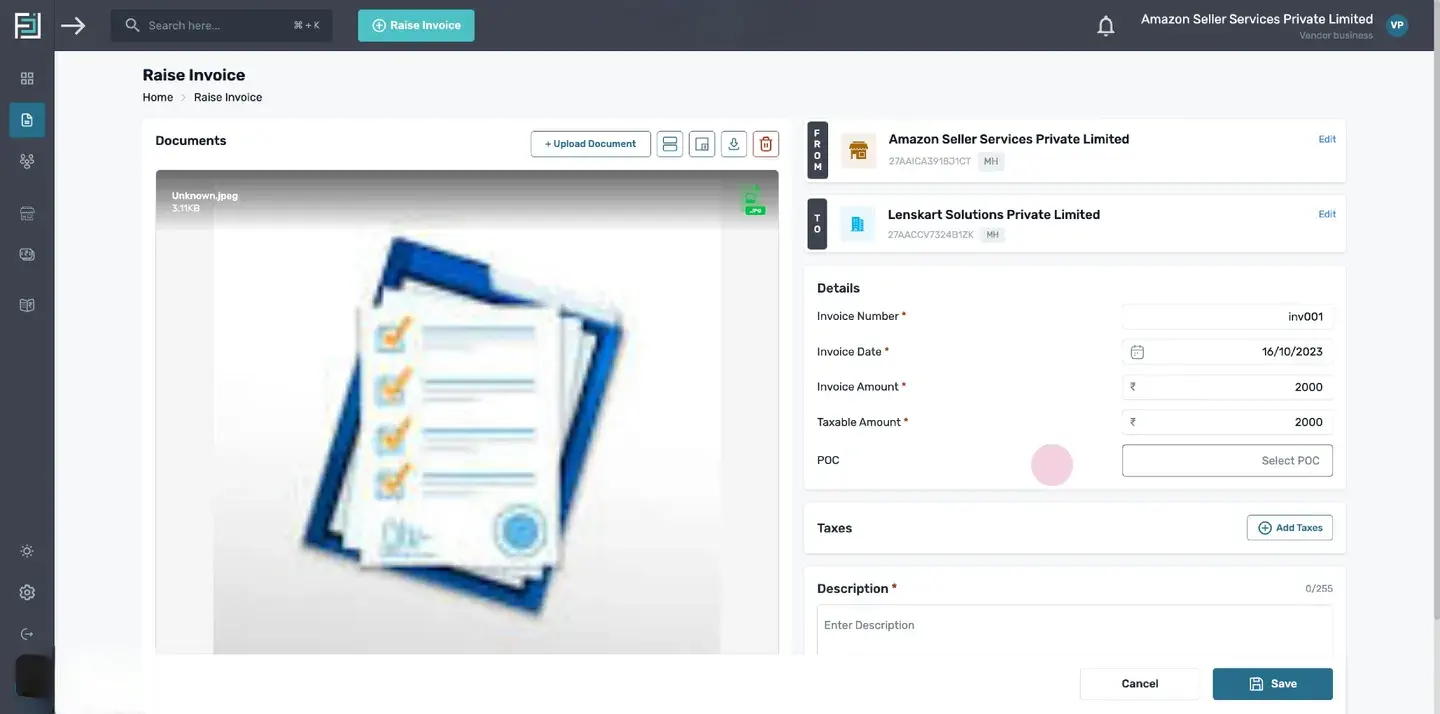
In the "From" field, click on the "+Select Your Business" . A list of all your added businesses will appear. Select the appropriate one. In the "To" field, click on the "+Select Client" button. A list of clients attached to the selected business will appear. You have the option to modify the "To" and "From" fields by selecting the provided edit option.Fill in the details of the invoice. Enter the Invoice Number. Select the Invoice date from the calendar by clicking on the corresponding field. Enter the Invoice amount. Enter the taxable amount. Select or add "POC Email".
Taxes Card.
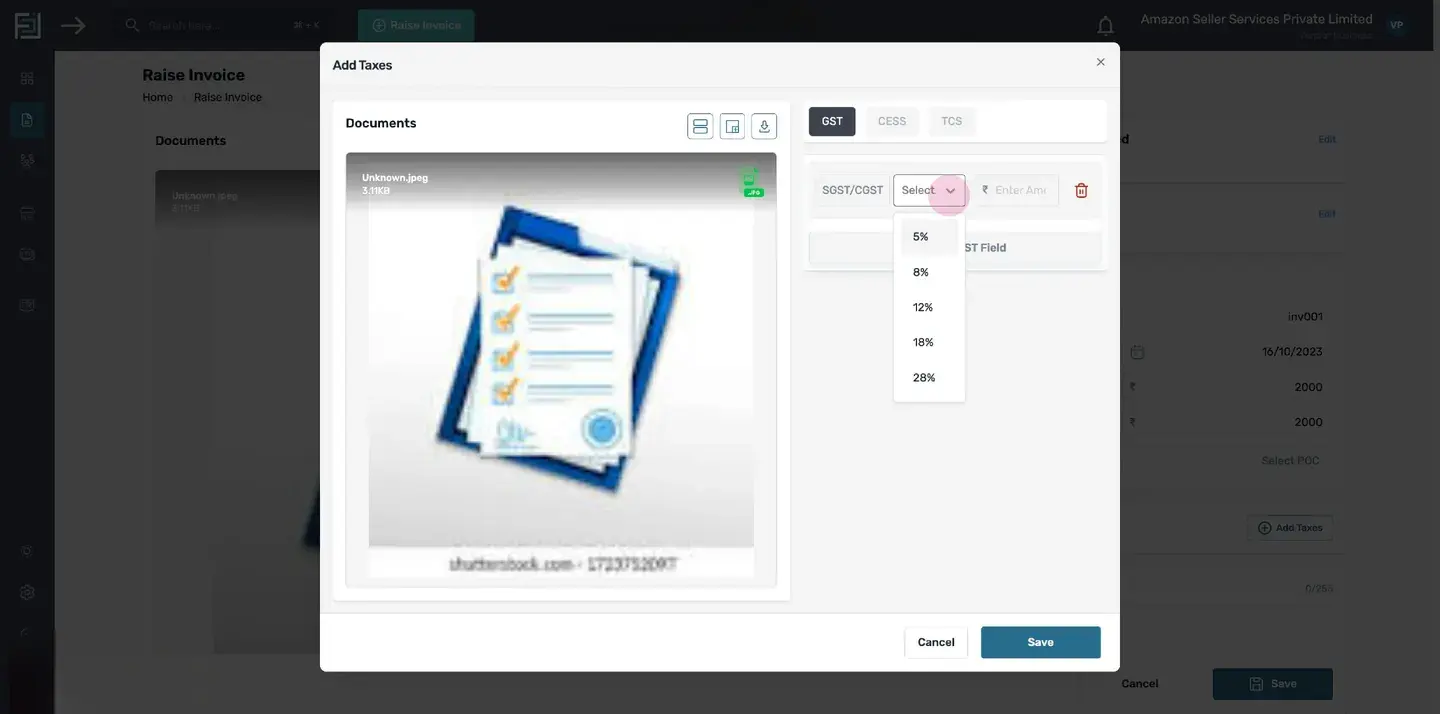
Click on the "+ Add Taxes" button. In the Taxes card, you will find four active tabs. Click on each tab to add the corresponding details. a) GST: The system will automatically display whether GST is IGST or SGST based on your bill address. Select the GST percentage, and the amount will be automatically calculated. If you want to add more GST fields, click on the "+ Add GST Field". To delete a GST field, click on the delete icon. b) Cess: If cess is applicable to your invoice, enter the amount in the field provided. c) TCS: If TCS is applicable, select the TCS tab and enter the TCS percentage. The amount will be automatically calculated. Click on the save button to save the tax. All the details of the saved tax will be displayed in the taxes card. If you want to edit the tax, click on the "Edit Taxes" button in the Taxes card.
Description and Save.
In the Description card, write the description of the invoice. This field is mandatory and has a character limit of 255. After filling in all the details, click the save button to save the invoice.
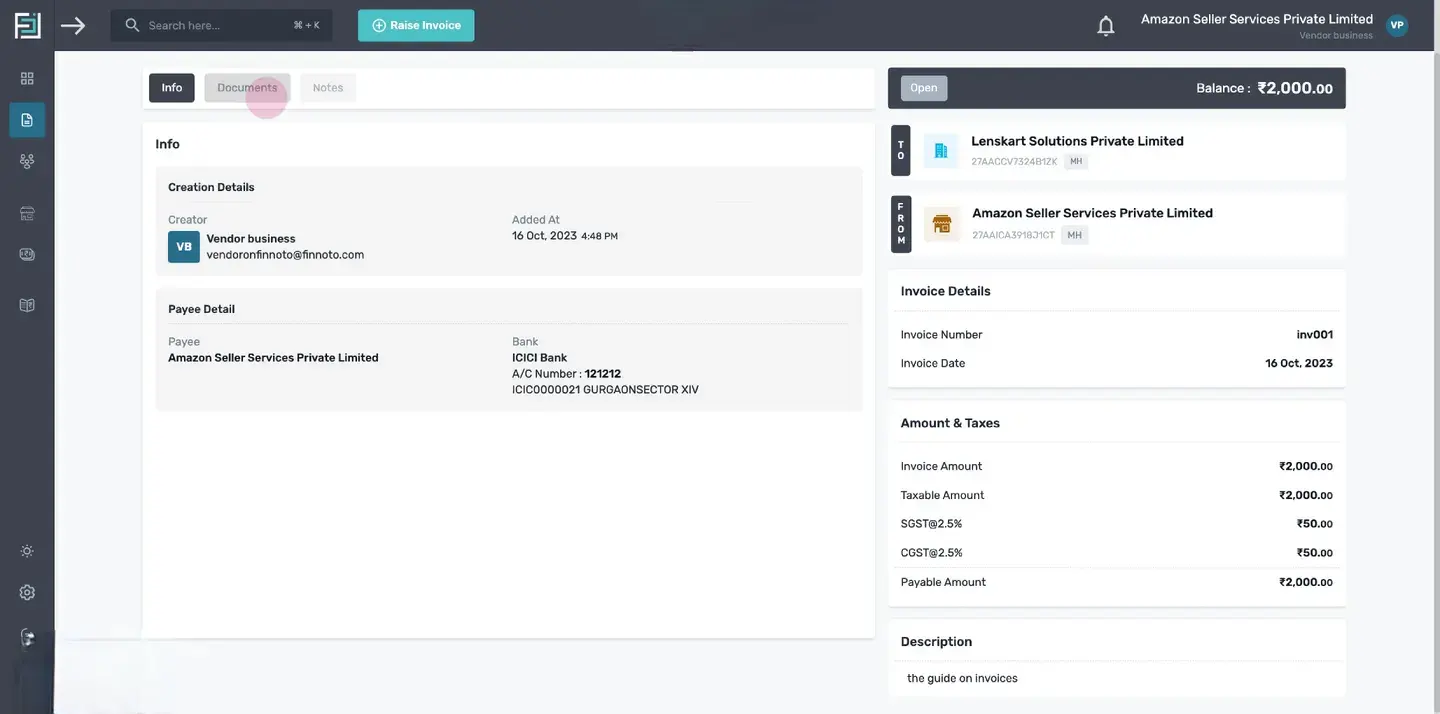
Invoice Detail Page: Once saved, the invoice details page will open.Now you can verify the payee details, the creation details, the documents you have uploaded, and added notes, if any.
How to raise an Invoice on Finnoto portal through Vendor Portal?
To initiate the invoice creation process, either click the "Raise Invoice" button at the top of the homepage or navigate to the "Invoices" menu and select the "+Raise Invoice" button.
Upload Document
- The "Upload Documents" page will open. Here, you can select a file or drag and drop the file (e.g., receipts). Click on the "Next" button.Note: Uploaded documents in formats such as xlsx, xls, csv, doc, docx, and txt will be displayed in a tabular view.
- On the left side of the page, you can see the uploaded receipt or document.
- Above the document, there are buttons for uploading more documents, table view, zooming in/out of the document, and downloading the document.
Invoice Form
- In the "From" field, click on the "+Select Your Business" . A list of all your added businesses will appear. Select the appropriate one.
- In the "To" field, click on the "+Select Client" button. A list of clients attached to the selected business will appear.
- You have the option to modify the "To" and "From" fields by selecting the provided edit option.Fill in the details of the invoice.
- Enter the Invoice Number.
- Select the Invoice date from the calendar by clicking on the corresponding field.
- Enter the Invoice amount.
- Enter the taxable amount.
- Select or add "POC Email".
Taxes Card
- Click on the "+ Add Taxes" button.
- In the Taxes card, you will find four active tabs. Click on each tab to add the corresponding details. a) GST: The system will automatically display whether GST is IGST or SGST based on your bill address. Select the GST percentage, and the amount will be automatically calculated. If you want to add more GST fields, click on the "+ Add GST Field". To delete a GST field, click on the delete icon. b) Cess: If cess is applicable to your invoice, enter the amount in the field provided. c) TCS: If TCS is applicable, select the TCS tab and enter the TCS percentage. The amount will be automatically calculated.
- Click on the save button to save the tax. All the details of the saved tax will be displayed in the taxes card.
- If you want to edit the tax, click on the "Edit Taxes" button in the Taxes card.
Description and Save
- In the Description card, write the description of the invoice. This field is mandatory and has a character limit of 255.
- After filling in all the details, click the save button to save the invoice.
Invoice Detail Page: Once saved, the invoice details page will open.Now you can verify the payee details, the creation details, the documents you have uploaded, and added notes, if any.