Record a payment in a foreign currency
Record a payment against an expense raised in a non-INR currency, with the exchange rate and bank charges.
Last updated on
Transcript
Hello Everyone! In this video, we'll show you how to record a payment in an international currency on Finnoto. Start by navigating to an expense that was raised in an international currency. Choose the expense you want to pay in that international currency.
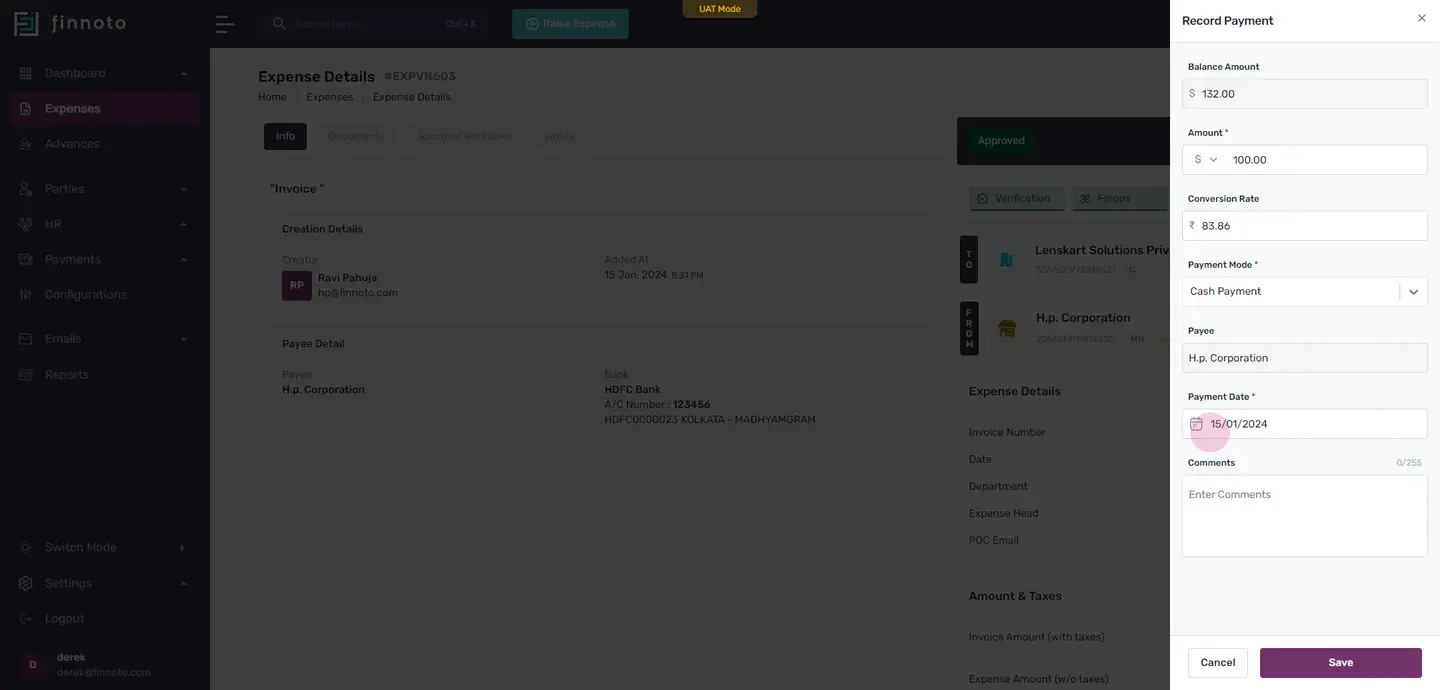
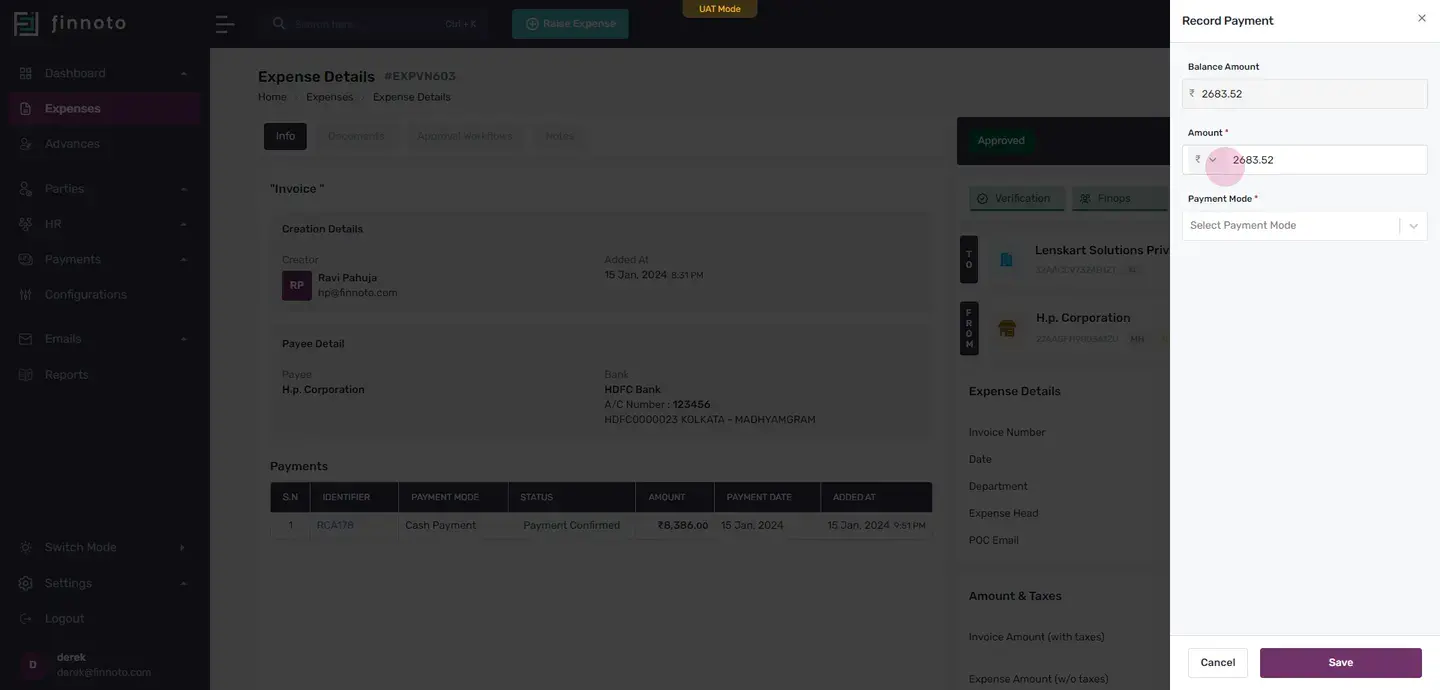
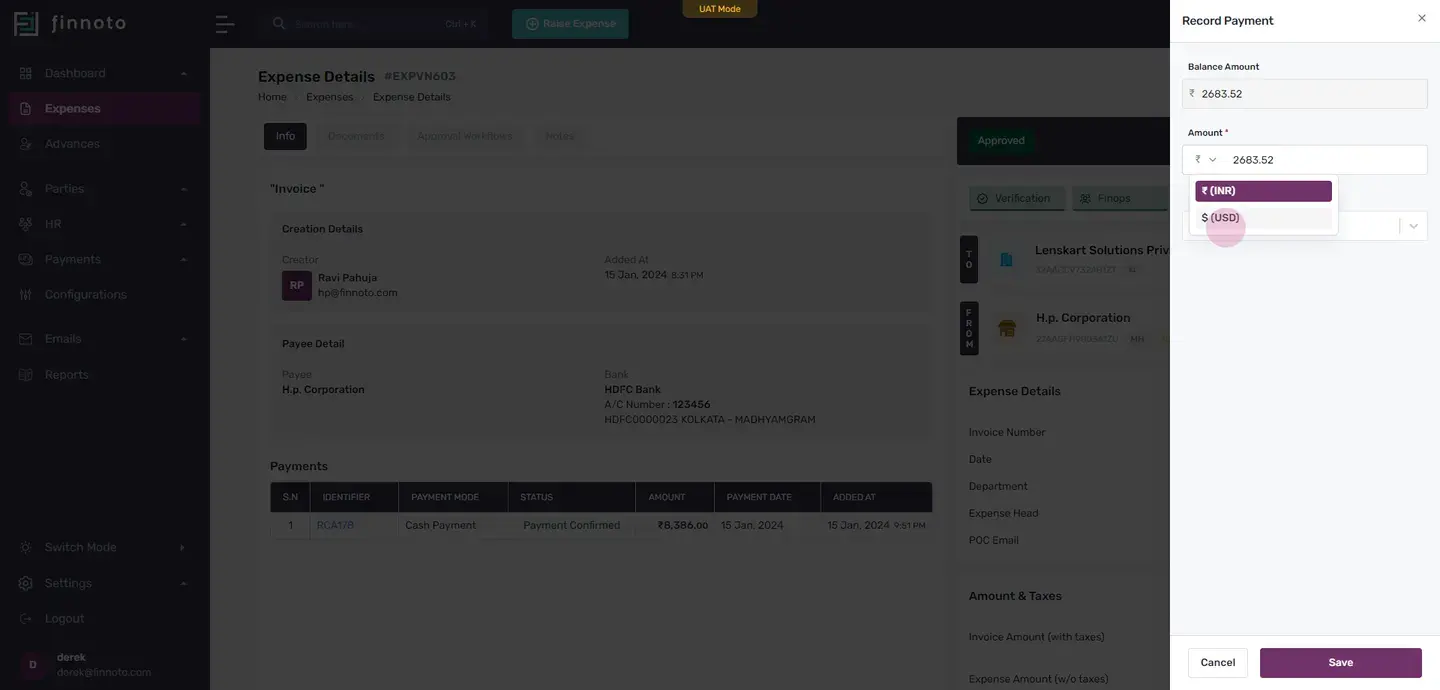
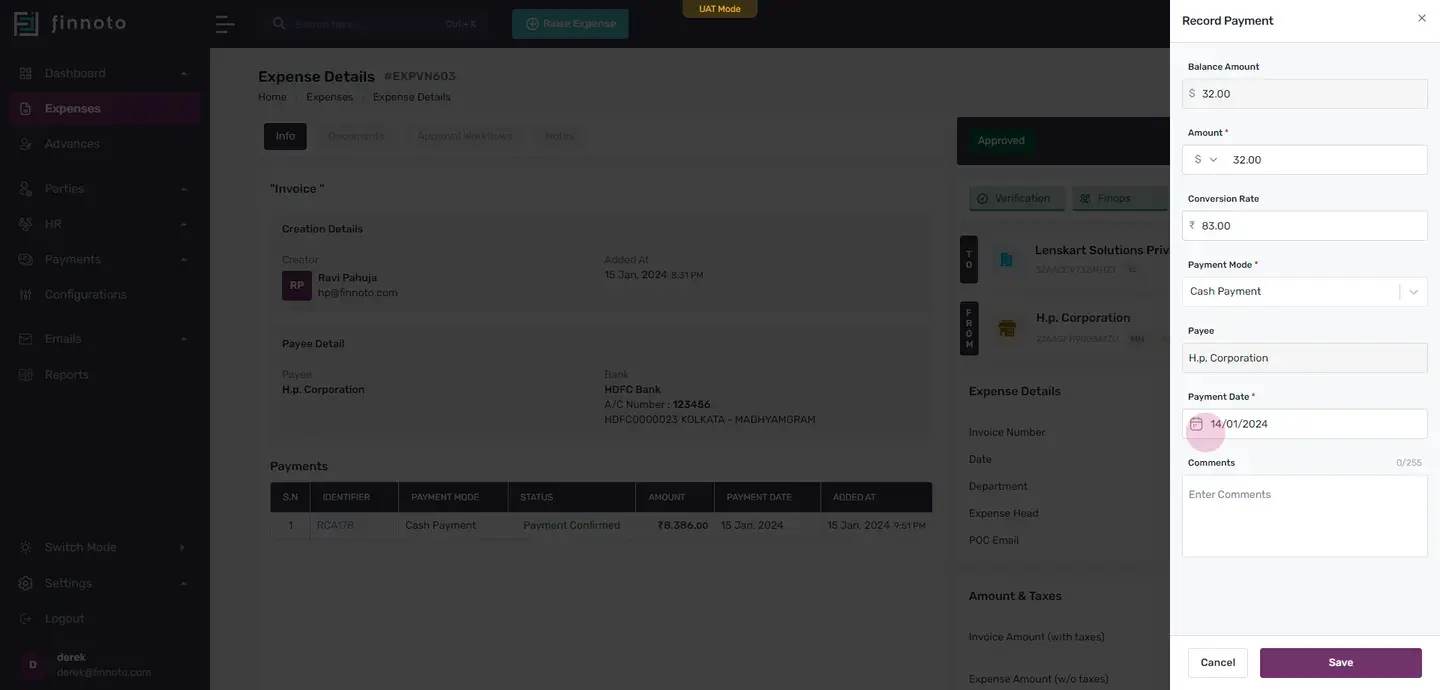
Then, select the "record payment" option. In the record payment form, you will see a currency dropdown. Here, you can see the currency in which the invoice was originally created. Choose the international currency in which you want to make the payment.
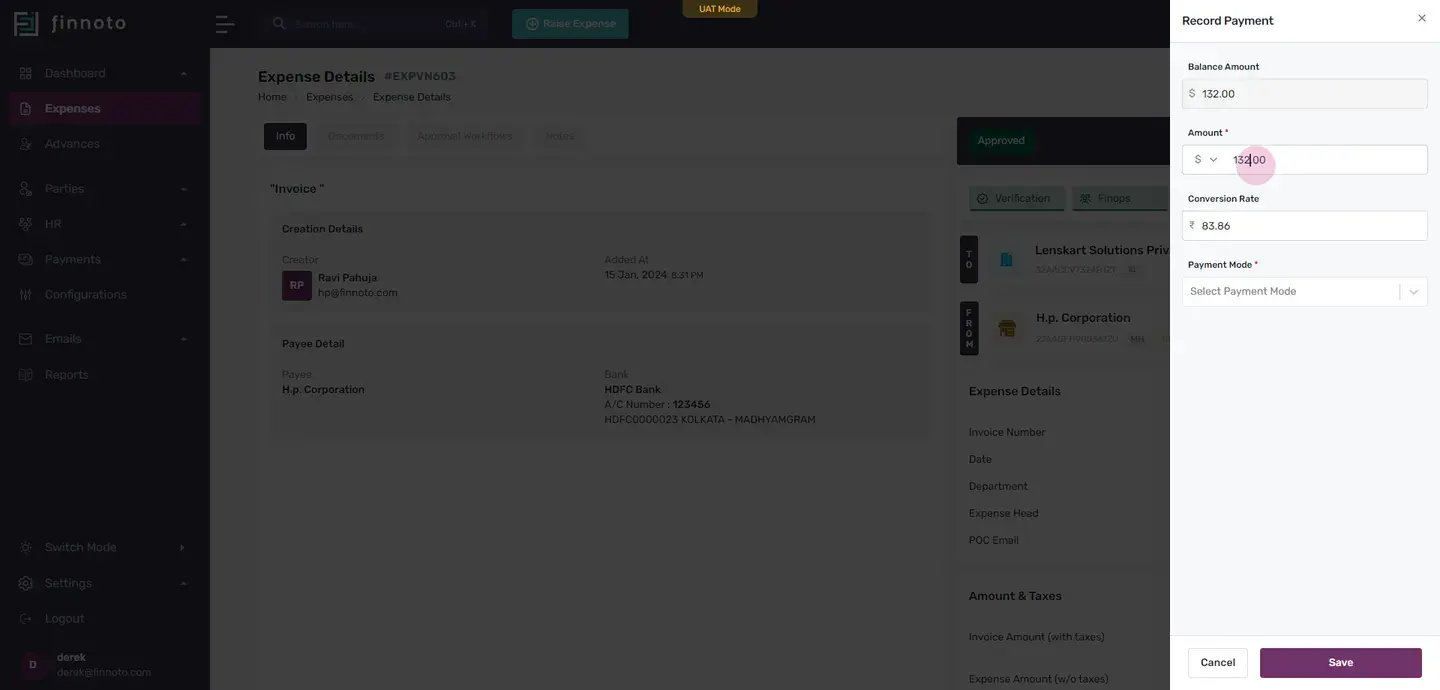
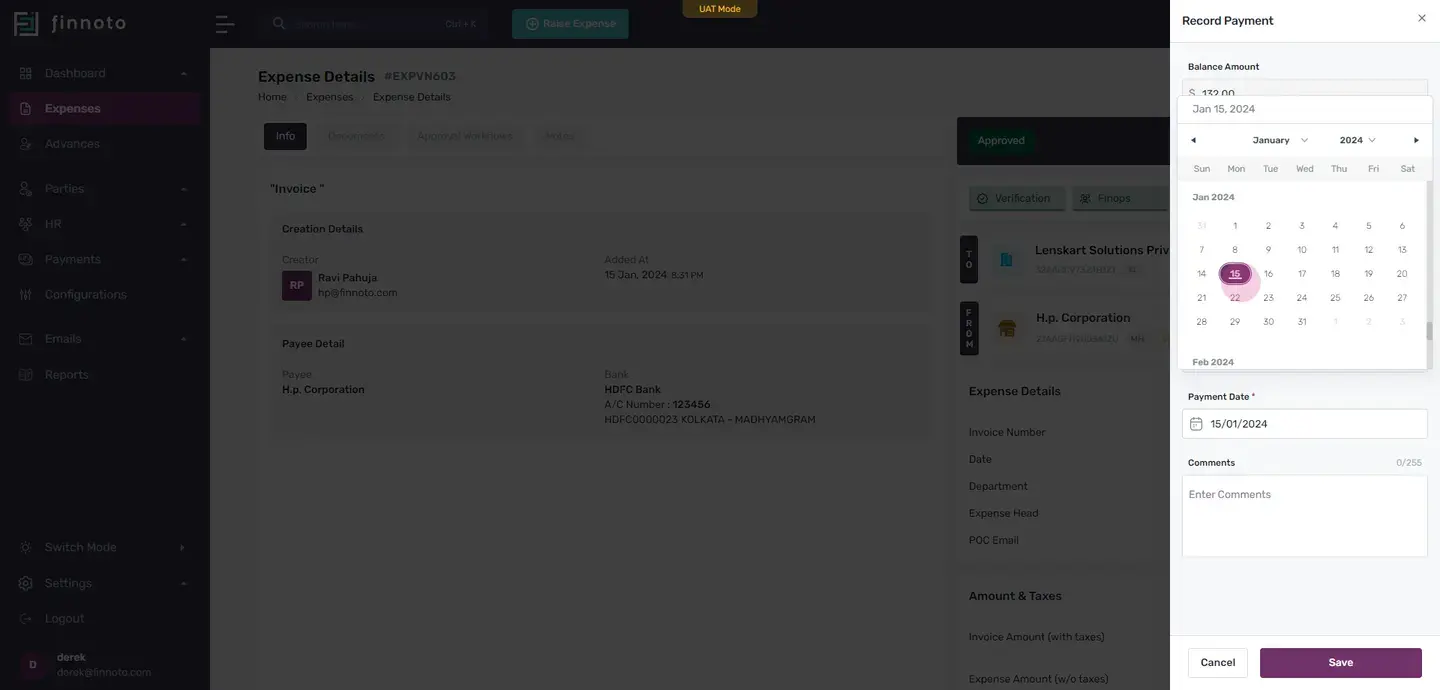
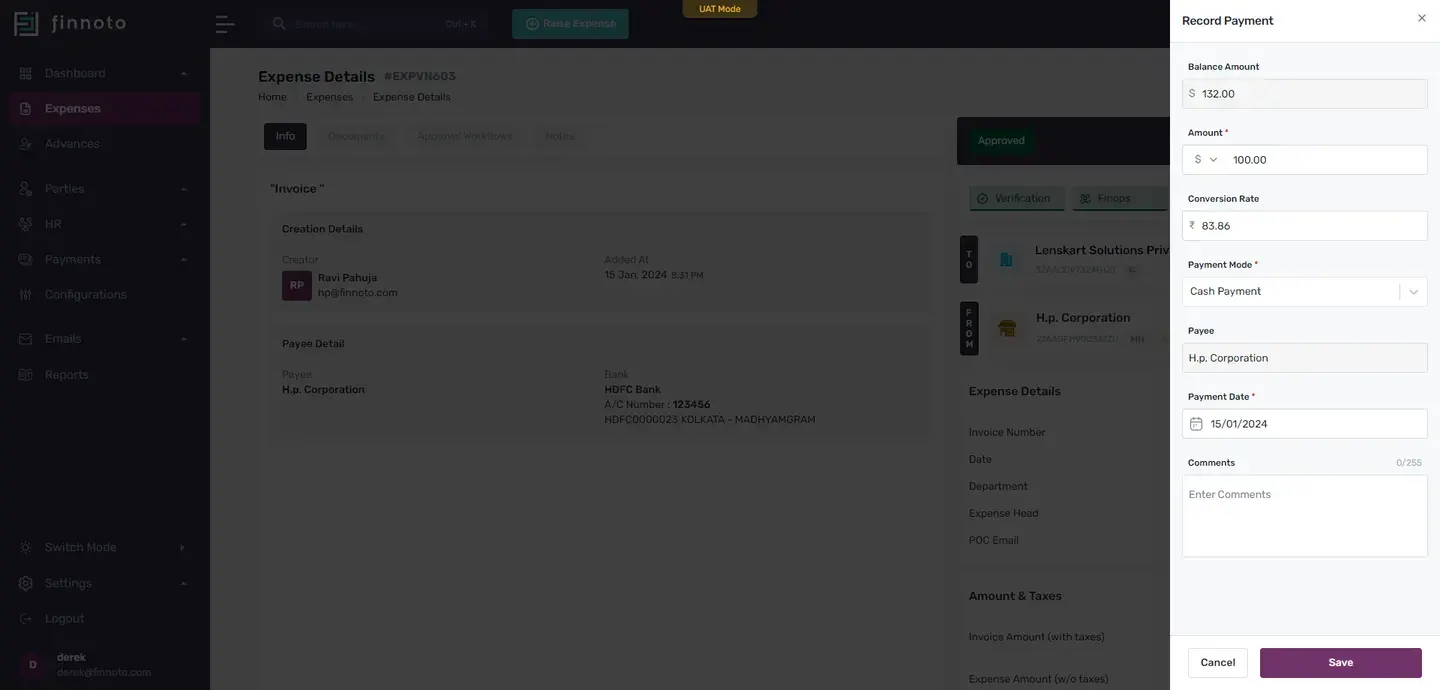
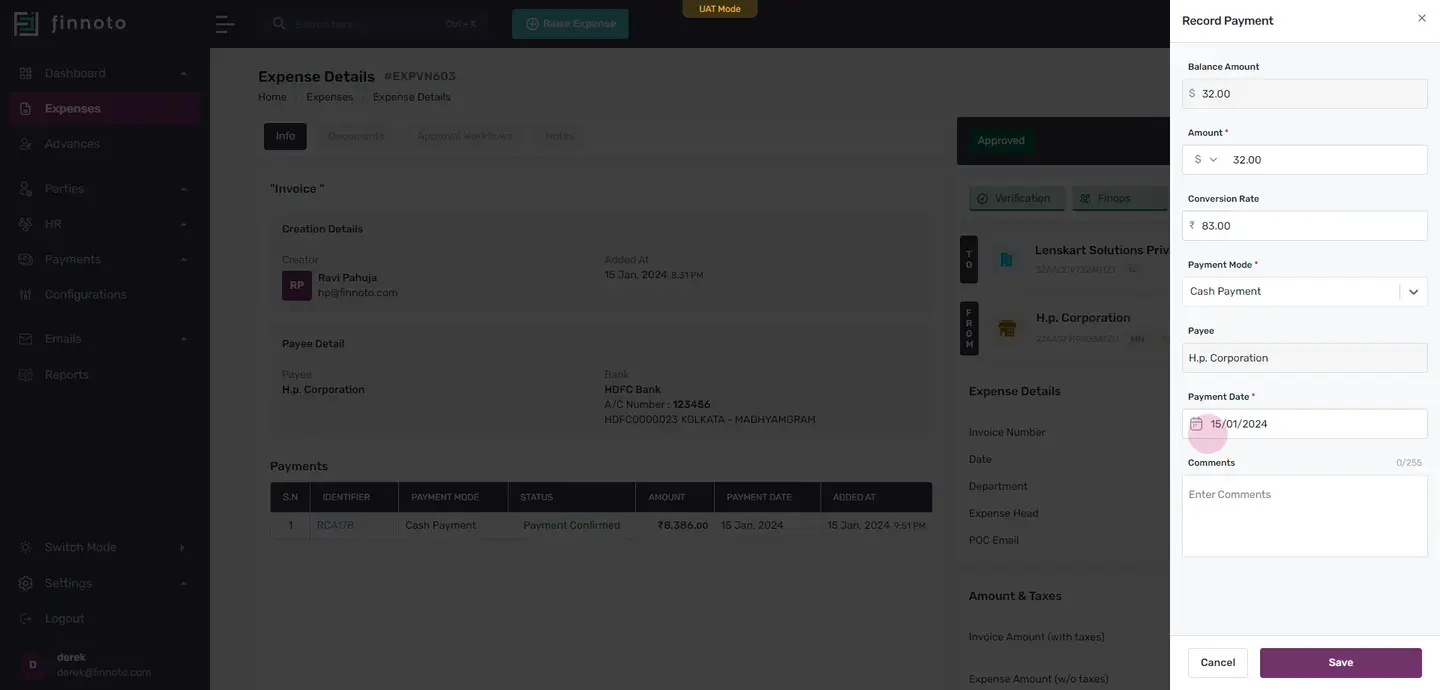
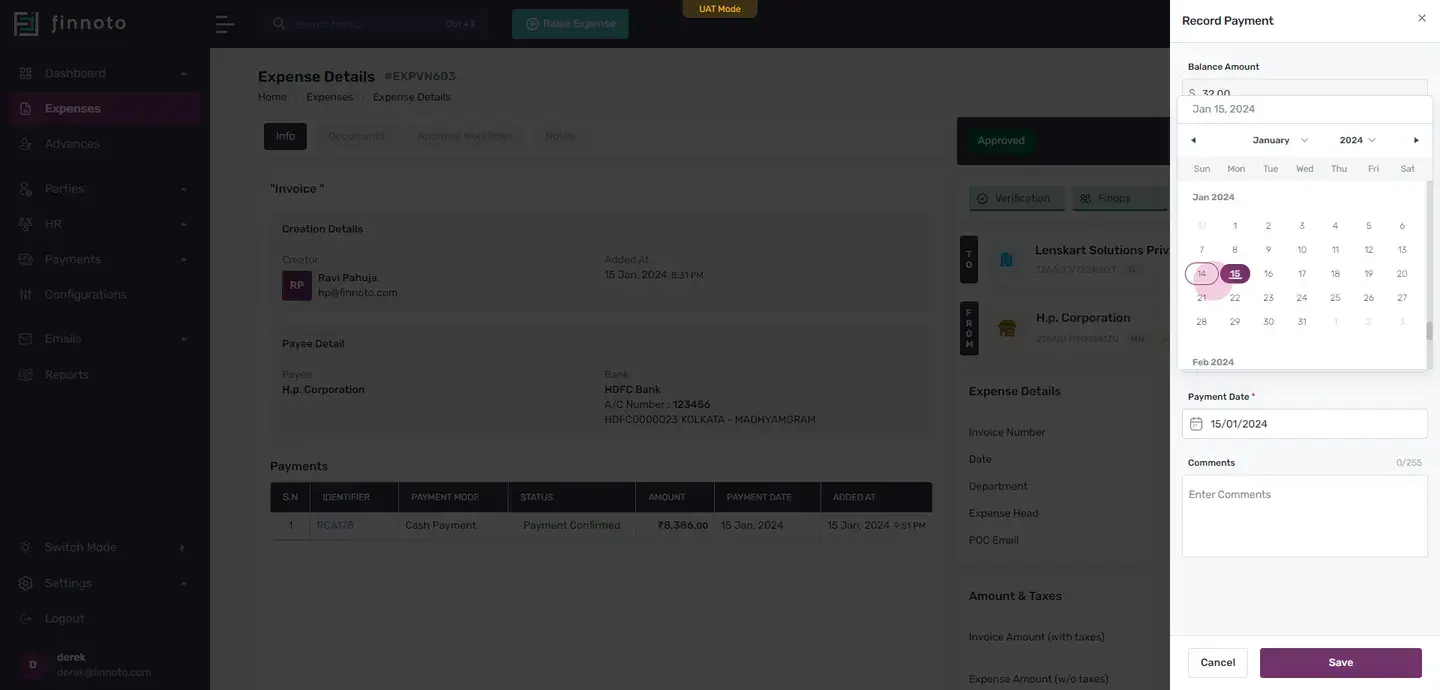
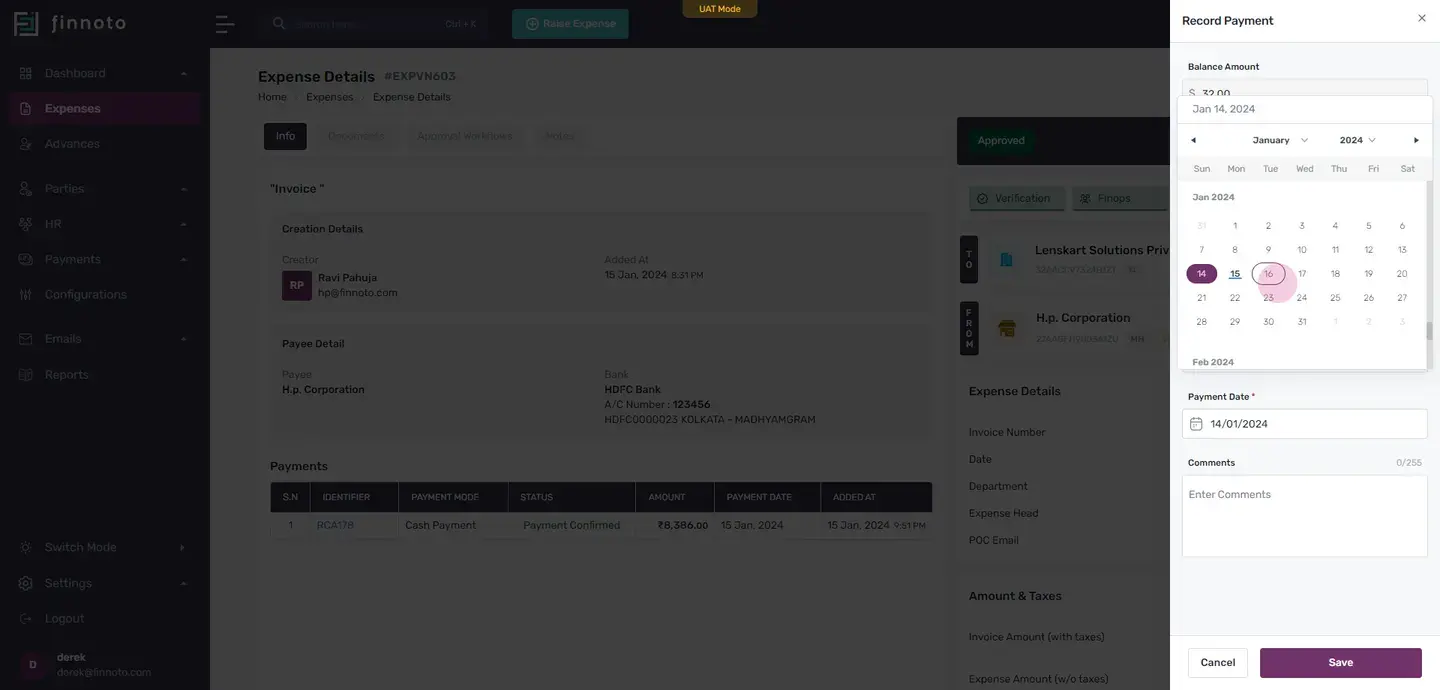
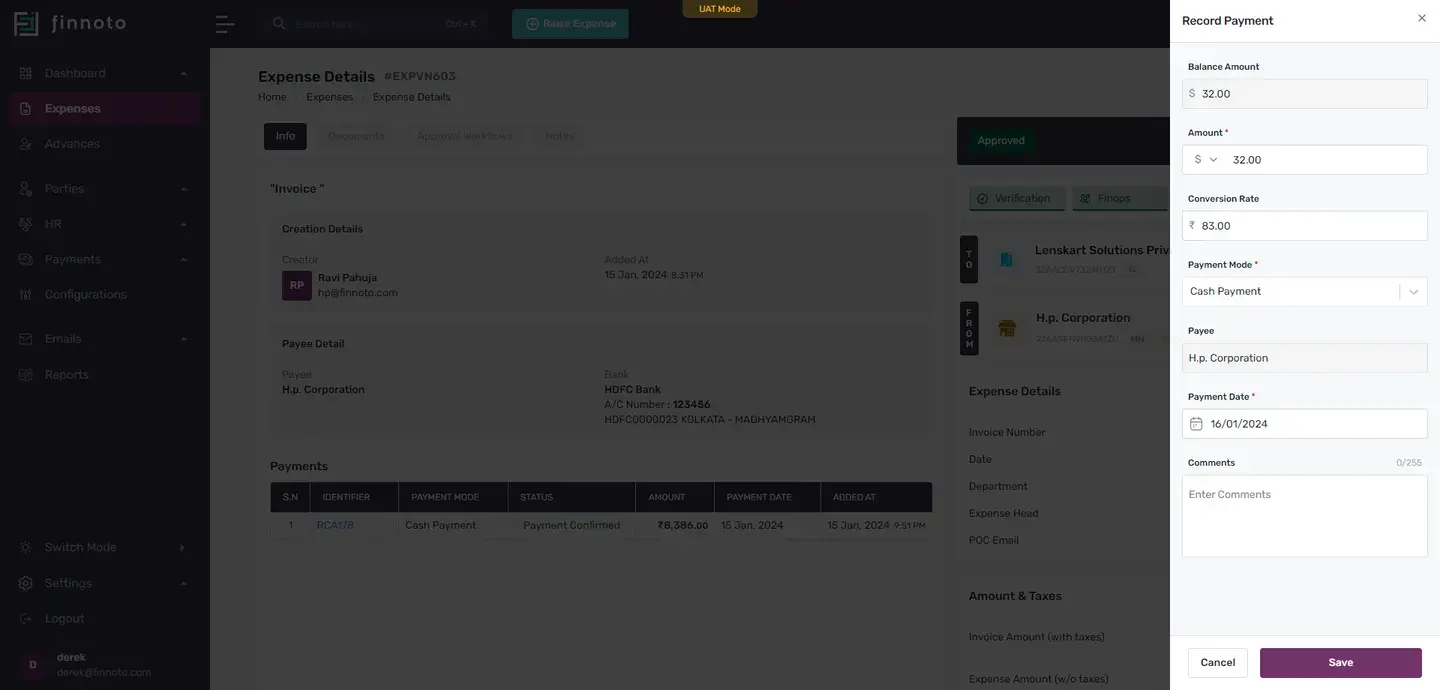
The balance amount will automatically convert to the chosen currency and display the conversion rate for that day. If you want to edit the amount, feel free to do so. After that, select your desired payment mode. Enter the date when the payment is being recorded.
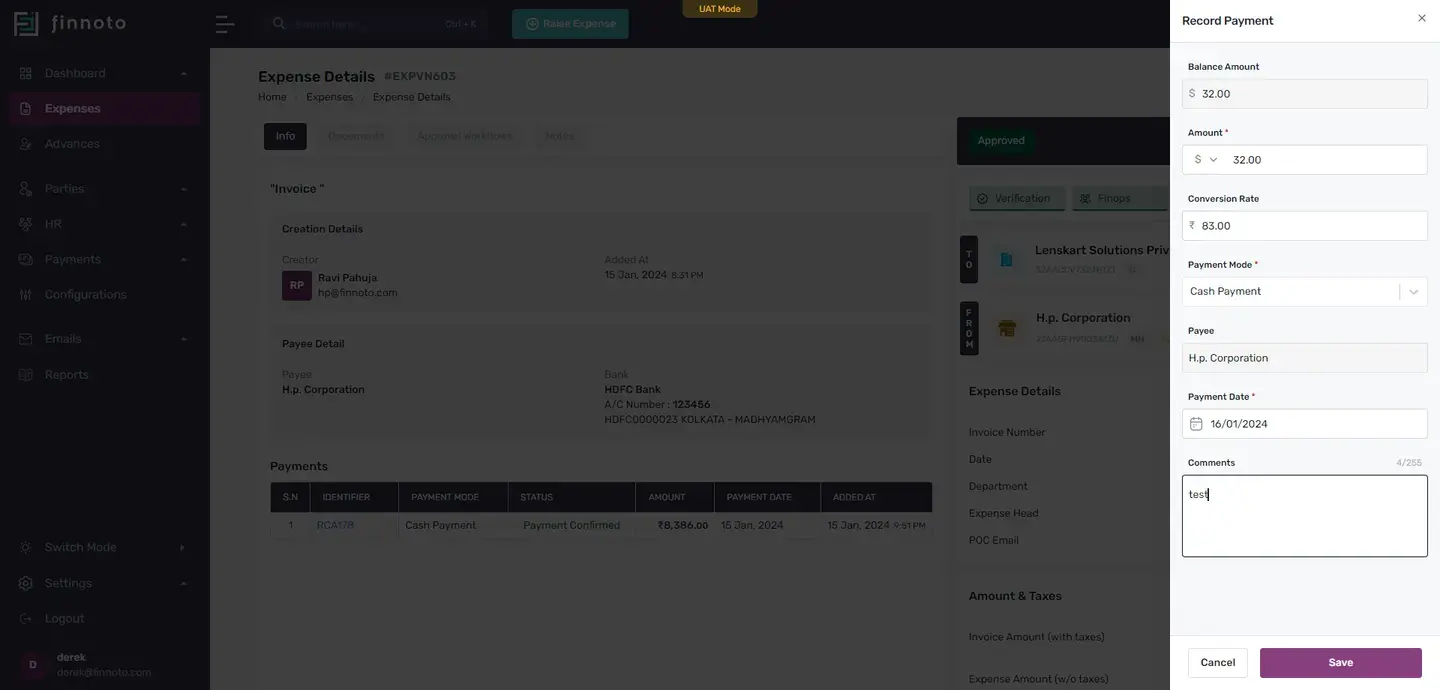
If necessary, you can add comments for future reference. Save it. Once saved, you will see the detail of this payment in the info card's payment section. In situations where conversion rate changes when you're recording the payment in international currency, don't worry.
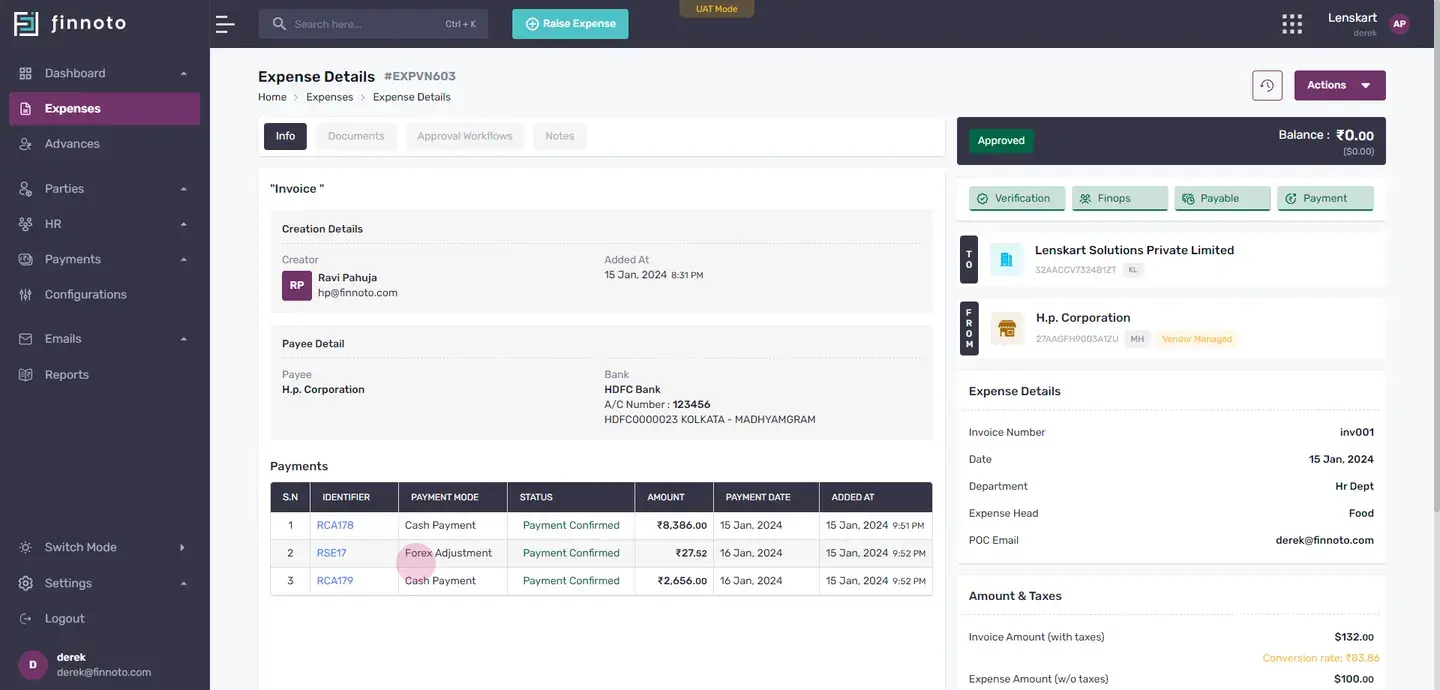
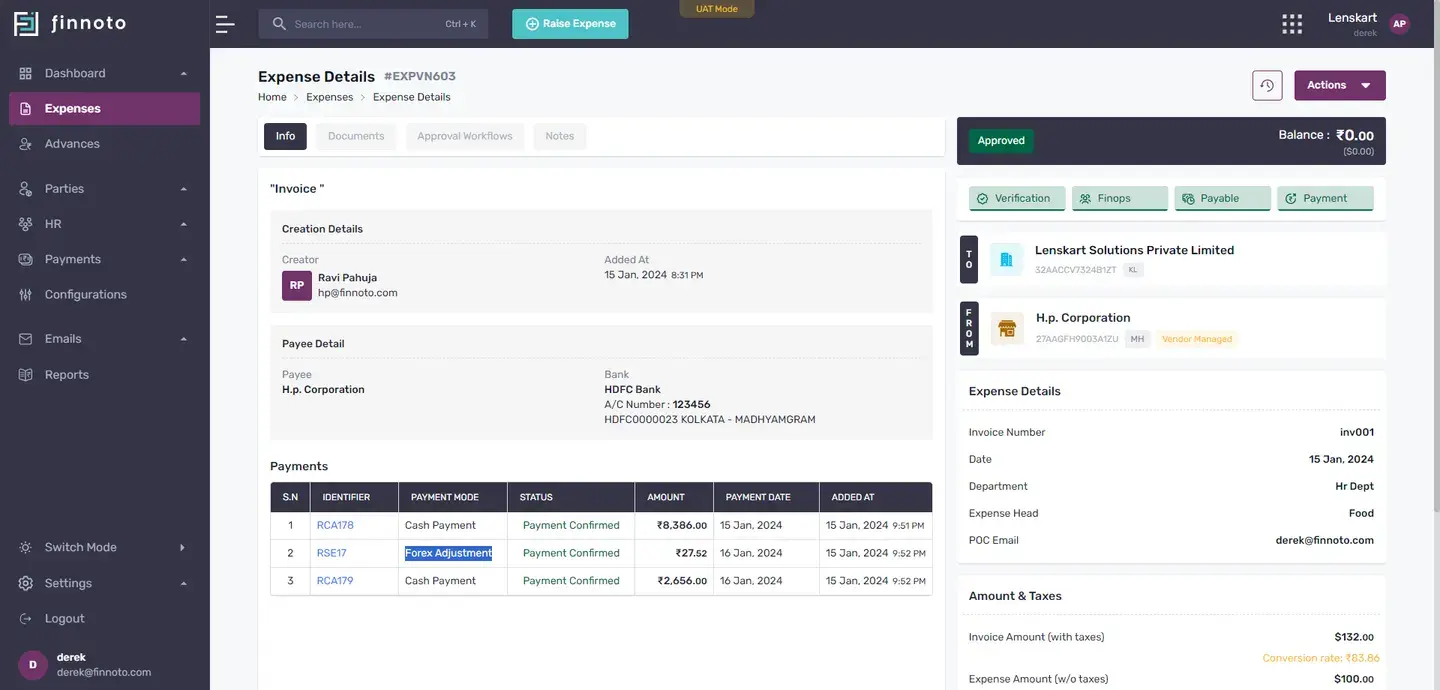
With Finnoto, you can adjust the conversion rate. After selecting your payment mode and entering the date, hit save. The new currency rate adjustment will appear in the payment line, under the forex adjustment. And that's all there is to recording a payment in an international currency on Finnoto.
" Thank you for watching this video.
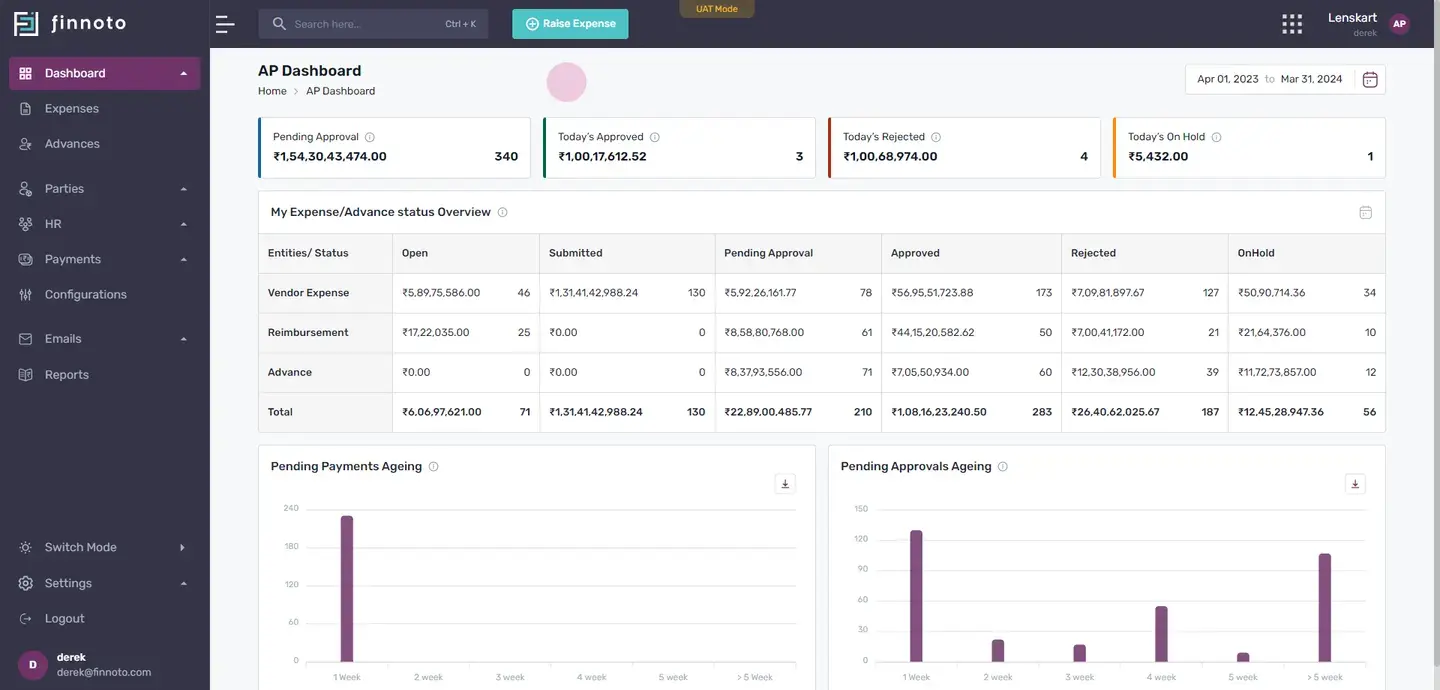
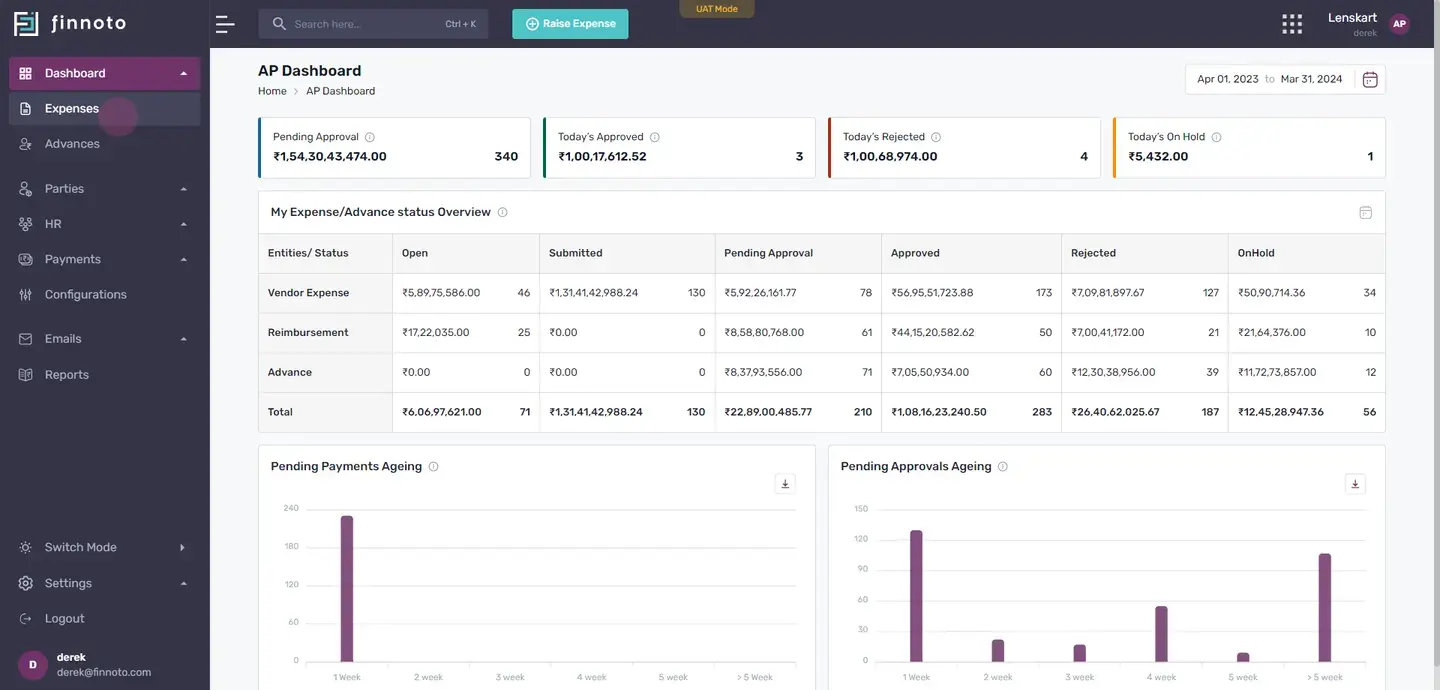
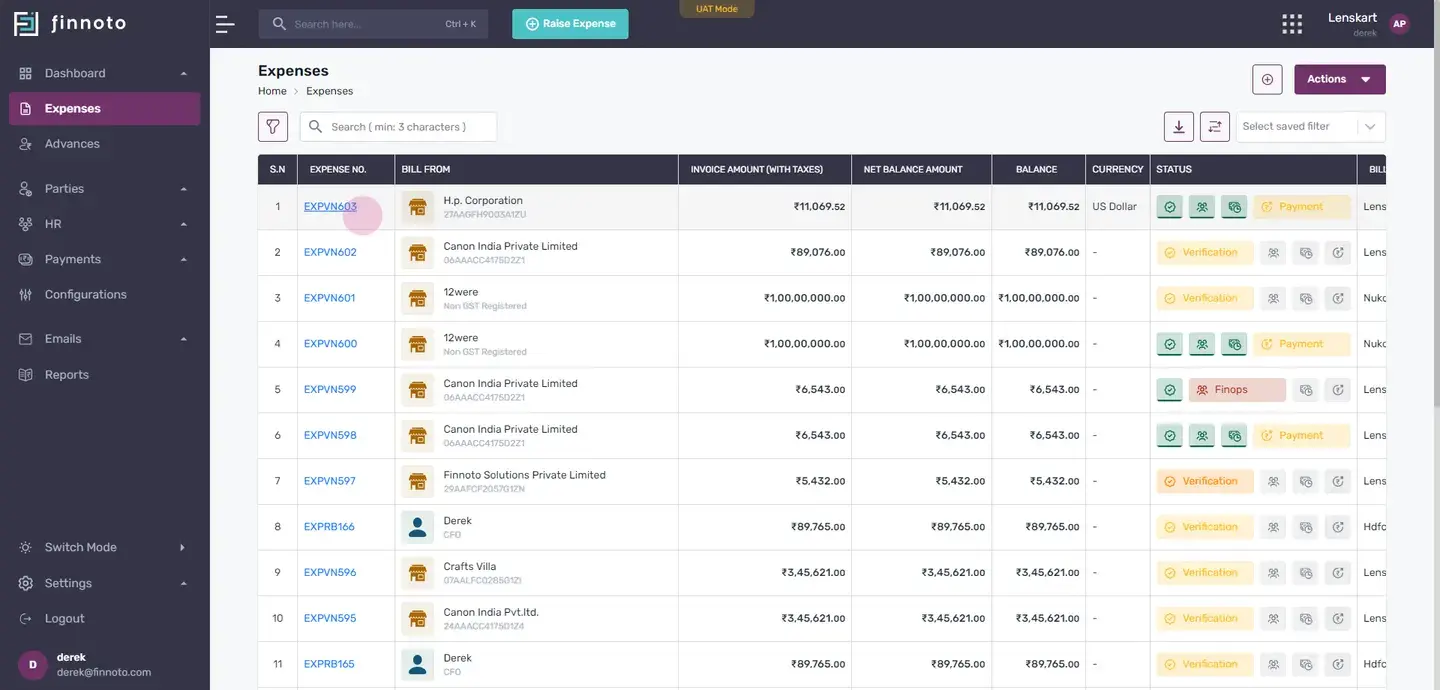
Select the expense in which you want to pay it through international currency.
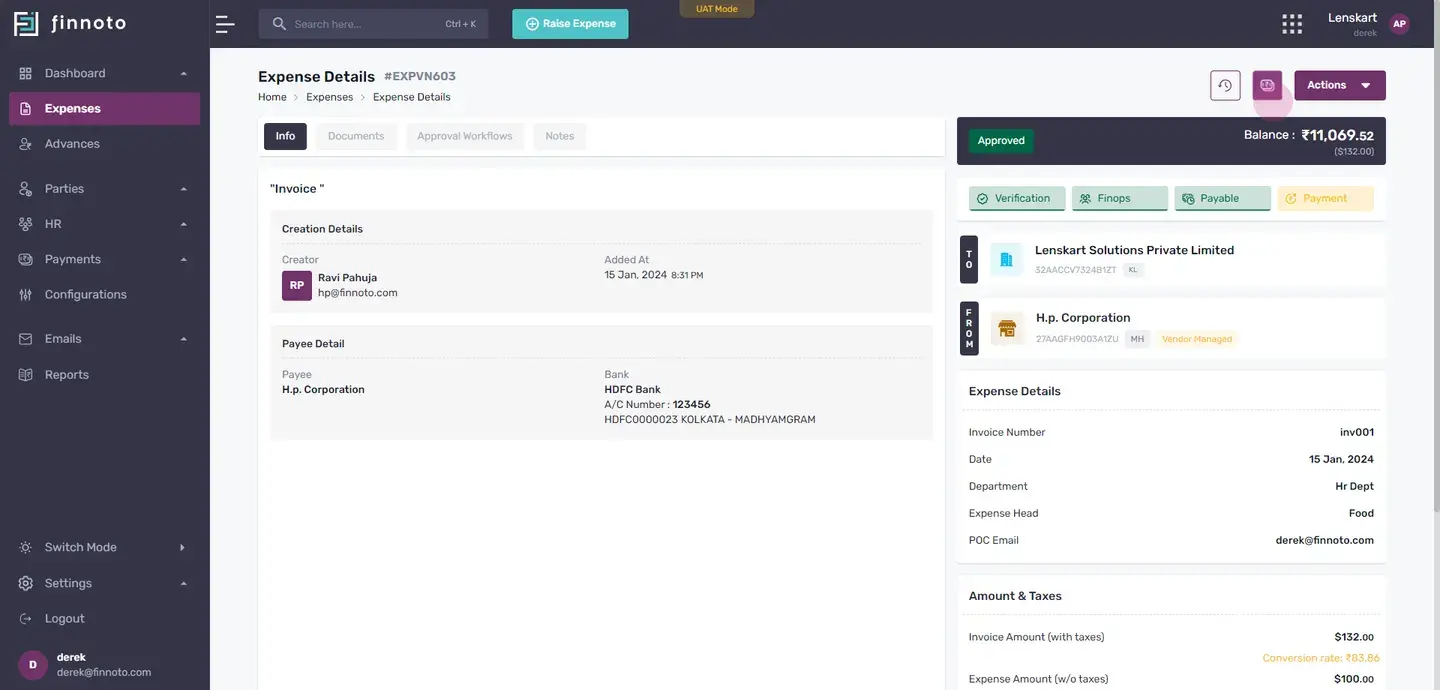
Here, in the record payment form, in the currency drop down.
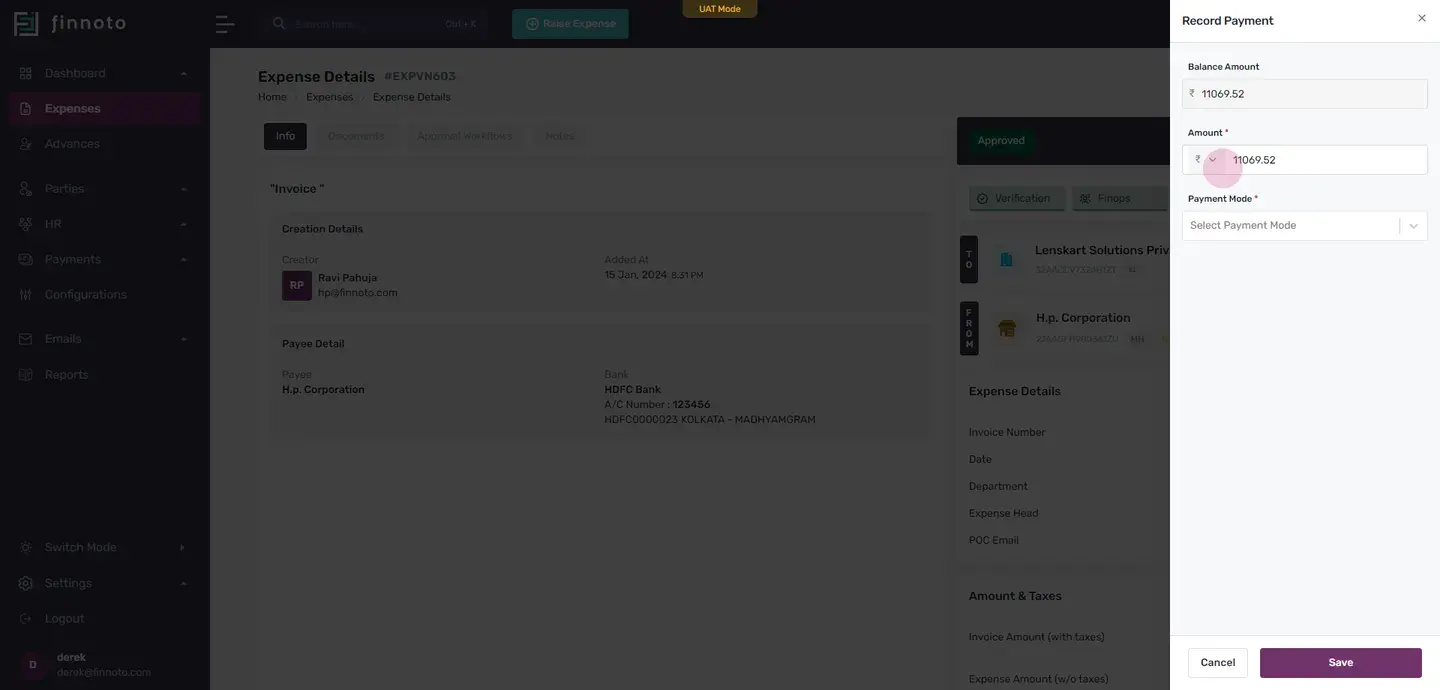
You will be able to find the currency in which this invoice was created. So if you want to make a payment with this international currency, select that currency.
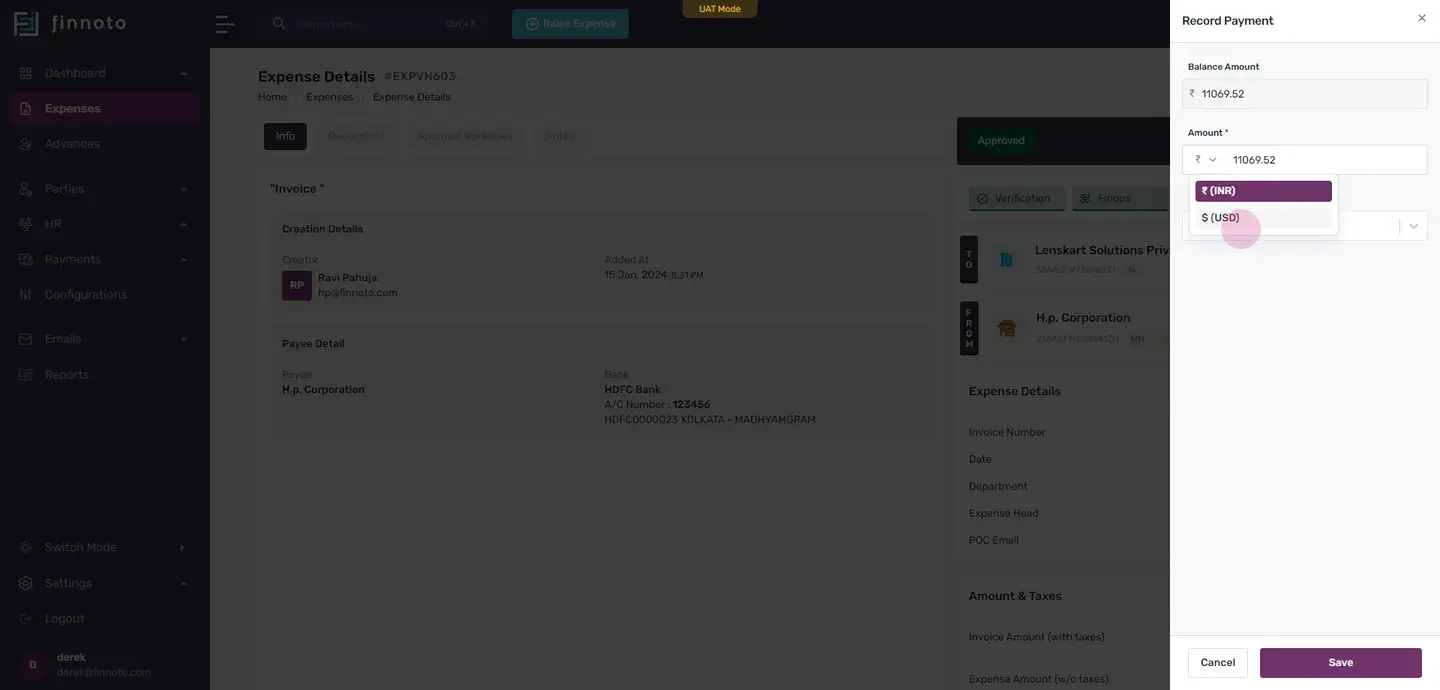
The balance amount is also converted to that particular currency
The amount is here. You can see the conversion rate of that particular date is also coming. If you in case you want to edit the amount.
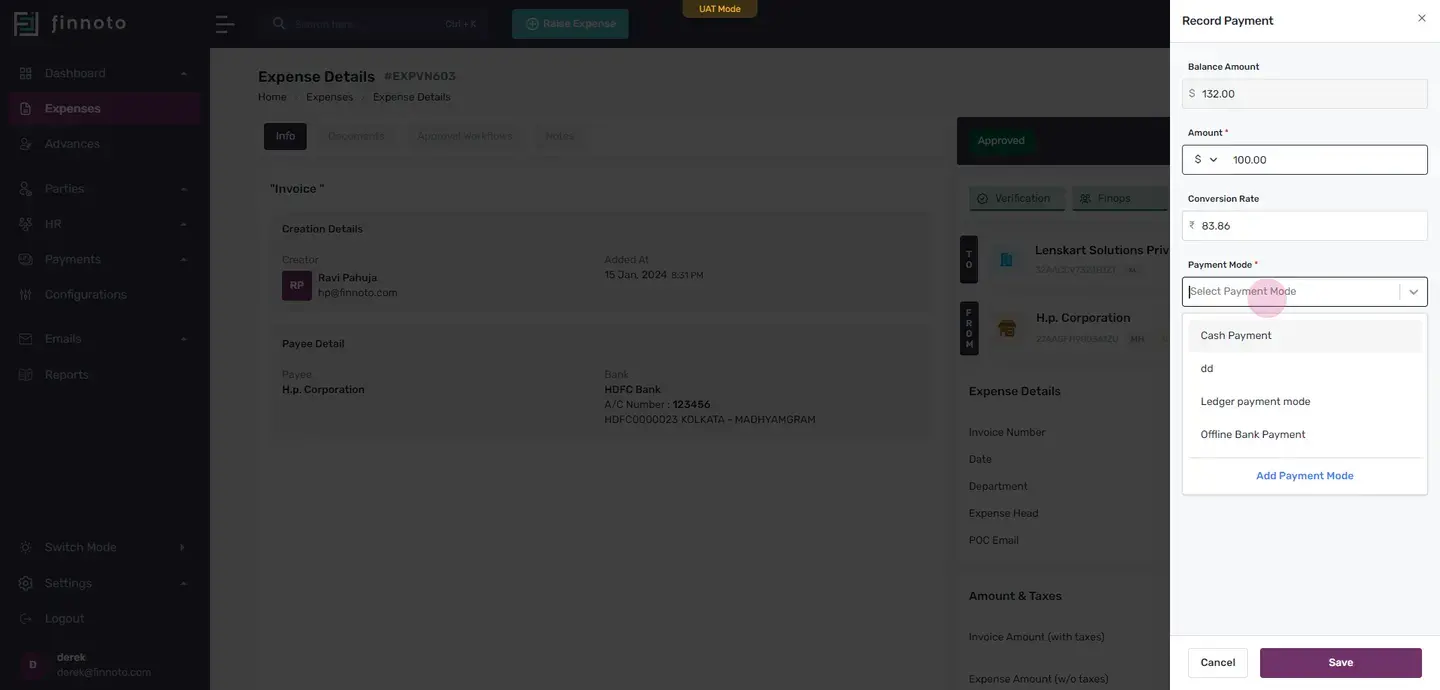
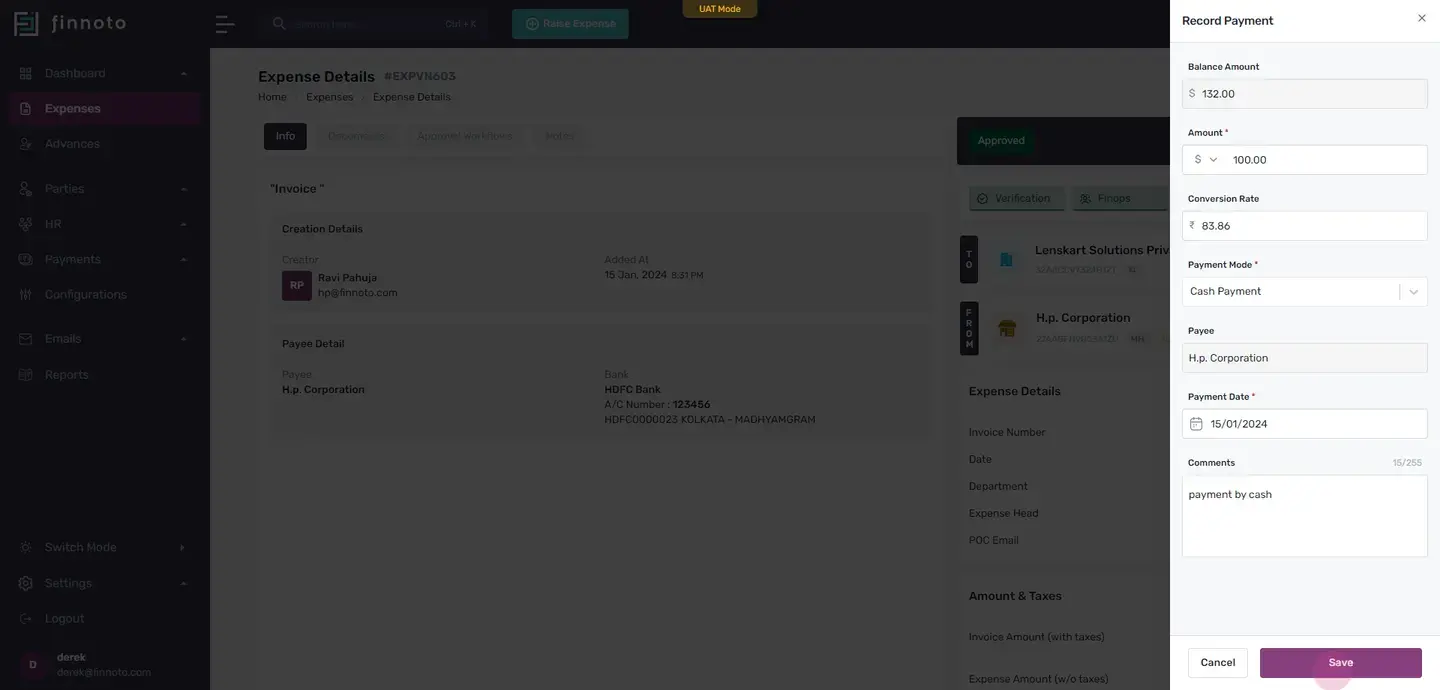
Once this is saved, you will be able to see that in the pay info card that it is paid. You can see the balance amount is reflecting over here.
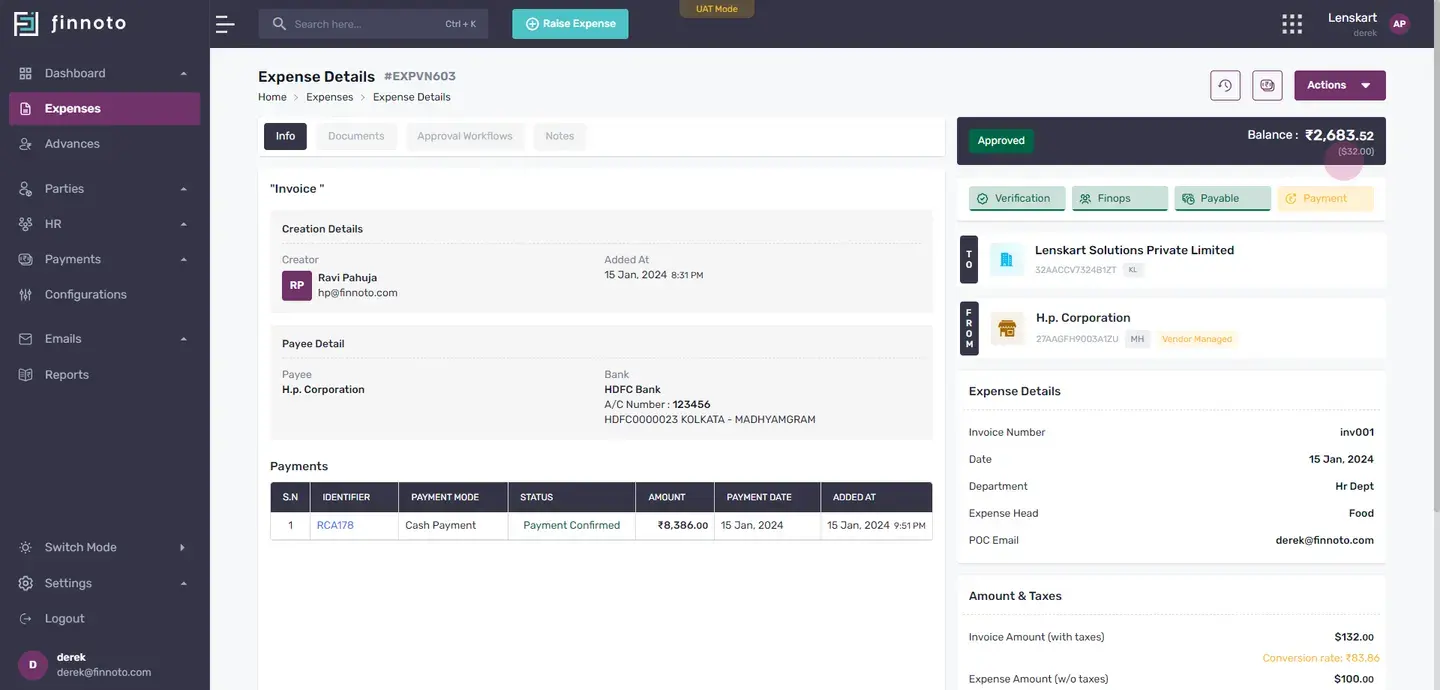
In case, if you are recording the payment in international currency and there is a change in the conversion rate, TIN, you you have the option that you can change that conversion rate.
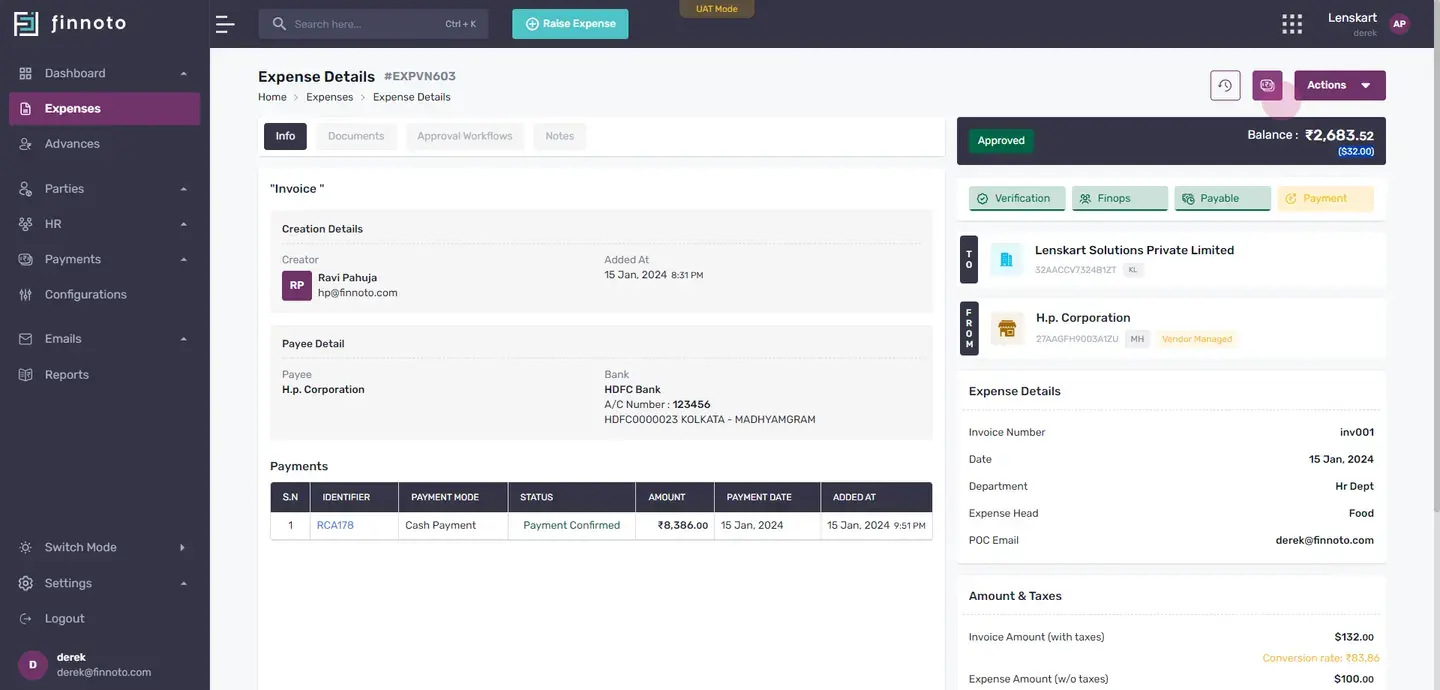
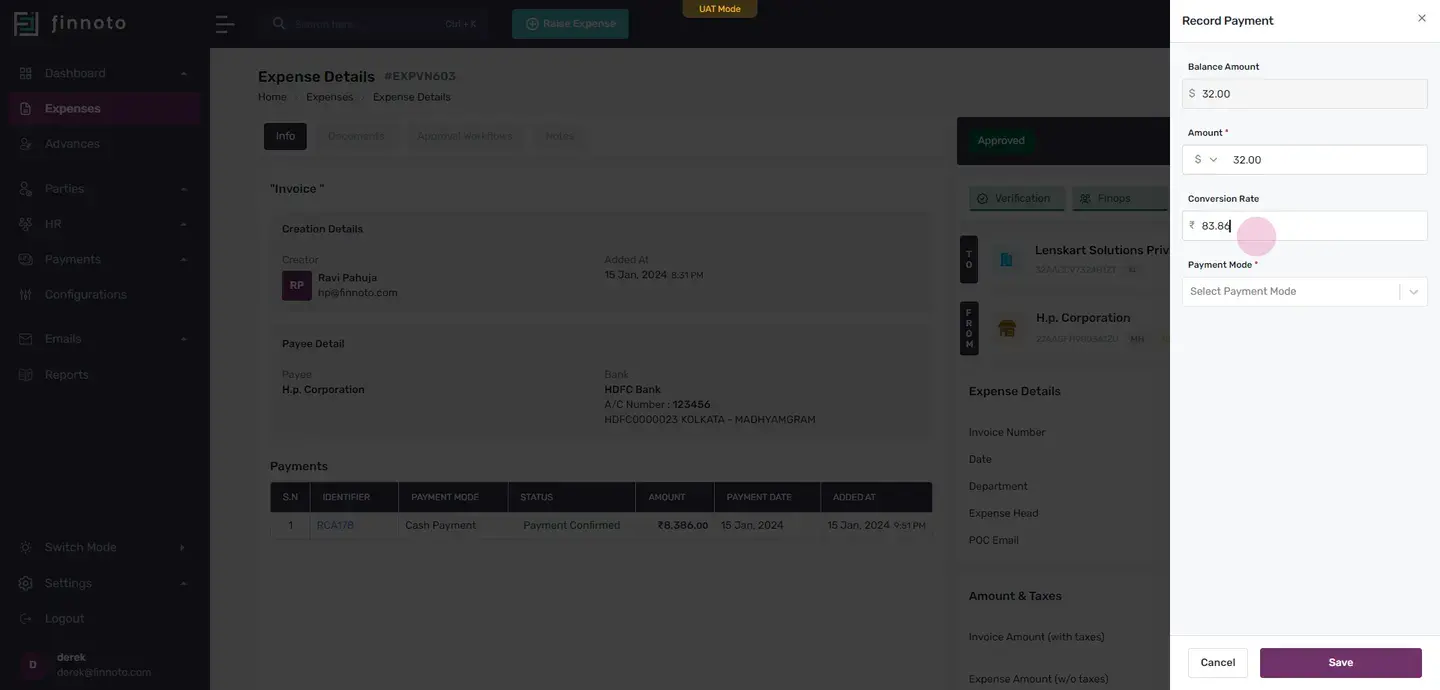
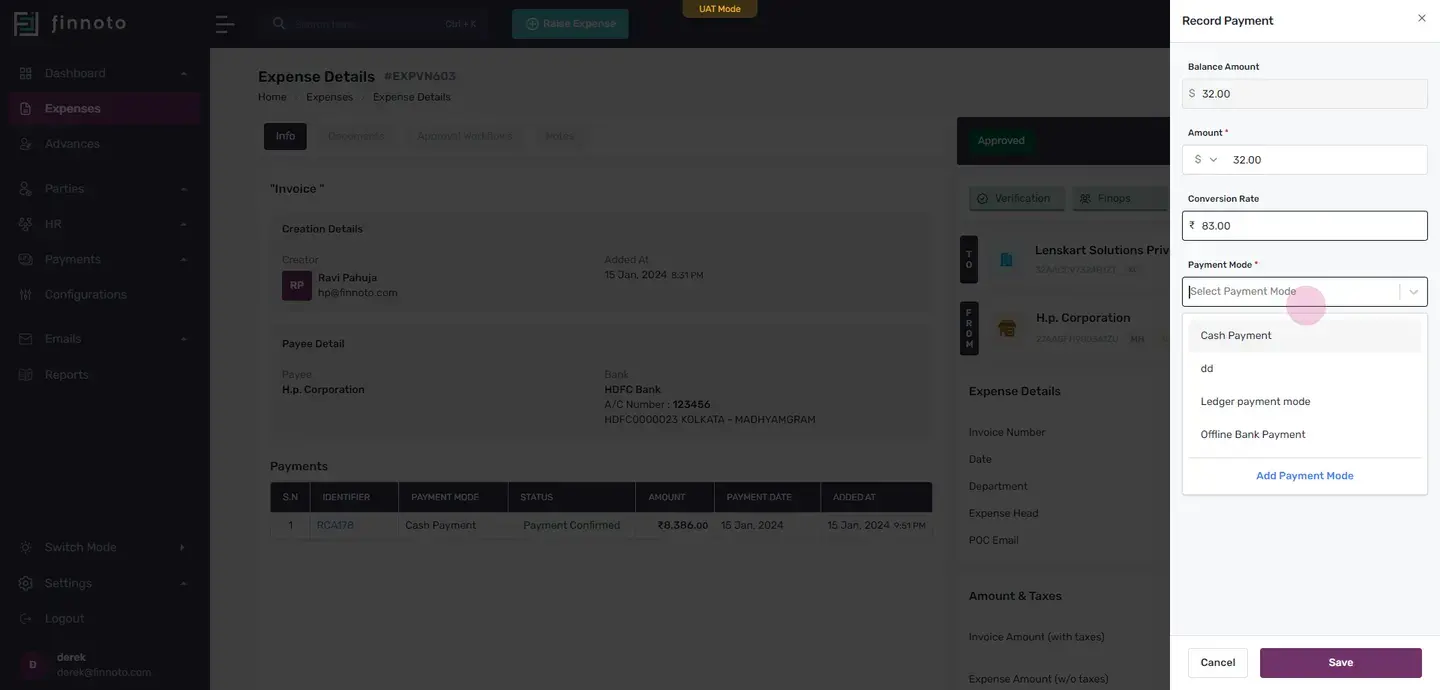
Select the payment mode, enter or select the date, and save it.
Here, you can see in the payment line that the the currency rate that you have changed is adjusted in the forex adjustment.
So this is how you can record payment in international currency on Finnoto with an ease.