Finnoto Chrome extension
Capture invoices and receipts from any web page or email and send them straight into Finnoto.
Last updated on
Transcript
Hello, everyone. In this video, we will introduce you to phinnoto's revolutionary expense management through seamless Gmail integration. Phinoto aims to streamline the expense management process by leveraging the power of emails, making the experience user-friendly and effortless. With this Chrome extension, you can manage expenses and reimbursements directly from Gmail anytime, anywhere.
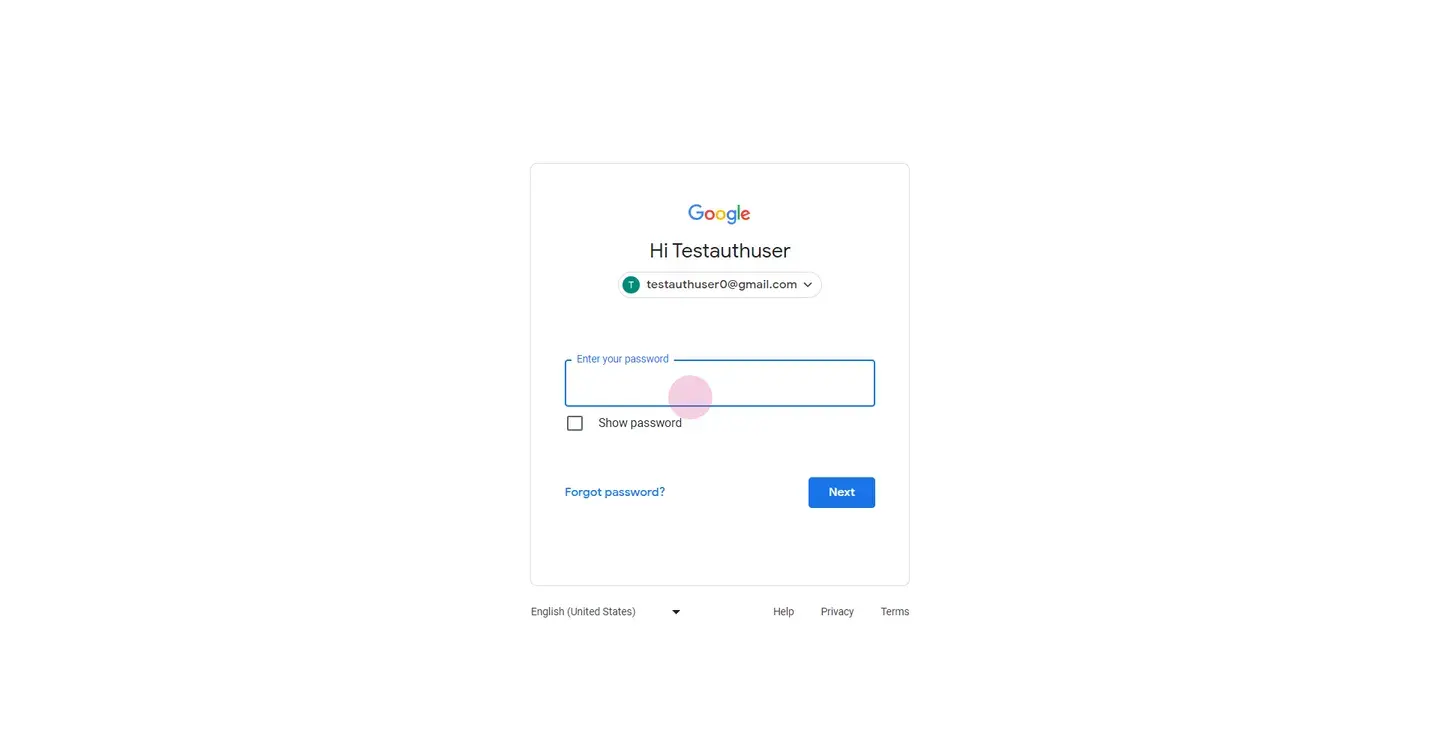
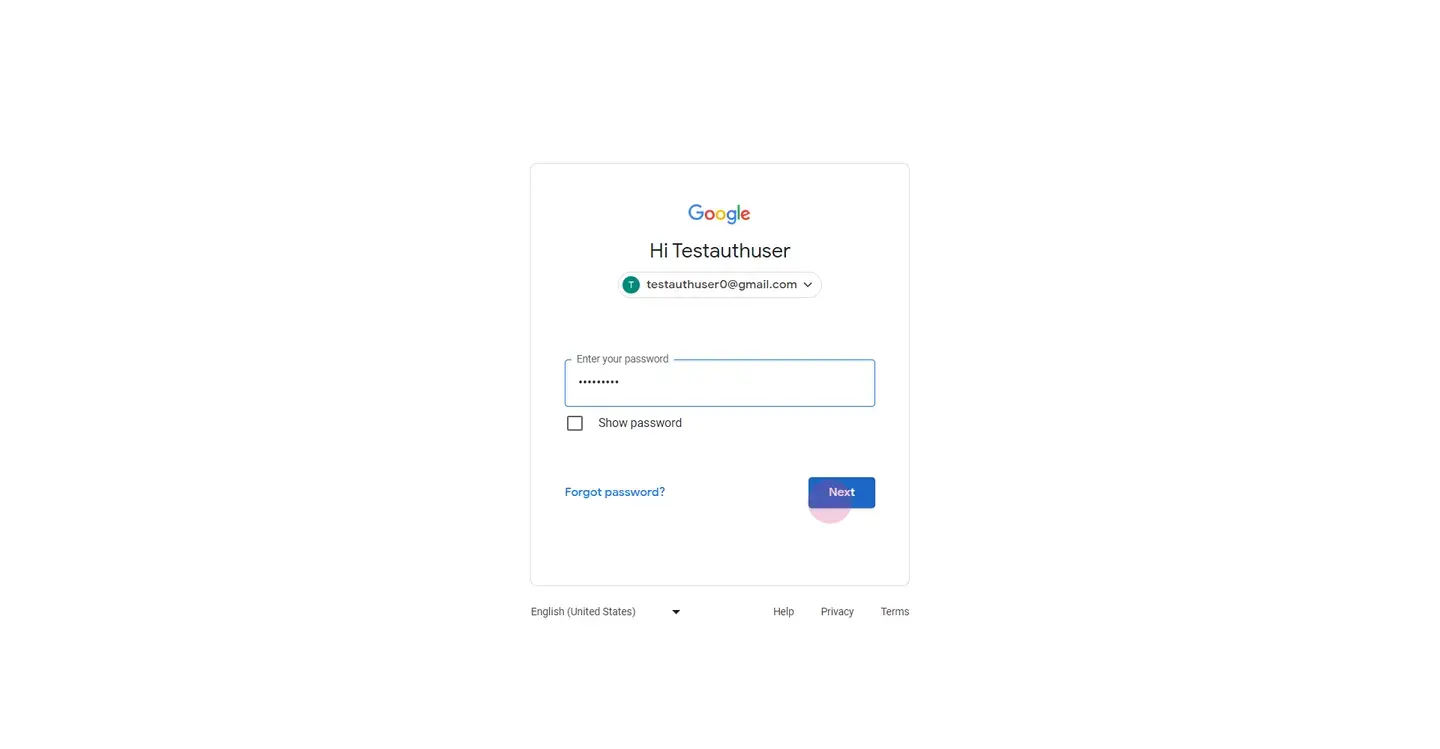
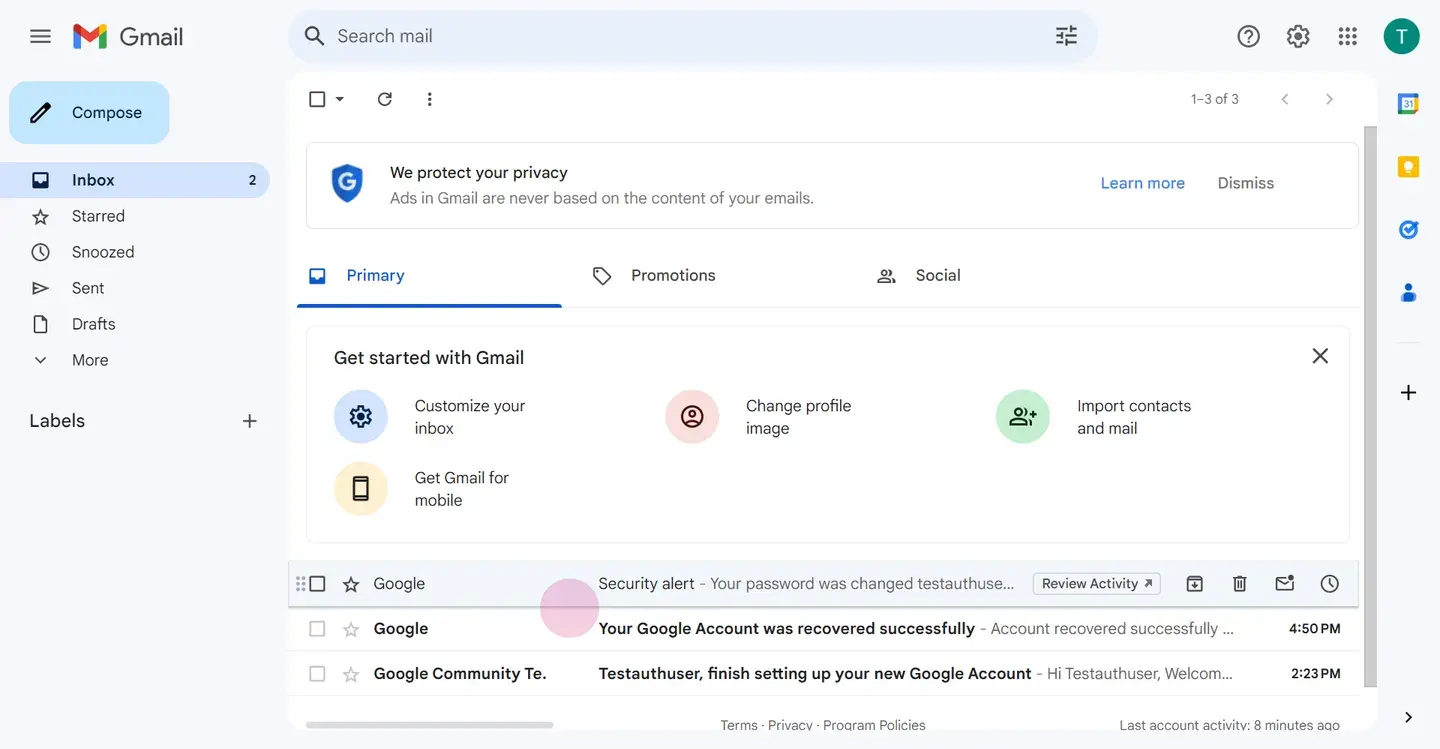
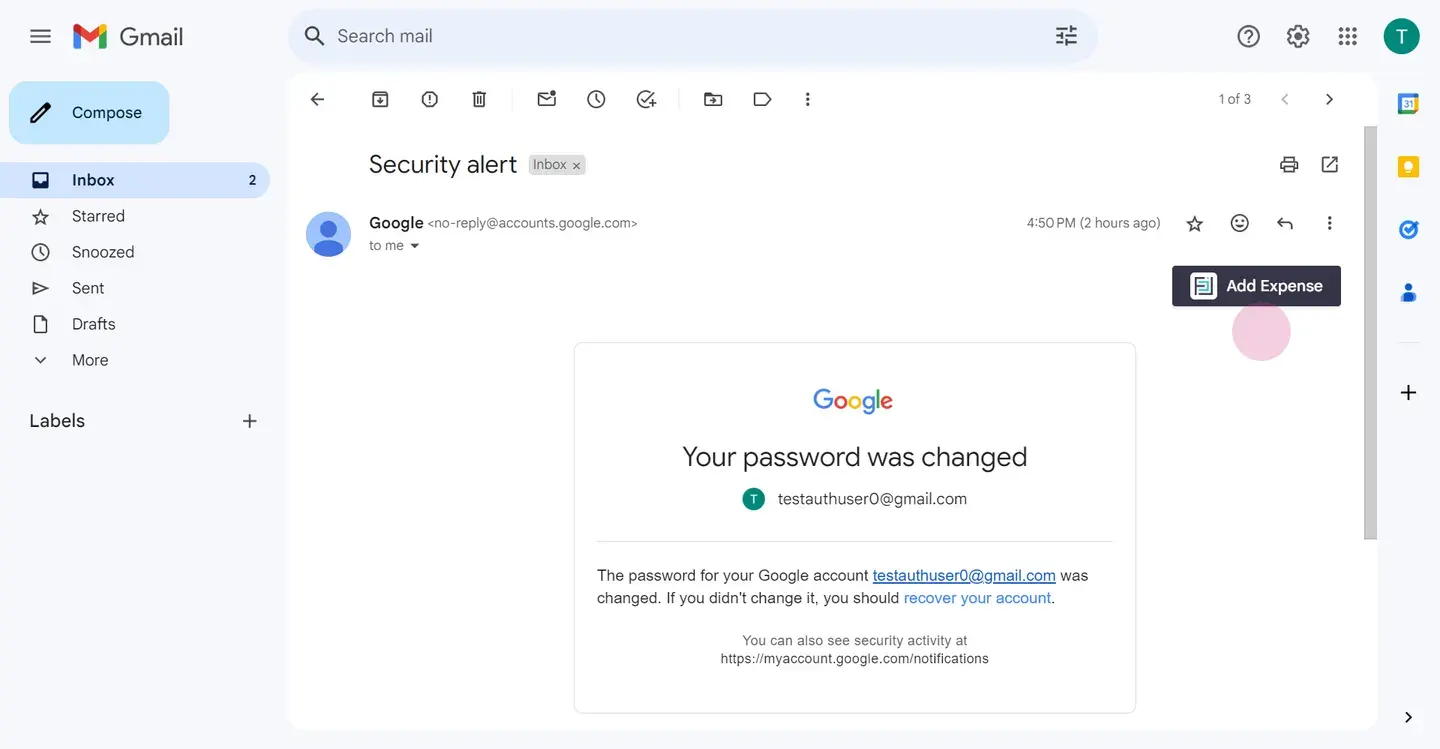
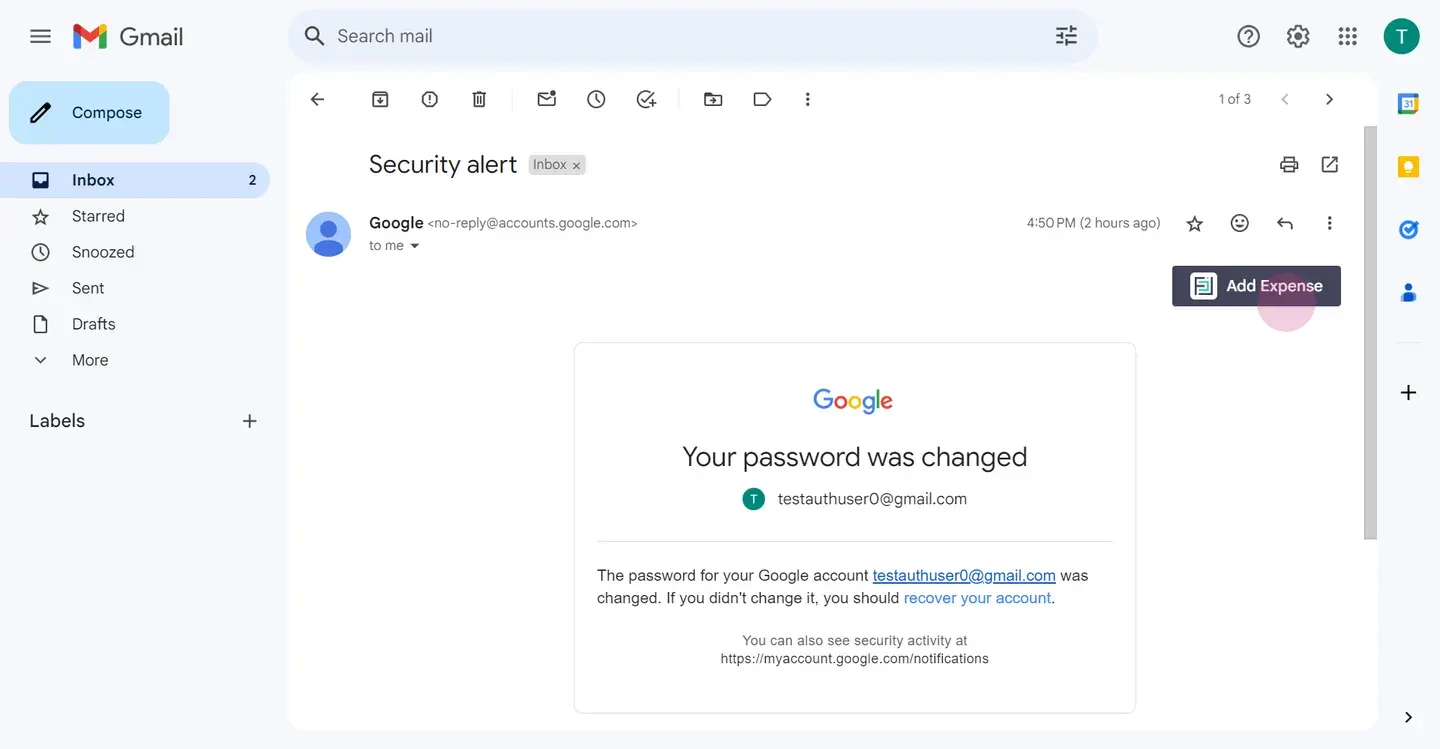
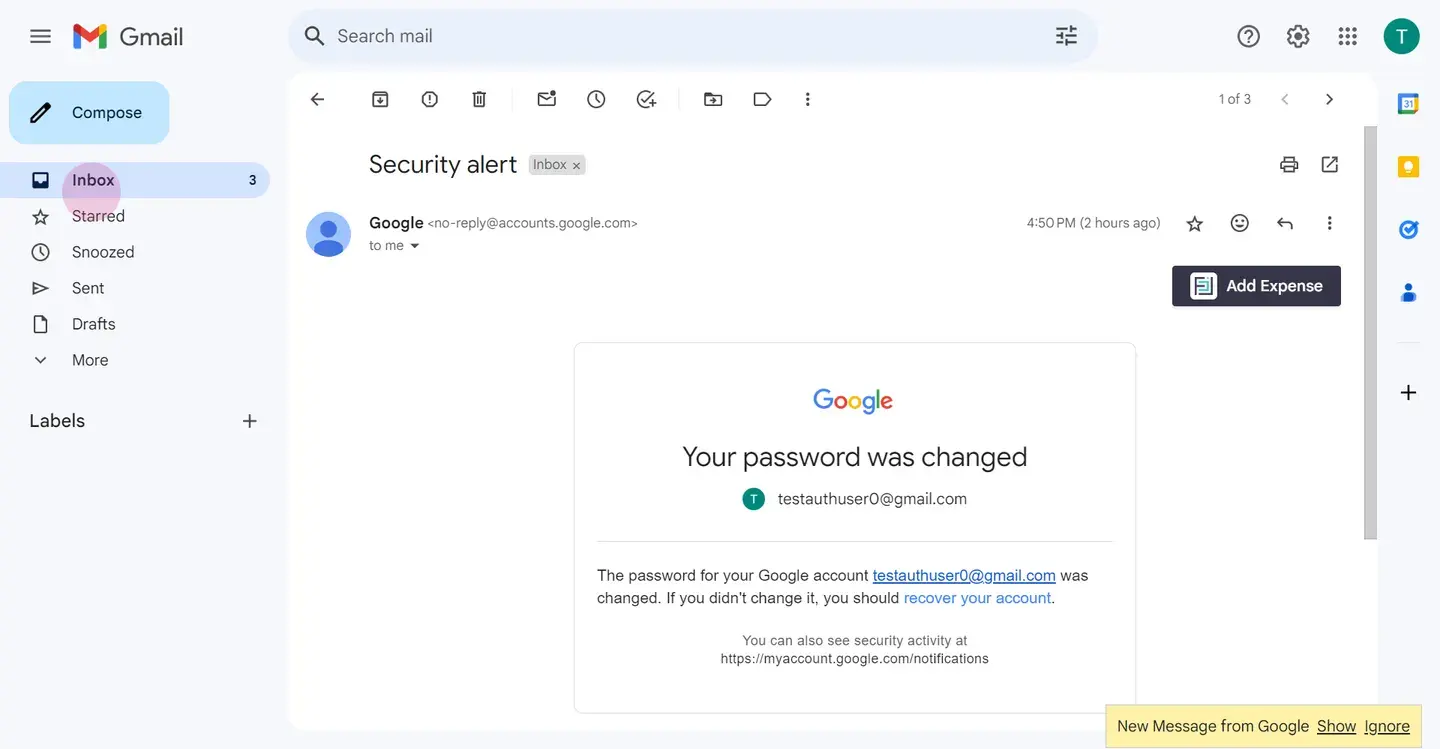
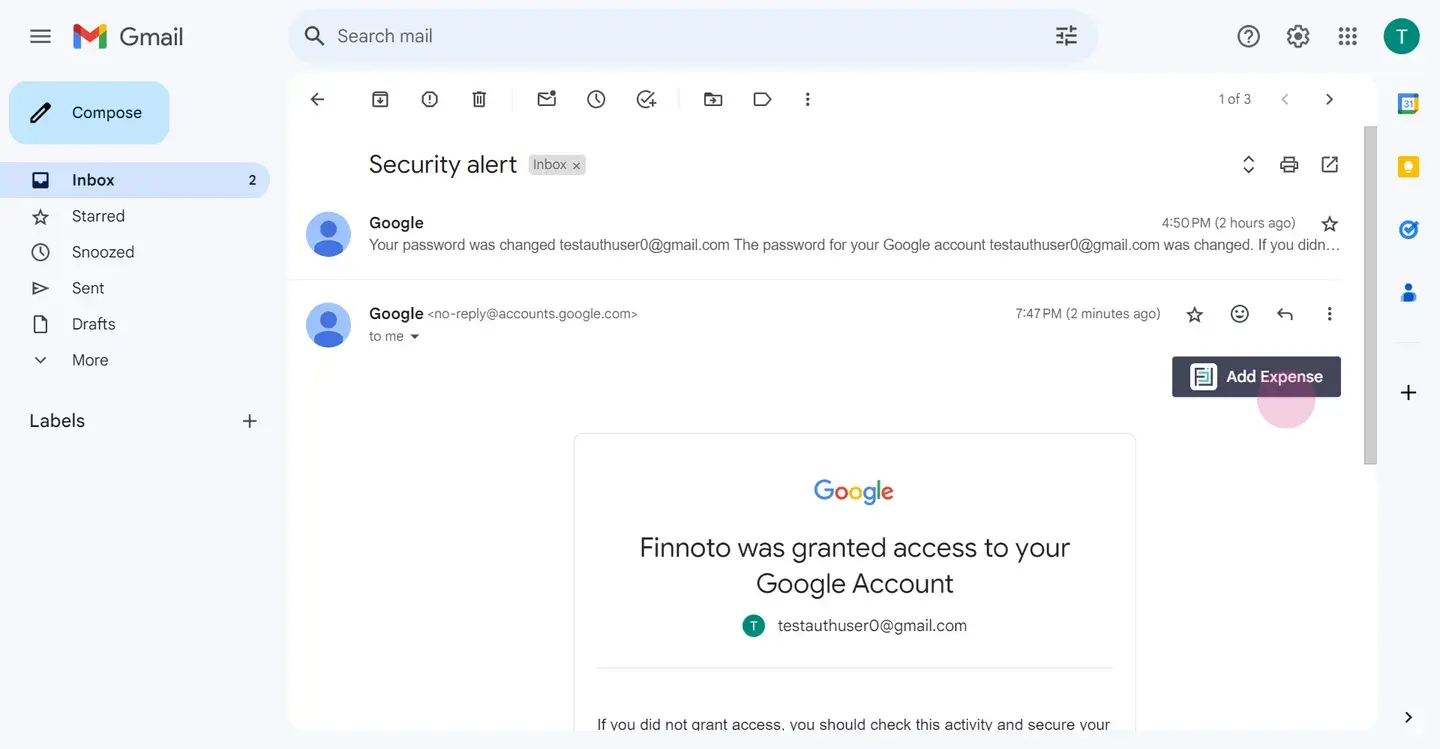
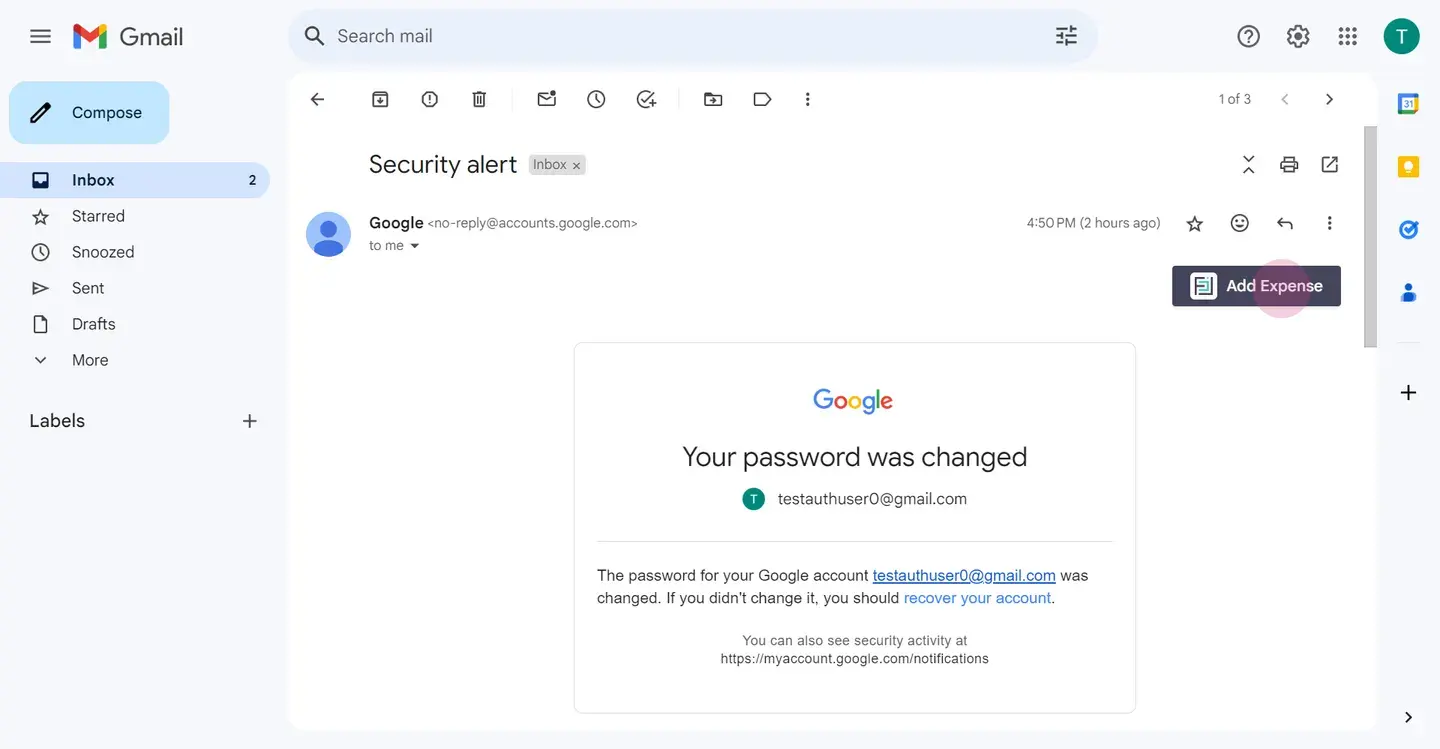
Let's dive into it. First, log in to your Gmail account. Open any email to begin. Upon opening the email, notice the add expense button located in the top right corner.
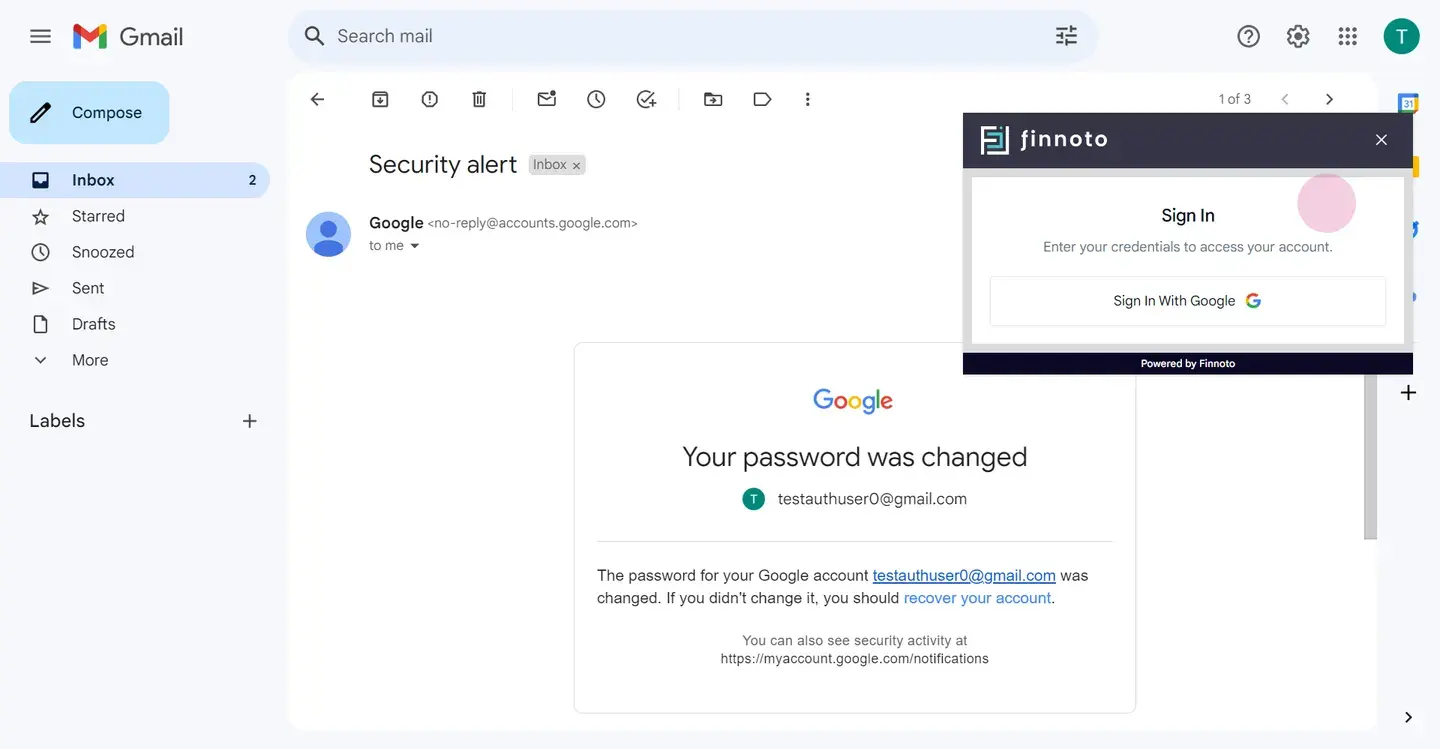
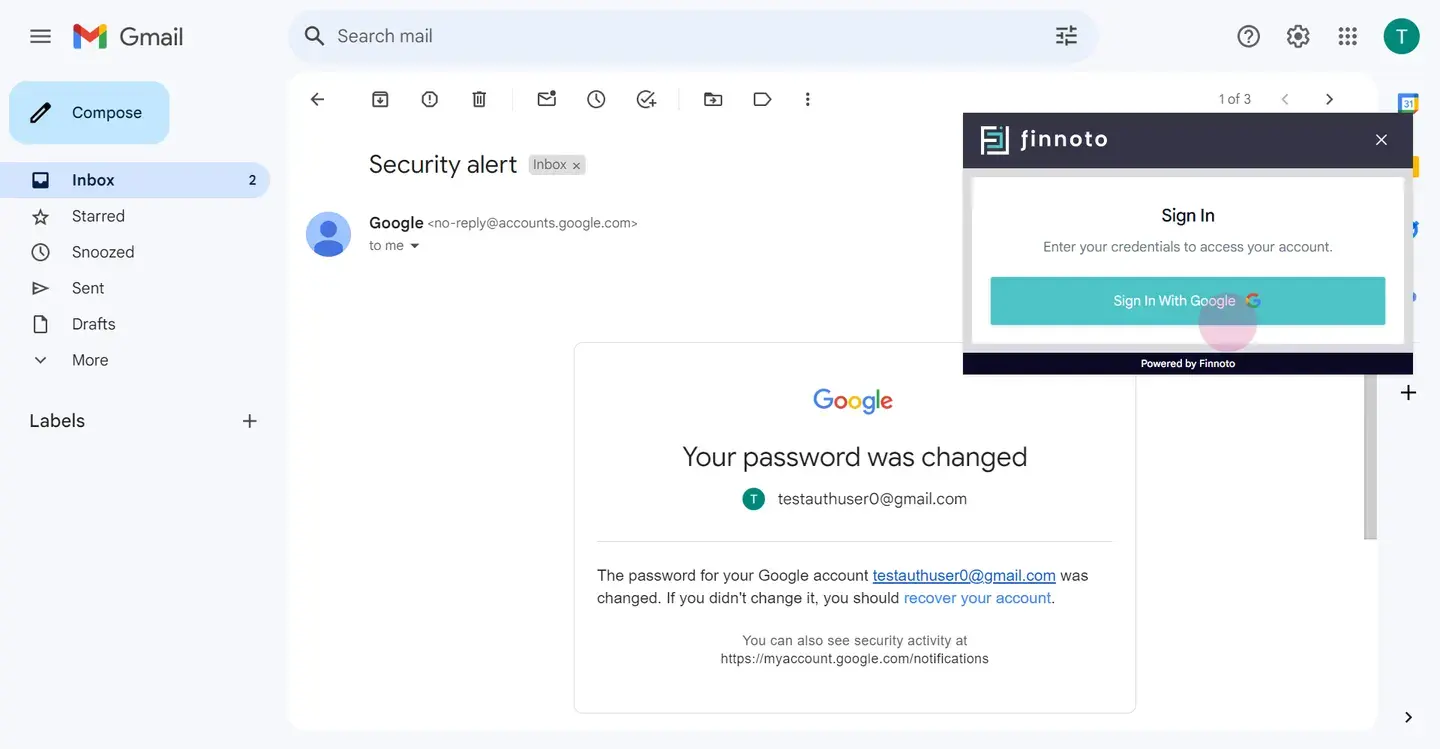
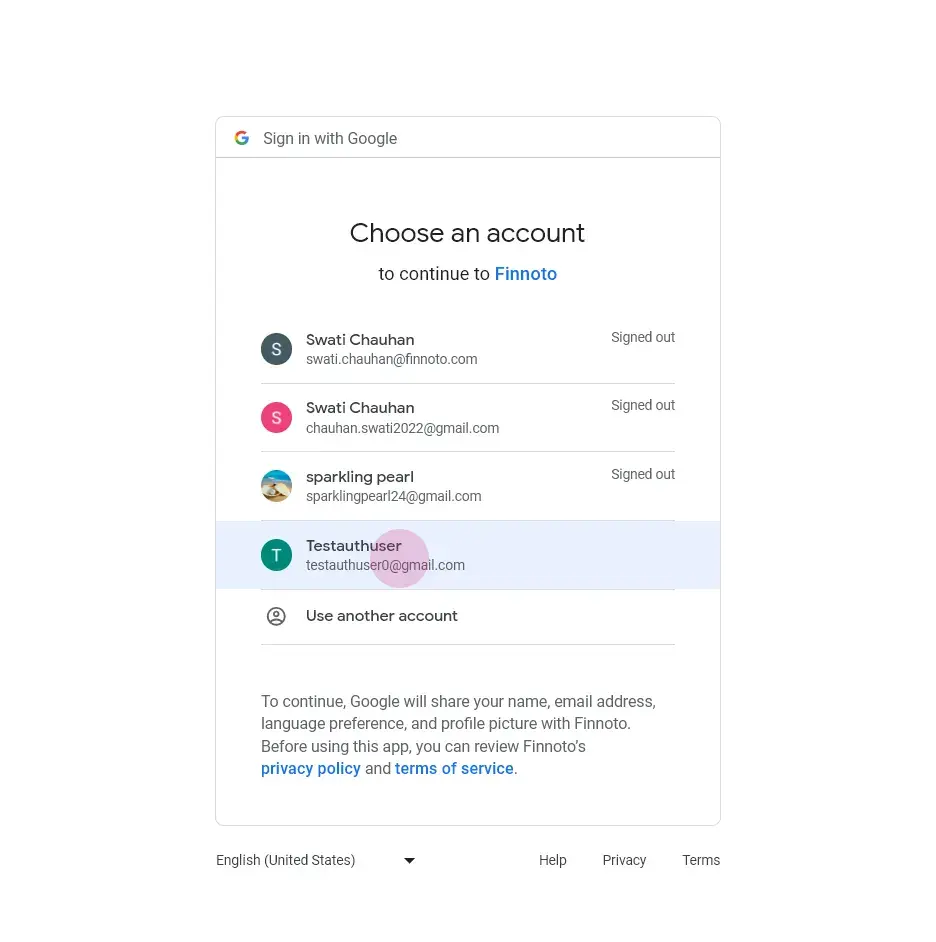
Click on it to proceed. A sign-in window will appear. Click on "Sign in with Google" to authenticate. Choose the Gmail account you wish to use with phinoto.
Please note, you might encounter a warning since our OAuth is not yet verified by Google. Here you can see the client ID that we are using. Now click on "Advance" and proceed to "Go to phinoto. " You will be directed to the sign-in page.
Click on continue. Grant phinoto the necessary permissions, which includes viewing your email messages and settings. This is crucial for phinoto to provide comprehensive expense management within Gmail. Let's understand why phinoto requires this permission.
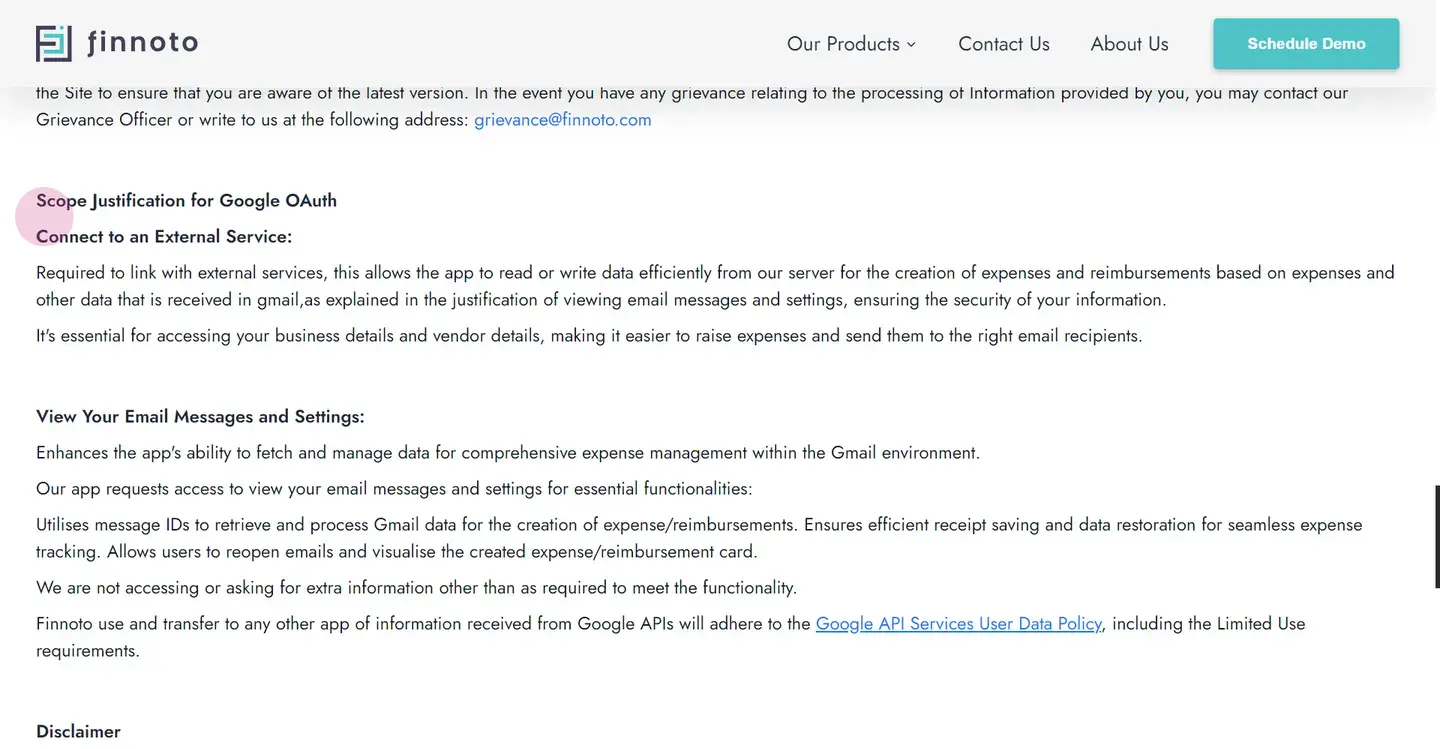
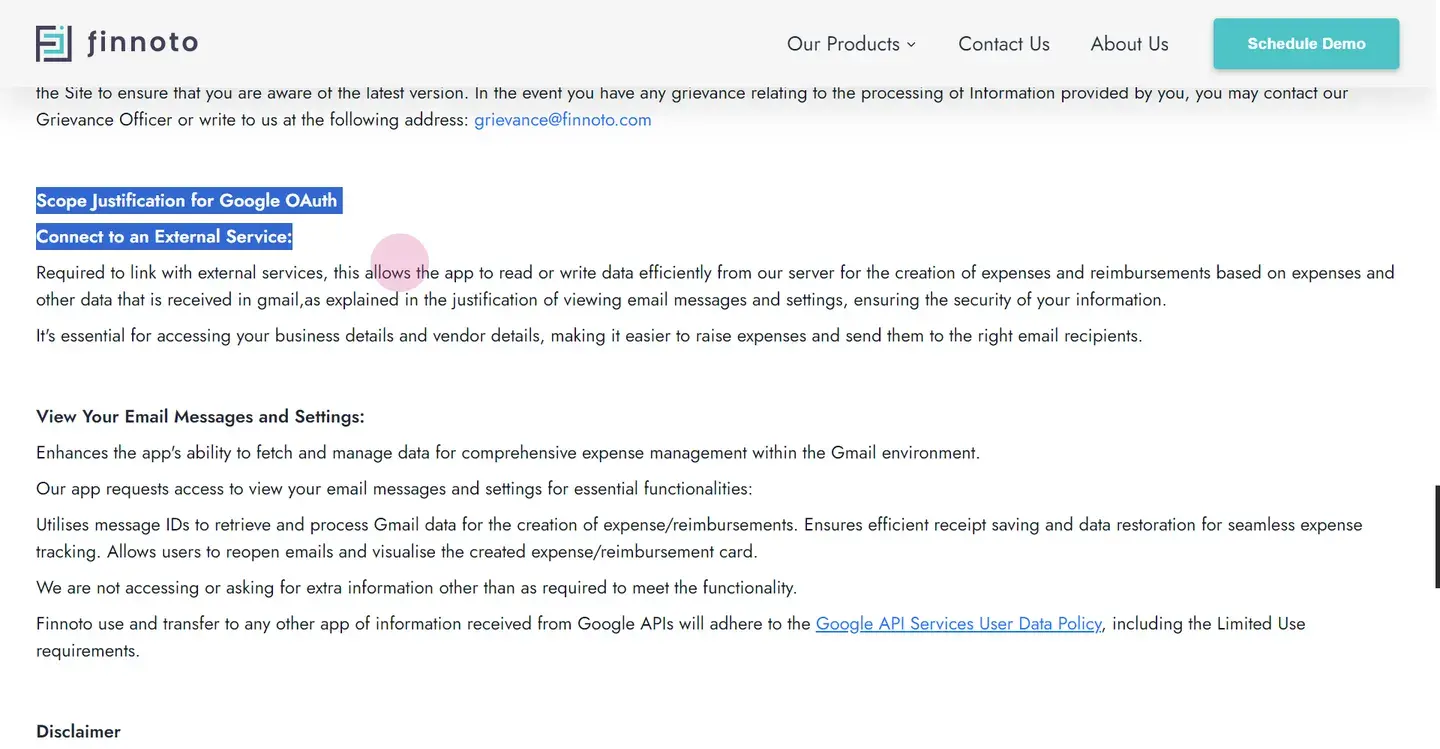
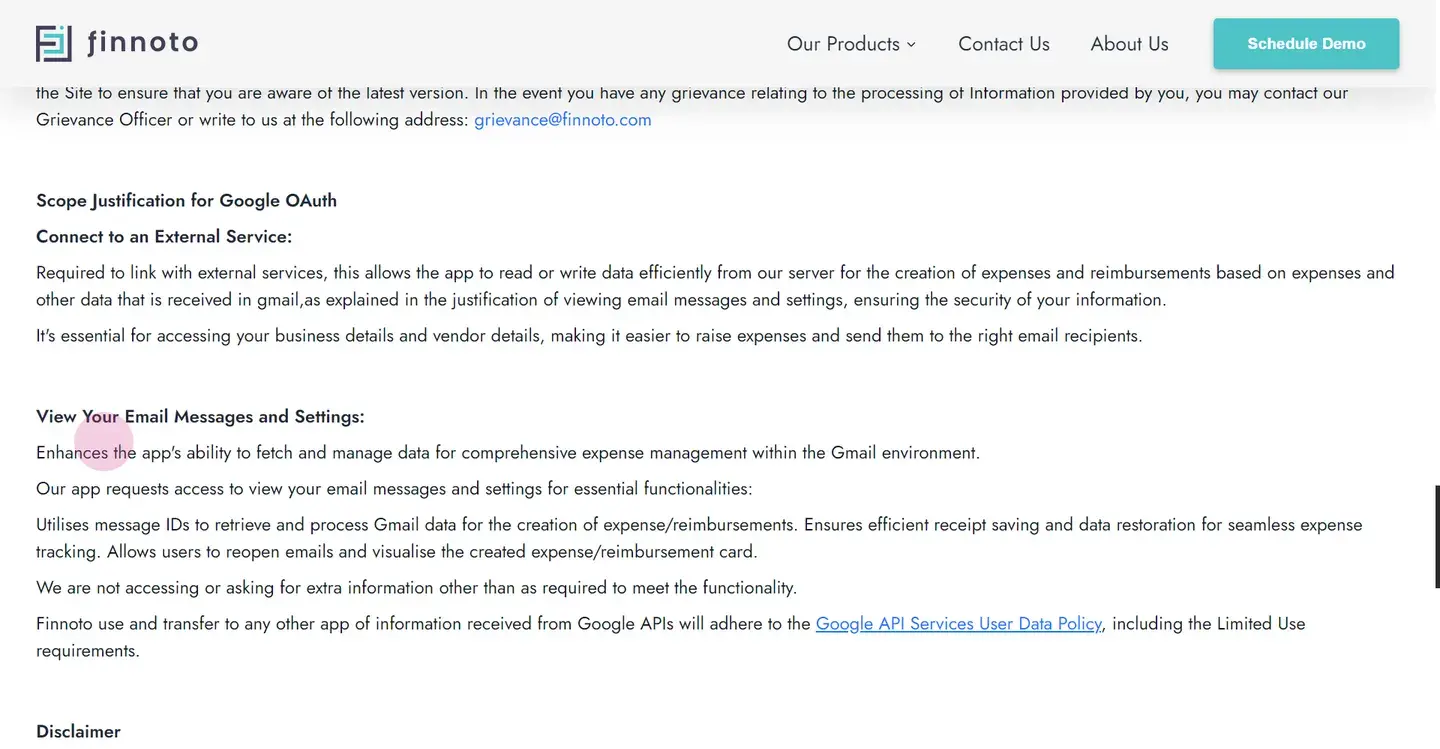
The scope of justification for phinoto to view your email messages and settings is essential to retrieve Gmail data for efficient receipt saving and data restoration. This lets you reopen emails to visualize created expenses on our reimbursement cards. The scope of justification for Google OAuth is also outlined in phinoto's privacy policy. After granting access, proceed to sign in to phinoto using your credentials.
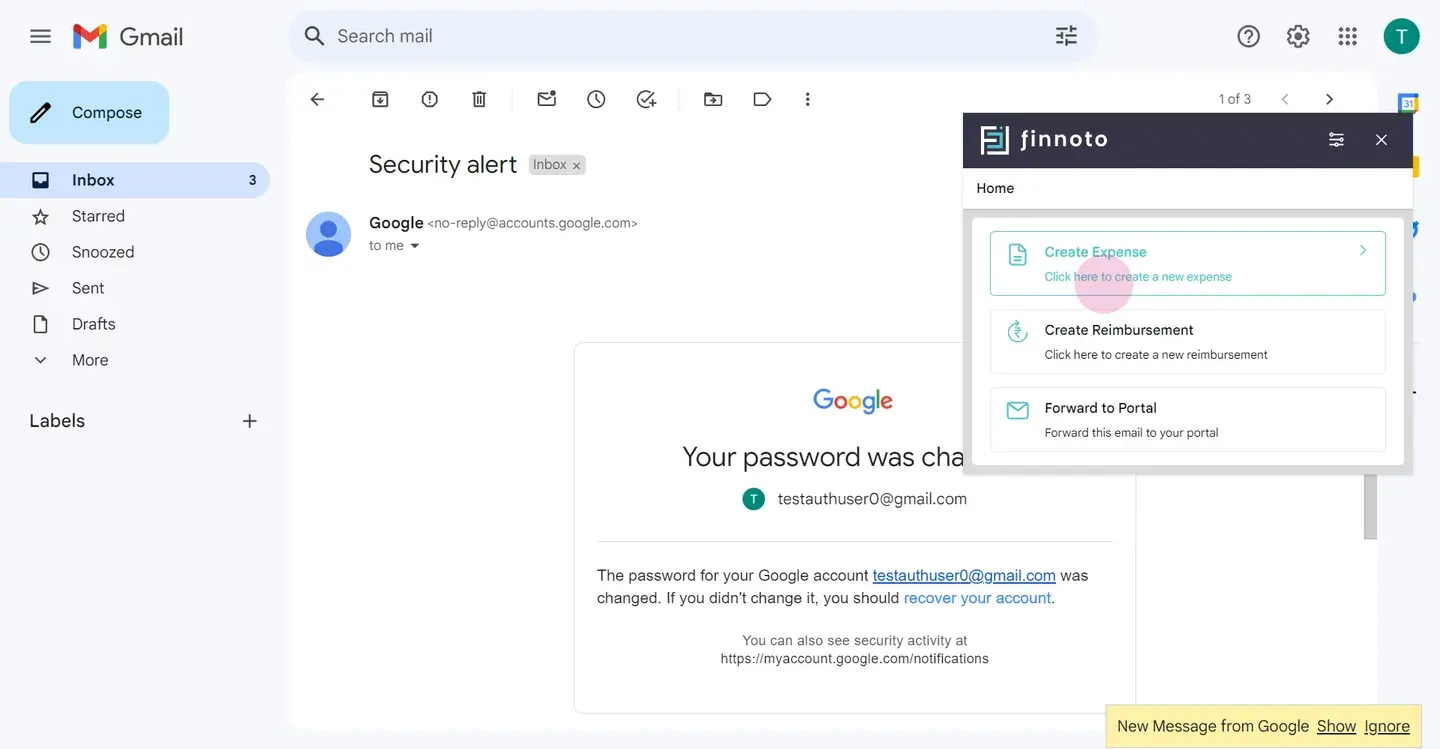
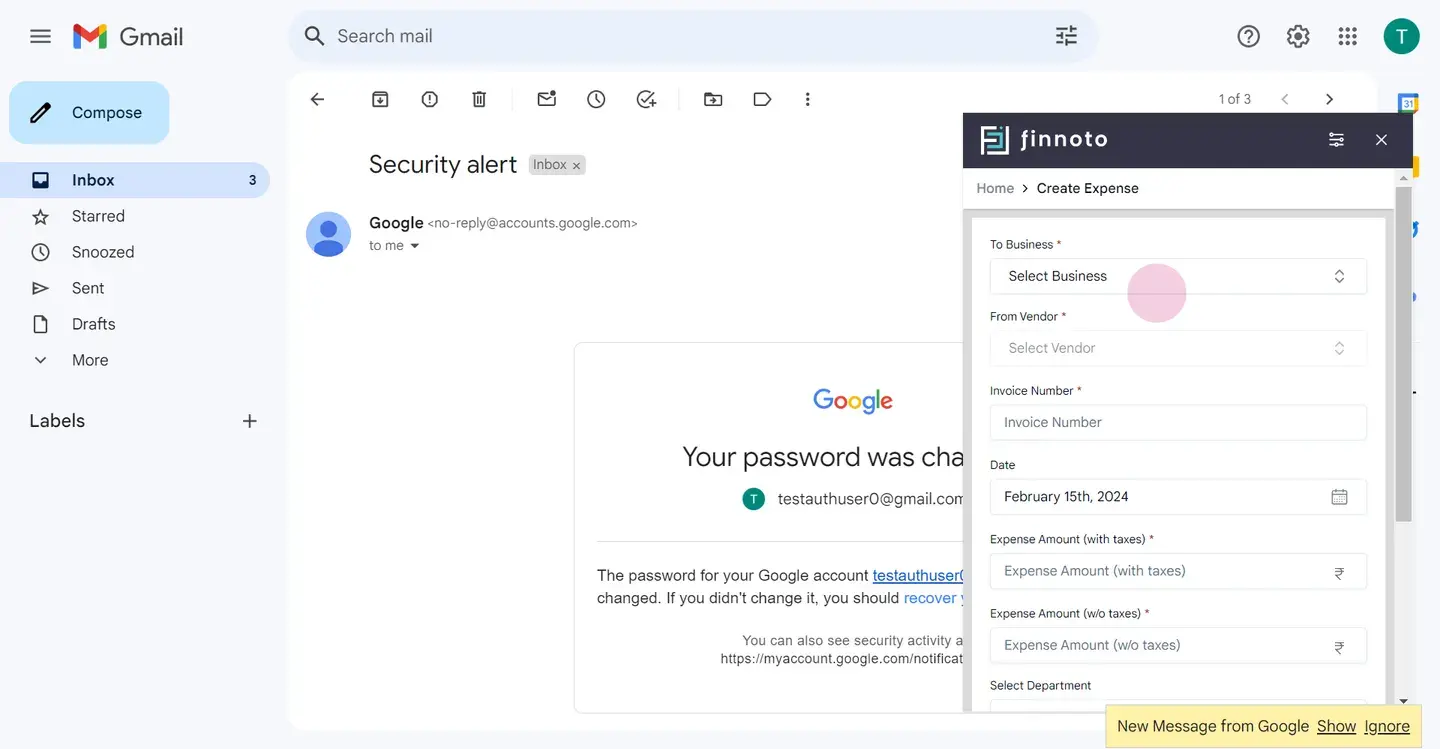
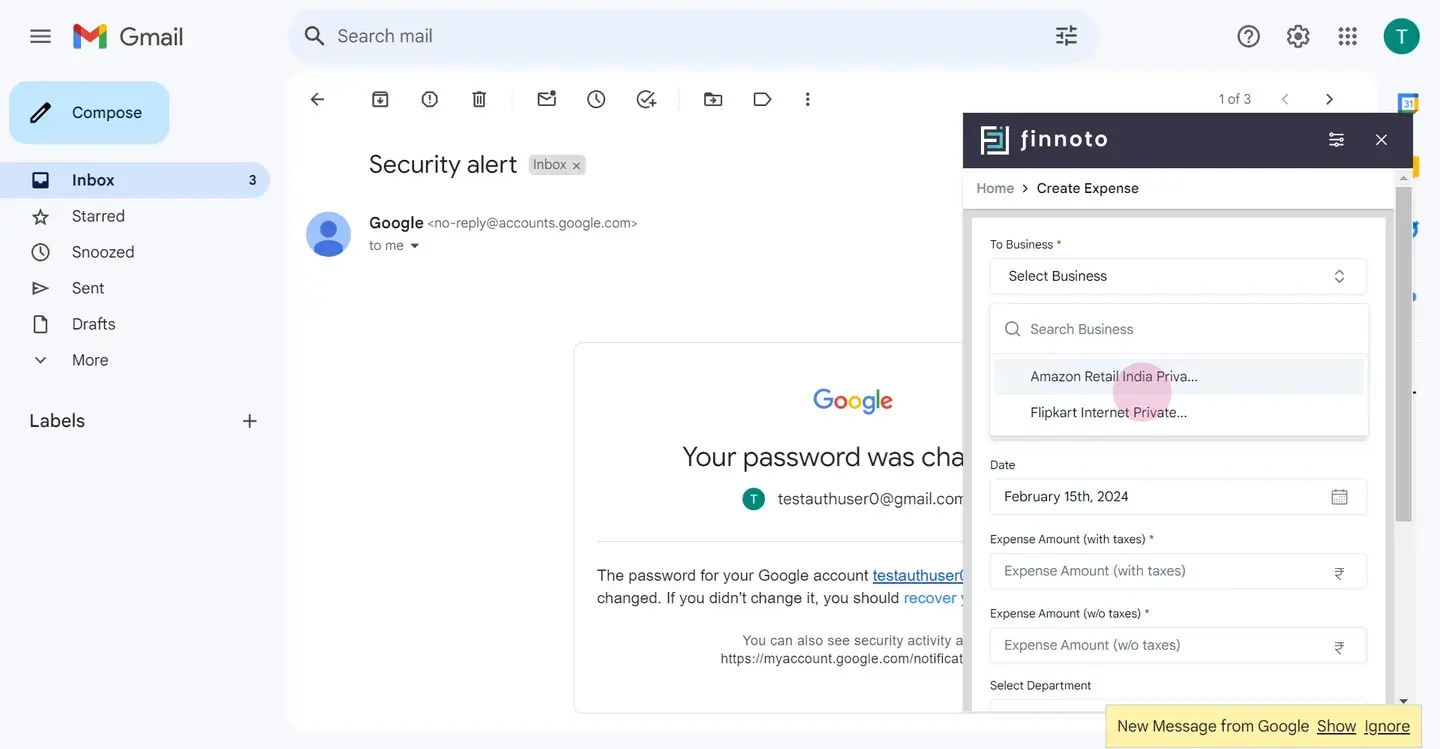
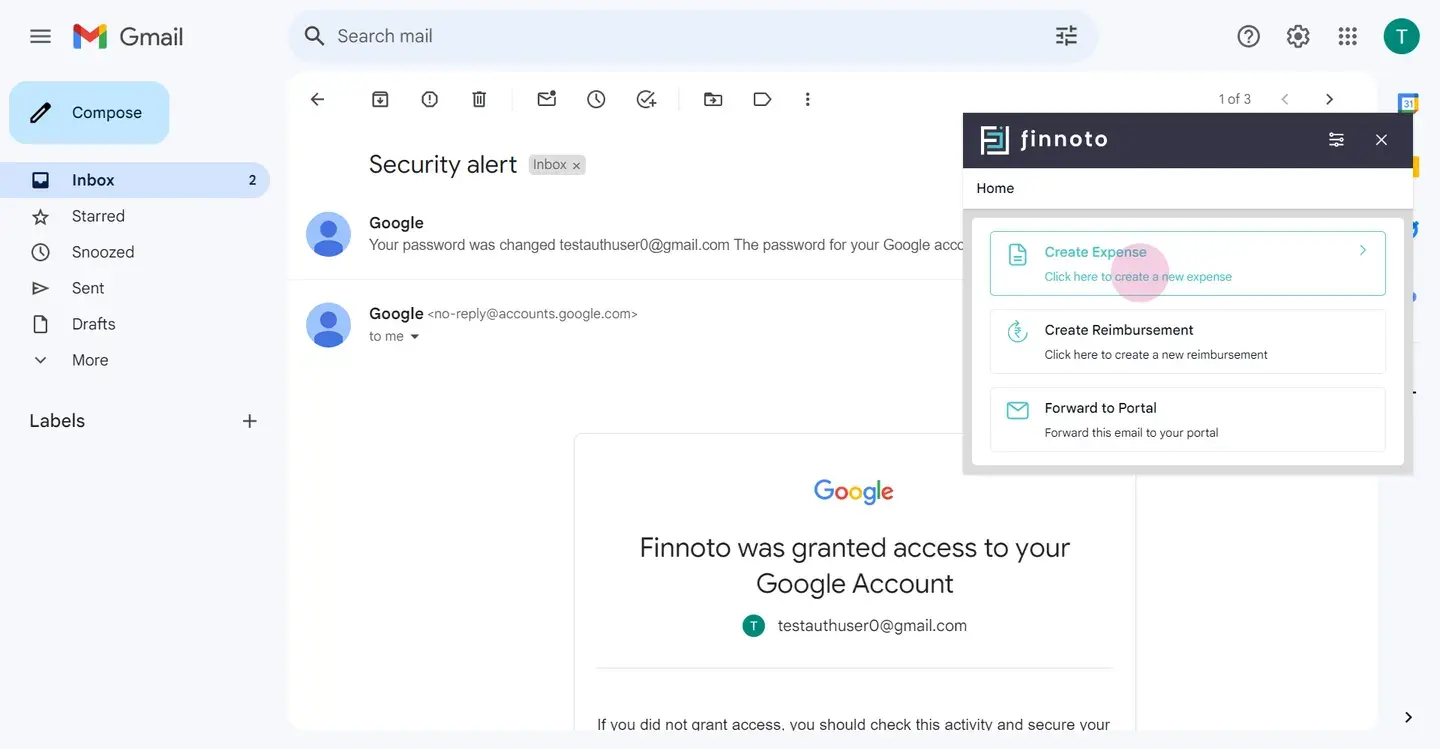
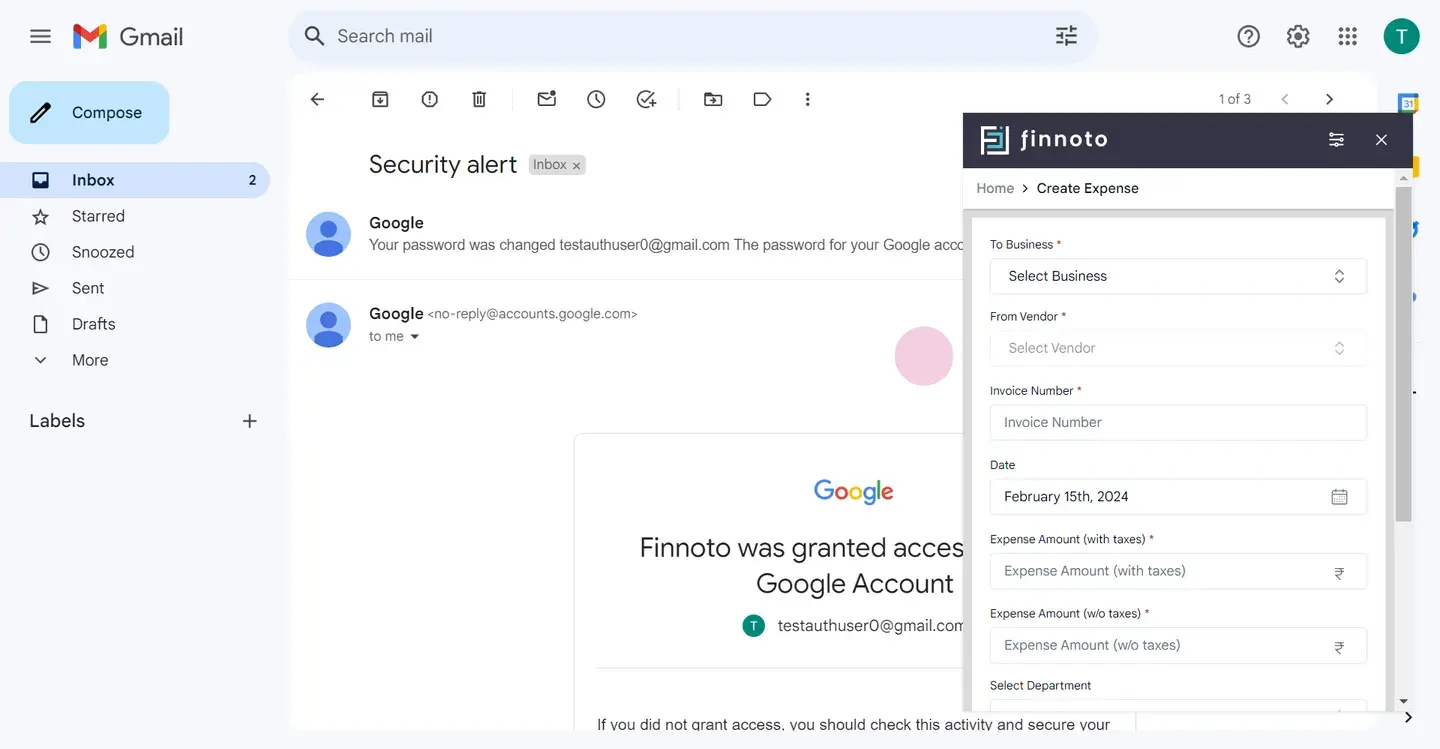
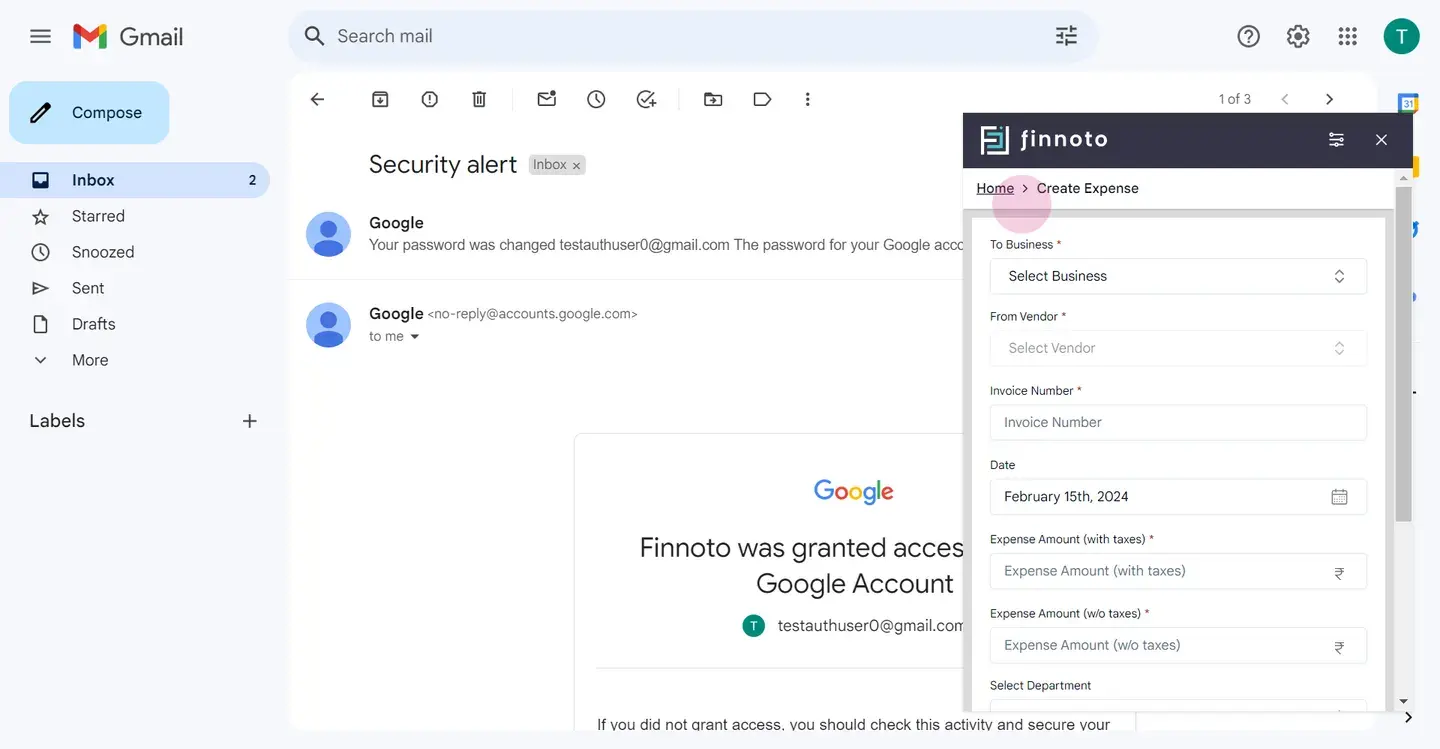
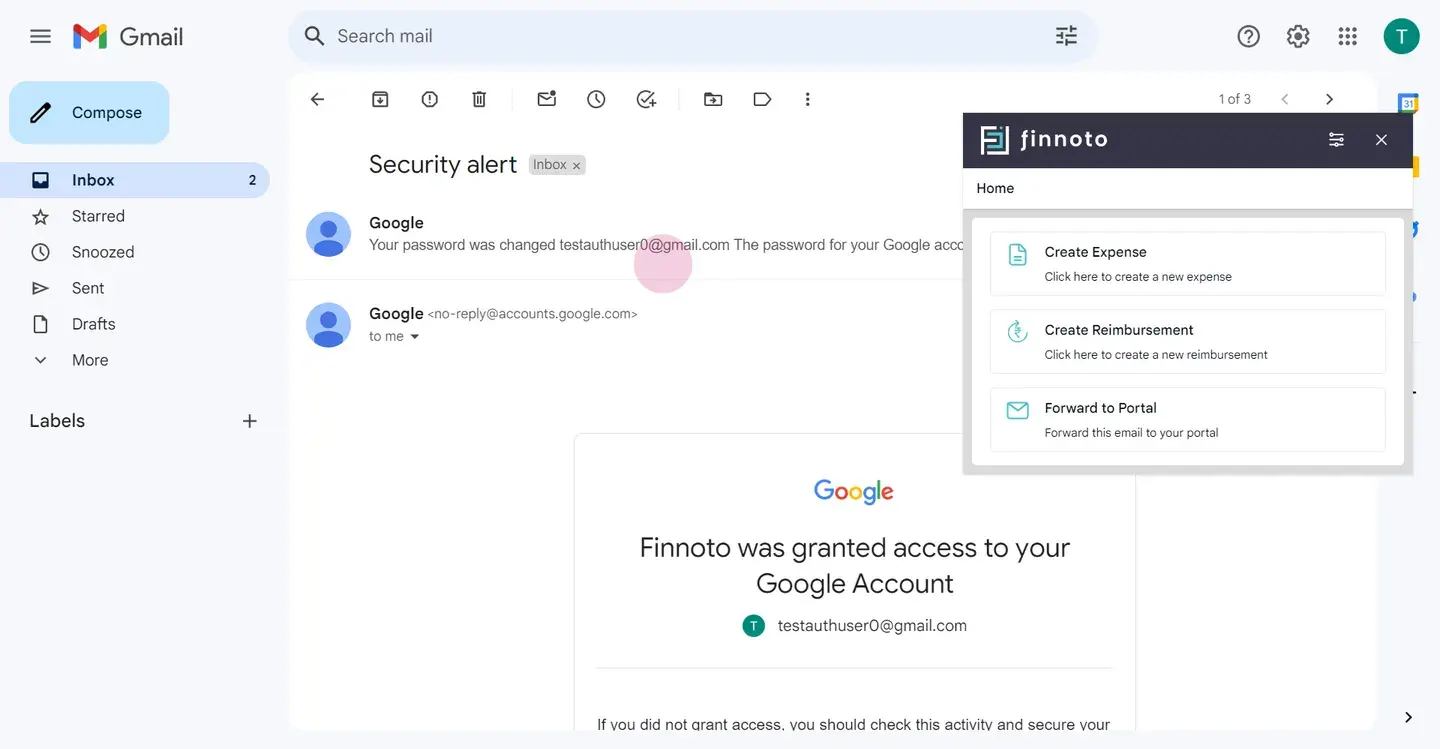
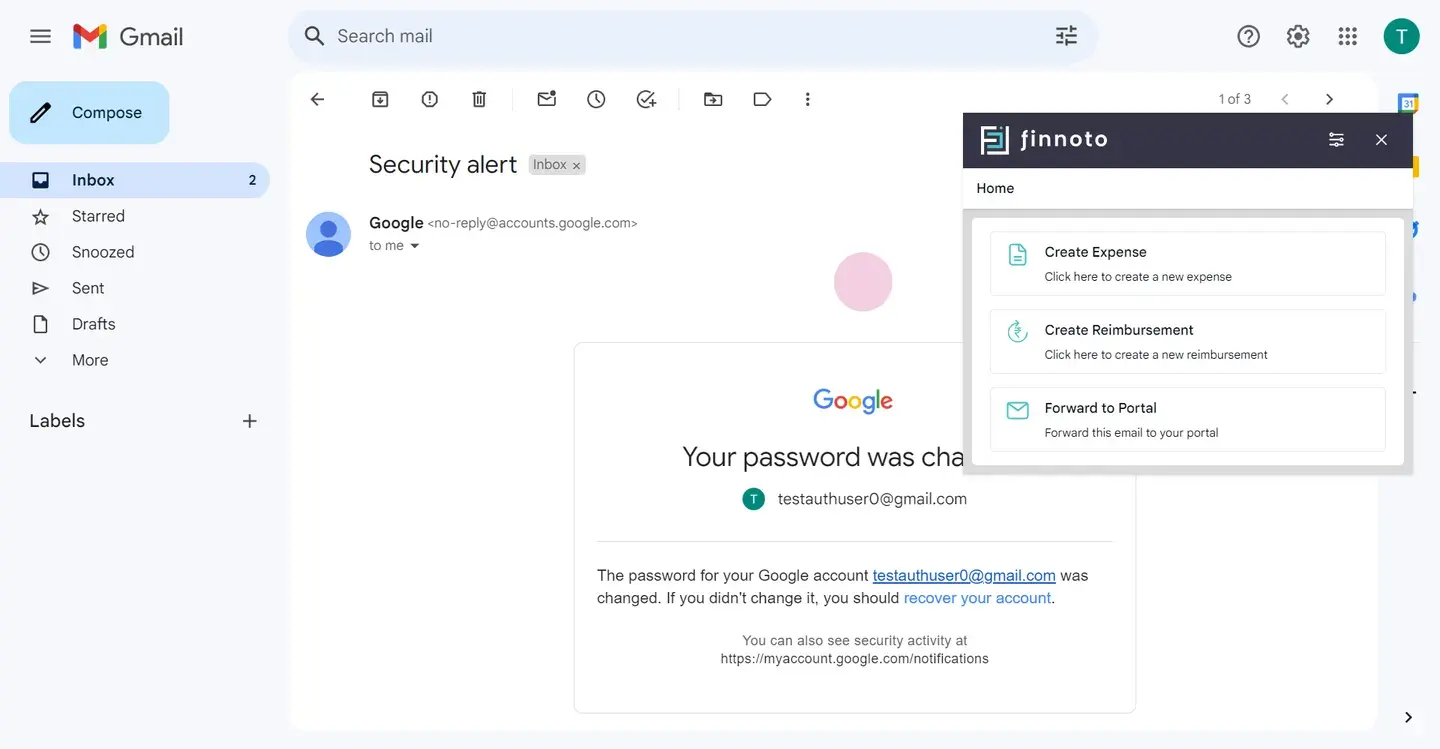
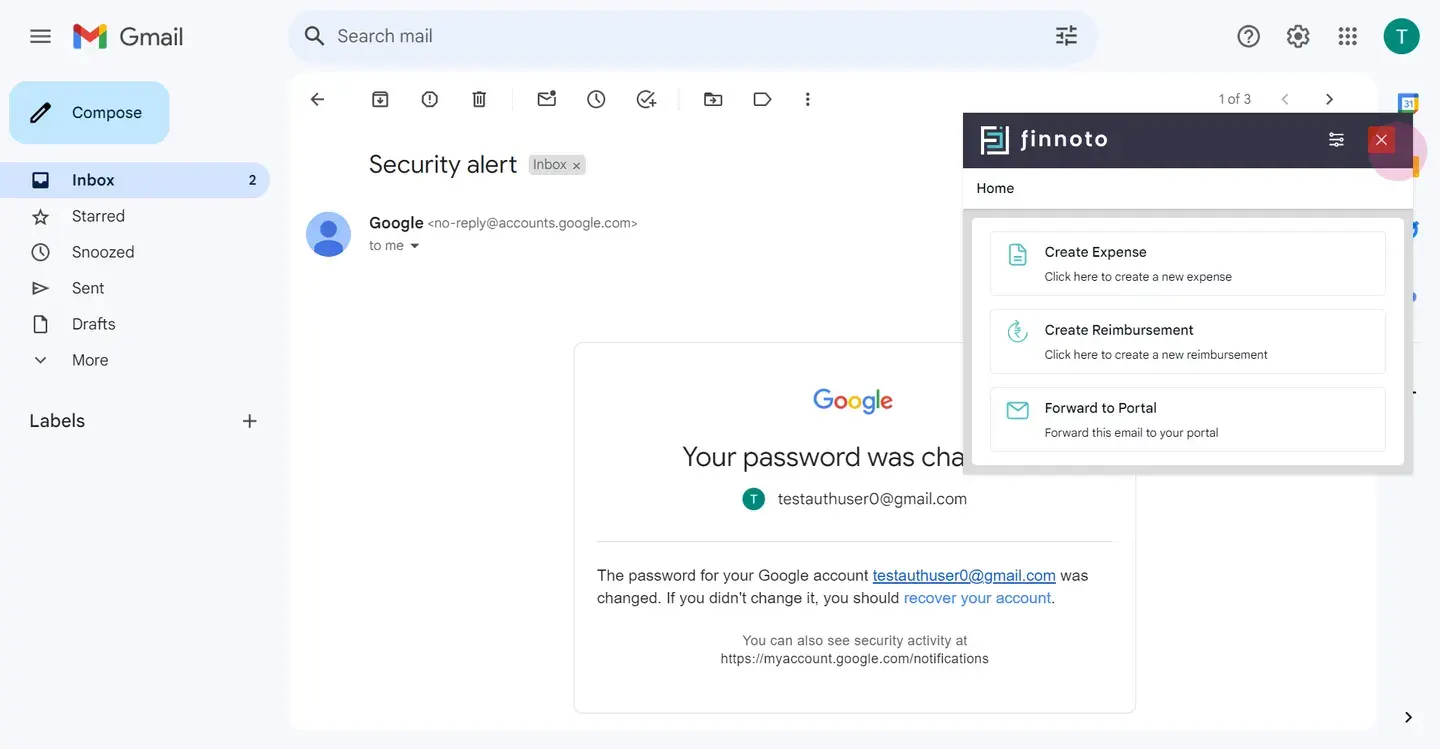
Select your organization. You can now choose to create an expense, create a reimbursement, or forward the email to your phinoto portal. Let's start with creating an expense. Select the business and the vendor.
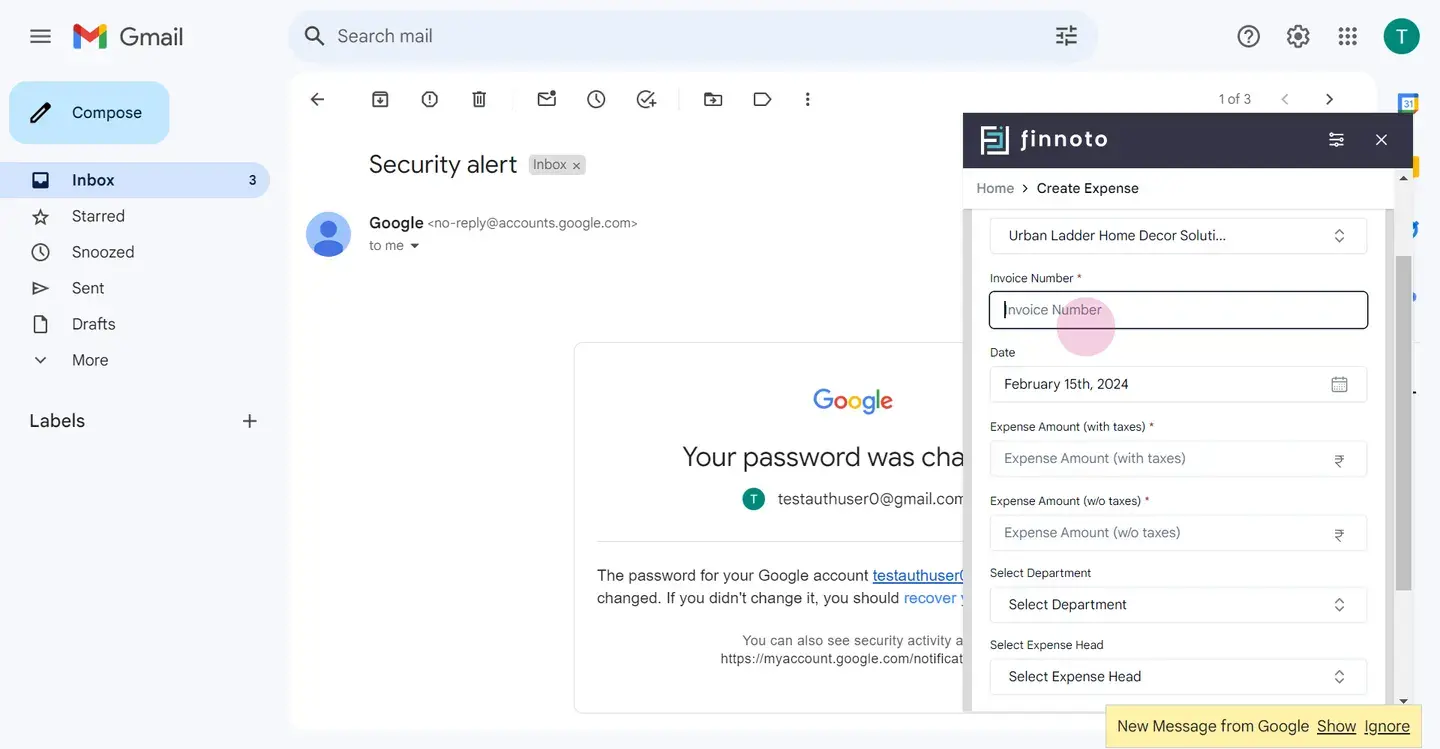
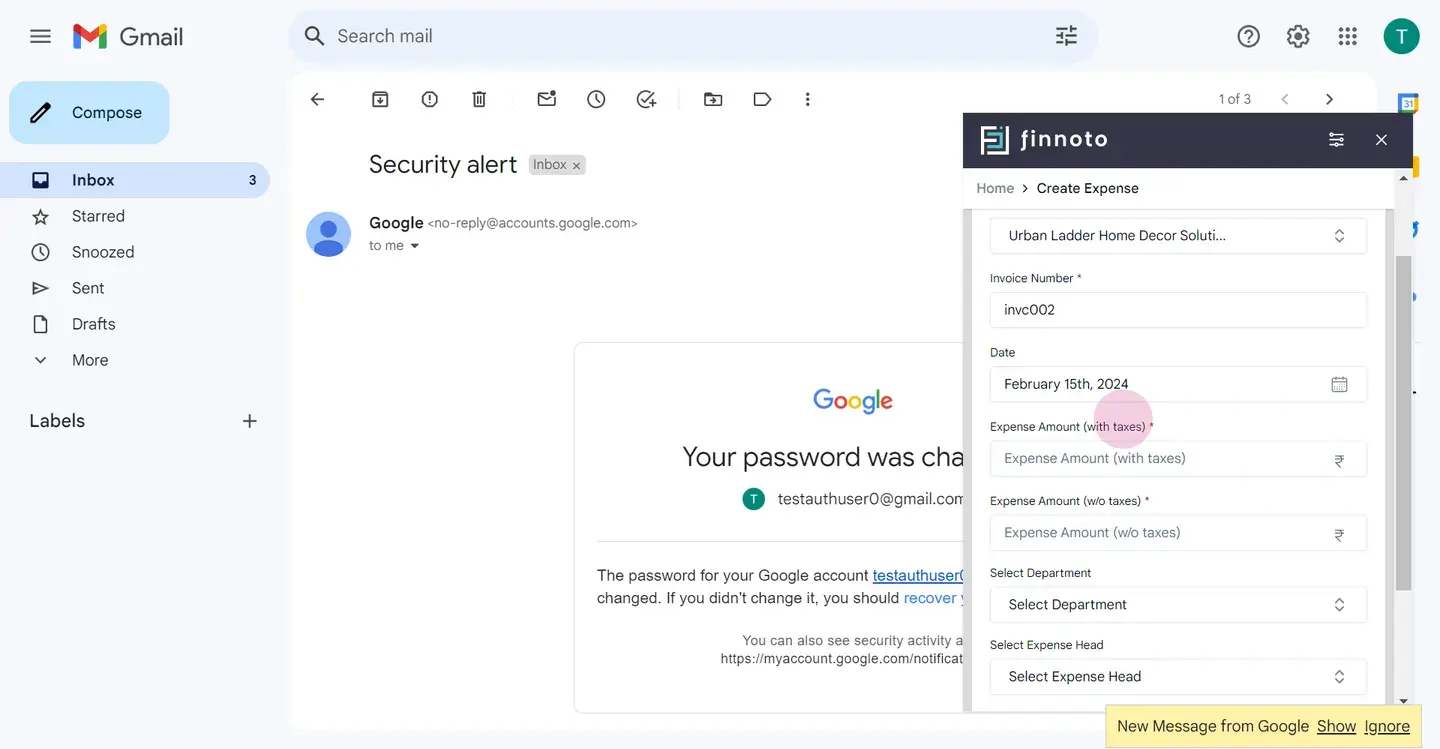
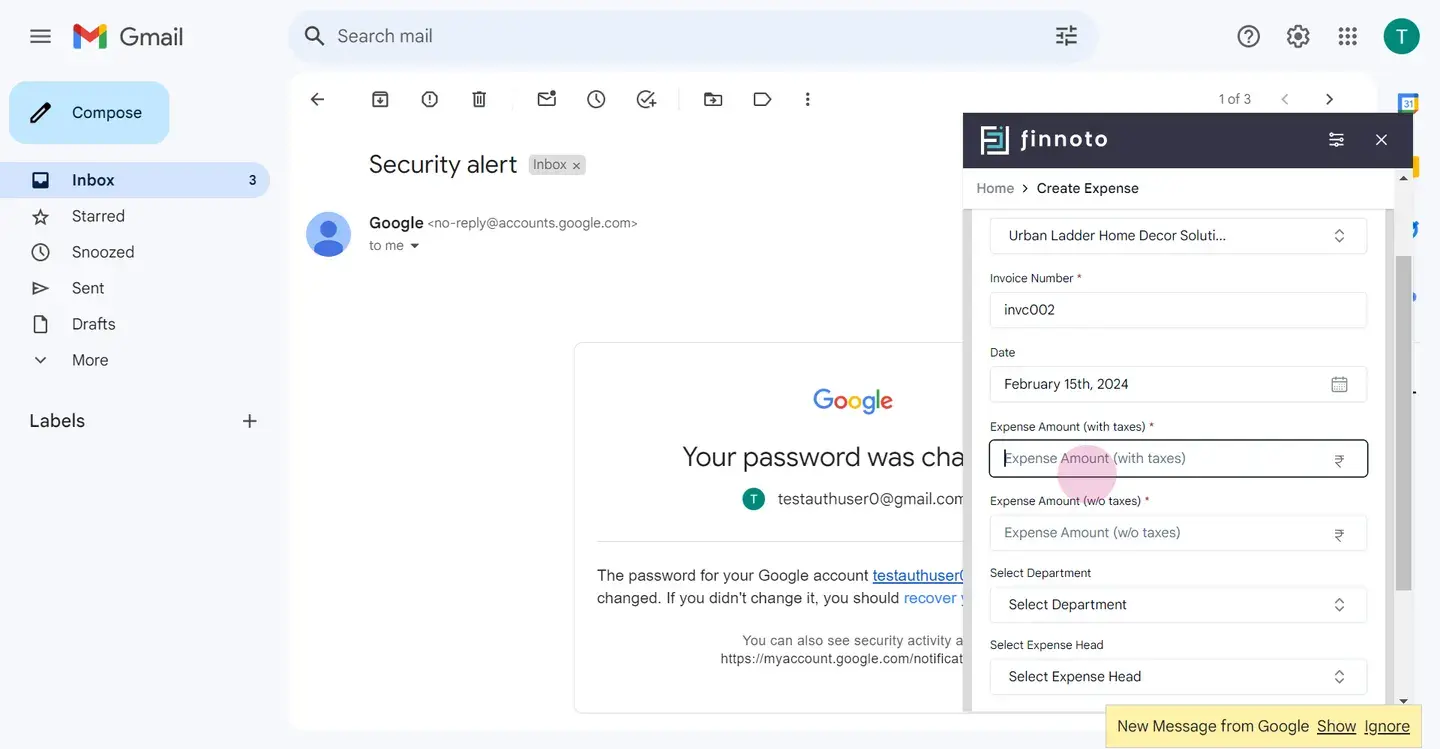
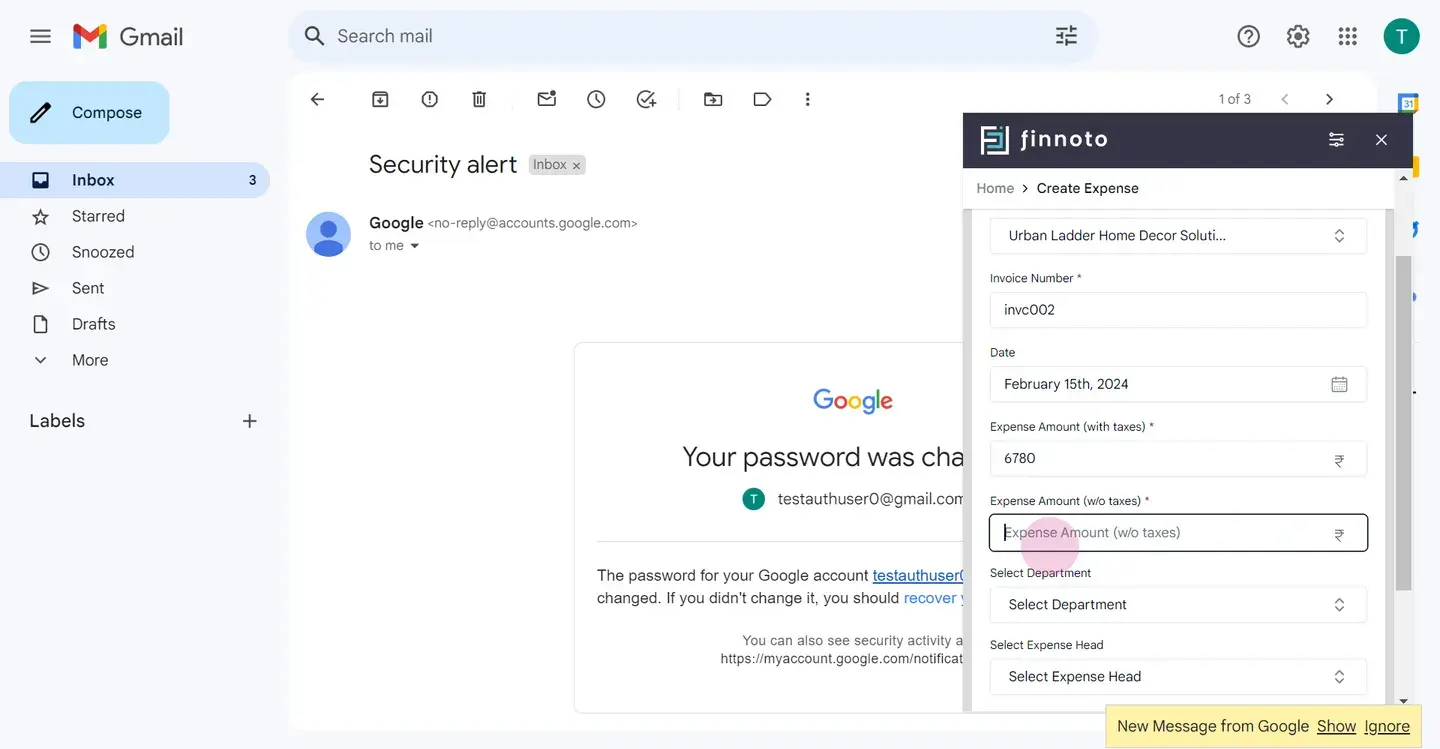
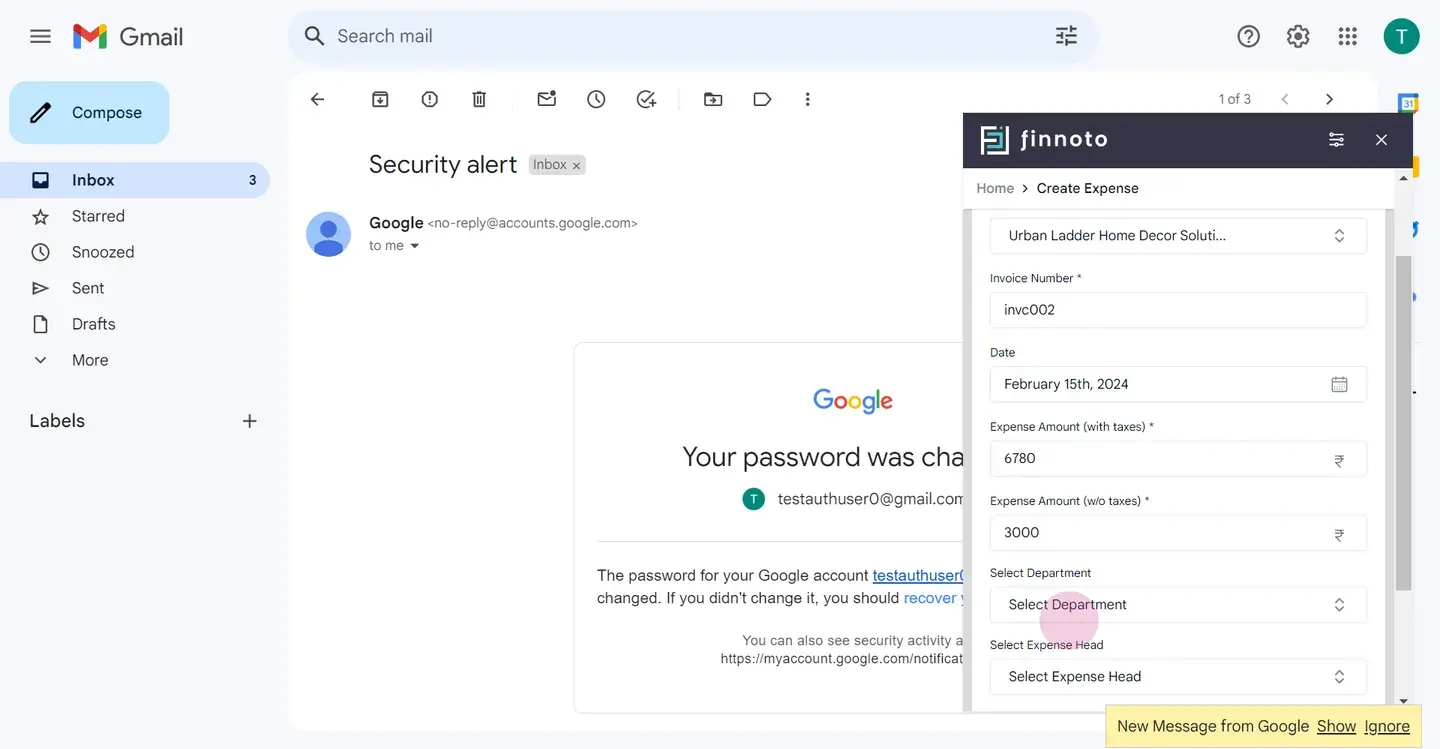
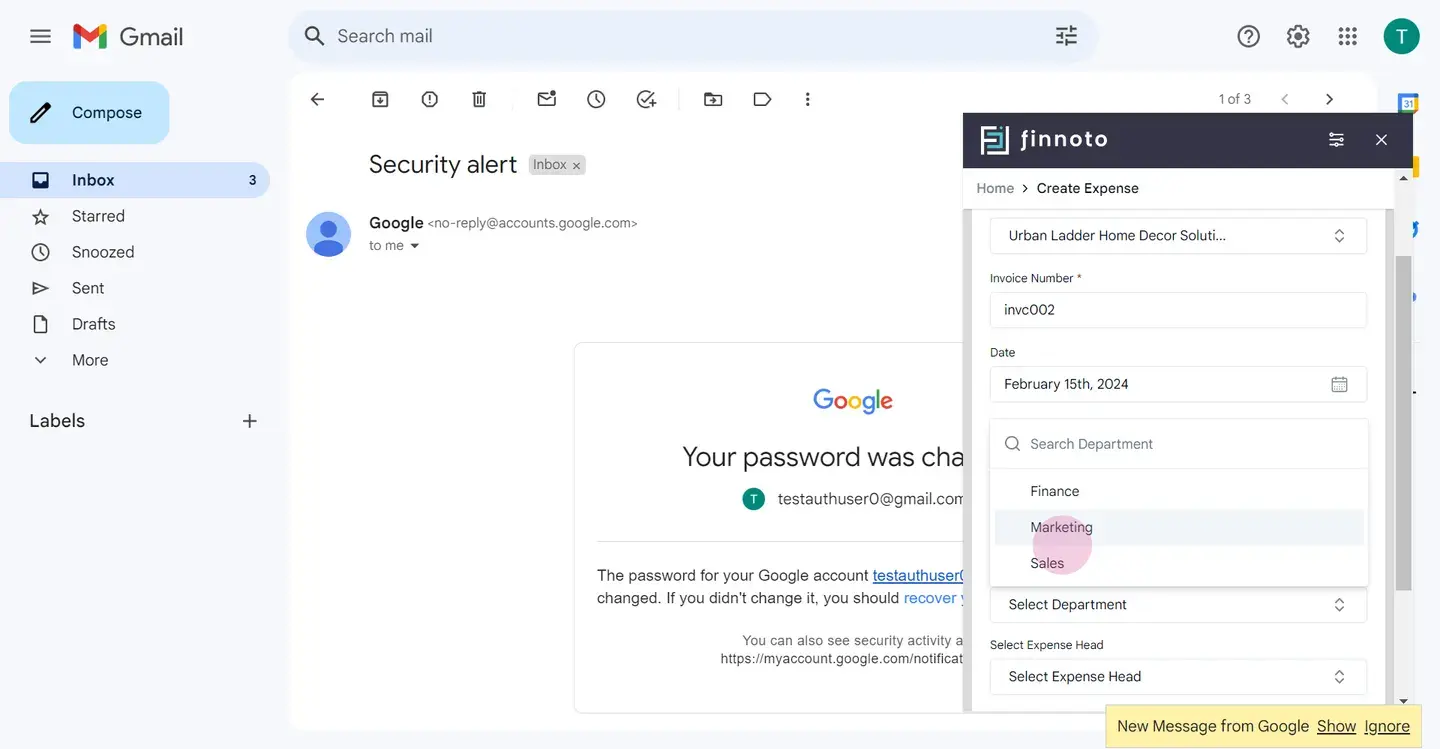
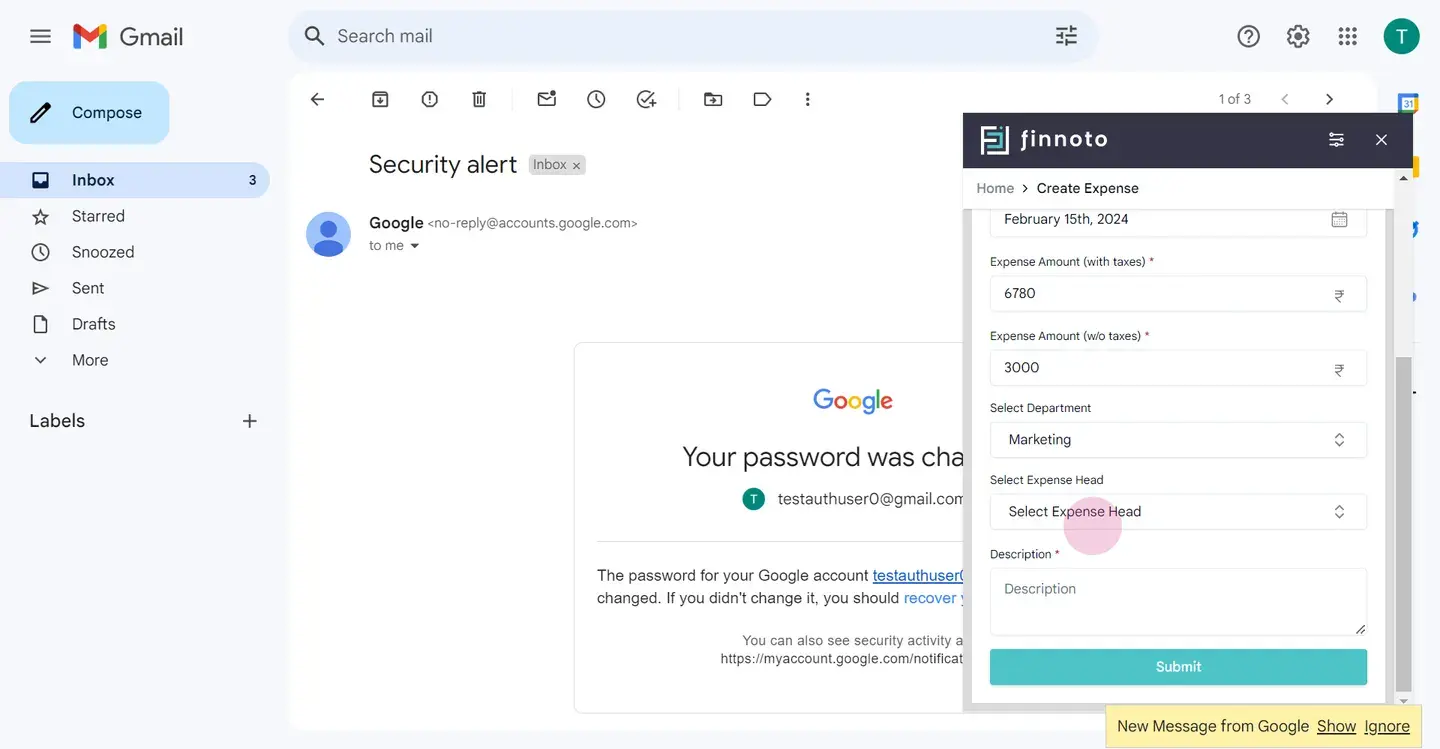
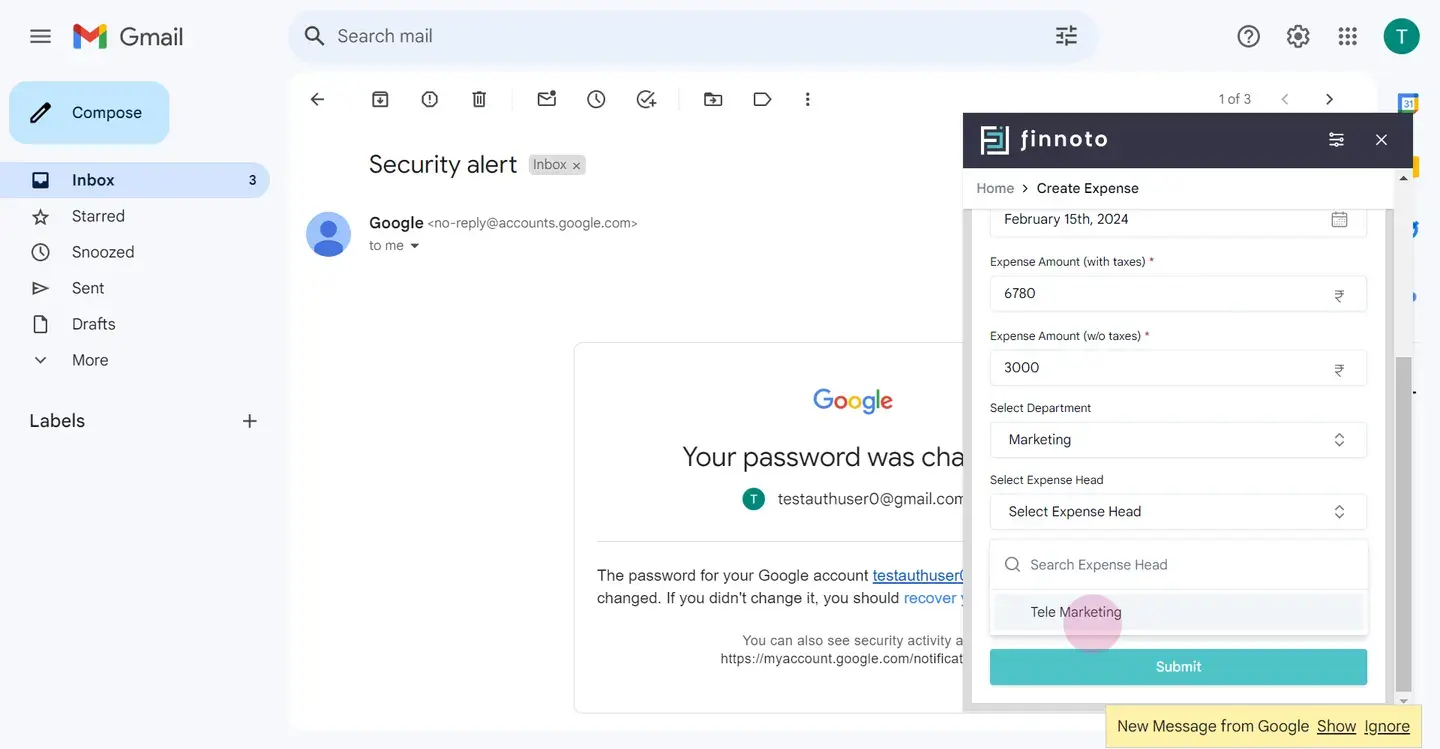
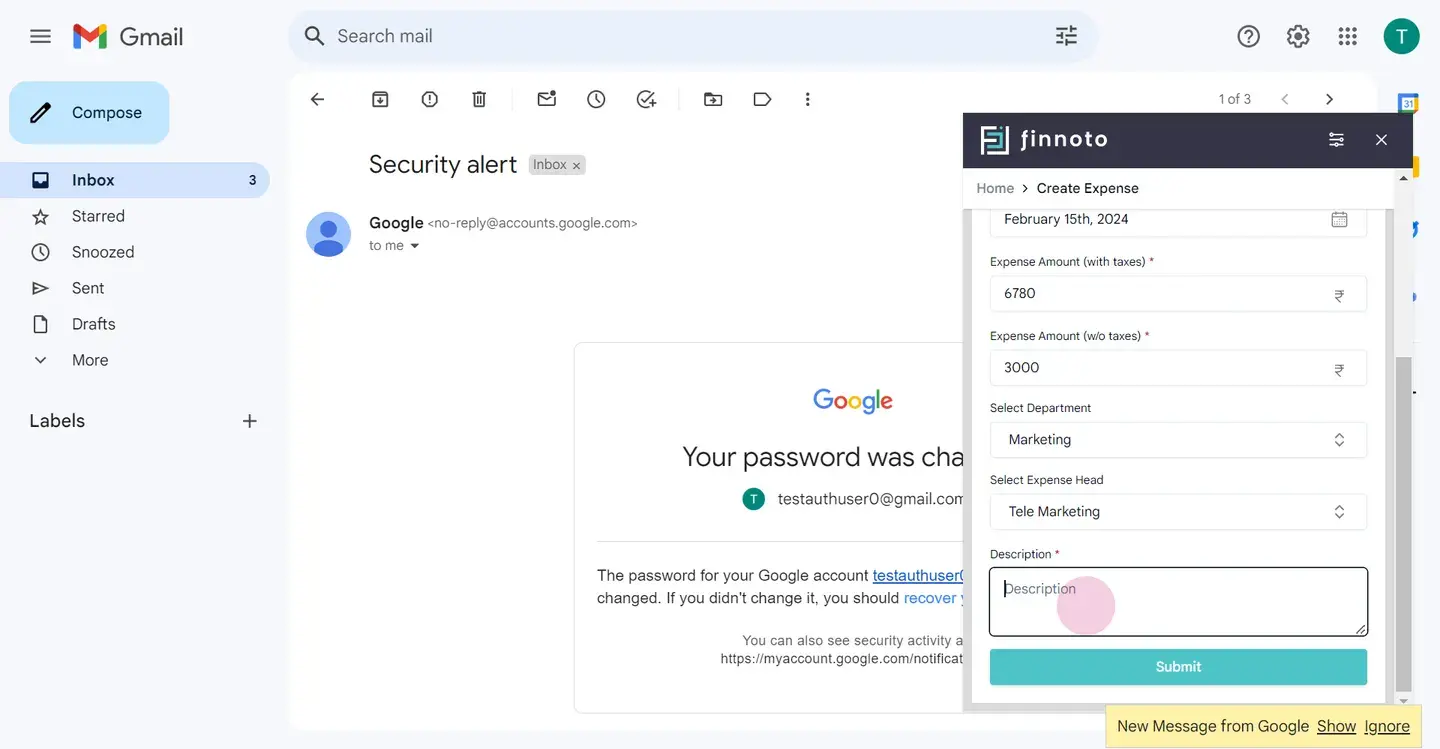
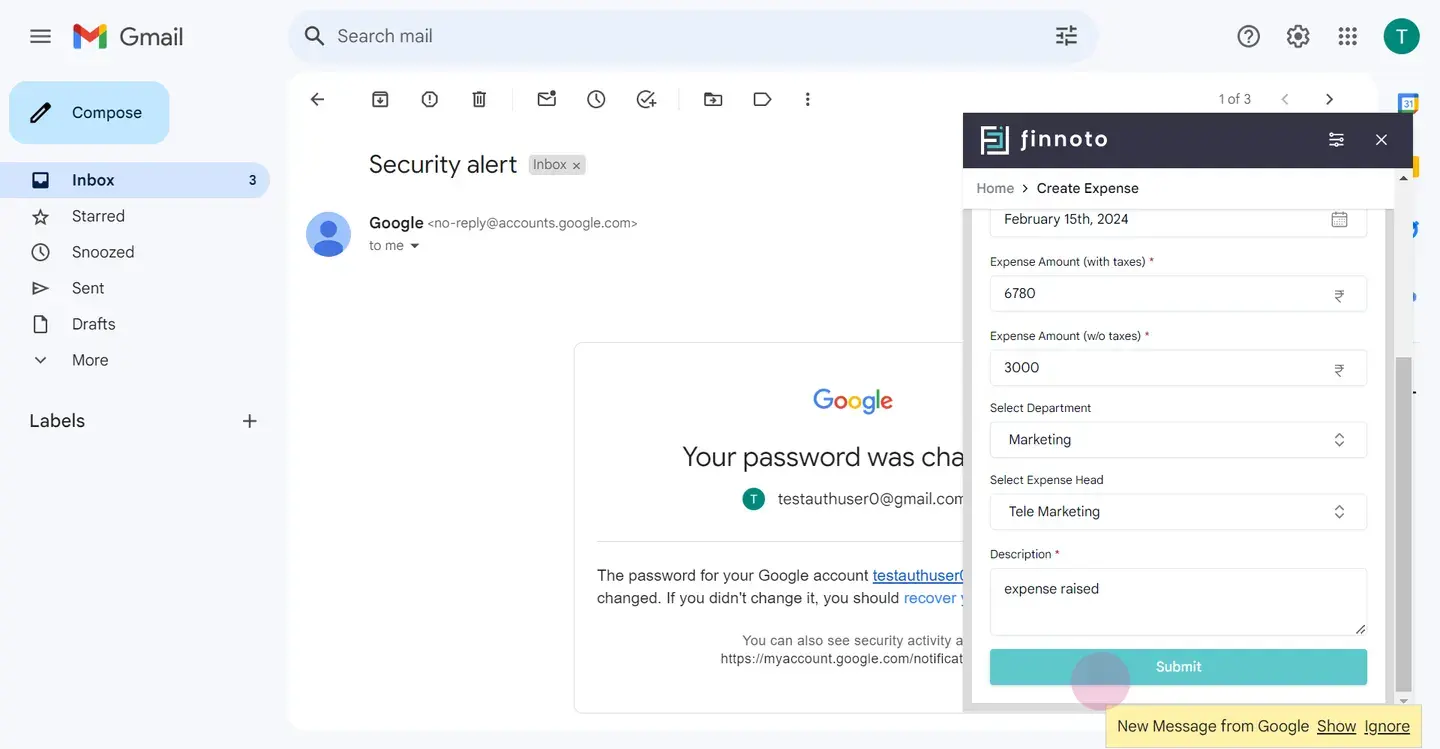
Enter the invoice number and select the date. Enter the expense amount. Choose the department and the expense head, and add a description. Then, submit your expense.
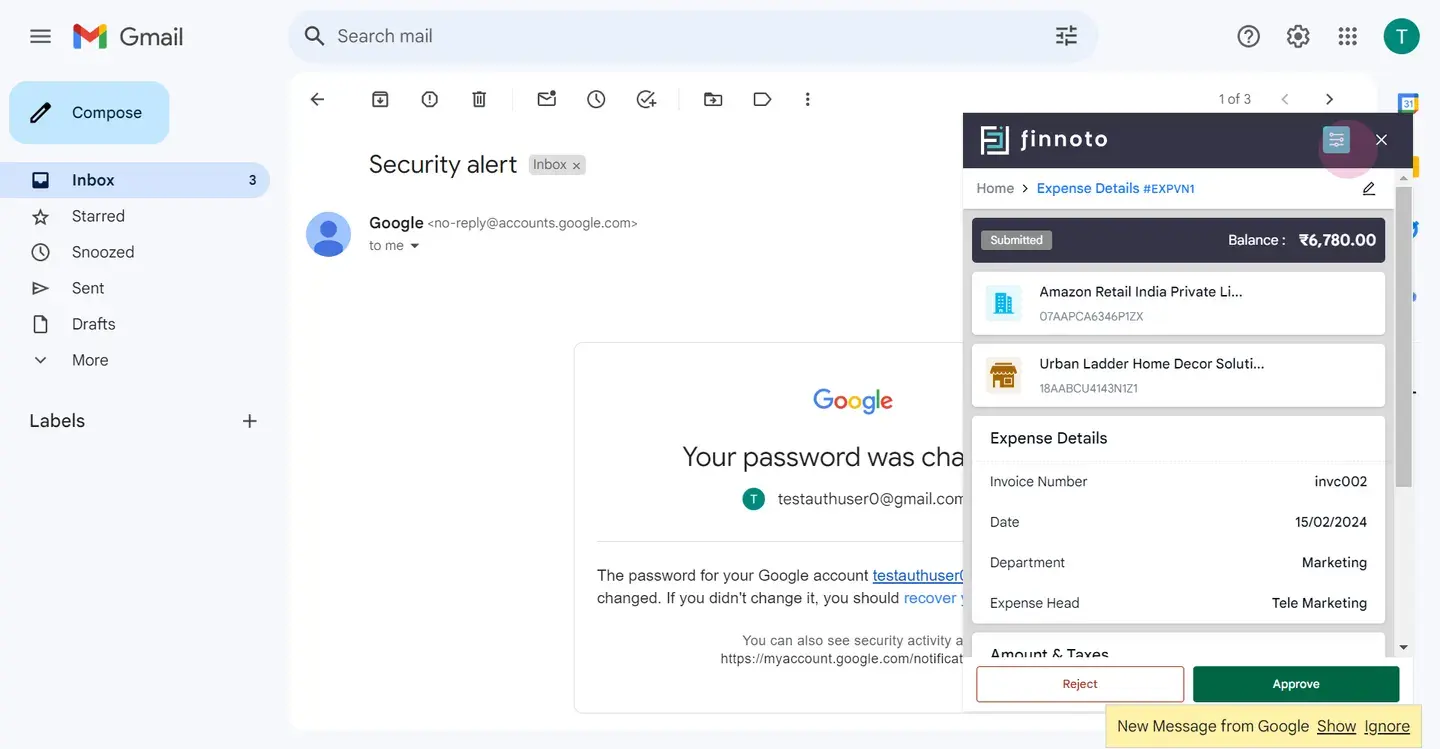
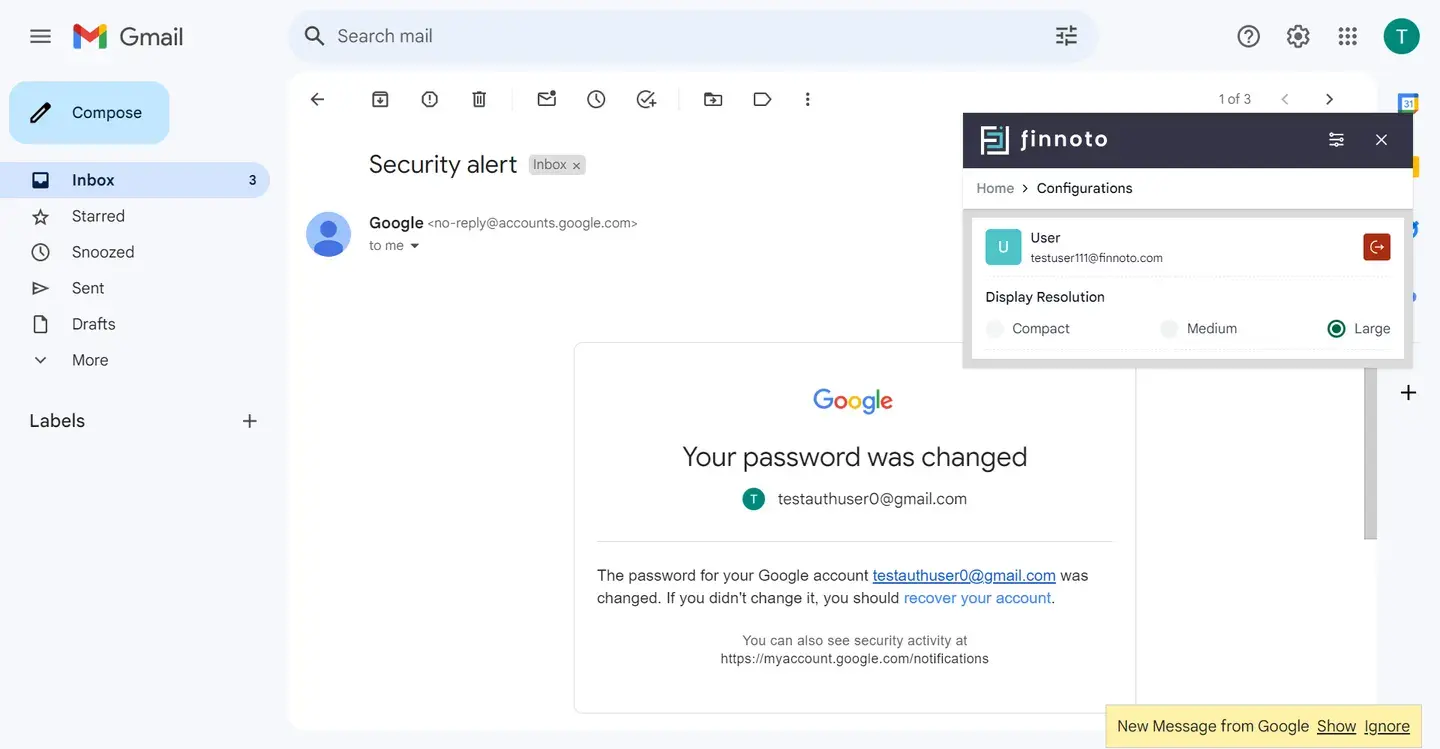
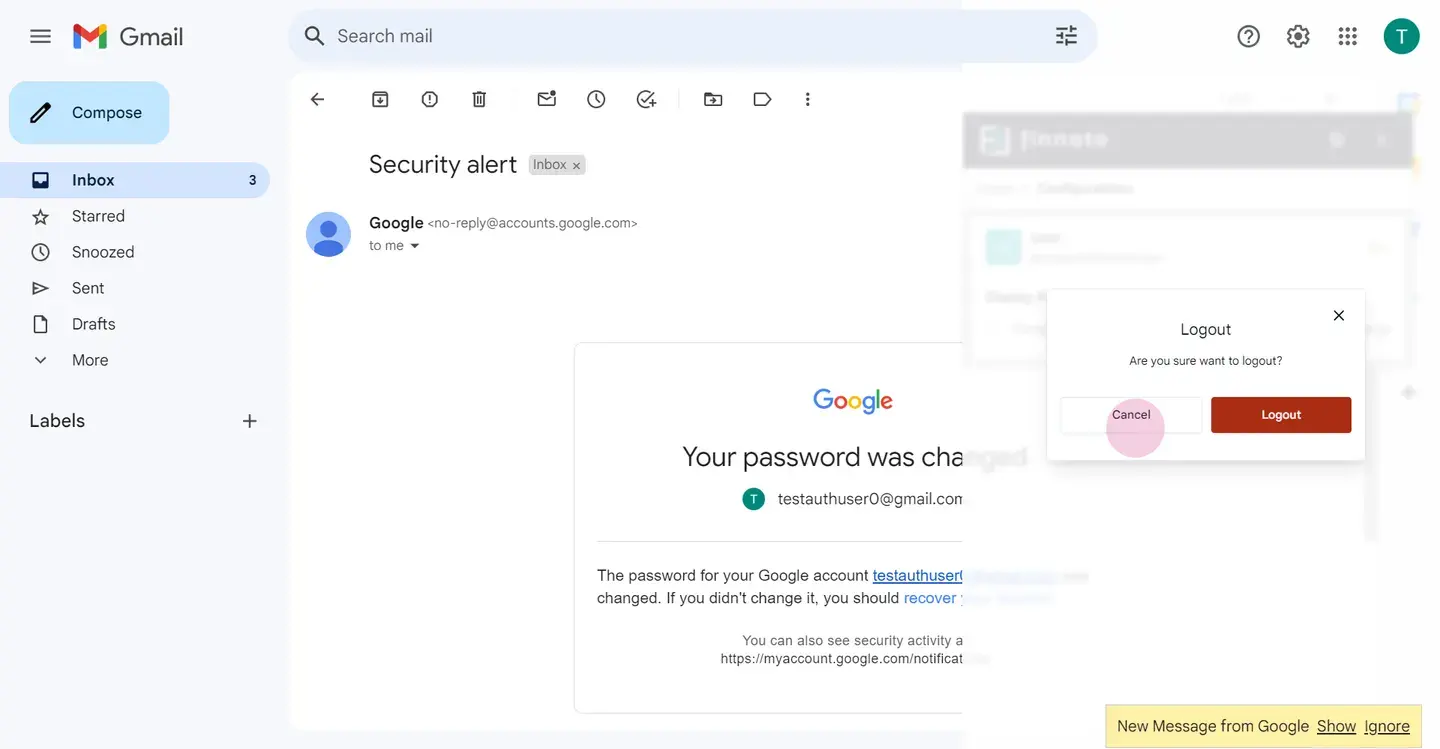
You can easily track the status of your expenses and have the option to approve, reject, and edit information as needed. By clicking on the settings, you can adjust the display resolution and also log out from here. Whenever you open this email click on the add expense button, you will be able to see the expenses raised by you. That's all for now.
Thank you for watching this video.
Hello, everyone
In this video, we will introduce you to Finuto's revolutionary expense management through seamless Gmail integration. Finuto aims to streamline the expense management process by leveraging the power of emails, making the experience user friendly and effortless. With this Chrome extension. You can see and create expenses and reimbursement directly from your Gmail anytime, anywhere. So let's dive into it. So log in to your Gmail account first.
Upon opening the email, you will notice the add expense button located in the top right corner.
You might encounter our warning since our o auth is not yet verified by Google.
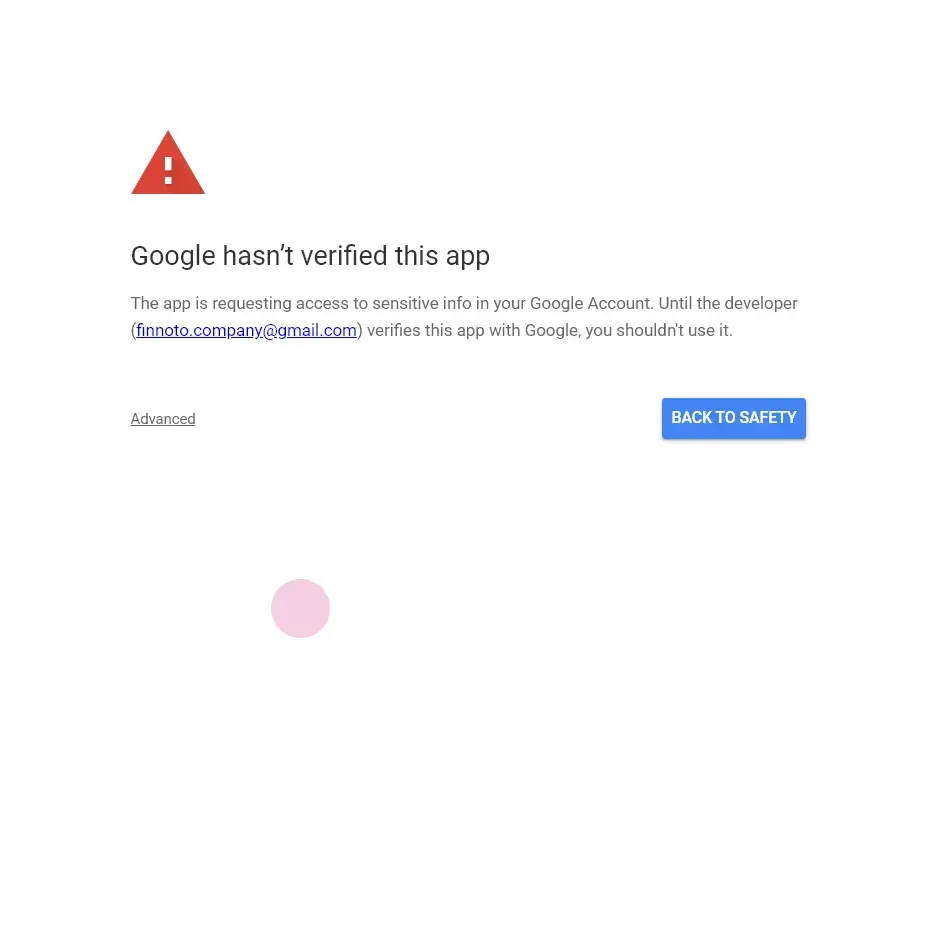
At this point, you can see You can see the client ID. You can see the client ID that we are using. Now click on advance and proceed to go to Finuto.
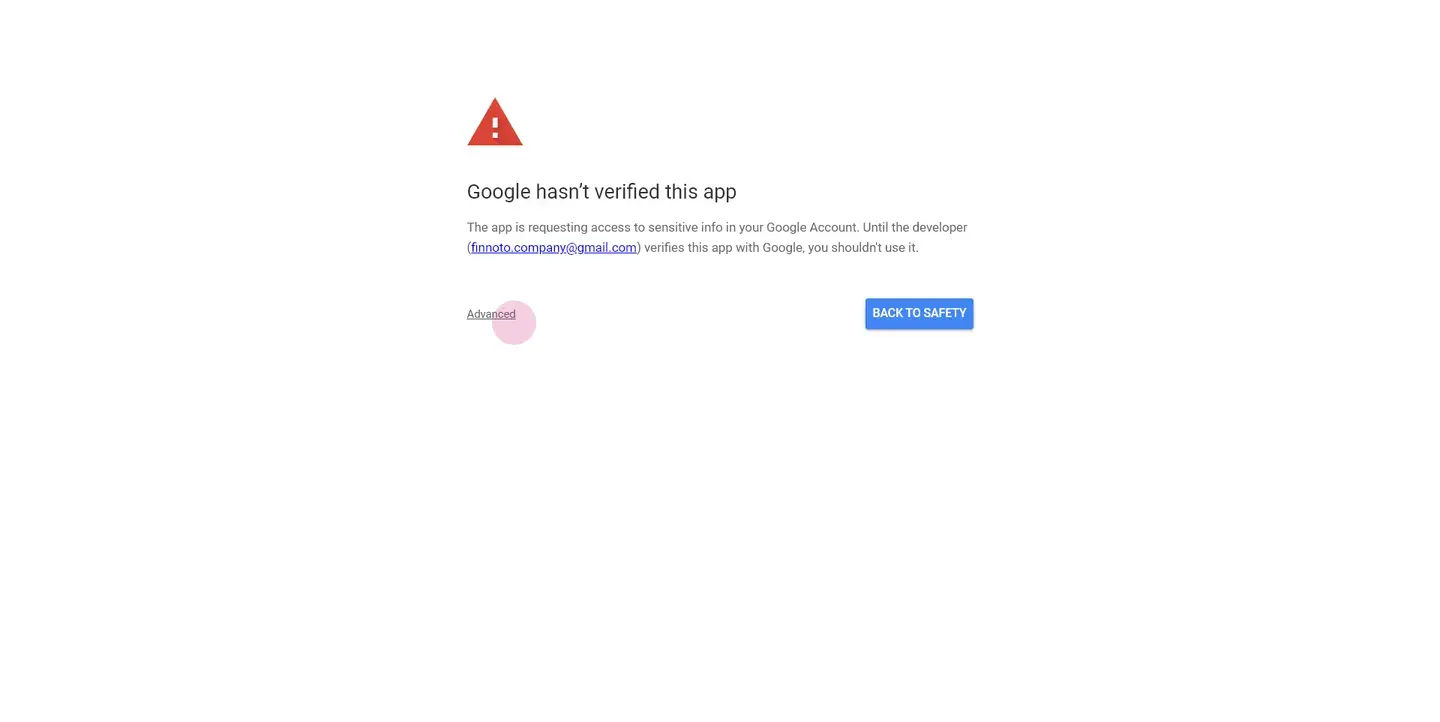
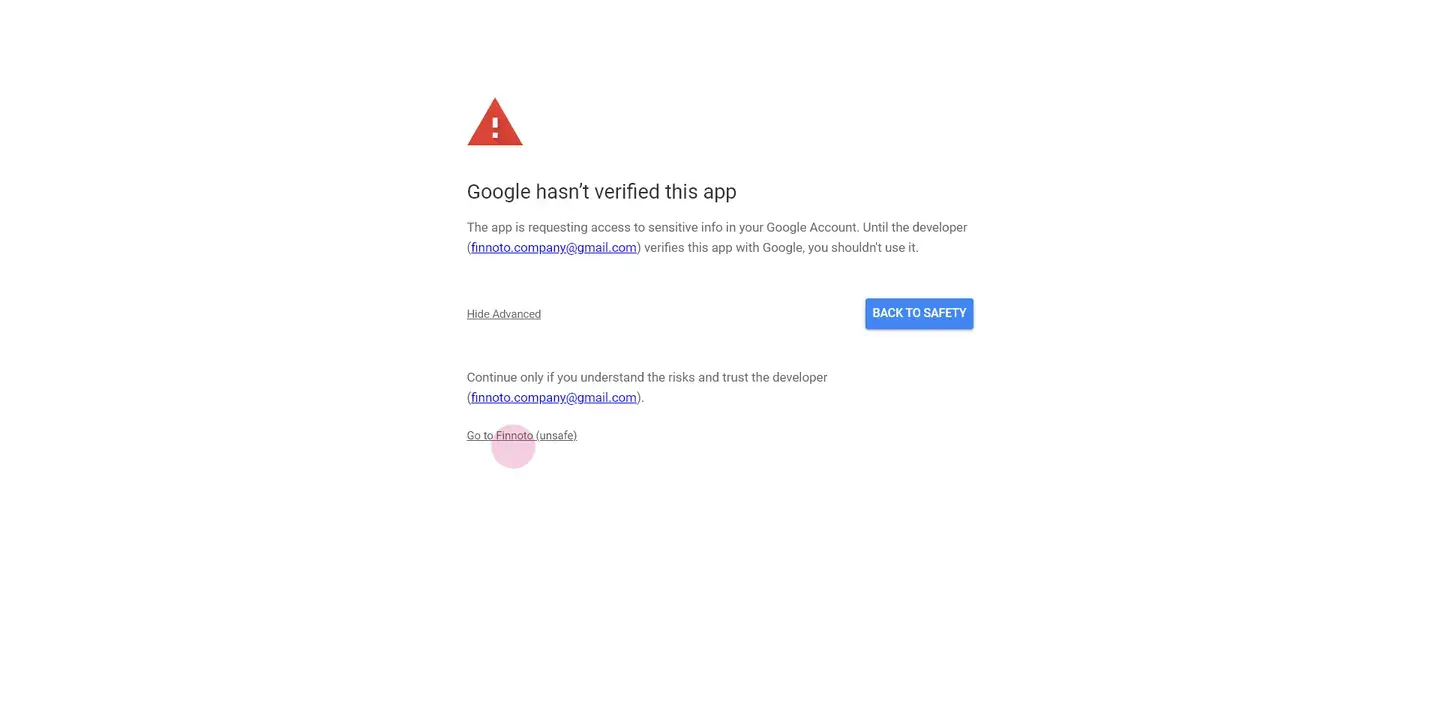
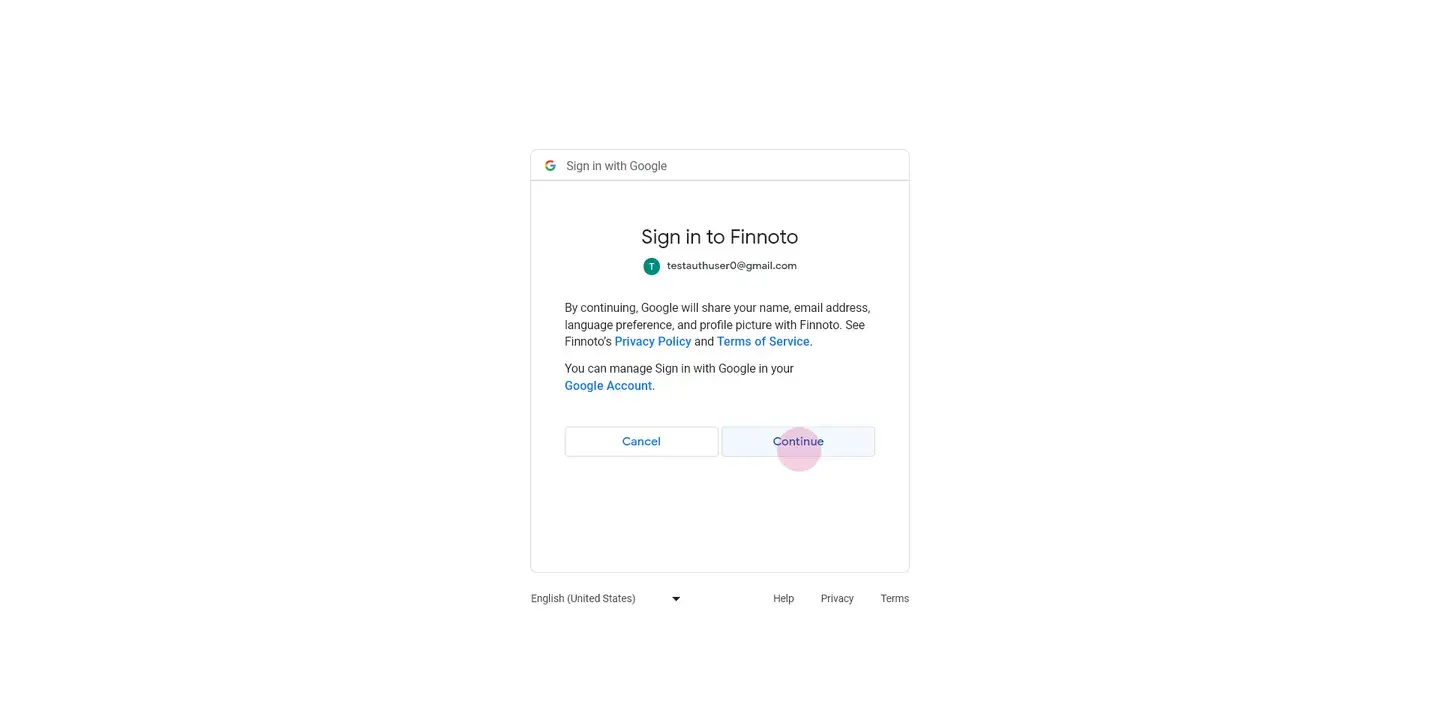
Grant Finuto the necessary permission, which includes view your email messages and settings.
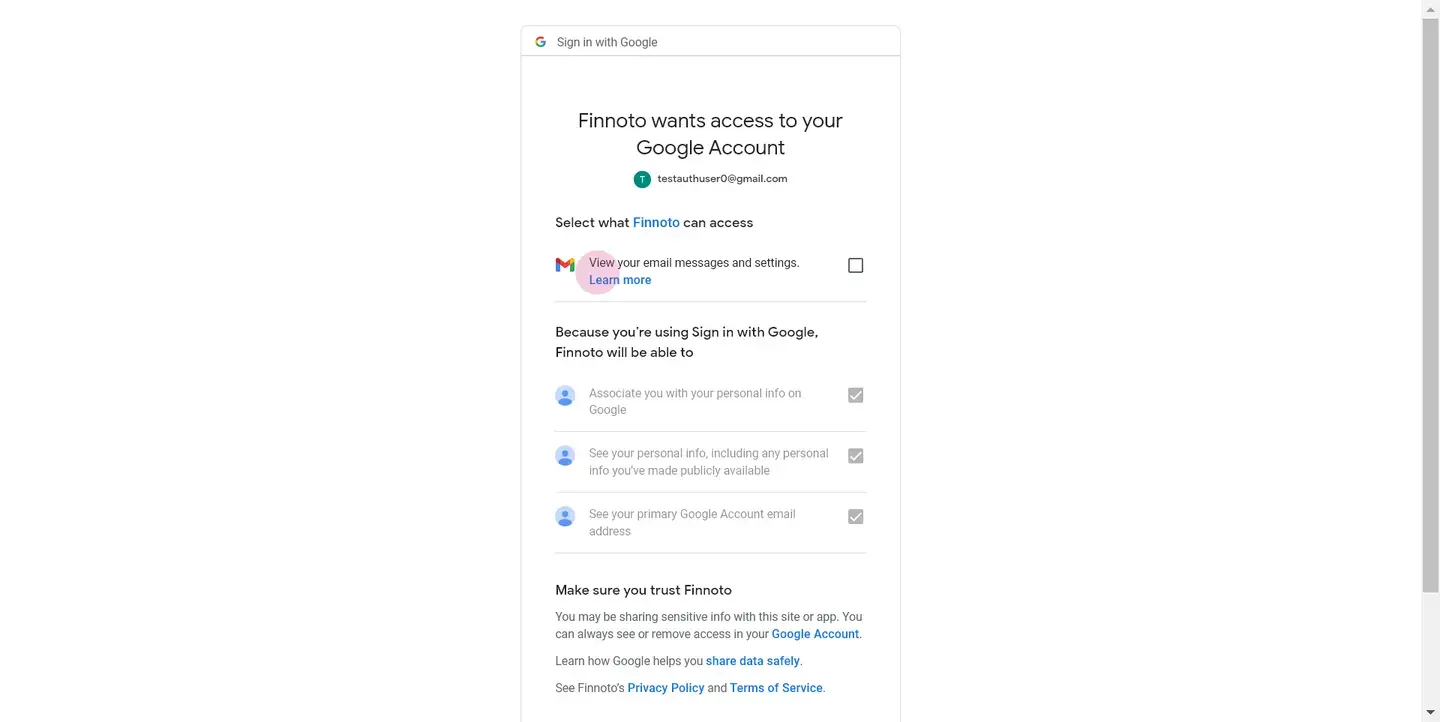
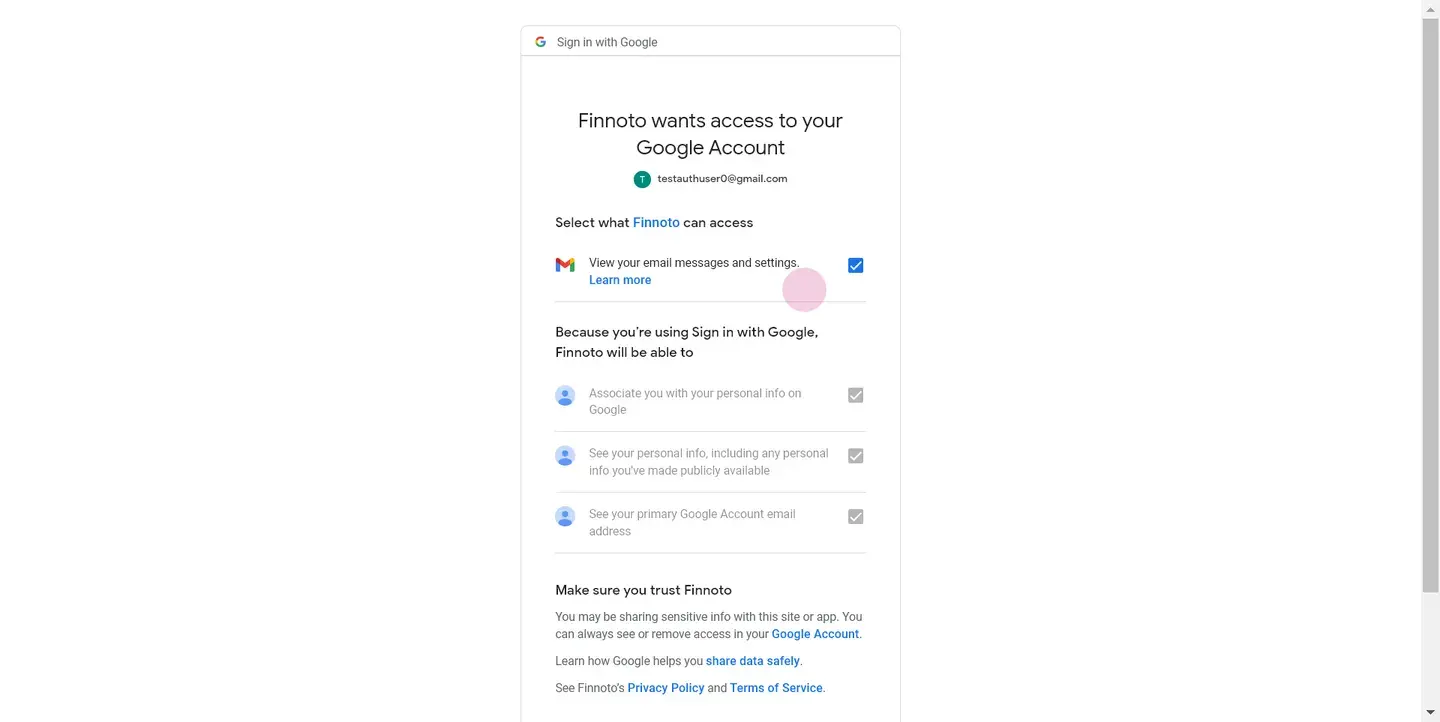
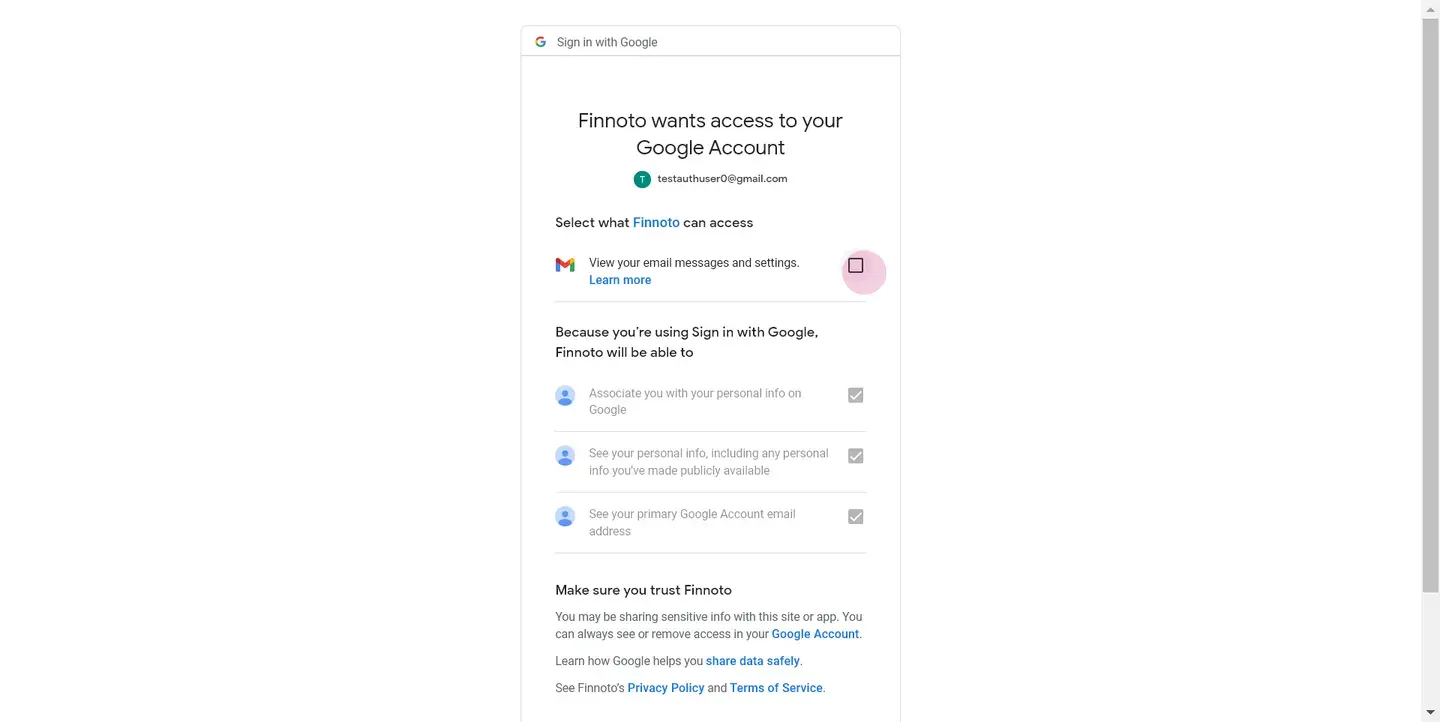
This allows Finuto to retrieve Gmail data for seamless expense tracking.
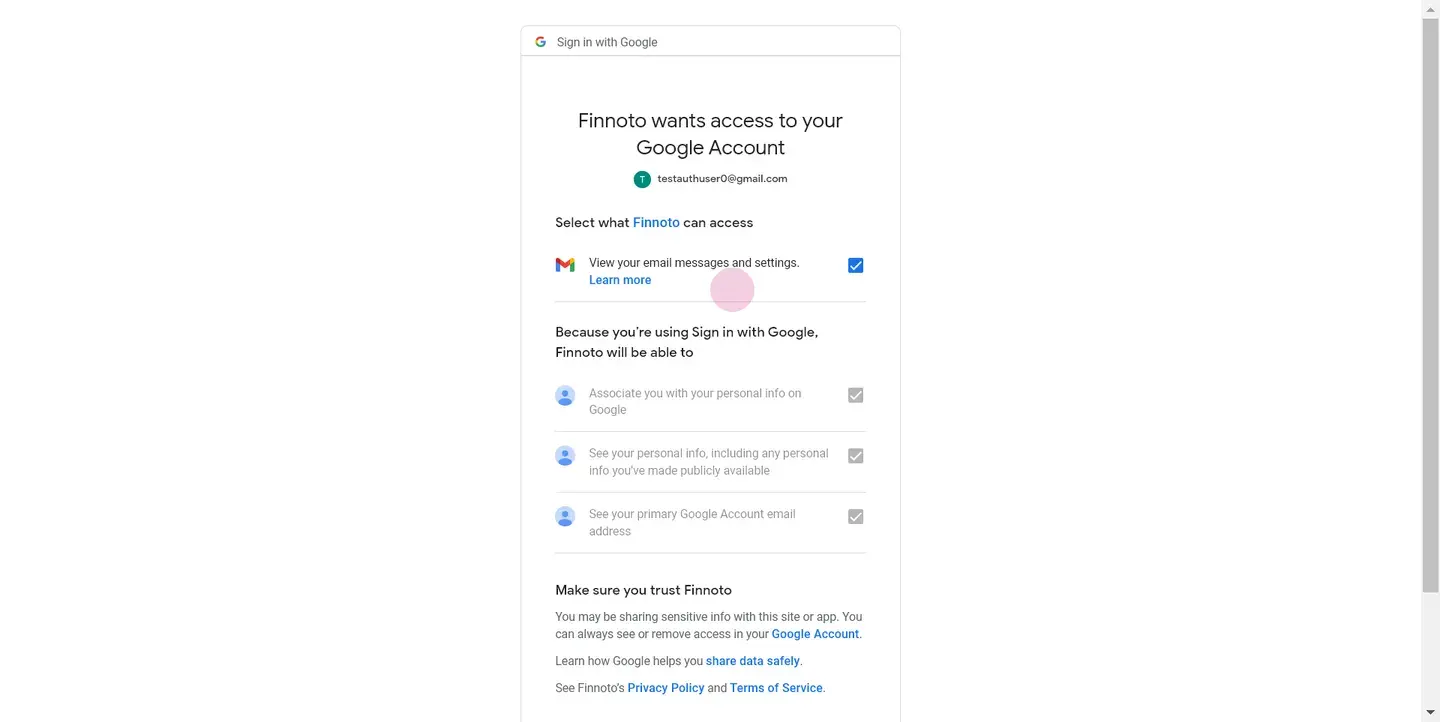
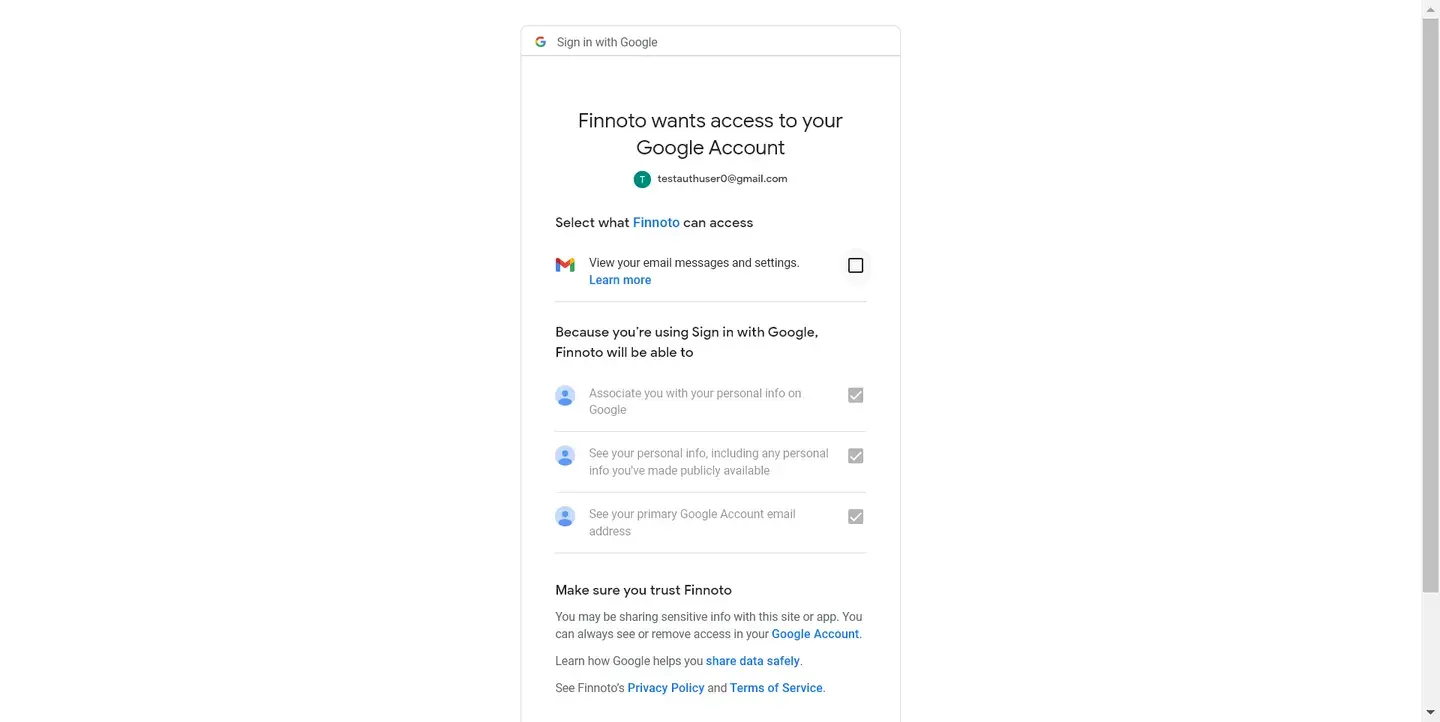
Now let's understand the scope of justification why Finuto requires this permission.
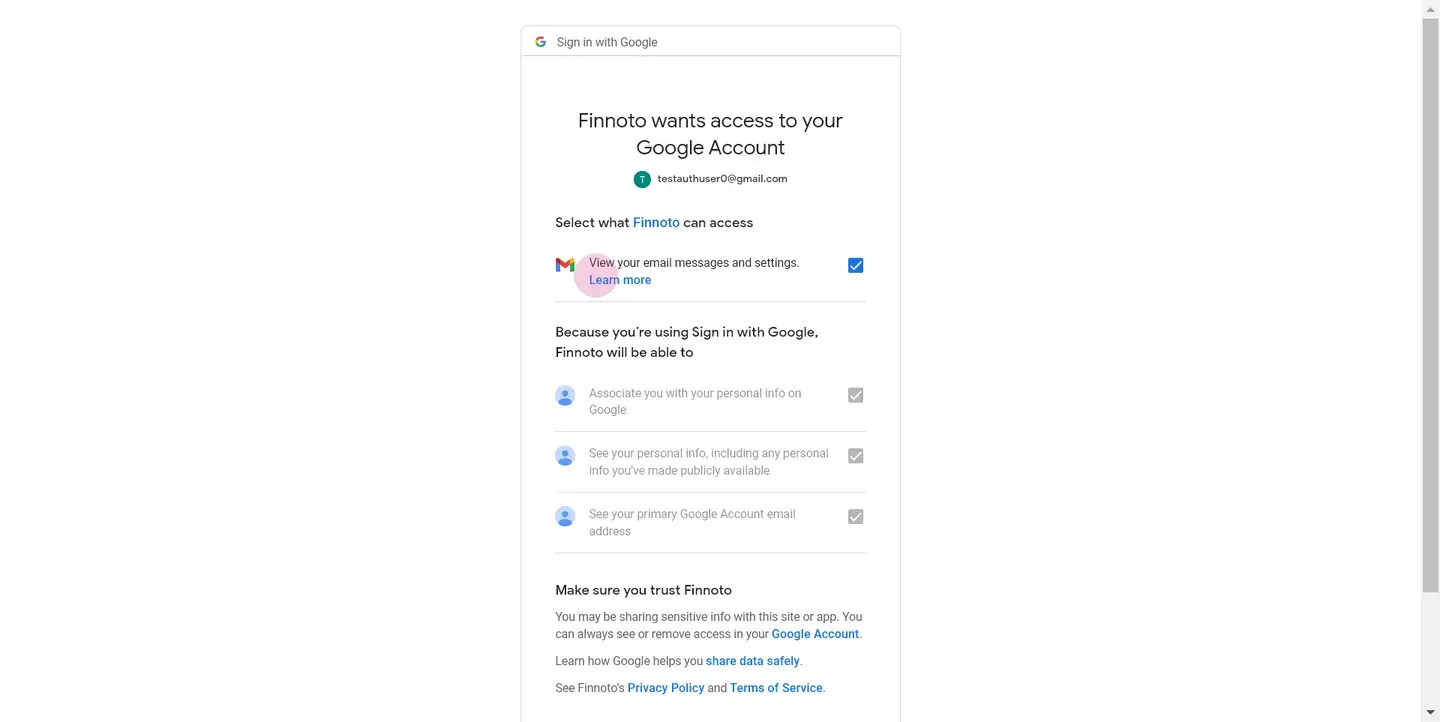
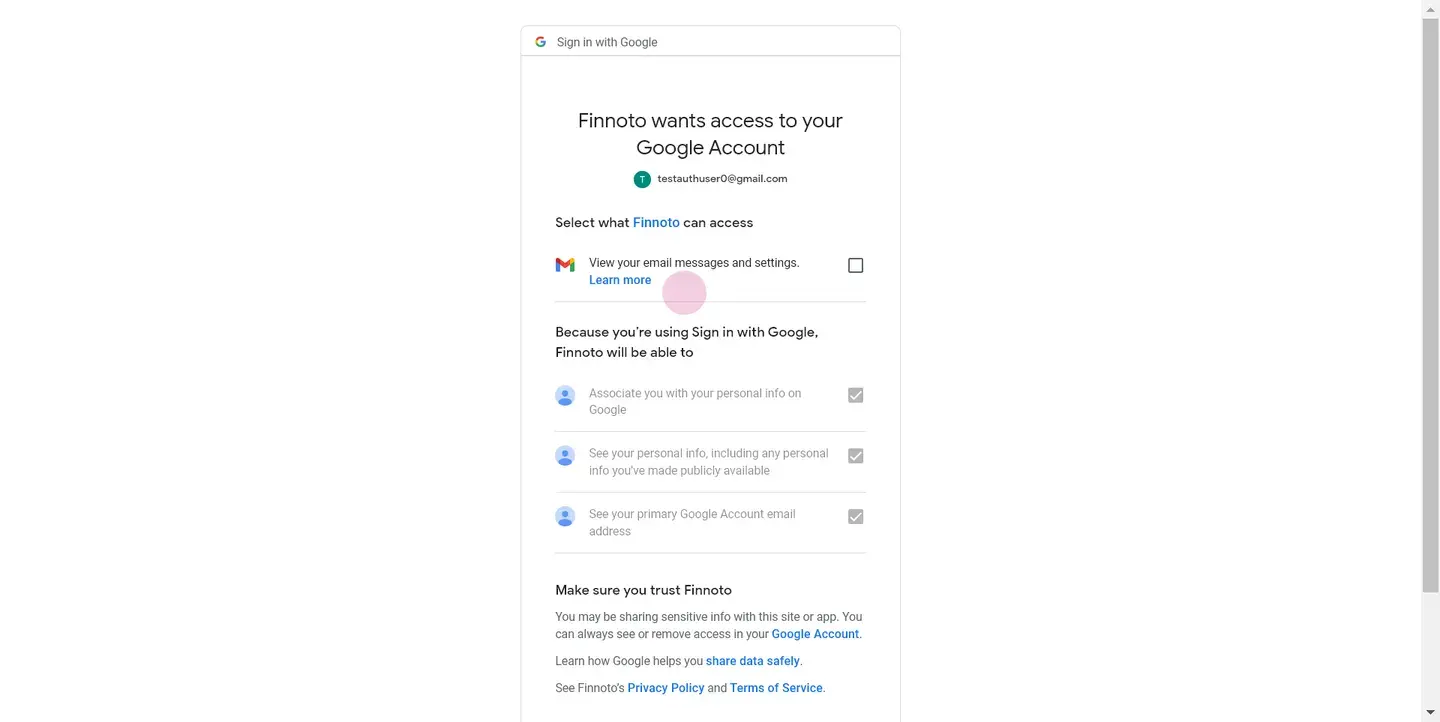
The permission to view your email, messages, and settings is crucial for Finuto to provide comprehensive expense management within Gmail.
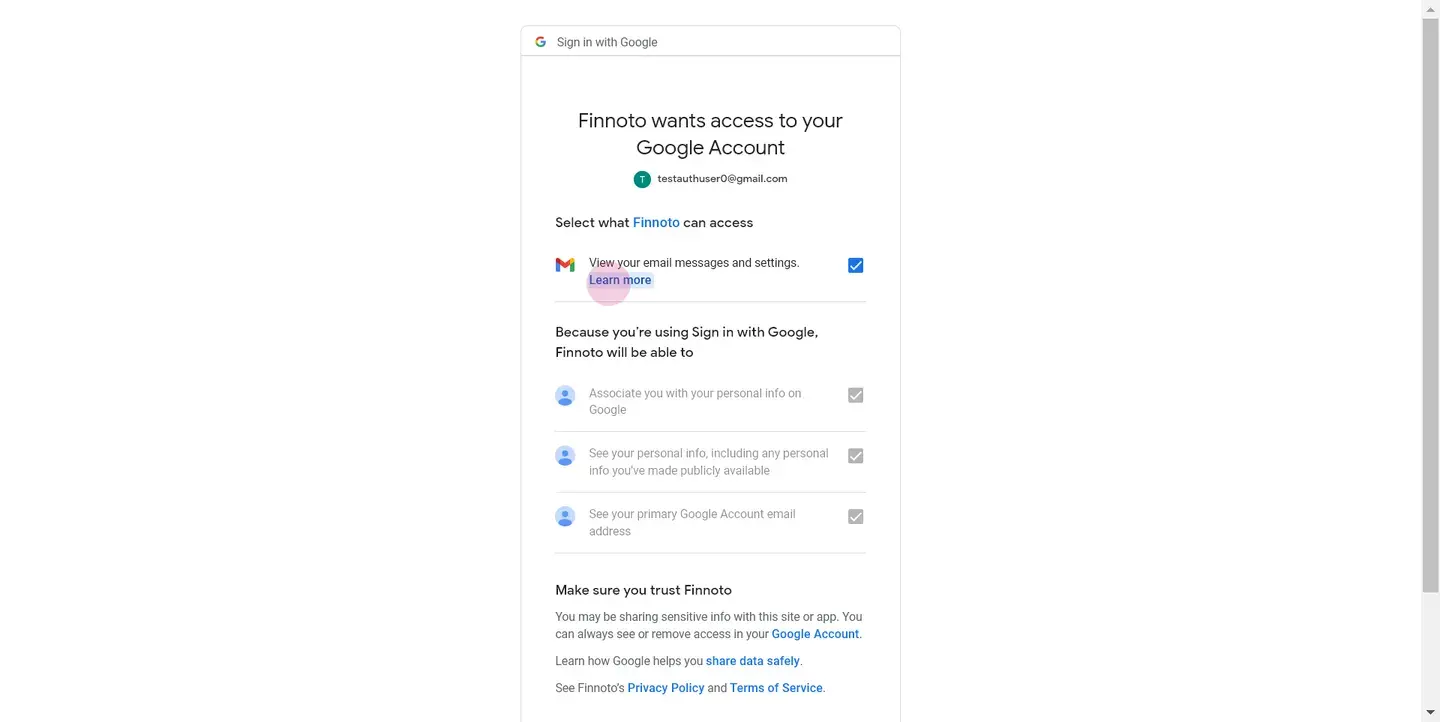
It enables Finuto to use message IDs to retrieve Gmail data for efficient receipt saving and data restoration, letting you reopen emails to visualize created expenses on our reimbursement cards.
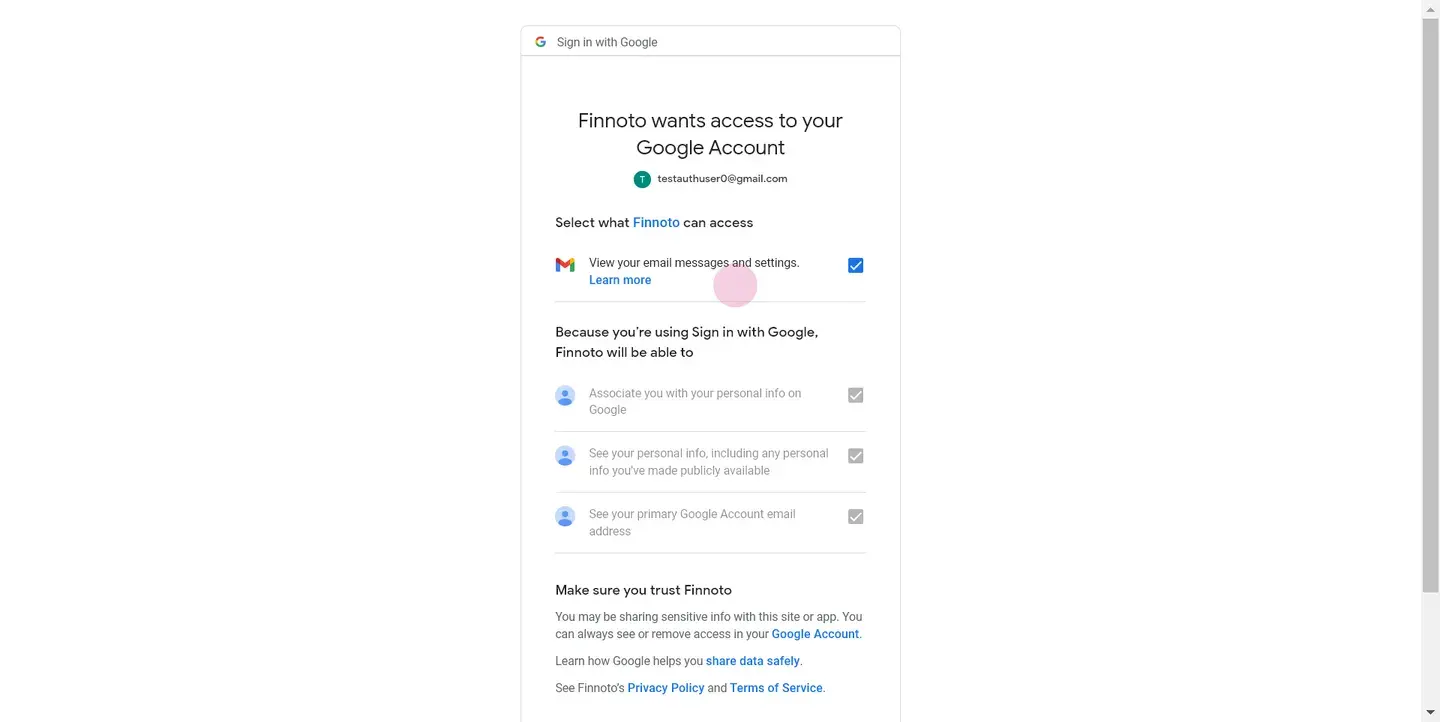
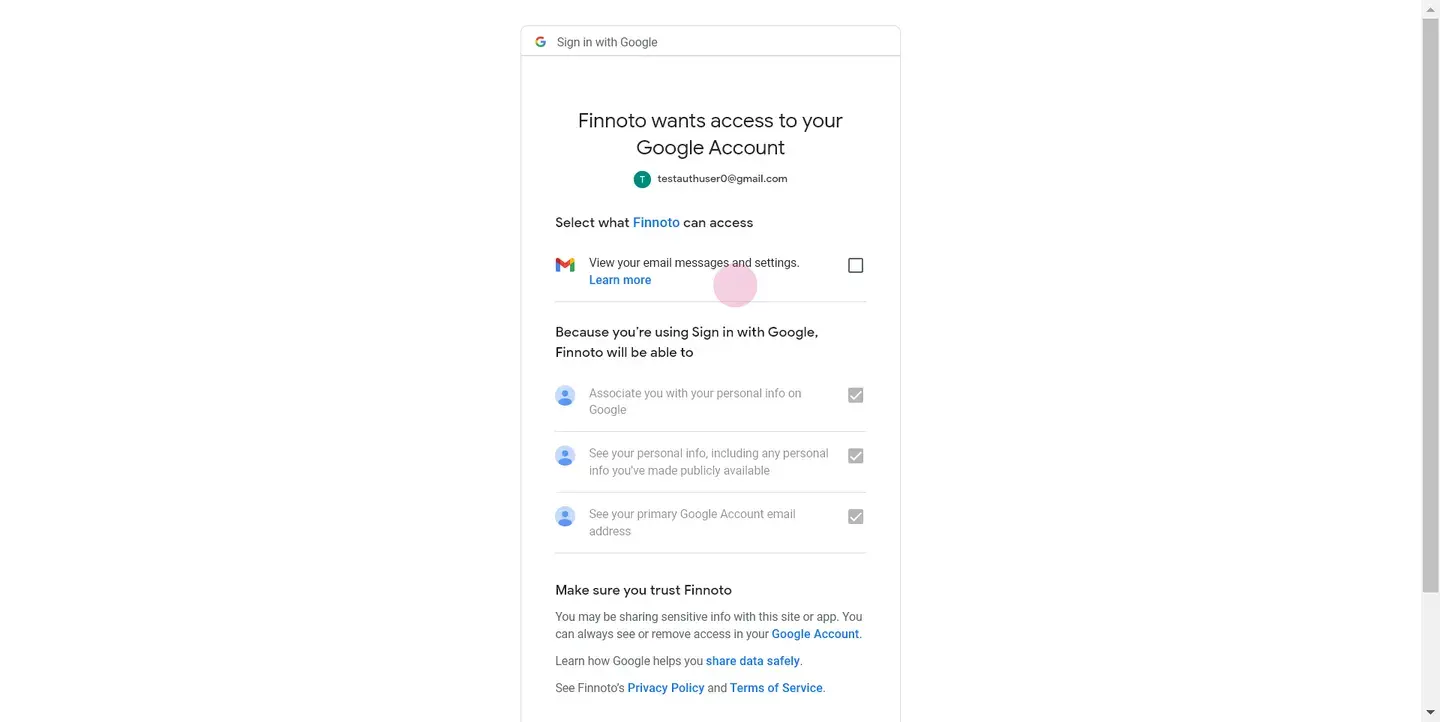
The scope of justification of Google OAuth is also outlined in privacy policy of Finuto.
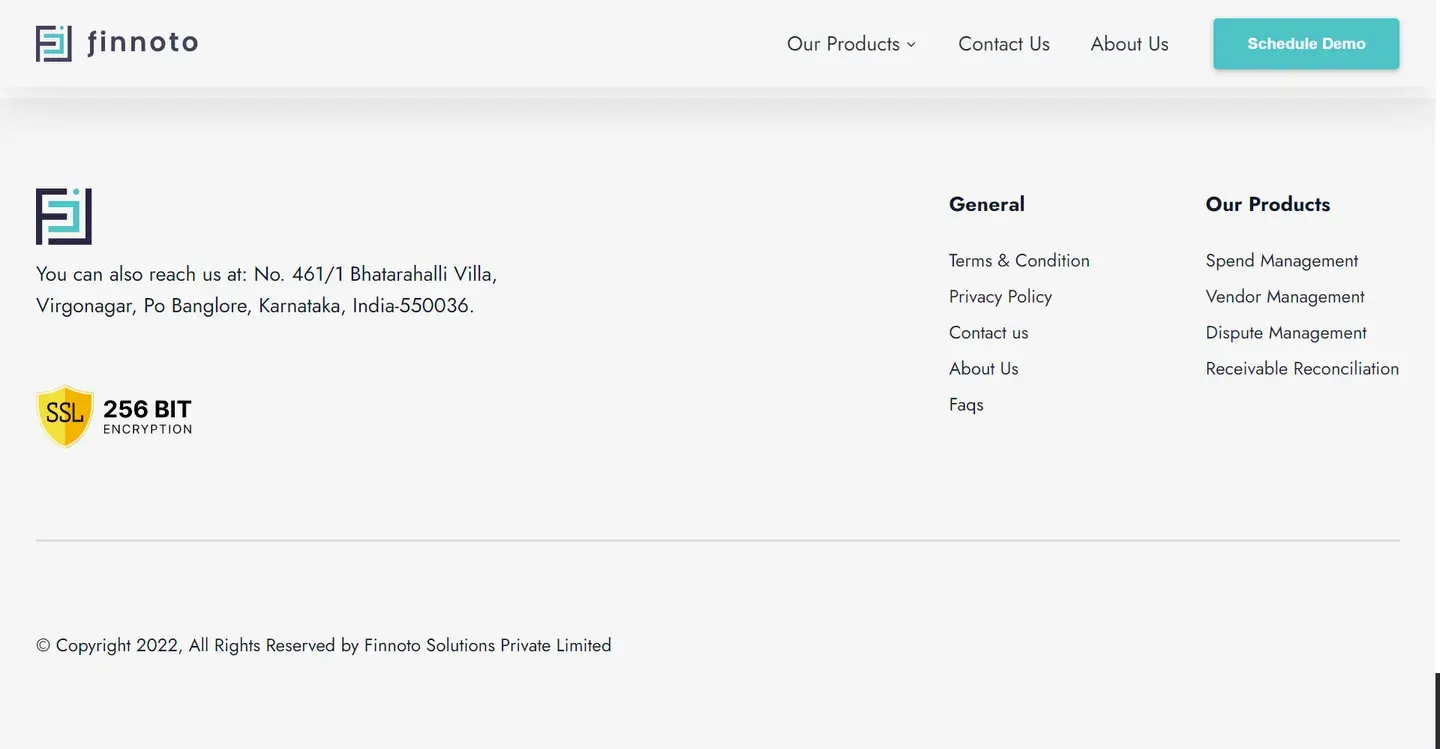
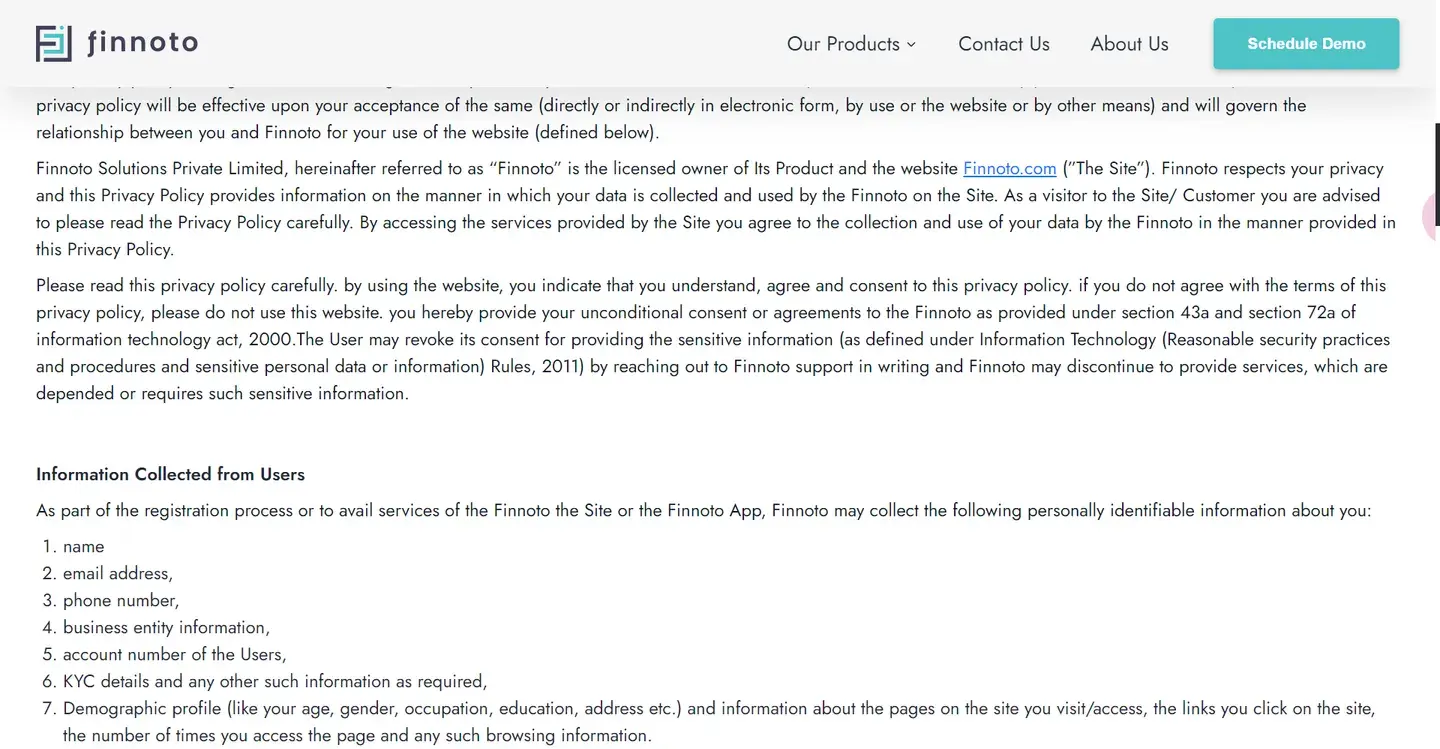
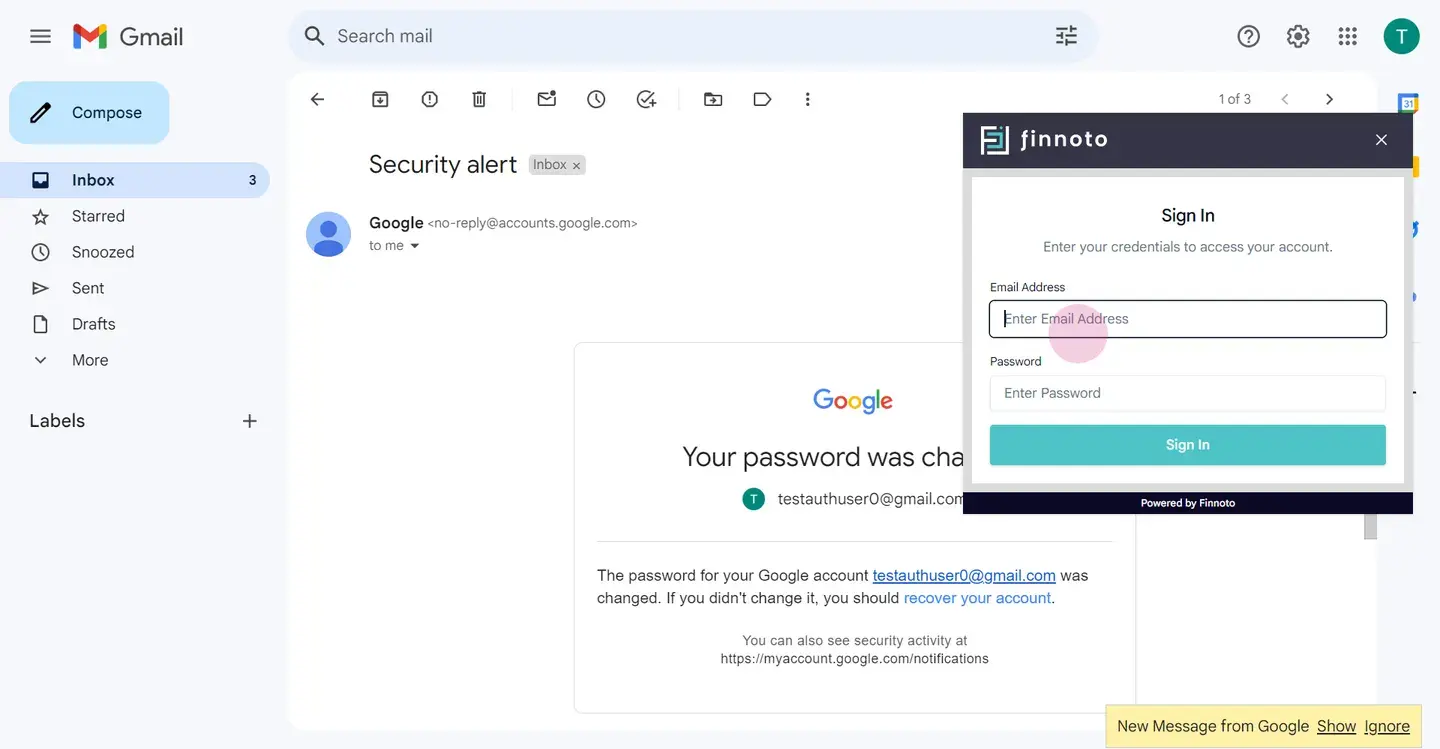
After granting access, you will be Clicking on the continue button Once you have continued it, you will be redirecting to the After granting access, you will be prompted to sign in to Finuto using your credentials.
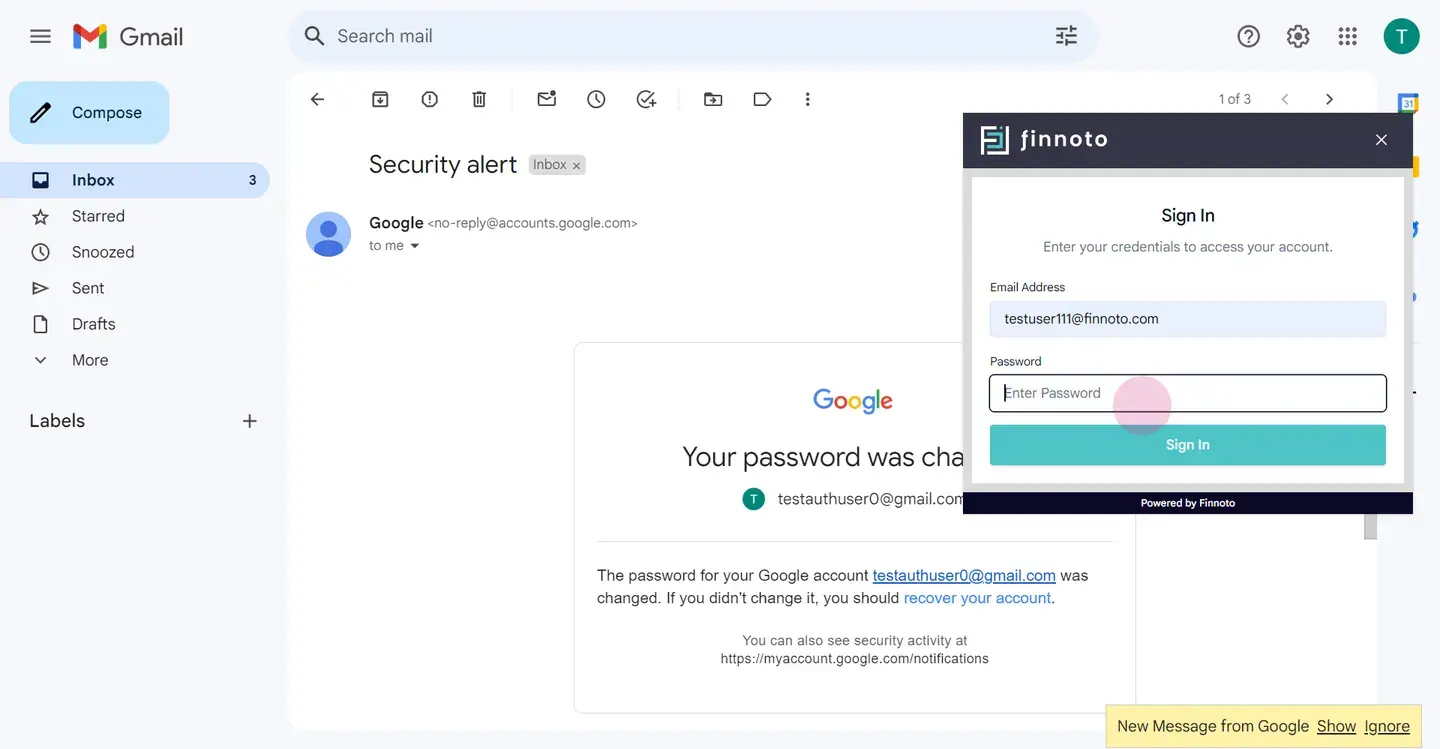
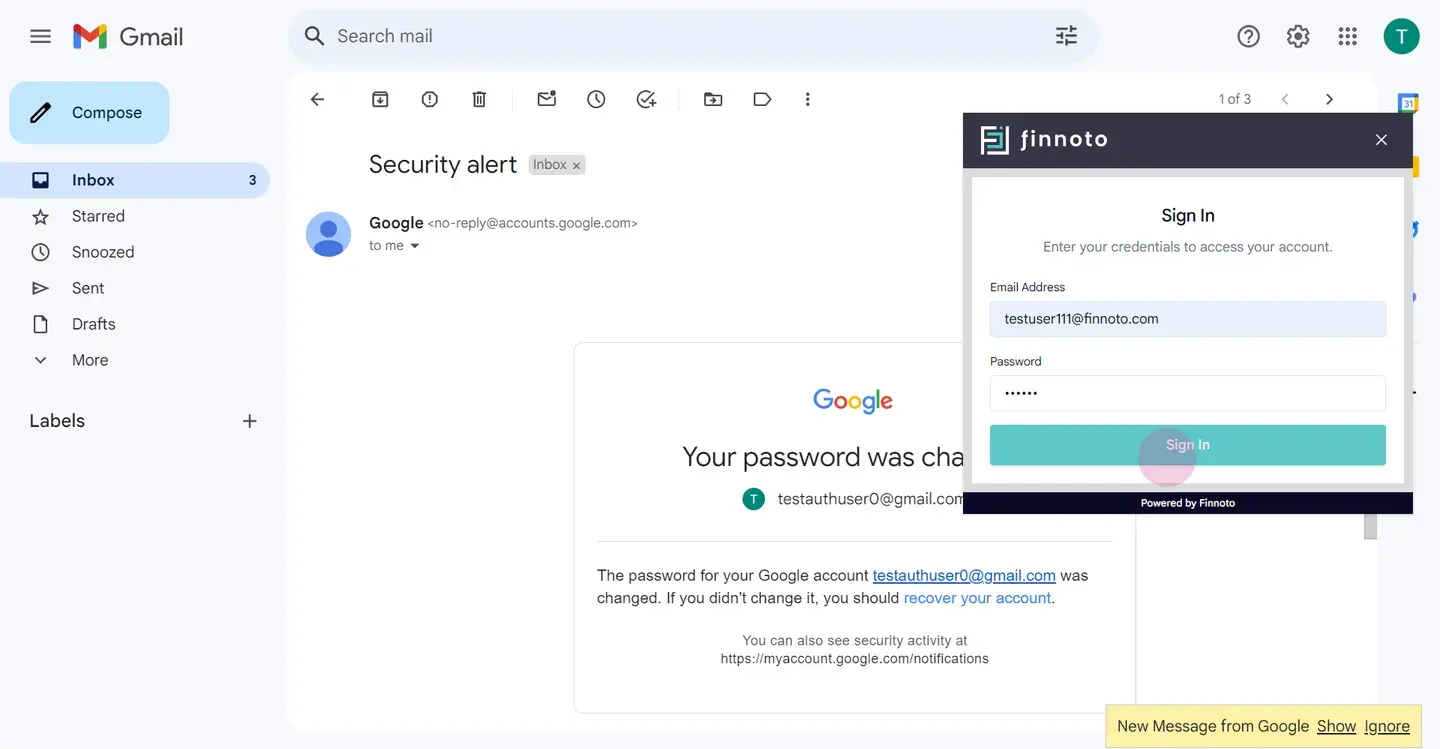
Now select your organization.
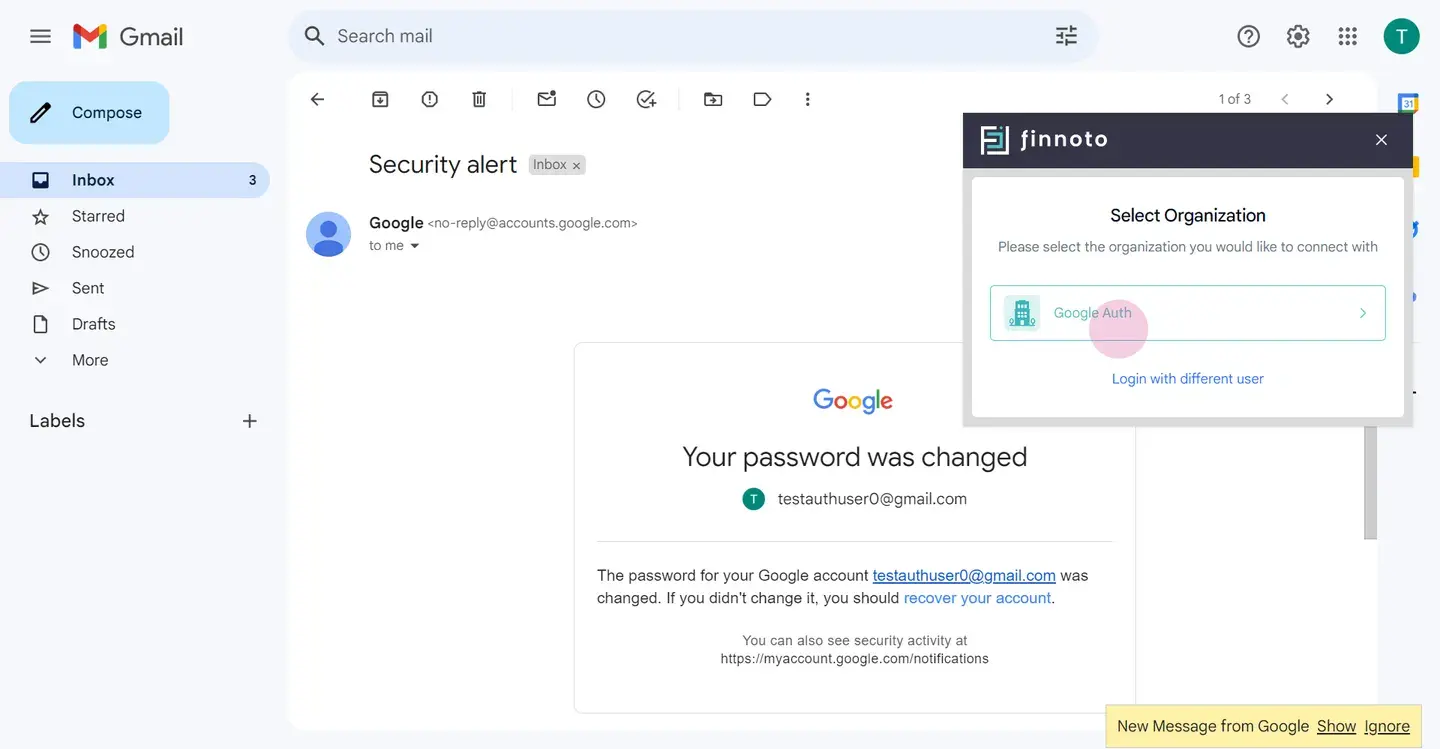
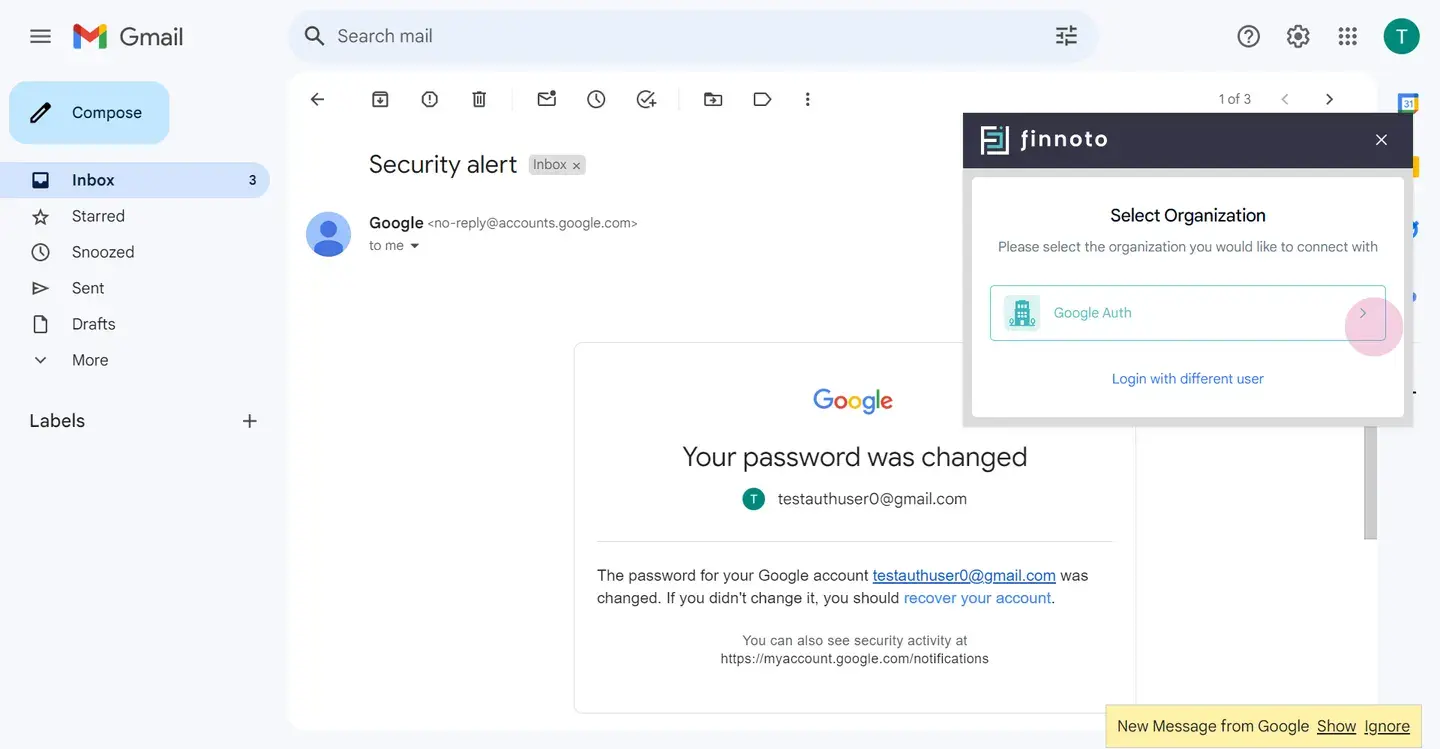
Now choose from the available option, creating an expense, create reimbursement, and you can also forward this email to your Finuto portal. So let's start with creating a expense.
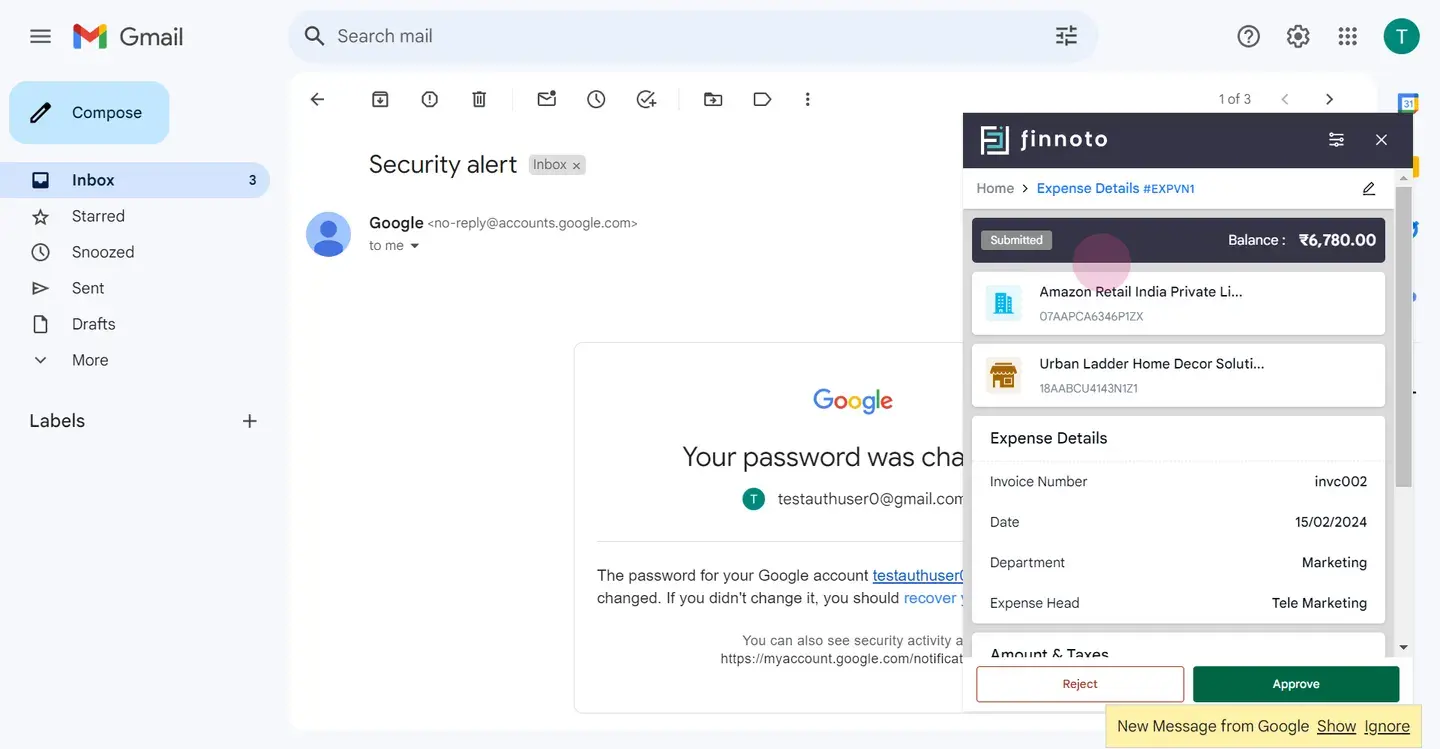
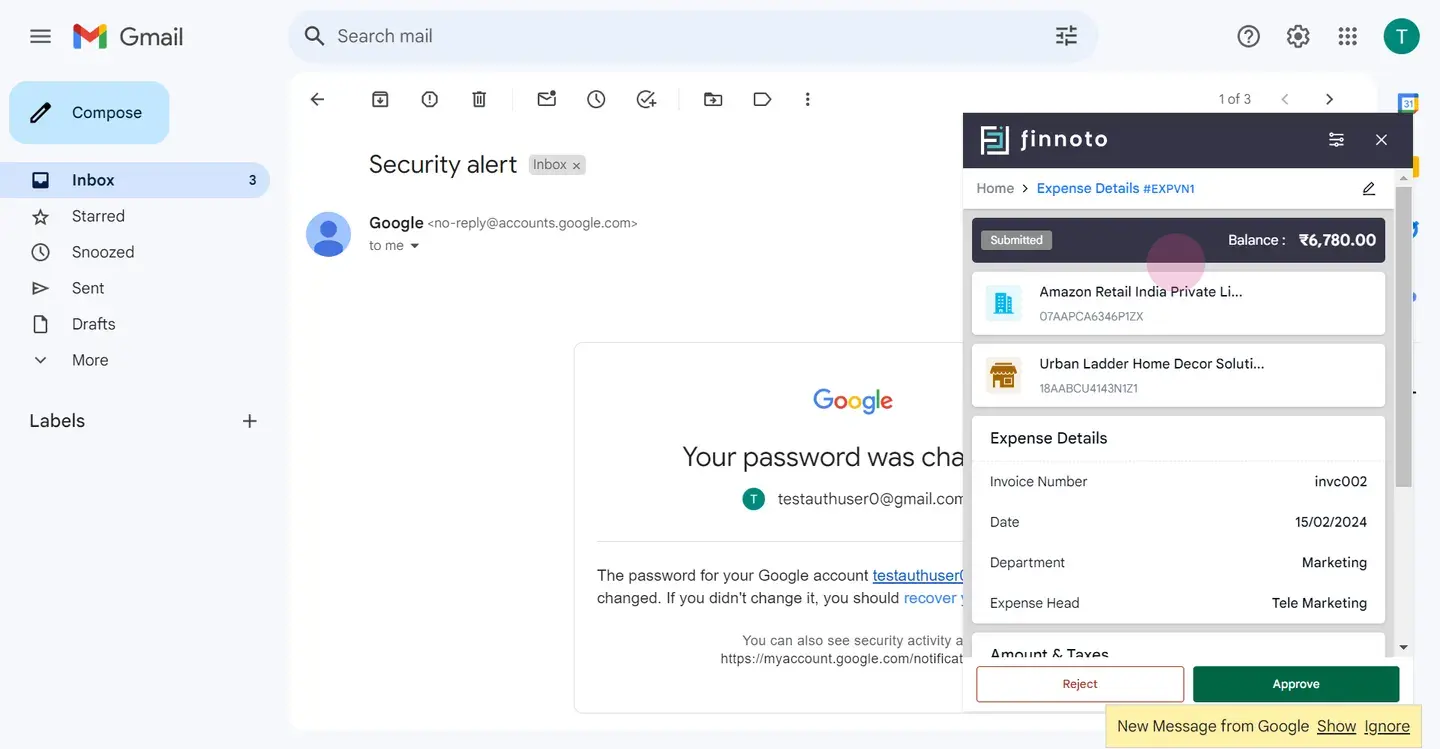
You can approve and reject and edit information by clicking on this edit icon.
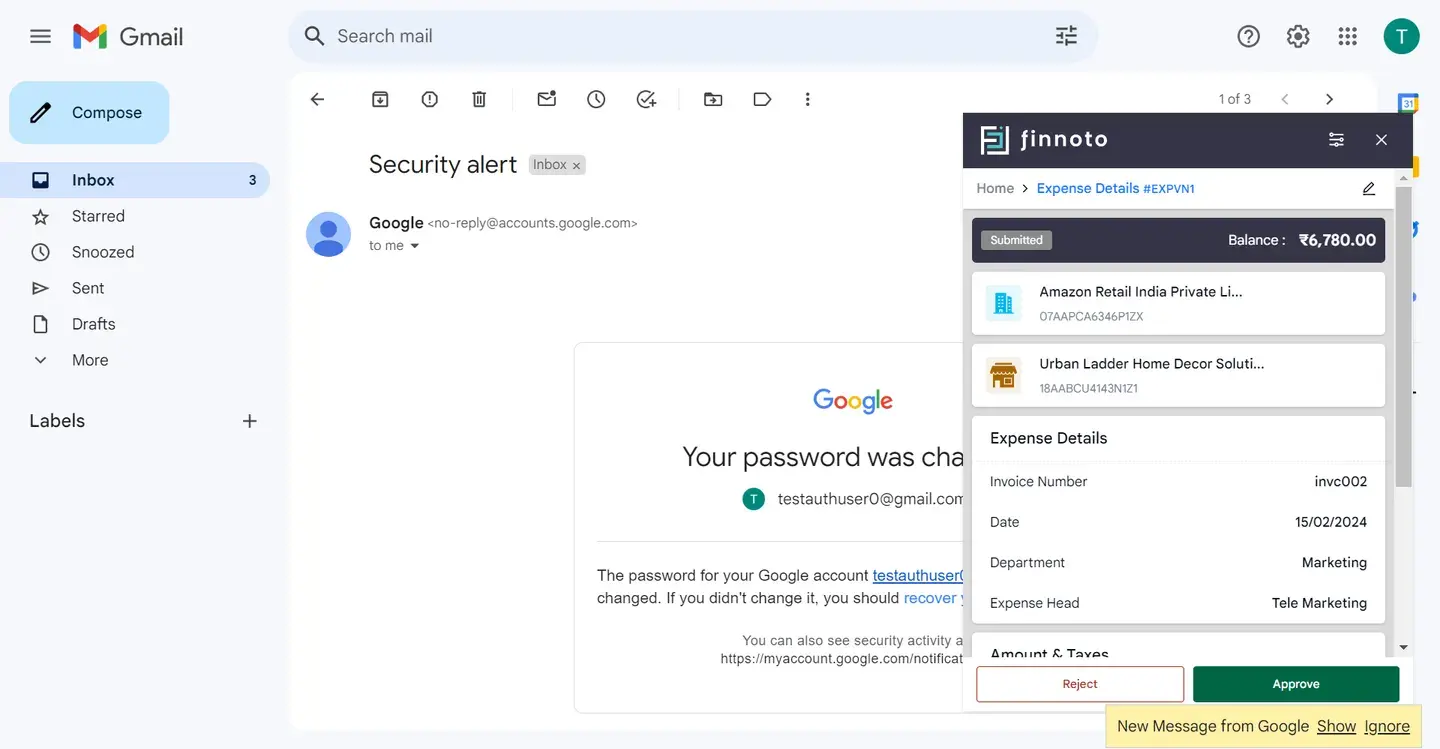
By clicking on the settings, you have an option to adjust the display resolution.
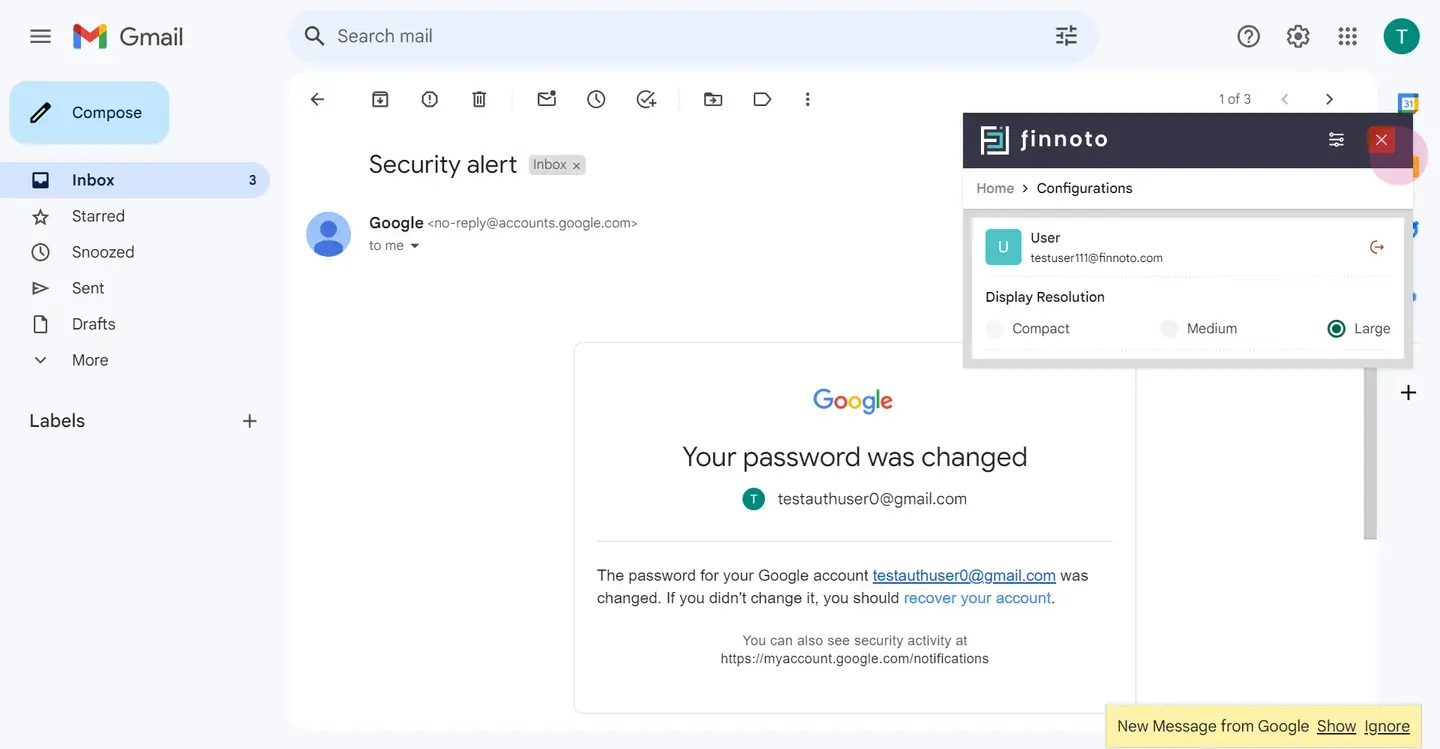
And now whenever you will open this mail and by clicking on the add expense button, You will always be able to You will be always be able to see the expense raised by you.
That's all for now. Thank you for watching this video.