Filters and saved filters
Narrow any list with filters and save the ones you use often so they are one click away.
Last updated on
Transcript
Filter and Save Filter Functionality On Finnoto
When you are working with the large data set or complex search, criteria, you can use the functionality of "Filter" and "Save Filter" to narrow down and focus on specific information. You can apply various filters to refine the data you want to view or work with.
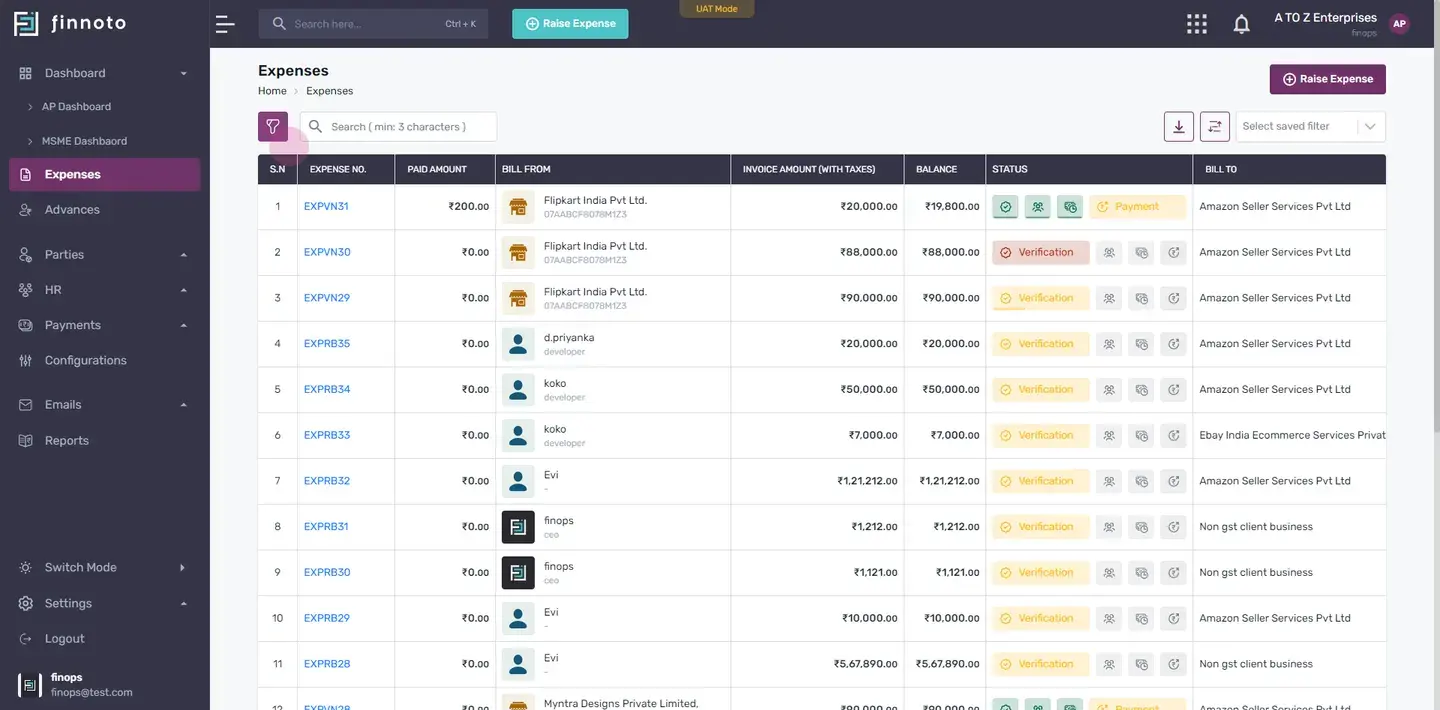
Navigate to Filter Section.
Go to the expenses listing or any other listing page and select the "Filter" option. This is usually available next to the search bar.
Apply Filters.
Start by applying filters based on your criteria.
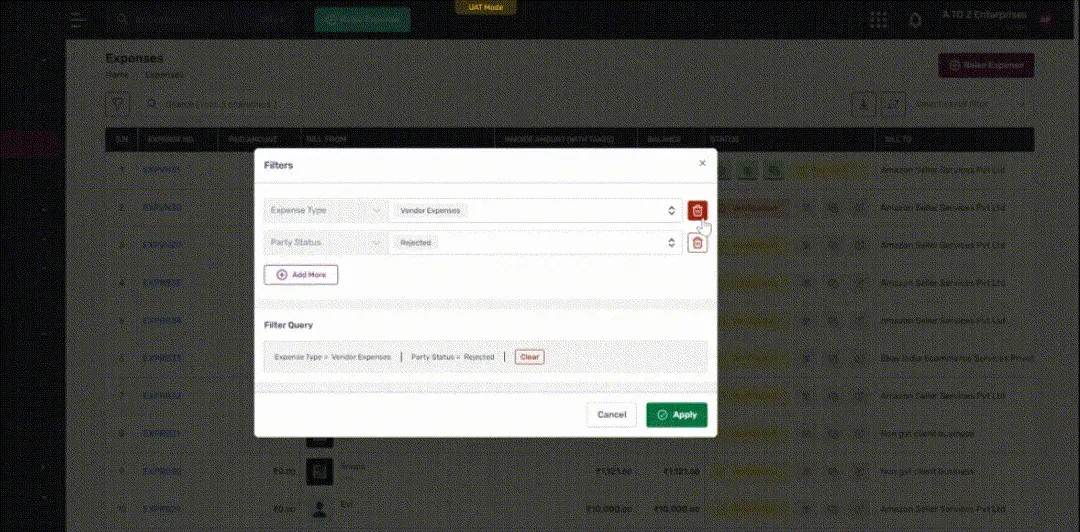
Click the "Add More" button to add additional filters if required..
Delete Filters (Optional).
If you want to remove any applied filters, click on the corresponding "Delete" icon.
Filter Query.
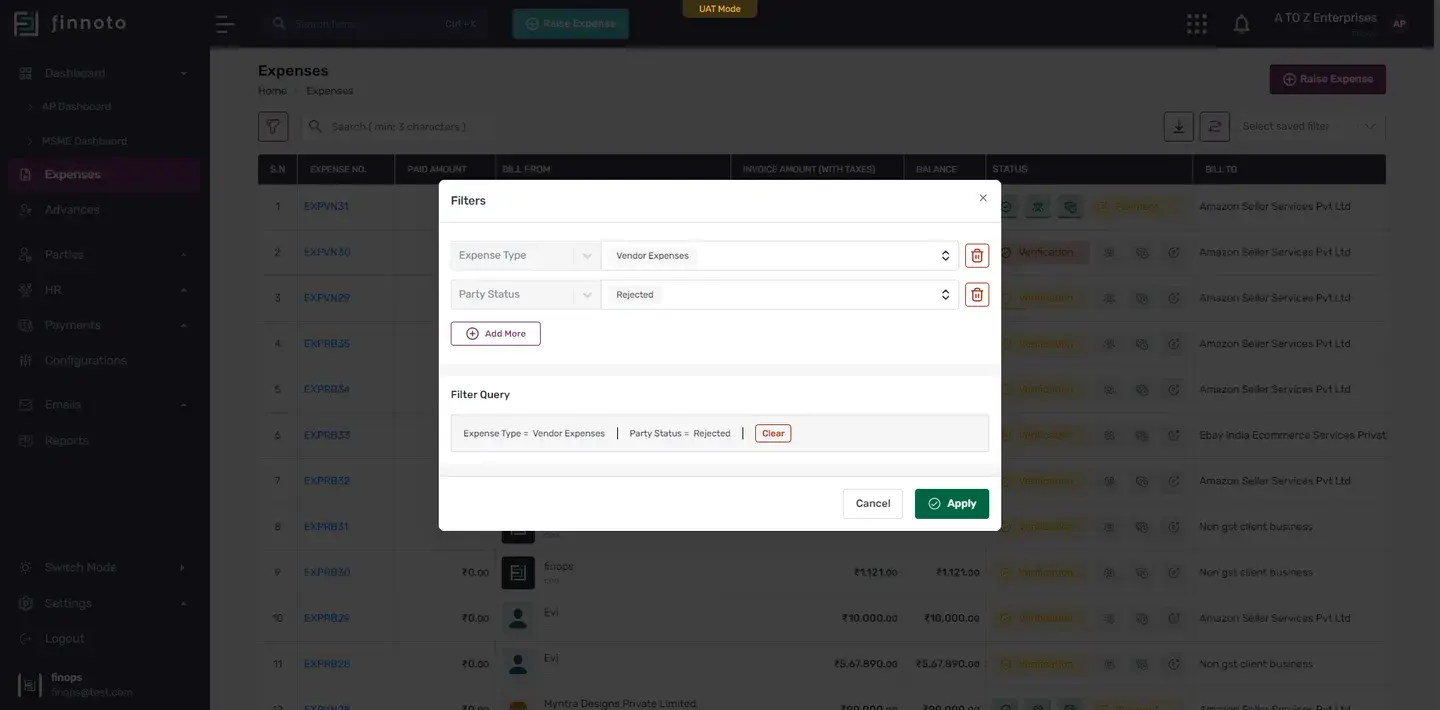
The selected filter query, will be displayed under the "Filter Query" section. If you want to clear this query just hit the clear button. Now to apply this filter on the expense listing, you have to click on the apply button.
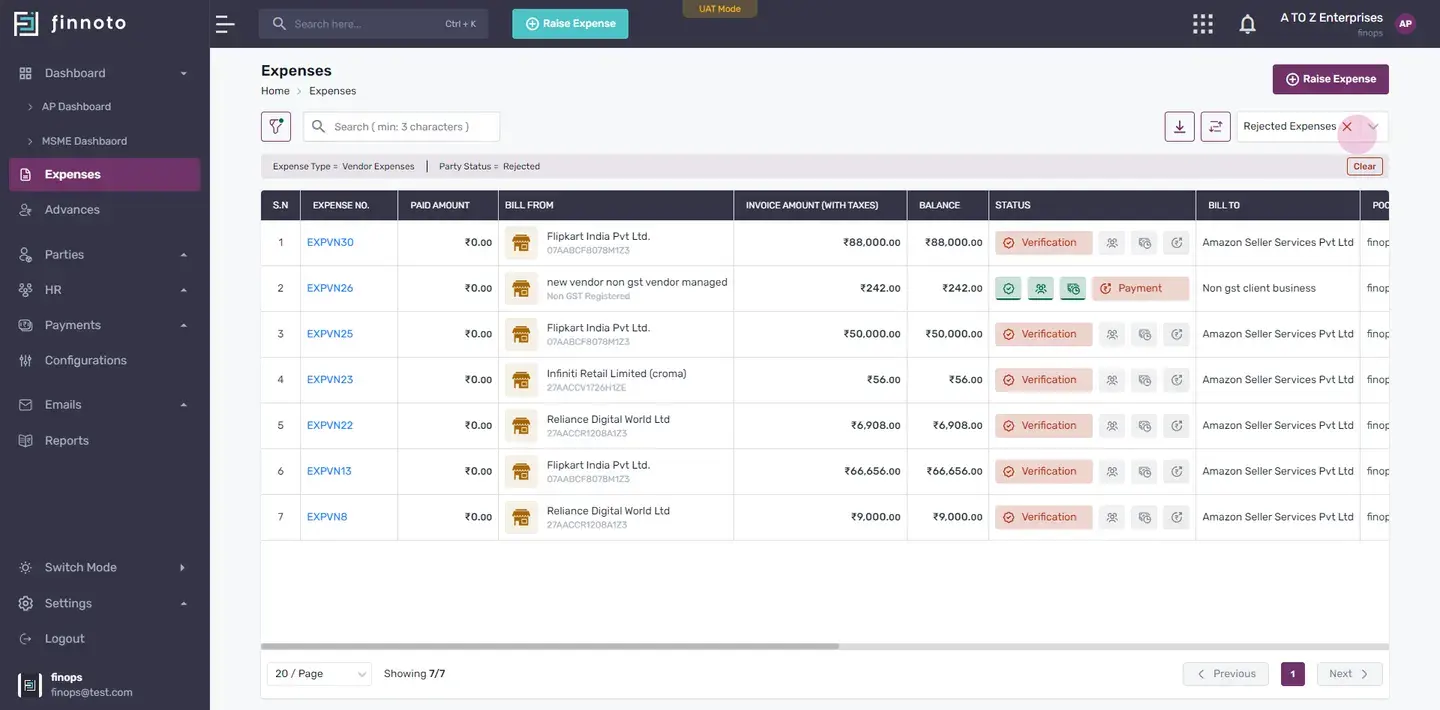
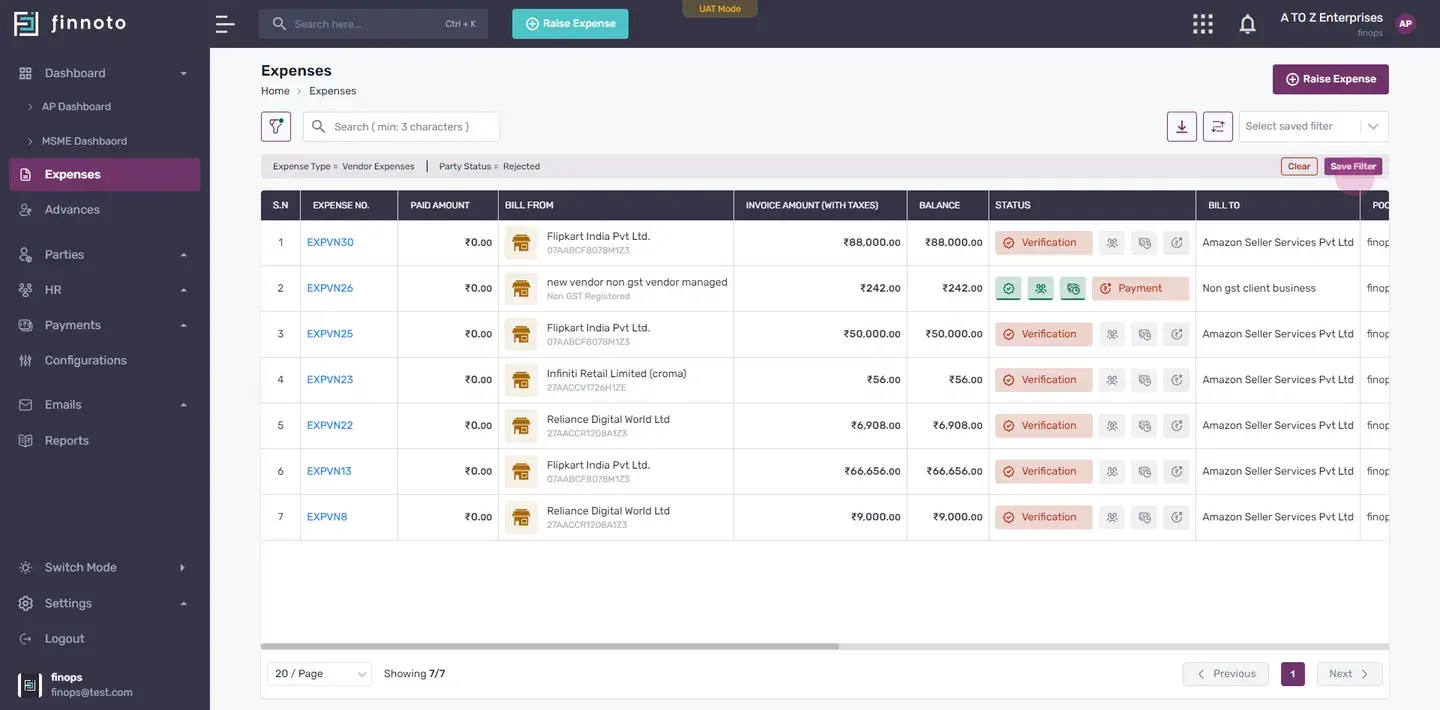
Filtered results are now visible, and the applied filter can be seen at the top of the table.
Save Filter.
To save this filter for future use simply hit the save filter option.
Customize Filter Name.
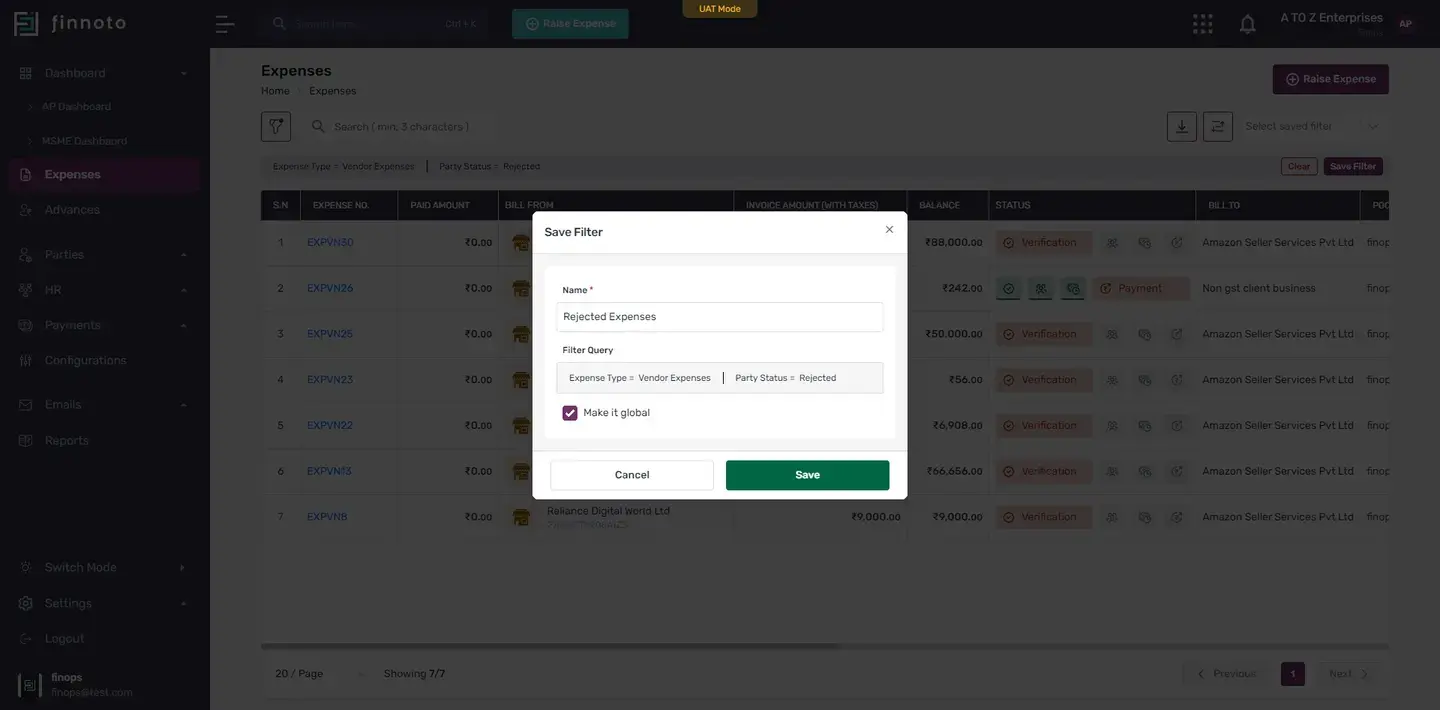
In the prompted window, customize the filter's name as per your requirement.
Select the check box of "Make It Global" if required. Making this global will allows all your employees to use this filter on their own portals.
Access Saved Filters.
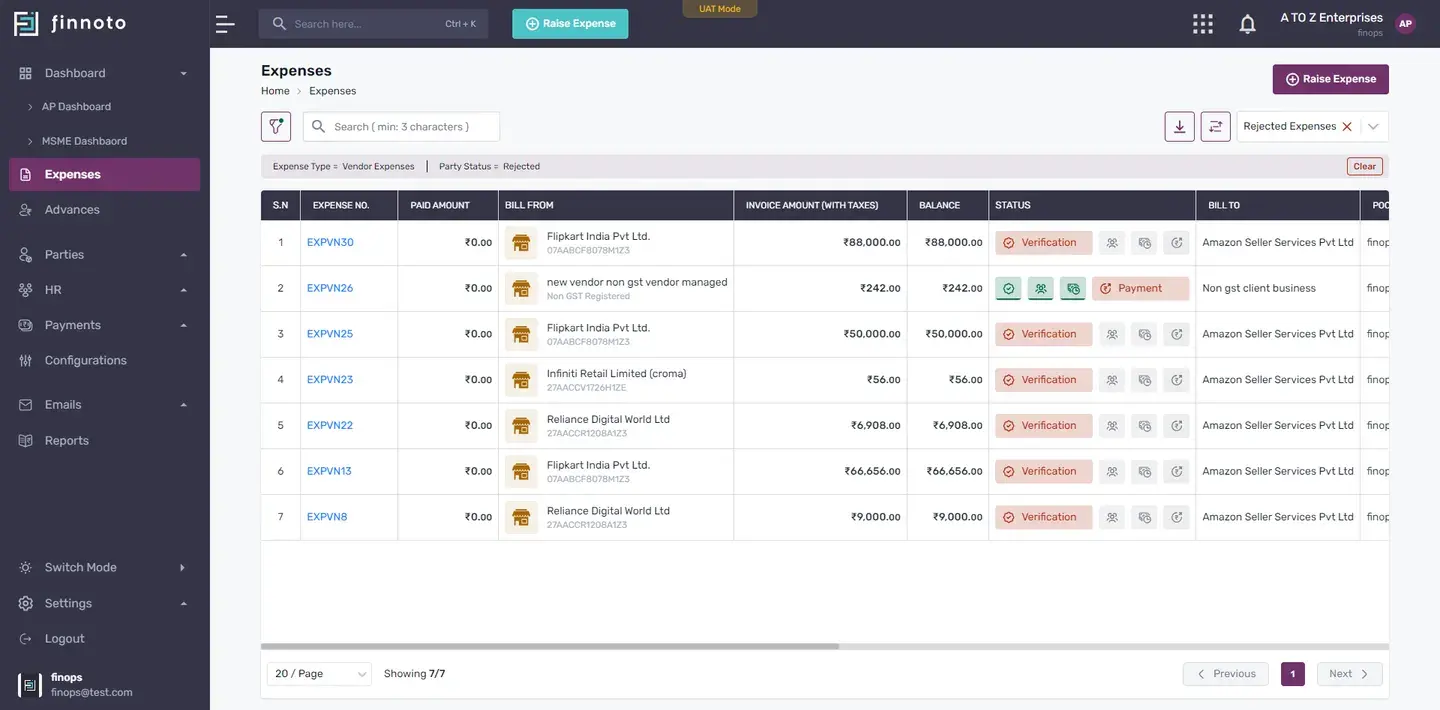
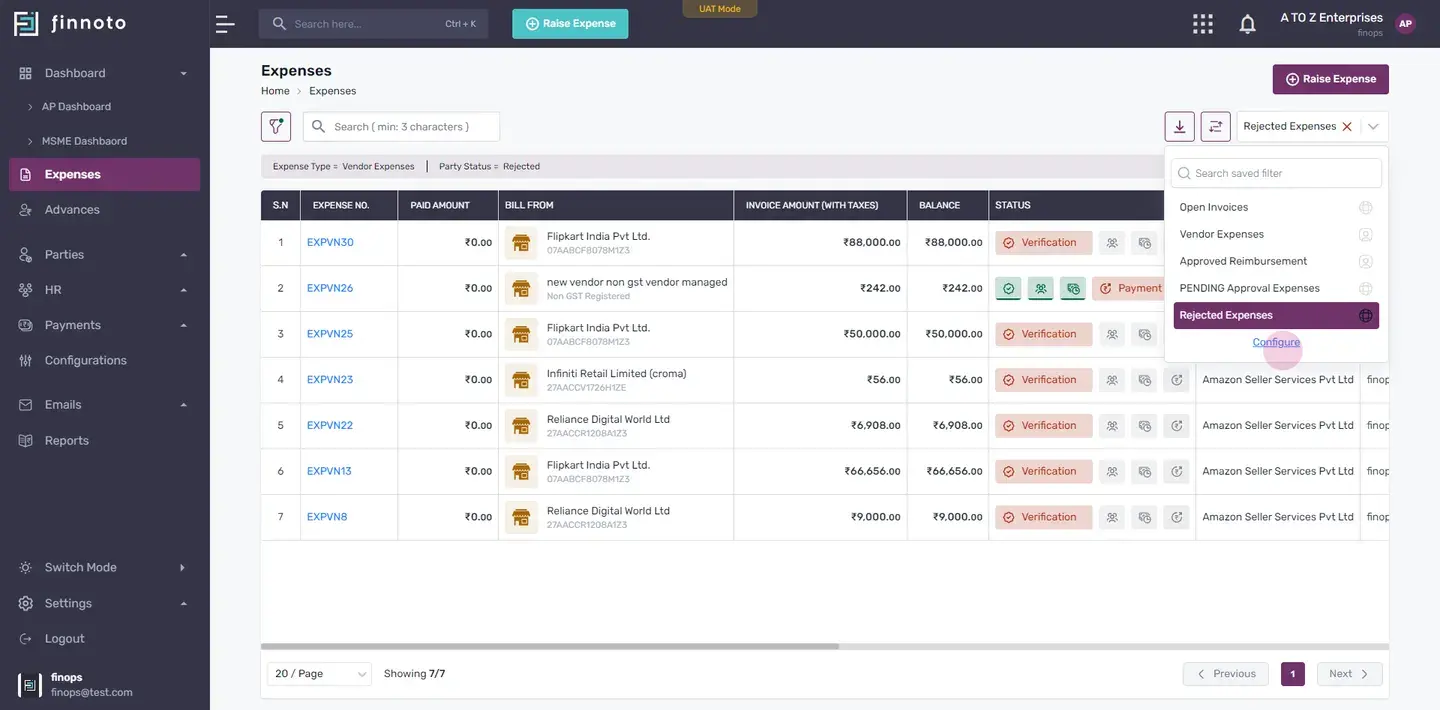
Once your filter is saved it will appear in the top right section of the page. From the dropdown menu , you can see all your saved filters.
Configure Filter.
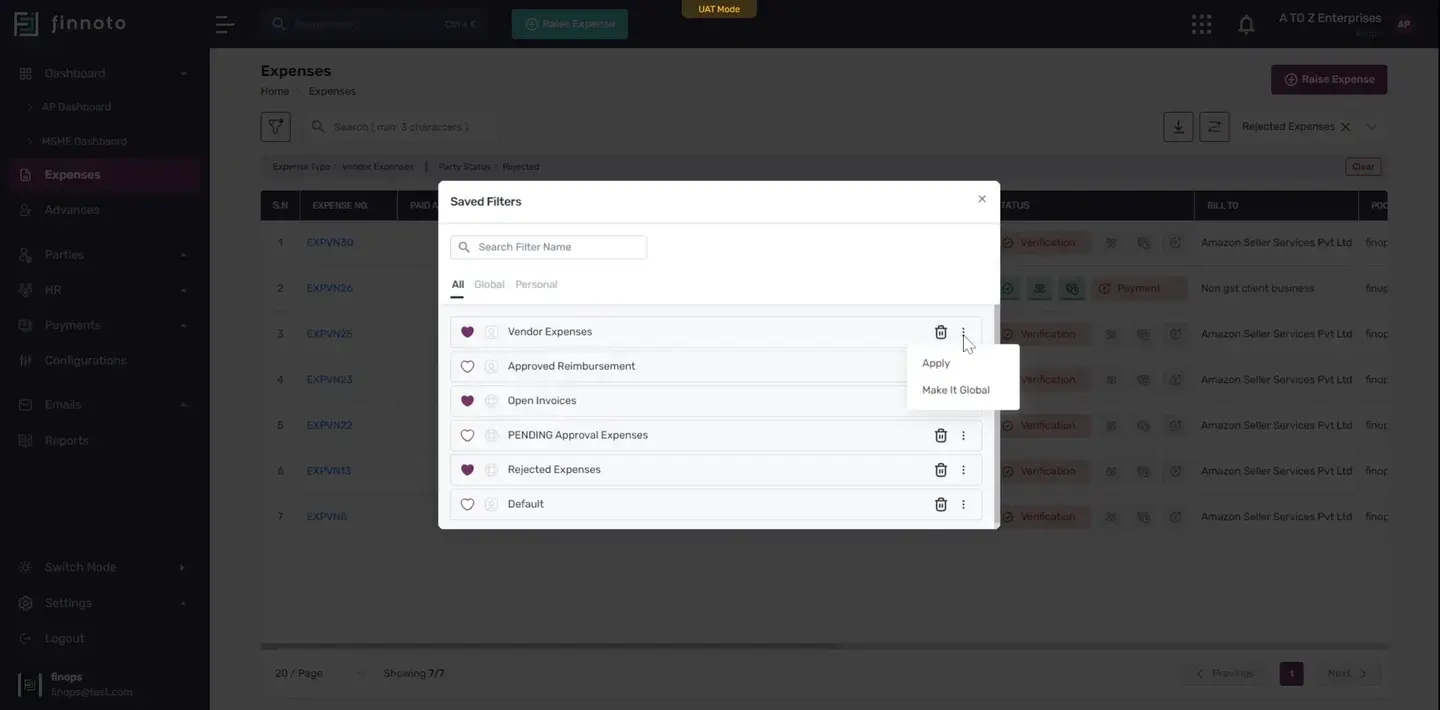
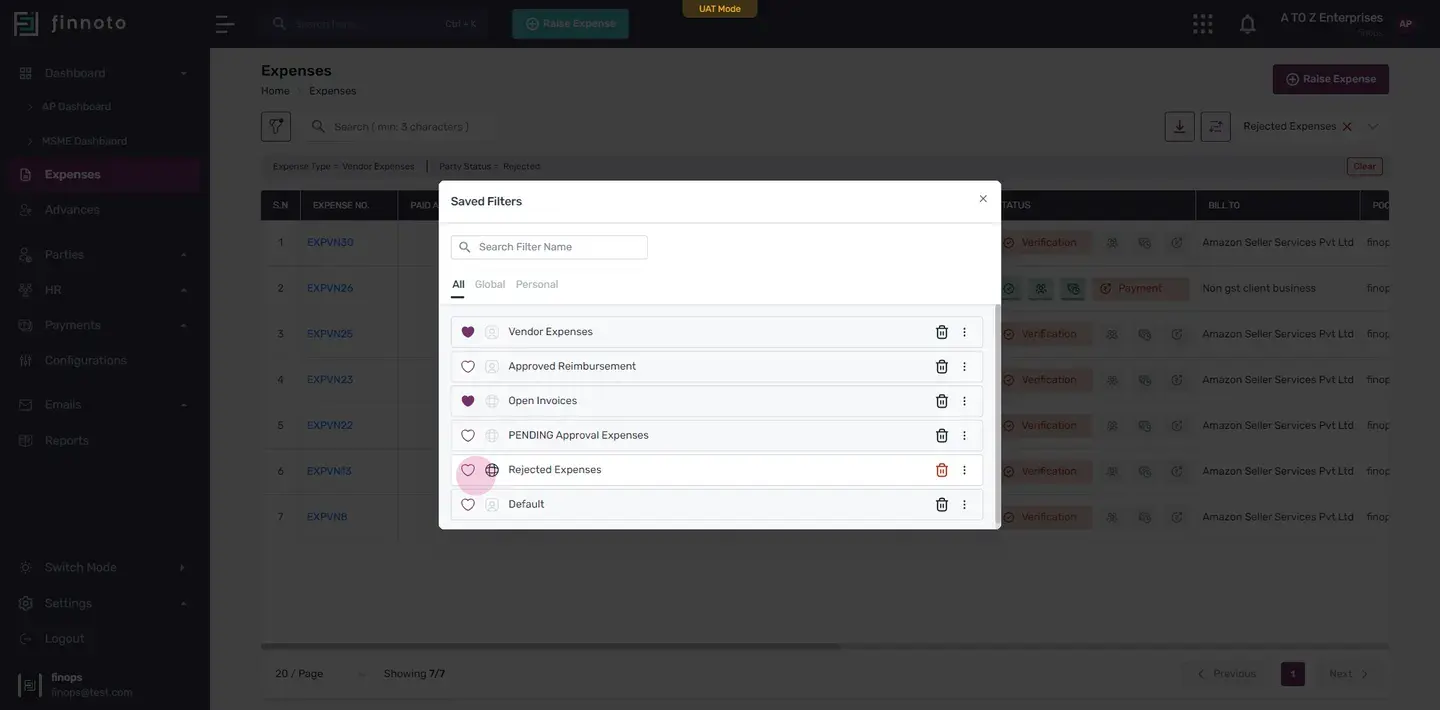
If you wish to configure these filters further, click on the configure. Under the 'all' tab, you can see all your saved filters. You can mark them as favorites by clicking the heart button. To delete any of the filter click over the delete icon. To apply a saved filter to your listings, simply click the apply button. Making a filter global is also possible from here. Filters you've saved personally will appear under the 'personal' category. Under the 'global' tab you can view all your globally applied filters. And under the 'personal' tab you can view all your personally saved filters.
Cancel Applied Filter.
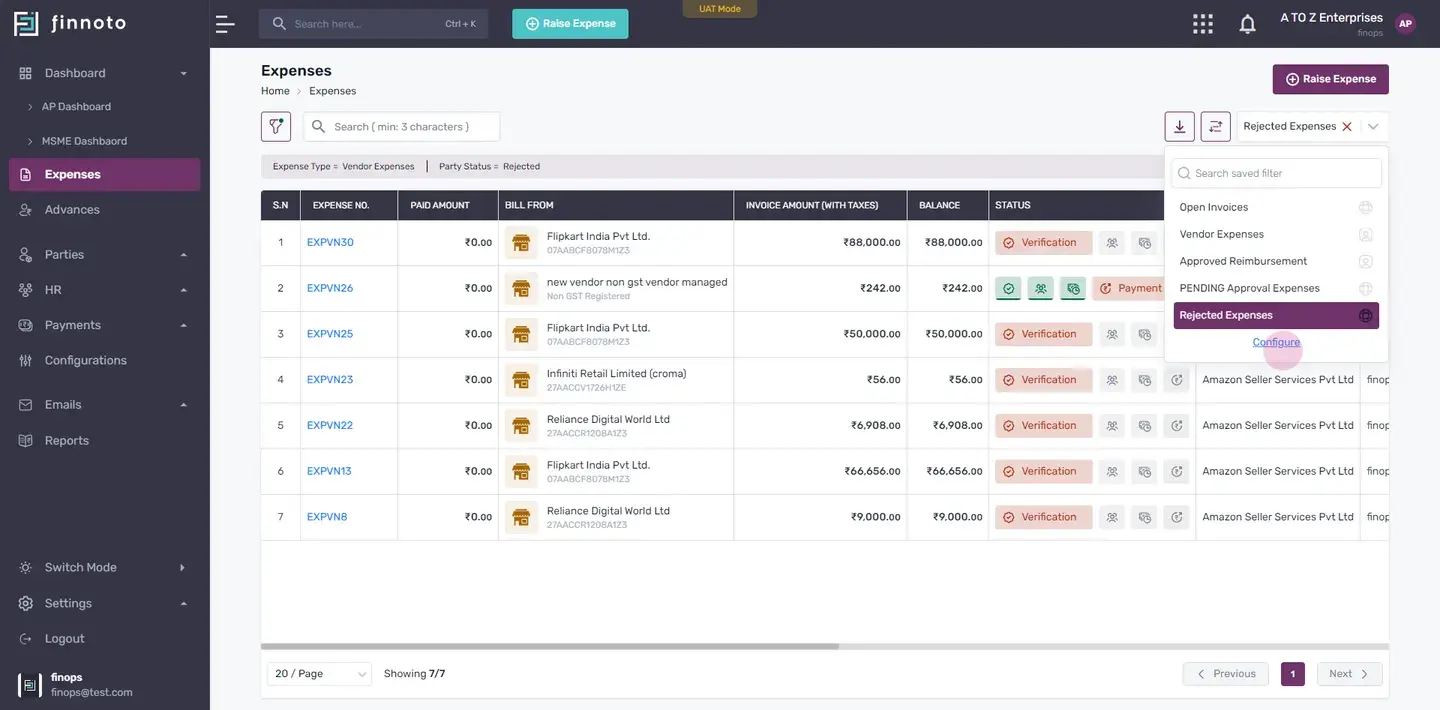
To cancel an applied filter, just click the cancel icon.
Filter and Save Filter Functionality On Finnoto
When you are working with the large data set or complex search, criteria, you can use the functionality of "Filter" and "Save Filter" to narrow down and focus on specific information. You can apply various filters to refine the data you want to view or work with.
Navigate to Filter Section
- Go to the expenses listing or any other listing page and select the "Filter" option. This is usually available next to the search bar.
Apply Filters
- Start by applying filters based on your criteria.
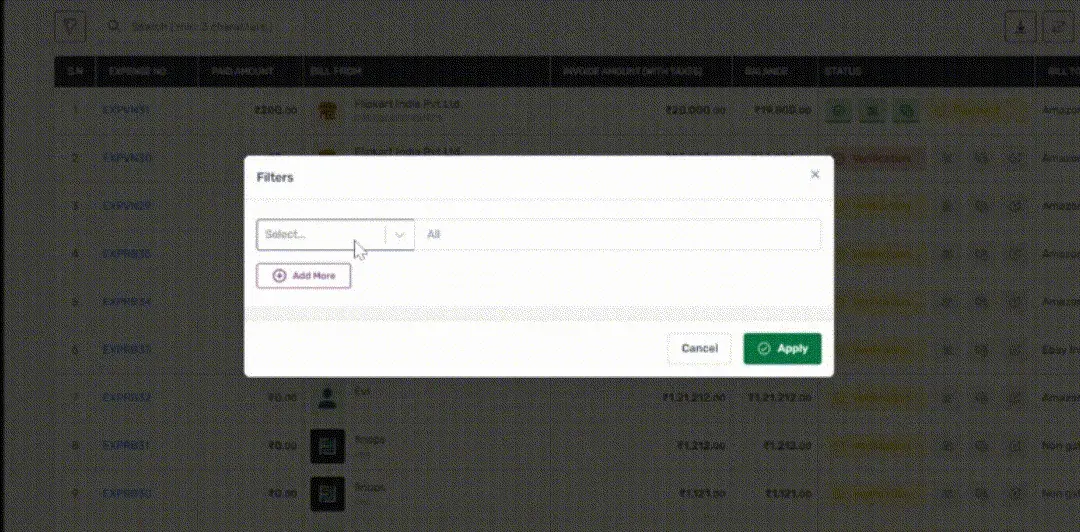
- Click the "Add More" button to add additional filters if required..
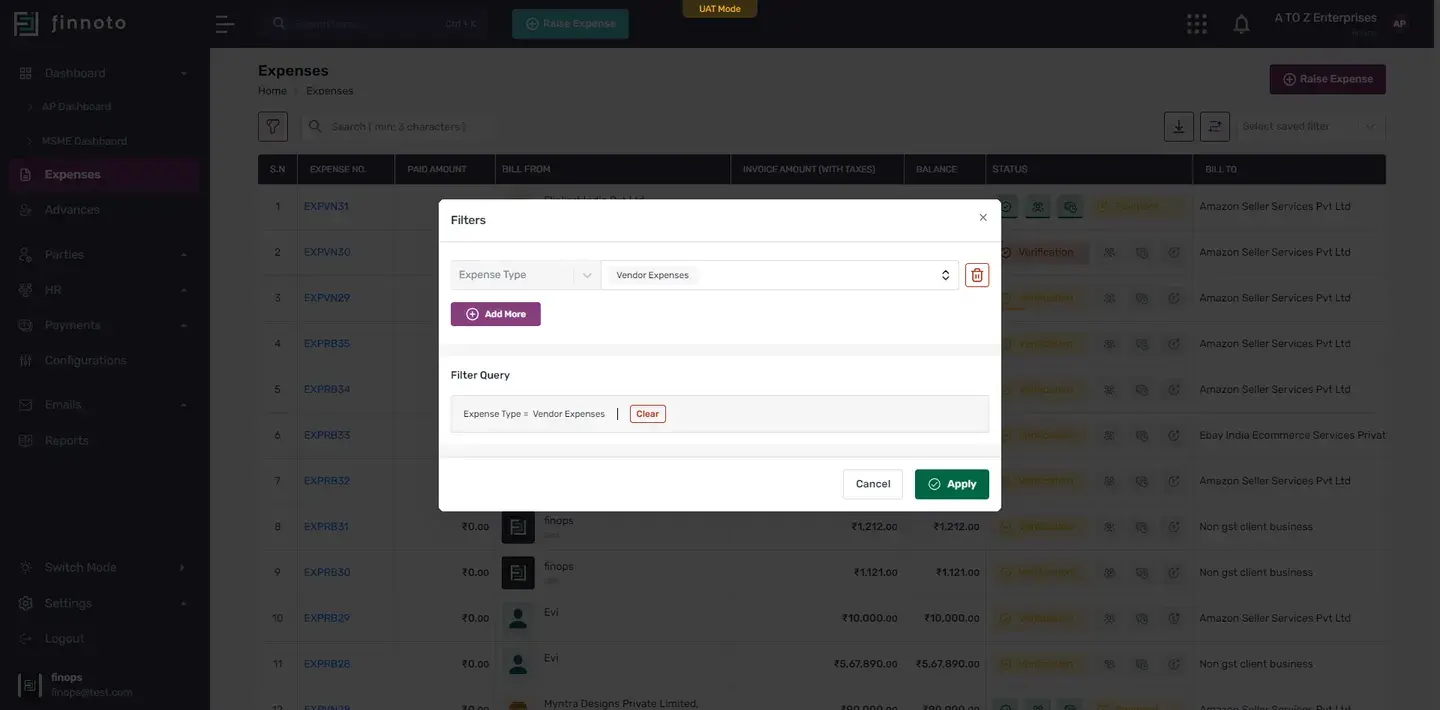
Delete Filters (Optional)
- If you want to remove any applied filters, click on the corresponding "Delete" icon.
Filter Query
- The selected filter query, will be displayed under the "Filter Query" section.
- If you want to clear this query just hit the clear button.
- Now to apply this filter on the expense listing, you have to click on the apply button.
- Filtered results are now visible, and the applied filter can be seen at the top of the table.
Customize Filter Name
- In the prompted window, customize the filter's name as per your requirement.
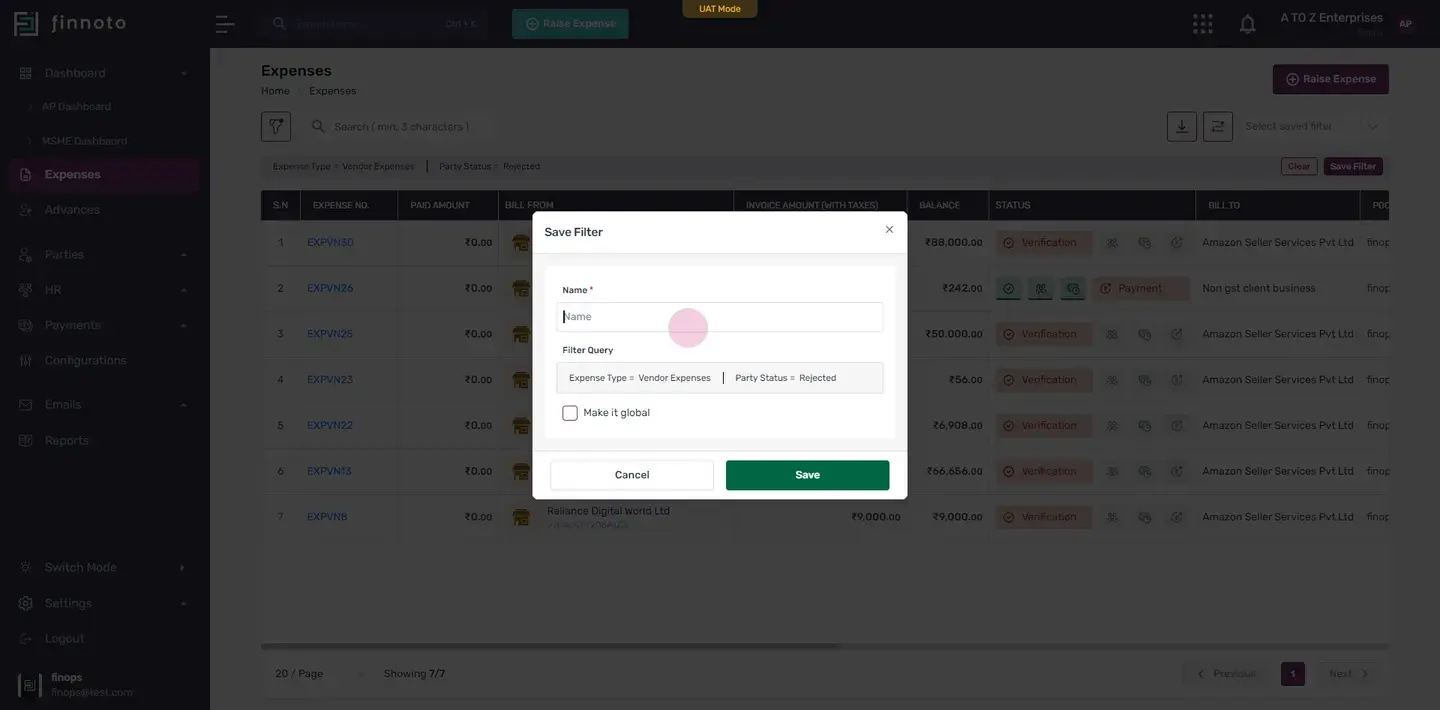
- Select the check box of "Make It Global" if required. Making this global will allows all your employees to use this filter on their own portals.
Access Saved Filters
- Once your filter is saved it will appear in the top right section of the page.
- From the dropdown menu , you can see all your saved filters.
Configure Filter
- If you wish to configure these filters further, click on the configure.
- Under the 'all' tab, you can see all your saved filters.
- You can mark them as favorites by clicking the heart button.
- To delete any of the filter click over the delete icon.
- To apply a saved filter to your listings, simply click the apply button. Making a filter global is also possible from here.
- Filters you've saved personally will appear under the 'personal' category.
- Under the 'global' tab you can view all your globally applied filters. And under the 'personal' tab you can view all your personally saved filters.
Cancel Applied Filter
- To cancel an applied filter, just click the cancel icon.