What an AP Manager can do with an expense
Approve, reject, send back, edit or reassign an expense from the AP Manager's queue.
Last updated on
Transcript
Hello, everyone.
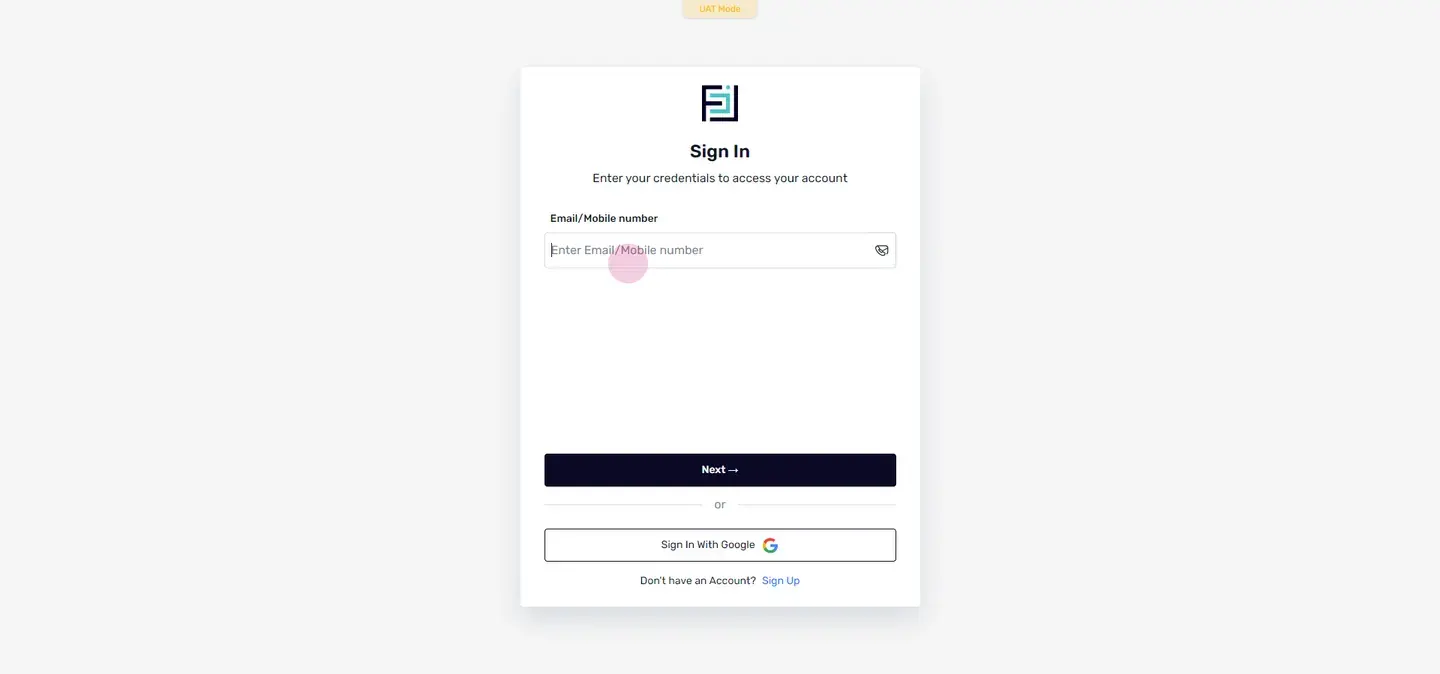
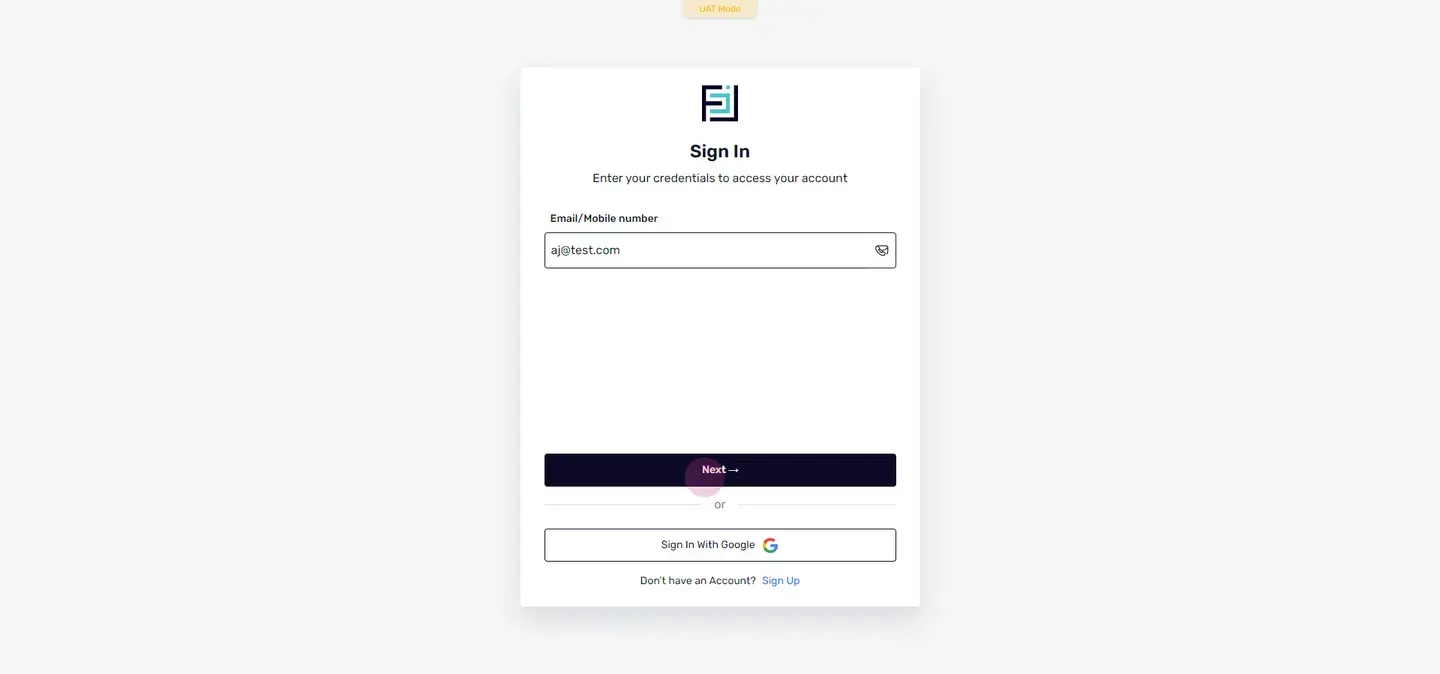
Today, we will discuss how an approver manager can approve hold or reject the expense raised by his team member. So to begin with, first, the approver manager have to log in to this account.
Once he has logged in to his account, he have to select phenops portal.
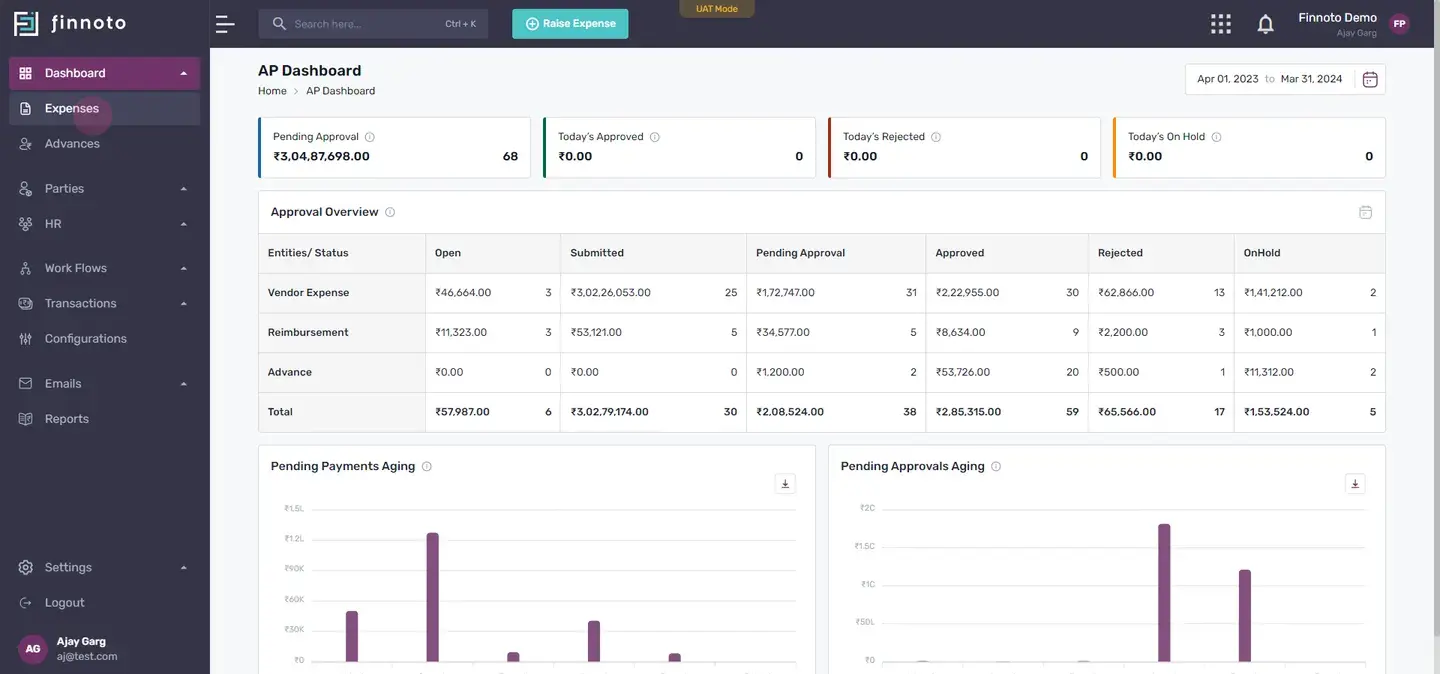
Once this is done, we have to switch to the expenses menu.
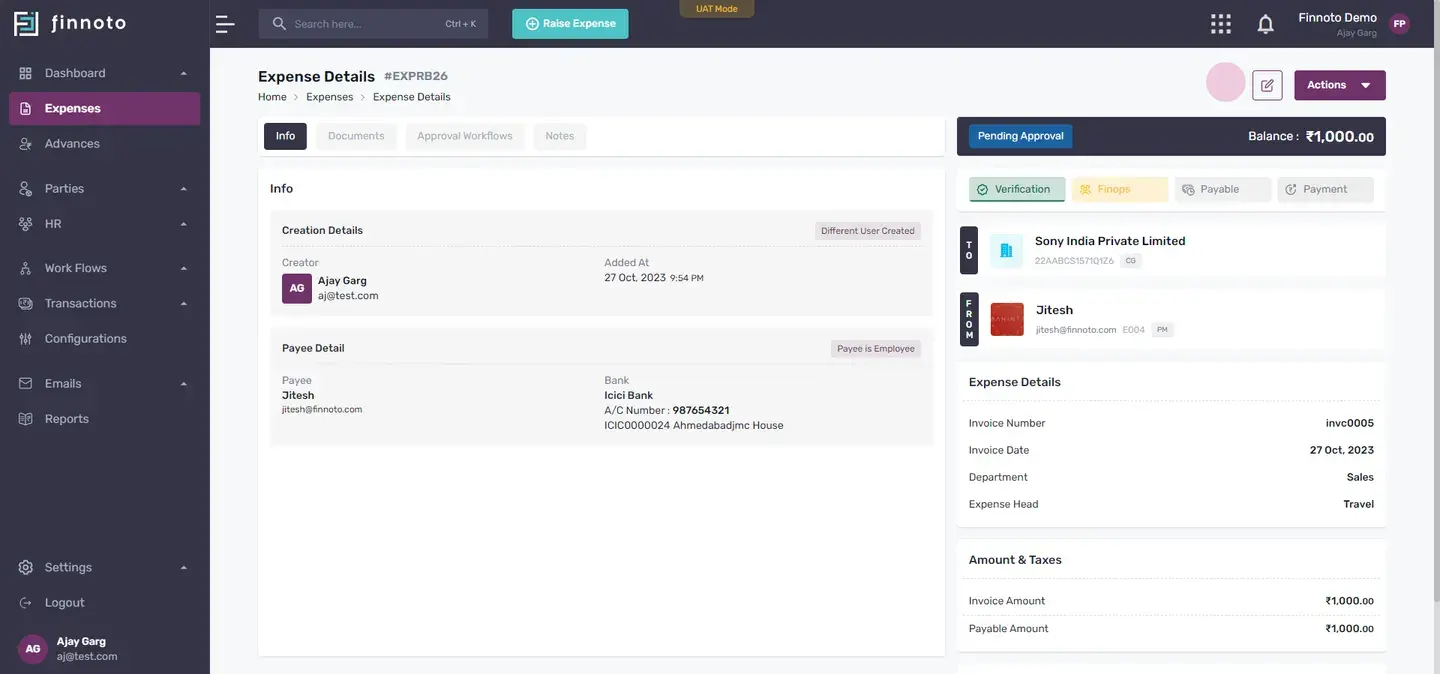
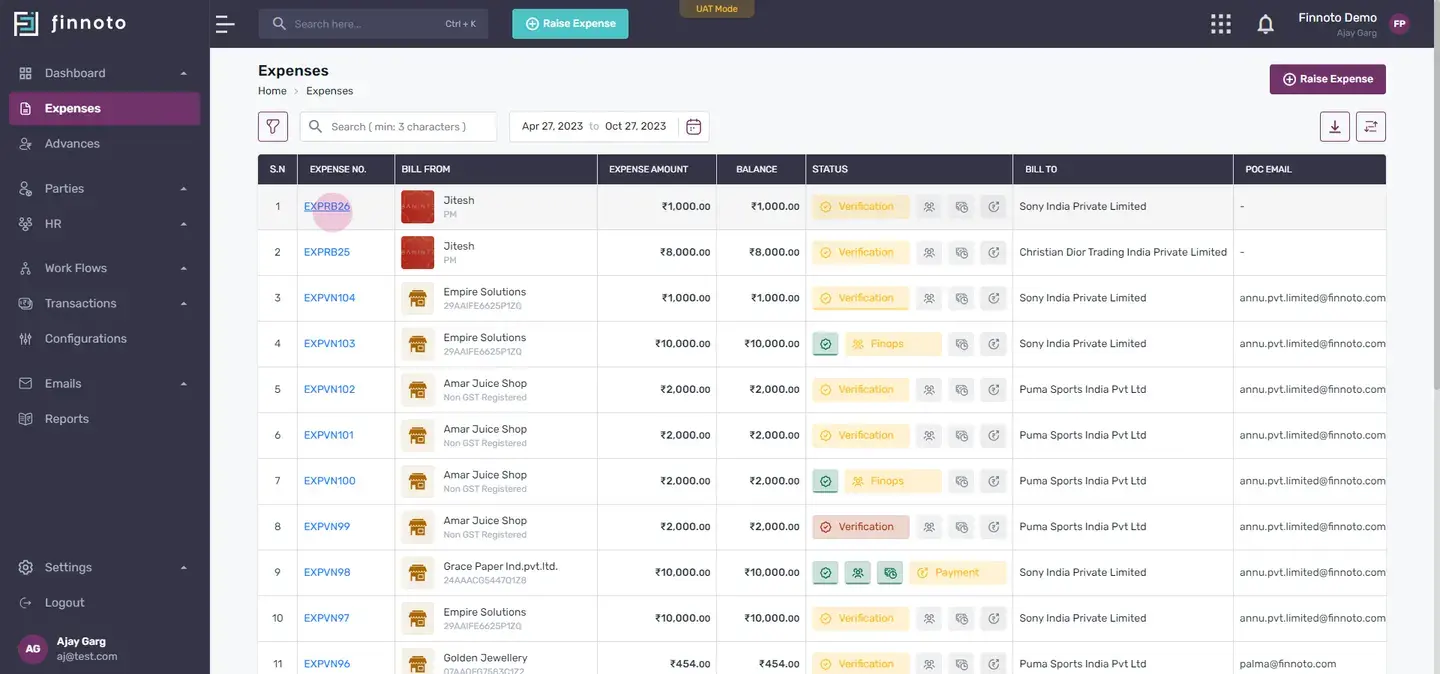
Here, he'll be able to see all the expenses raised by his team members So here, I'll click on the expense raised by his team member.
Once he'll click on the expense, he'll able to see the expense detail over here. Okay. At the bottom of this page, the approval manager will get these three options One is to reject. Second is to put on hold, and third is to approve. So in approve, Here, we we are given two options, either to approve with command, and the second is to approve without command. Okay. So if the approver manager wants to decline this or to reject this, he can directly switch to this icon, reject.
If he wants to put it on hold, he have to use this put on hold, button. And to approve this, he have to use, this button, approve button. Now, apart from this, in the actions button, there are many other options available for the approver manager.
It's a role based activity.
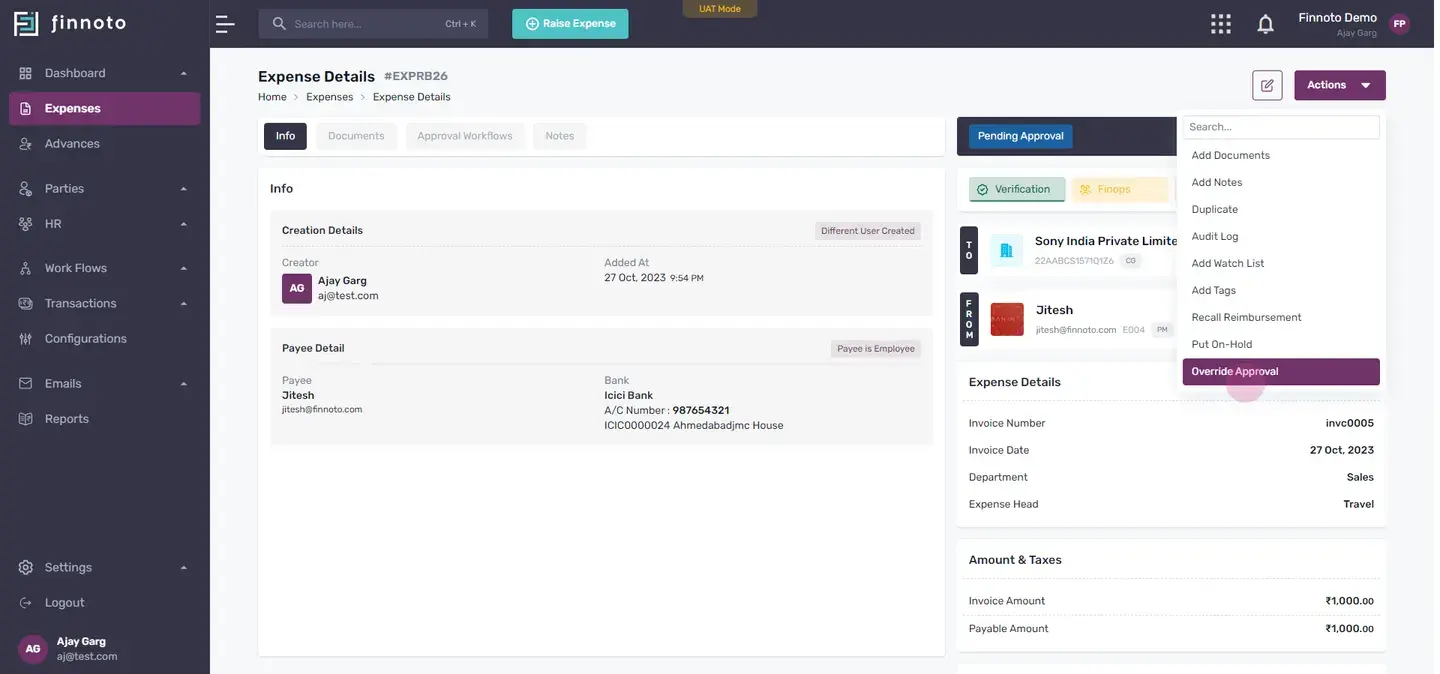
So here, he can add documents, he can add notes, can duplicate it, can, audit log. You can add watch list, add tags. We call reimbursement as it not approved now. And he can put on hold and even override this approval. So to begin with, I'm going to approve this with comment.
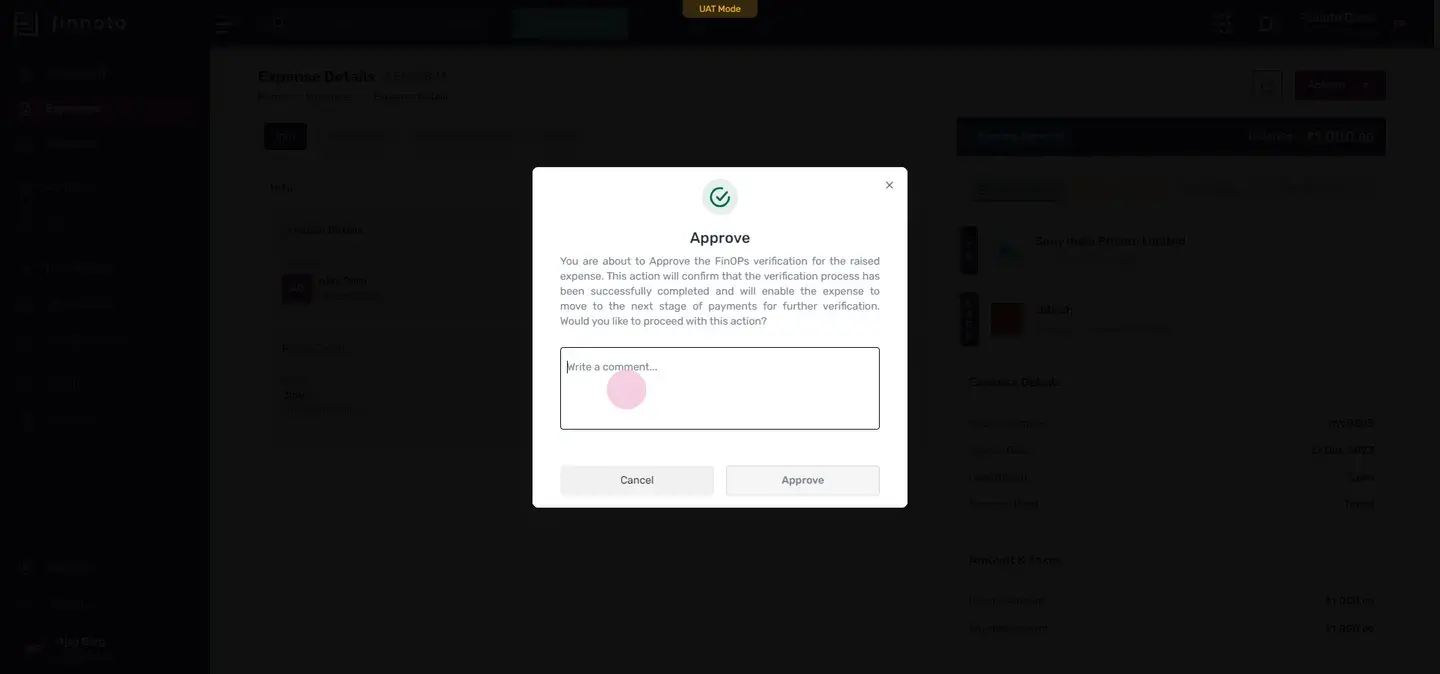
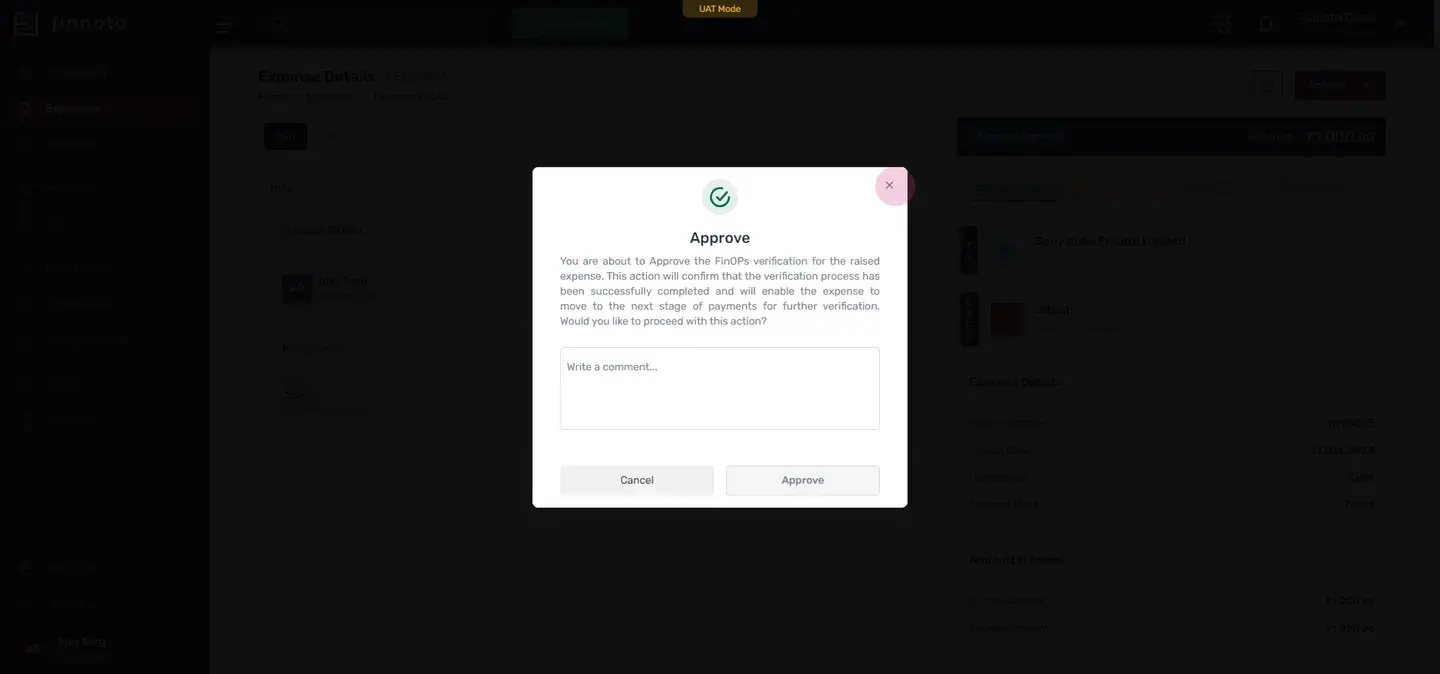
Here, a window pop search and ask for the command.
Once you will put the command, you have to press this approved button.
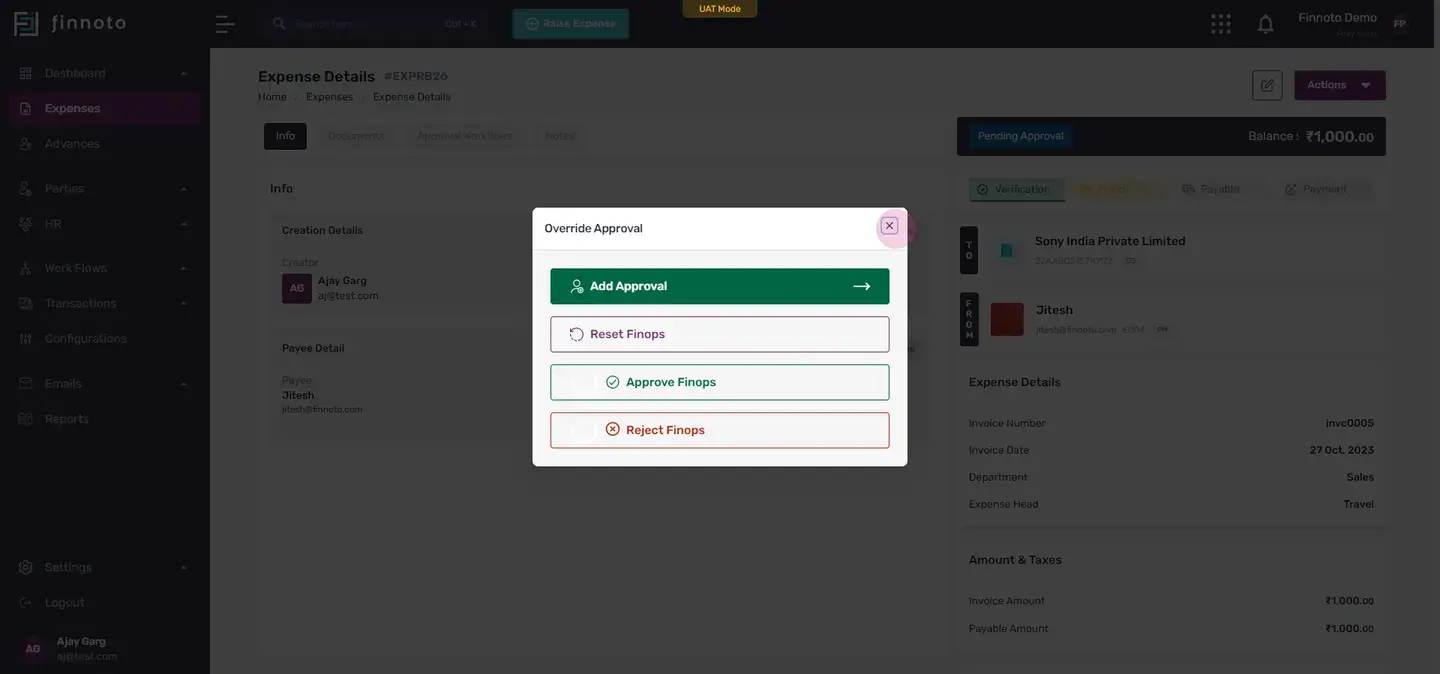
Once this is done. All the other options will disappear. And in the action section, you'll be able to see The ad documents, the ad notes, duplicate, audit log, add watch list, add tags, we call reimbursement put on hold and approve override approval. So by here, also, the approval manager can put this expense on hold. And by using override approval, he, able to, he is having three, four options over here.
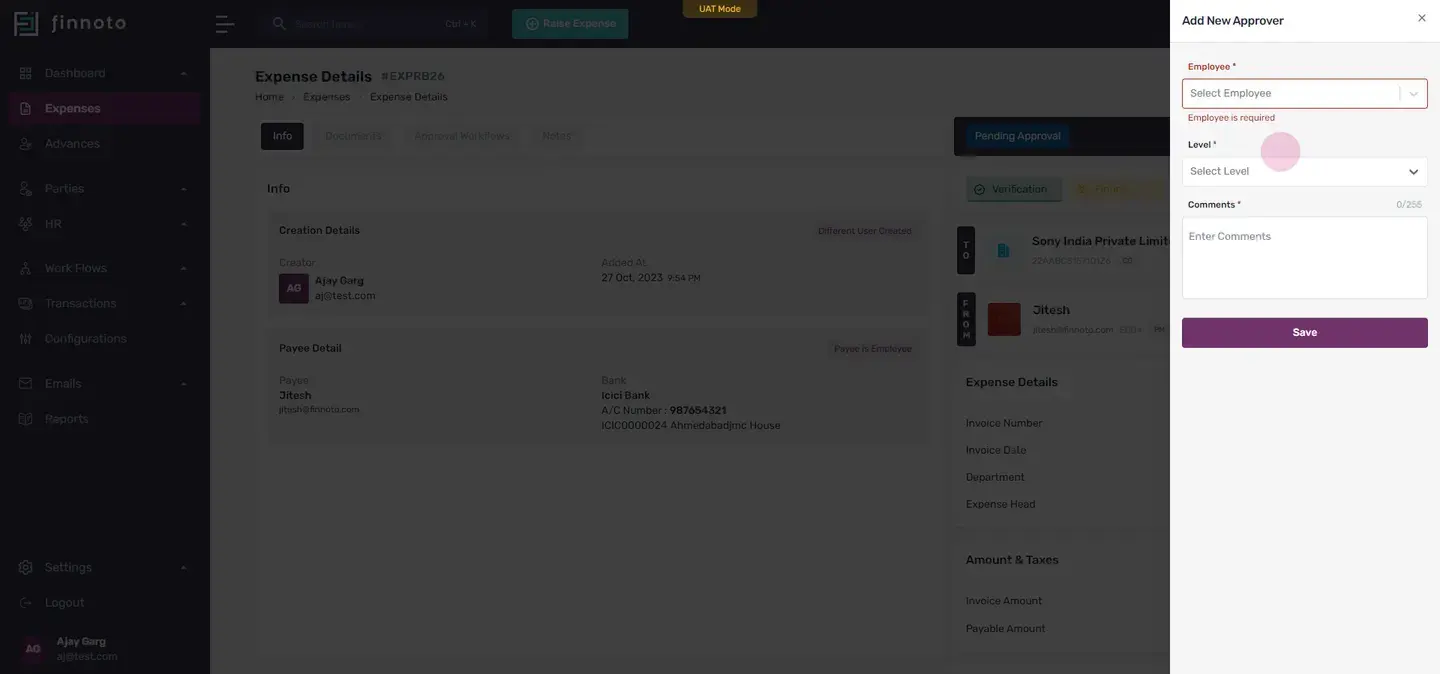
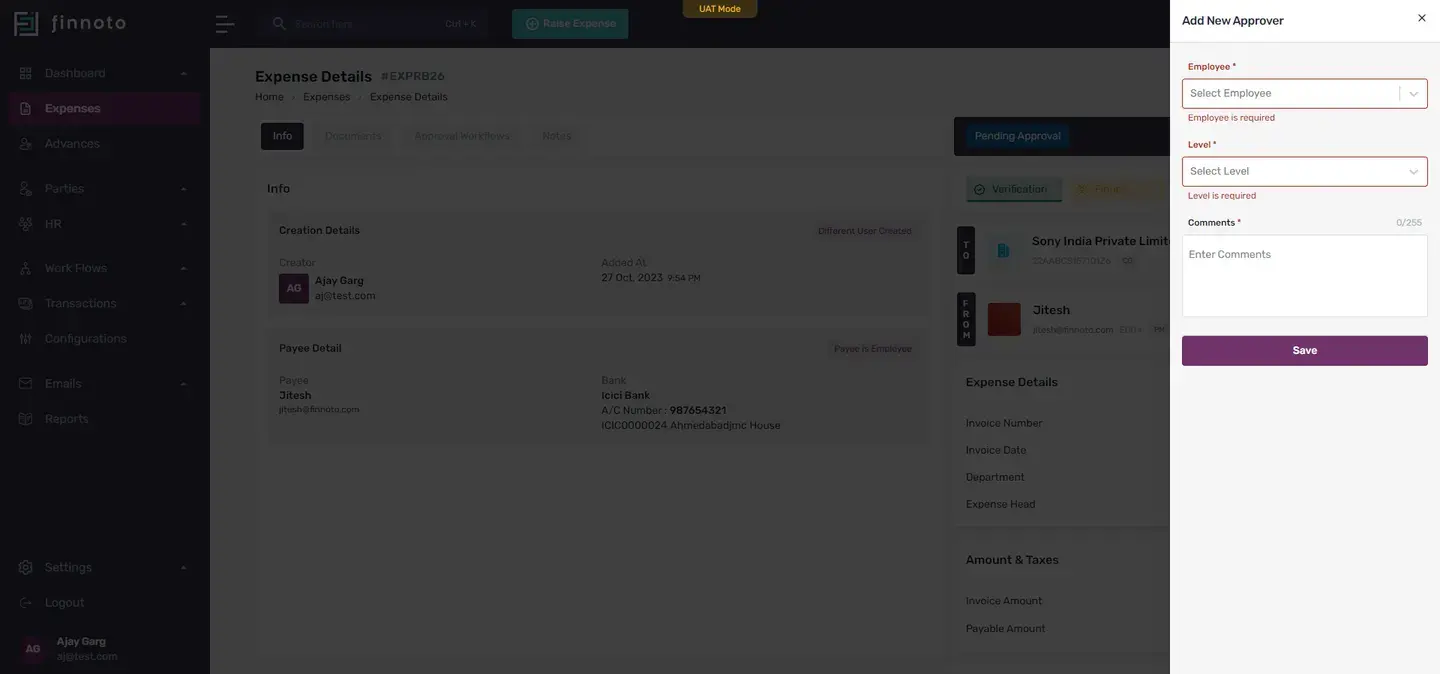
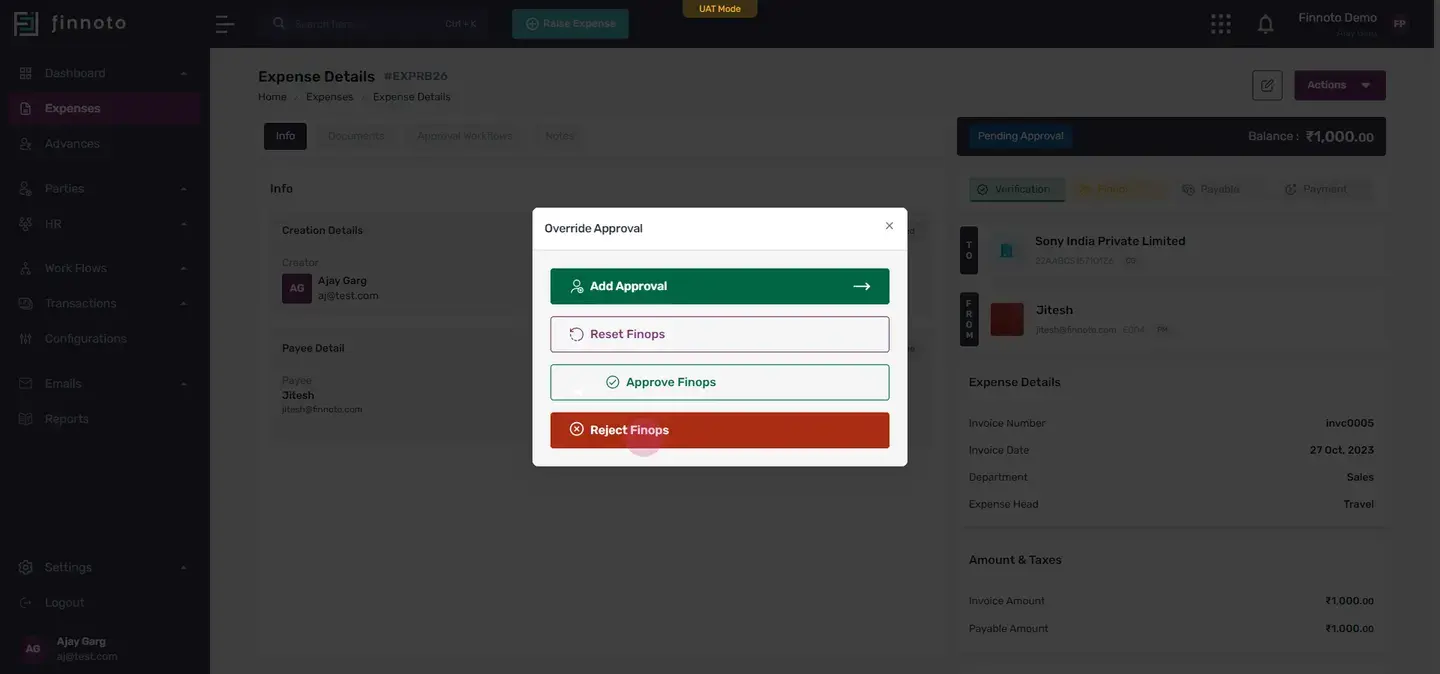
One is to add approval if he wants to add some, one more approval in the workflow.
He can add it from here by using this form here, from here, he can add employee.
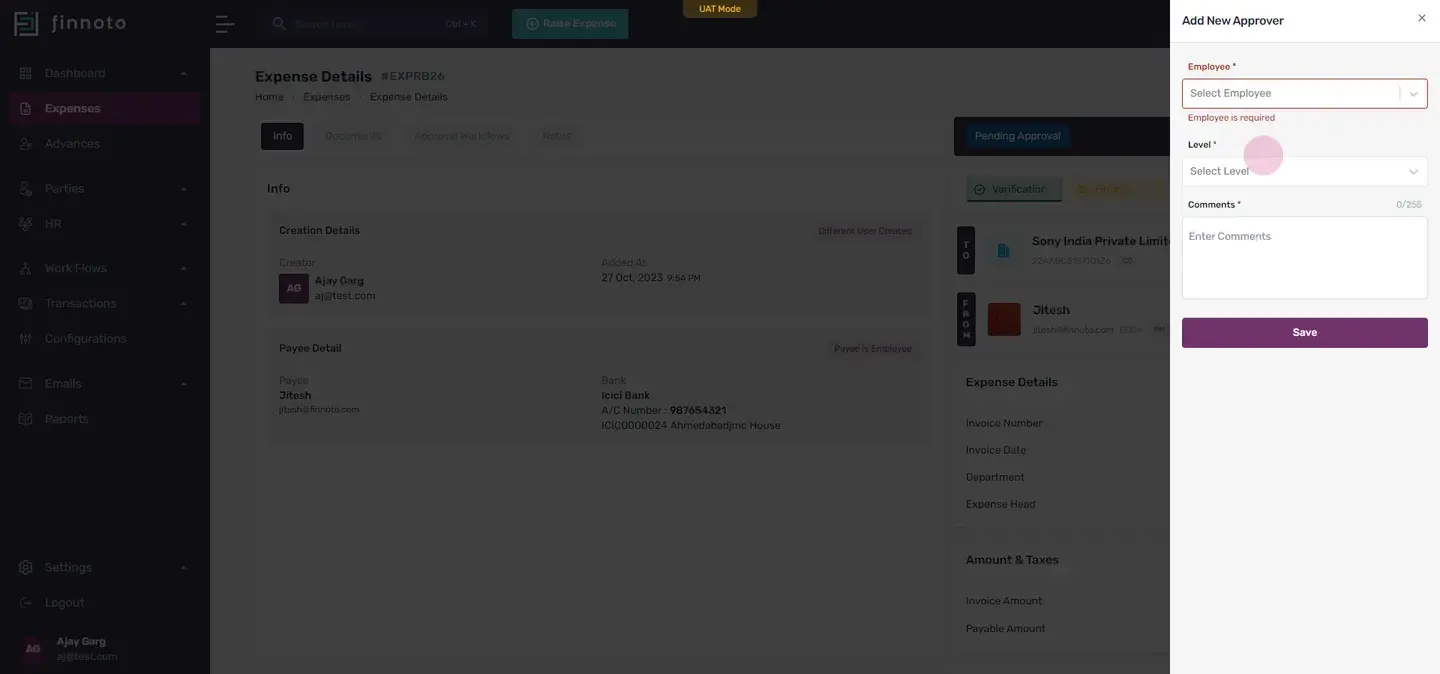
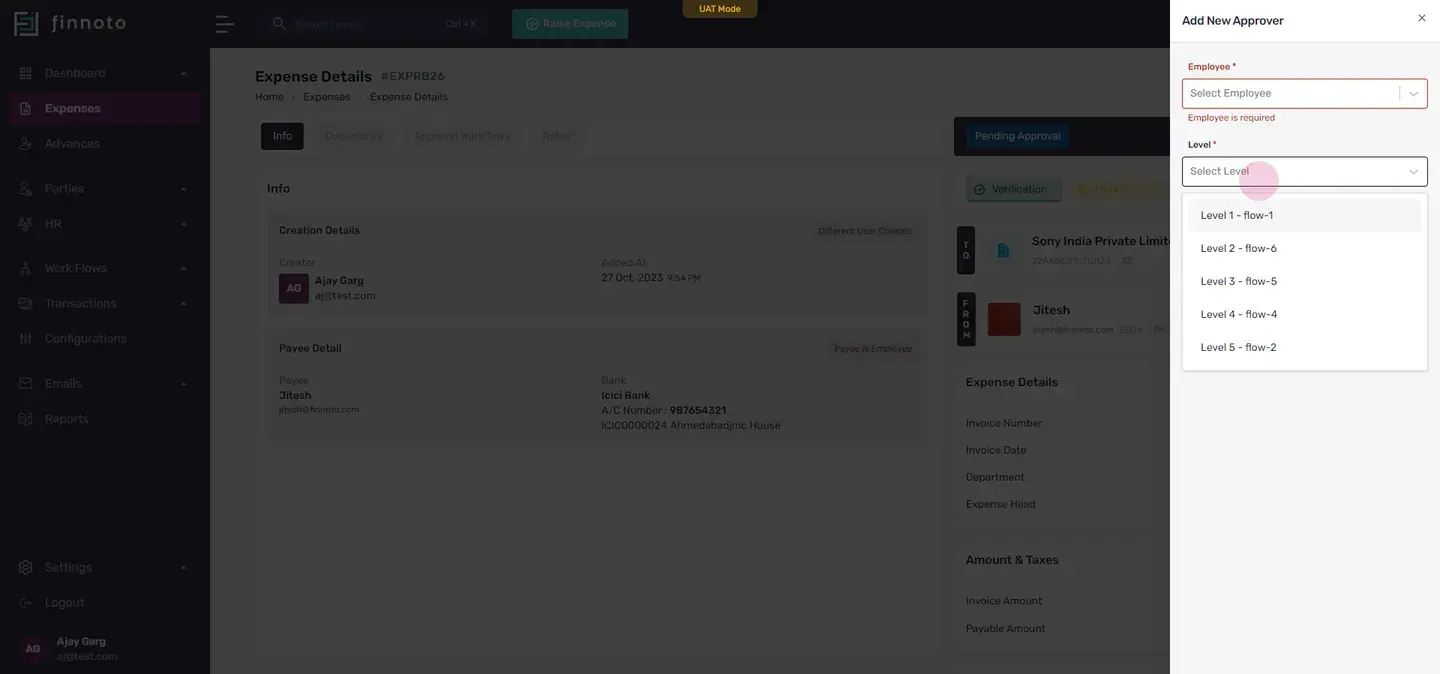
From here, he can select at which level he wants from, and here, he can put comments over there.
Next is the reset phenops.
If he wants to reset it, he can directly reset it from here. Then from approved phenops, he can approve it.
Here, if he wants to approve it, he have to mention the comment also, and then press the move button.
And then last one is to reject.
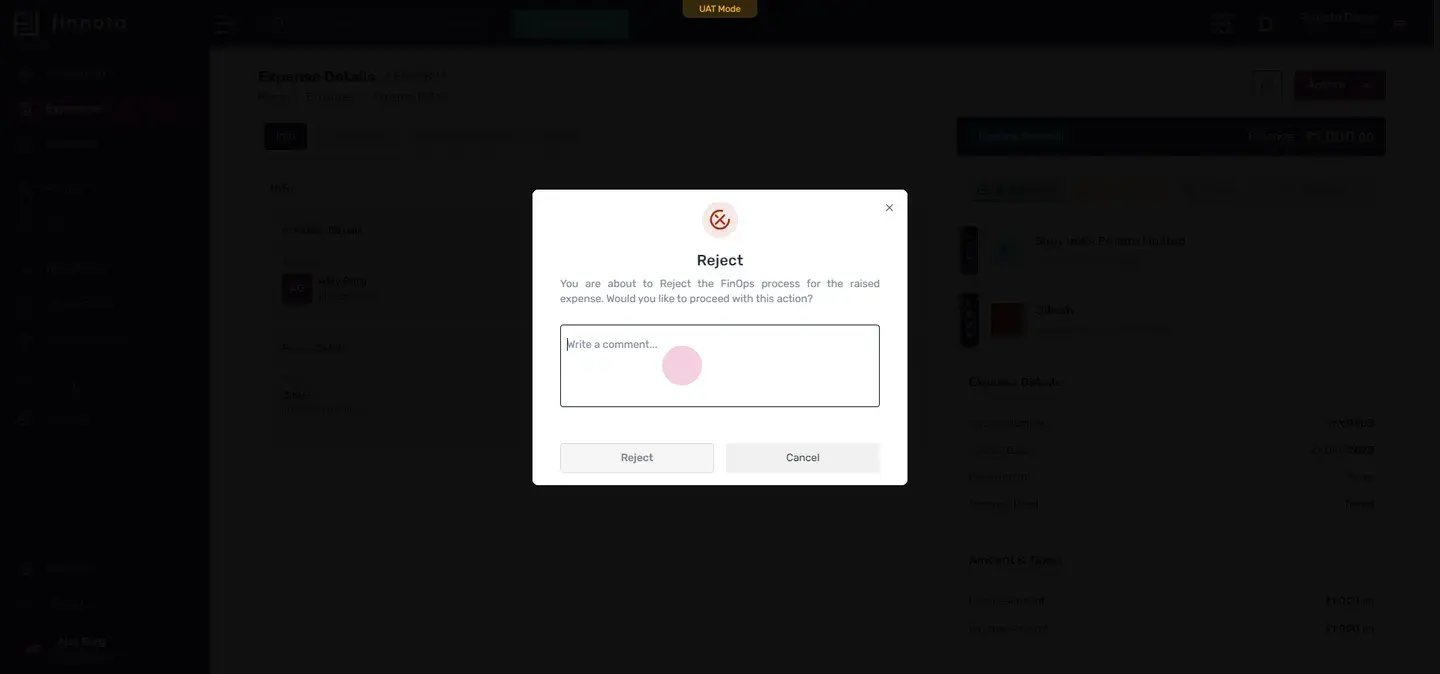
If the approval manager wants to reject this particular stage of phenops, then he can definitely do this by using the reject finance and by giving the comment over here.
So why, these are the actions given to the AP manager.
For the approval of the expense.
Thank you.
Hello, everyone
Today, we will discuss how an approver manager can approve hold or reject the expense raised by his team member. So to begin with, first, the approver manager have to log in to this account.
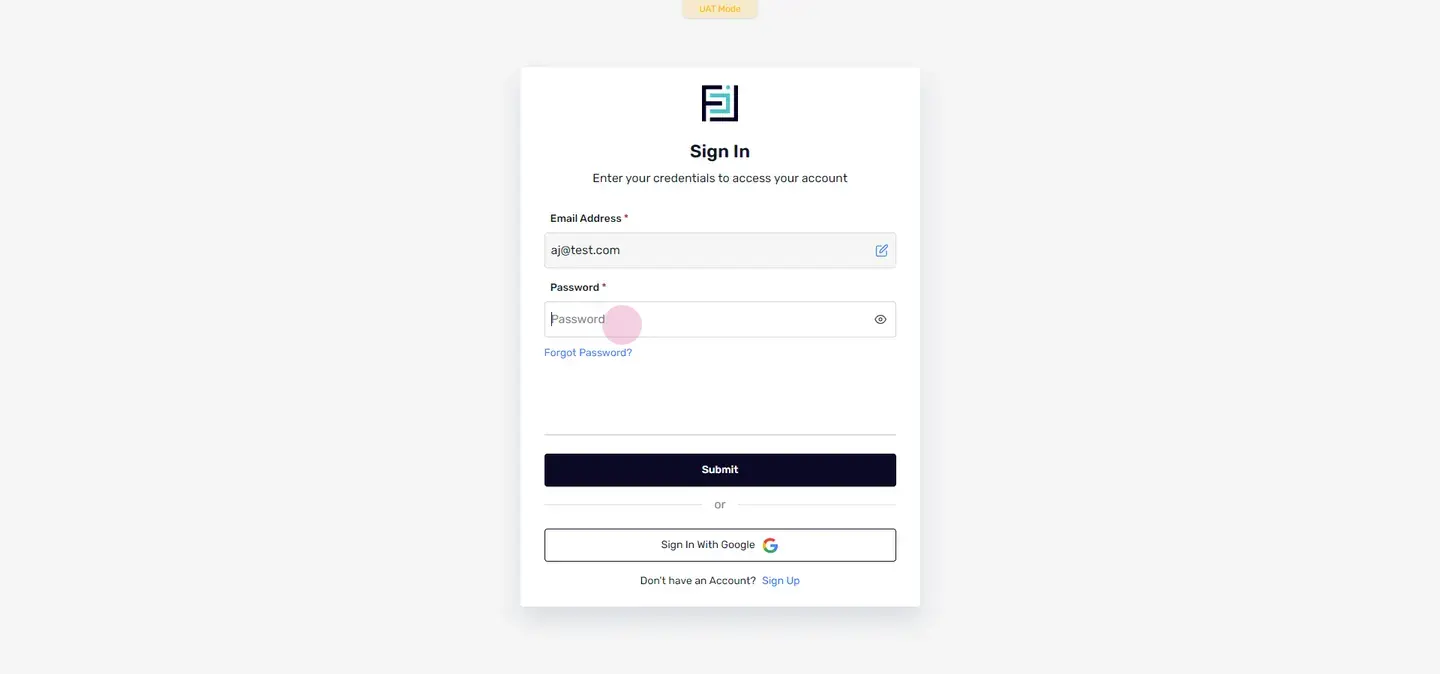
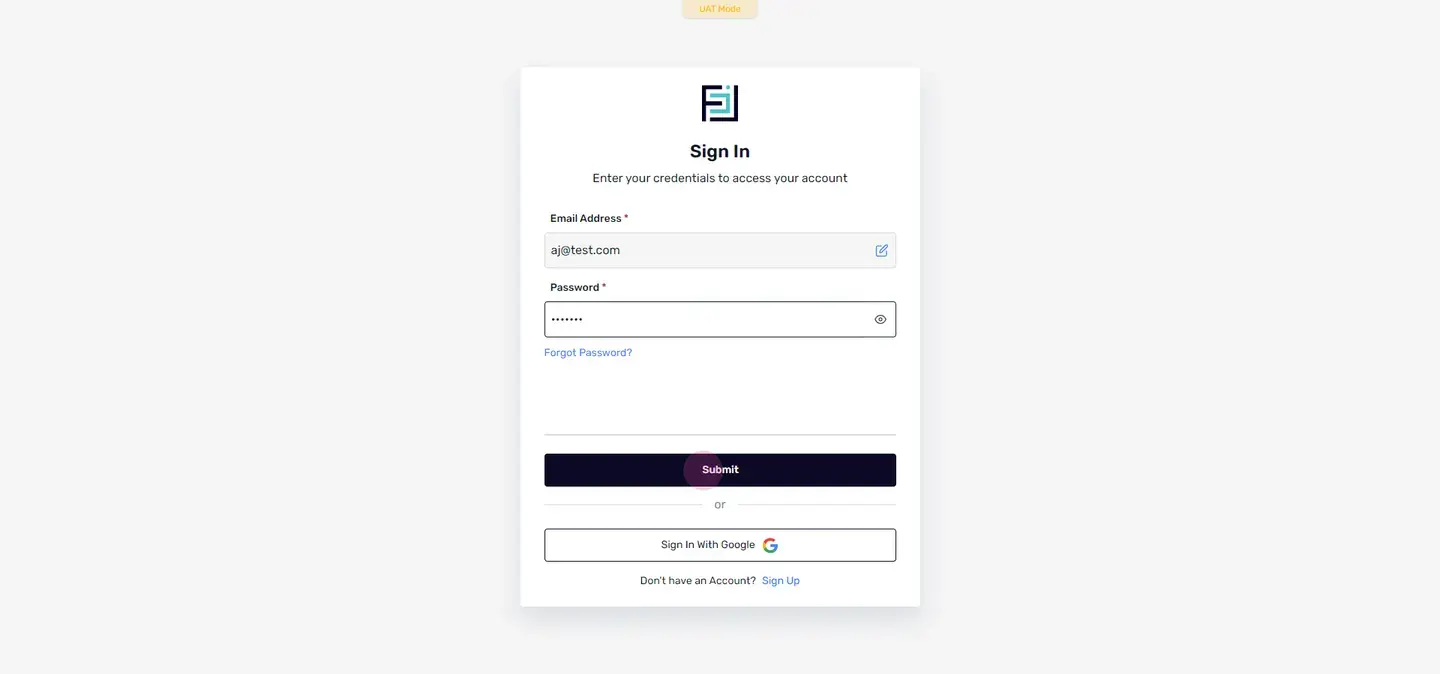
Once he has logged in to his account, he have to select phenops portal.

Once this is done, we have to switch to the expenses menu.
Here, he'll be able to see all the expenses raised by his team members So here, I'll click on the expense raised by his team member.
Once he'll click on the expense, he'll able to see the expense detail over here. Okay. At the bottom of this page, the approval manager will get these three options One is to reject. Second is to put on hold, and third is to approve. So in approve, Here, we we are given two options, either to approve with command, and the second is to approve without command. Okay. So if the approver manager wants to decline this or to reject this, he can directly switch to this icon, reject.
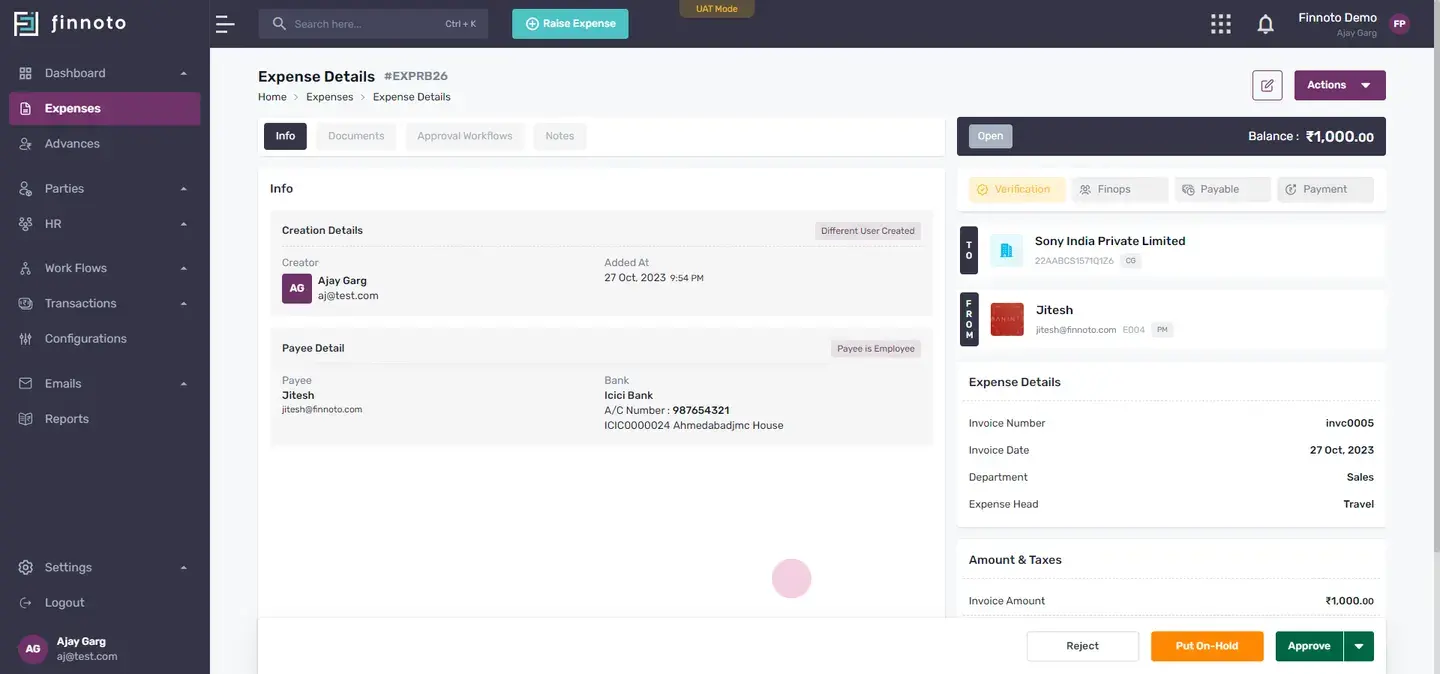
If he wants to put it on hold, he have to use this put on hold, button. And to approve this, he have to use, this button, approve button. Now, apart from this, in the actions button, there are many other options available for the approver manager.
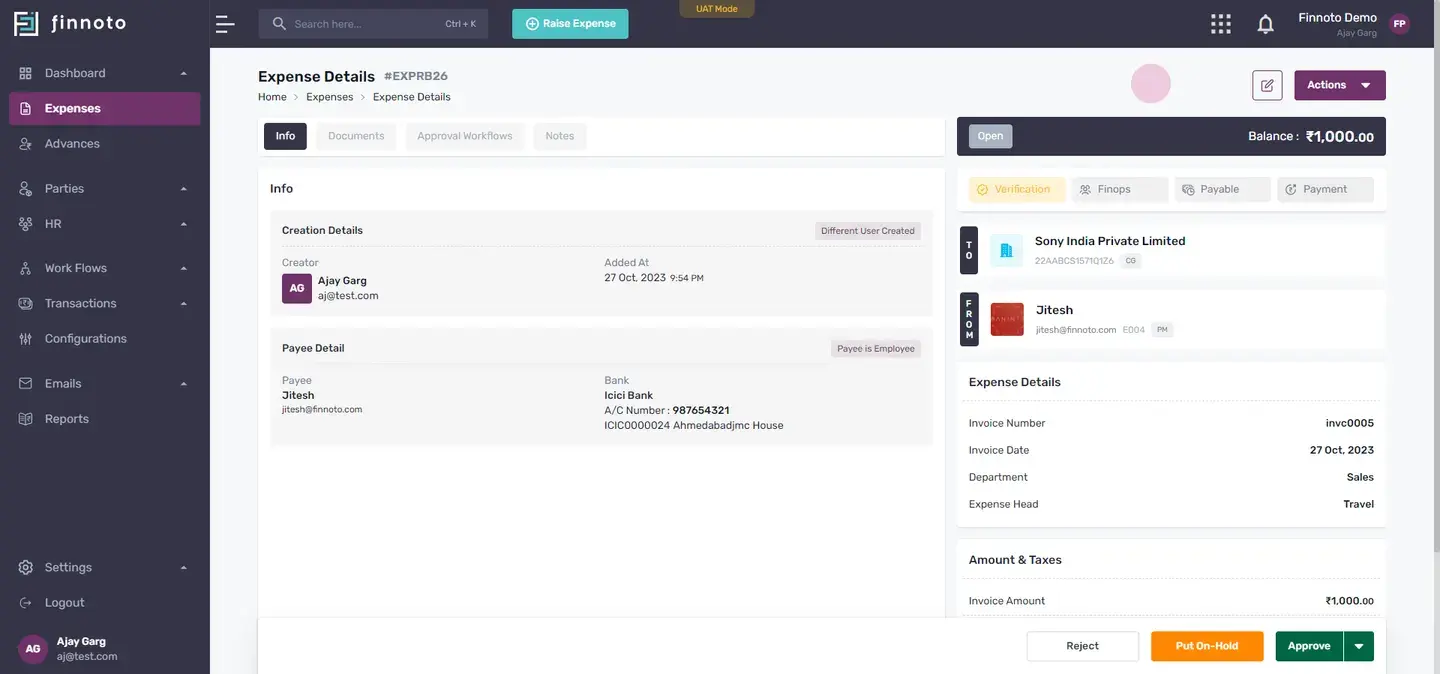
It's a role based activity
So here, he can add documents, he can add notes, can duplicate it, can, audit log. You can add watch list, add tags. We call reimbursement as it not approved now. And he can put on hold and even override this approval. So to begin with, I'm going to approve this with comment.
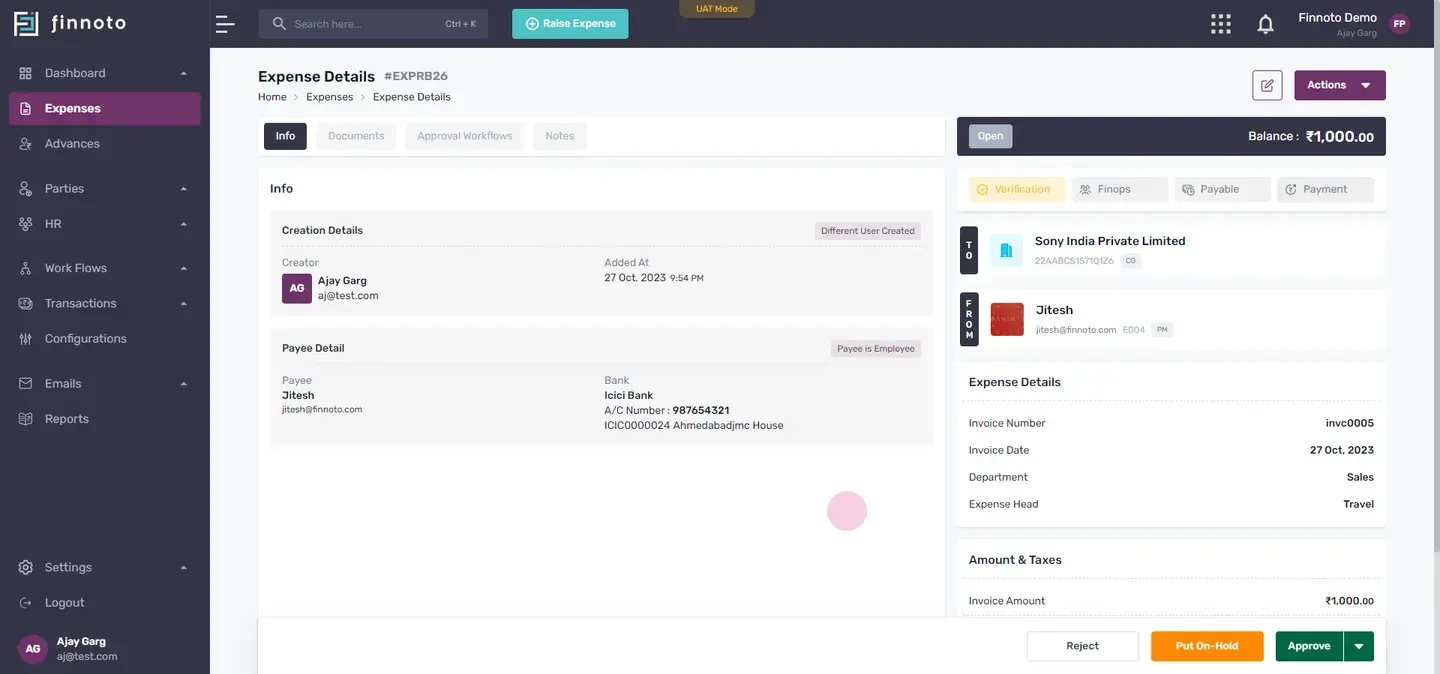
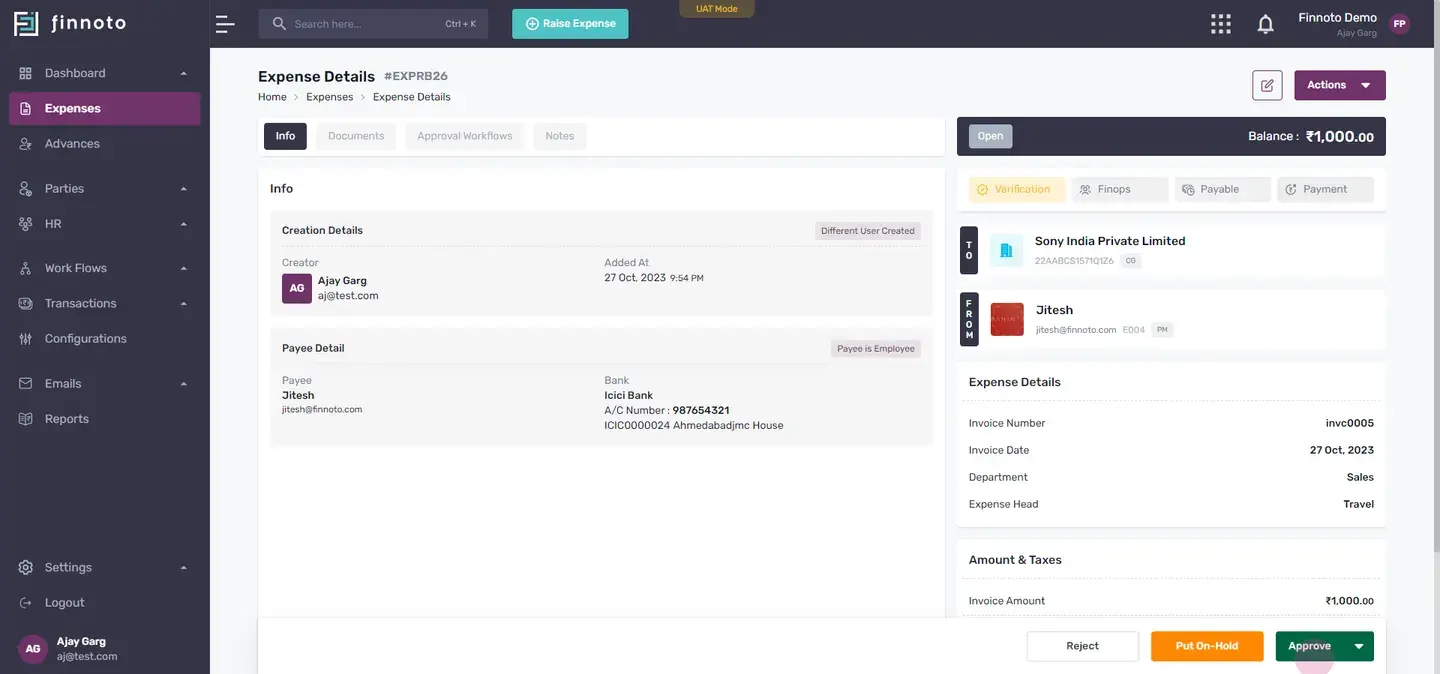
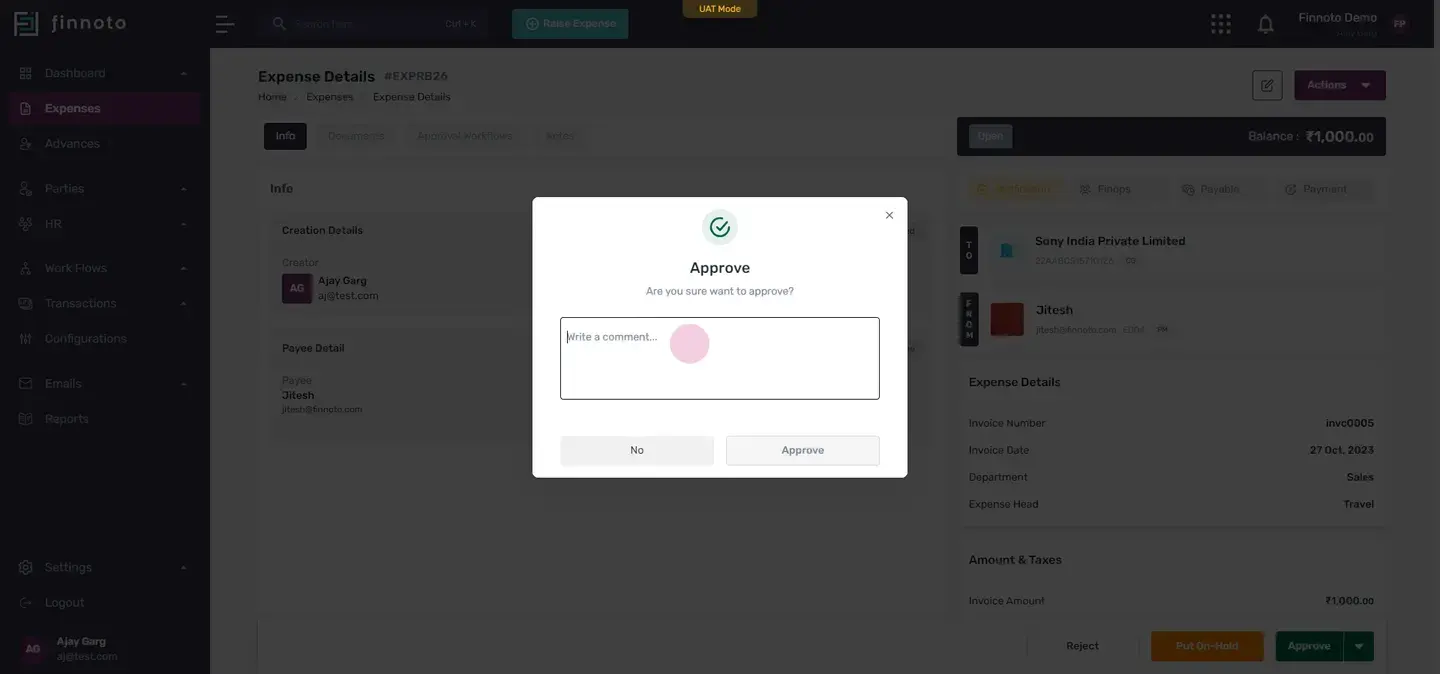
Here, a window pop search and ask for the command
Once you will put the command, you have to press this approved button.
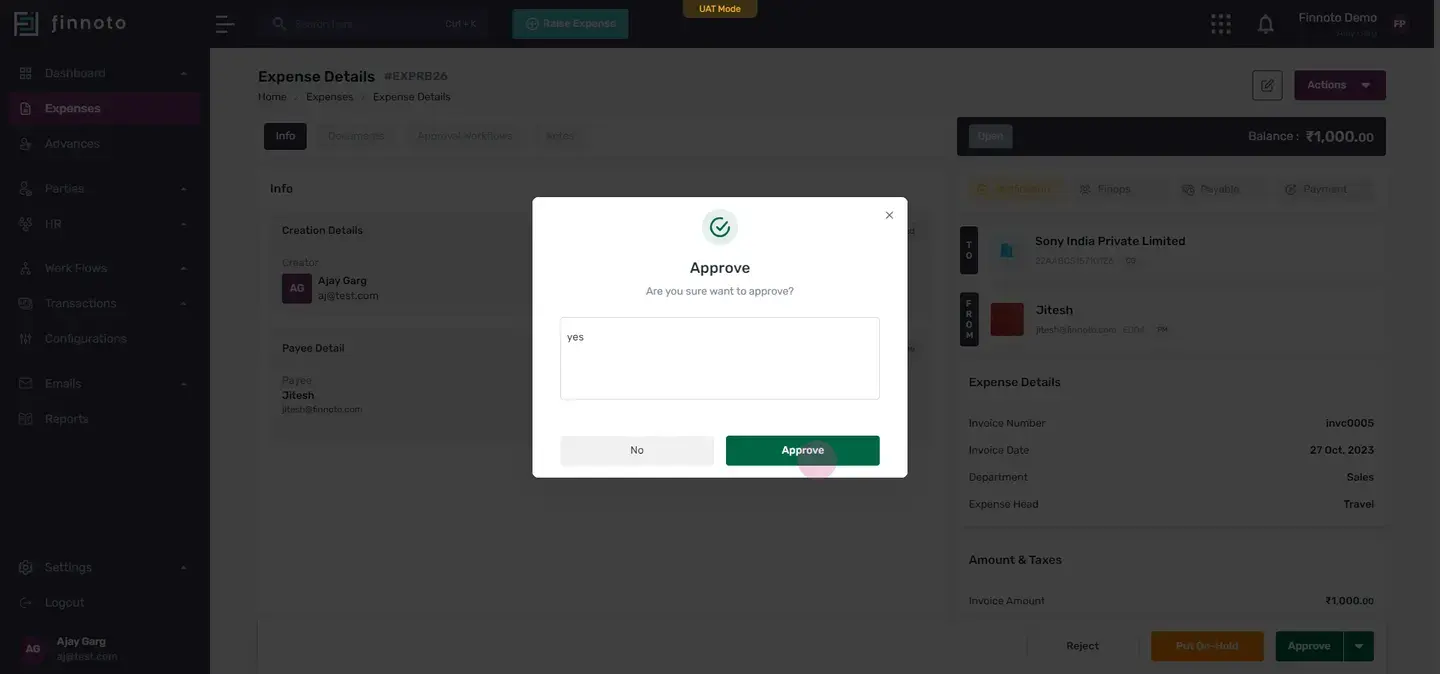
Once this is done. All the other options will disappear. And in the action section, you'll be able to see The ad documents, the ad notes, duplicate, audit log, add watch list, add tags, we call reimbursement put on hold and approve override approval. So by here, also, the approval manager can put this expense on hold. And by using override approval, he, able to, he is having three, four options over here.
One is to add approval if he wants to add some, one more approval in the workflow.
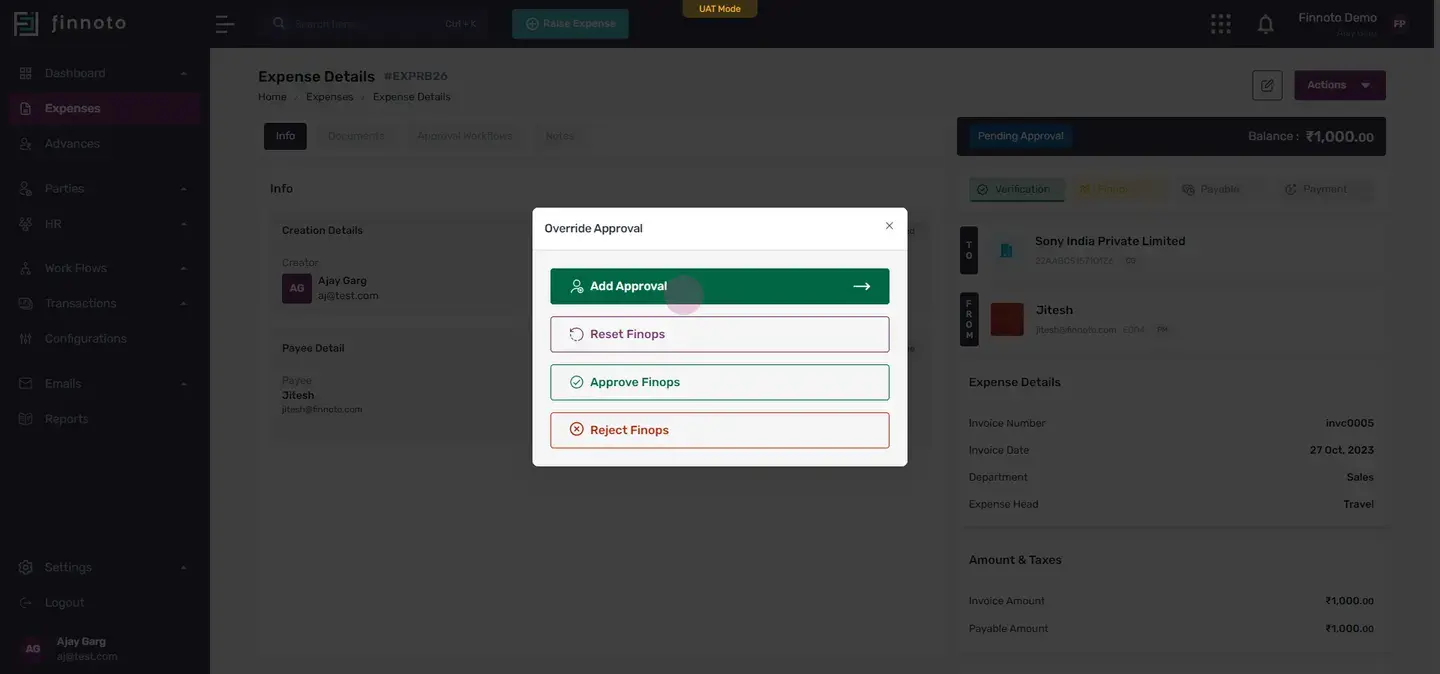
He can add it from here by using this form here, from here, he can add employee.
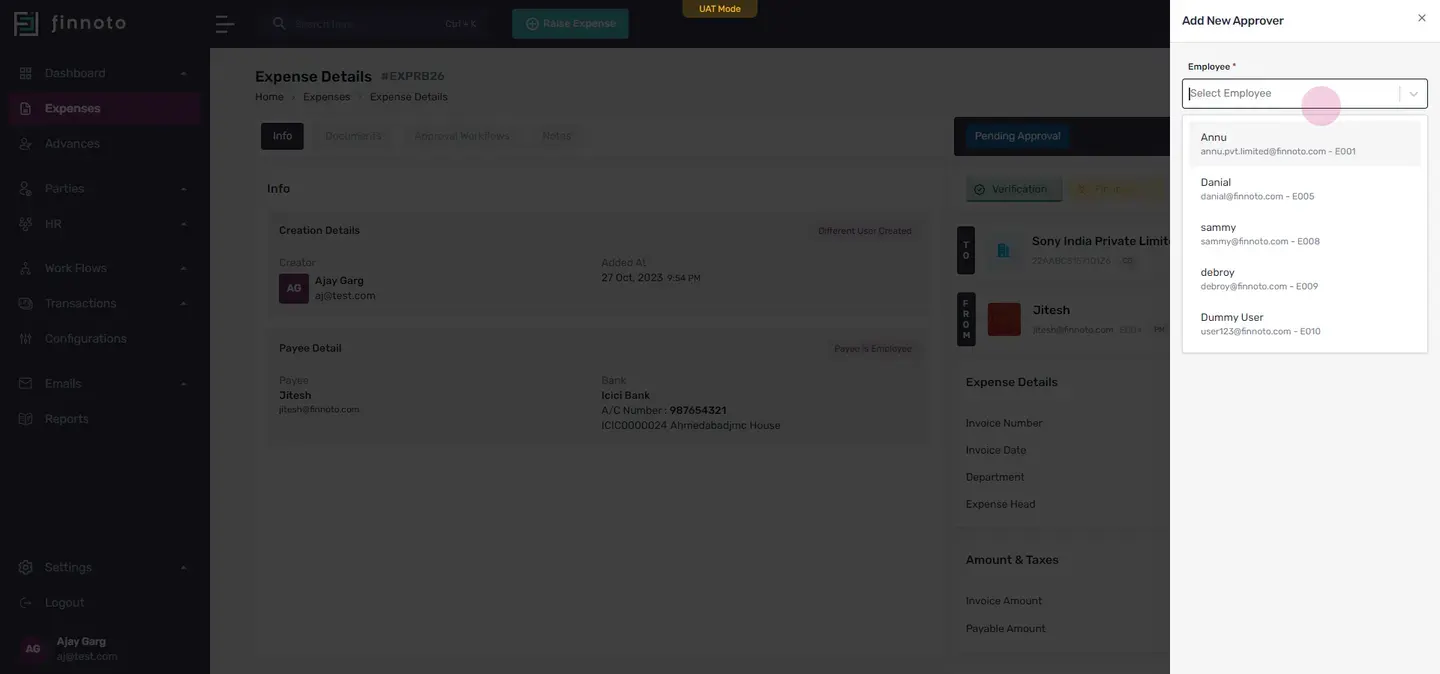
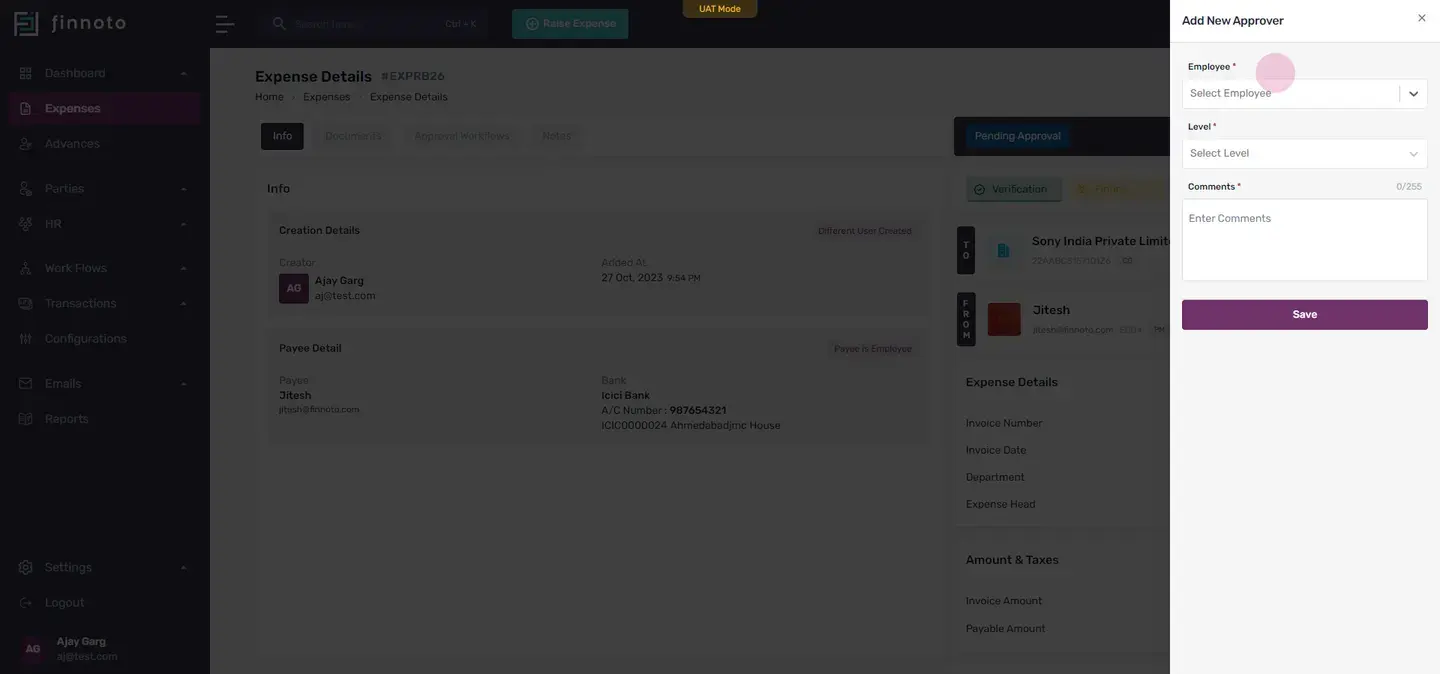
From here, he can select at which level he wants from, and here, he can put comments over there.
Next is the reset phenops.
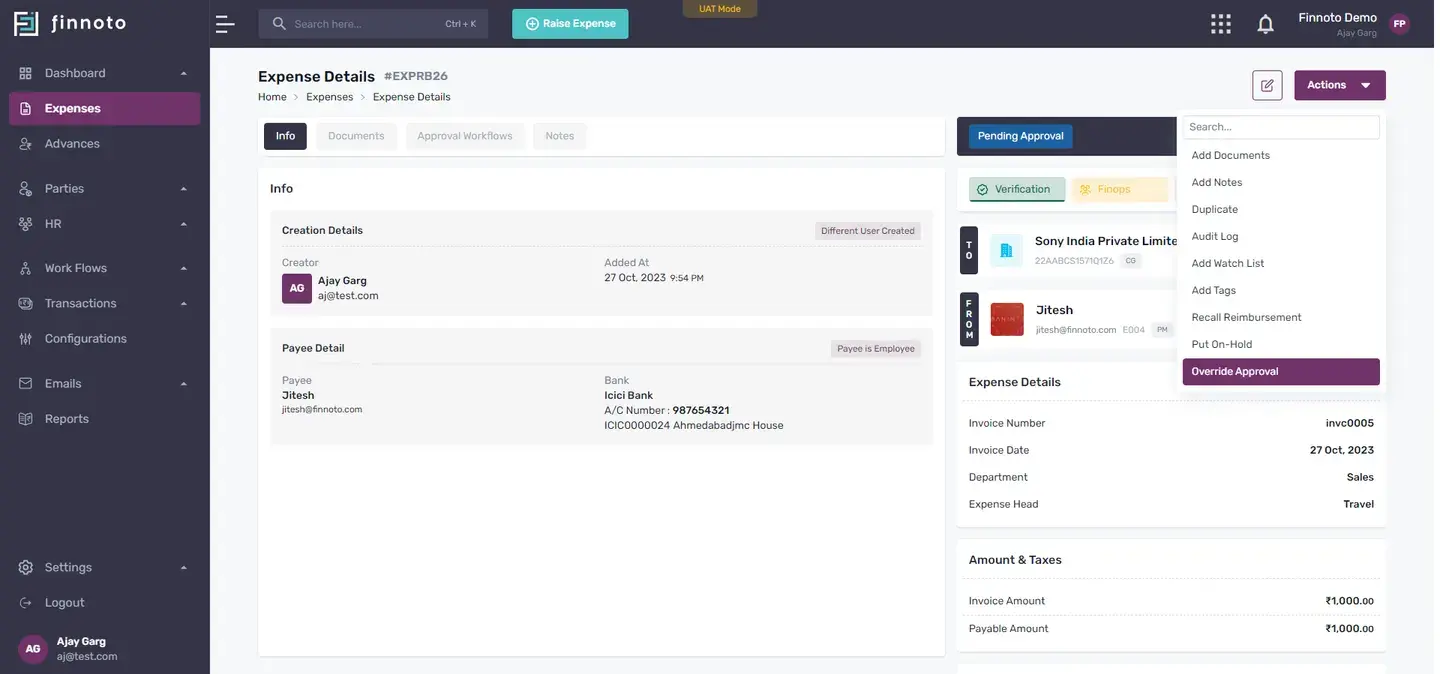
If he wants to reset it, he can directly reset it from here. Then from approved phenops, he can approve it.
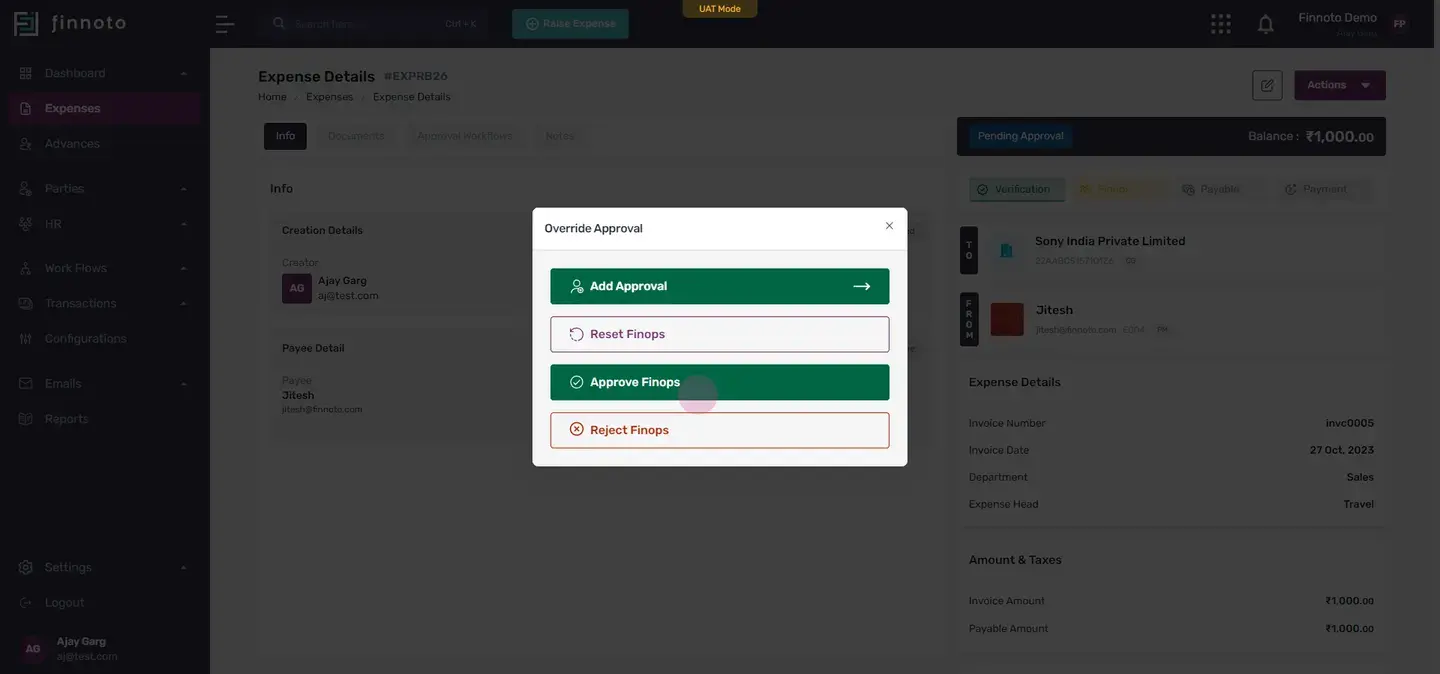
Here, if he wants to approve it, he have to mention the comment also, and then press the move button.

If the approval manager wants to reject this particular stage of phenops, then he can definitely do this by using the reject finance and by giving the comment over here.

So why, these are the actions given to the AP manager.