What an approver can do with an expense
The actions available to any approver in the workflow when an expense reaches them.
Last updated on
Transcript
Hello, everyone.
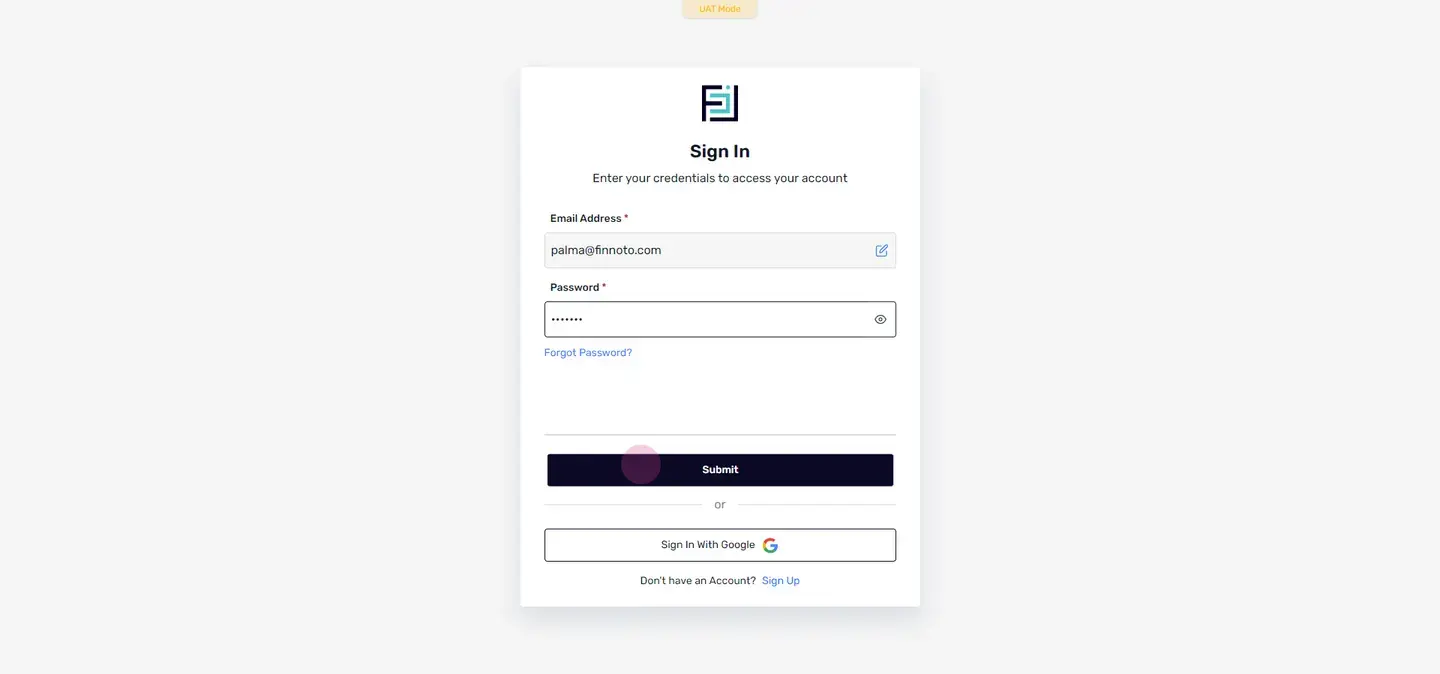
In this video, we will learn about the app that an employee serving as an approval at any level of the approval workflow can perform. This includes approving, rejecting, and placing expenses on hold. So first, that approver employee have to log in into his account.
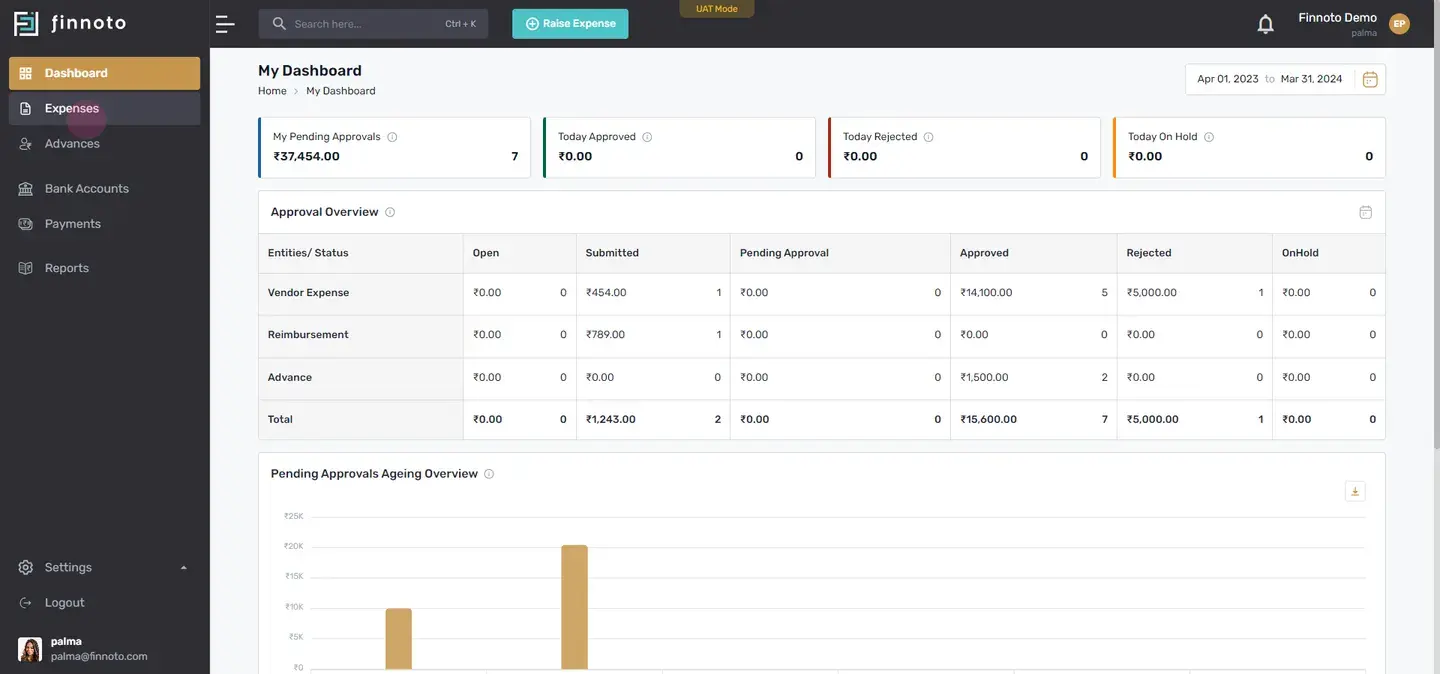
Once it's done, then they have to go to the expenses menu.
From here, he have to select the expense.
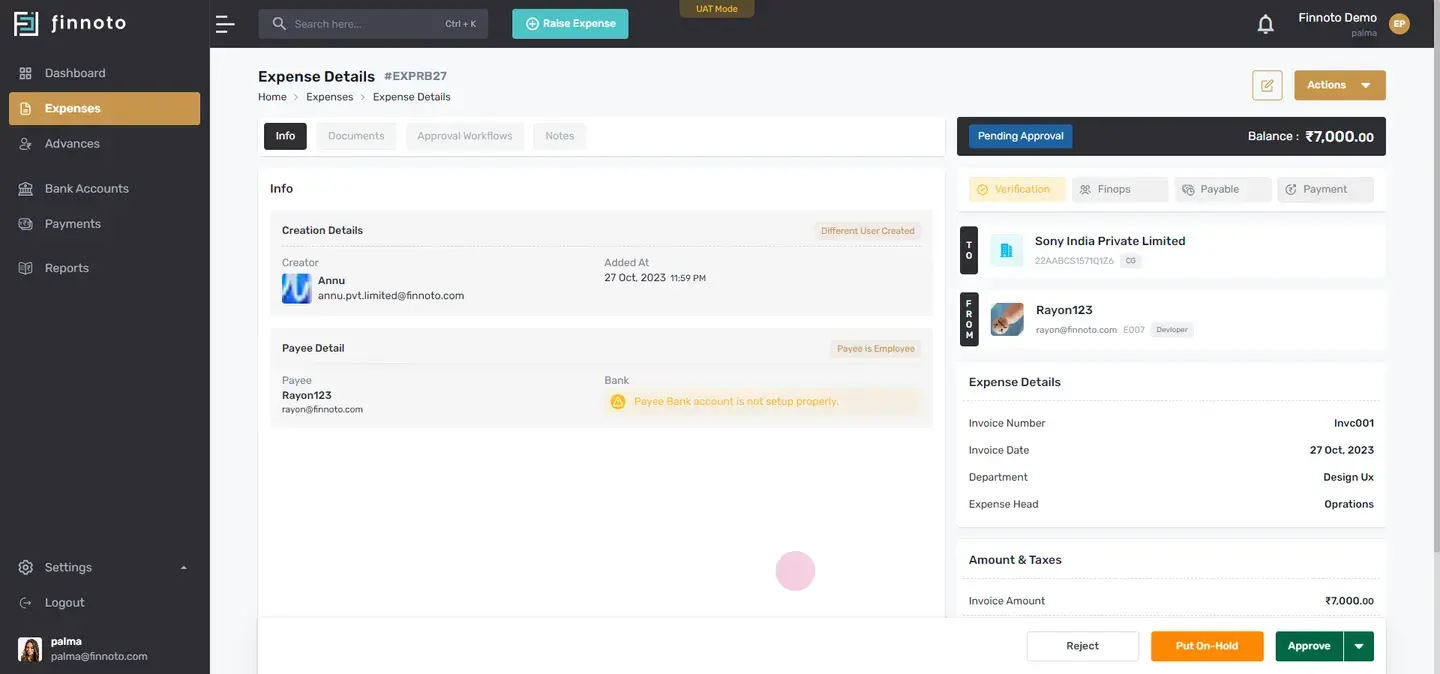
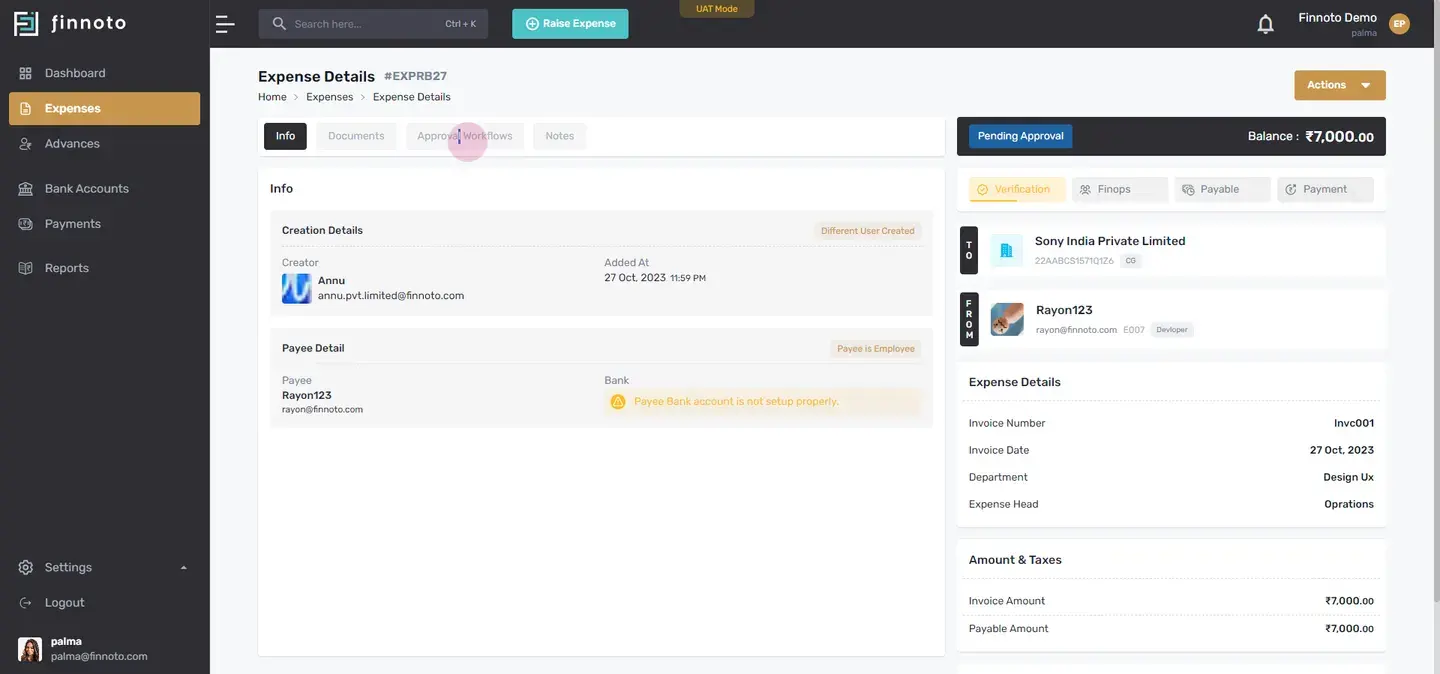
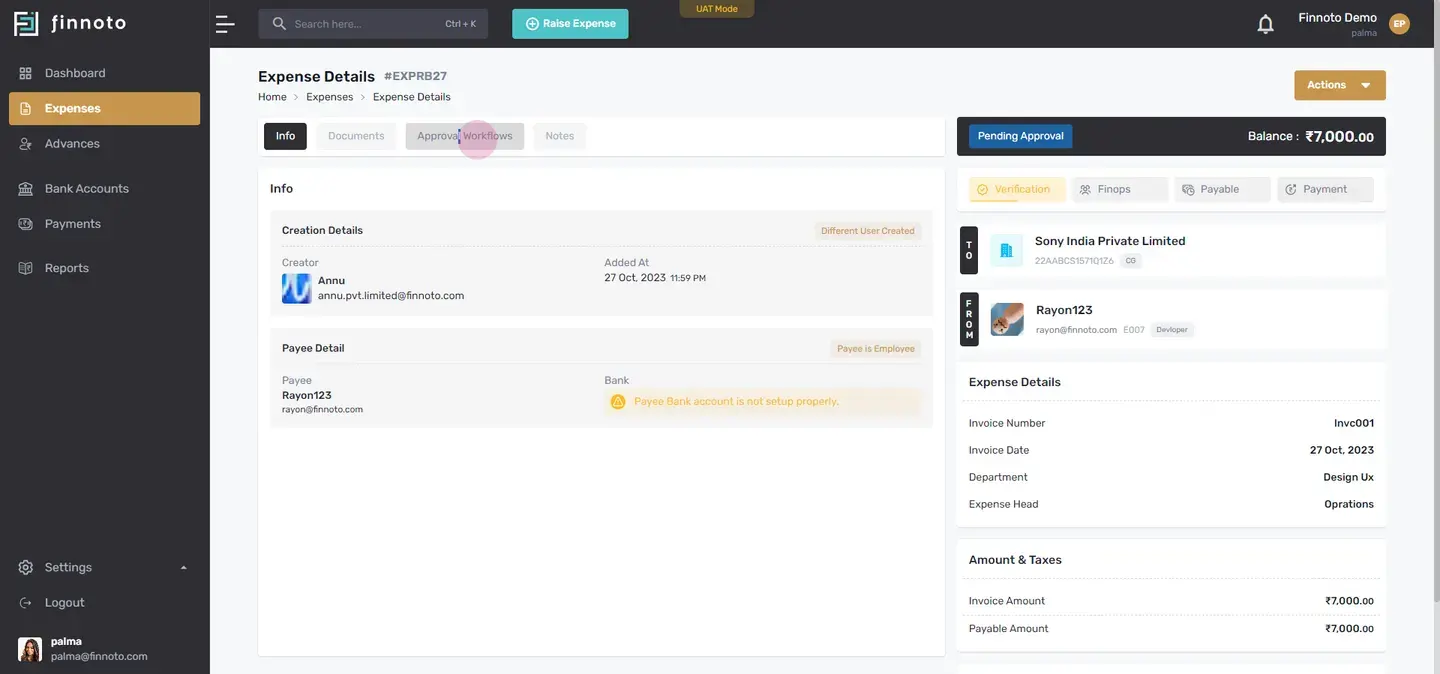
On this expense detail page, they will able to see the three of options available at the bottom of this page. One is to reject. Second is to put on hold, and third is to approve. So here in the approved sections, there are two options. One is to approve, if it directly click on the approve, then we have to give the comment and it will opt this option, second option, the approved without comment. Then here, we don't have to give any comment for this approval. So once this is done, and in the section, there are just three actions available.
One is to add notes.
Second is to audit log, and third is to put on So now here, I'm going to approve it by giving the comment.
So once you will click on the approve button, it will this window pops up and it wants, that we have to enter the comment over here. Then click over the approve button.
Once this is done, all the other three options that are coming here, will be disappeared. Here, now in the actions button, you will be able to see just two options One is to add notes, and the second is to audit log. So like this, and in the approval workflow, The individual will be able to see the next approval of this approval work.
So like this, any individual who is a part of the approval workflow will be able to approve reject or put on hold any expense given available for that particular employer. Thank you
Hello, everyone
In this video, we will learn about the app that an employee serving as an approval at any level of the approval workflow can perform. This includes approving, rejecting, and placing expenses on hold. So first, that approver employee have to log in into his account.
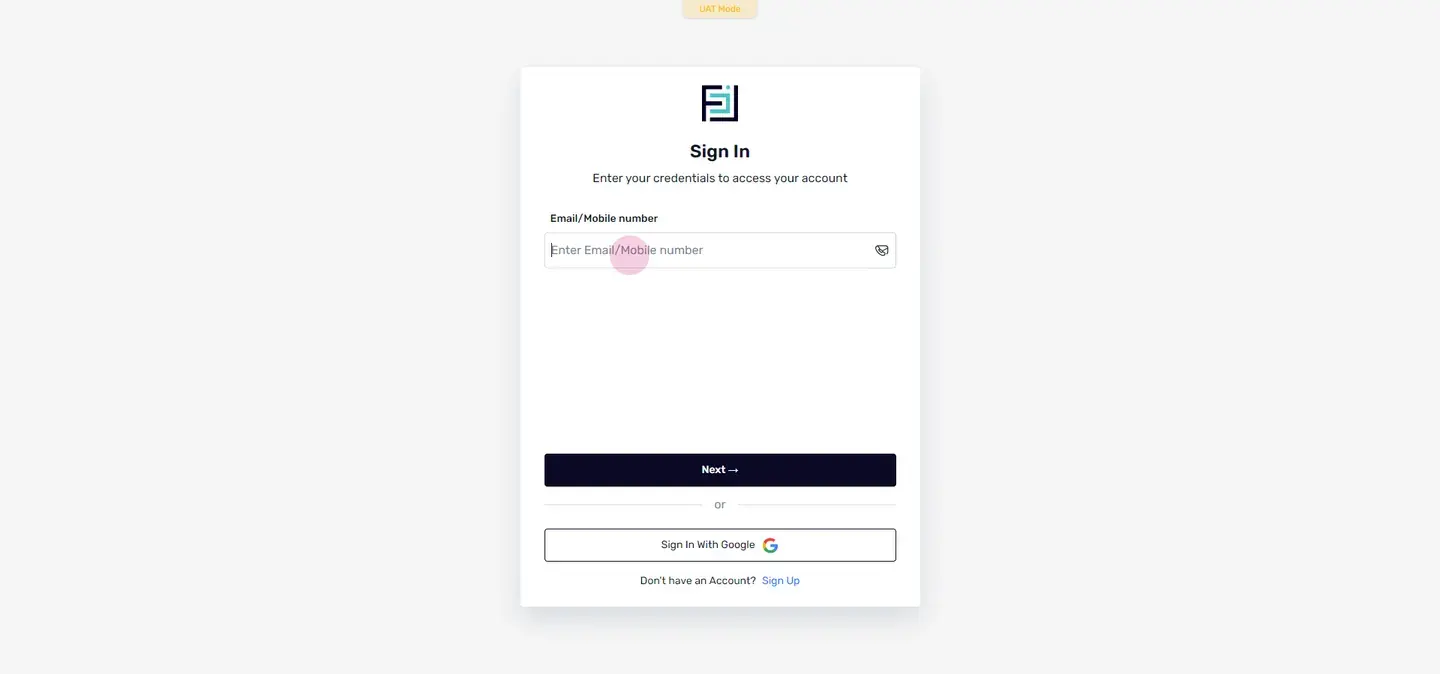
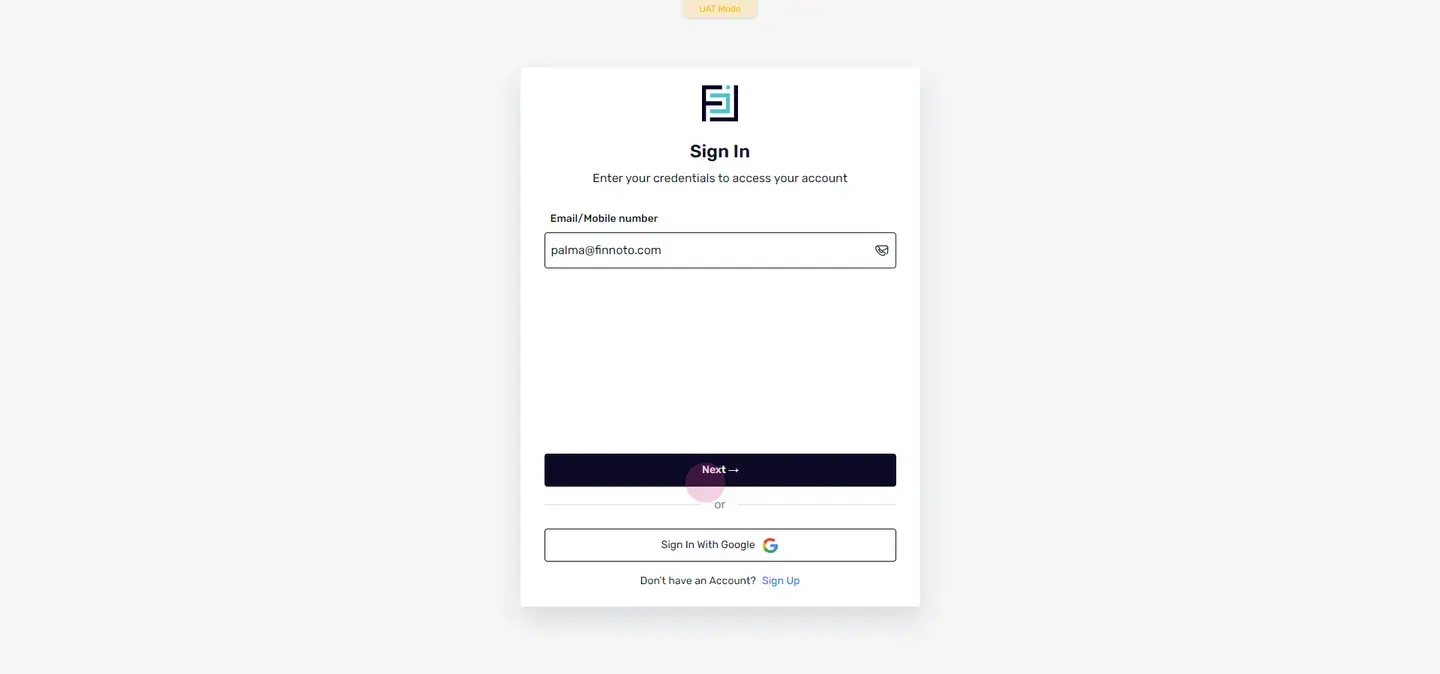
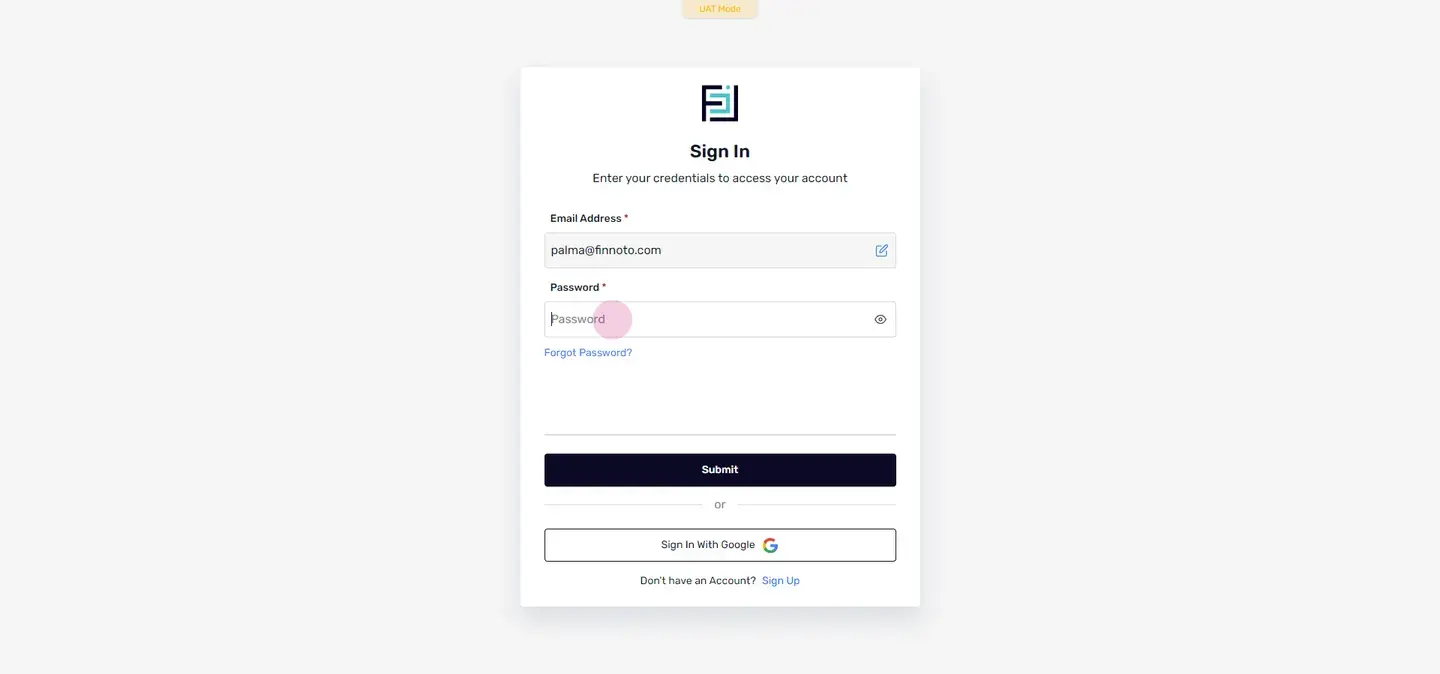
Once it's done, then they have to go to the expenses menu.
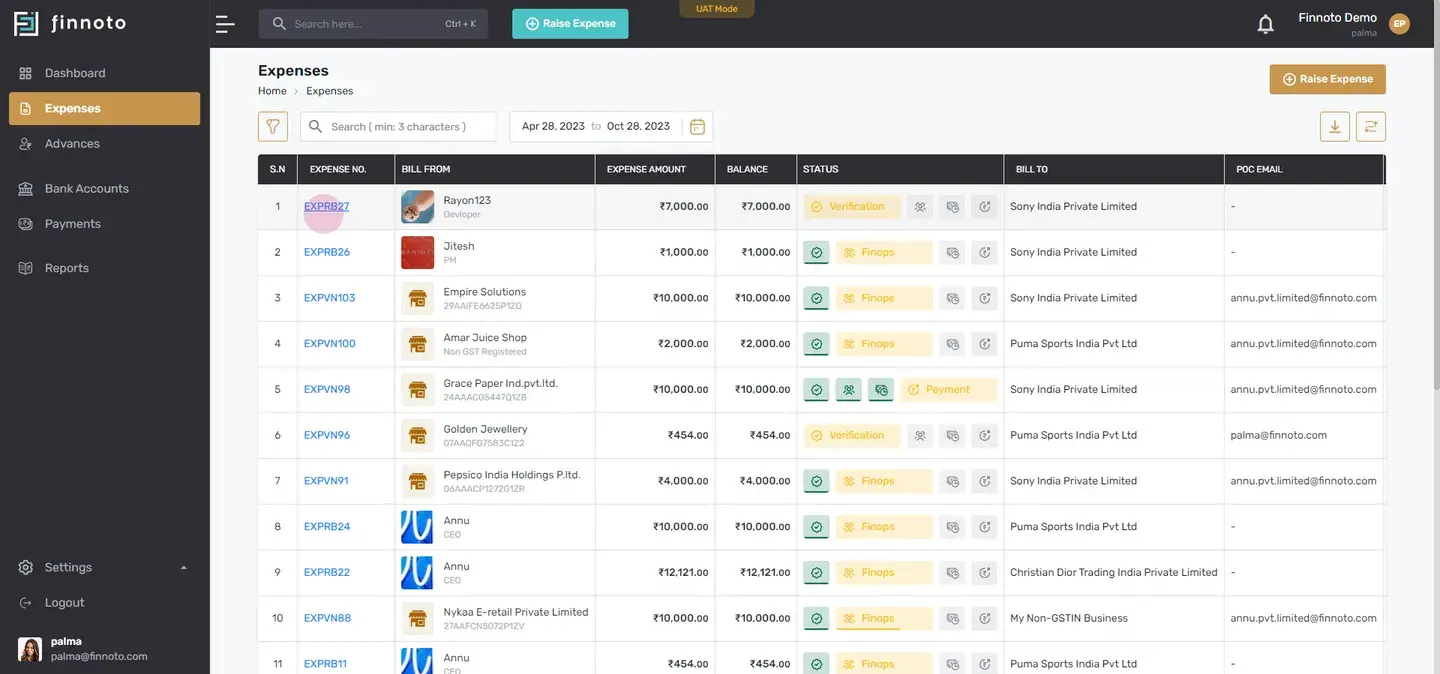
On this expense detail page, they will able to see the three of options available at the bottom of this page. One is to reject. Second is to put on hold, and third is to approve. So here in the approved sections, there are two options. One is to approve, if it directly click on the approve, then we have to give the comment and it will opt this option, second option, the approved without comment. Then here, we don't have to give any comment for this approval. So once this is done, and in the section, there are just three actions available.
One is to add notes
Second is to audit log, and third is to put on So now here, I'm going to approve it by giving the comment.
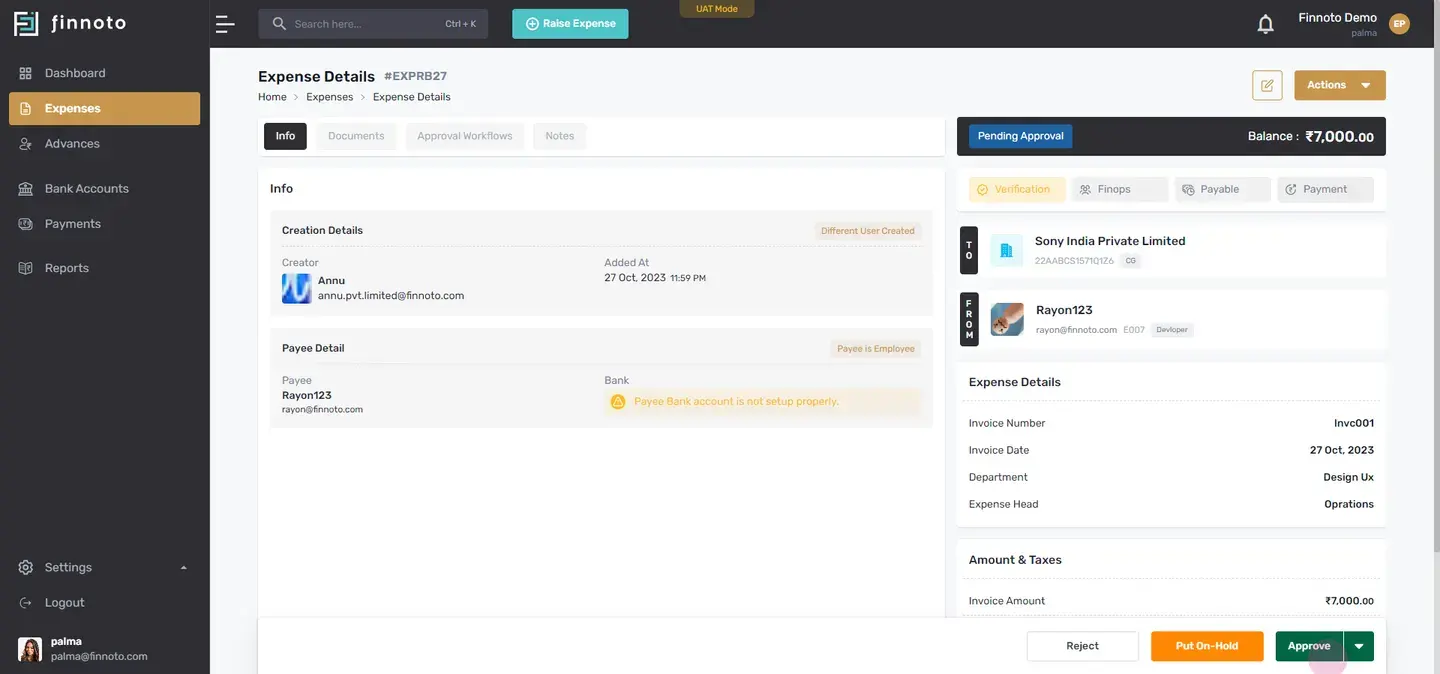
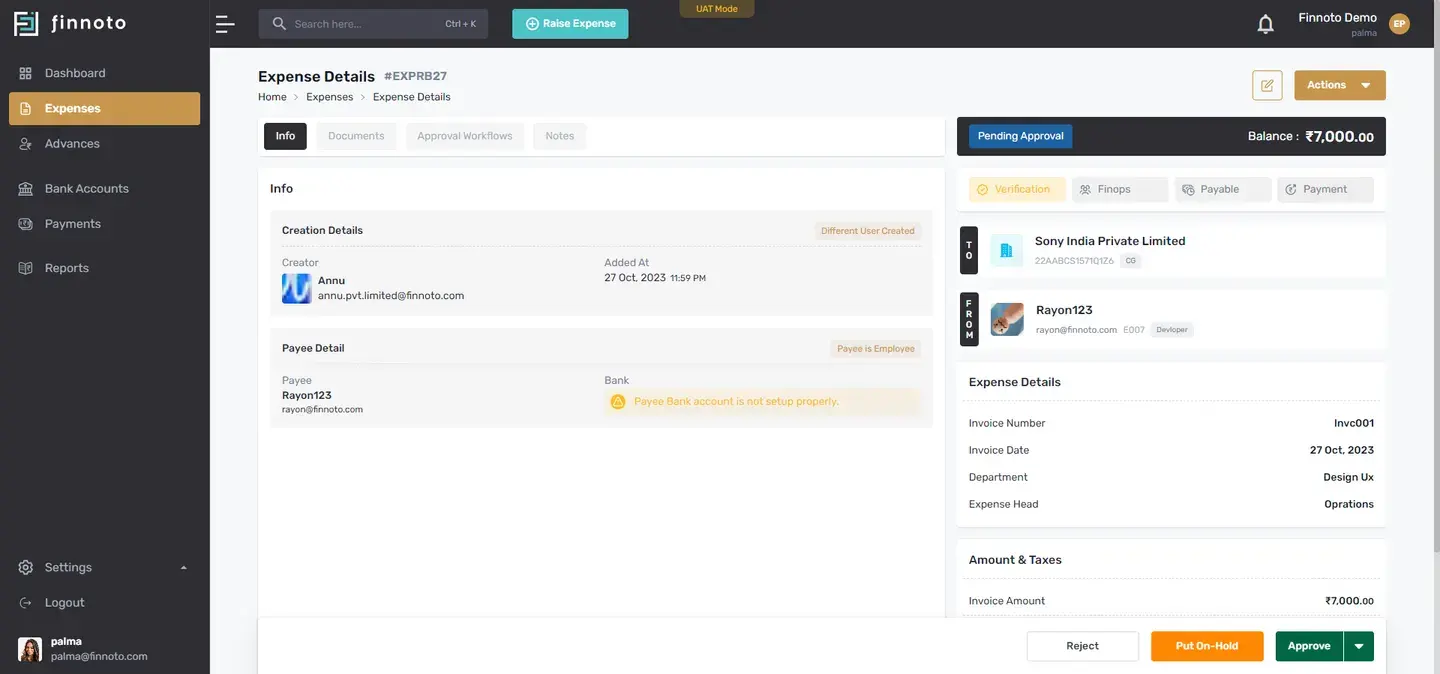
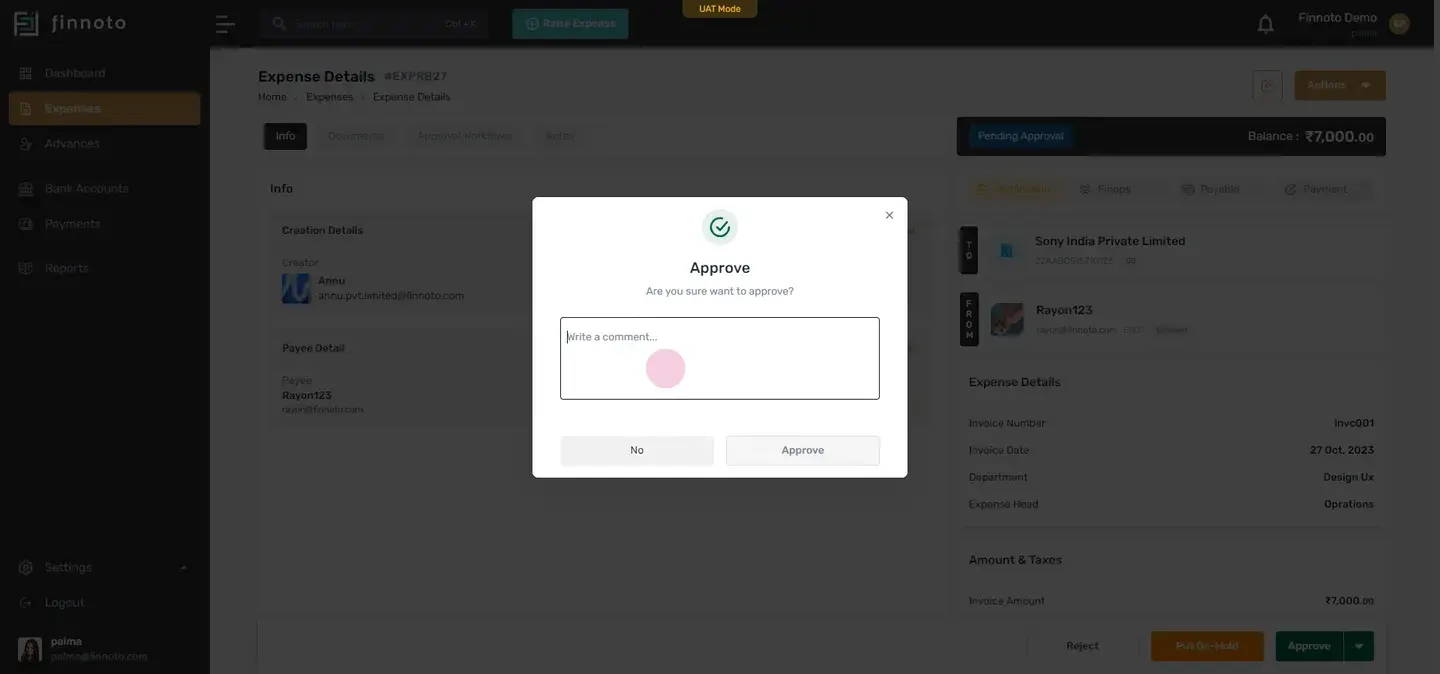
So once you will click on the approve button, it will this window pops up and it wants, that we have to enter the comment over here. Then click over the approve button.
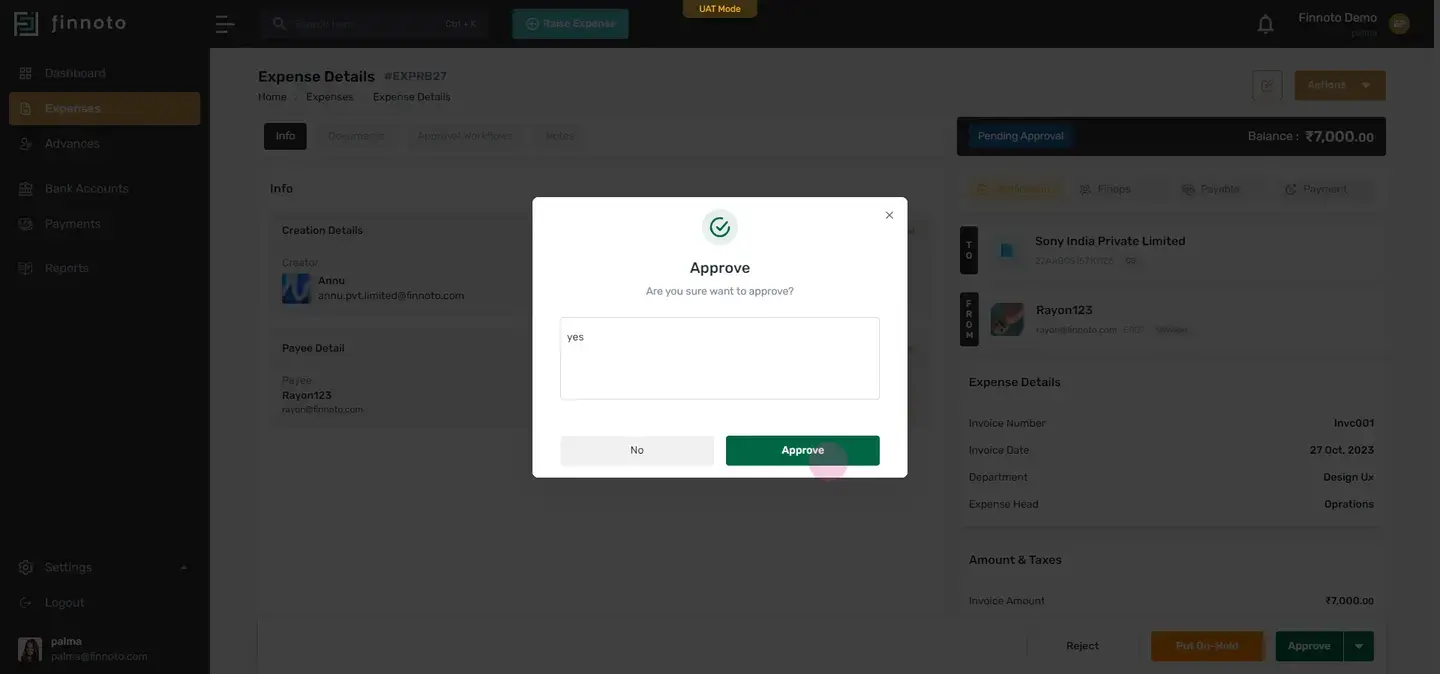
Once this is done, all the other three options that are coming here, will be disappeared. Here, now in the actions button, you will be able to see just two options One is to add notes, and the second is to audit log. So like this, and in the approval workflow, The individual will be able to see the next approval of this approval work.
So like this, any individual who is a part of the approval workflow will be able to approve reject or put on hold any expense given available for that particular employer. Thank you