Add a business-managed, GST-registered vendor
Add a vendor yourself with their GSTIN, bank details and documents, instead of inviting them to self-onboard.
Last updated on
Transcript
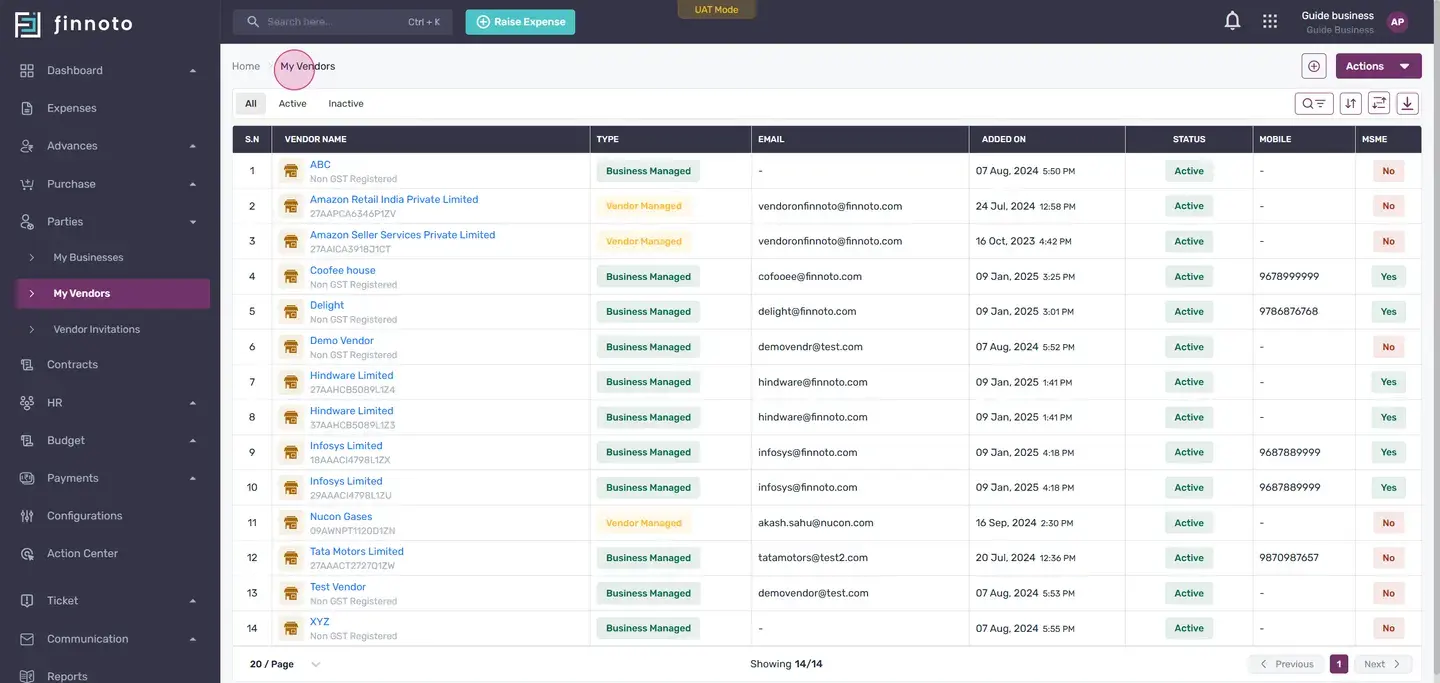
Welcome everyone! Today, we'll walk you through the process of adding a Business managed GST vendor on Finnoto. Start by navigating to the Parties module and selecting "My Vendor". This will take you to the vendor listing page.
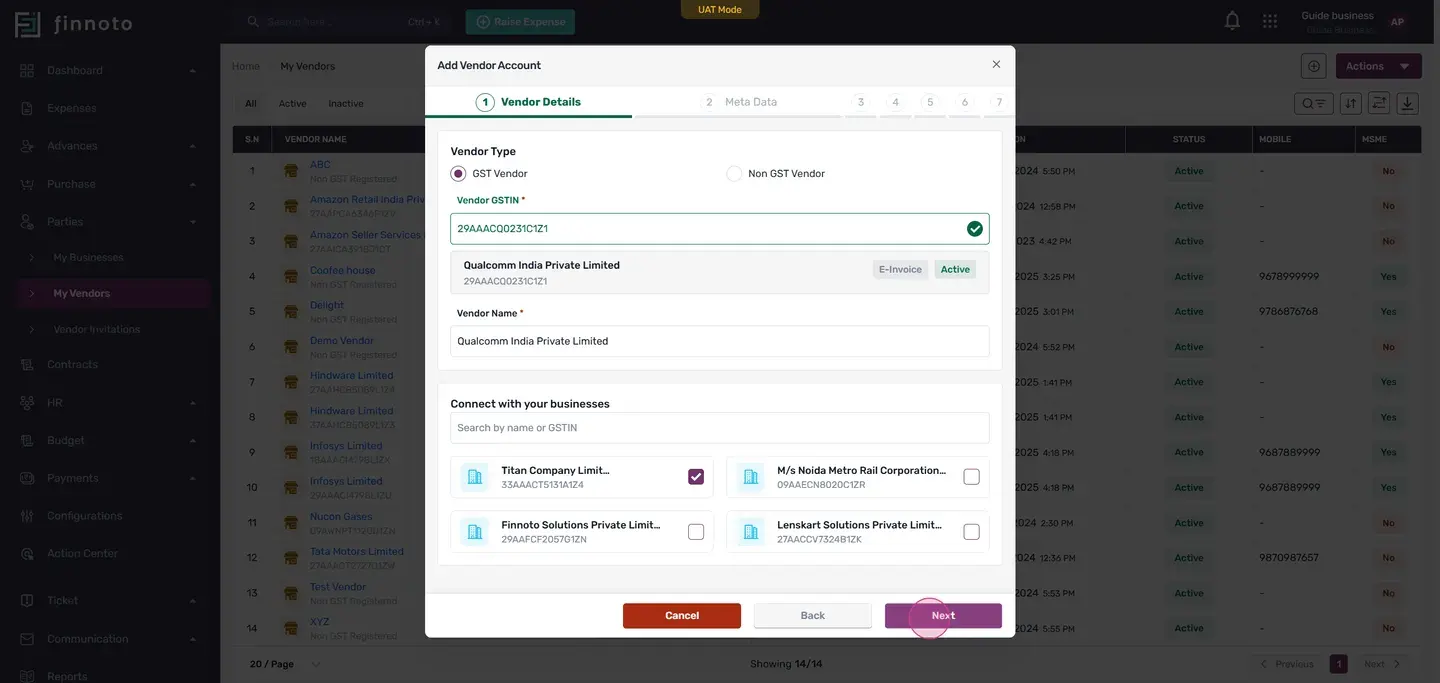
On the top right of the page, find and click on the "Add Vendor" button to open a new window. We're focusing on adding a GST vendor, so you'll need to provide a valid GSTIN number. Once you've entered the GSTIN number, the vendor's details, including their active status and E-invoice tag, will be displayed. Next, you'll see an option to connect with your businesses.
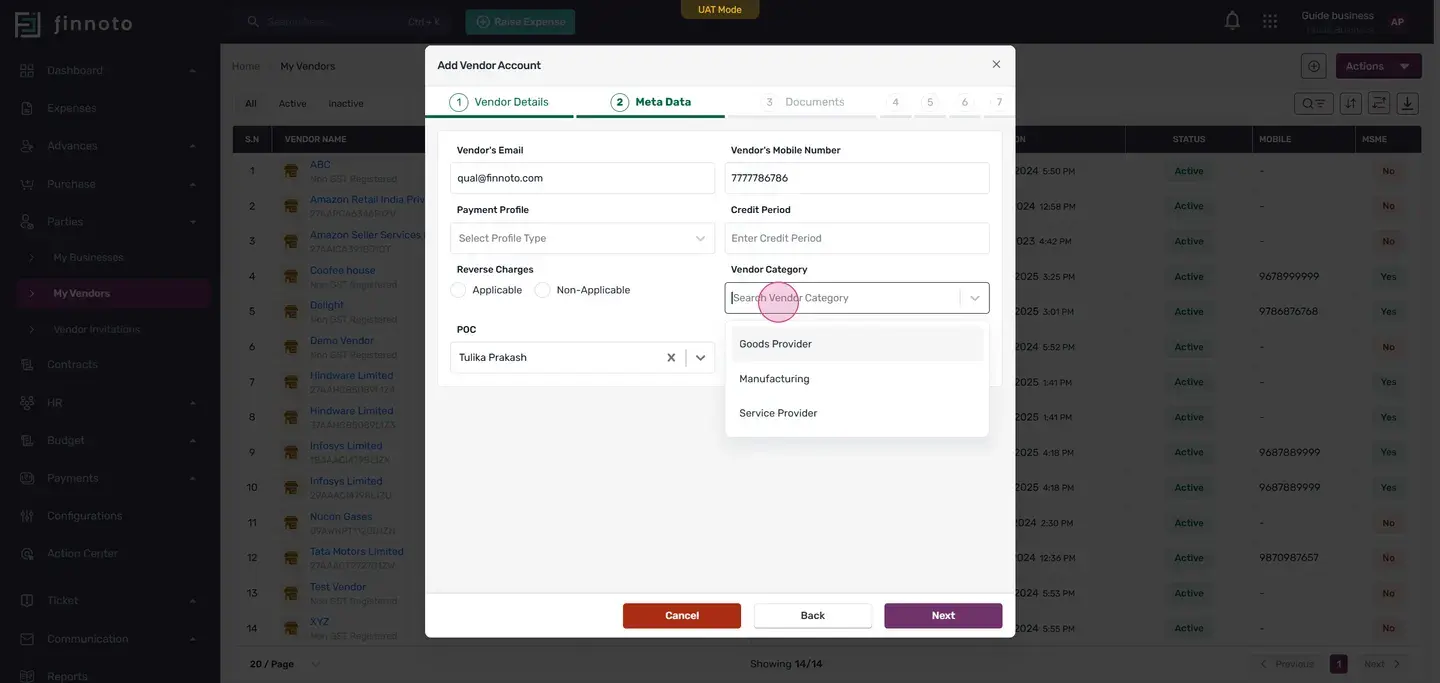
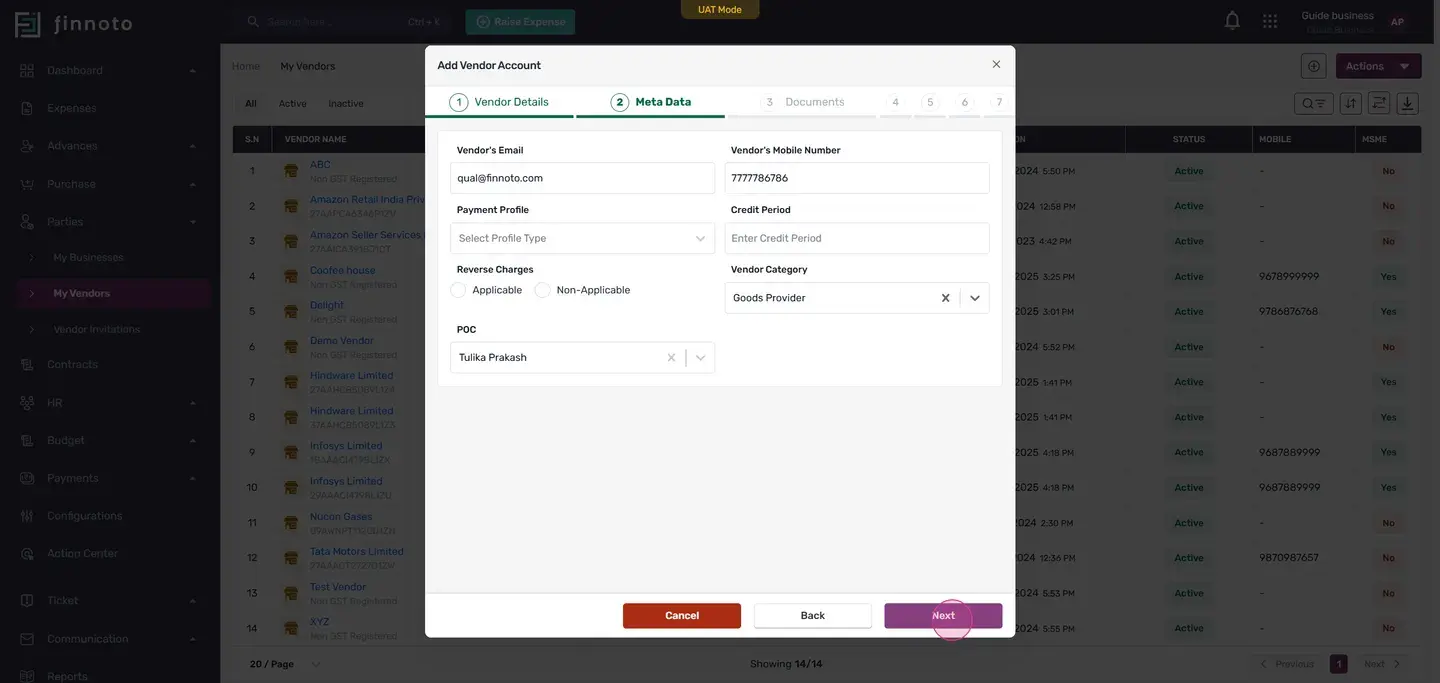
Here, select the business you wish to associate with this vendor. Proceeding to the metadata stage you'll be asked to provide details like the vendor's email, mobile number, payment profile, credit period, reverse charge, point of contact, and vendor category. If you have these details, enter them. If not, this part can be skipped The following stage involves uploading necessary documents.
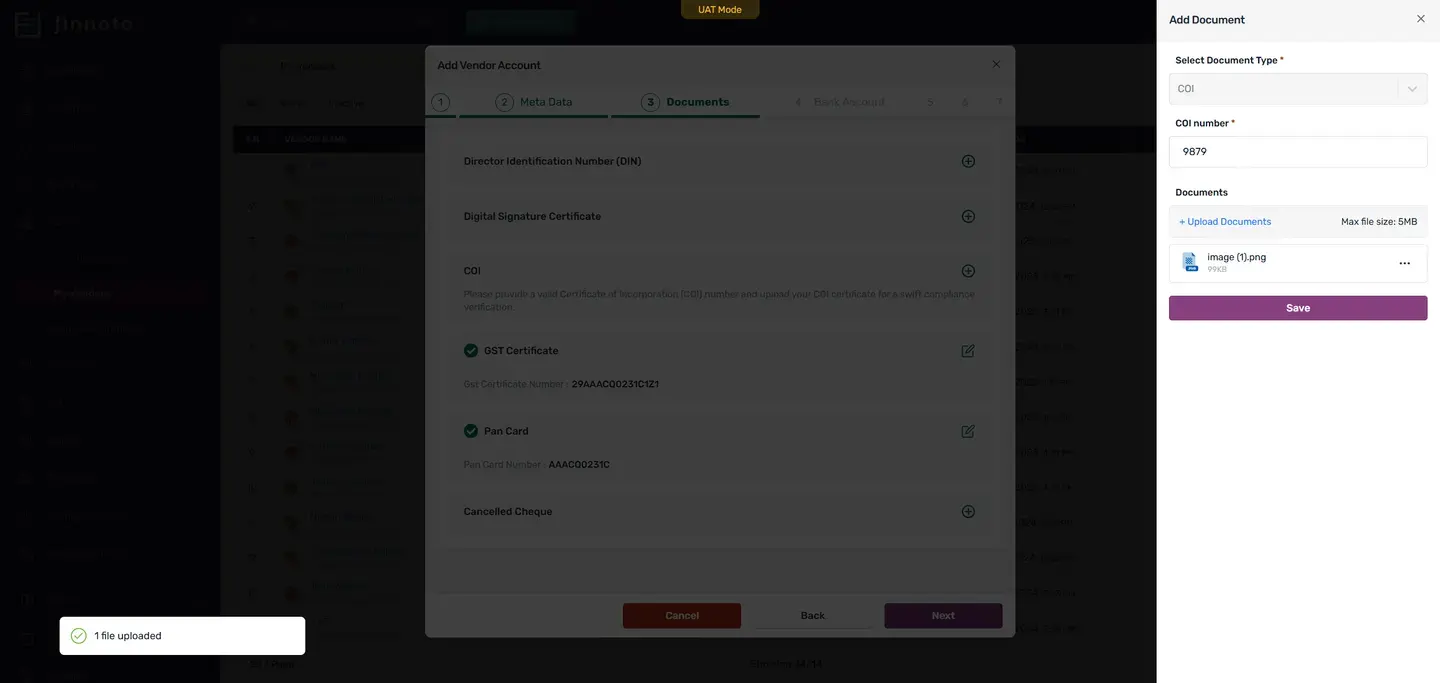
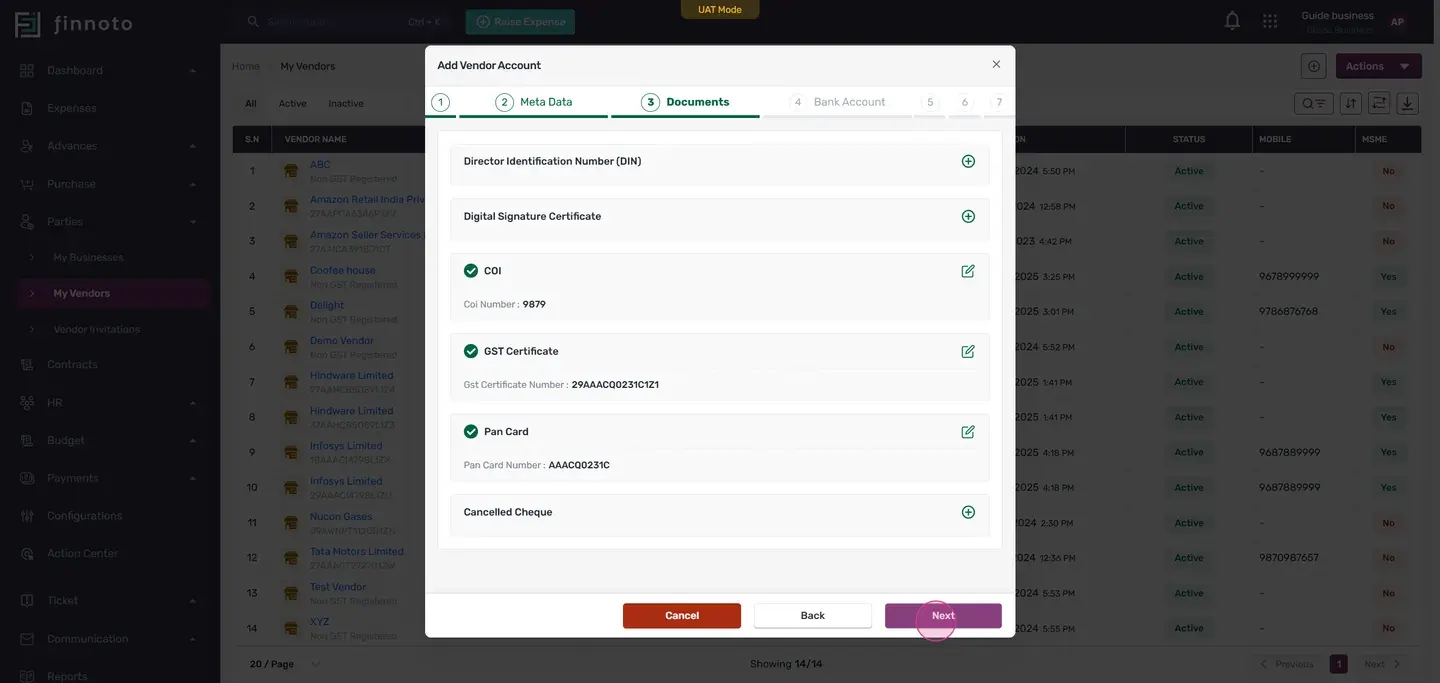
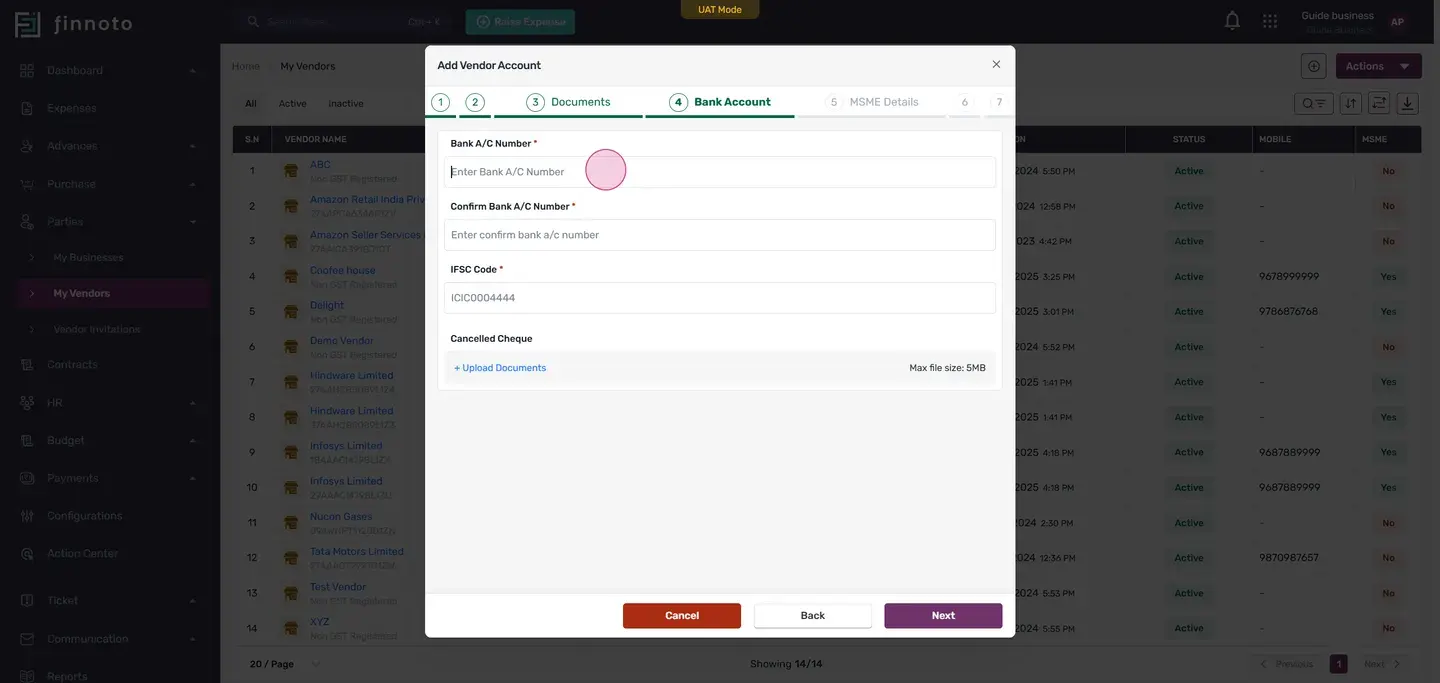
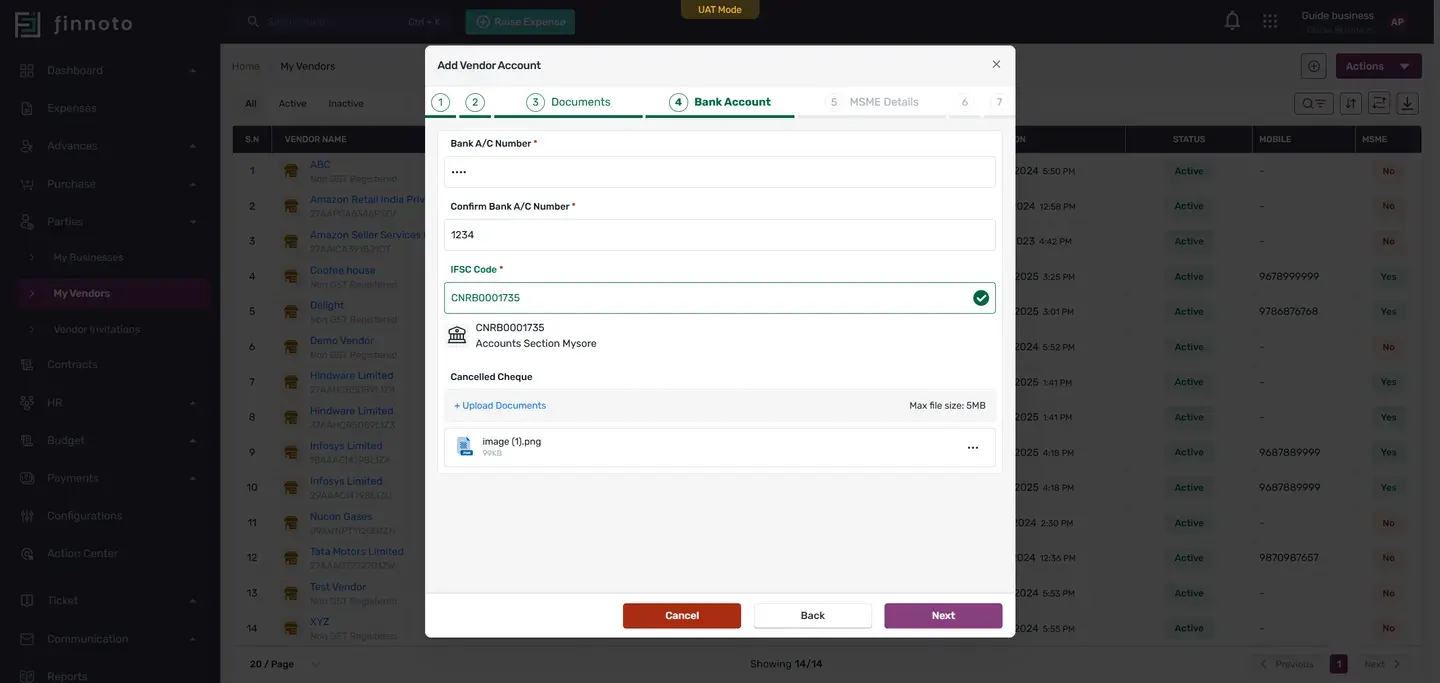
For example, we'll add a sample document and save the details. After uploading the required documents, you can proceed to the next stage Bank documents This step requires you to provide the vendor's bank account details, including the account number and IFSC code. There's also a section to upload a cancelled cheque document to verify the bank account belongs to the vendor Next, we reach the MSME detail stage. If your business falls under MSME, select the MSME category and input the registration number.
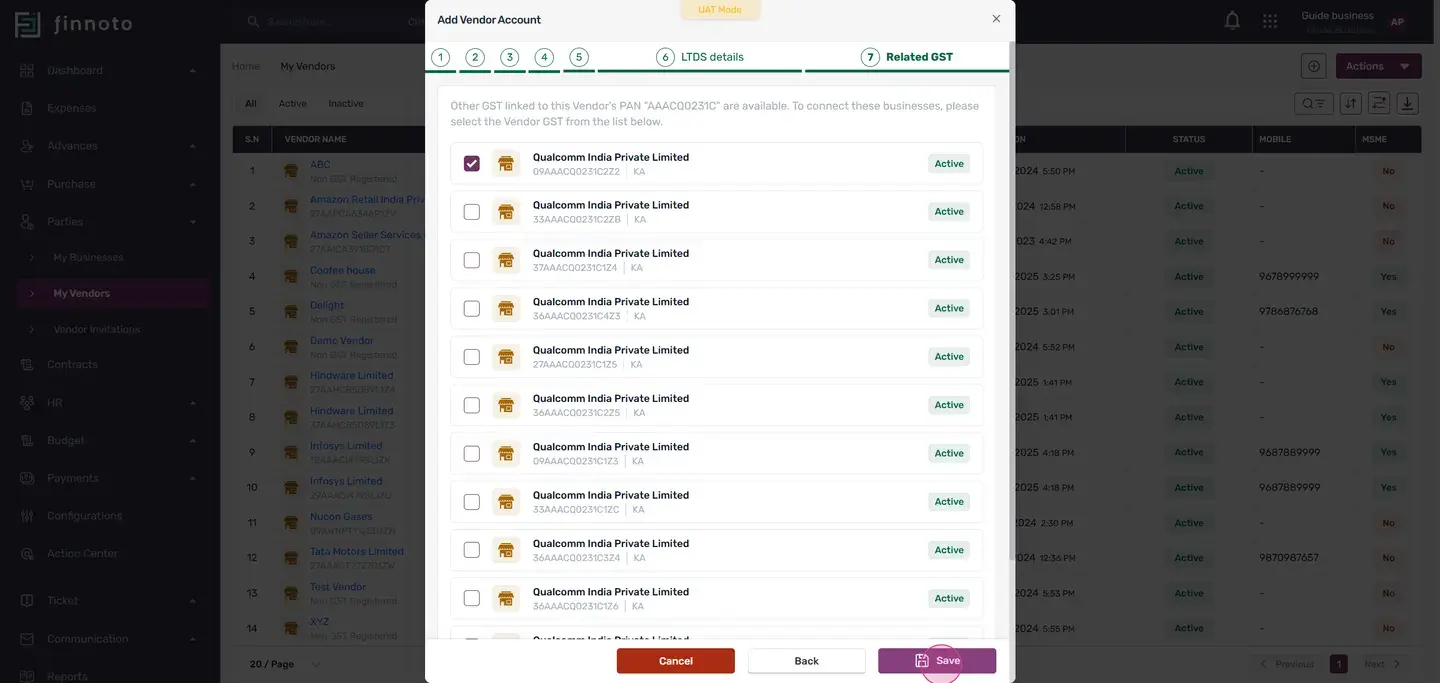
If not, this part can be skipped We then move on to the LTDS details stage. If your business is liable for LTDS, you'll need to input the LTDS details and upload the relevant document. If not, this part can be skipped. Now, you'll see a list of all the GSTIN's of the vendors registered under this PAN number.
If you wish to select other GSTIN of the vendors, you can do so. After selecting, save to conclude the process. Upon saving, you'll be presented with the vendor account detail page showing all the details you've entered. That's how you can easily add a GST vendor on Finnoto.
Thank you for watching this video.
In this tutorial, we'll guide you through the process of adding a GST vendor on Finoto. By following these steps, you'll be able to manage your vendors more efficiently.
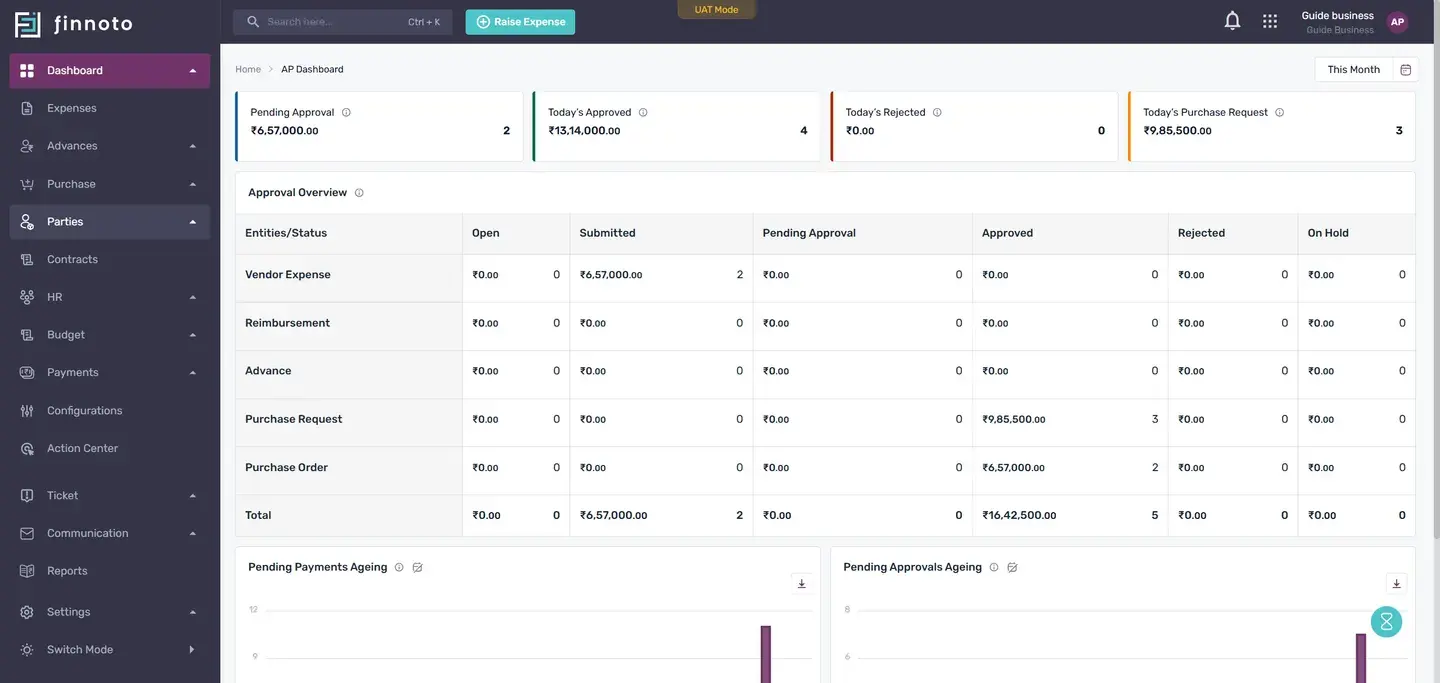
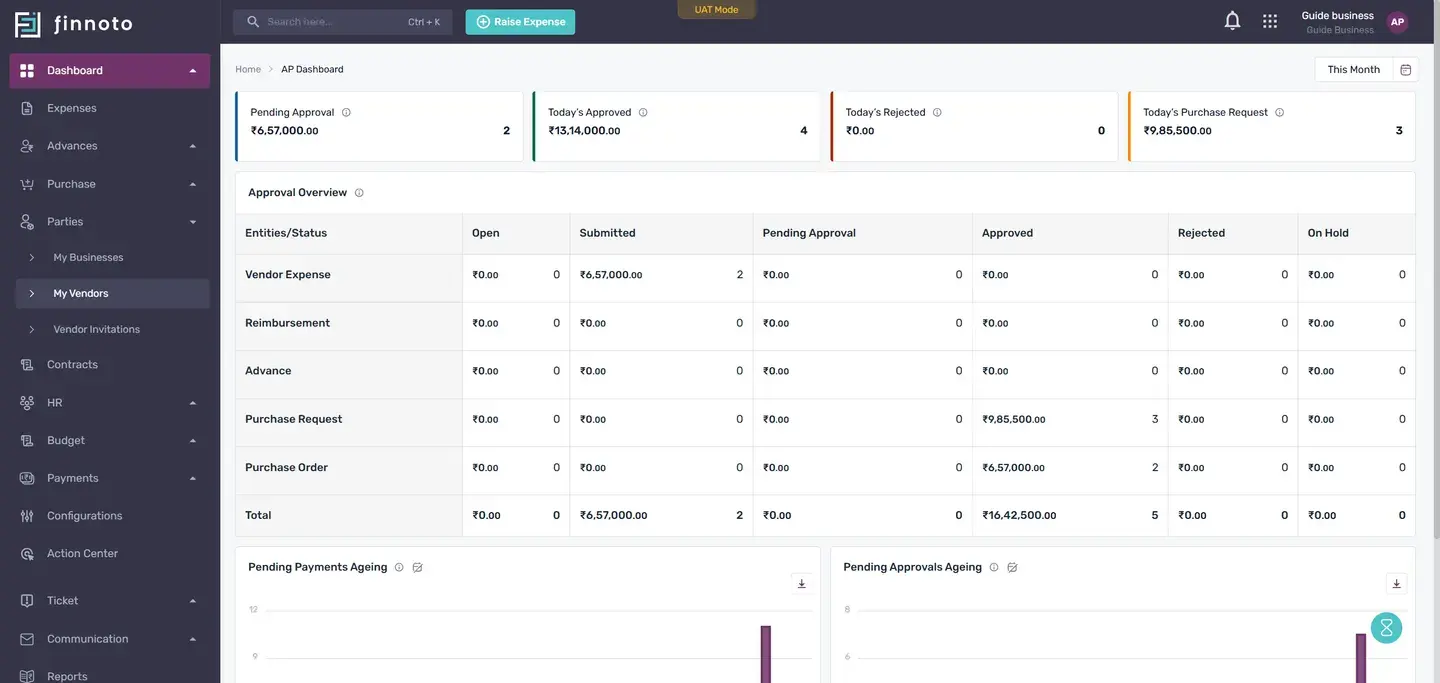
On the vendor listing page, locate the add vendor button on the top right.
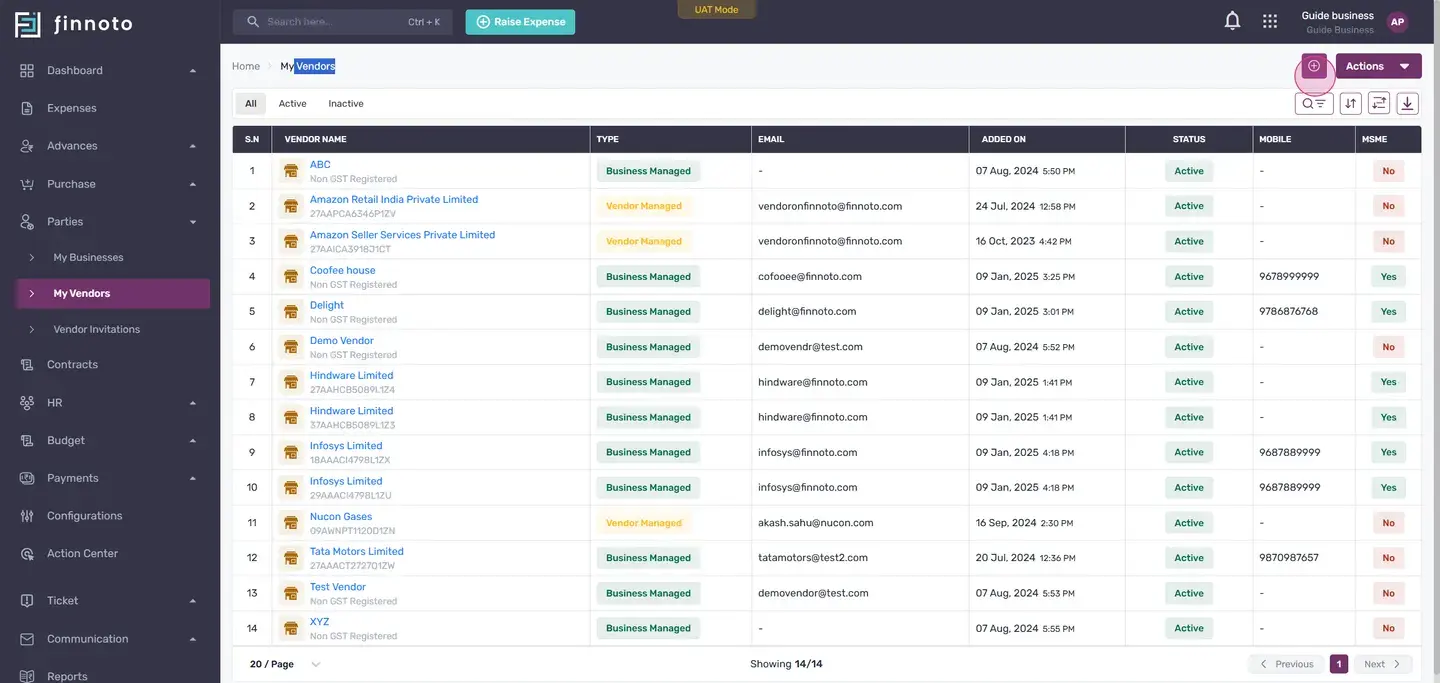
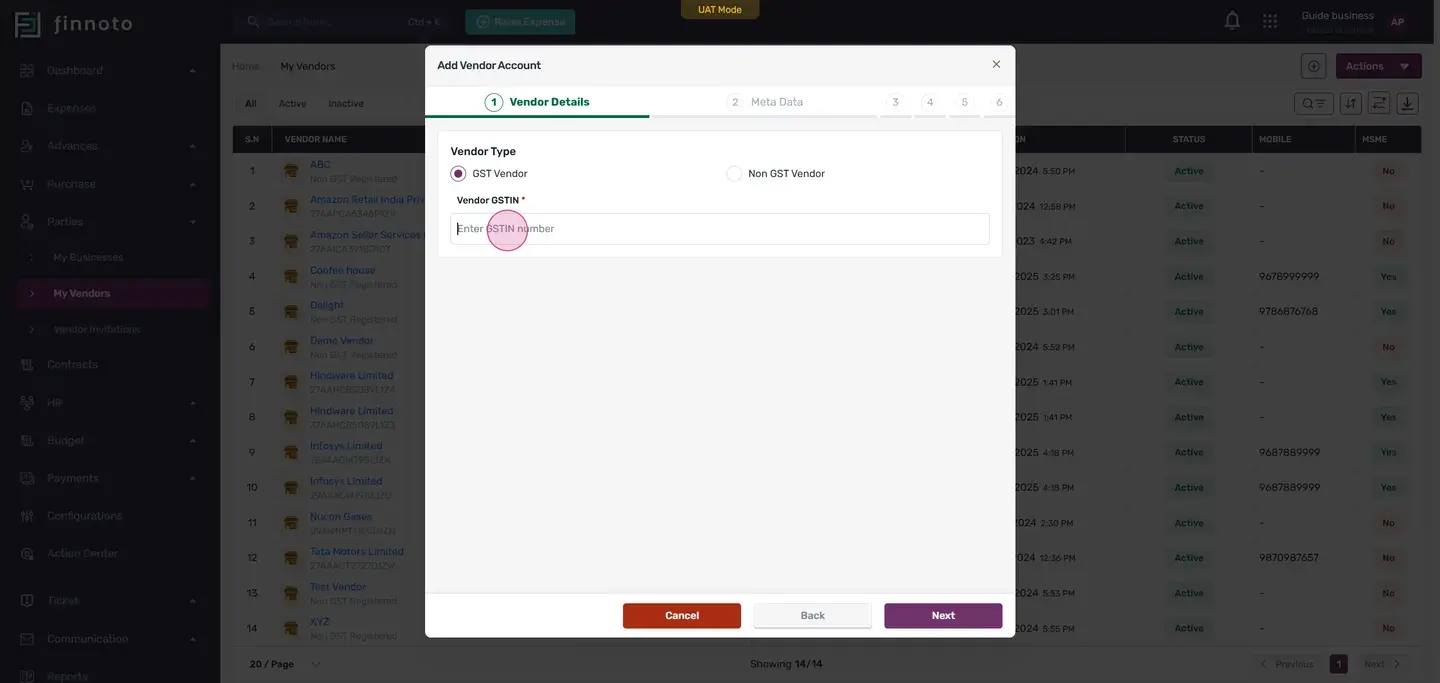
Enter a valid GSTN number
Once entered, the vendor's details will appear, including their status and E invoice tag.
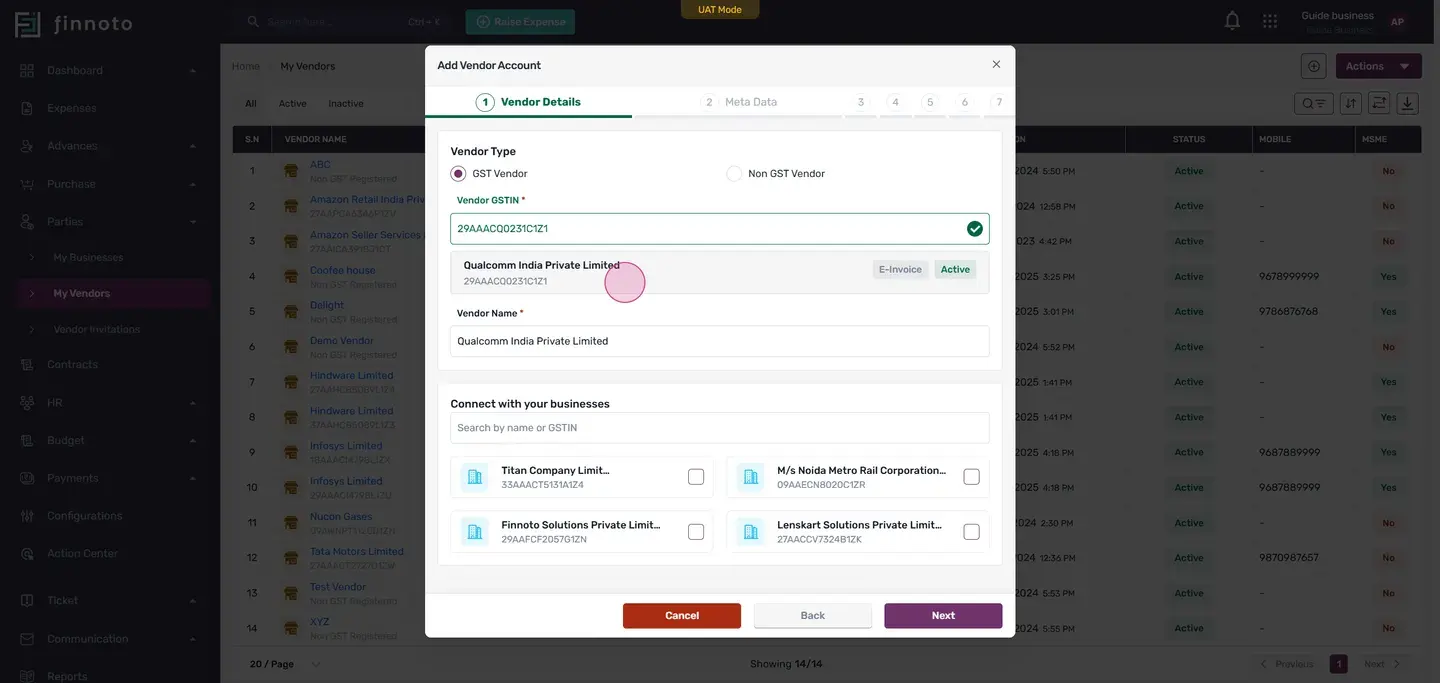
Scroll down to the connect business section
Here, select the business you want to connect with this vendor.
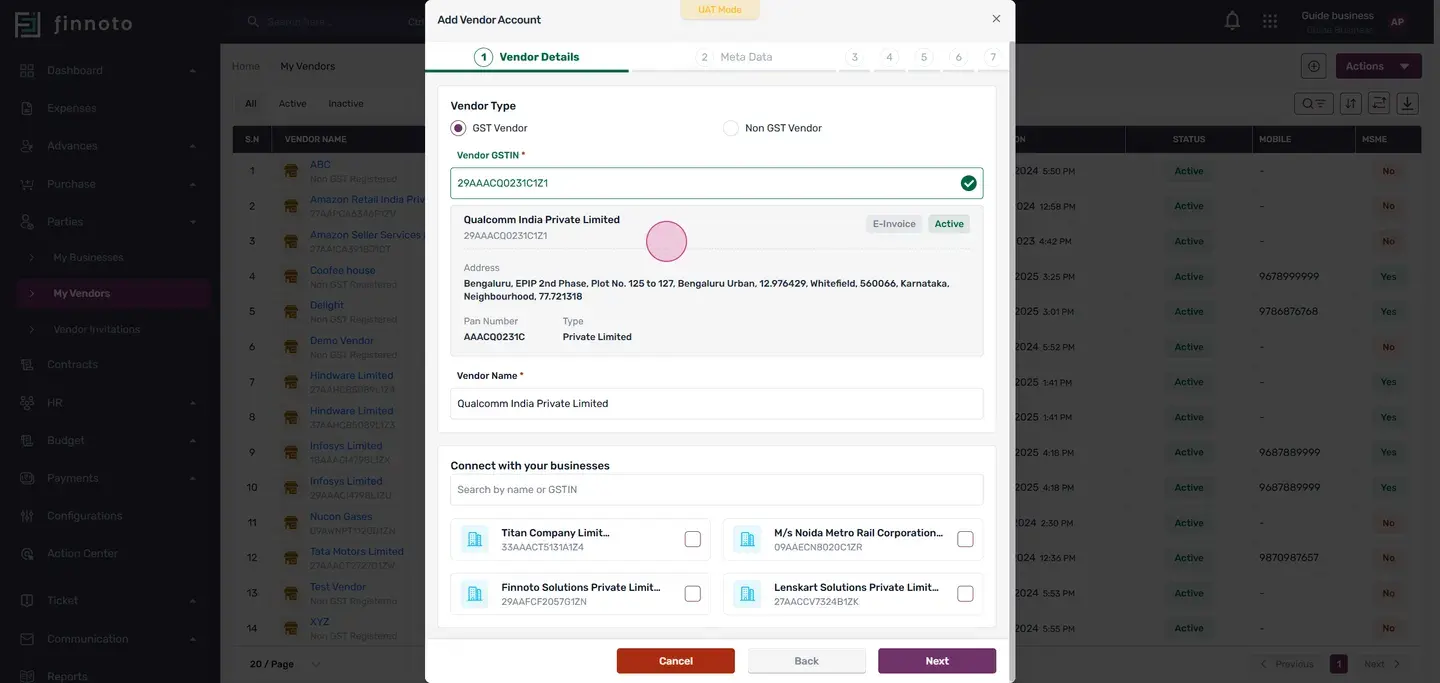
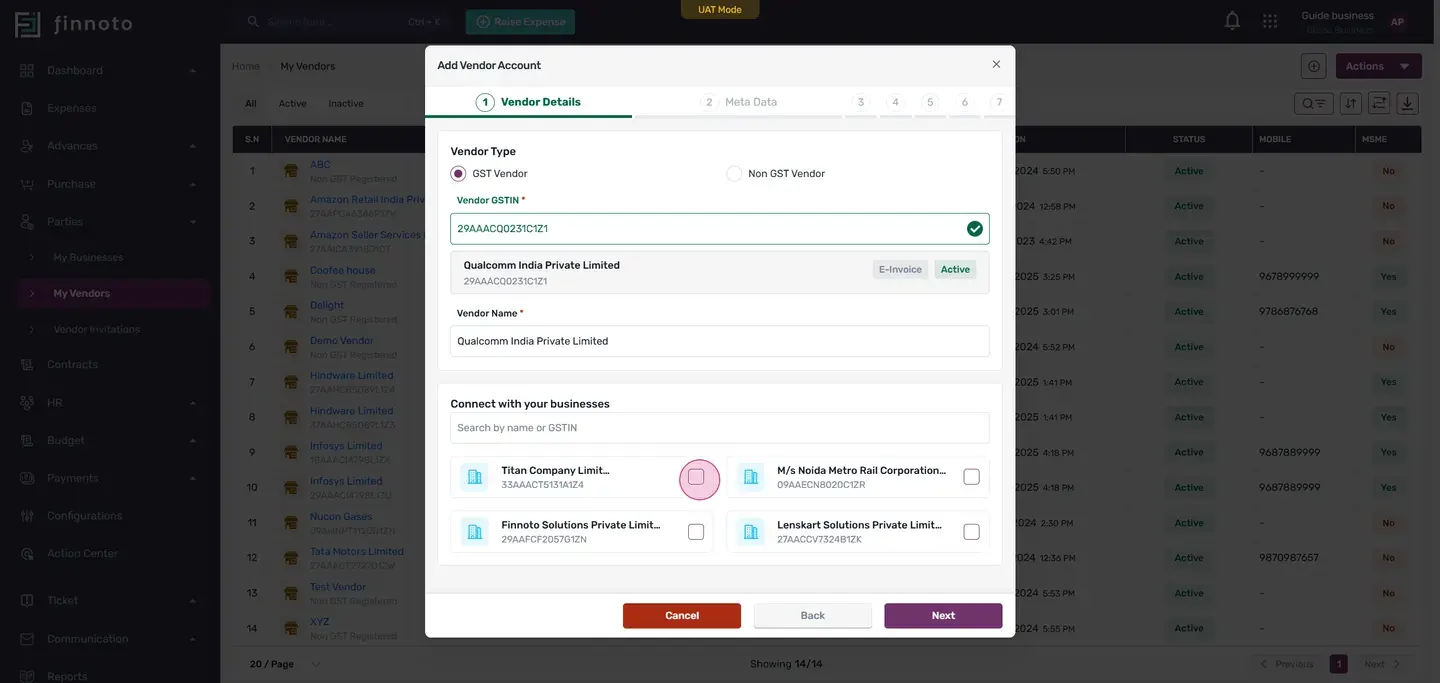
In the metadata stage, enter the vendor's mobile number, email, payment profile, credit period, reverse stars, and vendor category poc.
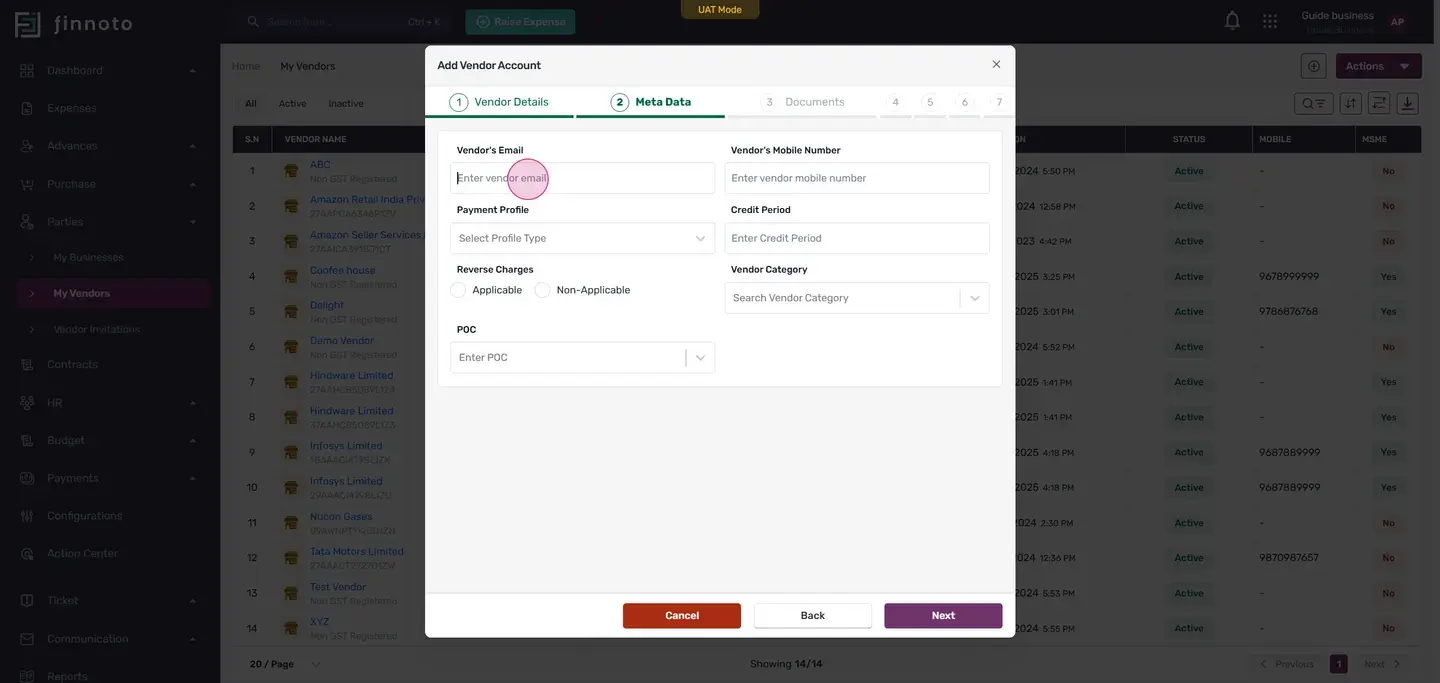
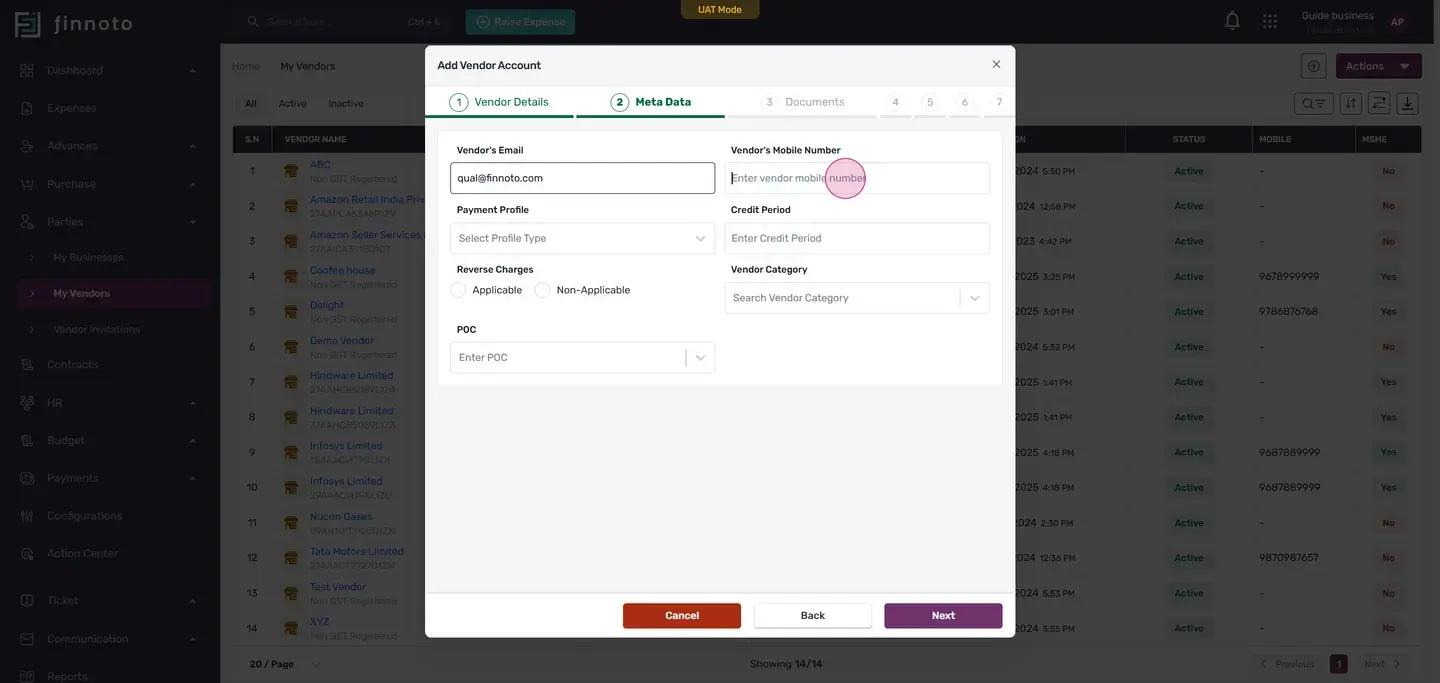
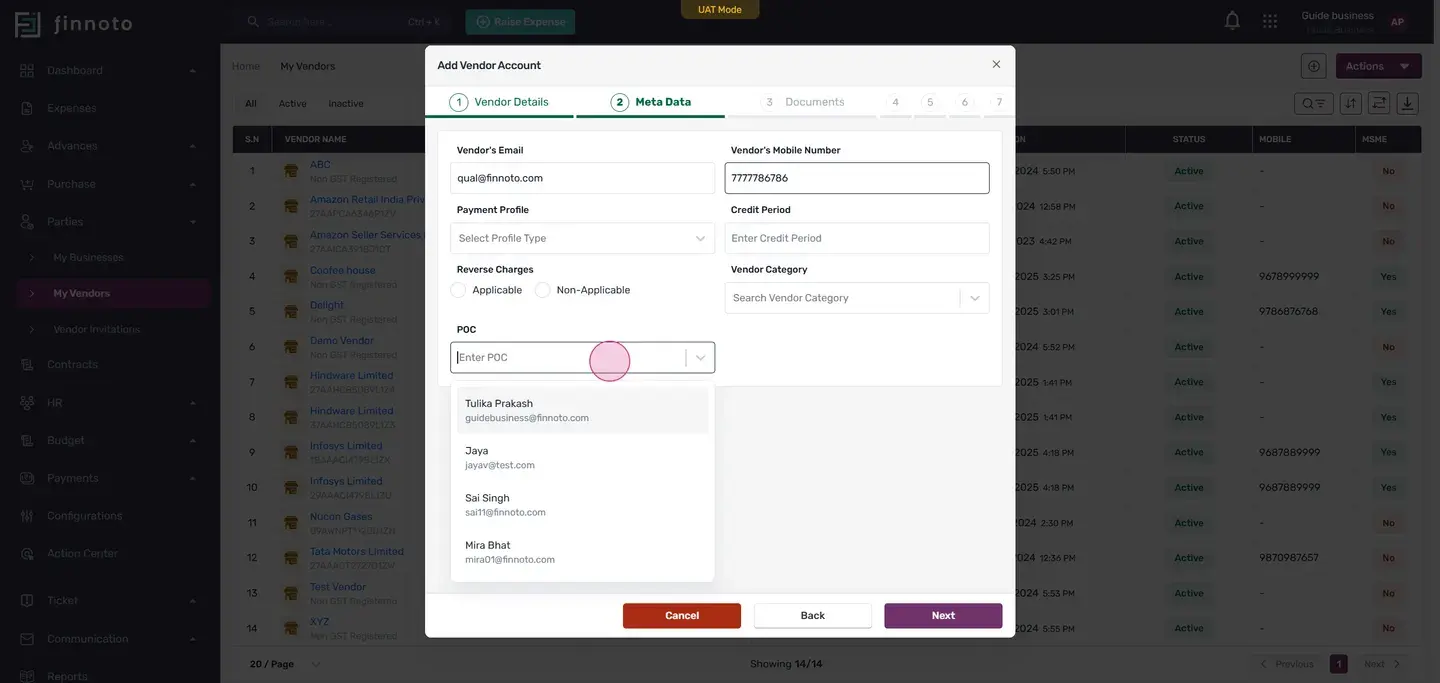
If you don't have all the details, you can skip this part and move to the next stage.
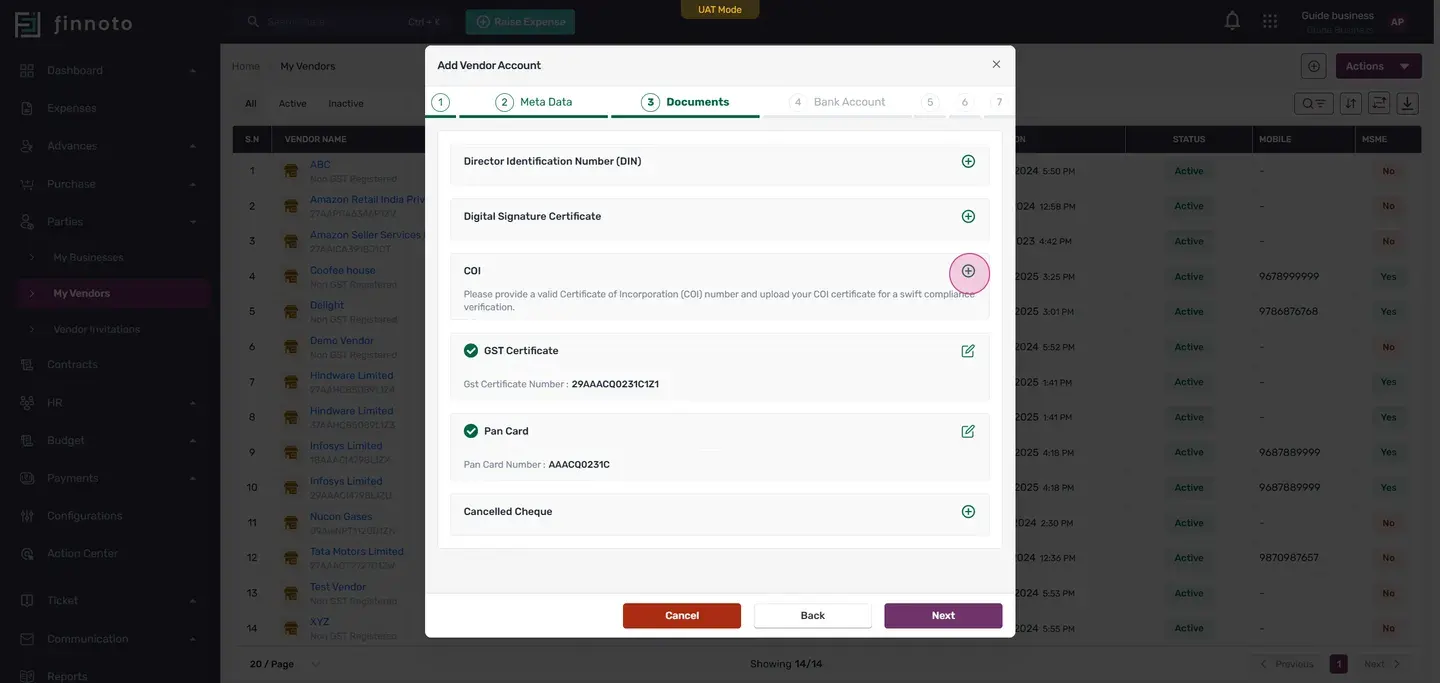
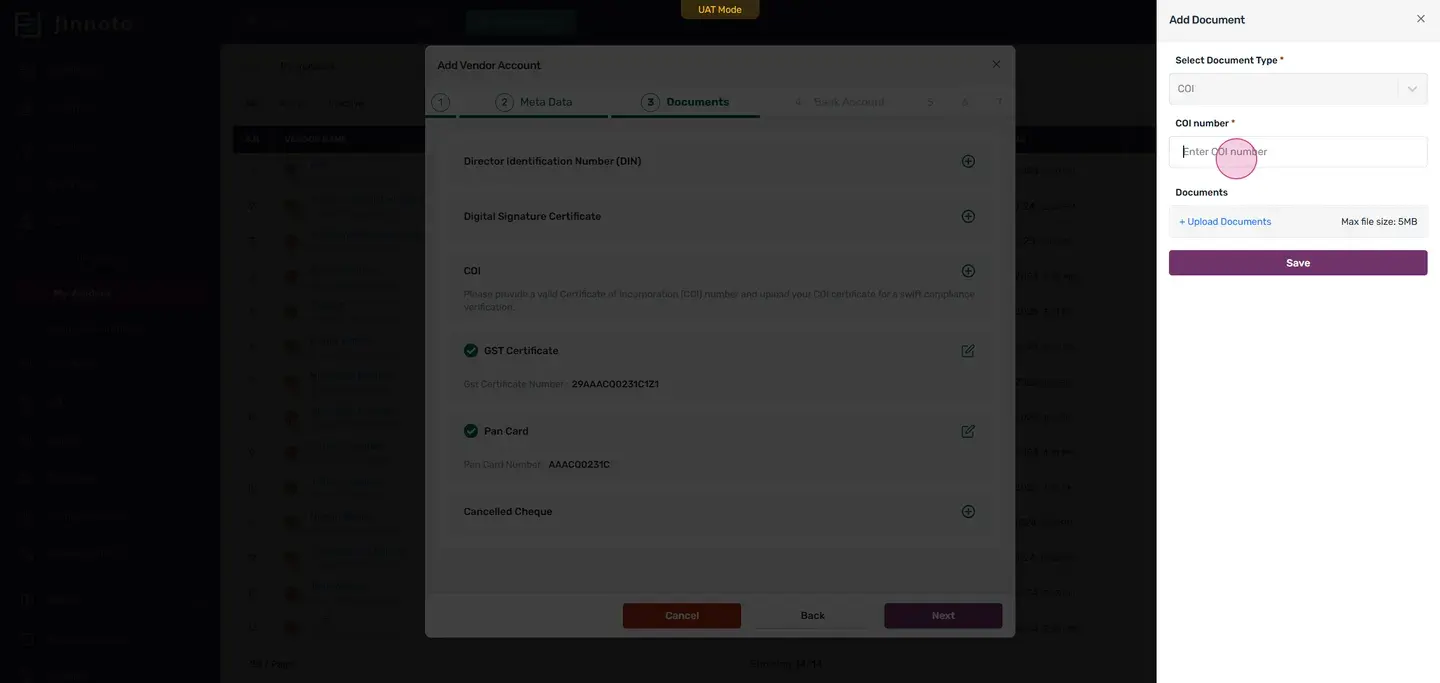
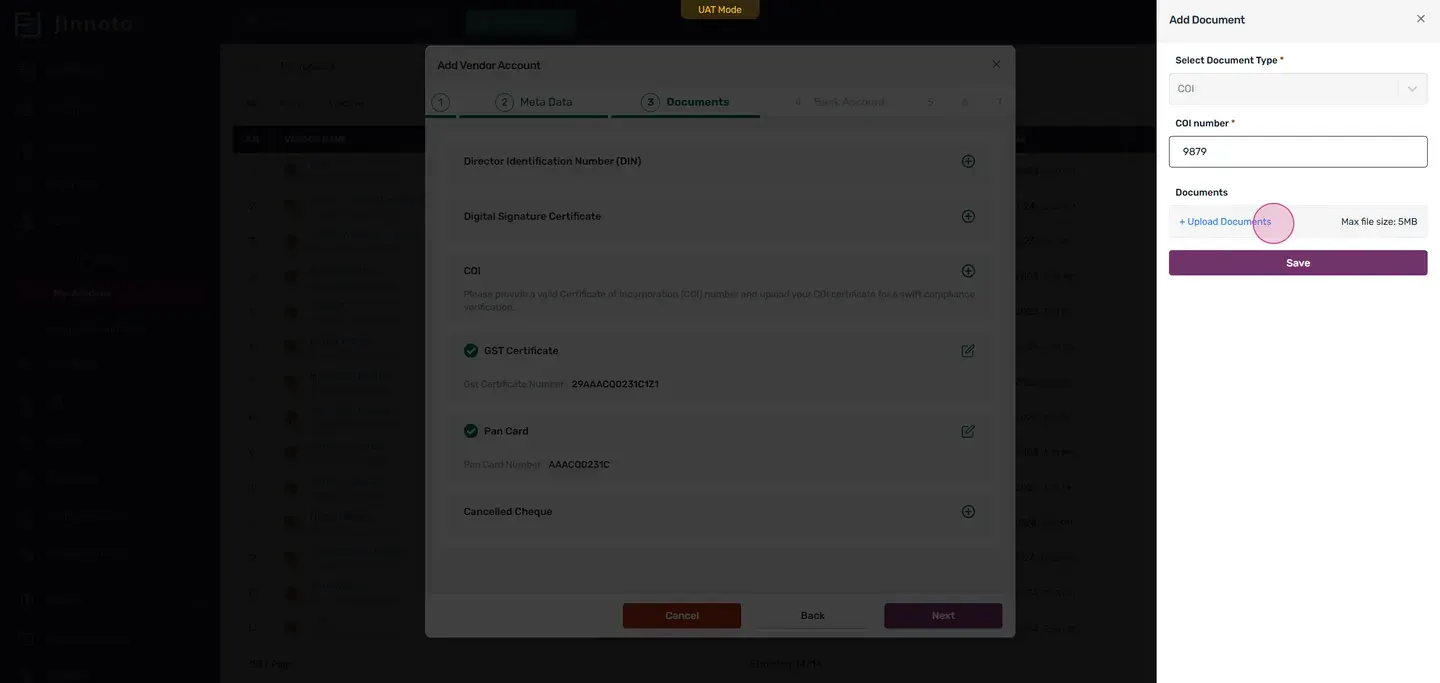
Once you've uploaded the required documents, proceed to the next stage.
The following stage is the bank account stage
Enter the vendor's bank account details and upload the required documents to verify the account.
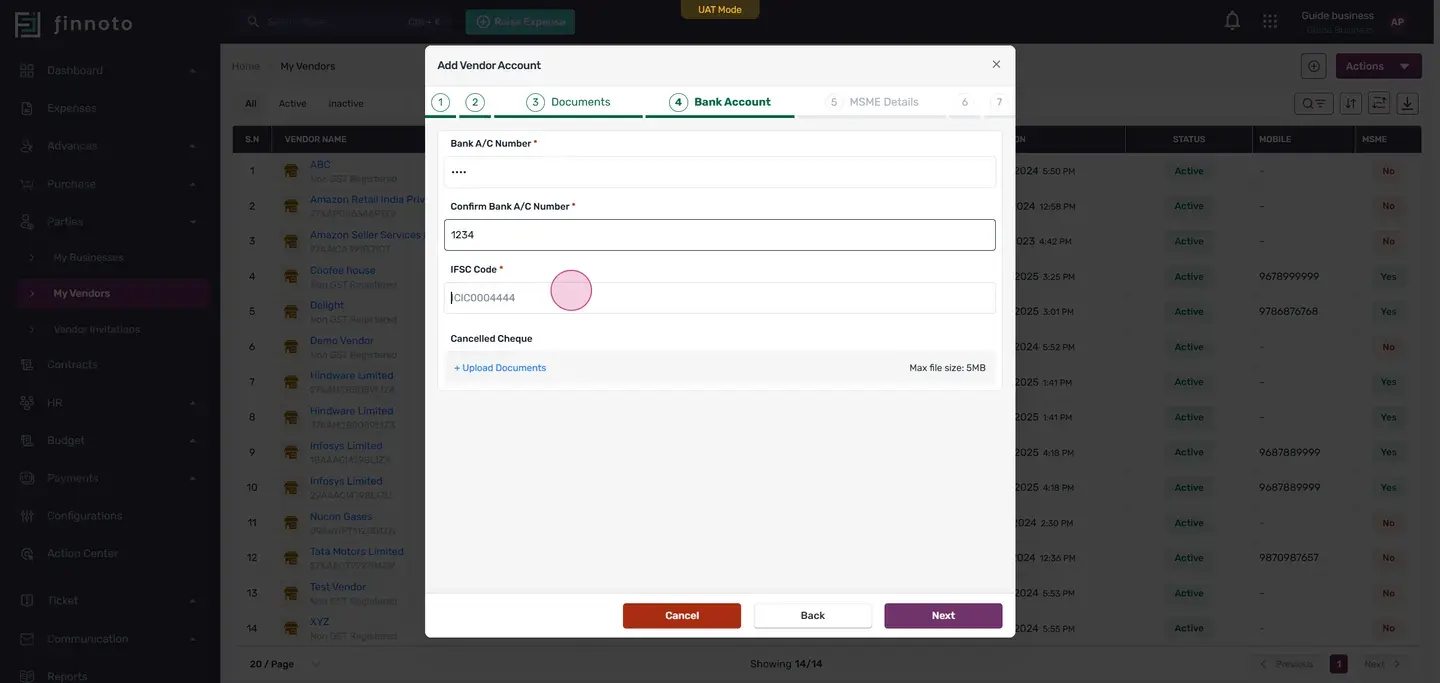
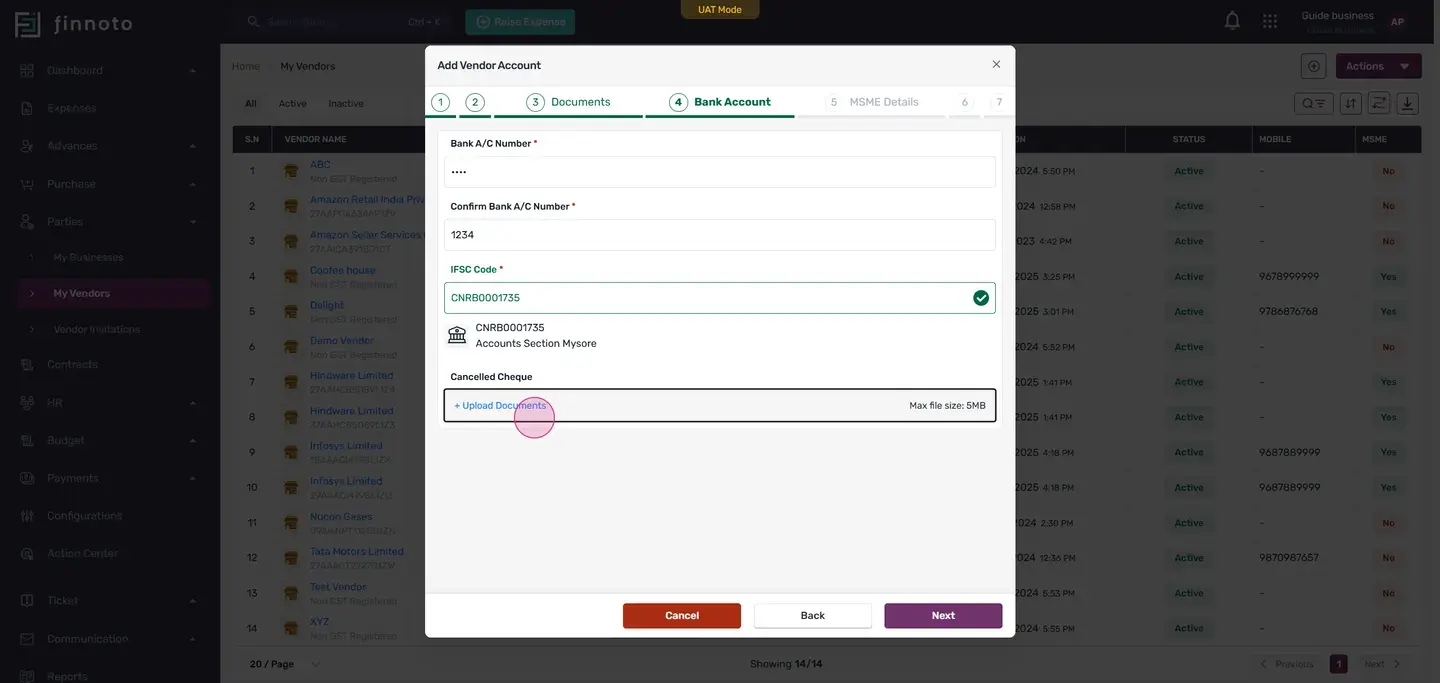
After verifying the bank account, proceed to the MSME detail stage. If your business falls under MSME, select the MSME category registration and enter the roster number. If not, you can skip this part.
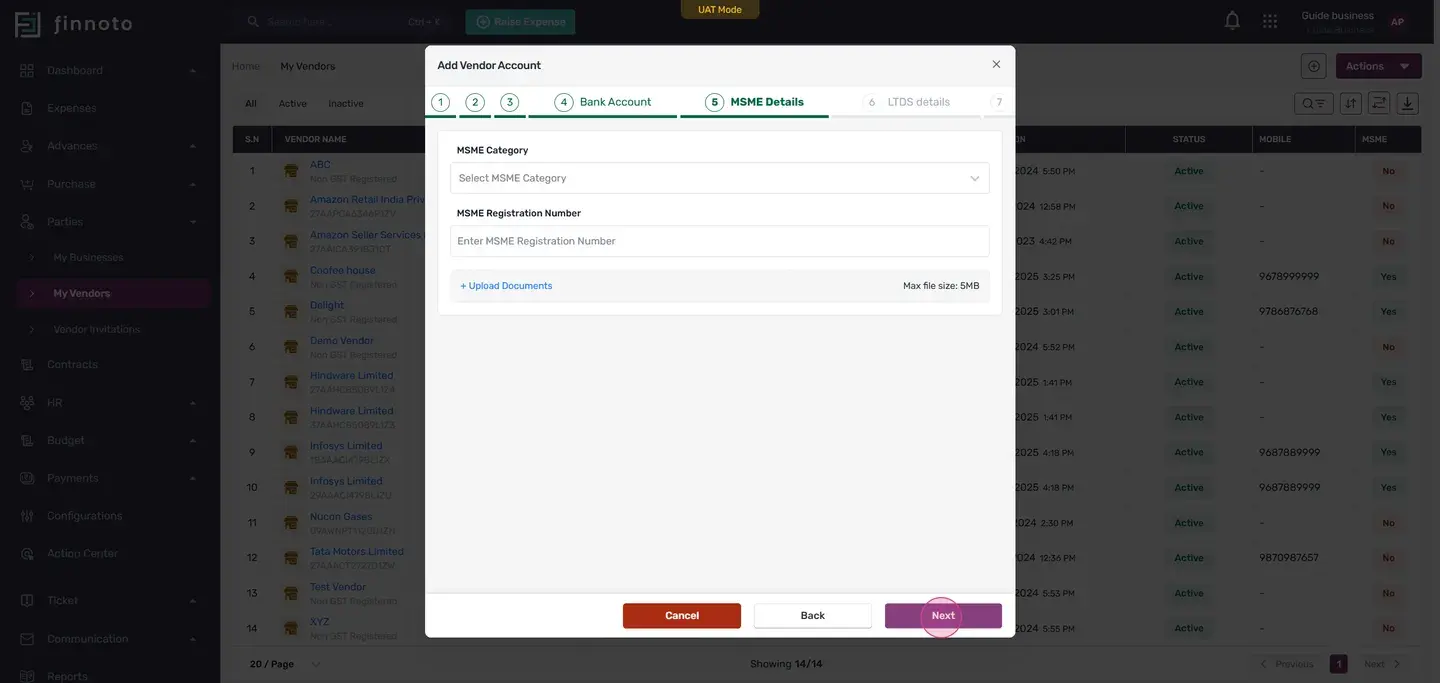
The next stage is the ltds stage
If your business is ltds, enter the LTDS number, certificate TDS section, and upload the required document. If not, you can skip this part.
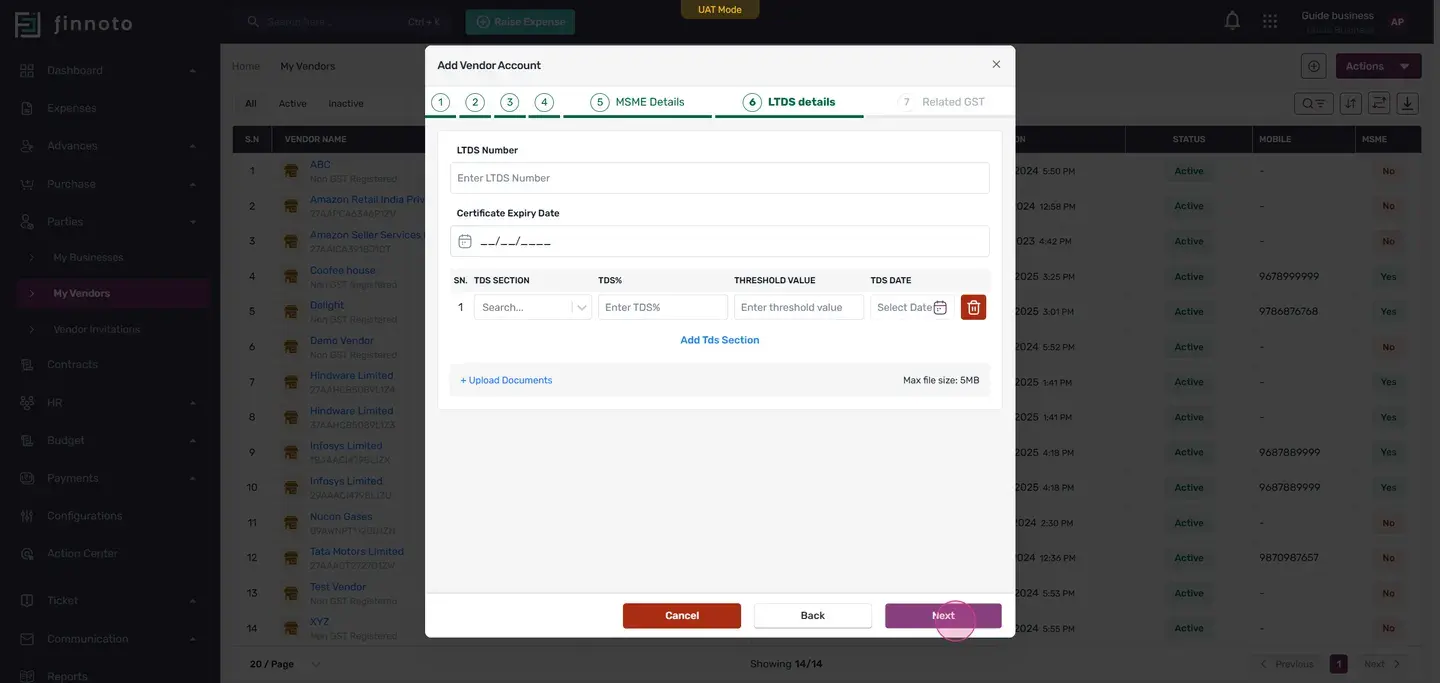
Proceed to the final stage
Here, you'll see a list of all vendors registered under your PAN number. If you want to select other GSTN vendors, you can do so here.
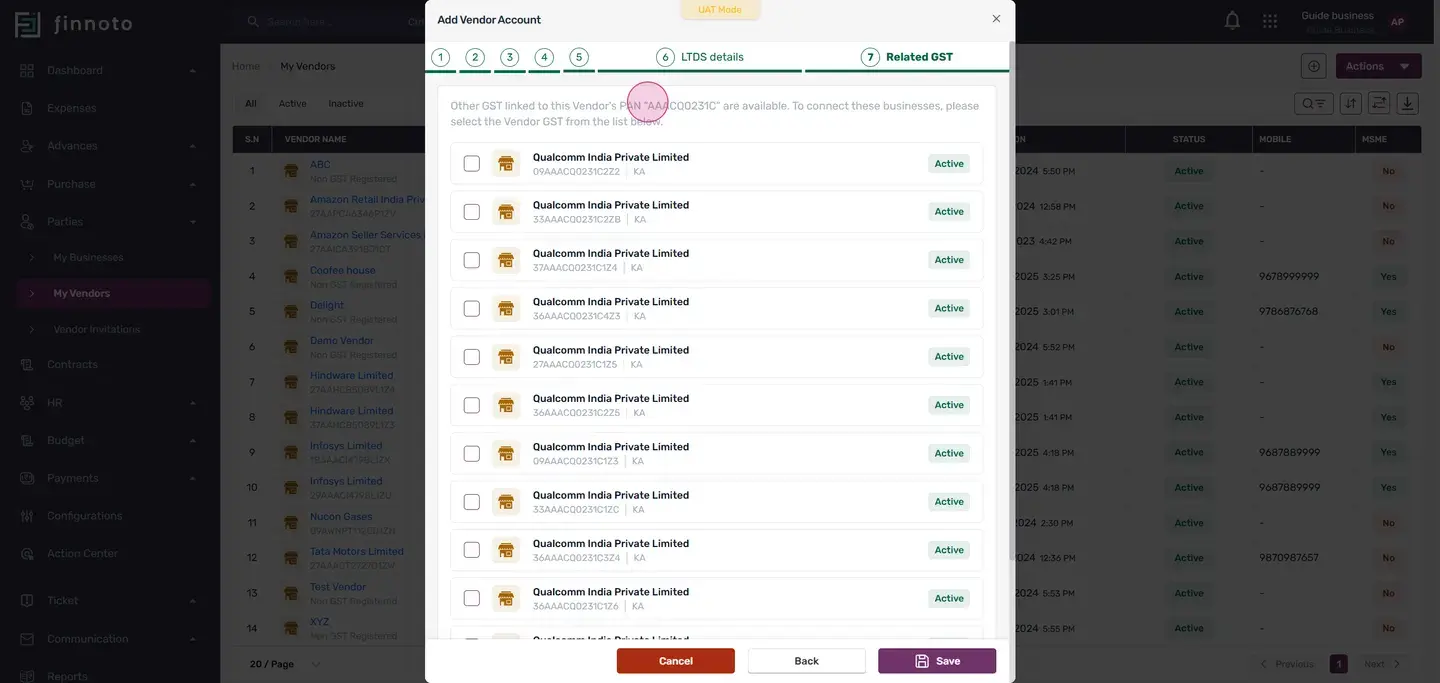
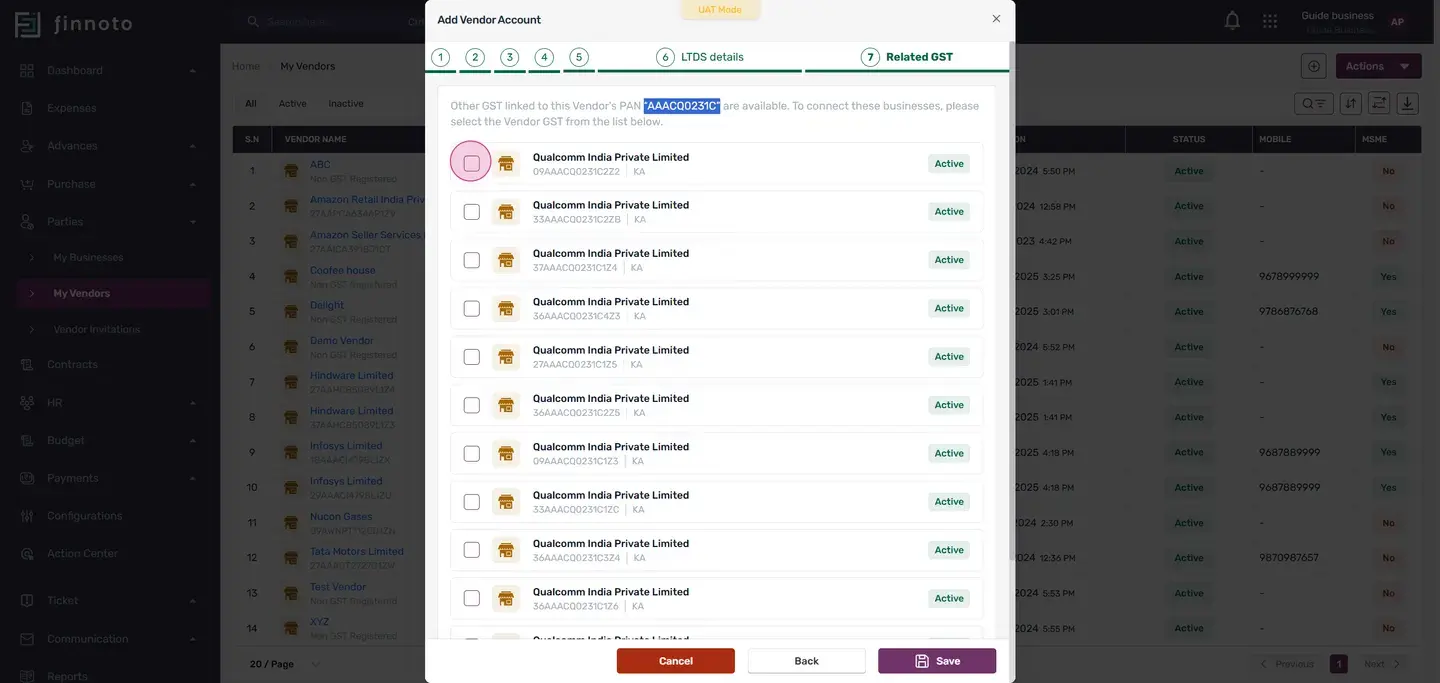
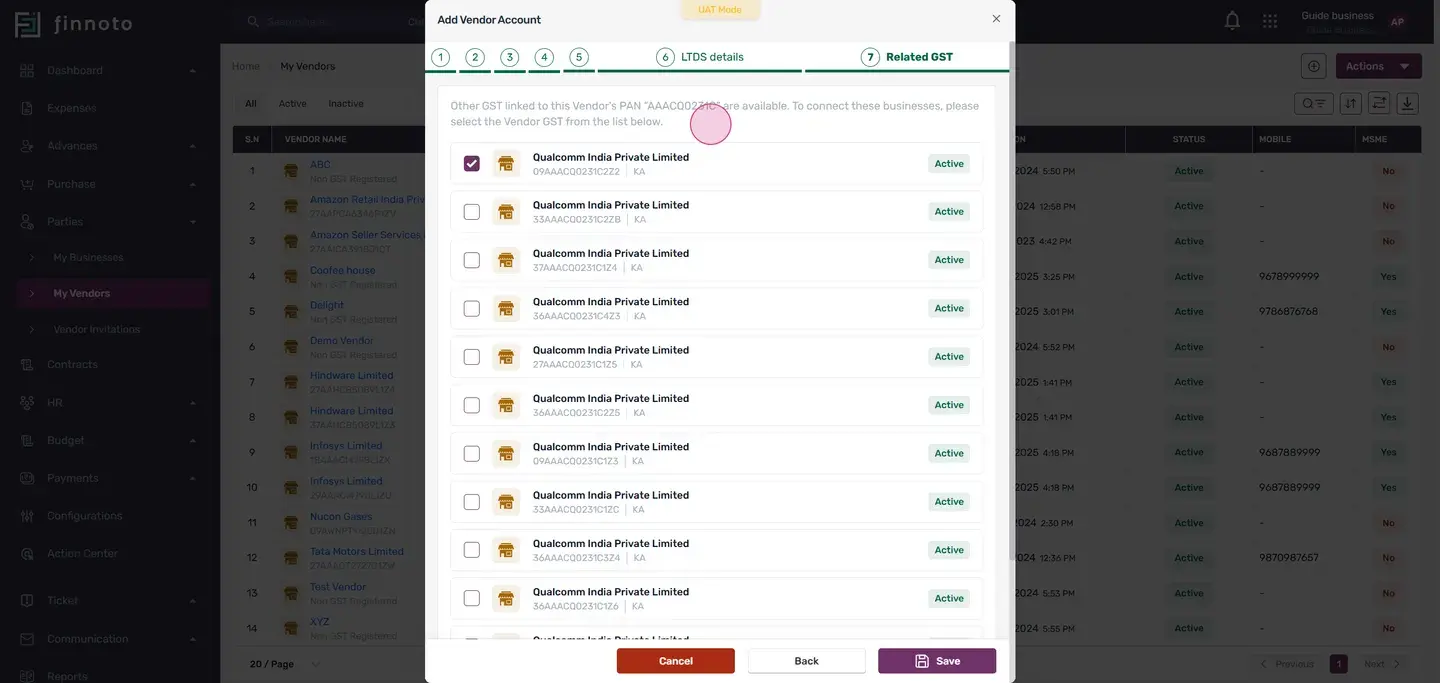
After selecting your vendors, click save.
Upon saving, you'll be directed to the vendor detail page, where you'll see all the details you've entered.