Add a business-managed vendor without GST
Add an unregistered vendor yourself with PAN, bank details and documents.
Last updated on
Transcript
In this tutorial, you'll learn how to add a non-GST business managed vendor on Finodo.
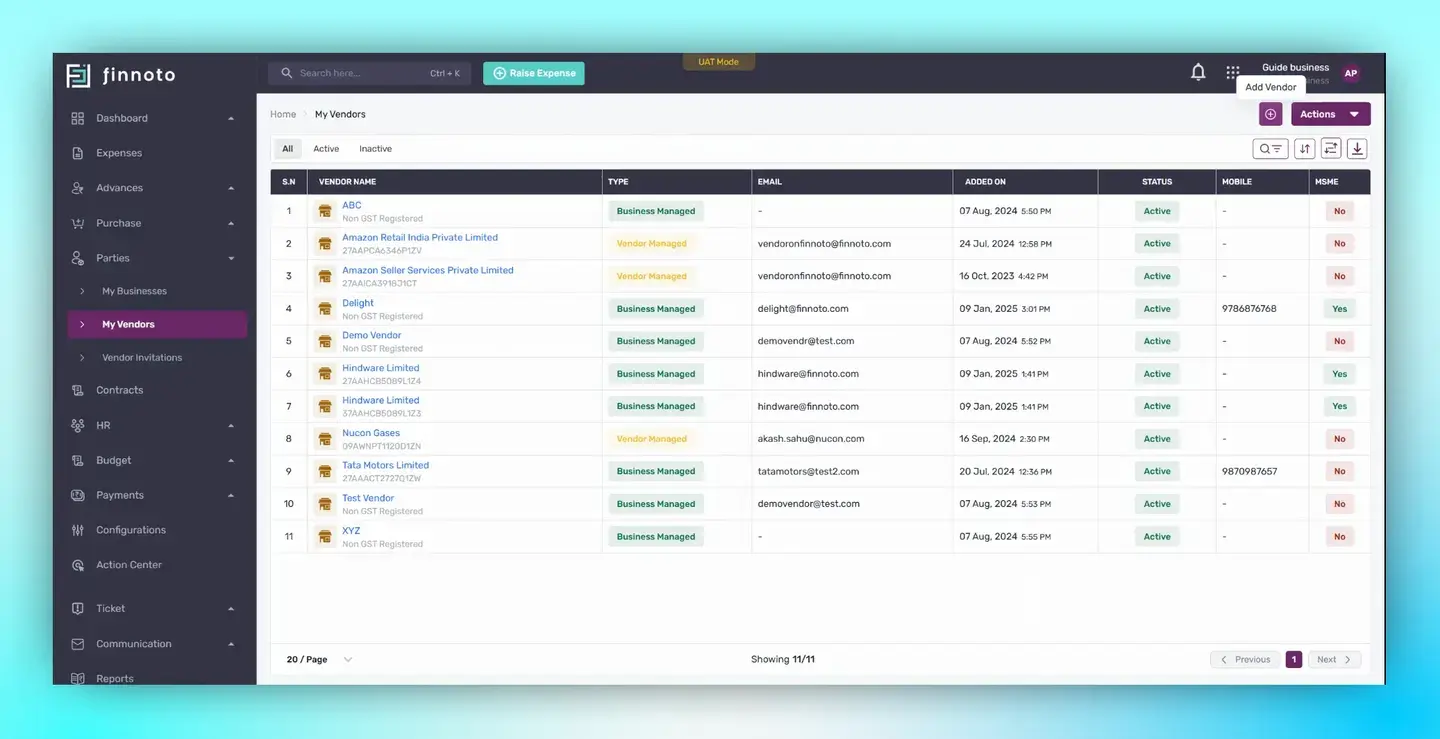
Navigate to the Parties section.
Select my vendor.
This action will lead you to the vendor listing page.
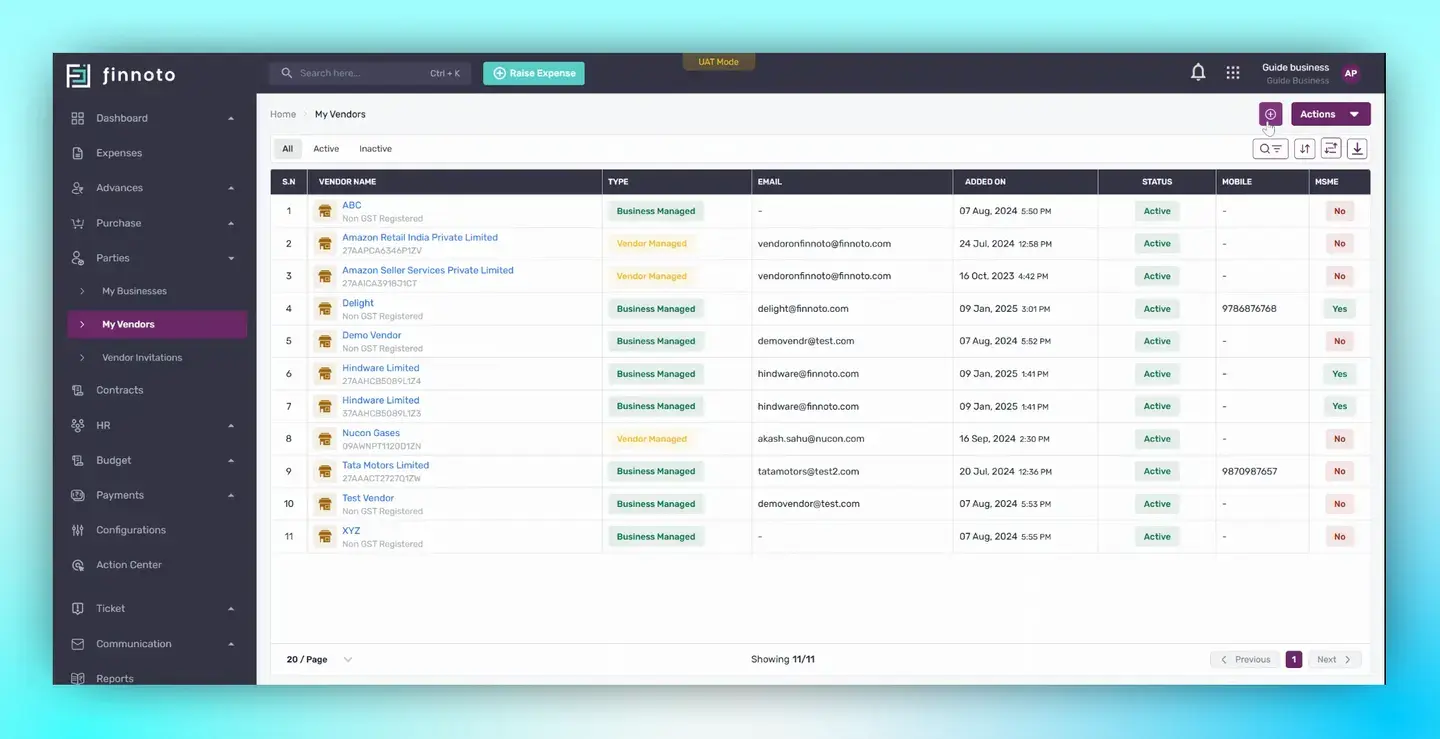
Click on the Add Vendor button located in the top right corner.
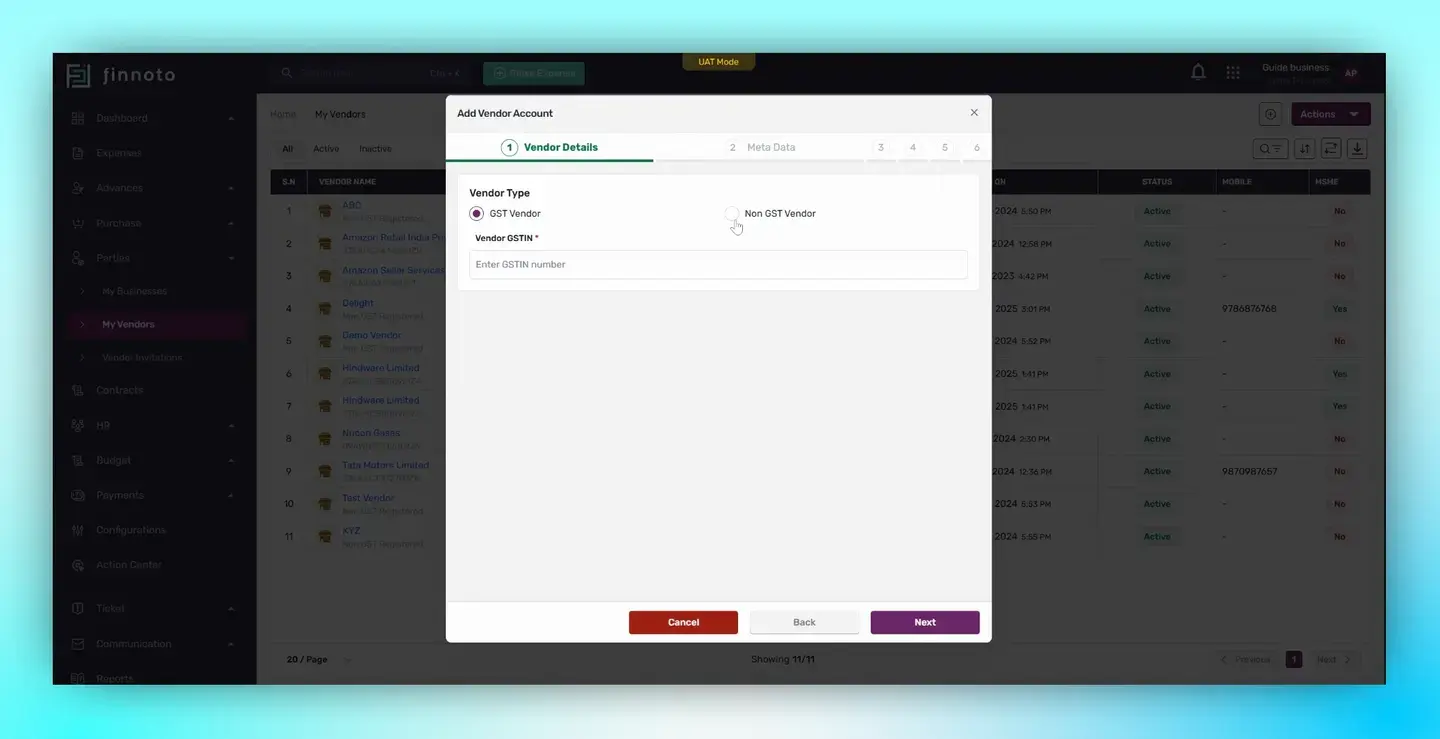
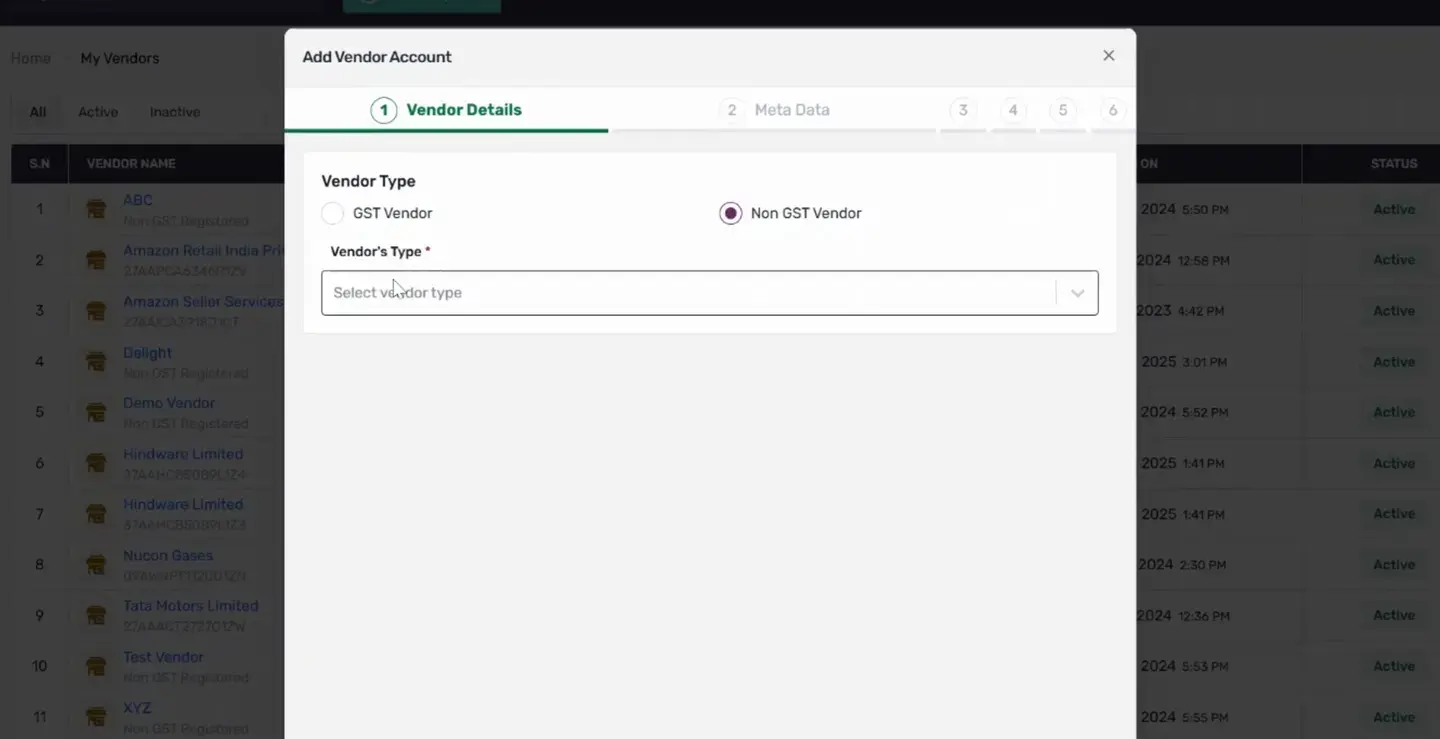
In the Add Vendor window, select non GST vendor.
A field titled Vendor Type will appear.
Choose the appropriate type of vendor.
Fill in the vendor details such as the pan number, vendor name, address, and PIN code.
In the Connect your businesses section, select the business you want to link with this vendor.
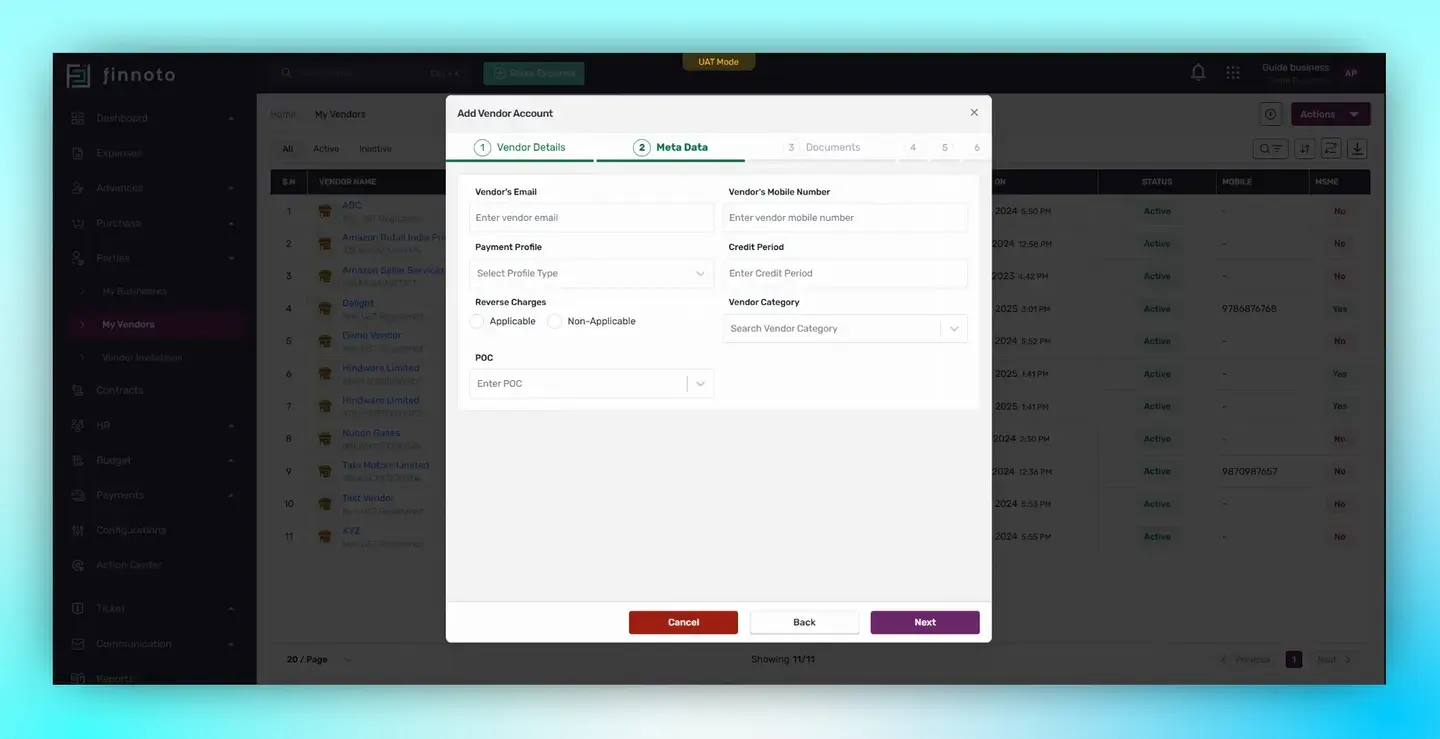
Fill in the basic vendor details in the Metadata section.
These include vendor, email, mobile number, payment profile, credit period, reverse charge, vendor category, and poc. If you don't have these details, you may skip this part.
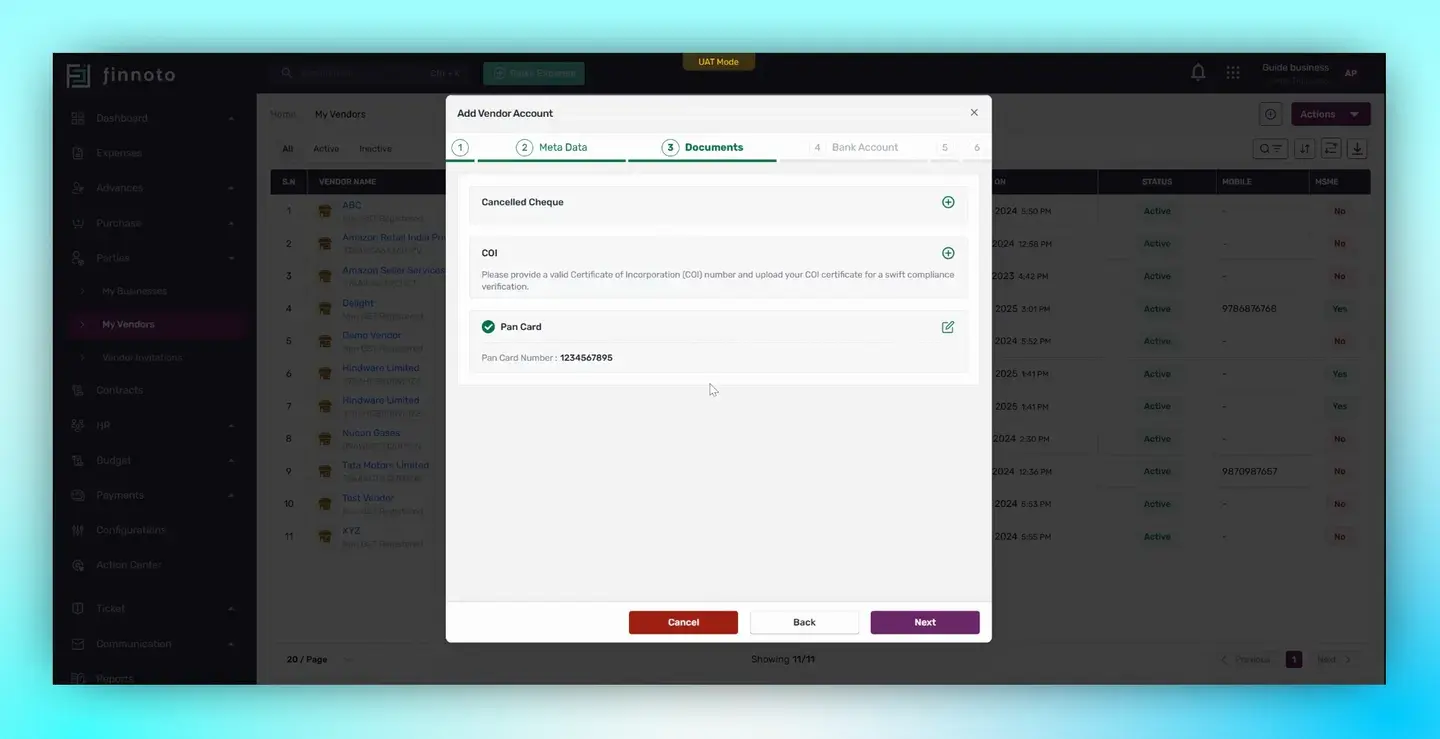
Upload the required documents for the vendor in the document section.
Fill in the basic details and upload the document.
Enter the bank account details such as the bank account number and the IFSC code in the Bank Account section.
Upload a cancelled check to verify the bank account belongs to the vendor.
If your vendor falls under an MSME, enter details of MSME category and the MSME registration number in the AMSME Details section. If not, skip this part.
If your vendor is subject to LTDs, enter details like LTDs numbers, expiry date, and TDS section in the LTDS Details section. If not, skip this part.
Save your entries.
Upon saving, the Vendor detail page will open displaying all the vendor details.
And that's it! You've successfully added a non-GST vendor on Finodo.
In this tutorial, you'll learn how to add a non-GST business managed vendor on Finodo.
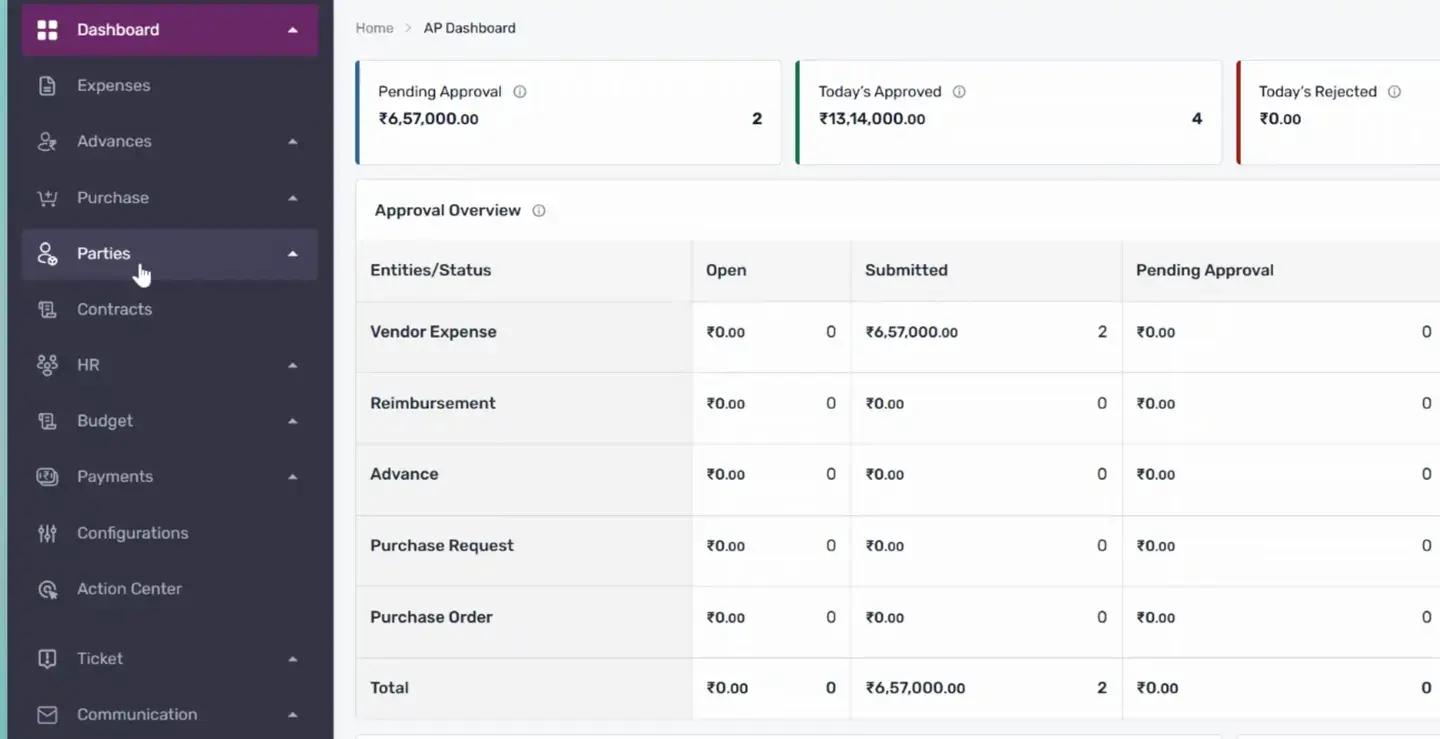
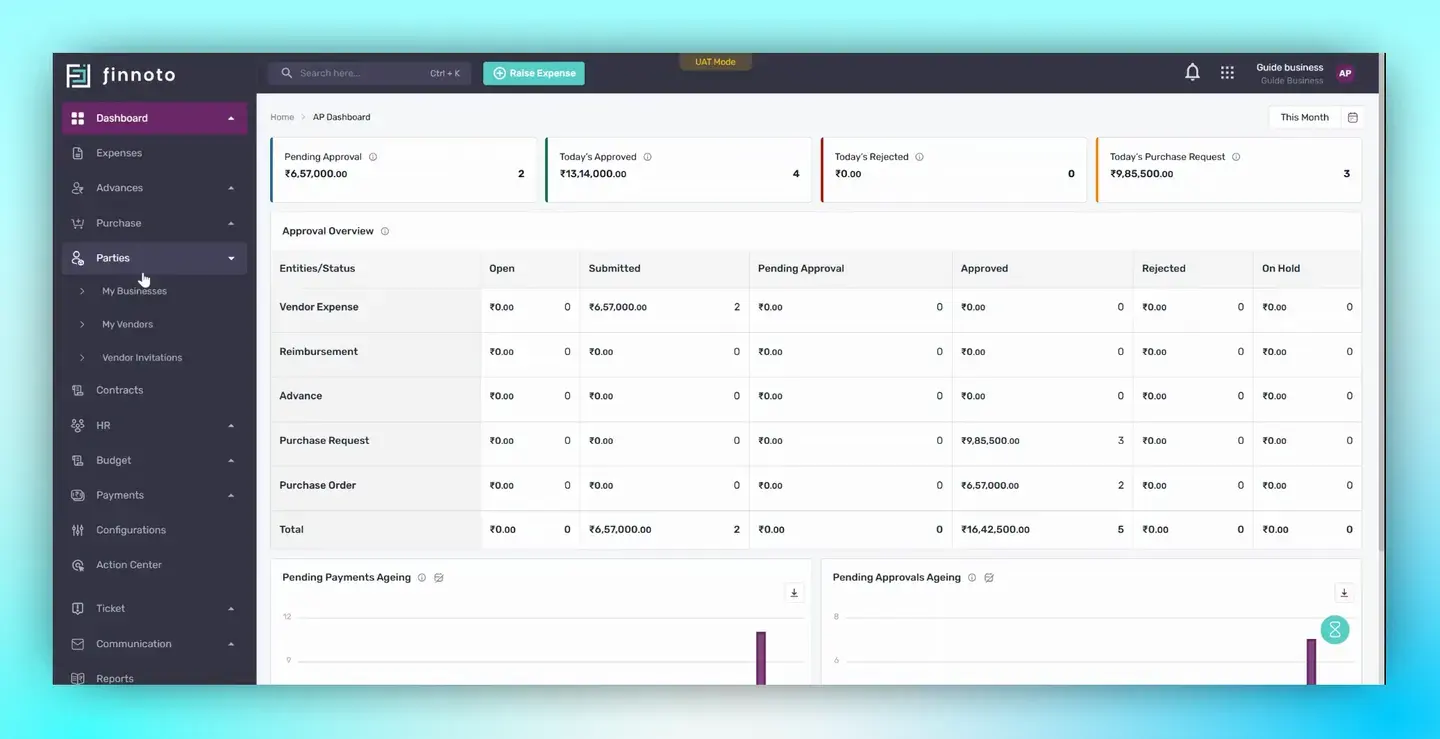
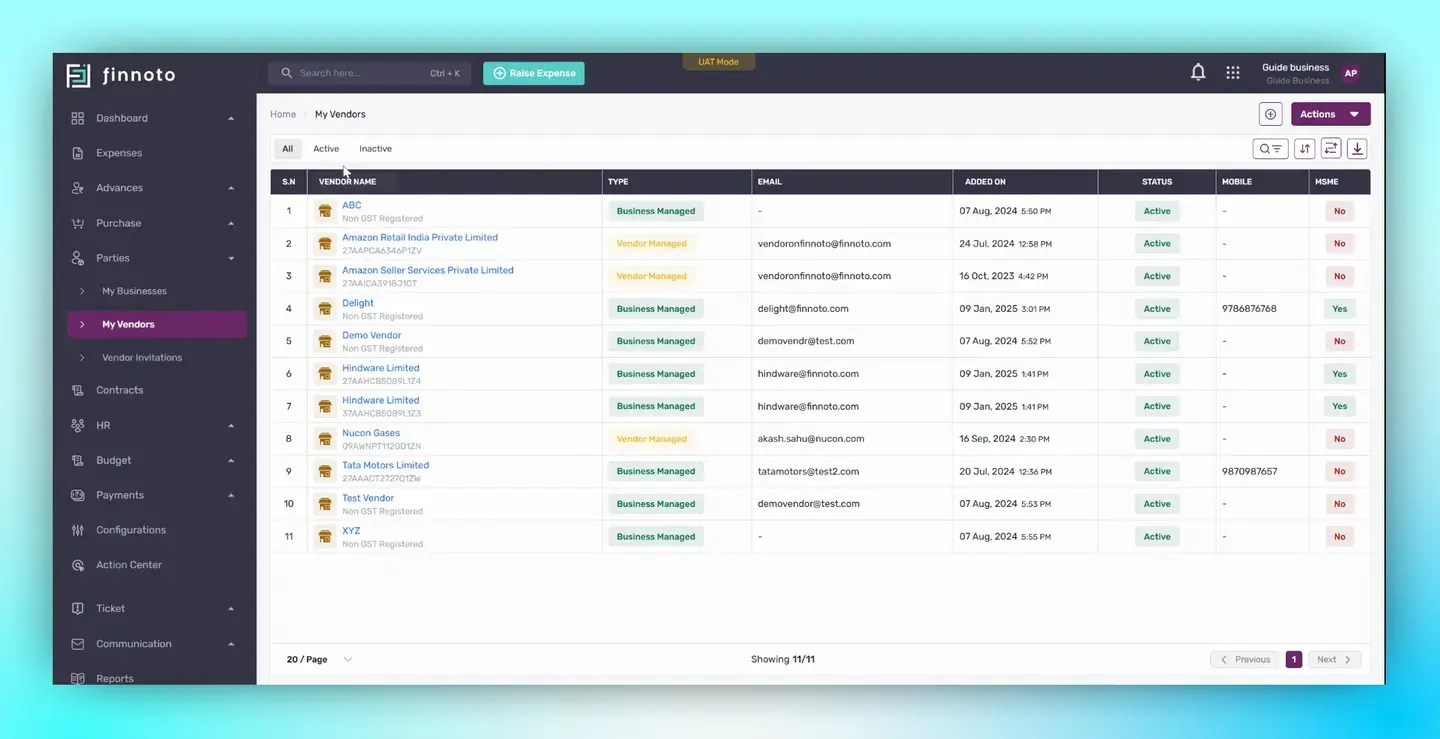
Click on the Add Vendor button located in the top right corner.
Fill in the vendor details such as the pan number, vendor name, address, and PIN code.
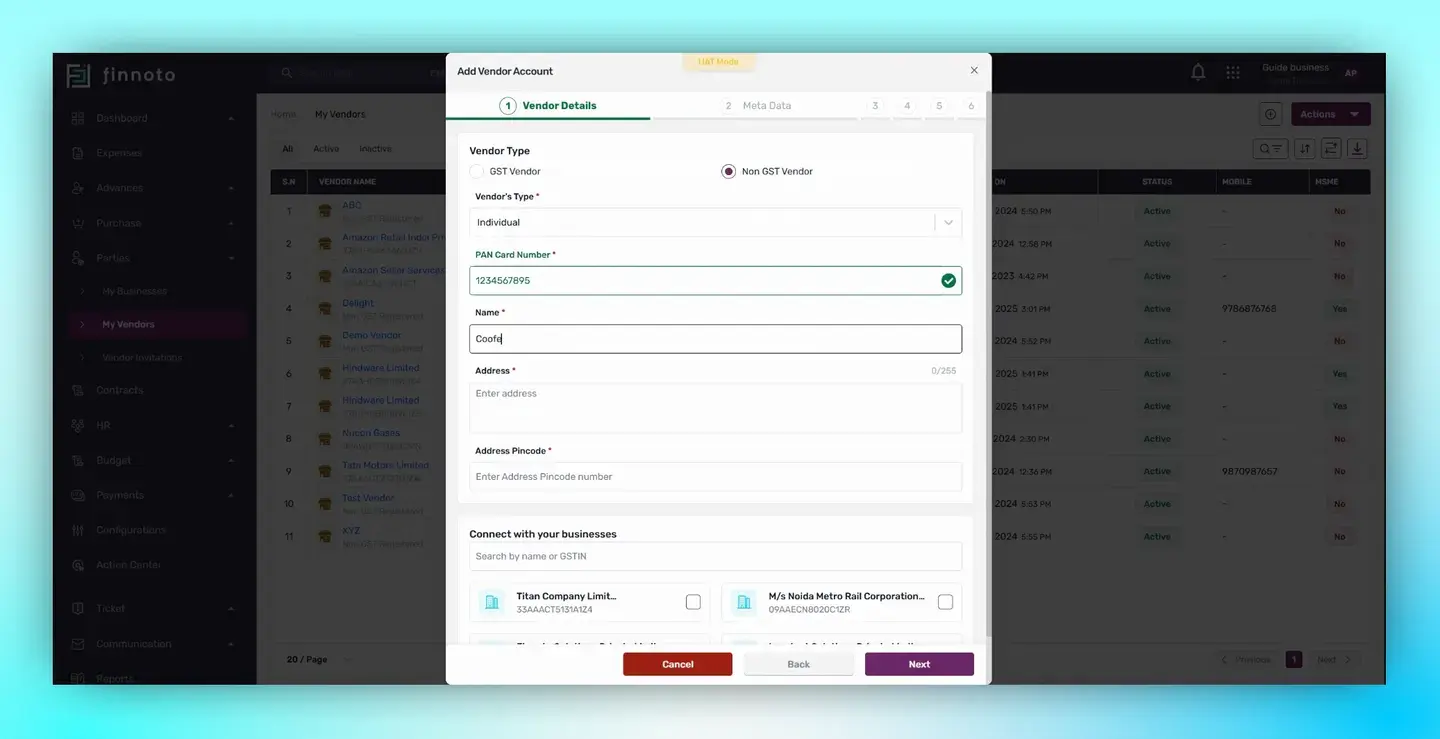
In the Connect your businesses section, select the business you want to link with this vendor.
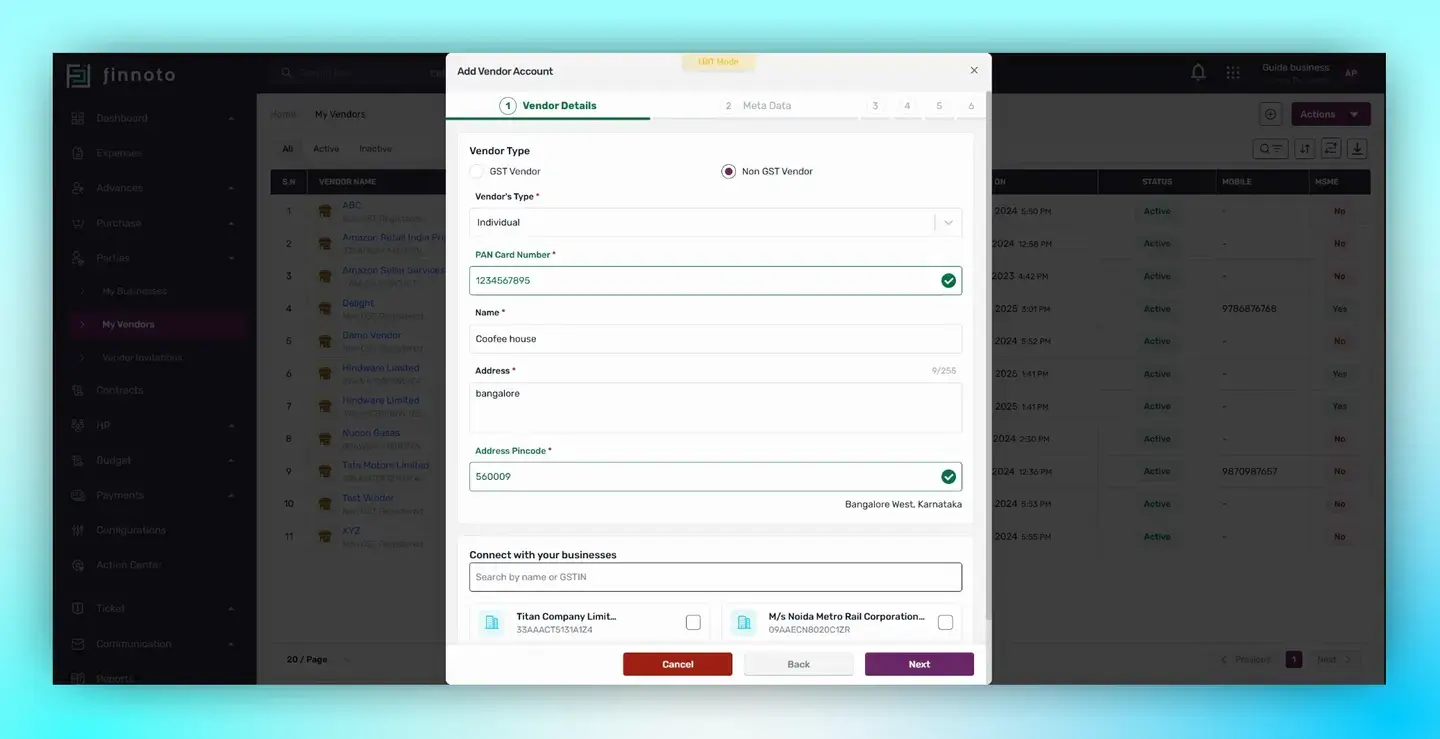
Fill in the basic vendor details in the Metadata section
These include vendor, email, mobile number, payment profile, credit period, reverse charge, vendor category, and poc. If you don't have these details, you may skip this part.
Upload the required documents for the vendor in the document section.
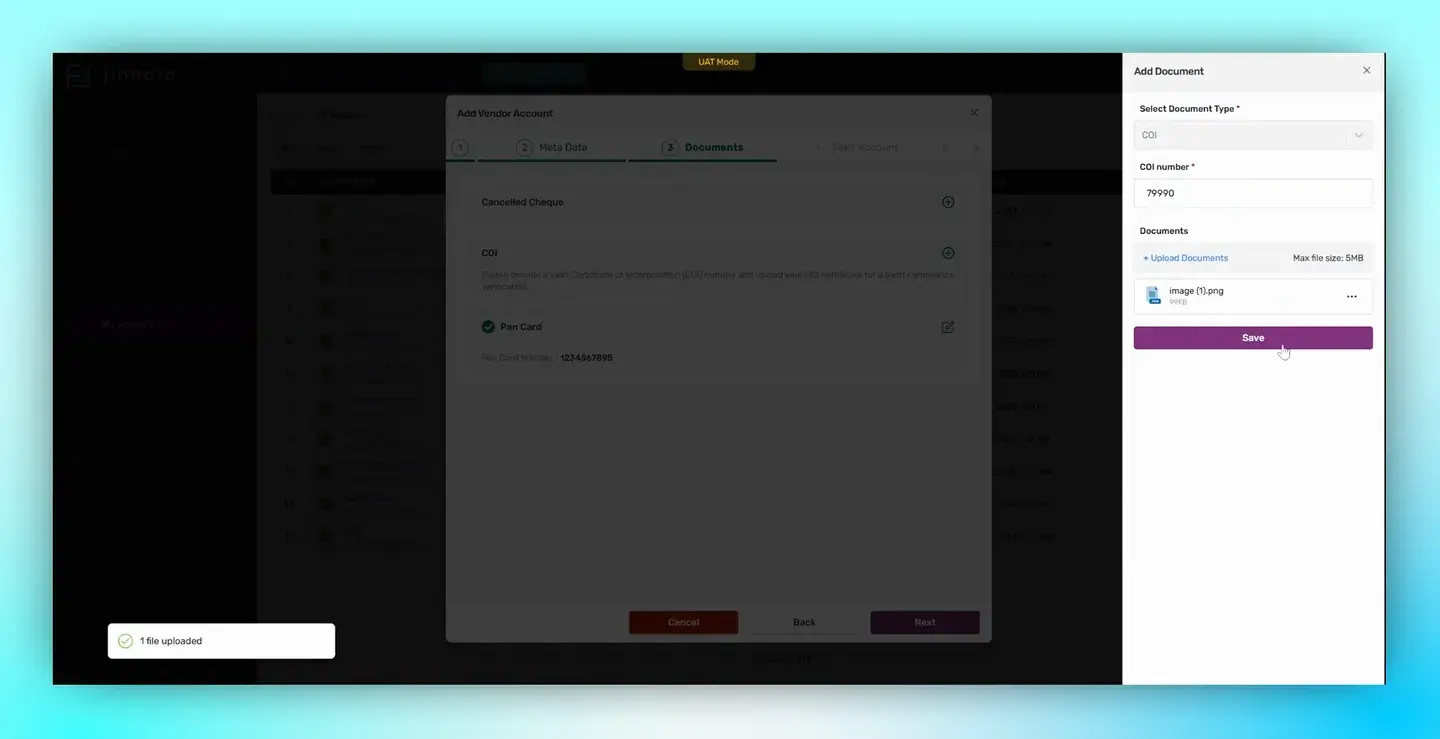
Enter the bank account details such as the bank account number and the IFSC code in the Bank Account section.
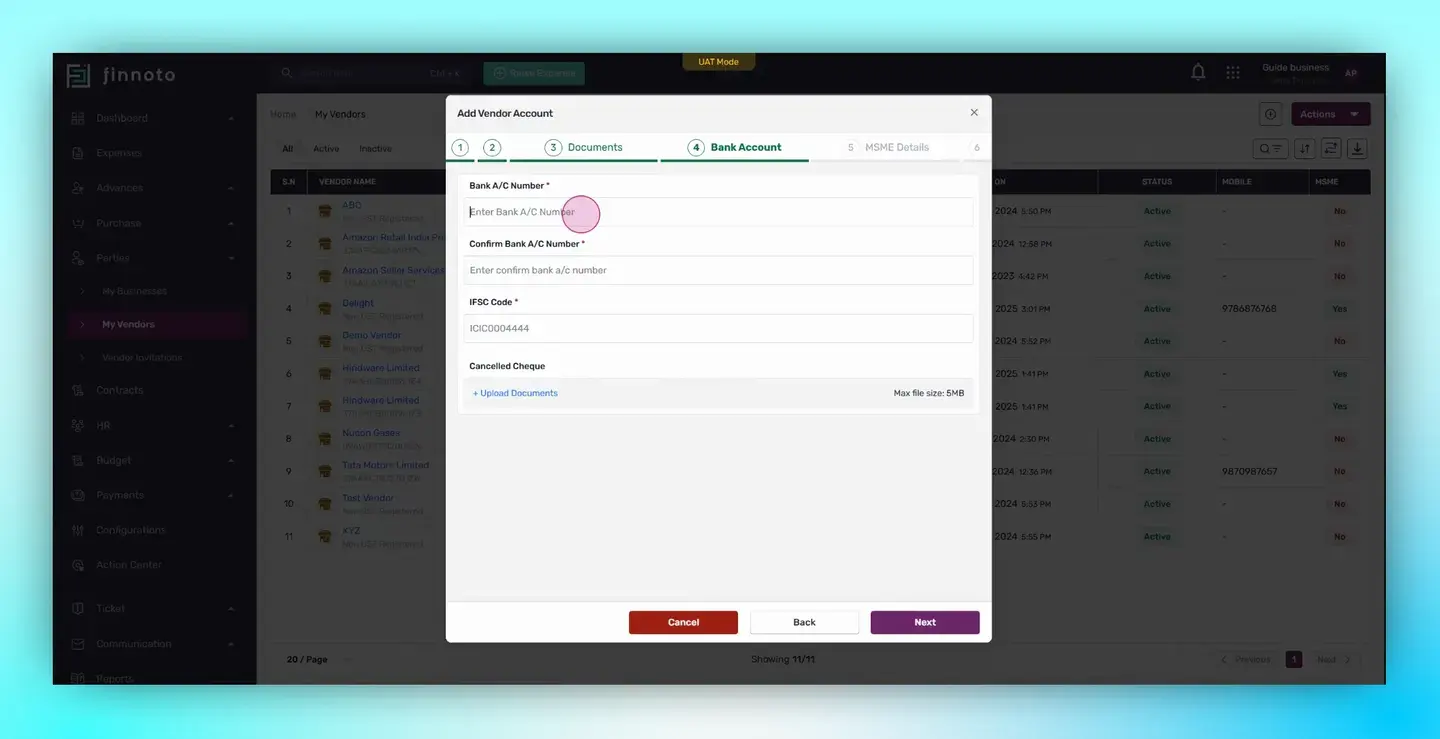
Upload a cancelled check to verify the bank account belongs to the vendor.
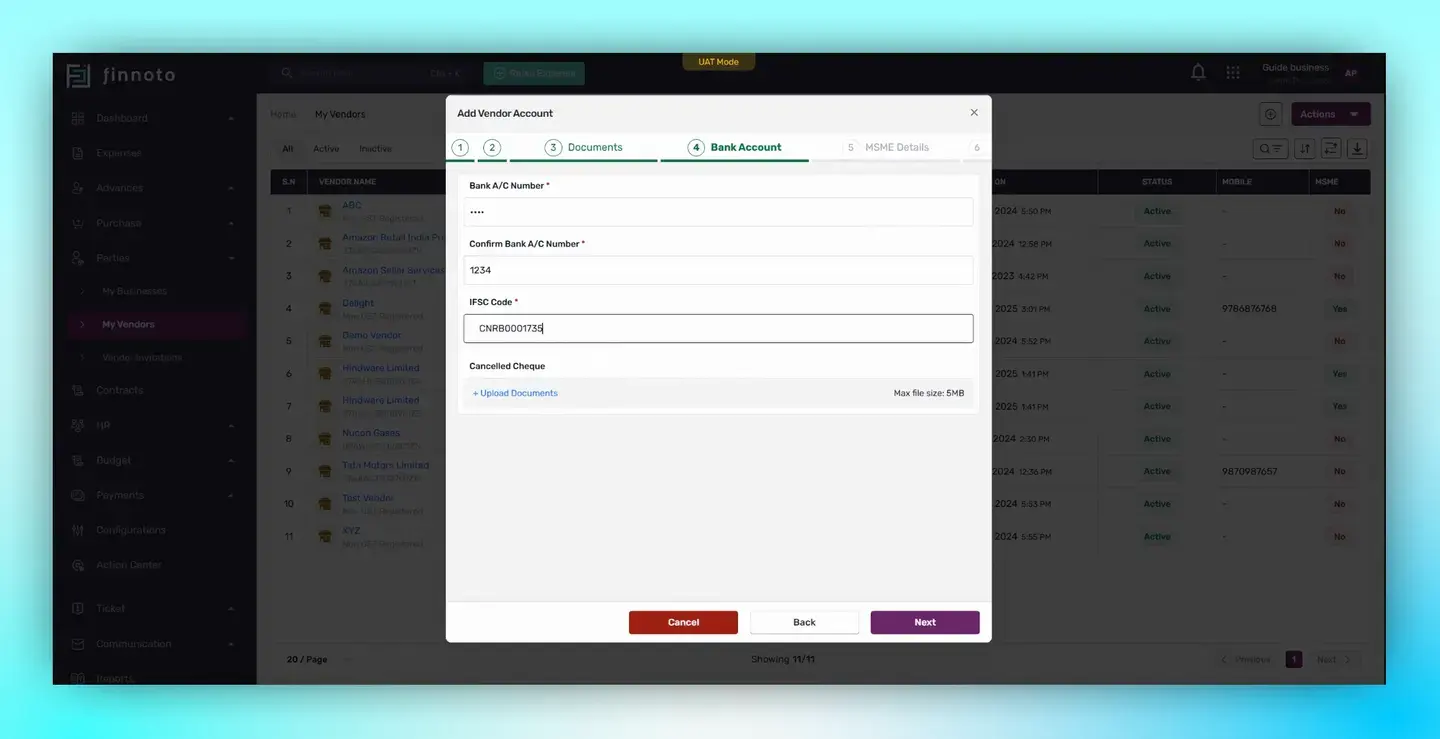
If your vendor falls under an MSME, enter details of MSME category and the MSME registration number in the AMSME Details section. If not, skip this part.
If your vendor is subject to LTDs, enter details like LTDs numbers, expiry date, and TDS section in the LTDS Details section. If not, skip this part.
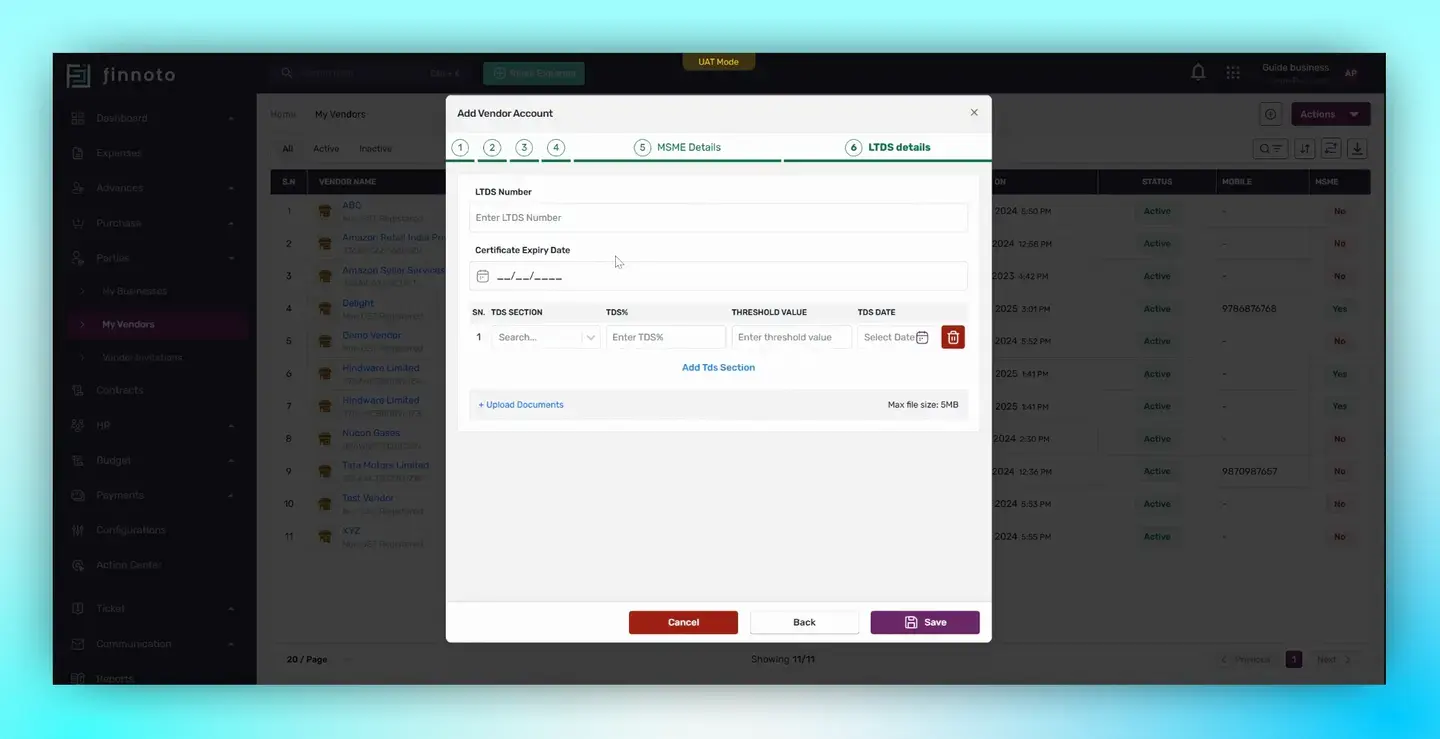
Save your entries
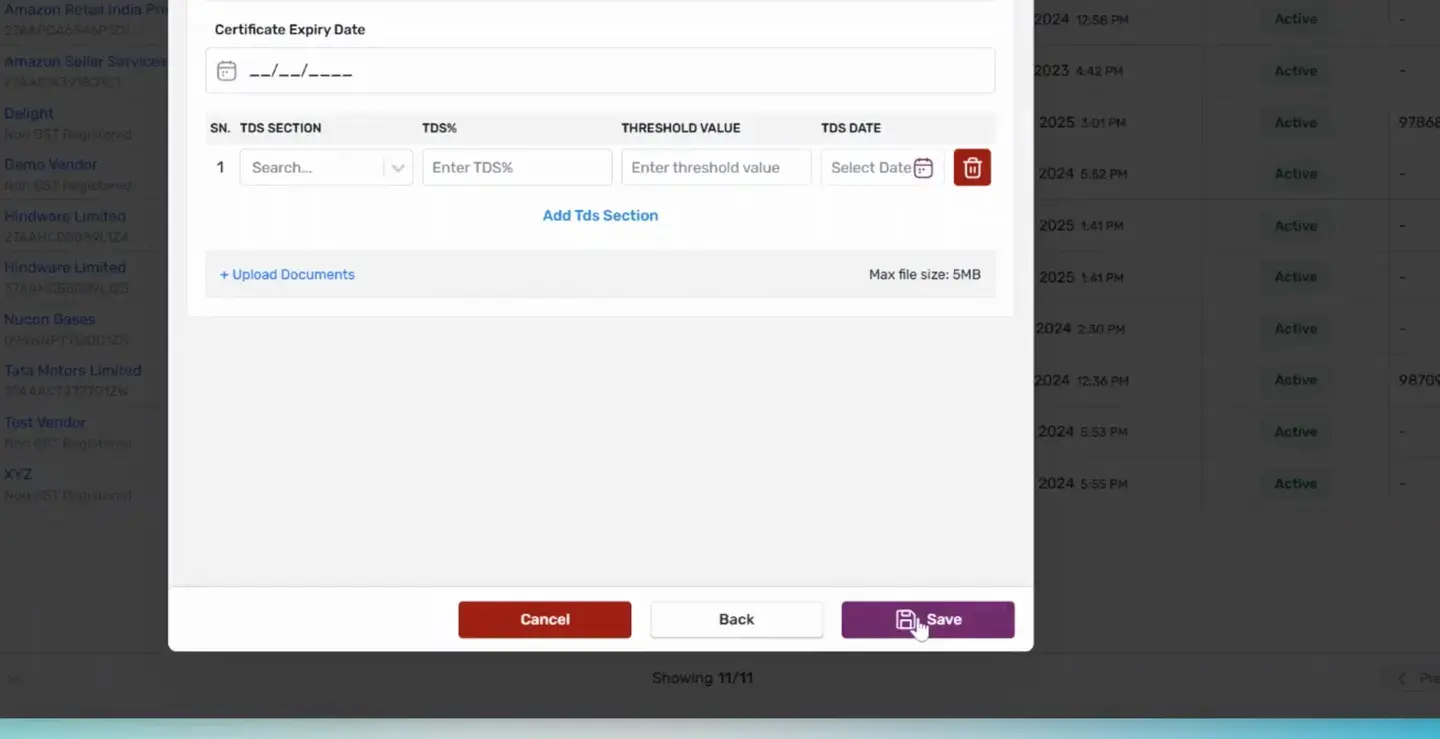
Upon saving, the Vendor detail page will open displaying all the vendor details.
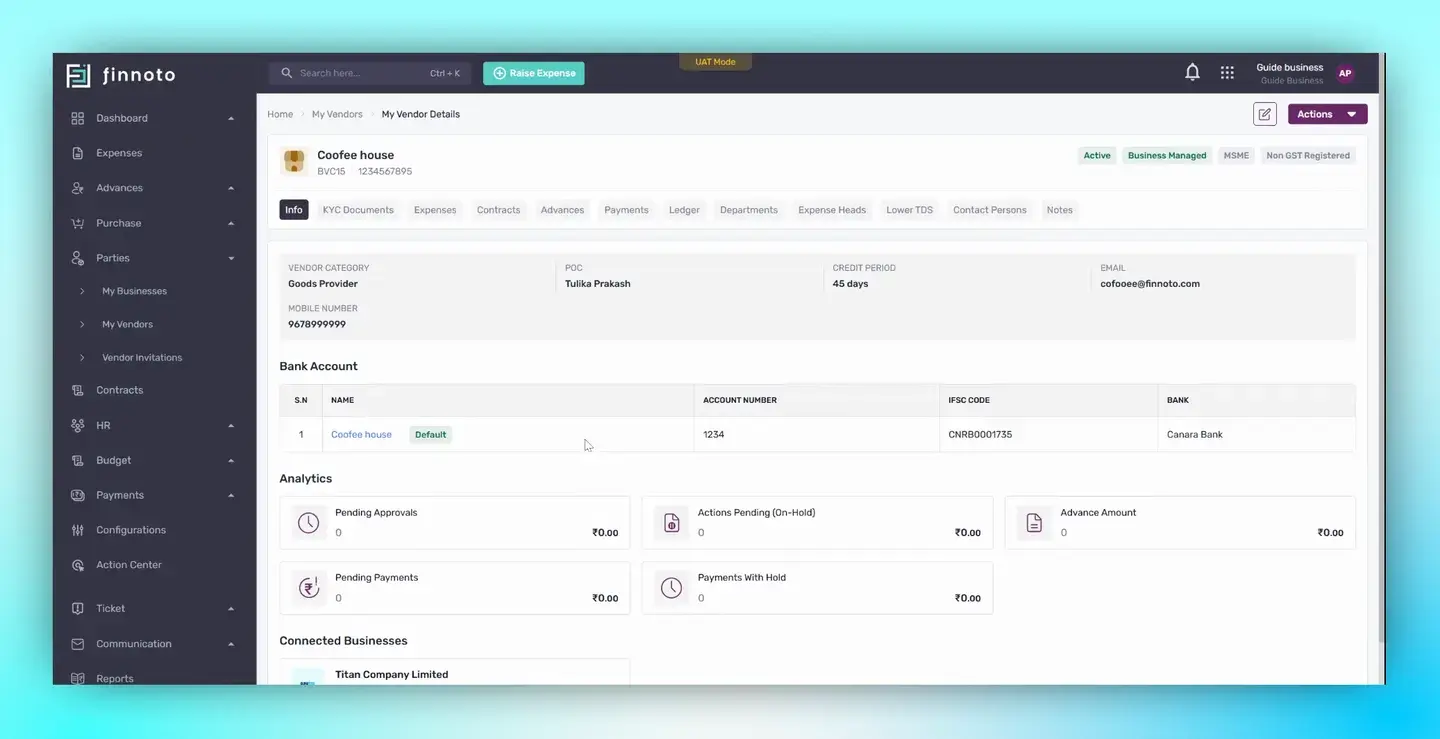
And that's it! You've successfully added a non-GST vendor on Finodo.