Set document preferences and invite vendors
Choose which documents vendors must submit, then send invitations — for AP users with the right permission.
Last updated on
Transcript
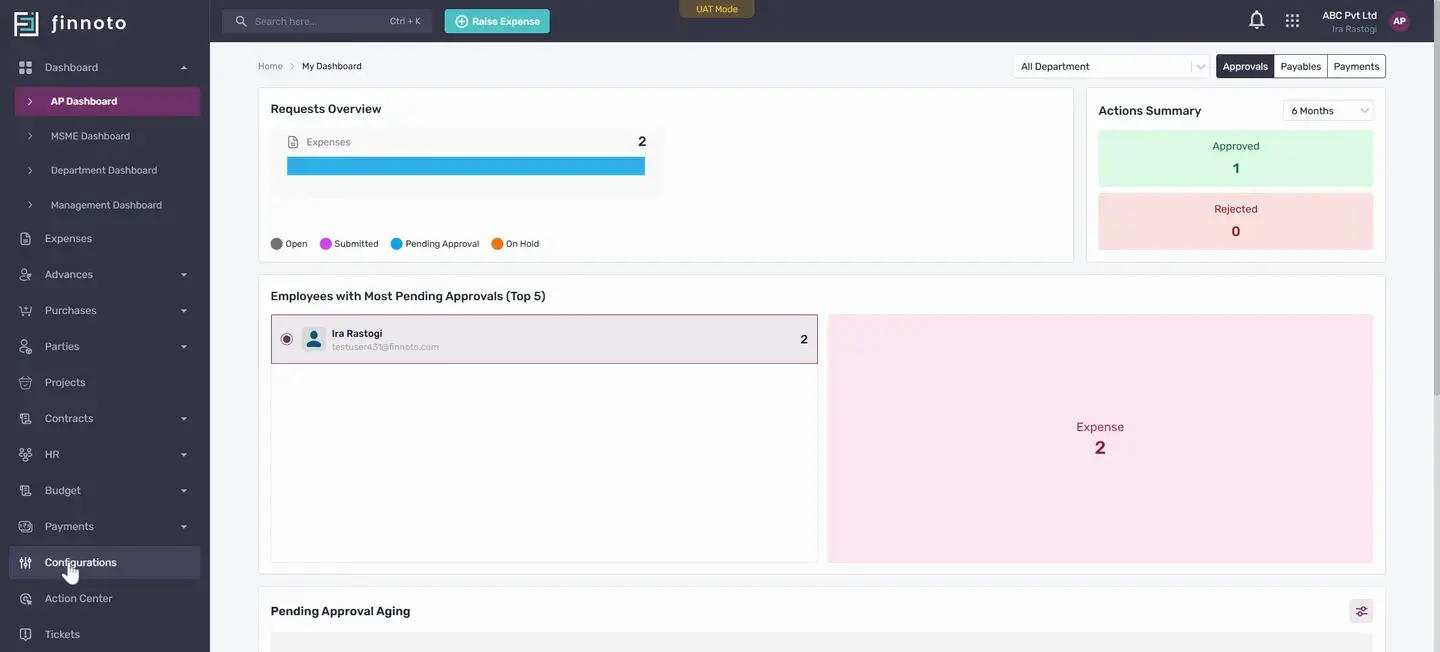
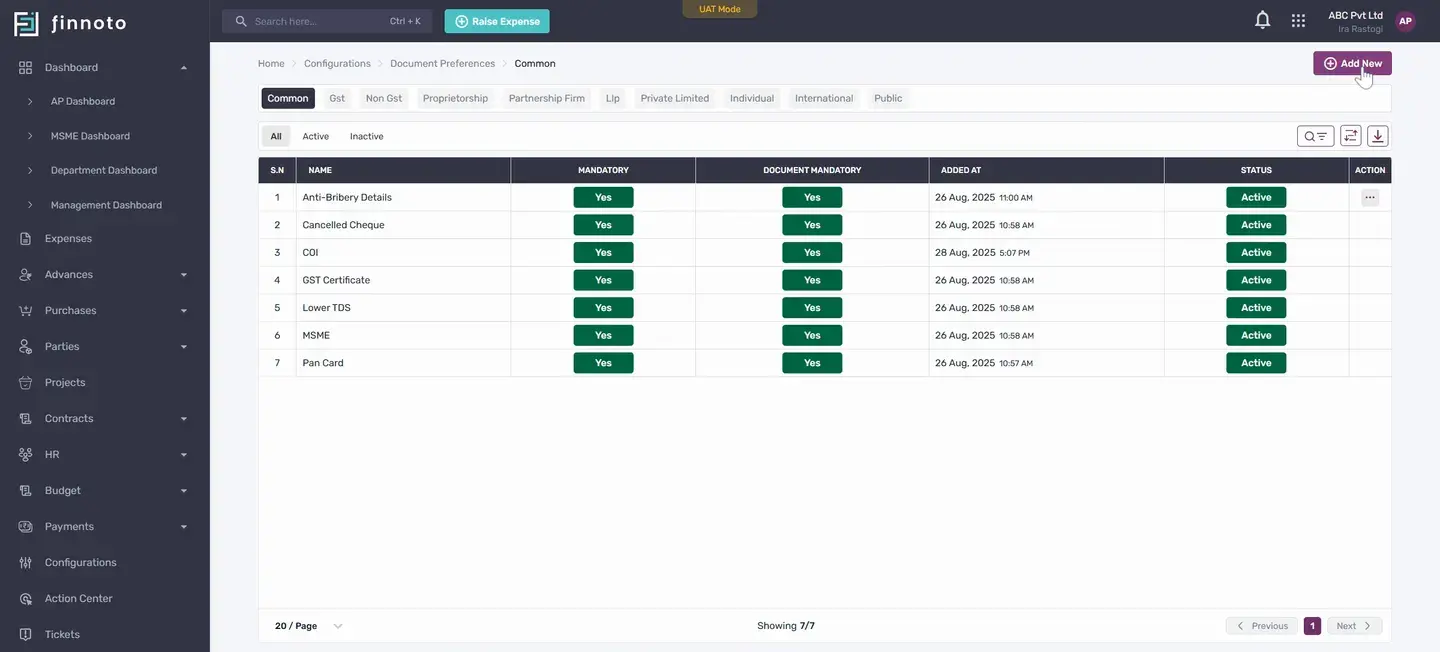
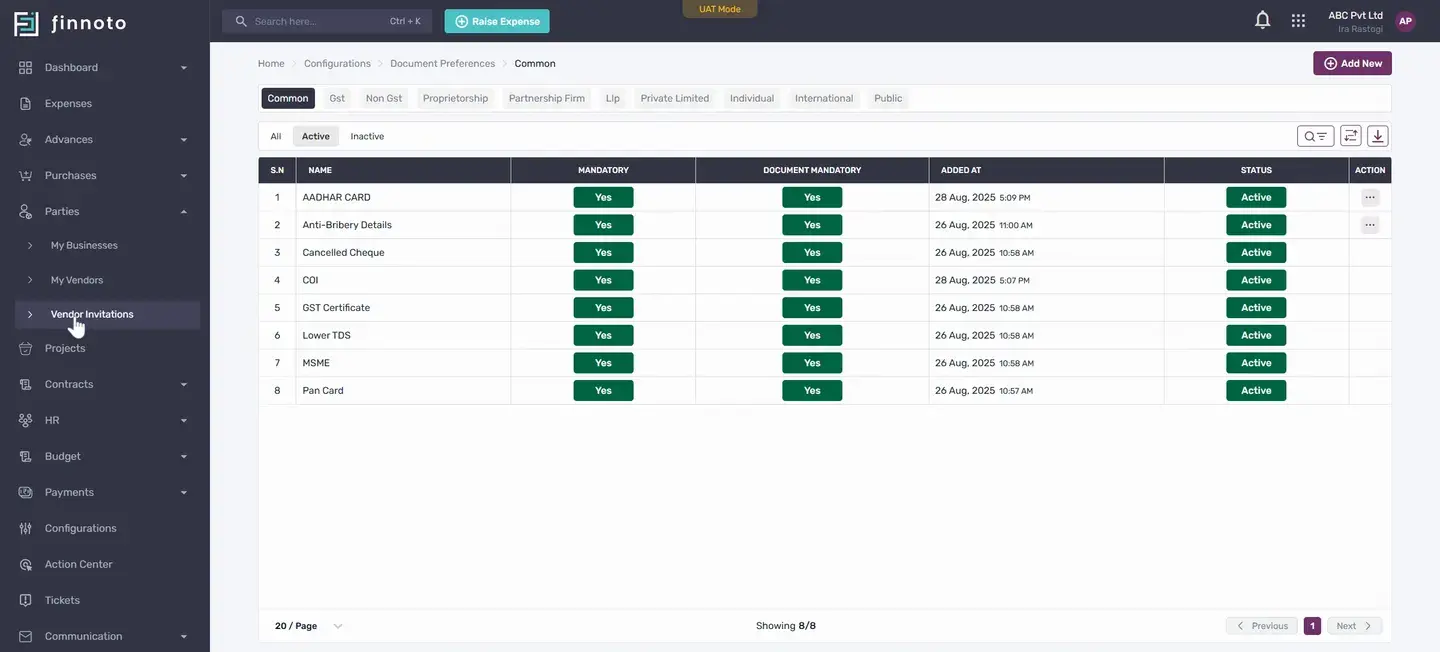
Hello everyone. Today, we will show you how to set up document preferences for vendors on the AP portal, as well as how to invite a vendor from the portal. To start, go to the Configurations menu. Next, click on Document Preferences.
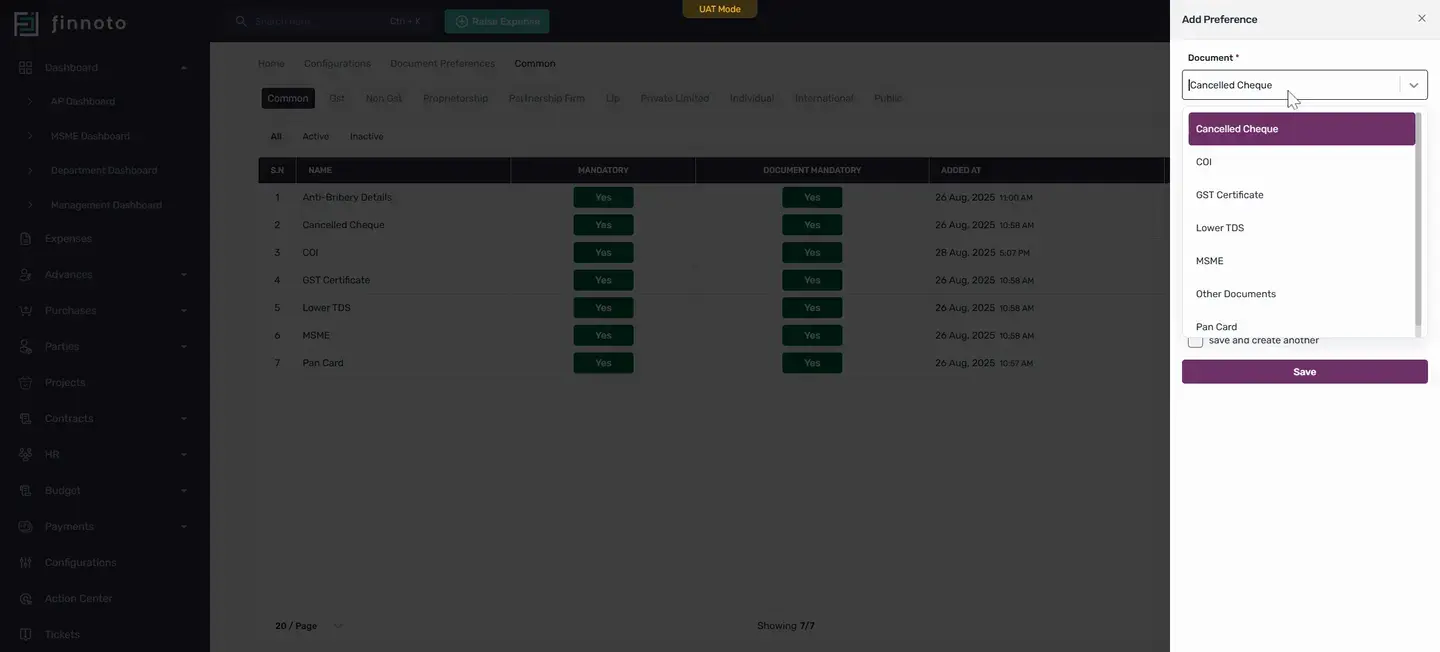
Here, we can setdocuments which vendors need to (COI), submit during select onboarding or for KYC documentation. There are several options here. To set a common document requirement for all vendors, select the common tab and click the "add new" button. A selection list is available with some pre-loaded documents.
For example, to add a Certificate of Incorporation it and choose whether vendors must upload this document or not. Save the changes and the document will appear under the tab you selected. Now, the COI is a required document for the vendor to upload. In the mandatory column, you can enable or disable the requirement for the document.
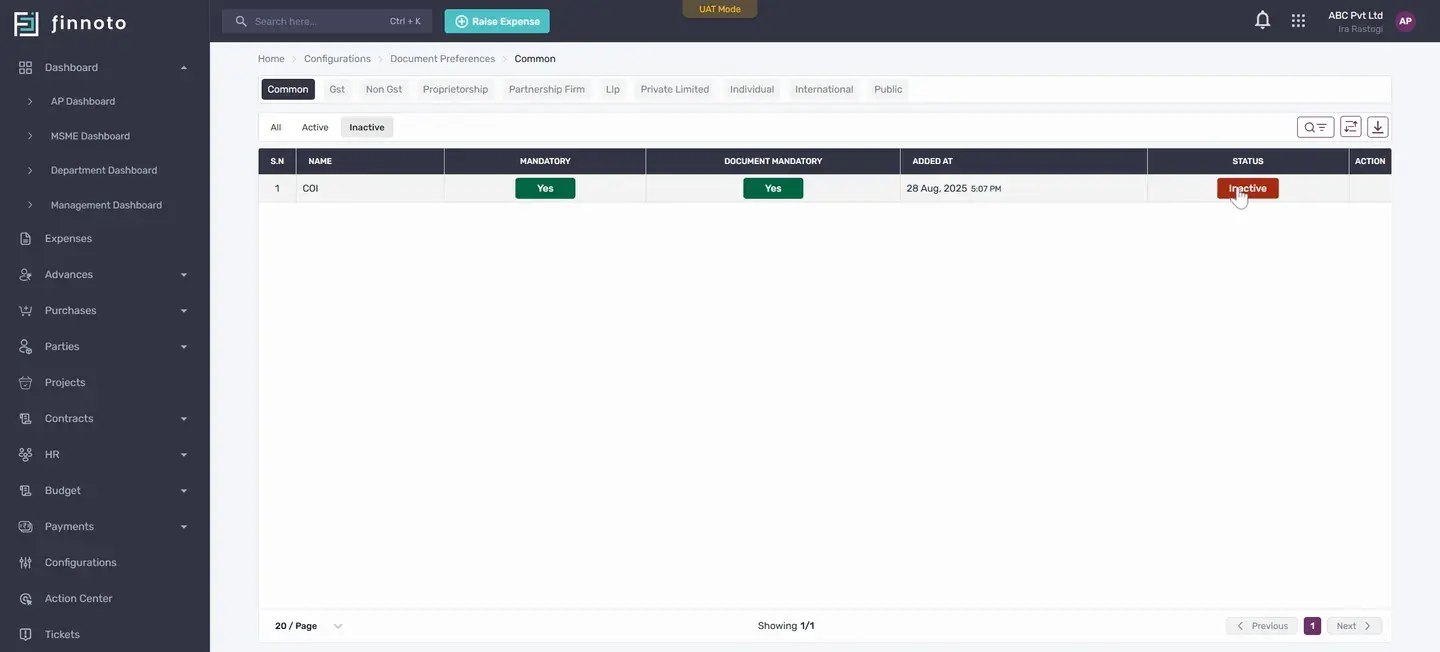
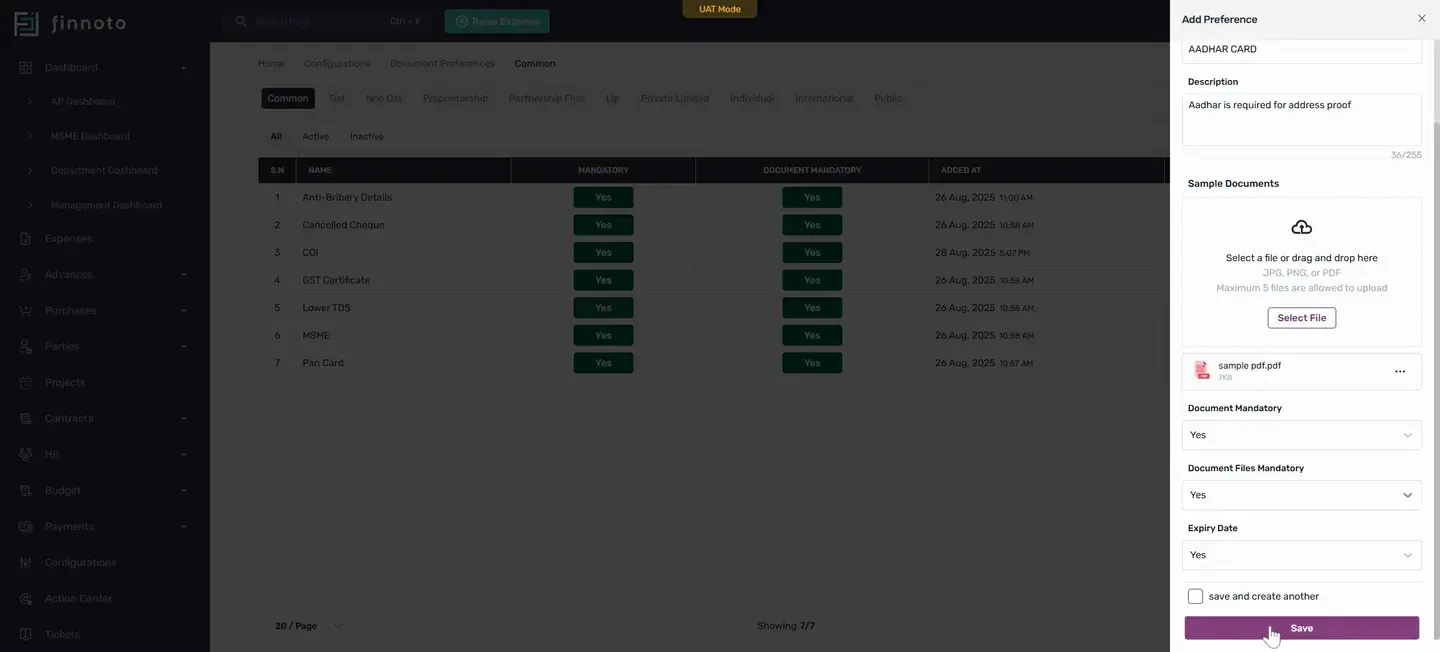
If you want to deactivate a document, simply click to deactivate it. The deactivated document will move to the inactive tab and be removed from the document reference list. If you need to add a document that is not in the selection list, use the "other documents" option. Select it, enter the name of the document then description and, if needed, upload a sample of the document.
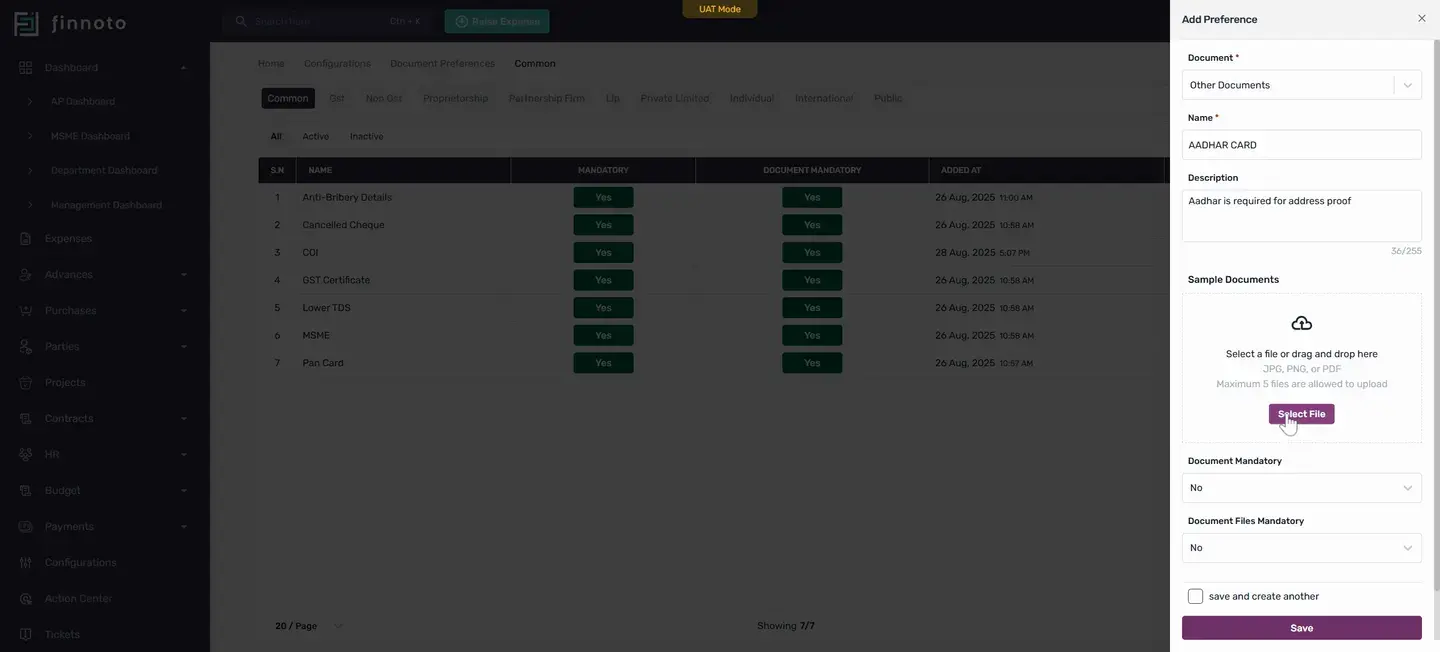
Uploading a sample helps vendors understand what the required document should look like. You can upload the sample document here. The document can be a. jpg,.
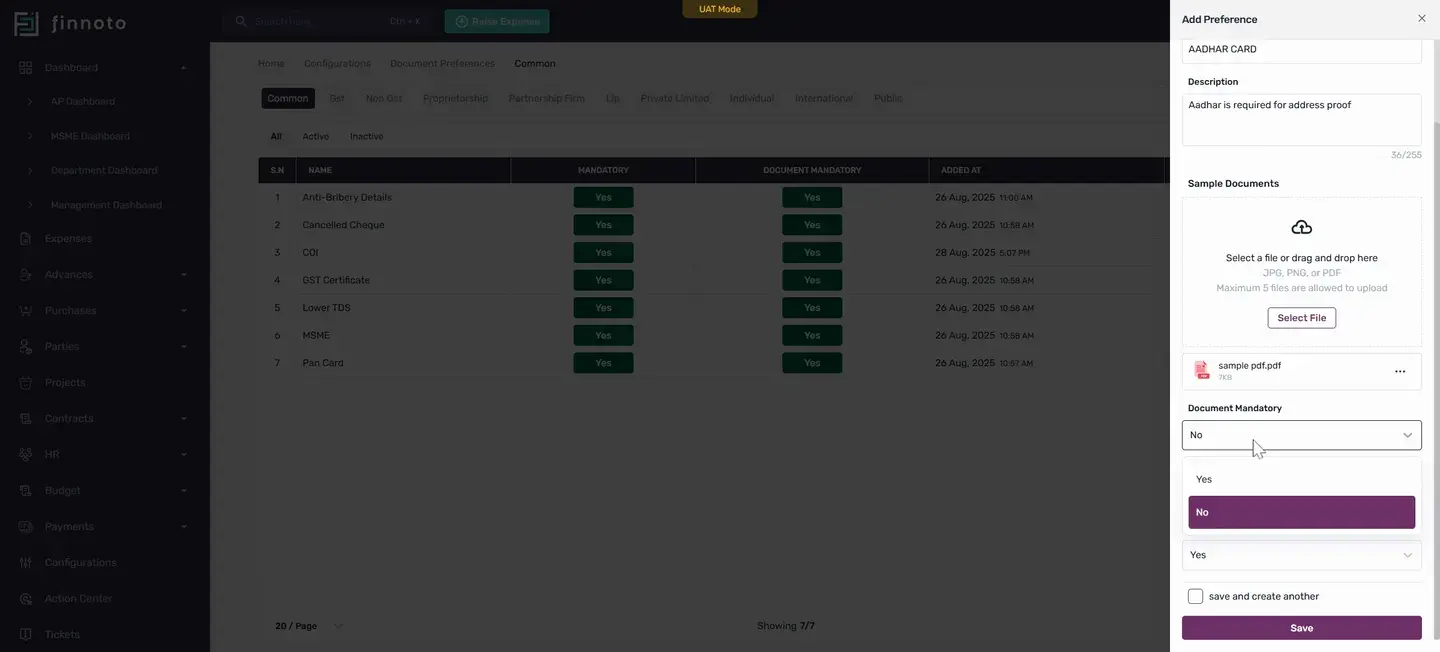
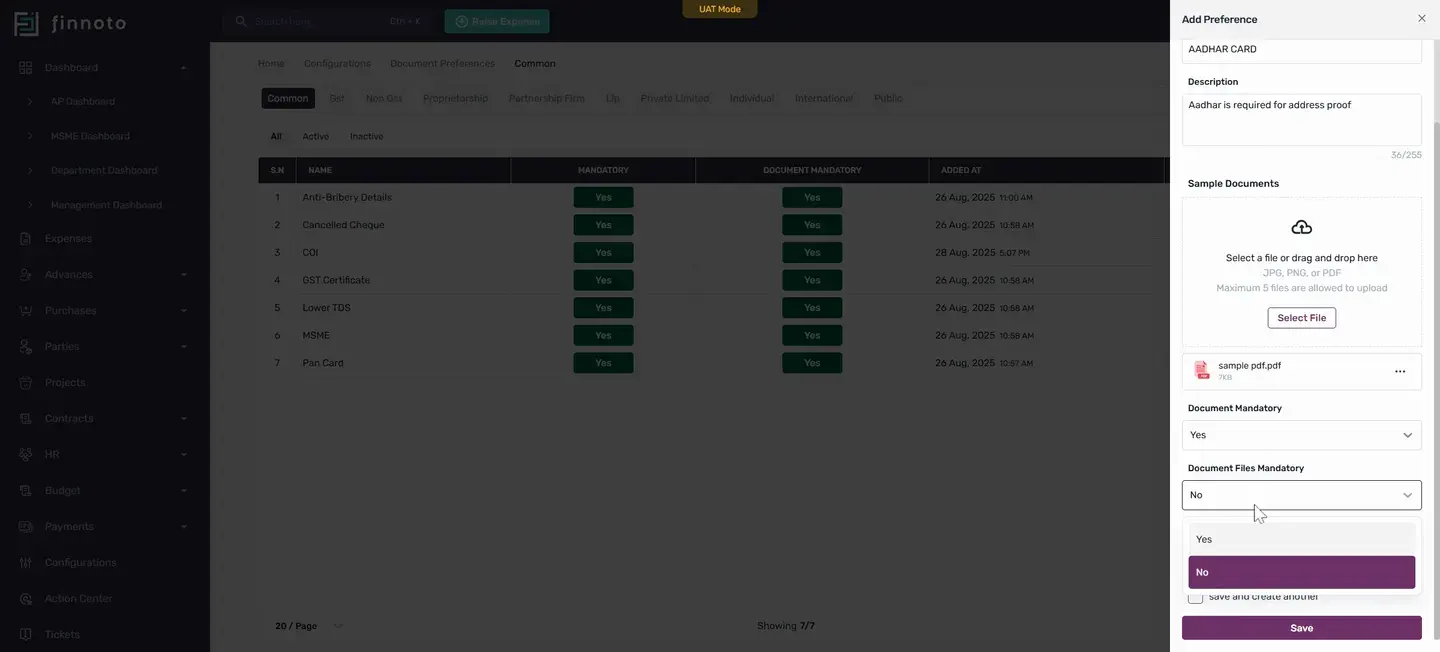
png, or. pdf file. You can set whether it’s a mandatory or non-mandatory document. You can also set an expiry date if needed.
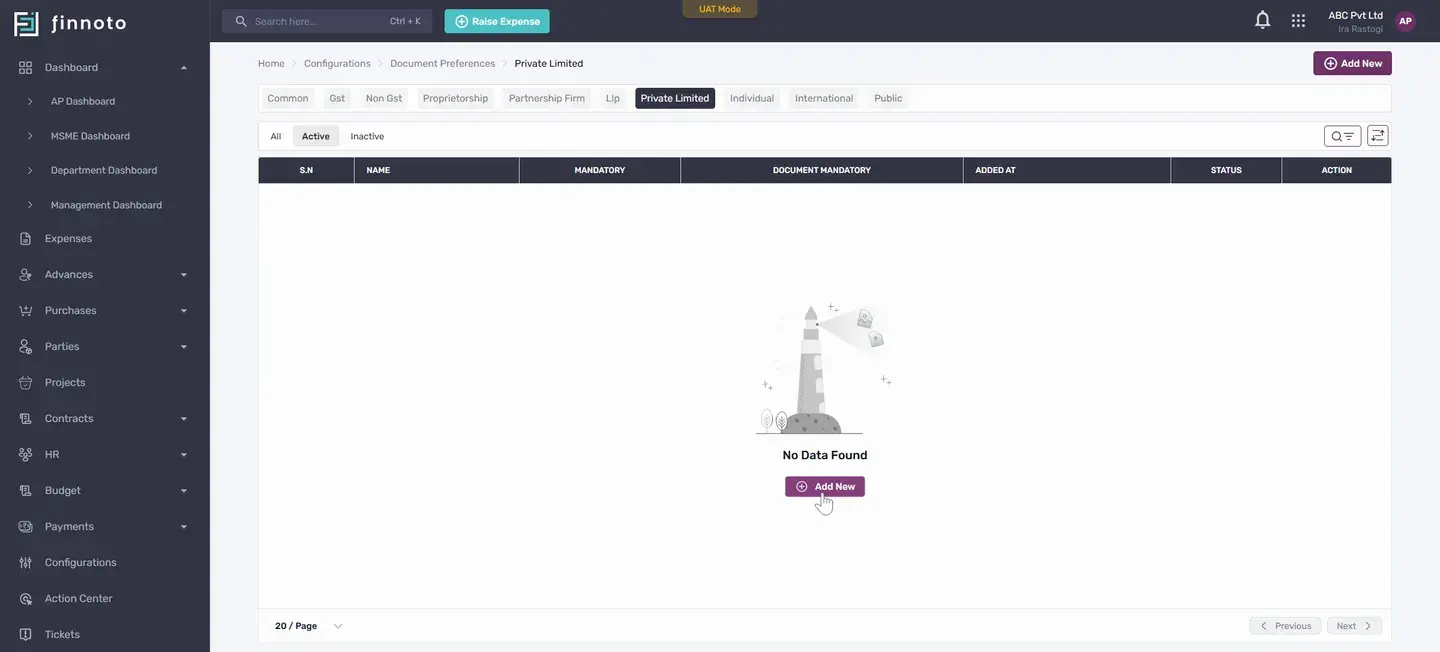
The document will then appear in the list. If you are working with a private limited company and need to set specific documents for these vendors, you can do that here. Toggle the switch and click the "Add New" button. The same process applies here.
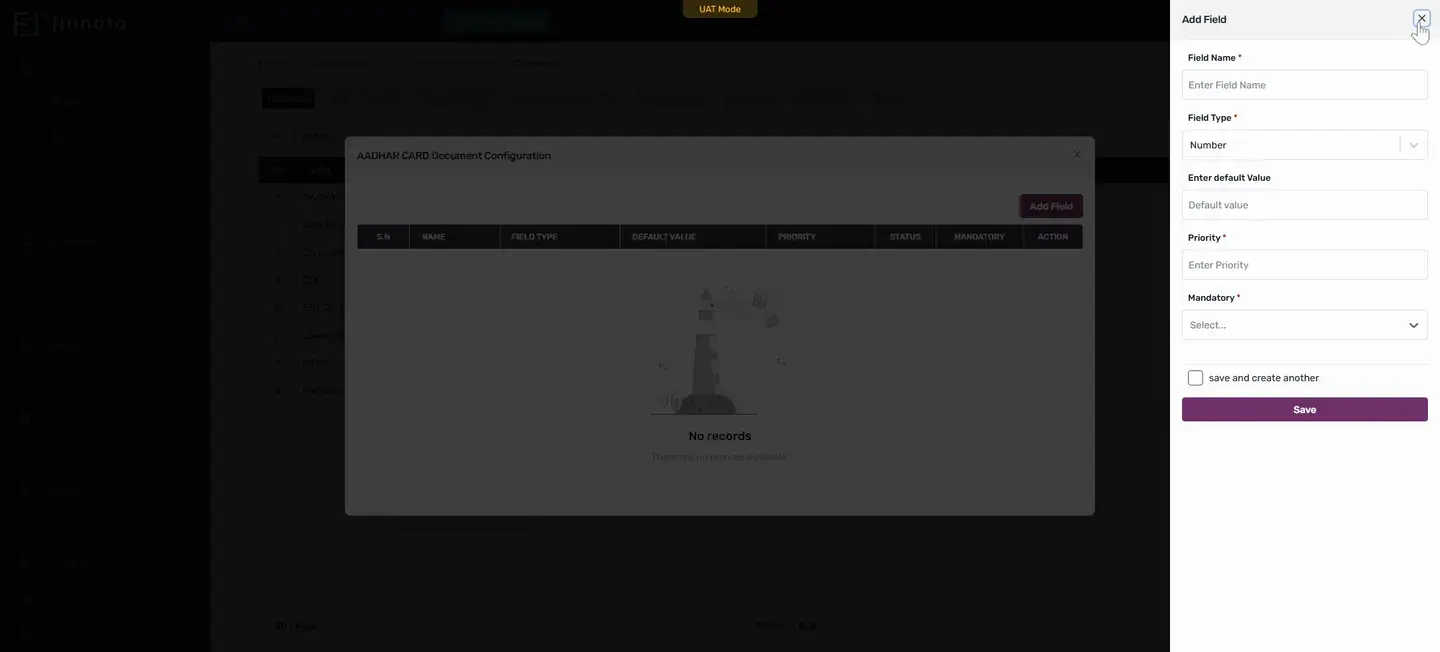
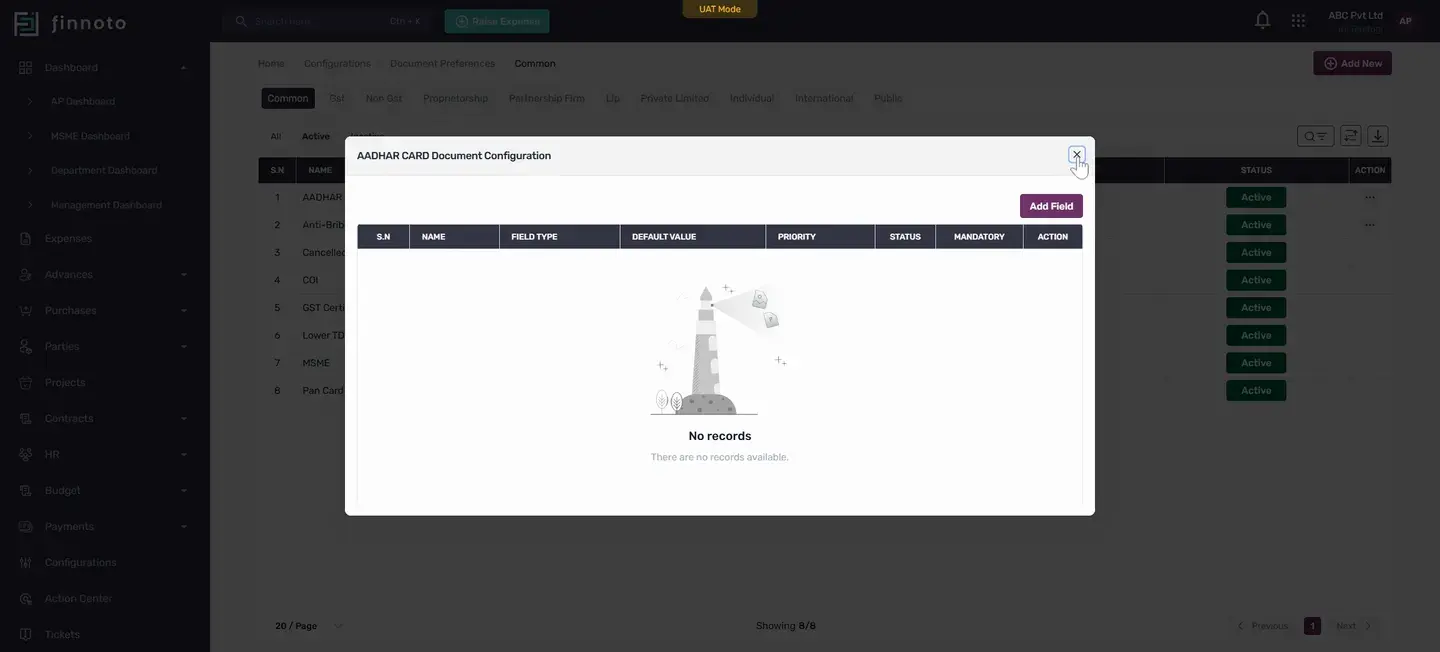
Now, let’s look at the other document you’ve added. Here by using the configuration option you can also add custom fields as per your requirement, such as a date field or any other type of field you need. Field types can include numbers, dates, date ranges, strings, and text areas. If you need a specific customization for an added document, you can do that here.
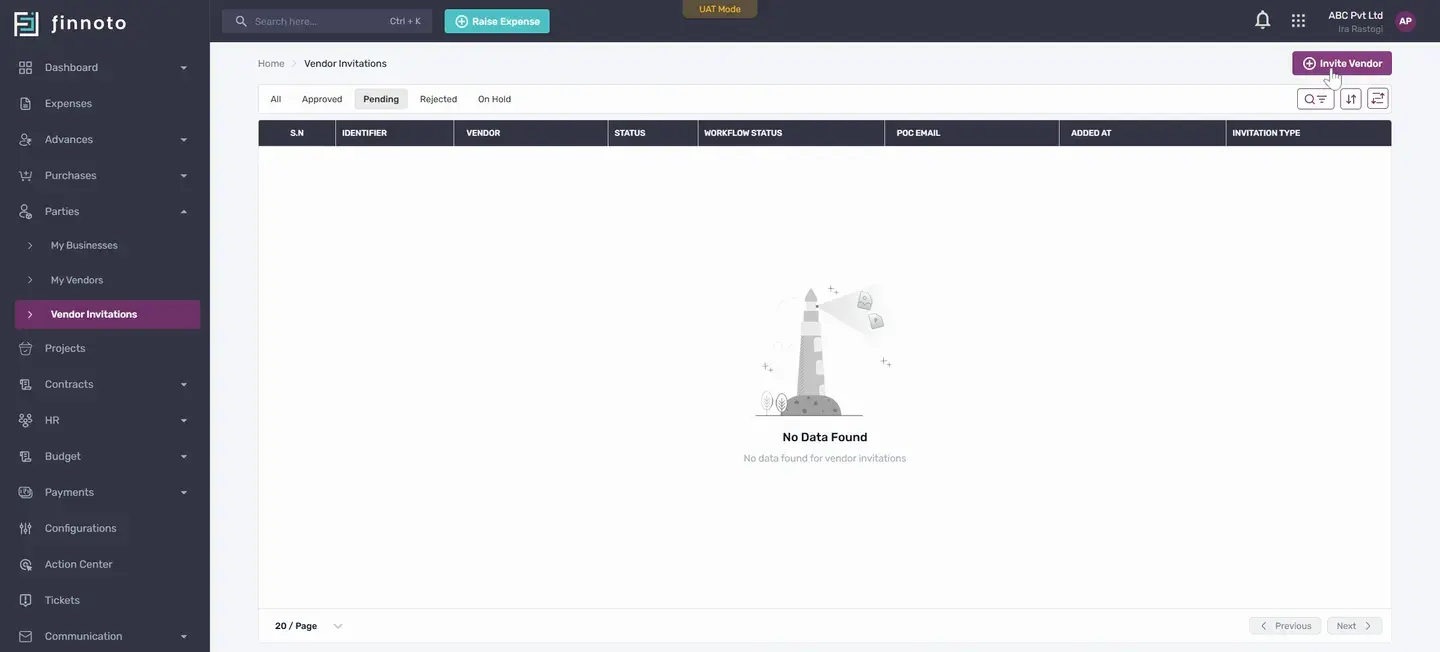
This new field will appear, and you can set whether it’s mandatory and its priority. This is how we set the document preferences for a vendor. Now, let’s move on to inviting a vendor from the portal. Go to the "Parties" section, then click on "Vendor Invitation".
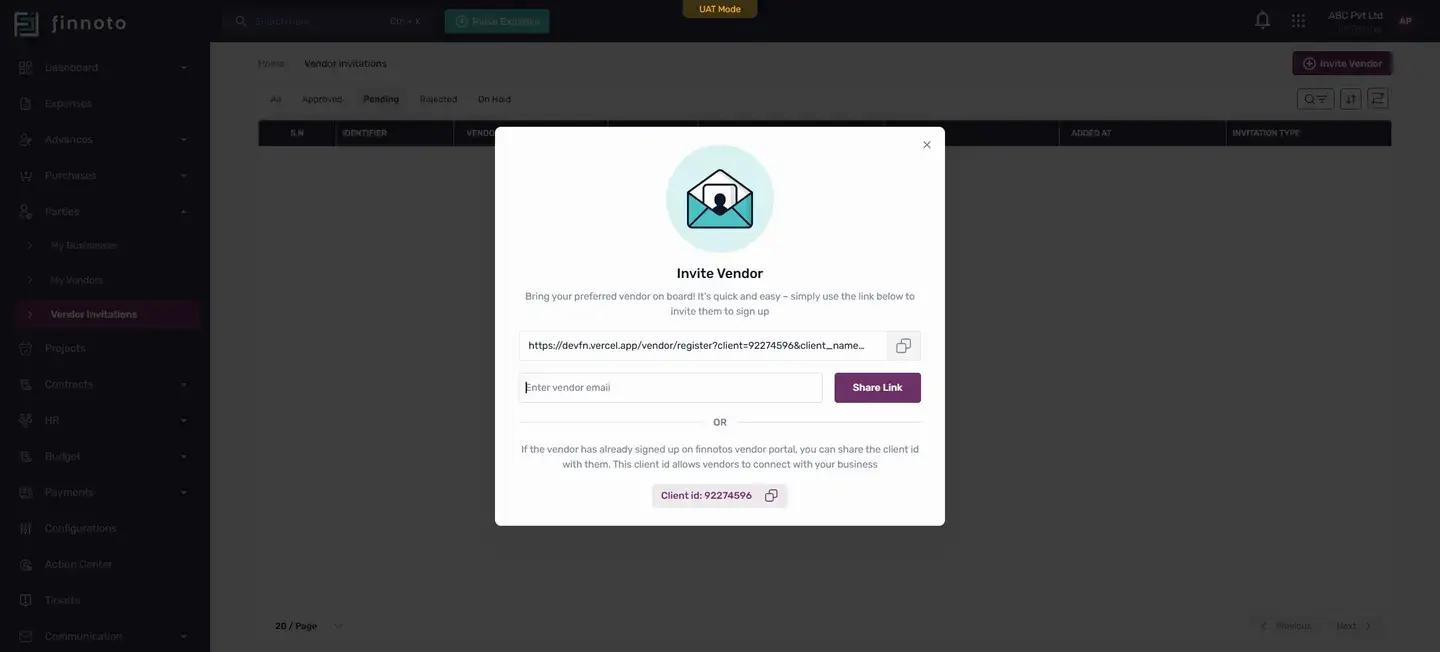
On the Vendor Invitations page, we can invite the vendor. There are two options: either copy the link and send it to the vendor by email, WhatsApp, or text message. When your vendor clicks the link, they can sign up and complete onboarding. The second option is to enter the vendor’s email ID and then share the link.
The vendor will get an invitation with the onboarding link in their email. By following the steps, they can easily onboard to the Finnoto portal. If you are looking for the client ID, it is provided here. If the vendor has already signed up but needs the client ID to connect with your business, then you can find it from here.
The client ID is also sent in the email invitation. So this is how we can set up document preferences for the vendors and send vendor invitations from the Finnoto portal. Thank you for watching this video.
In this tutorial, you'll learn how to set document preferences for vendors and invite them via the AP portal.
Start by navigating to the Configurations menu.
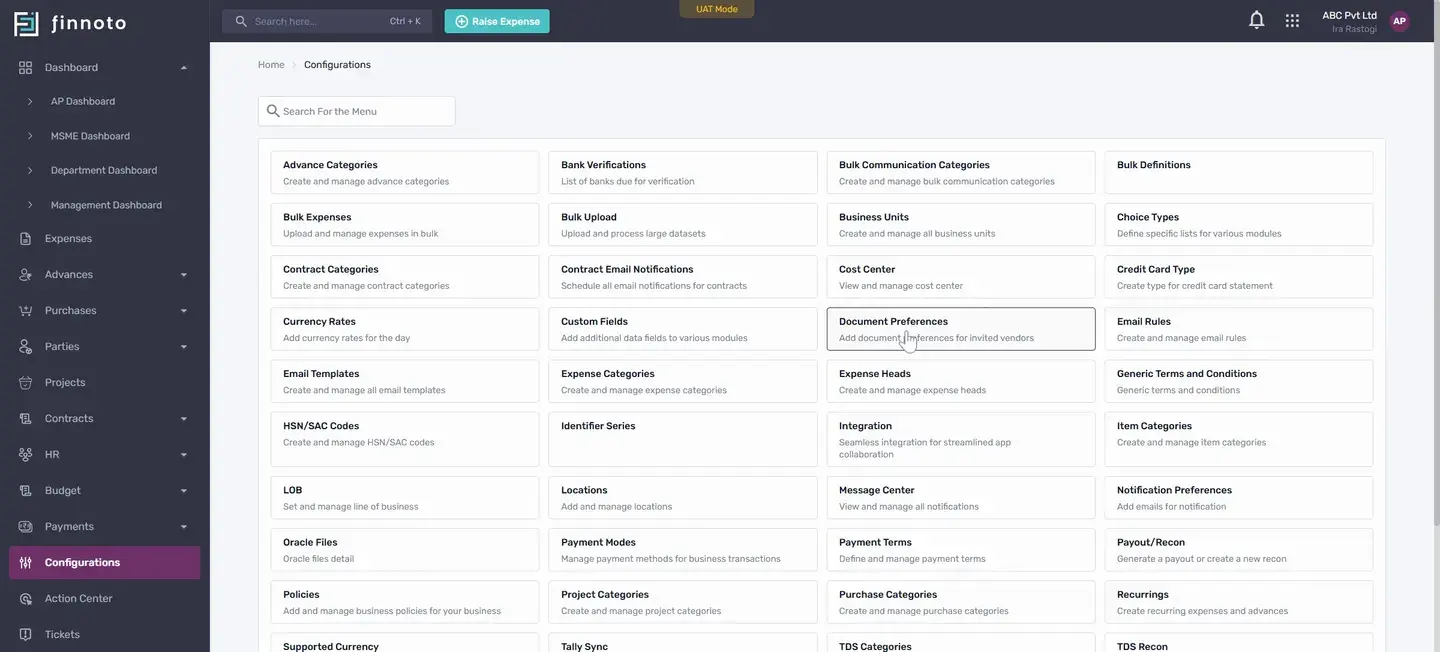
Now, you're in Preferences. Here, set the documents needed from the vendor during onboarding or for KYC documentation.
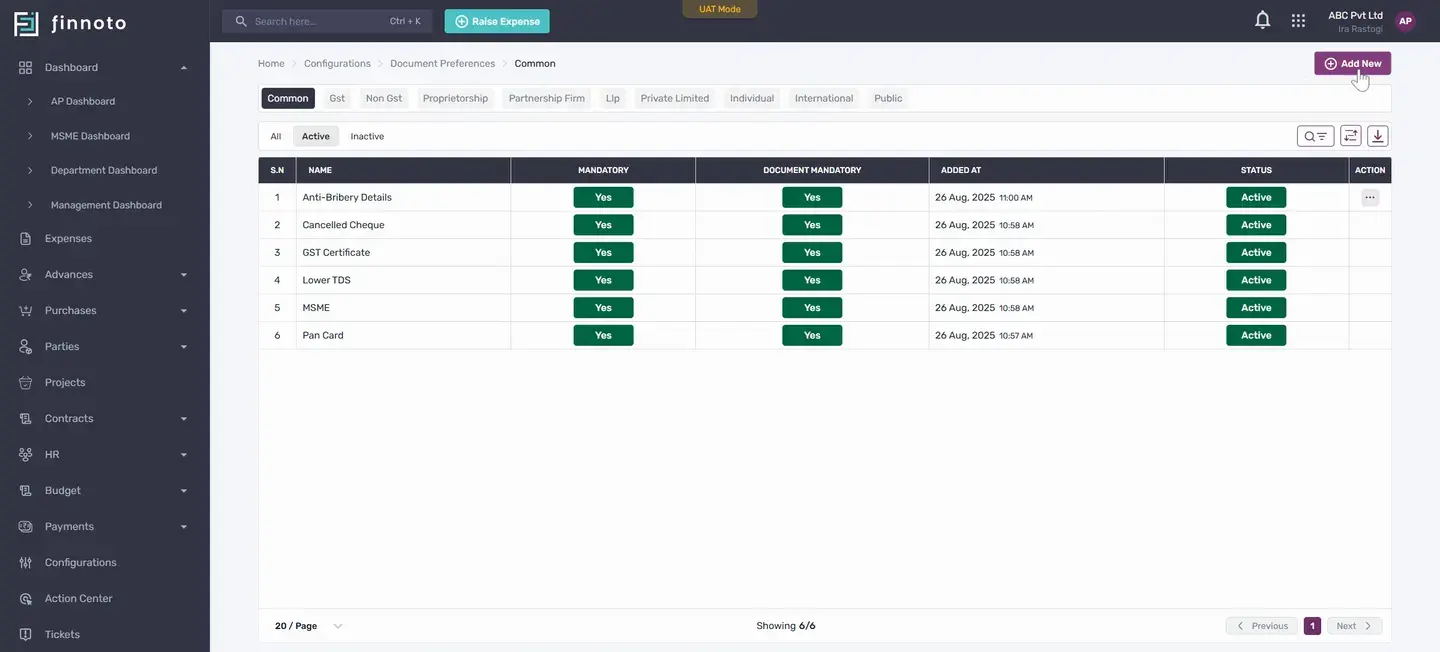
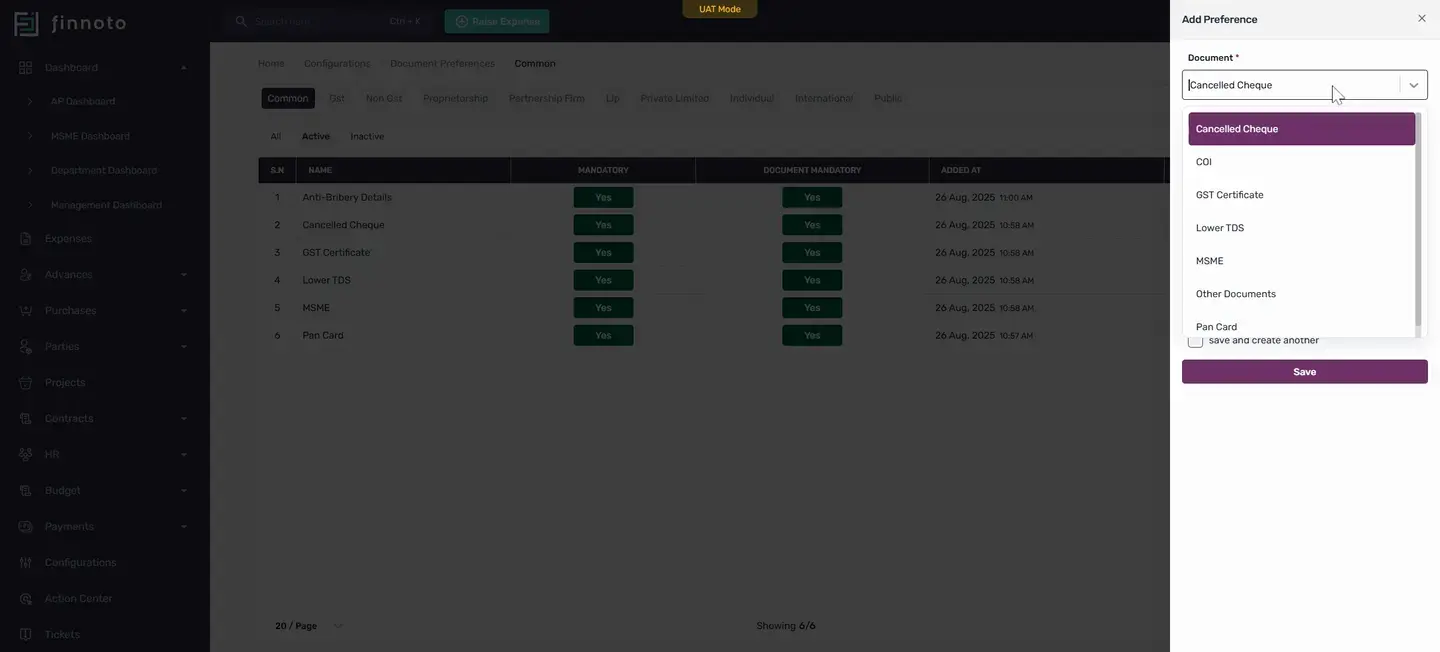
Select a document from the list
For example, if you need to add a COI, select it and decide if it's mandatory for the vendor to upload.
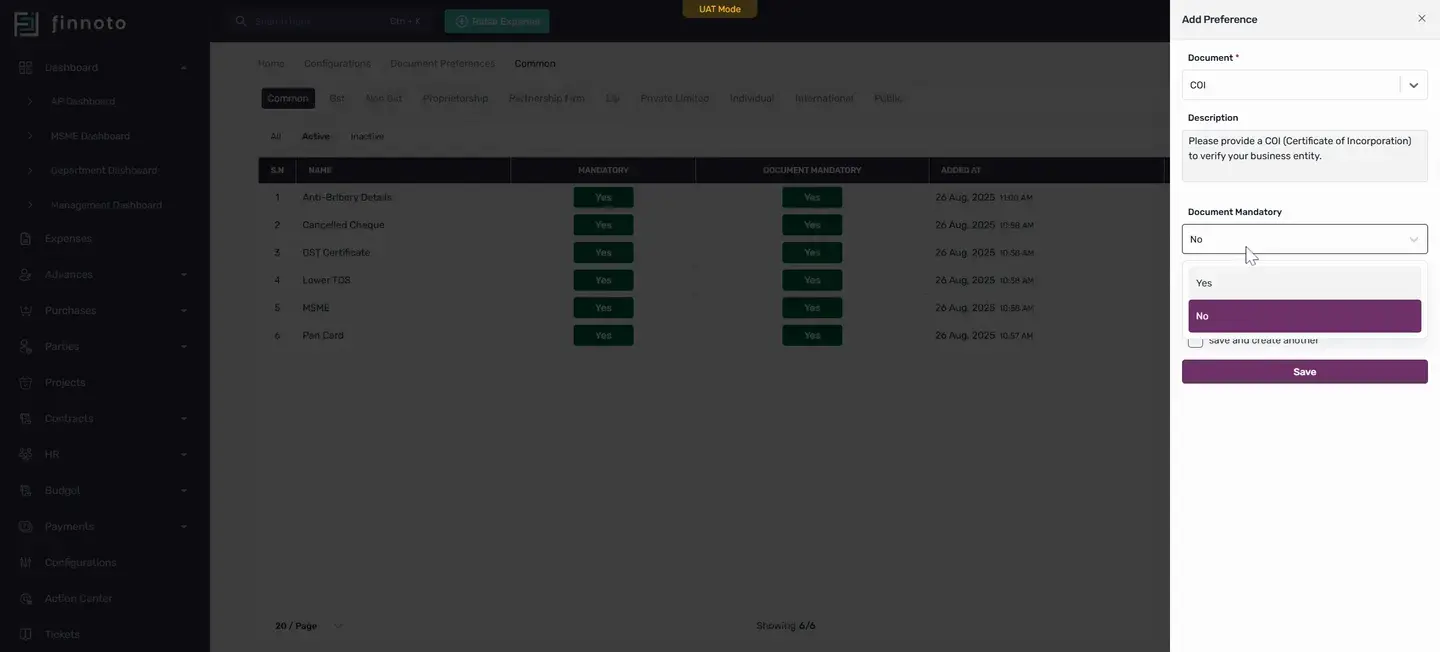
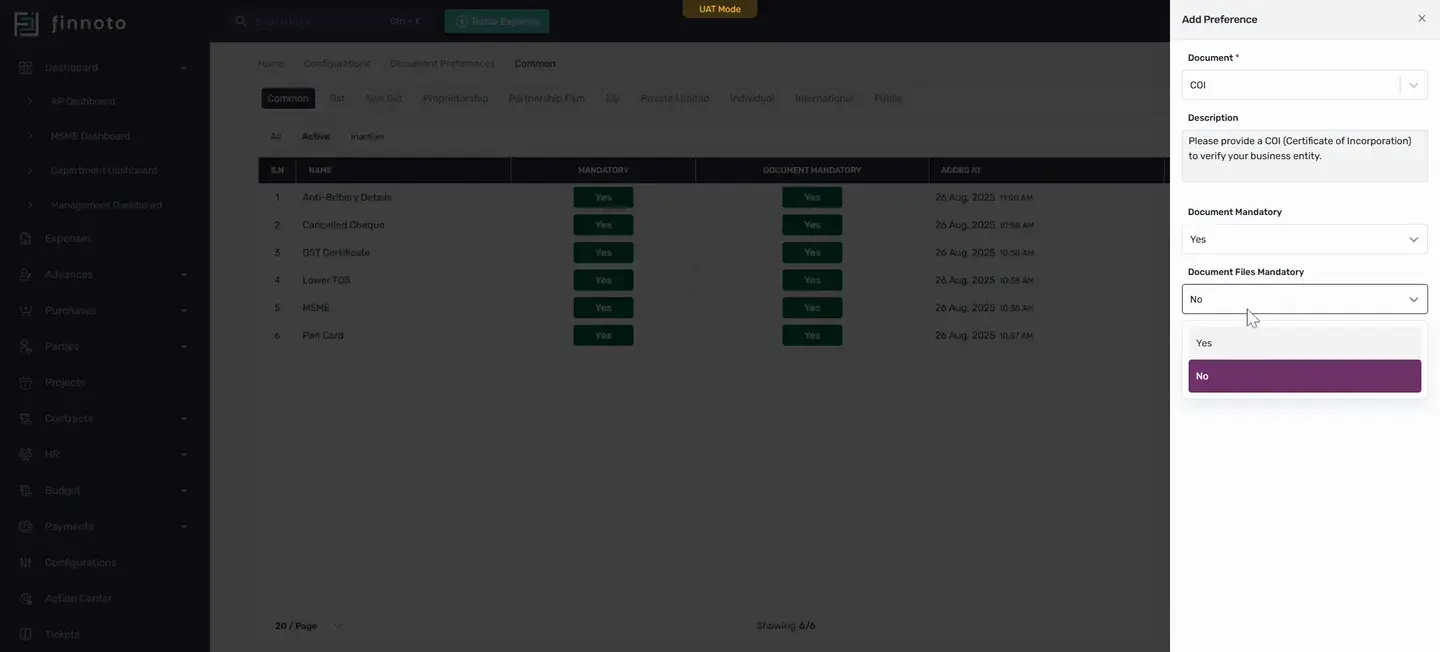
Click Save
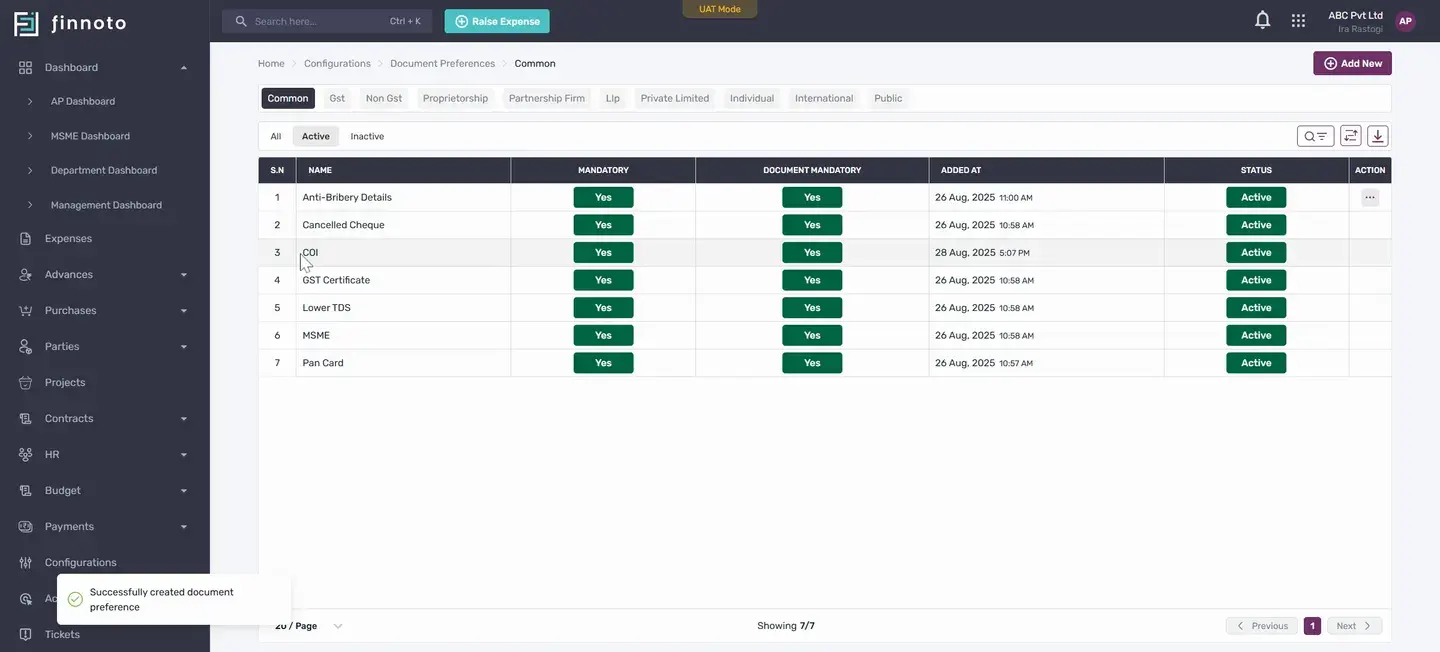
You'll see the document under the selected tab. It's now a mandatory document for the vendor to upload.
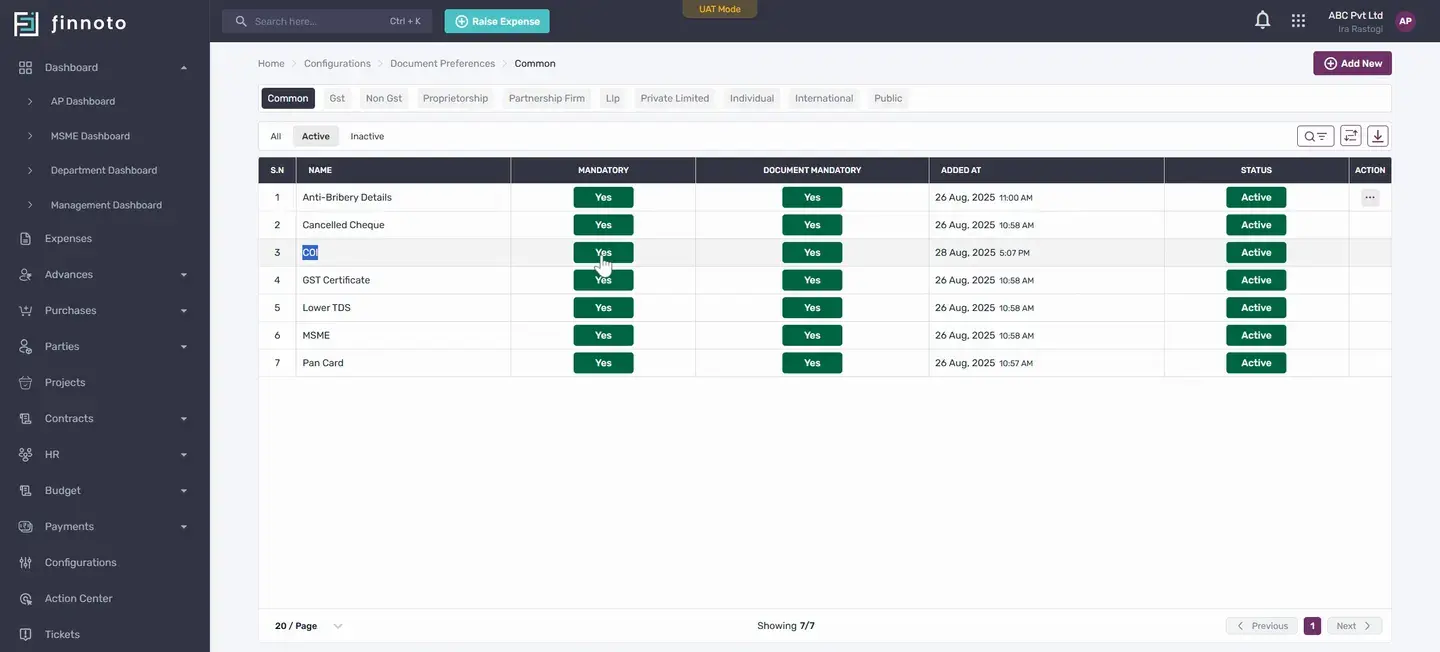
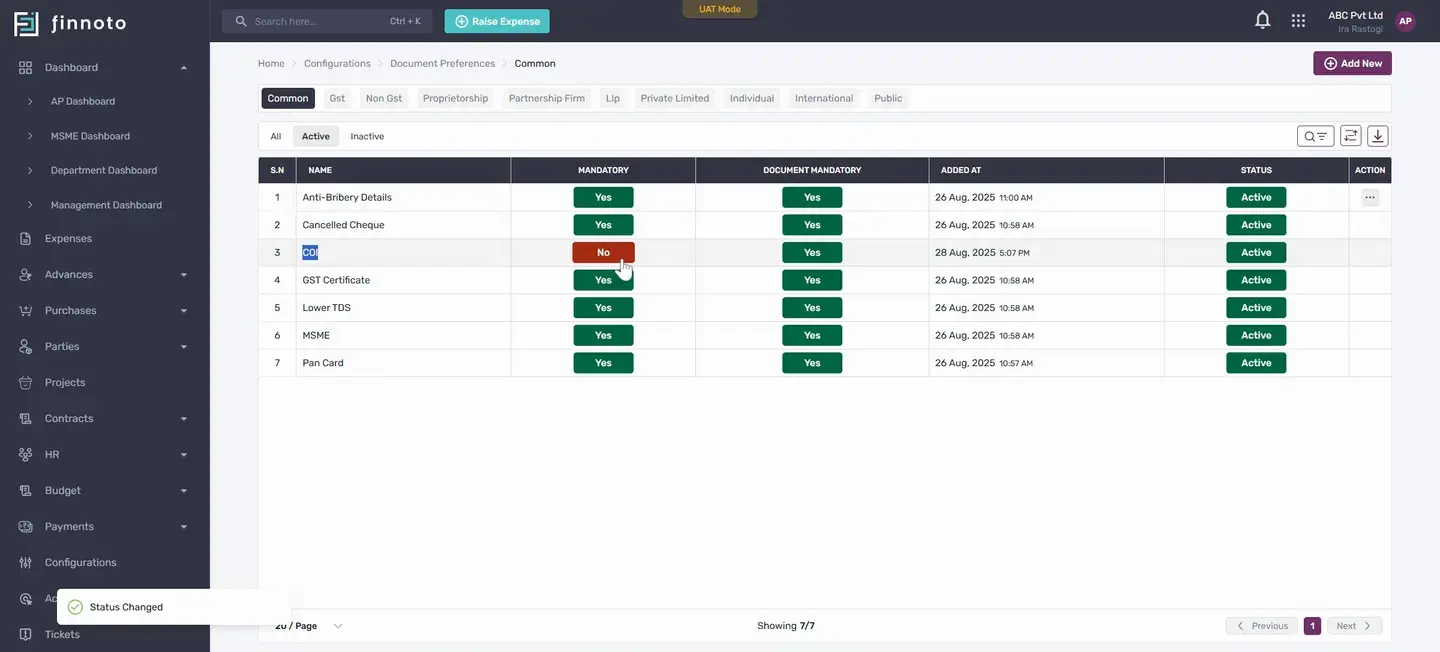
To deactivate a document, click on Status
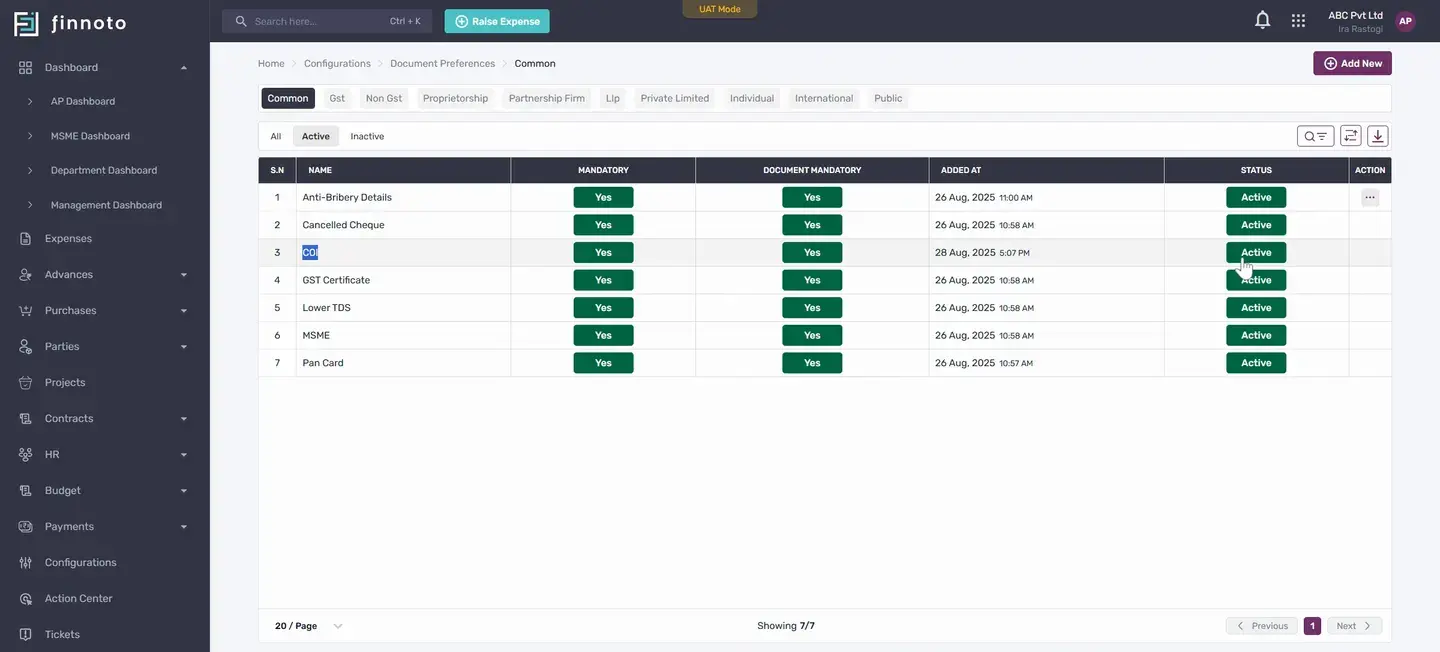
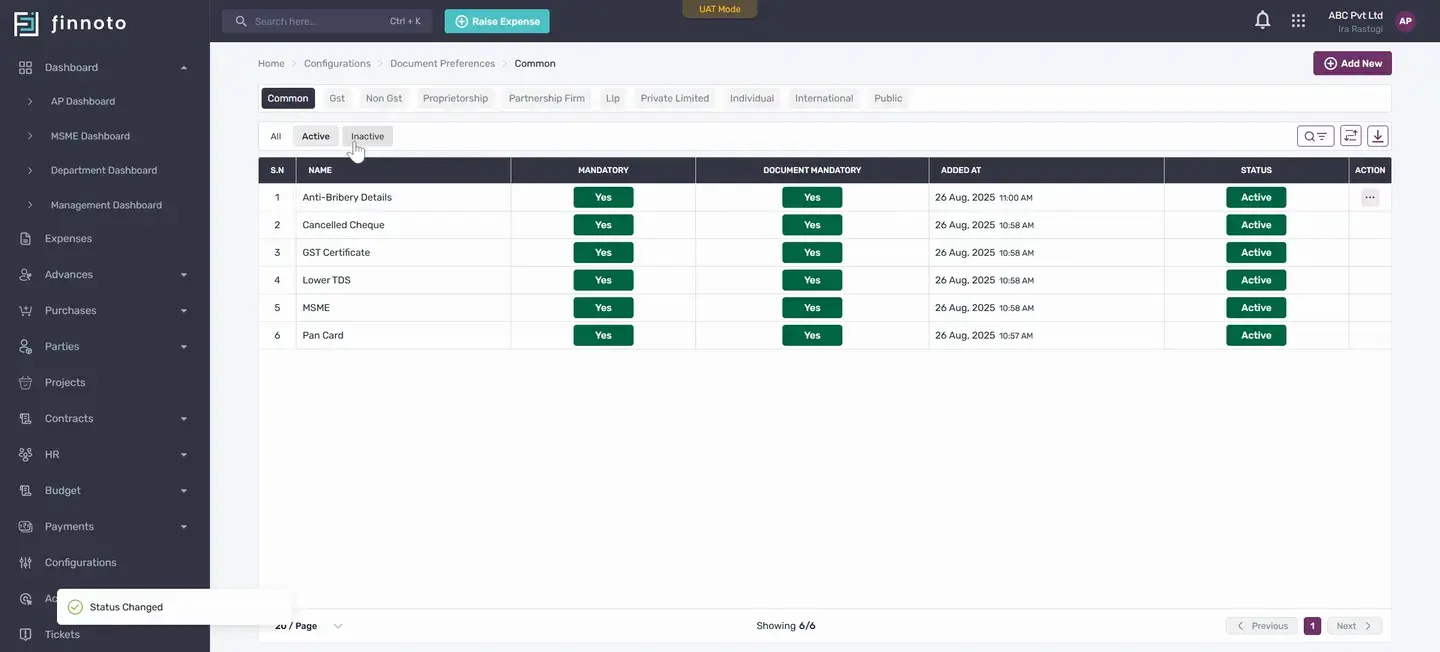
The document will now appear in the deactivated section and will be removed from the document reference list.
To add a document not provided in the selection list, select Other Documents.
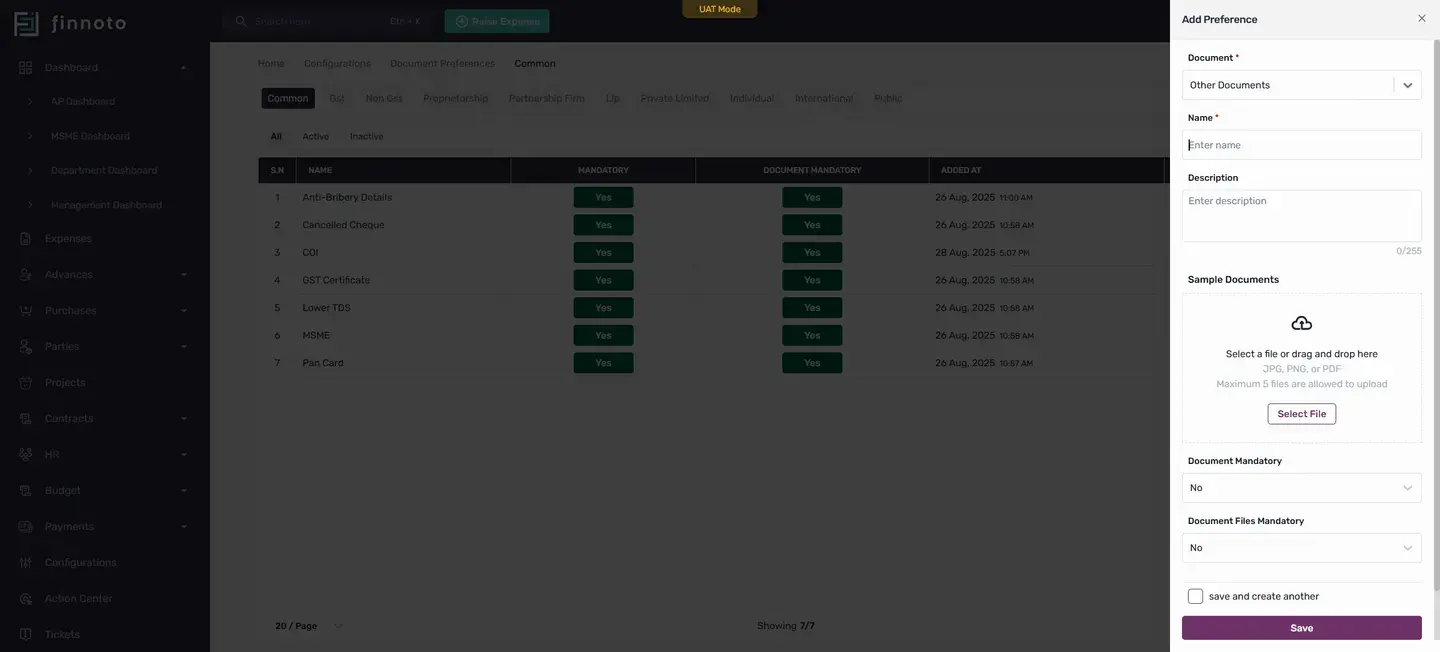
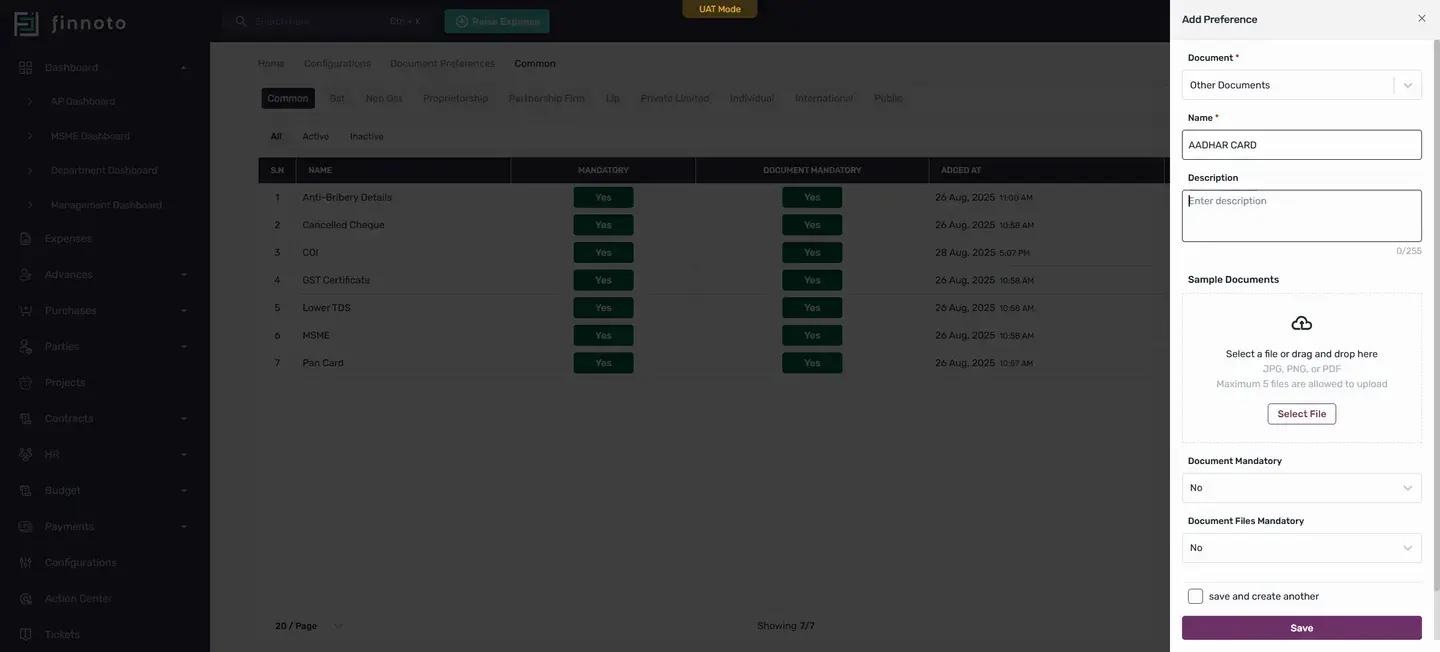
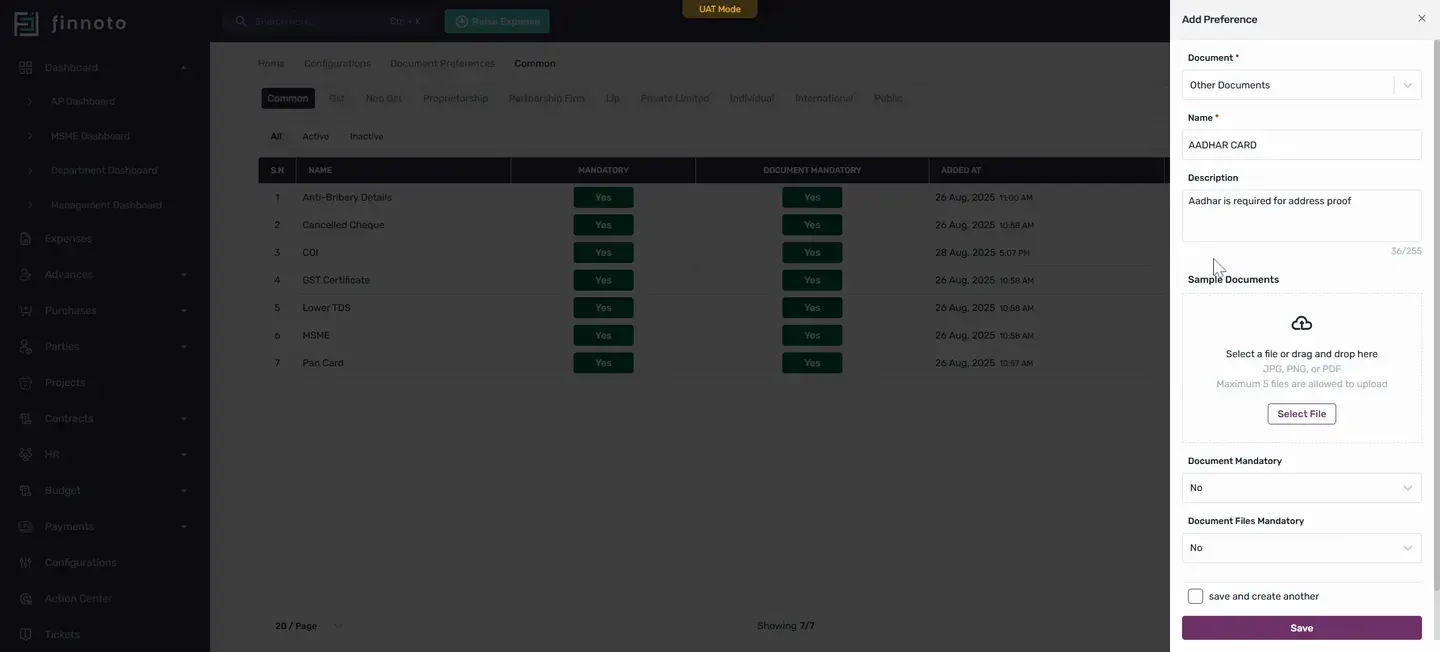
If you want to provide a sample document for the vendor, upload it here. The file can be a .jpg, .png, or .pdf.
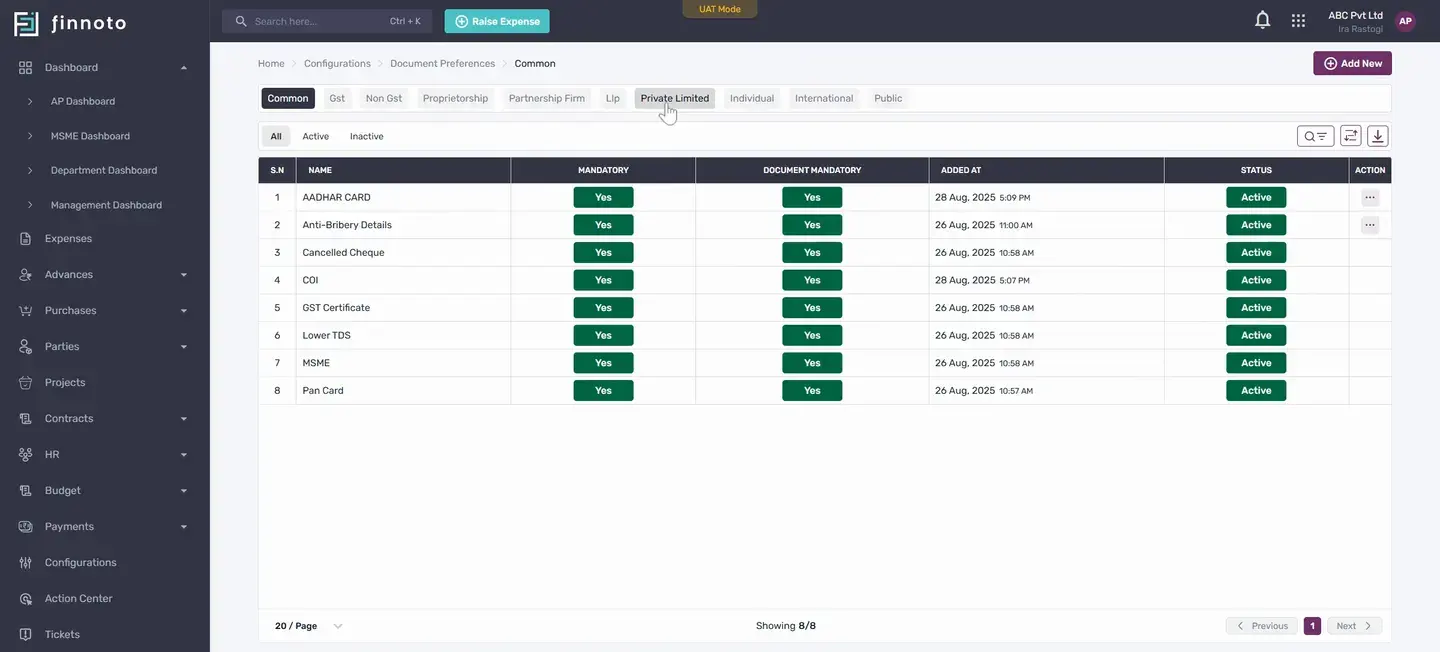
To set separate documents for private limited vendors, switch on this option and click Add New.
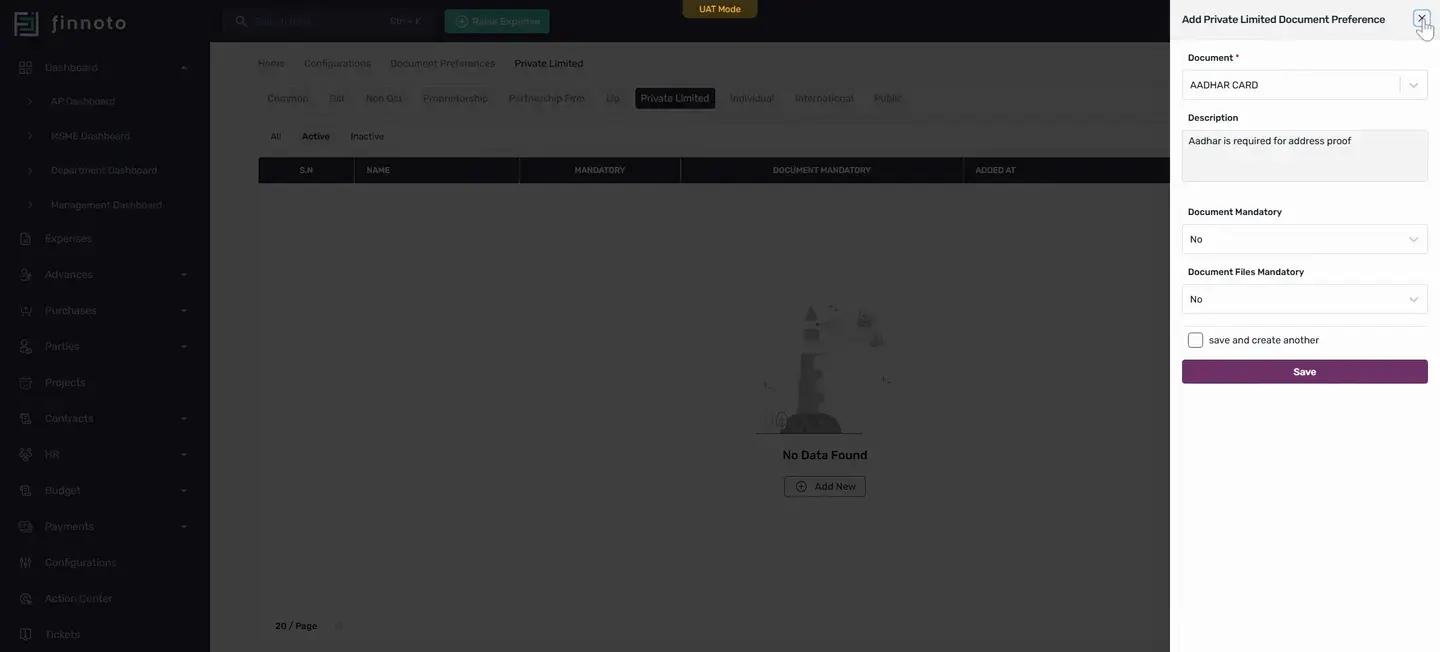
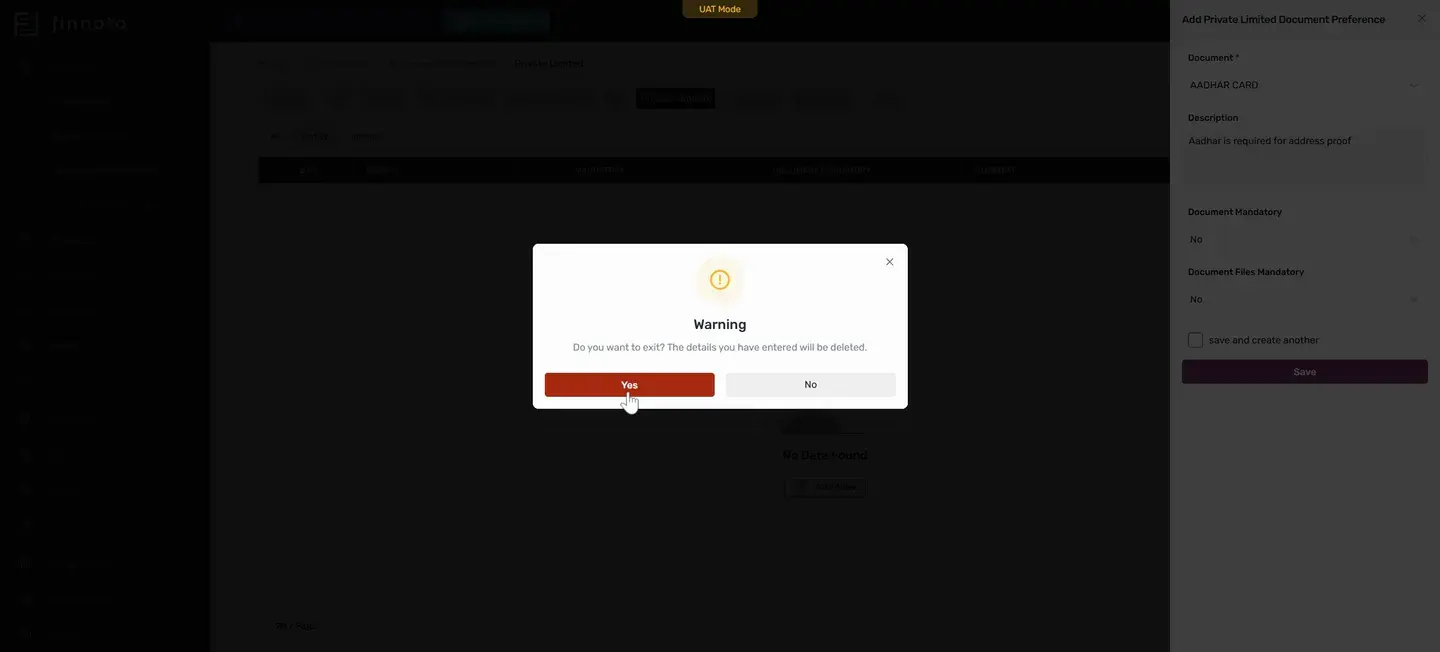
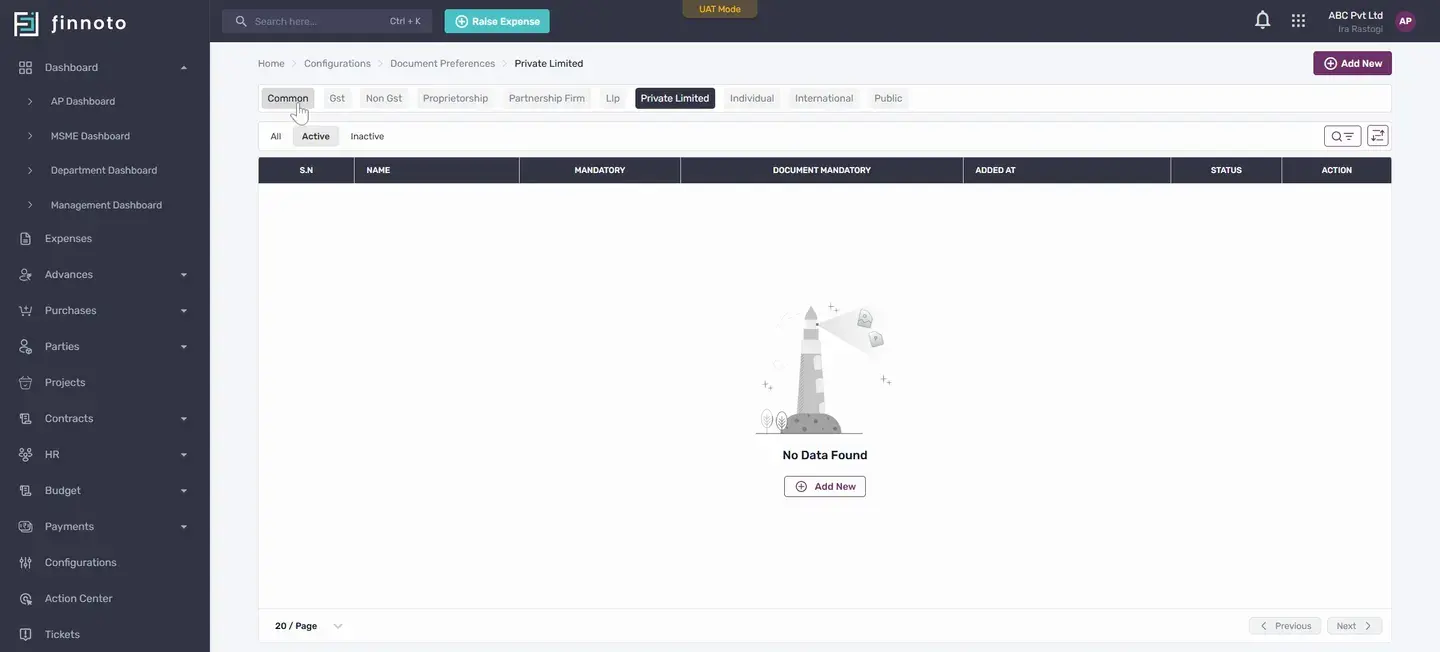
For added documents not in the list, you can add configurations.
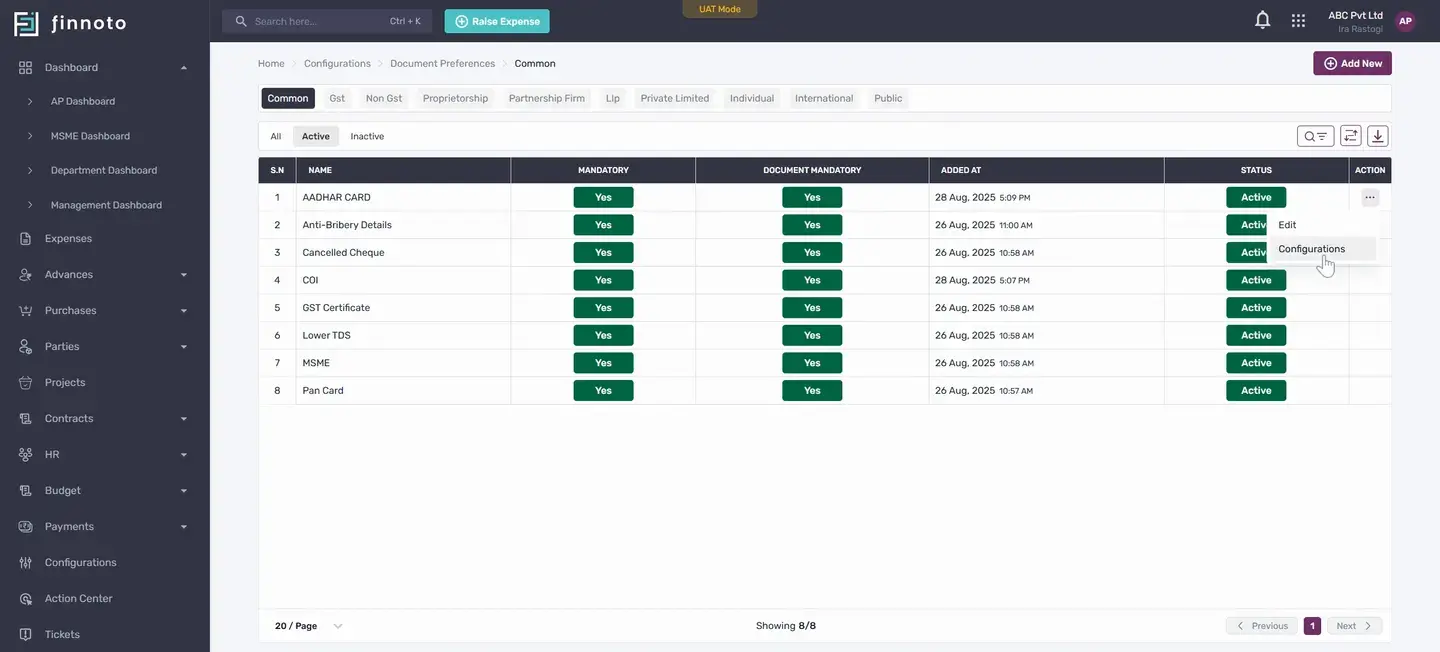
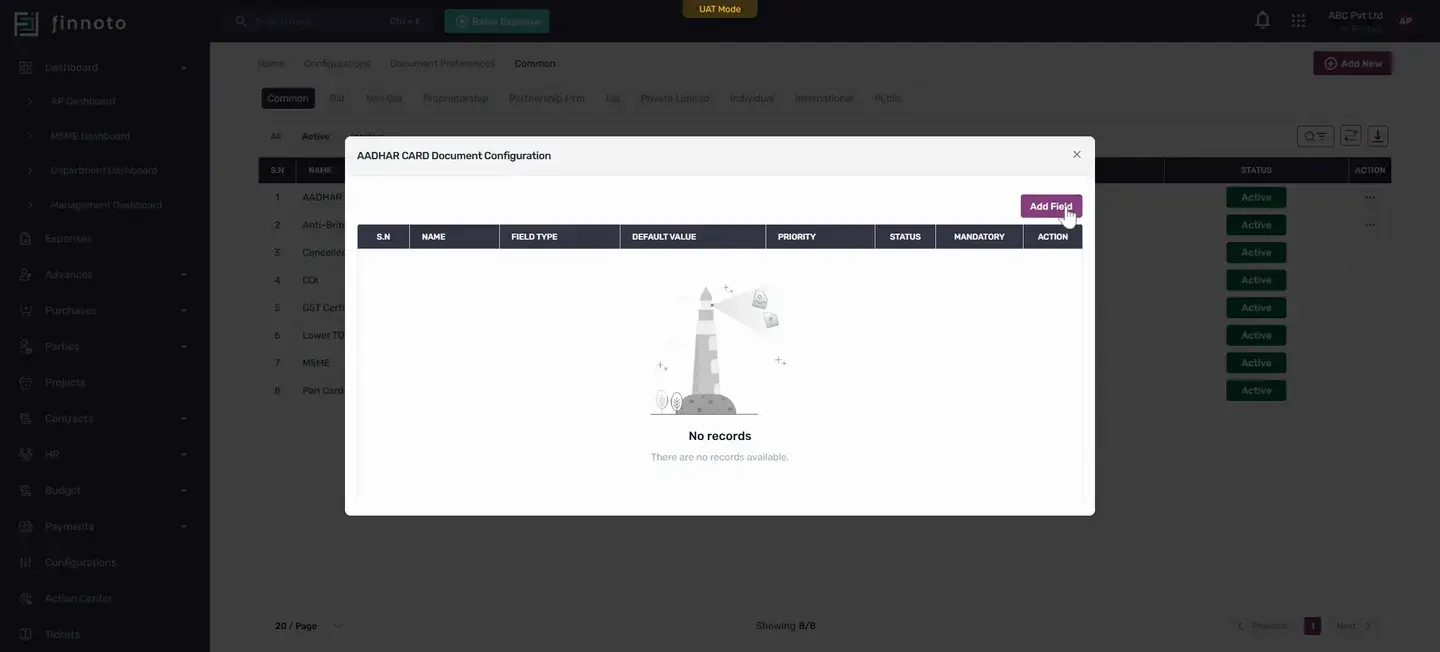
If you want to add custom data, such as an expiry date field or a specific type of field, you can do so here.
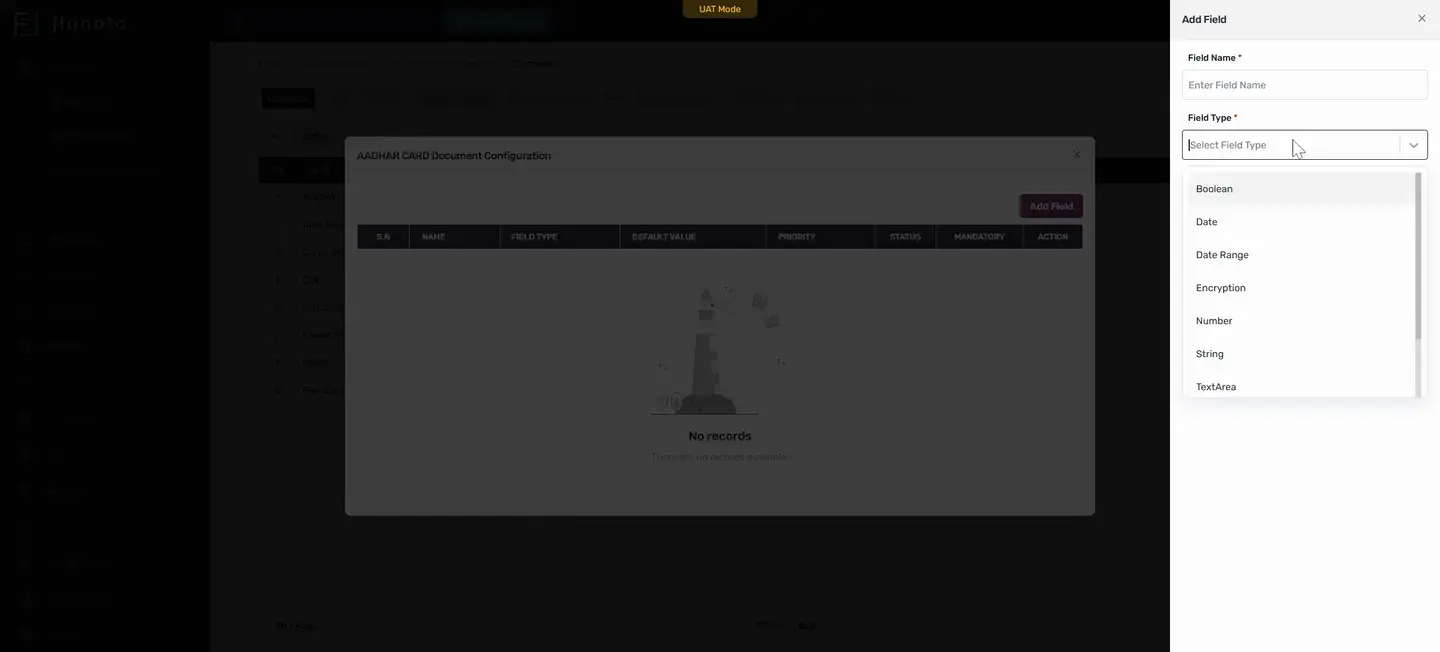
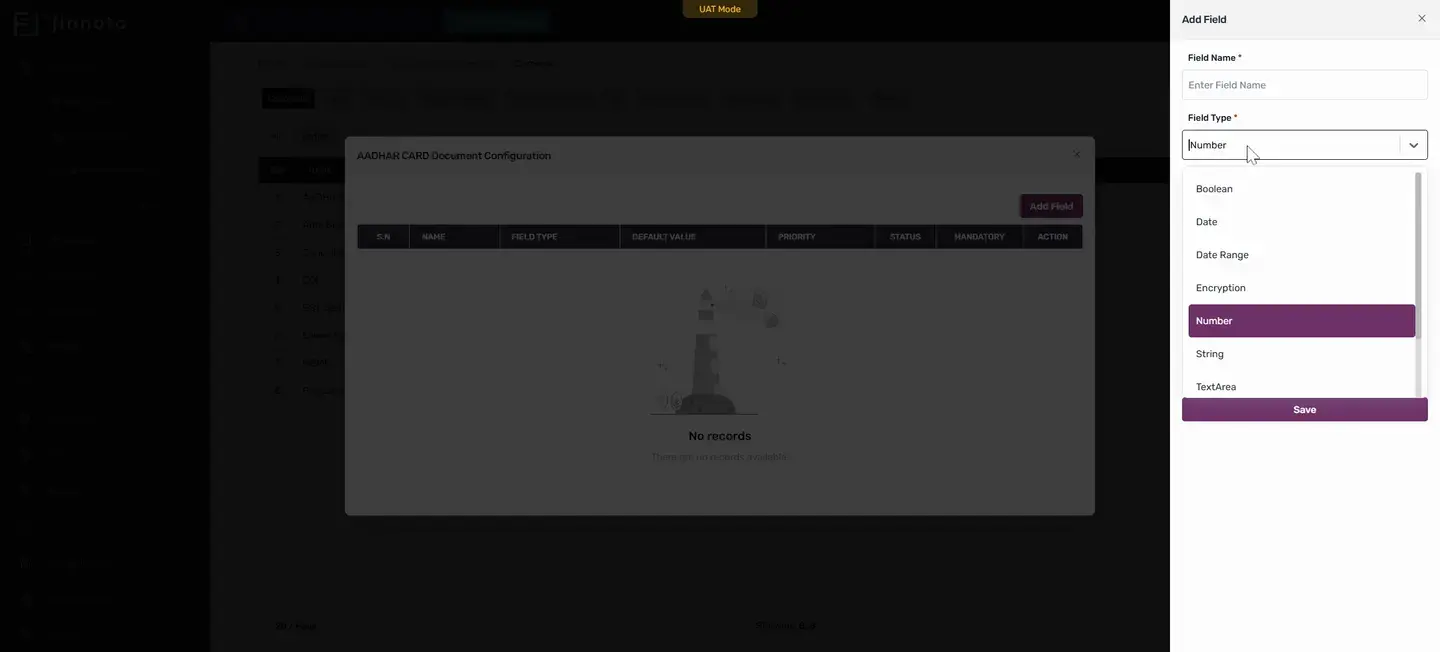
Any customizations you make to the added document can be set here.
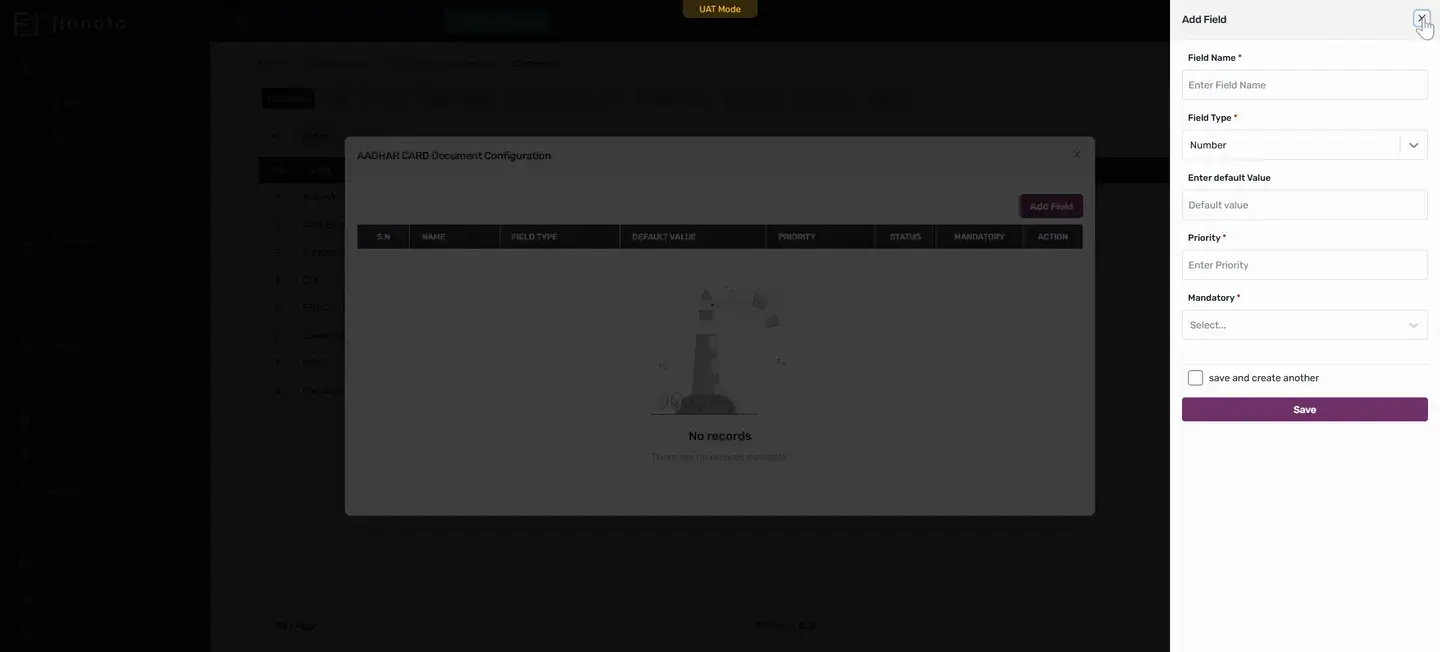
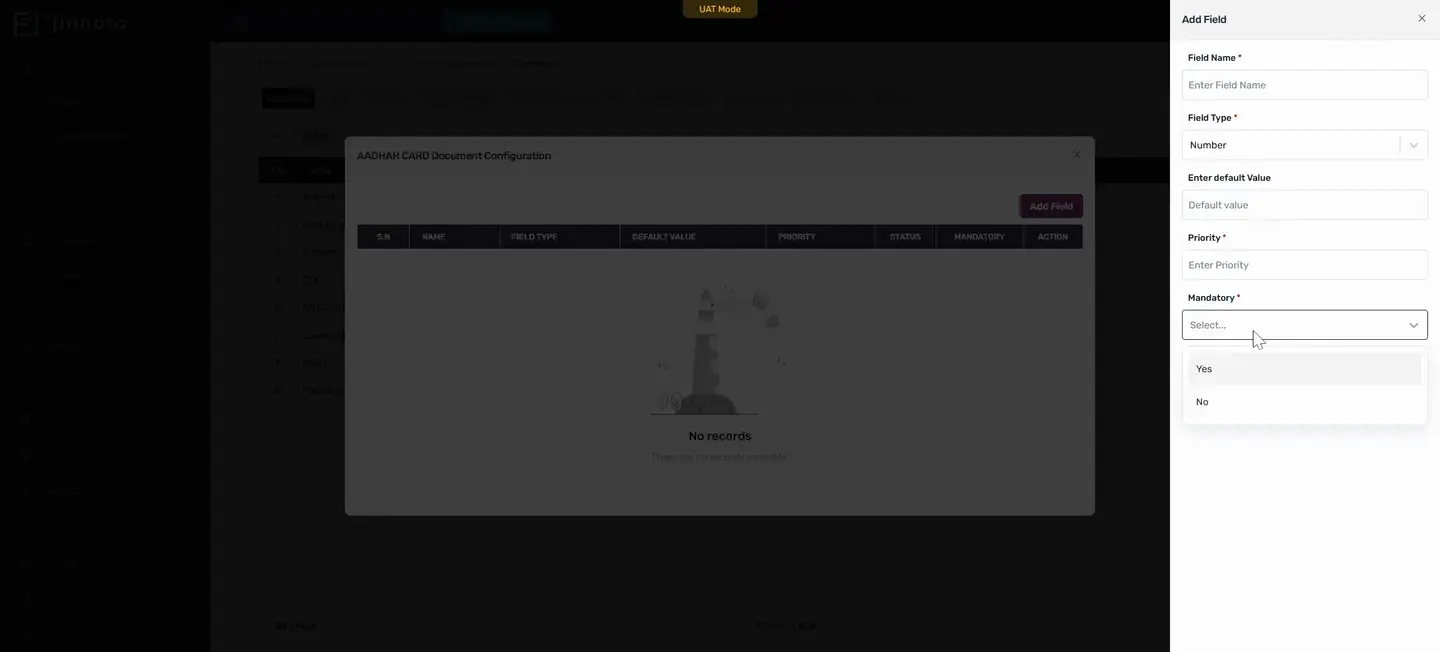
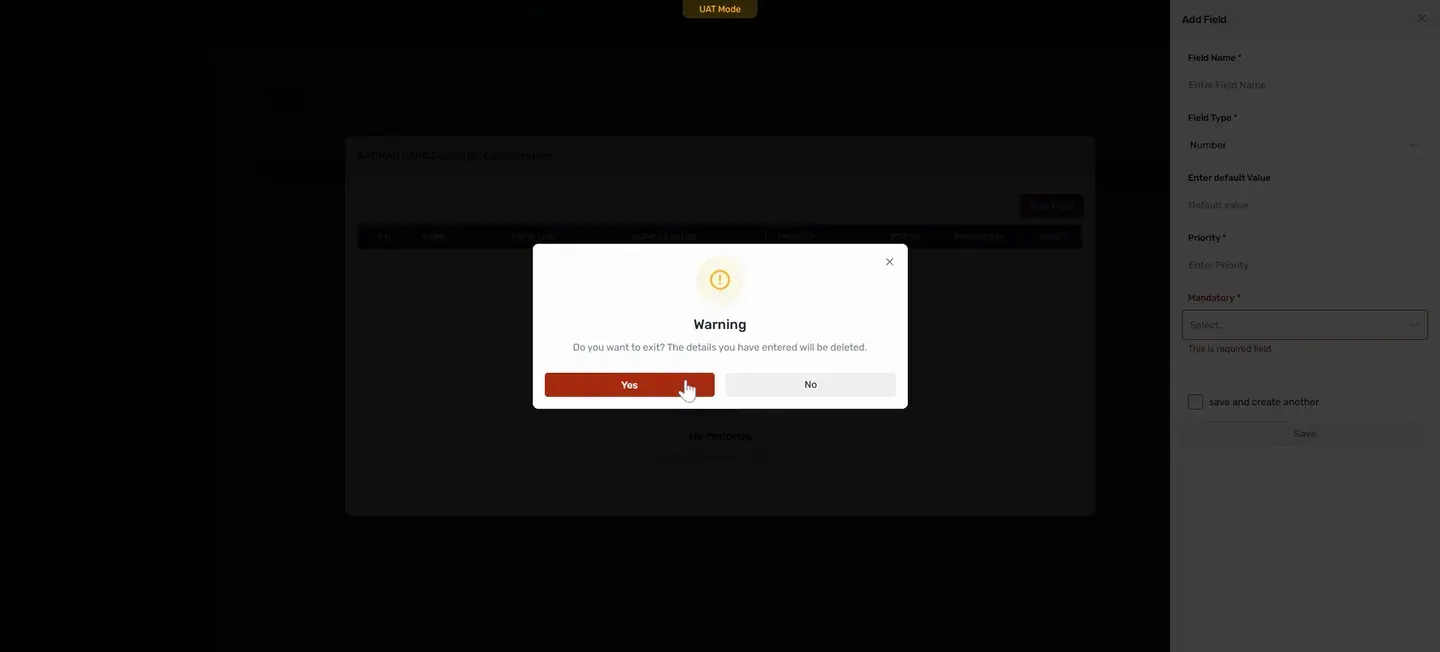
Set whether the field is mandatory or not, and its priority.
Now, let's move on to inviting a vendor from the portal.
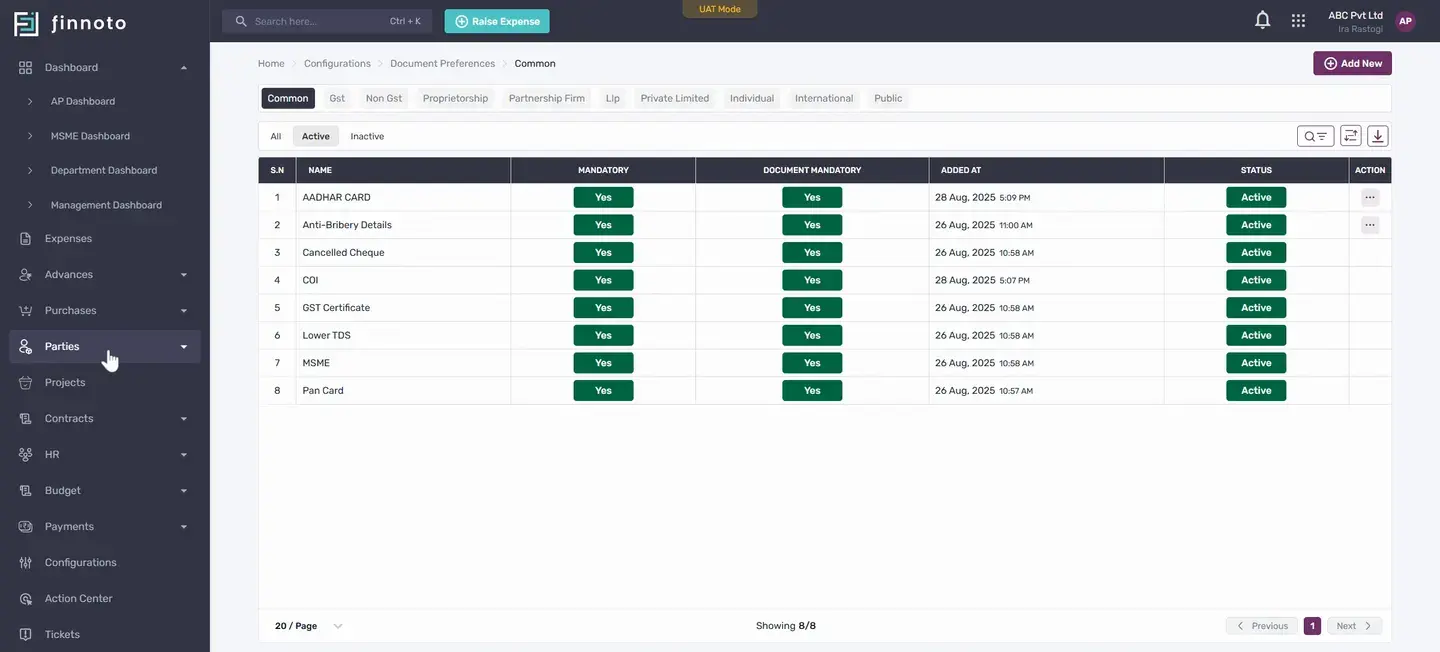
You have two options
You can either copy the link and send it to your vendor, or enter the vendor's email and share the link.
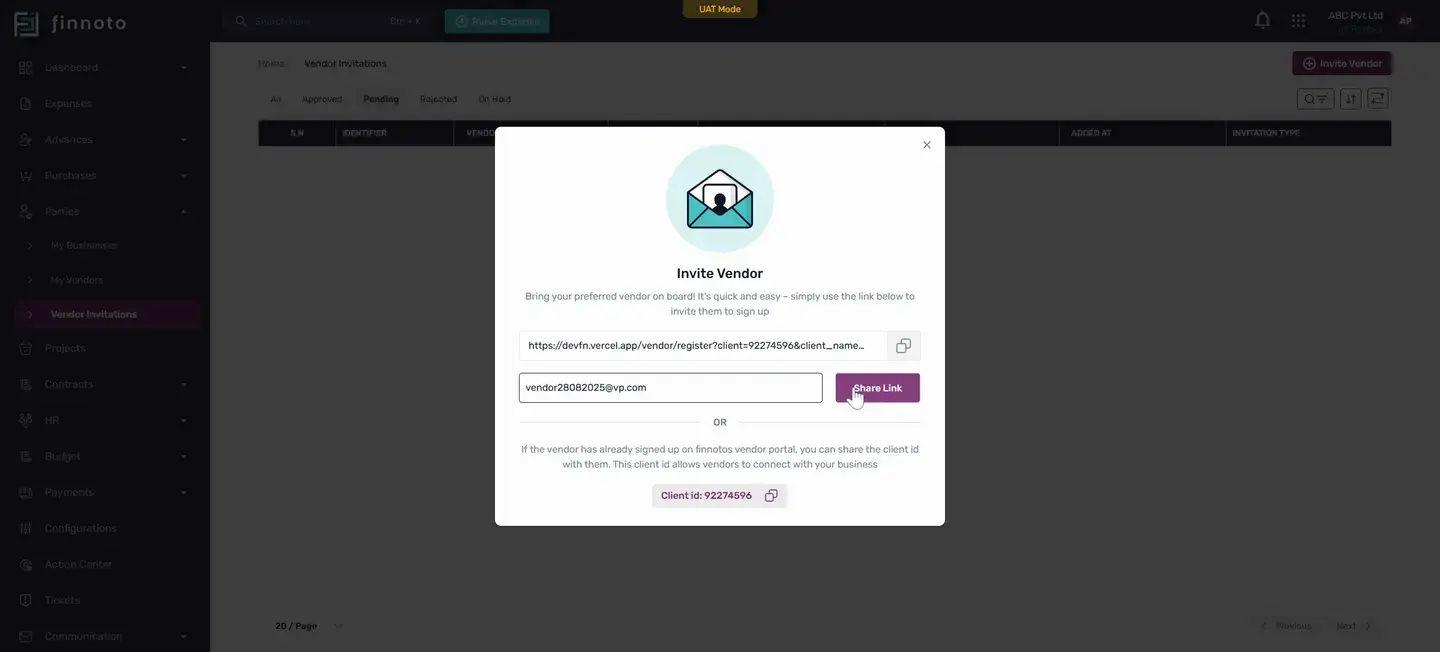
The vendor will receive an invitation with the onboarding link in their email.
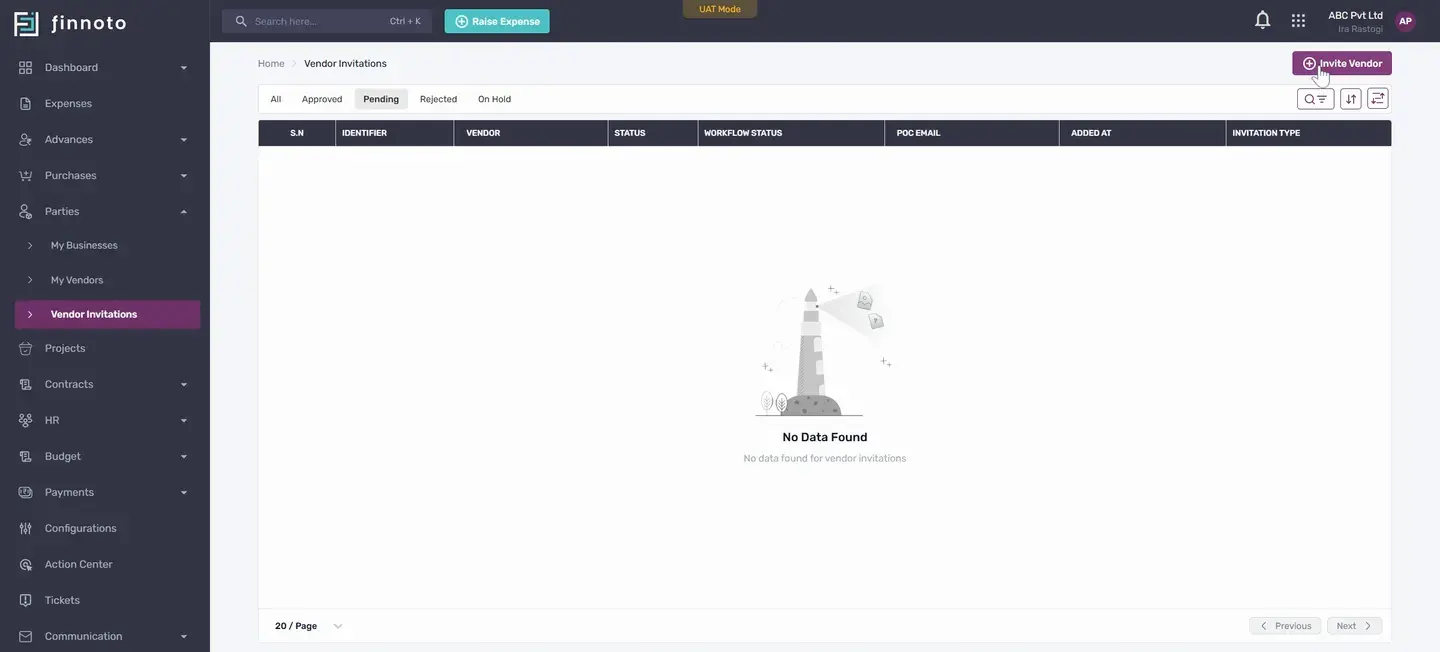
If you need to know your client ID, it's displayed here.
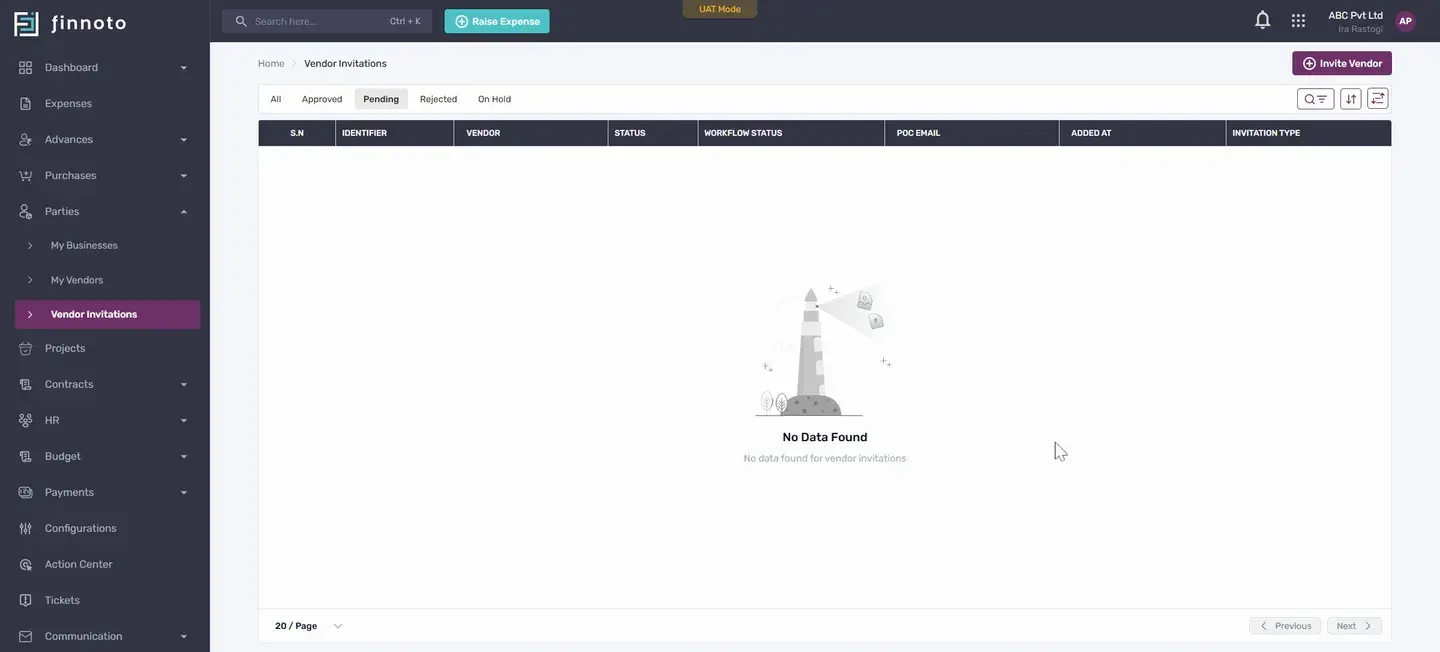
And that's it! You've now set up document preferences for vendors and initiated vendor invitations from the AP portal.