Vendor onboarding and Client Connect
How a vendor is invited, completes onboarding, and connects to your business through Client Connect.
Last updated on
Transcript
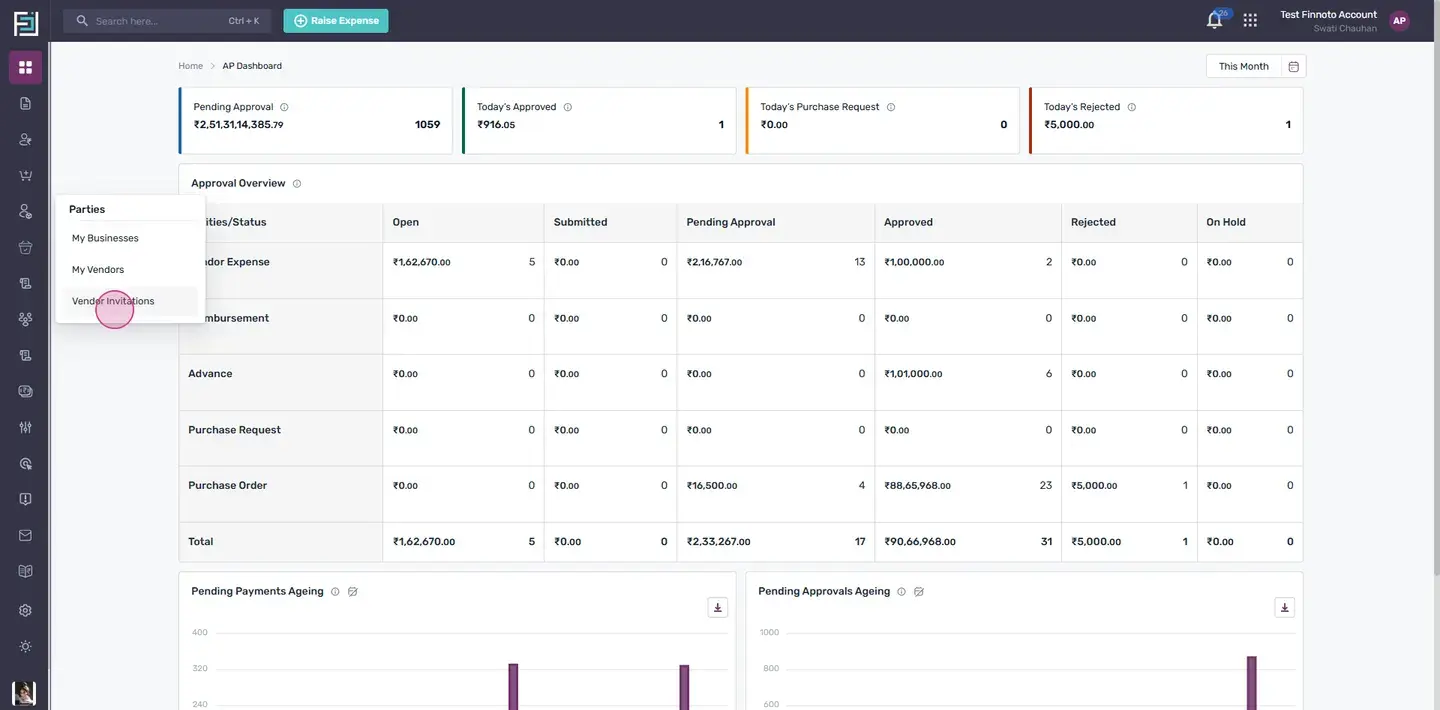
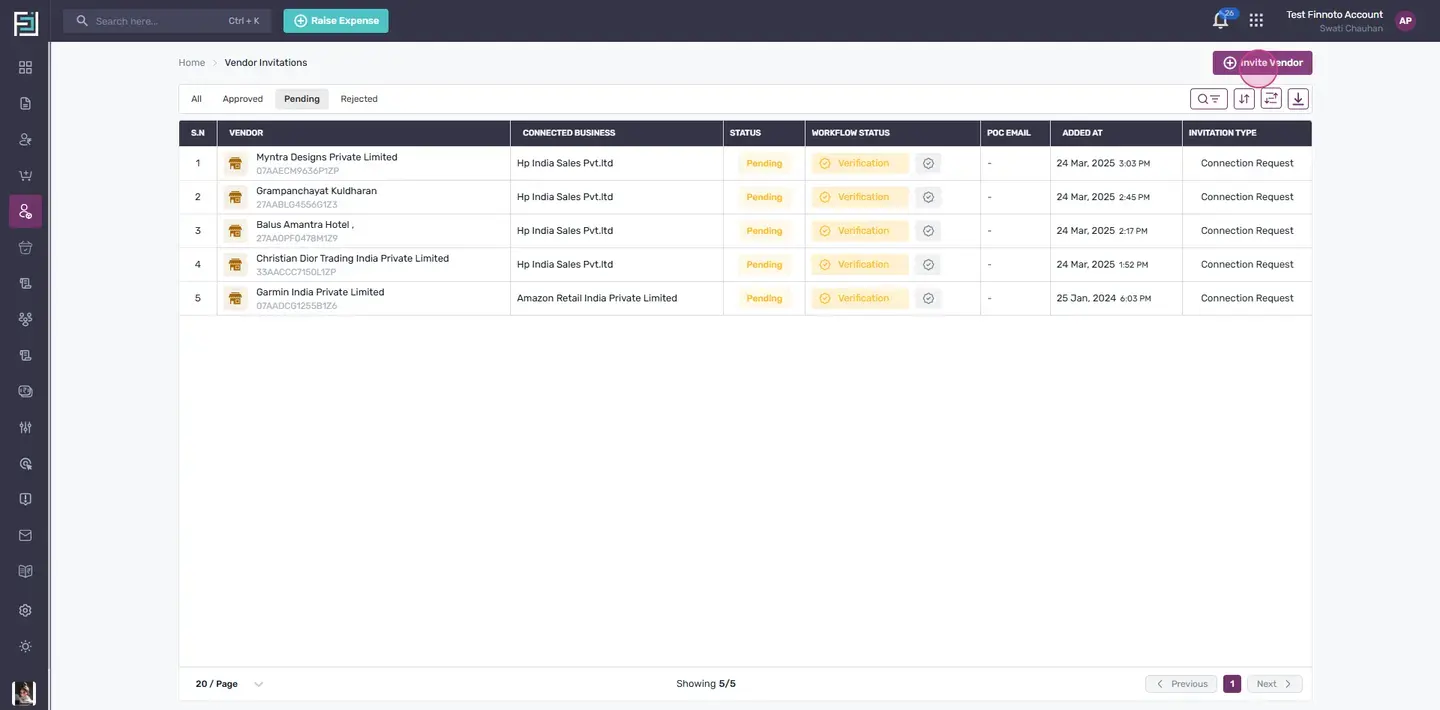
Welcome, everyone. Today, we're going to guide you through the process of onboarding a vendor on Finnoto. The AP user from your organization will need to navigate to the Parties menu and select the 'Vendor Invitation' option In the upper right corner, there's a button labeled 'Invite Vendor'. By clicking this button, the Vendor Invitation model will appear.
Here, you are presented with two options. You can either copy this link directly and share it with your vendor, facilitating their sign up on the Finnoto portal. Alternatively, you can enter your vendor's email address and share this link. Once shared, an invitation will be sent from Finnoto to your vendor's email account.
Upon clicking the link in the email, the vendor will be directed to the Finnoto sign-up page. Here, they will click on 'sign up', fill in their name, email address, and password, and then click 'next'. The vendor will then receive an email with an OTP on their registered email id They should copy & paste this verification code, click on 'verify', and then 'continue'. Next, the vendor can create a new business by entering the registered GSTIN of their business The details related to this GSTIN will be automatically fetched Once confirmed, the vendor can click on 'next' The PAN and GSTN certificate number will be fetched from the data entered by the GSTIN.
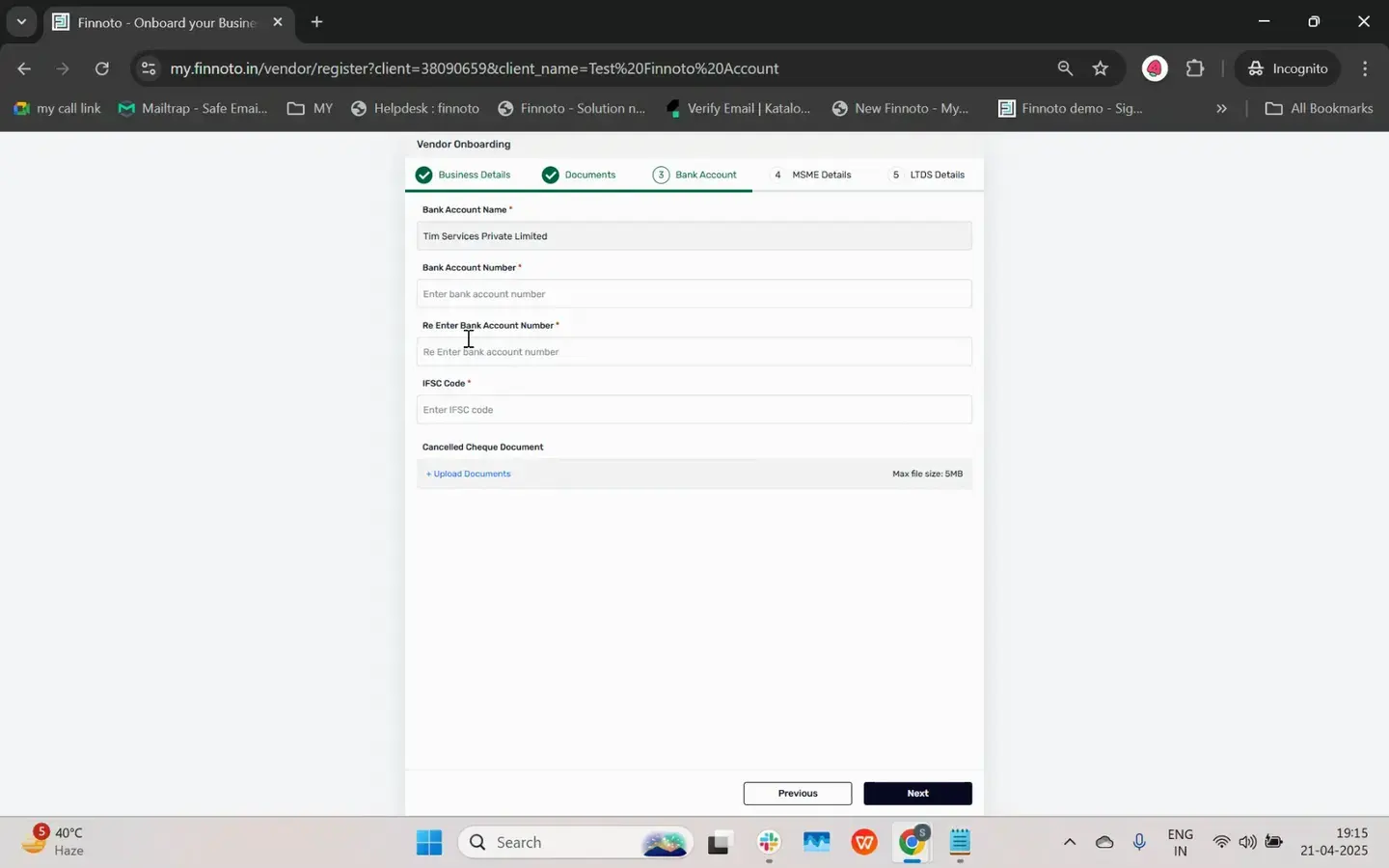
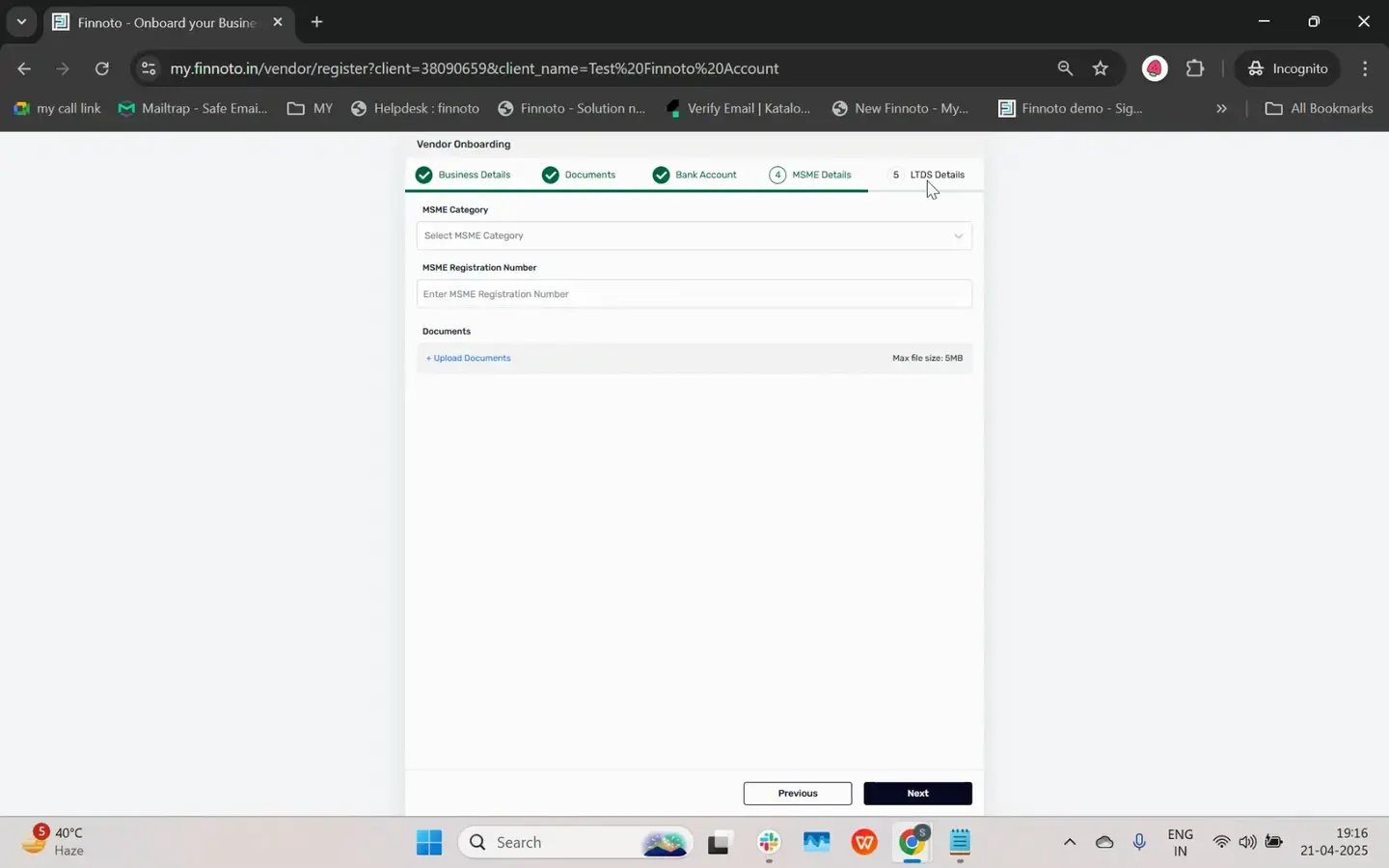
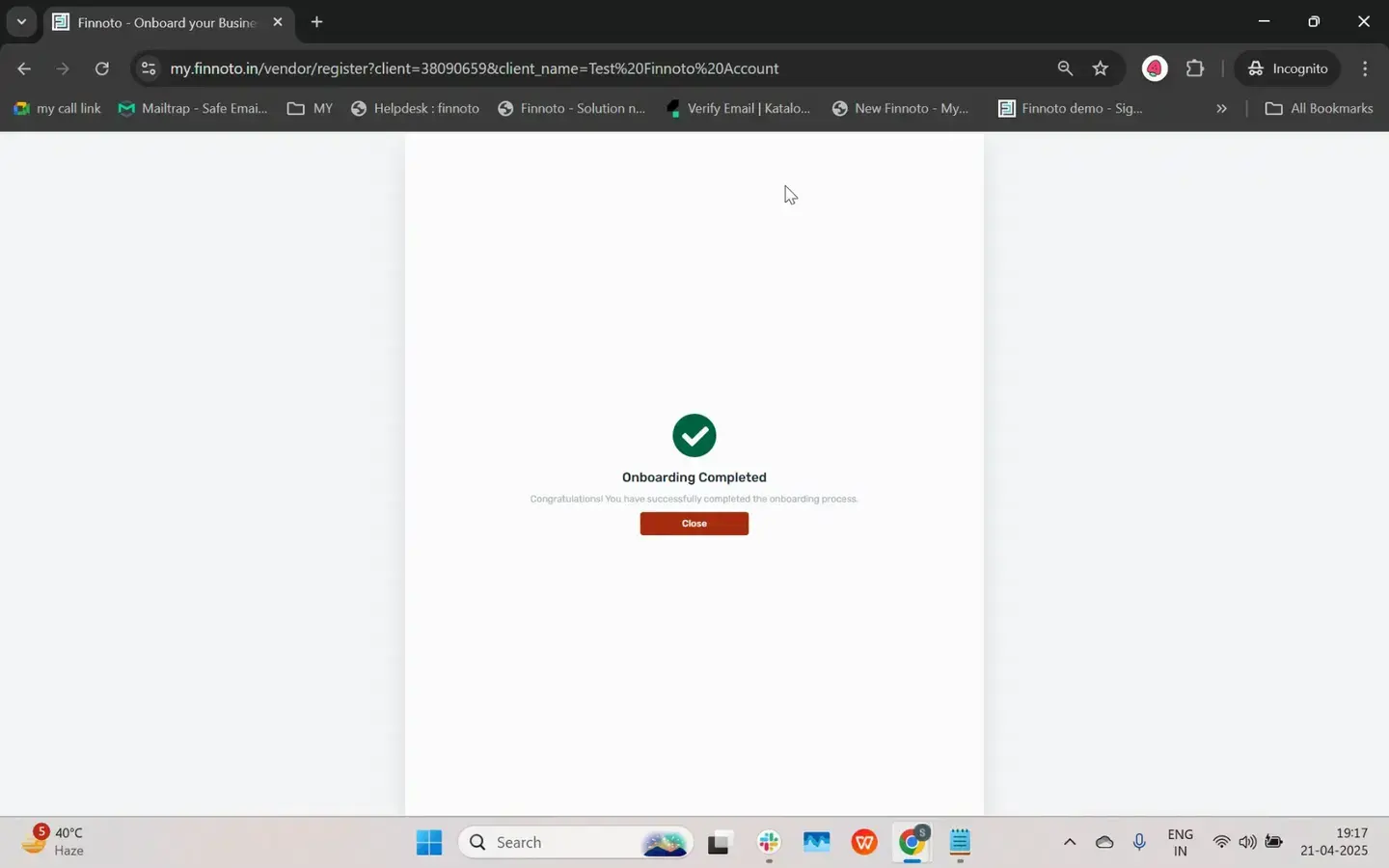
Clicking 'next' will then prompt the vendor to input their bank account details Vendors classified as MSMEs will need to provide their MSME details. Vendors with a lower TDS certificate must also provide this information. You can complete the vendor onboarding process by clicking 'next'. If you're logged out, your screen locks, or the window is accidentally closed, simply log back in using your credentials.
Once logged in, navigate to the "Clients" menu, select "My Clients", and add a client by clicking the "Add Client" button and using the client id that was provided in your invitation email. If there are no interruptions and the window remains open after onboarding, you can proceed with connecting to the client. After successfully onboarding the vendor on the Finnoto portal, the next step is to connect with the client. Initiate this by clicking on the 'Connect' button.
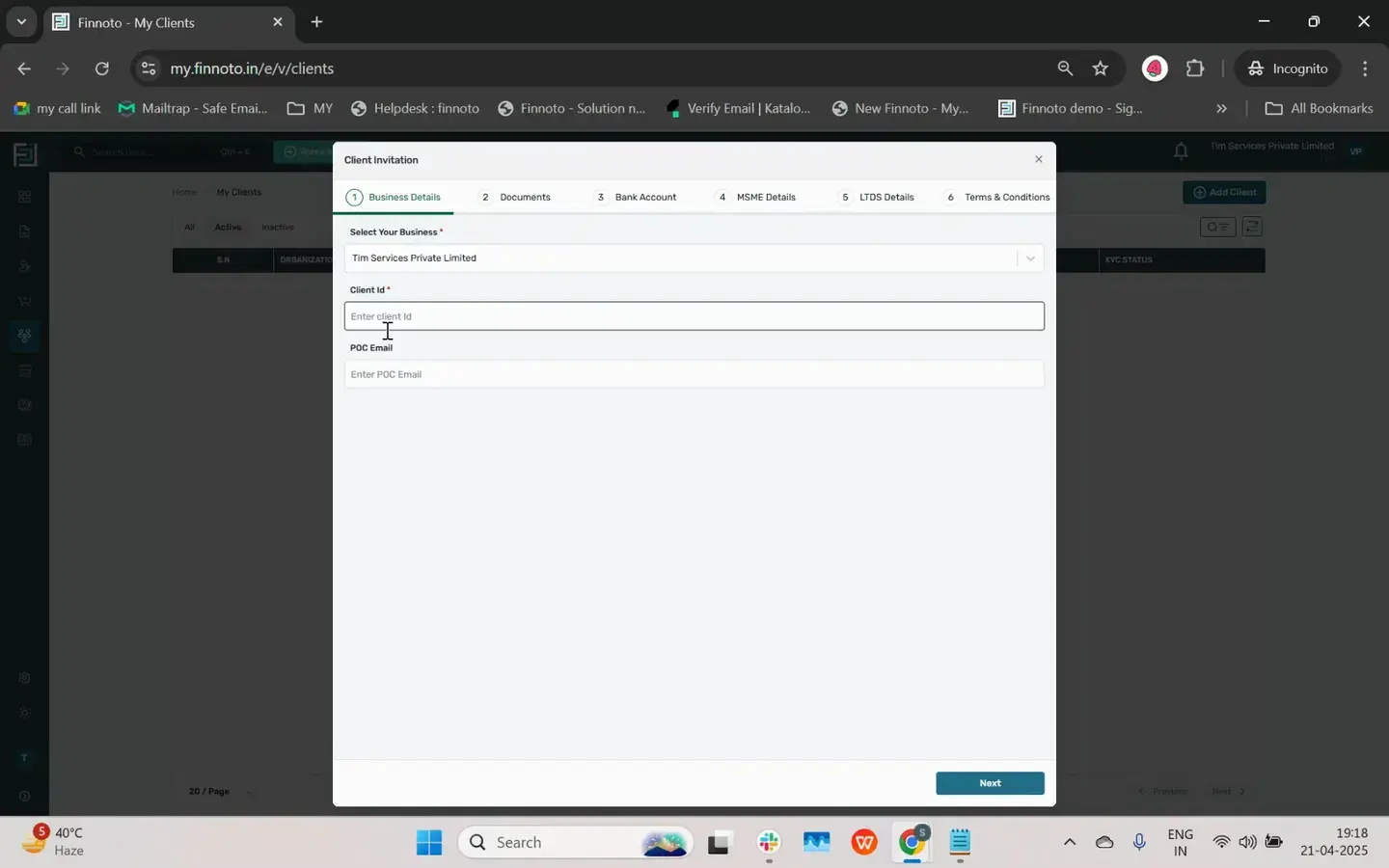
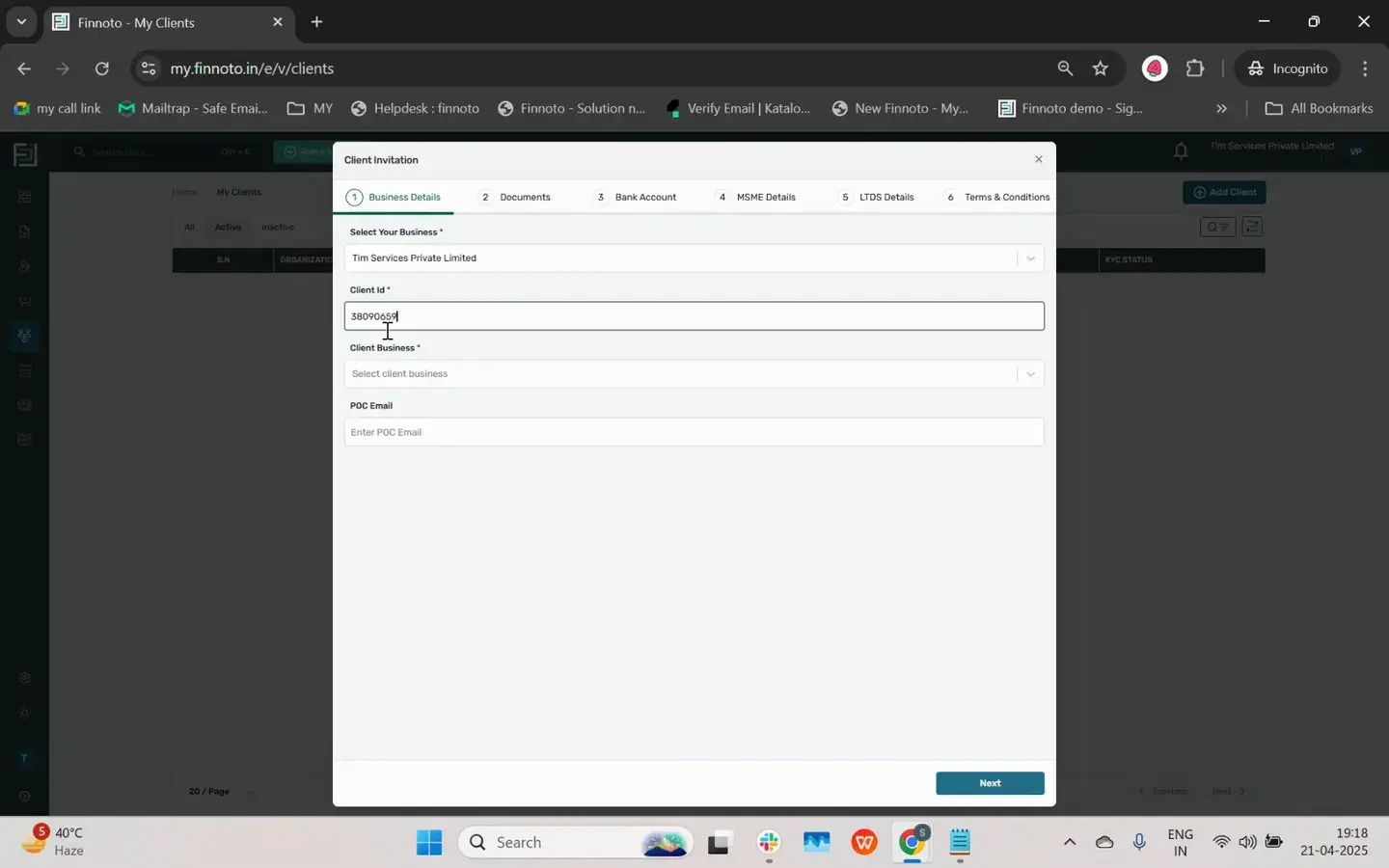
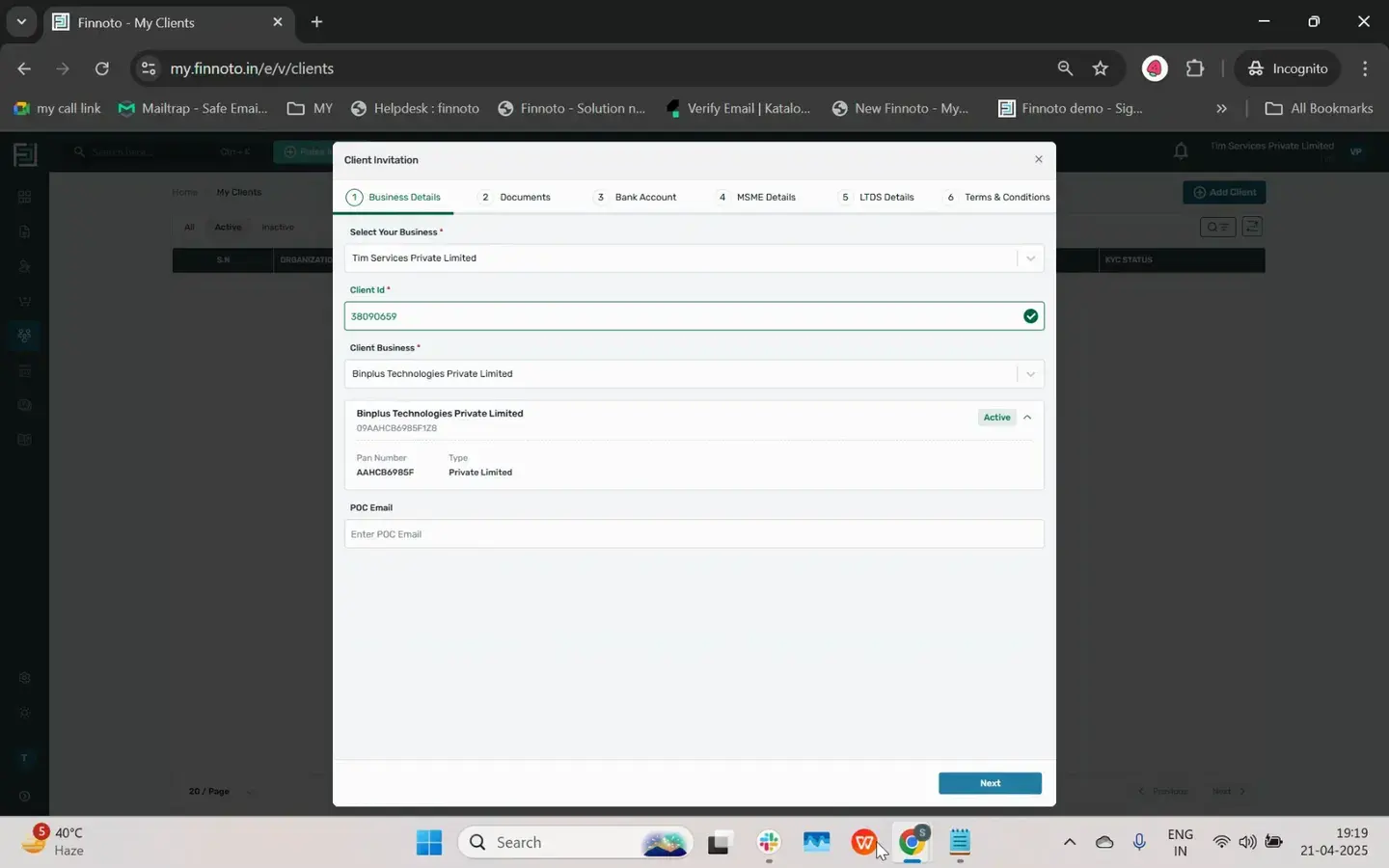
Your business details and client ID will be displayed here. Using the client ID all businesses associated with this client will appear. Select the specific business you wish to connect with. If the window is closed after vendor onboarding and you are logged out, log back into your vendor portal, navigate to the 'My Client' section, and click on the 'Add Client' button.
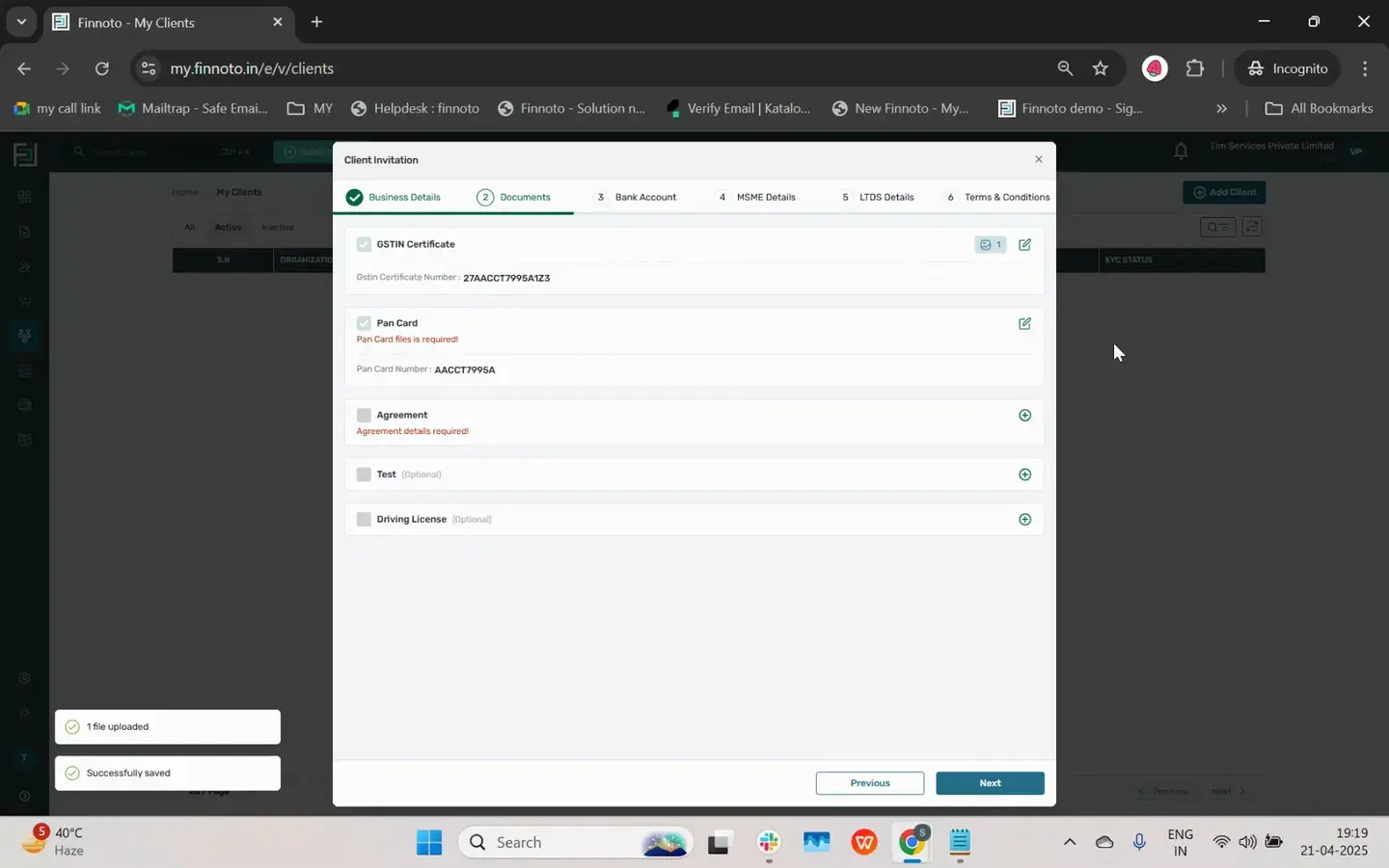
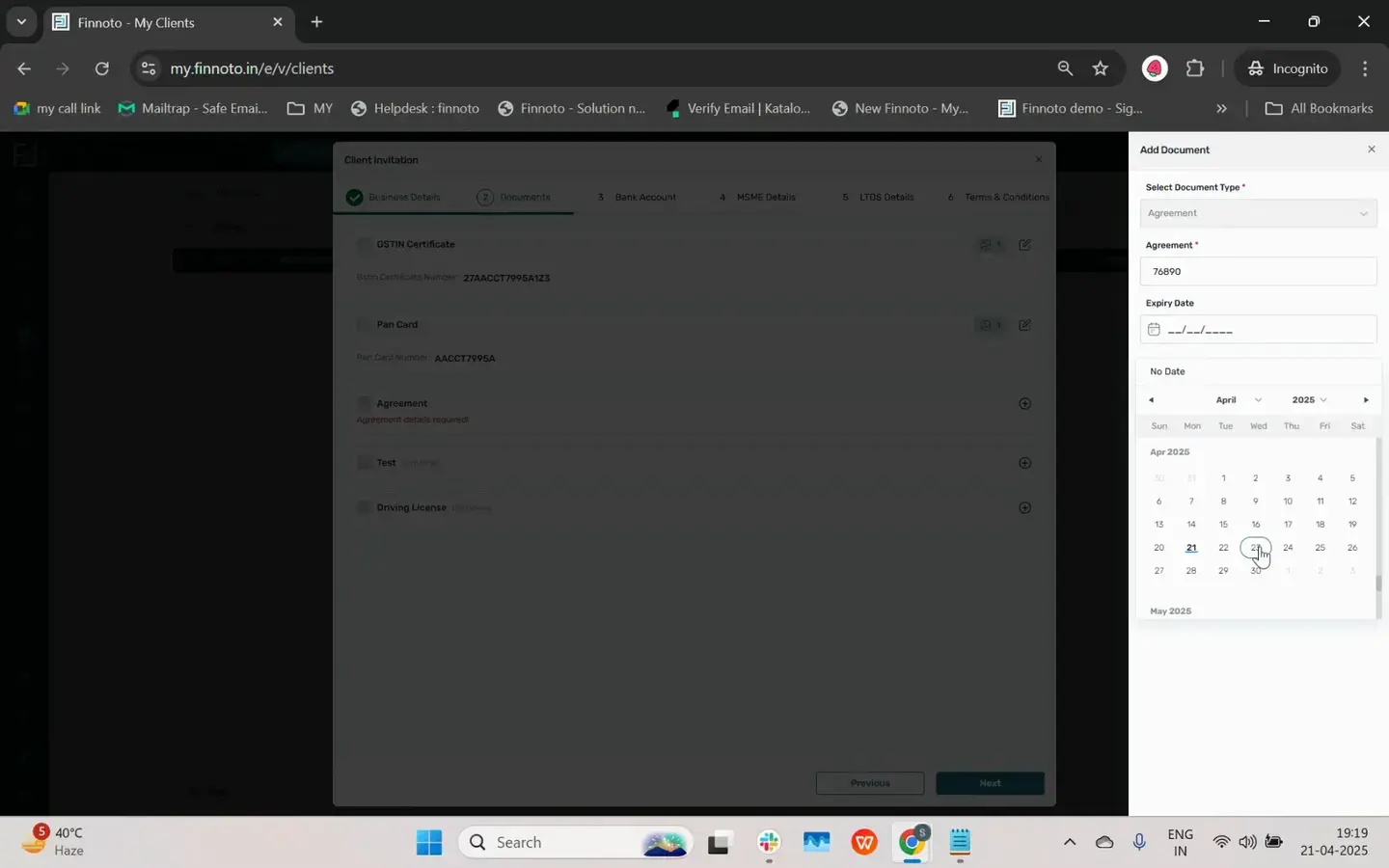
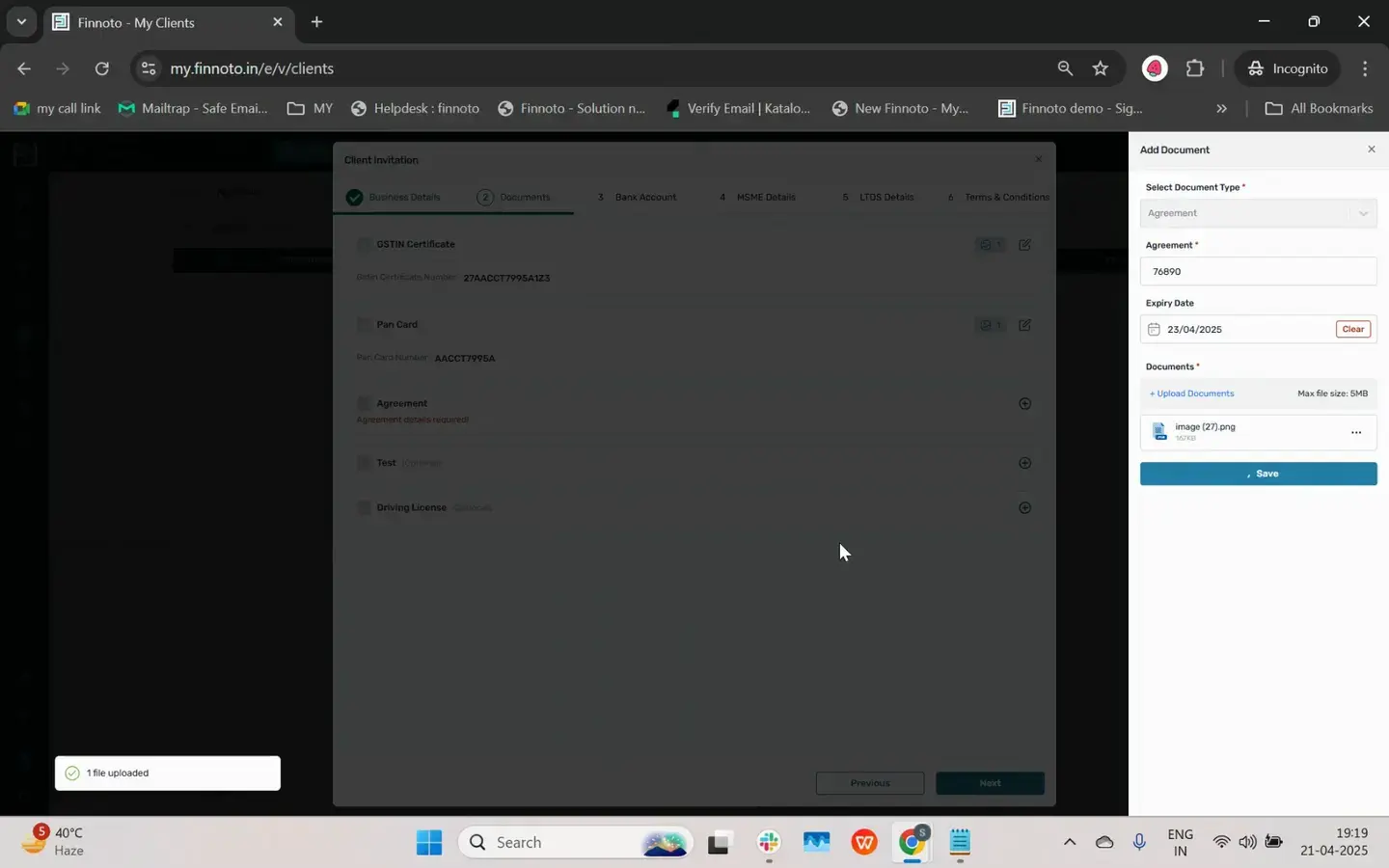
Here, enter the client ID provided in the invitation email, or you can directly ask your client for the client ID. Upon entering the client ID all businesses associated with this client ID will appear. Select the client business you wish to connect with. In the documents section The GSTIN number will already be present, but you will need to upload the required file.
Upload the PAN card document If the client requires any additional documents, provide the necessary information and add the required document. The bank account you entered during the onboarding process will appear as the default. You can upload the cancelled cheque, and if you wish to enter details for the MSME category or L. T.
D. S, you are free to do so. The client's terms and conditions will be presented for your review. If you are in agreement, kindly mark the checkbox and proceed by clicking 'Submit'.
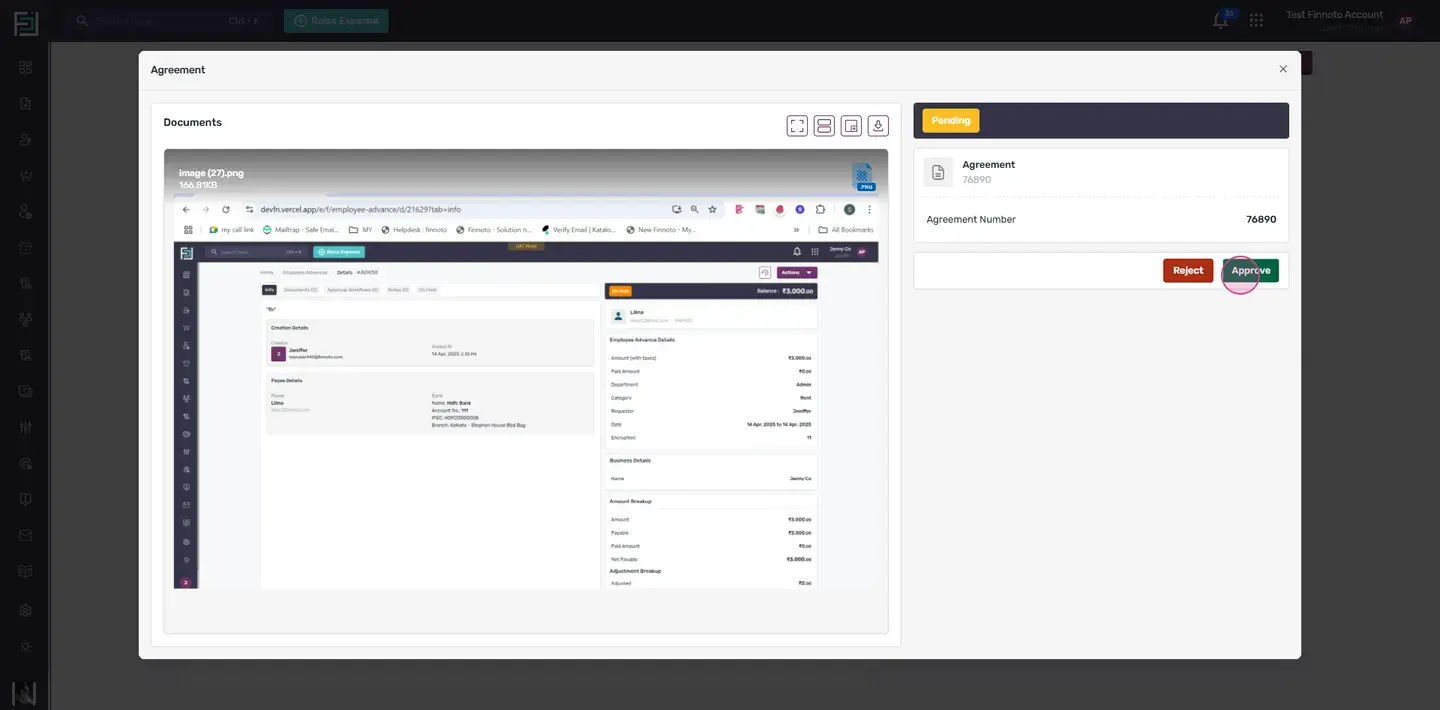
This will send an invitation to the AP user or client who has the authority to approve the documents and the invitation. Currently, the invitation is in a pending state, indicating that the vendor is not yet able to raise an invoice as the connection with the client is not yet established. The process of raising an invoice between the client and the vendor can only be initiated once the client approves the invitation. The vendor's invitation will then be visible to the AP user The AP user has the choice to approve the documents by clicking on the documents.
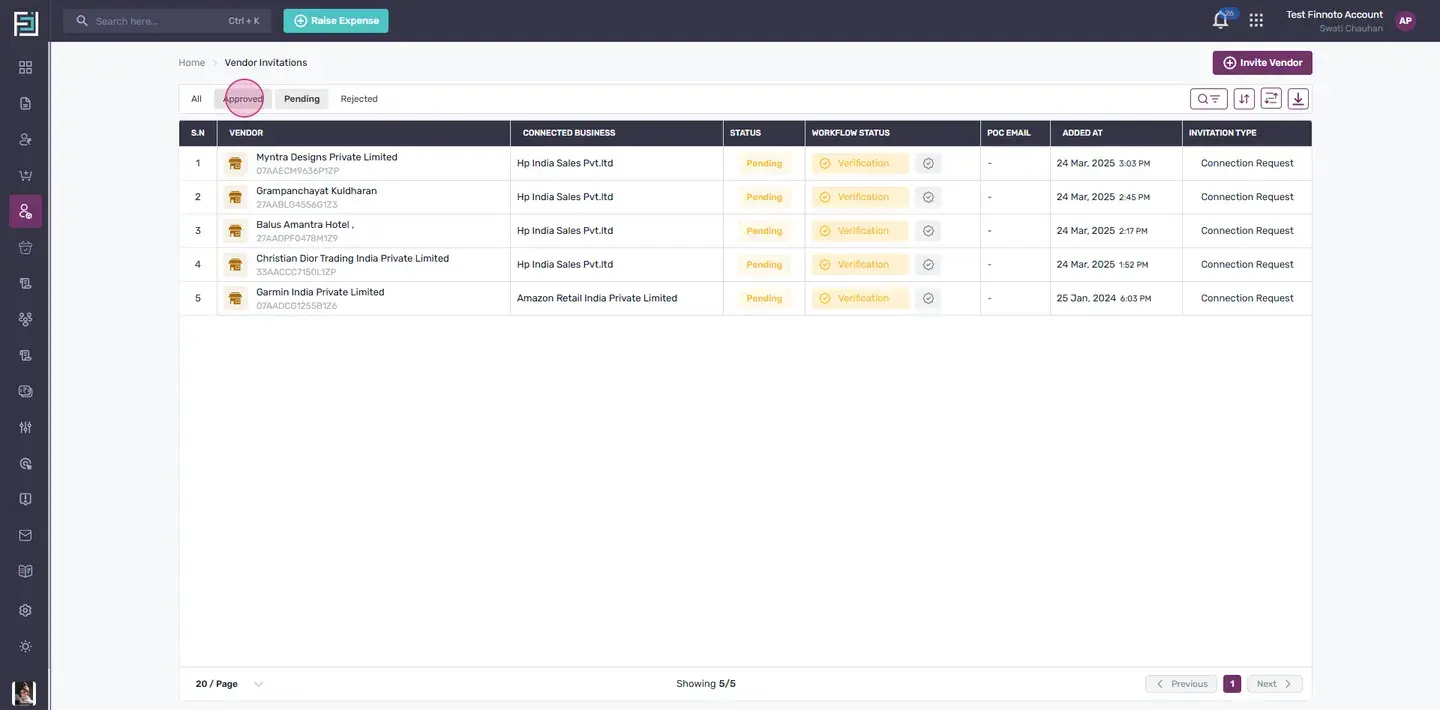
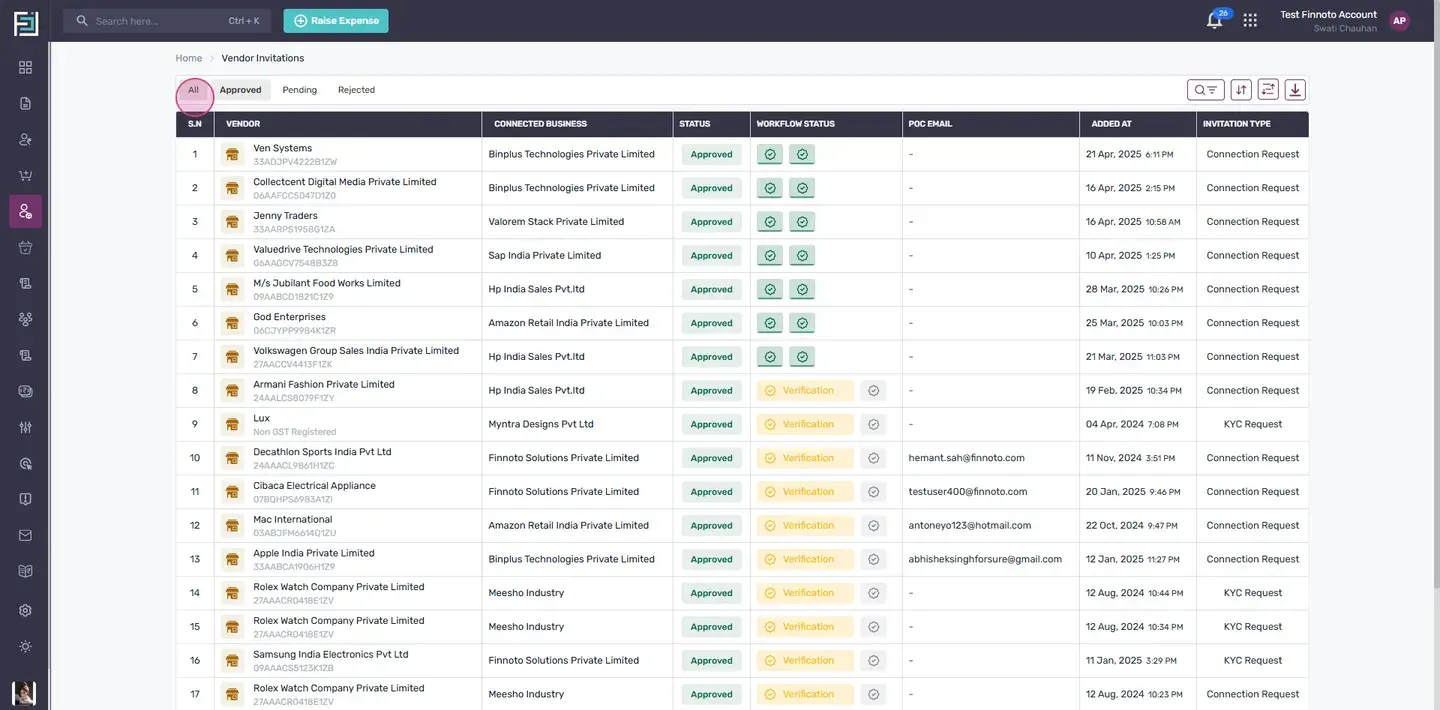
Alternatively, they can choose to reject the idocuments, allowing the vendor to resubmit the documents if the invitation is not approved Upon approval of the invitation the AP user can confirm the vendor's invitation Following approval, the vendor's invitation will appear in the approved section, and the client will be listed in the 'My Clients' section. At this point, if the vendor raises an invoice, they will have access to the client's details, provided the client has approved the invitation. This is the simple and efficient process for onboarding a vendor on the Finuto portal. Thank you.
In this tutorial, you'll learn how to onboard a vendor on Finoto. This process involves inviting the vendor, completing the registration process, and establishing a connection with the client.
Click the Invite Vendor button located at the top right corner.
A Vendor invitation model will open
Here, you have two options. First, copy the link and share it directly with your vendor. This link allows your vendor to sign up on the Finoto portal. Second, enter the vendor's email address.
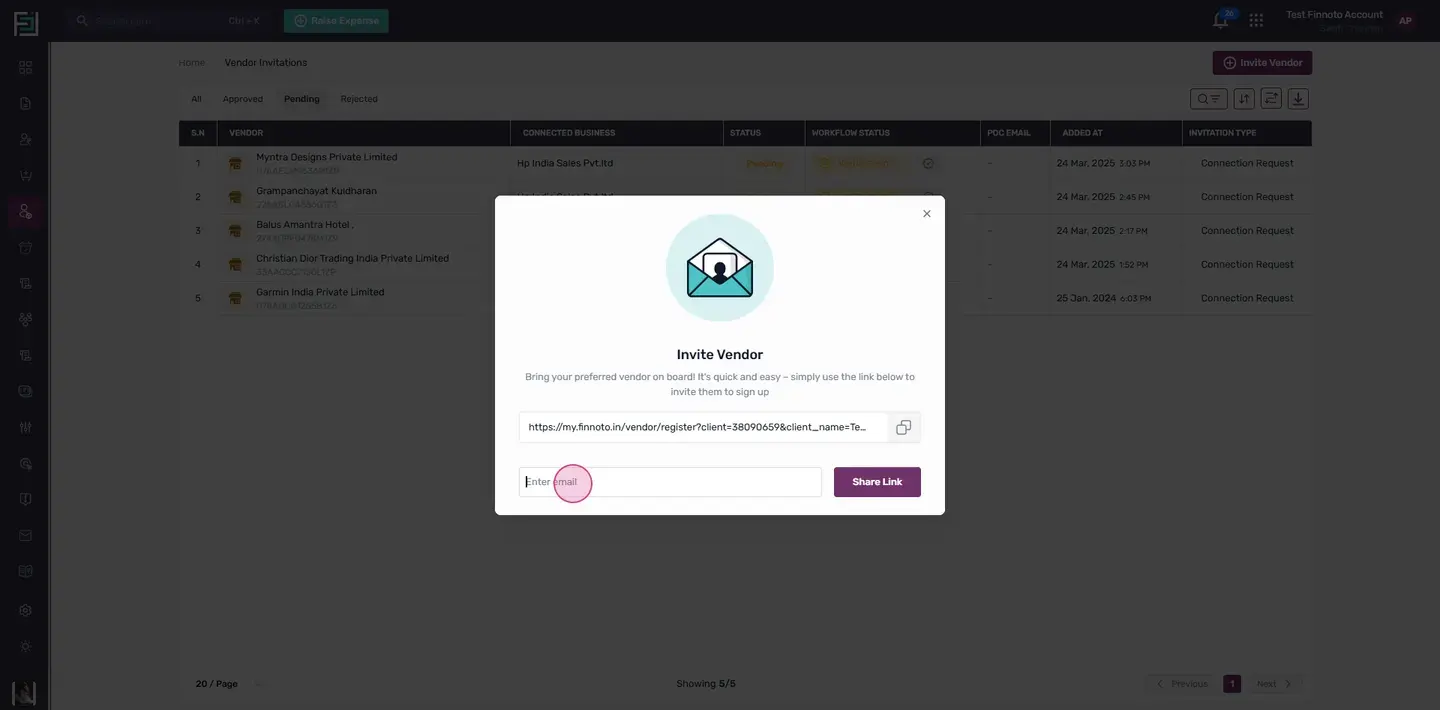
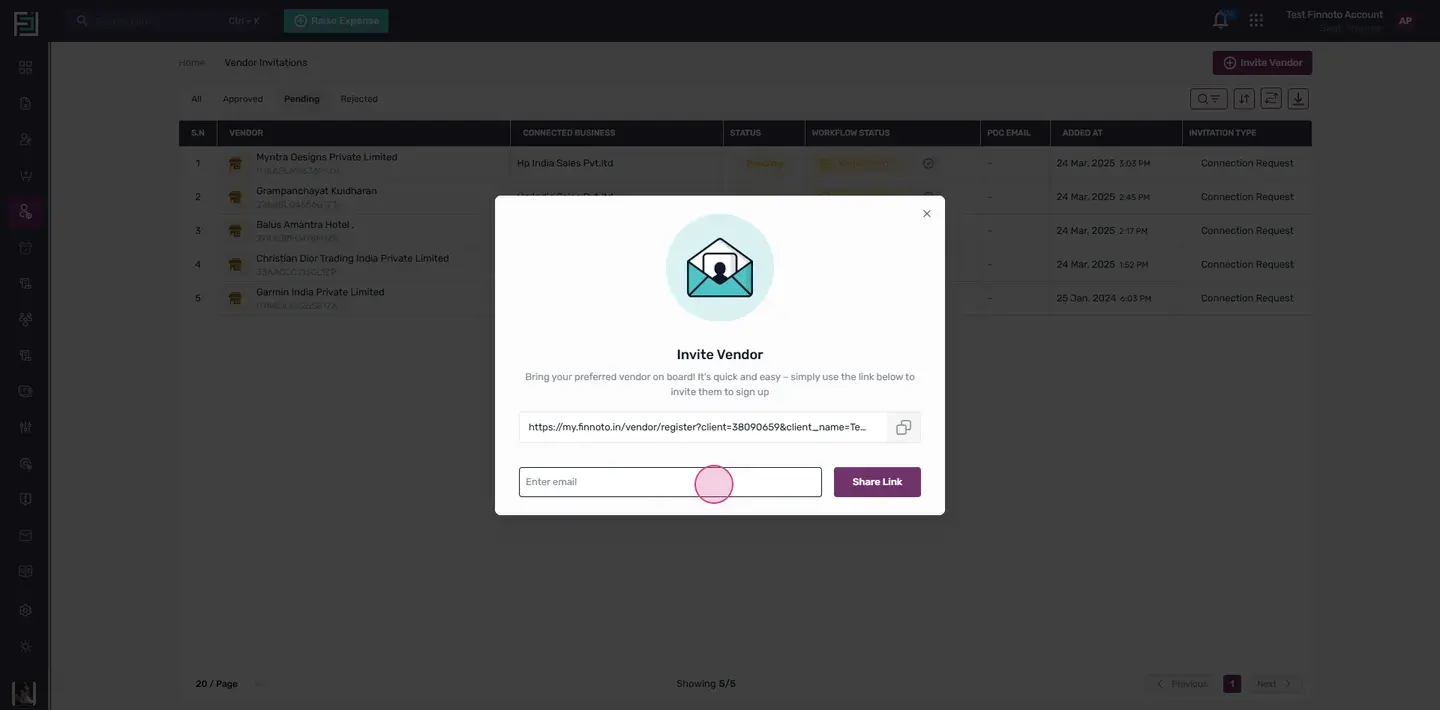
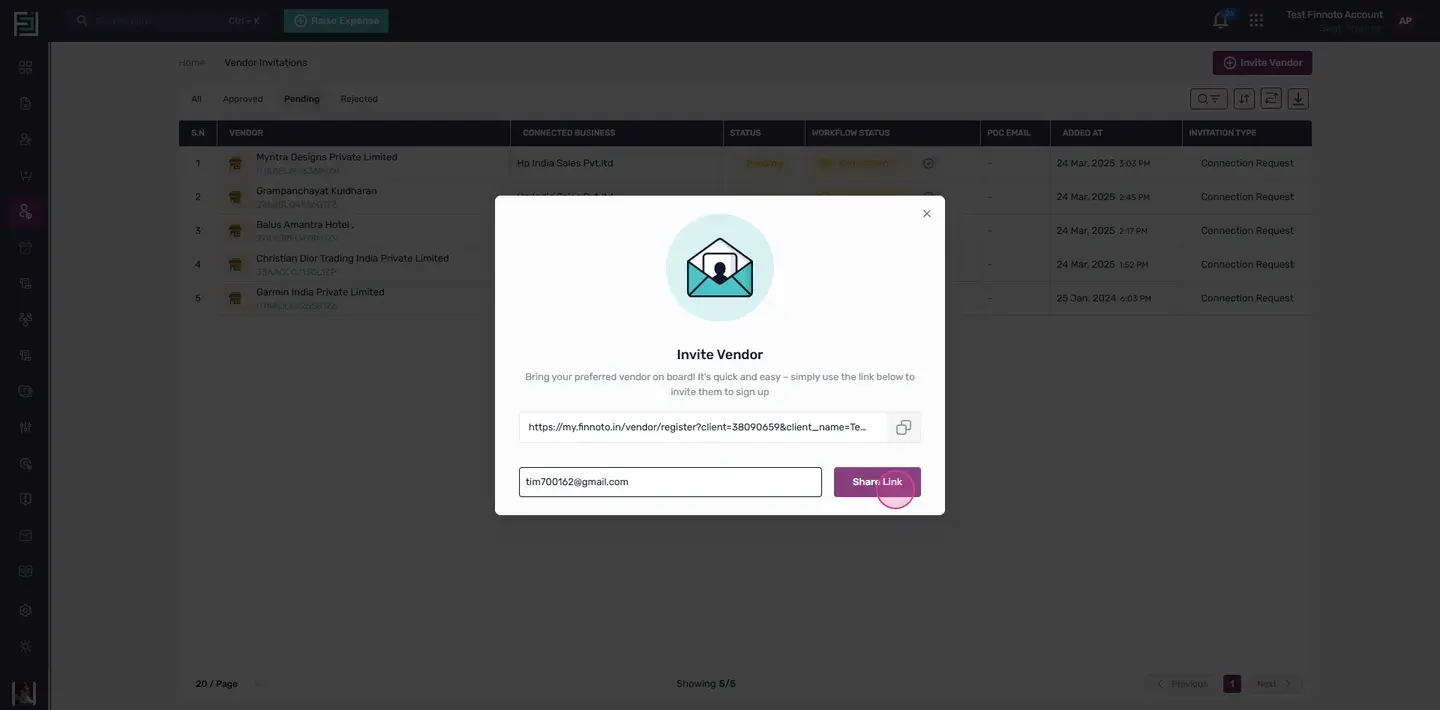
Once you share the link, an invitation will be sent to your vendor's email account from Finuto.
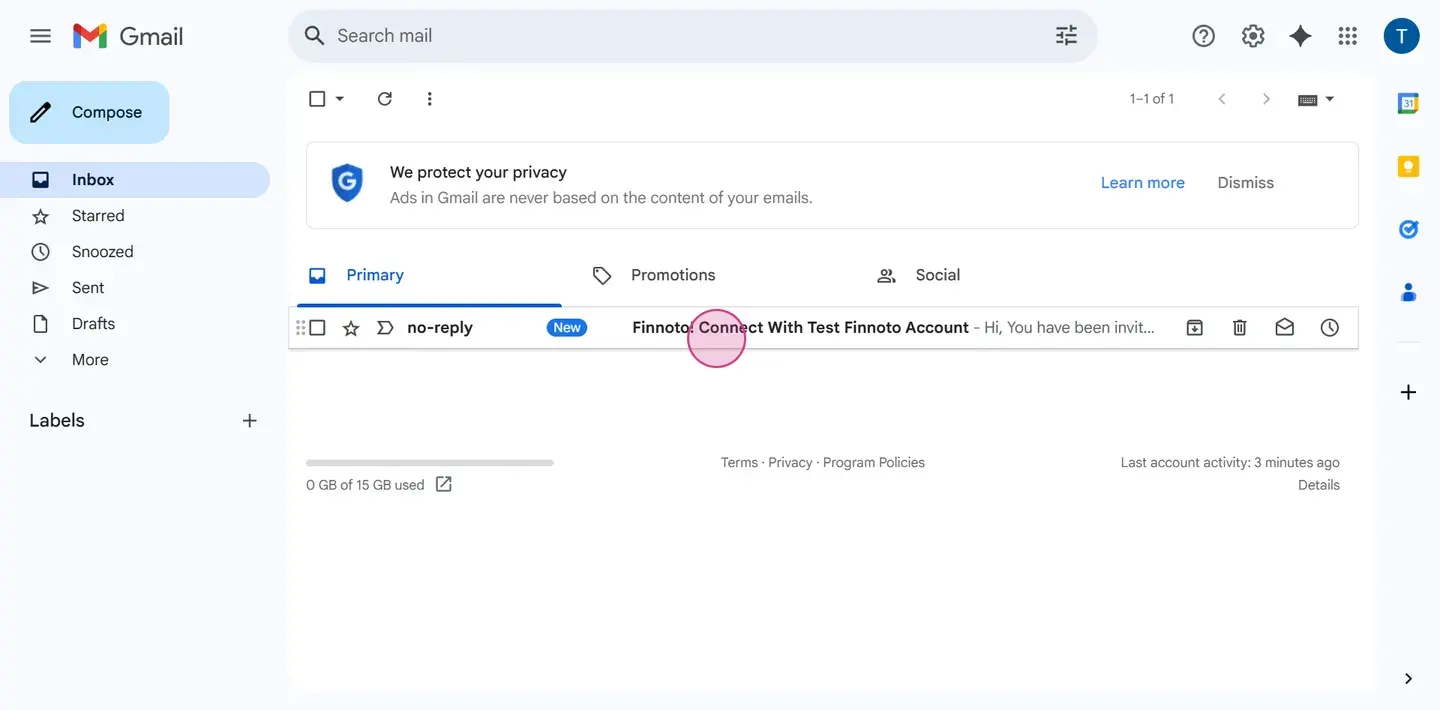
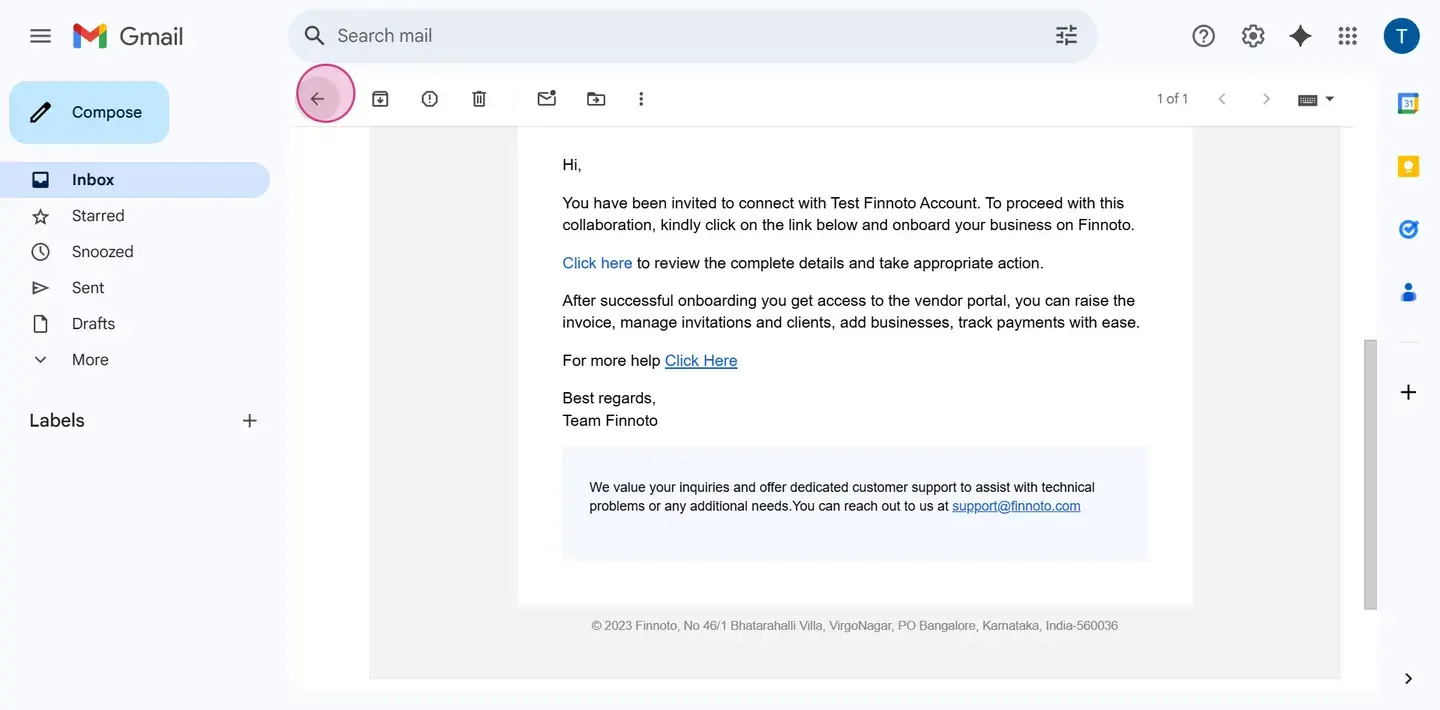
The vendor will receive an email from Finuto
By clicking on the link in the email, they'll be directed to the sign-up page of Finuto. Here, they'll enter their name, email address, and password, then click Next. The vendor will receive an email with an OTP on their registered email ID.
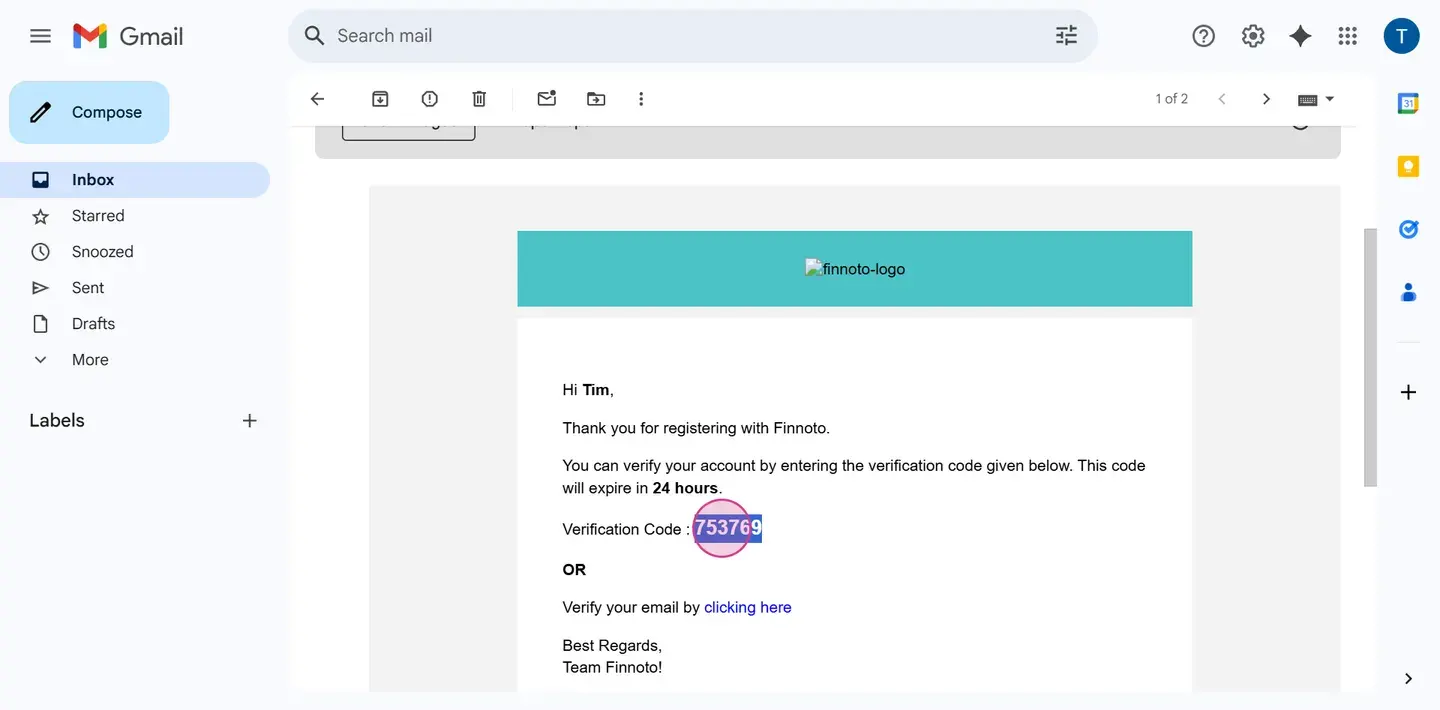
Click Verifier, then Continue
The vendor can then create a new business. They'll need to enter the registered GSTIN of their business. The details related to this GSTIN will automatically fetch. Once confirmed, click Next.
The PAN and GSTN certificate number will be fetched from the data of the entered GSTIN. Click Next.
The vendor needs to provide their bank account details
If the vendor is an MSME vendor, they'll need to fill in their MSME details. If the vendor has a lower TDS number, they'll need to fill in the details here. Click Next to complete the onboarding process.
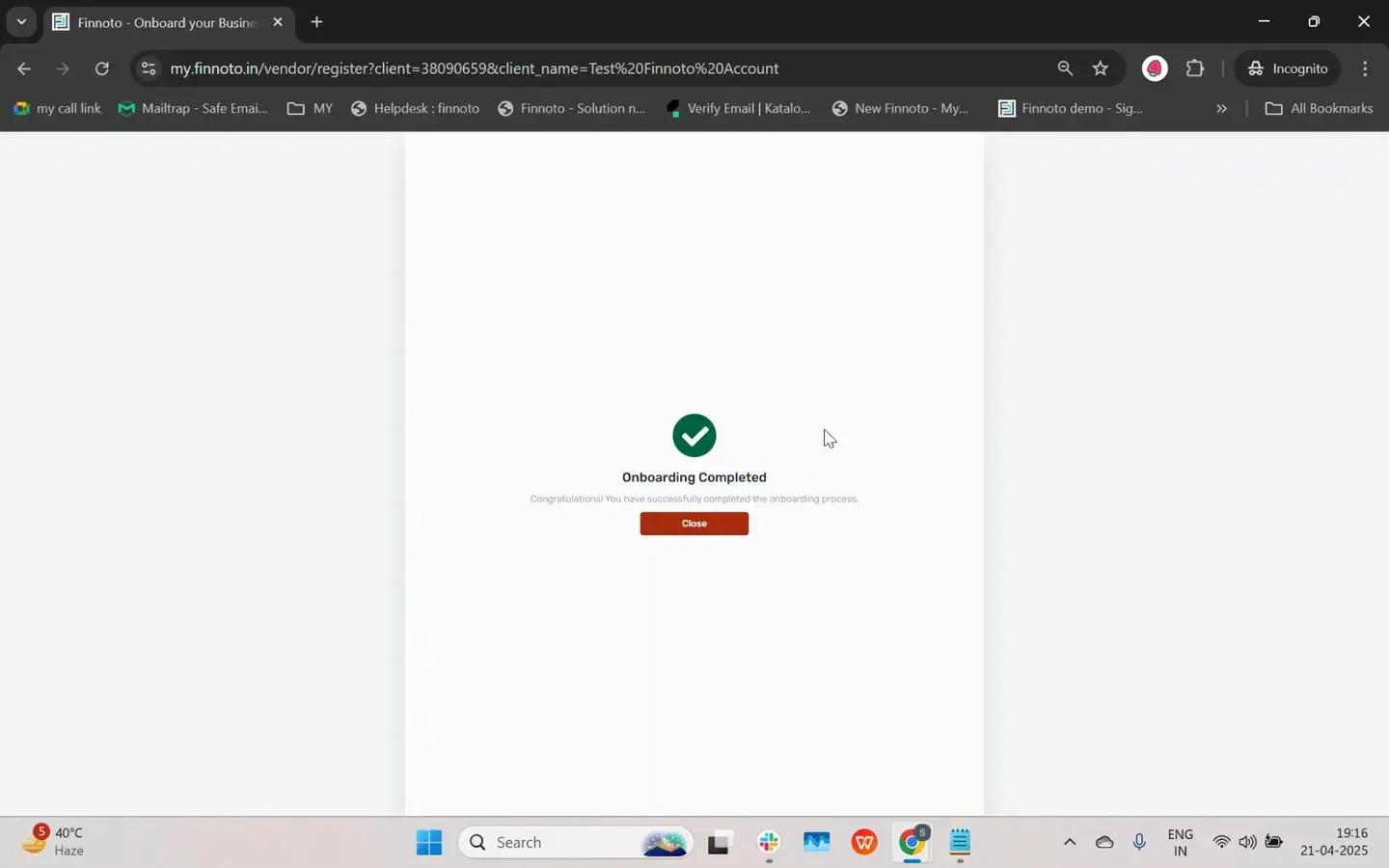
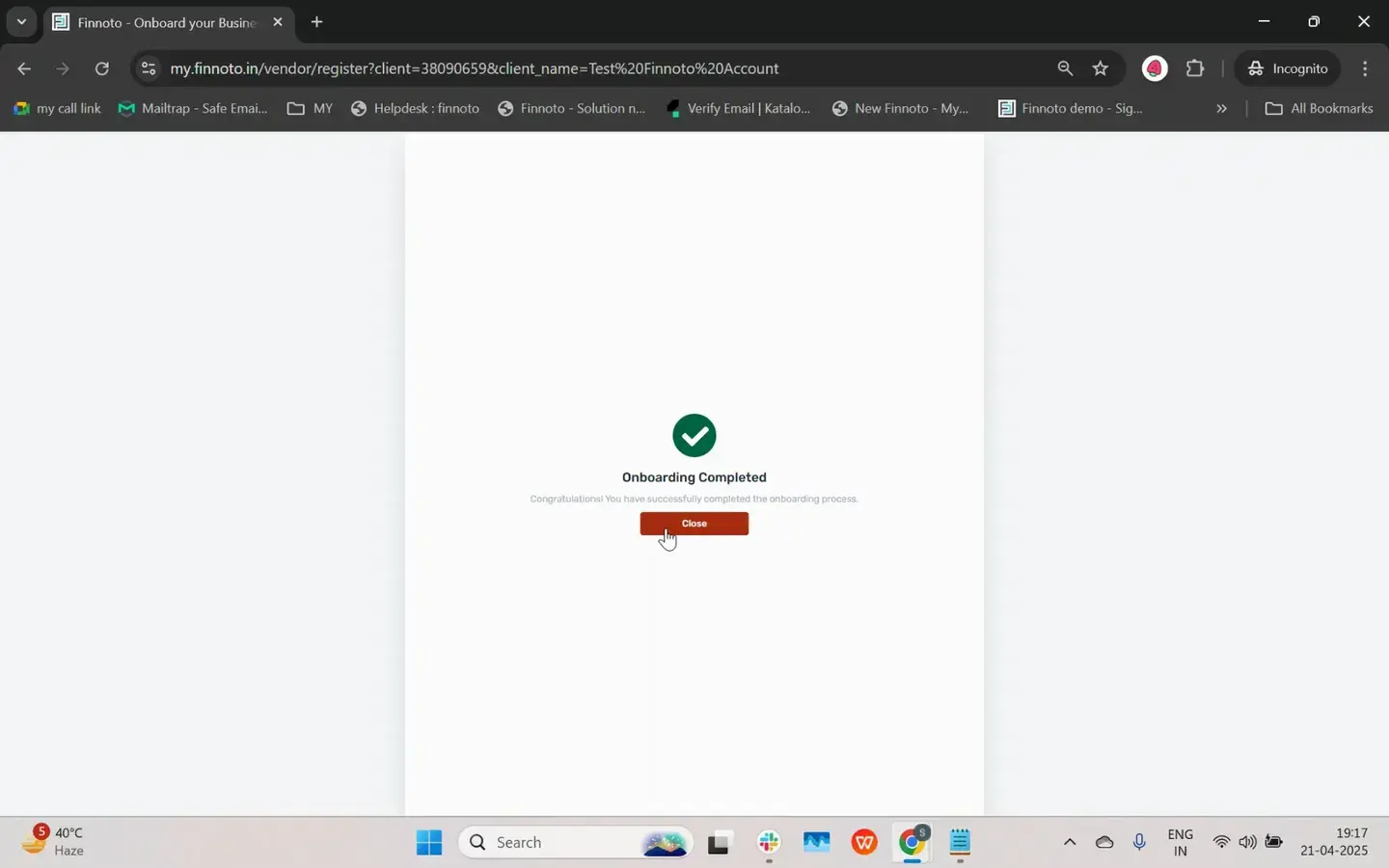
If you're logged out or the screen is locked out, re-login with your credentials. Navigate to the Add Client window.
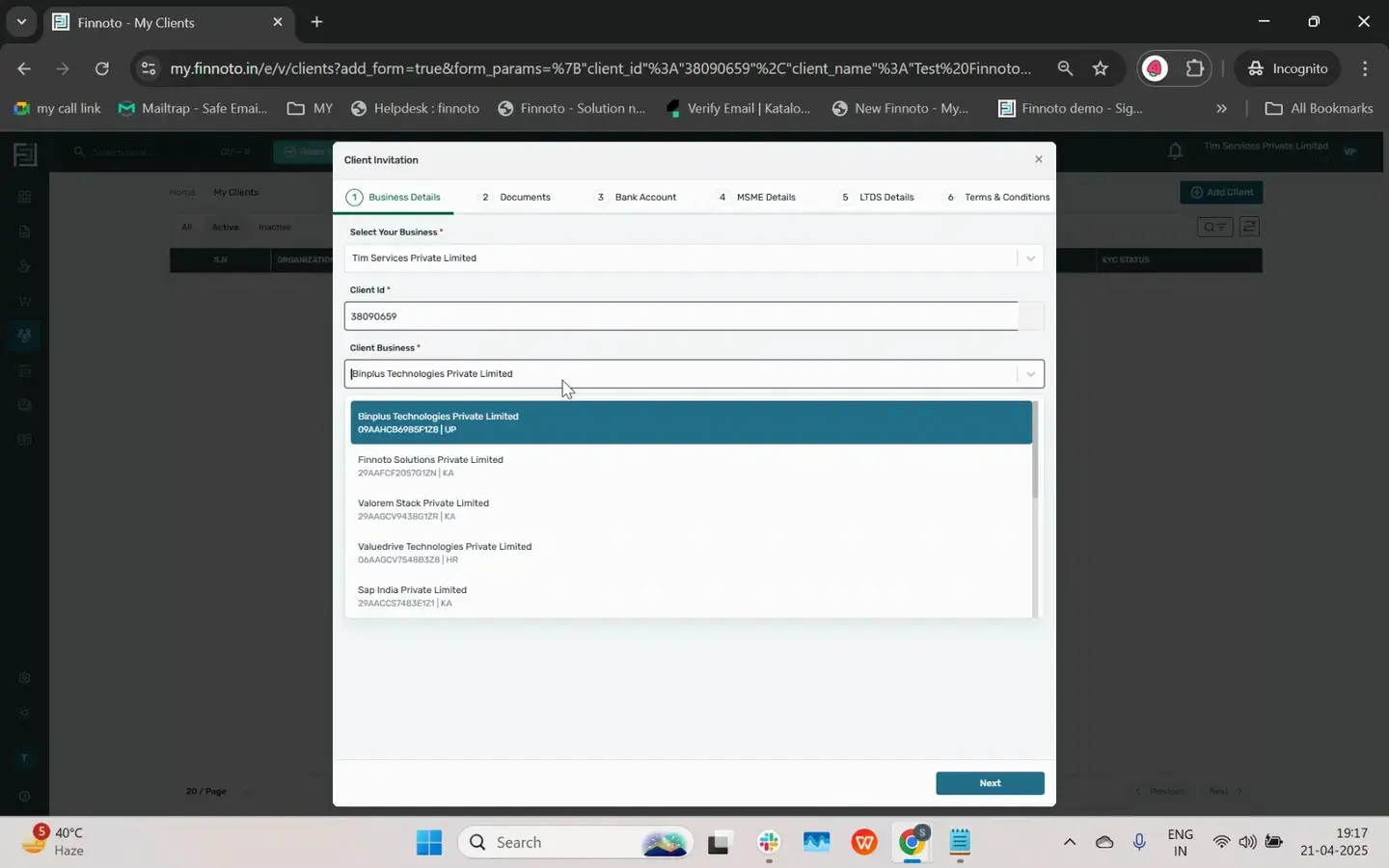
Using the client ID, all businesses related to this particular client will appear. Select the business you want to connect with.
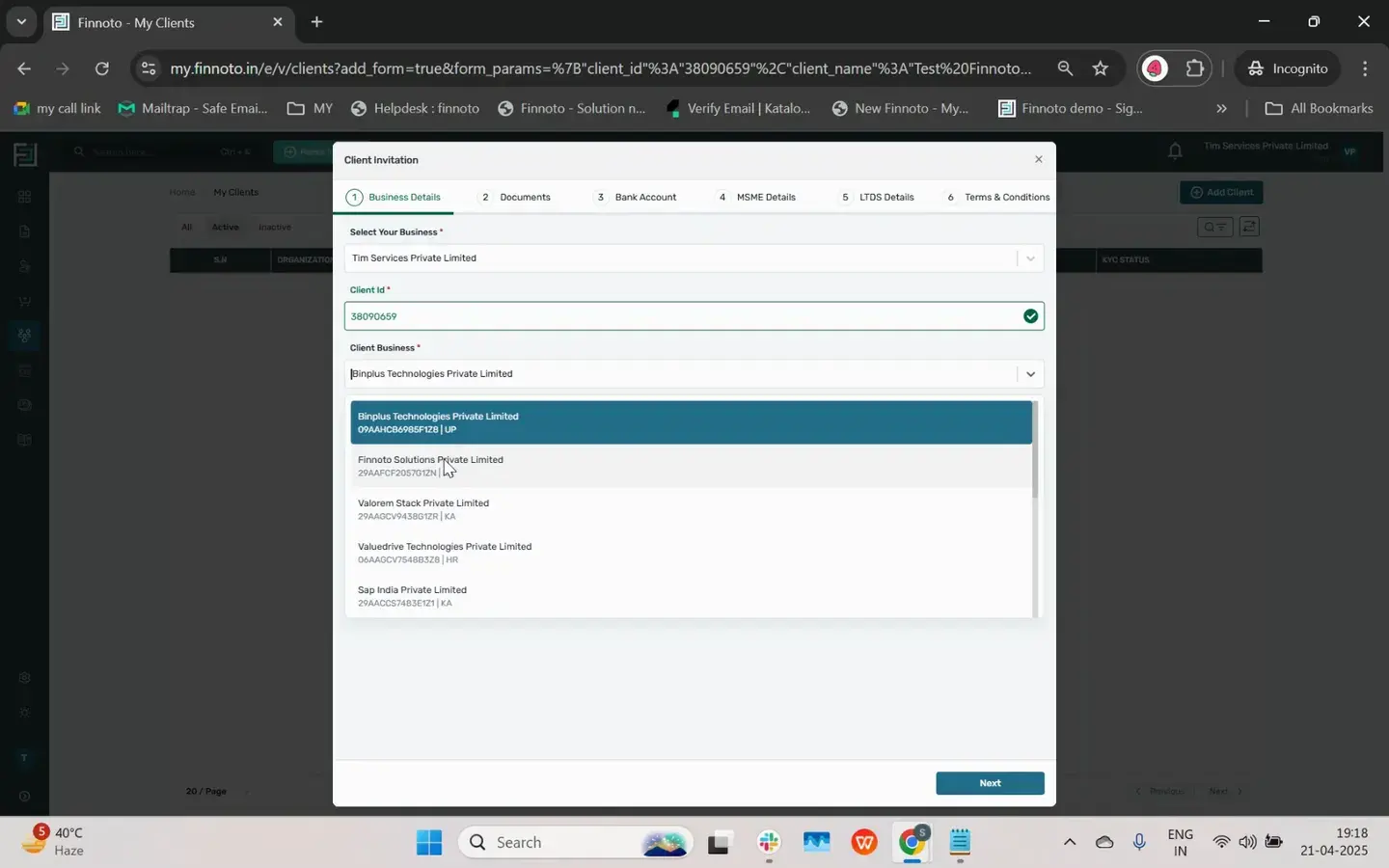
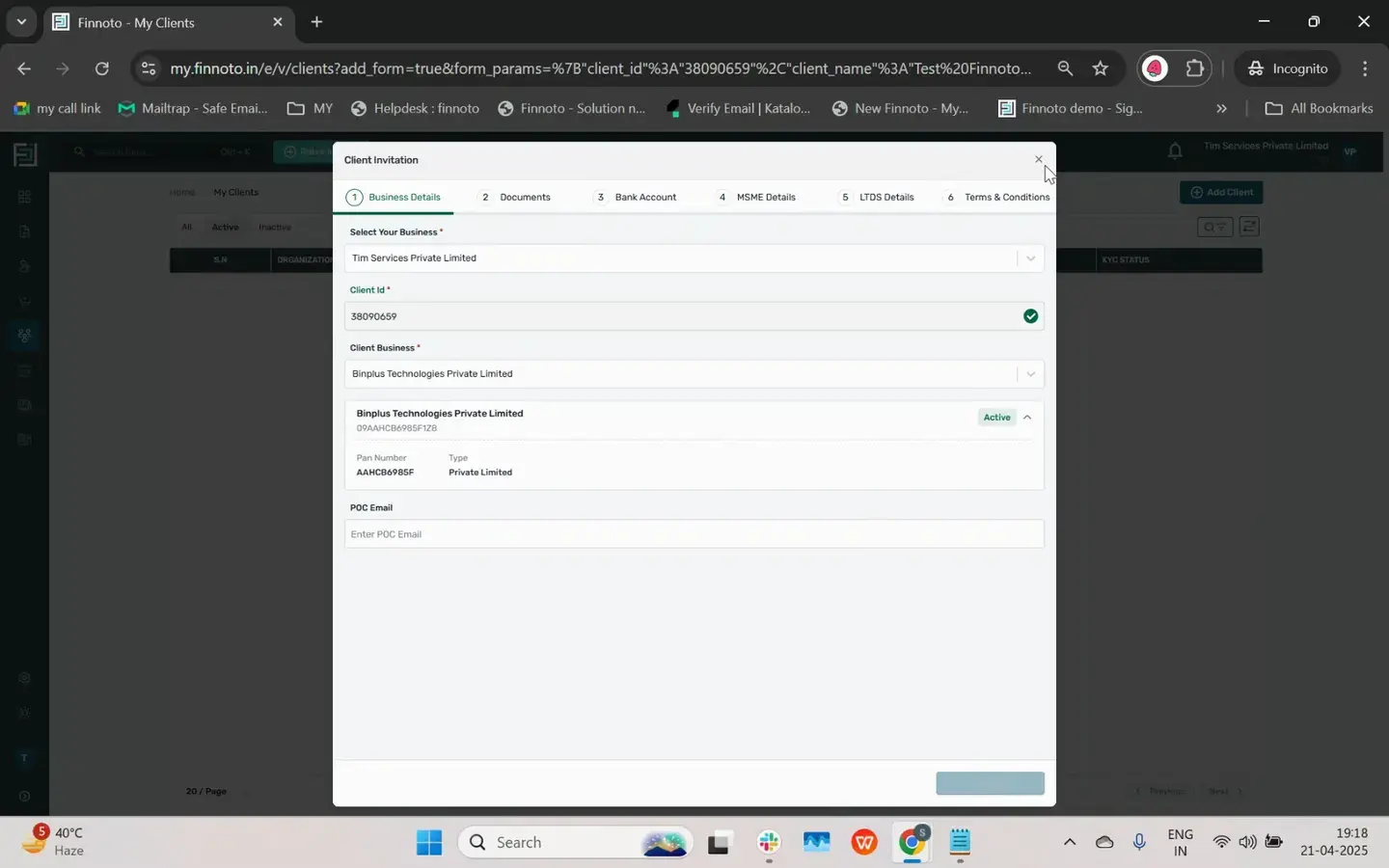
If you logged out after vendor onboarding, log in to your vendor portal and navigate to the My Client section. Click Add Client.
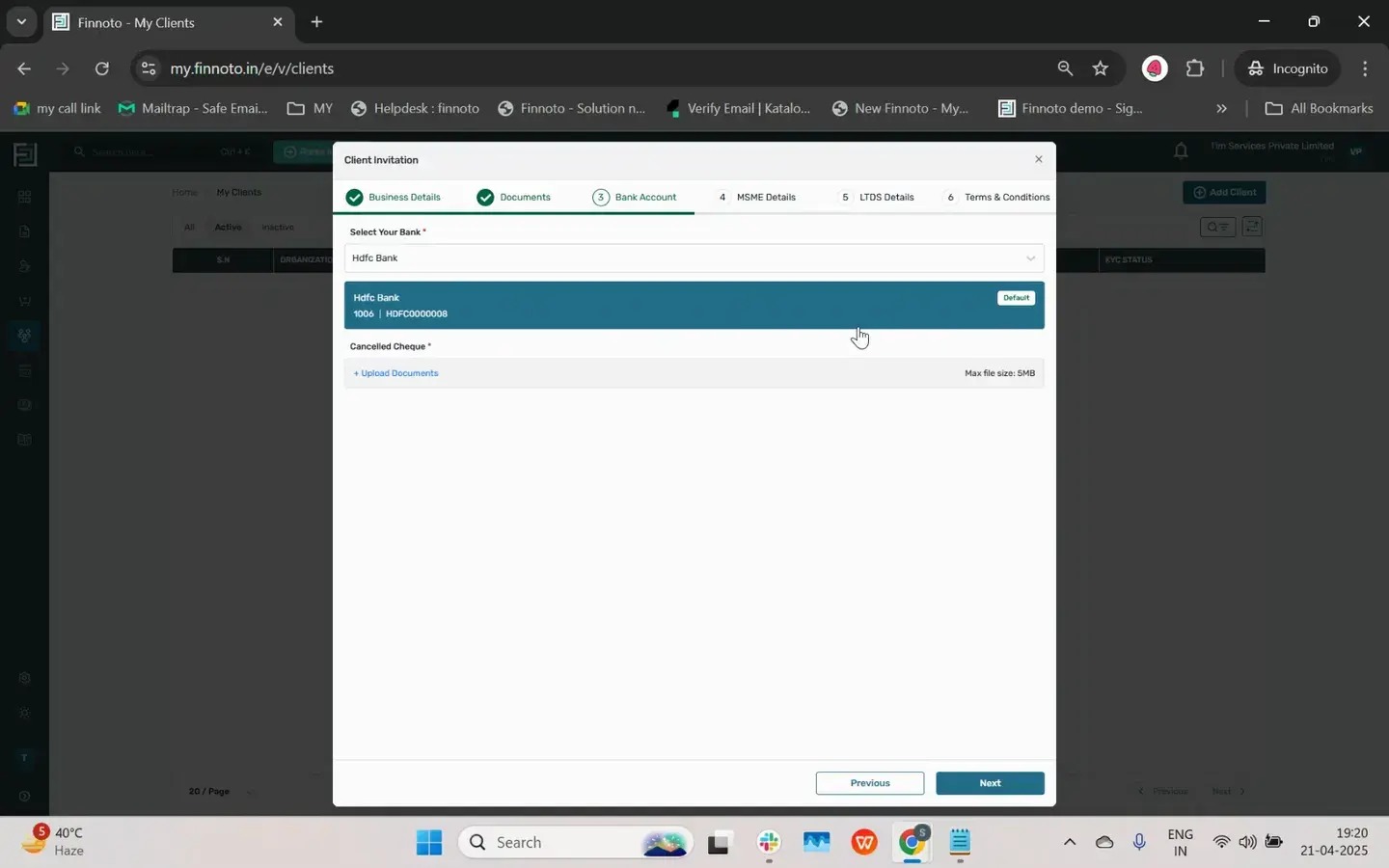
The bank account entered during onboarding will appear as the default. Upload the cancelled check.
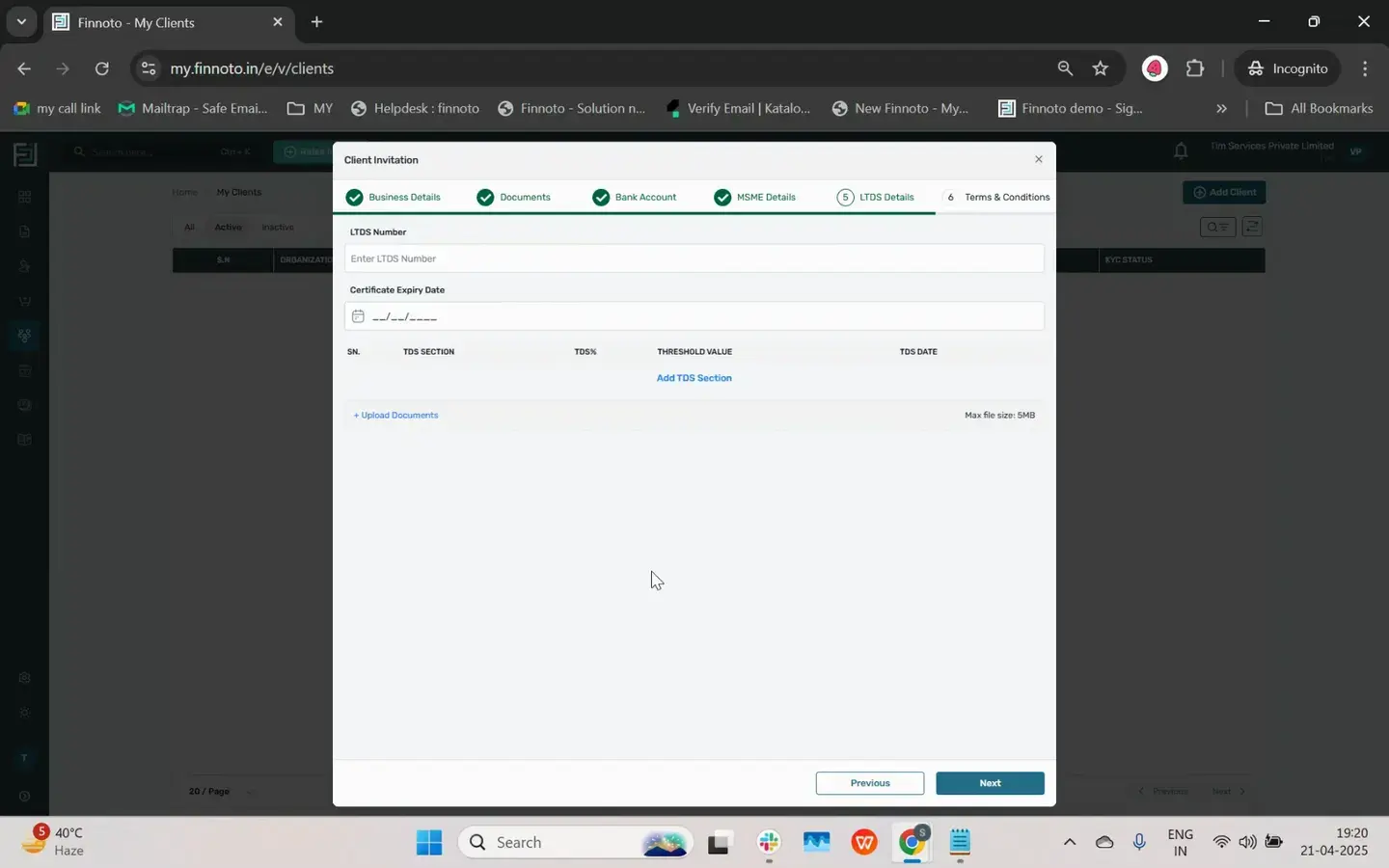
If you agree with the terms and conditions set by the clients, select the checkbox and click Submit.
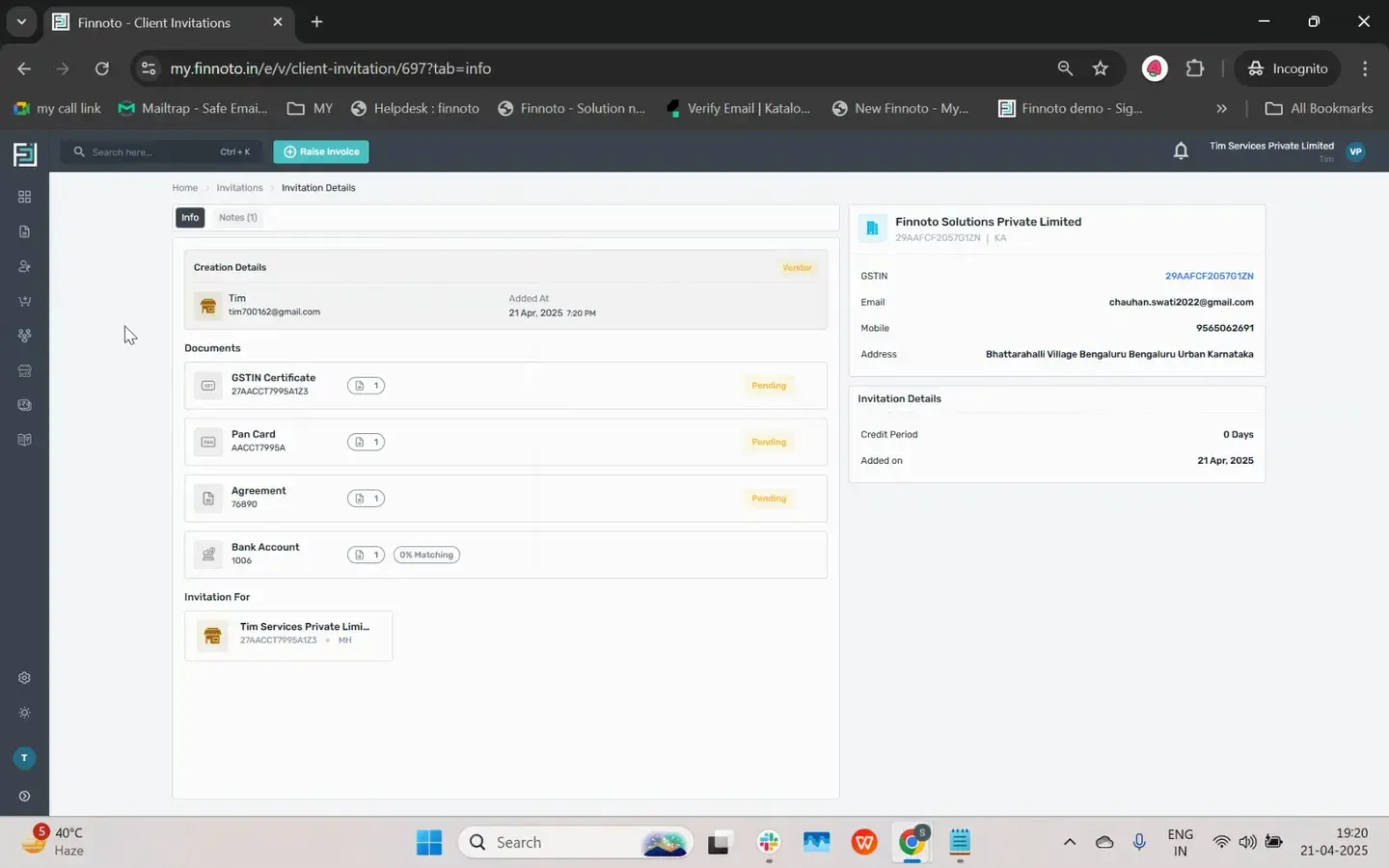
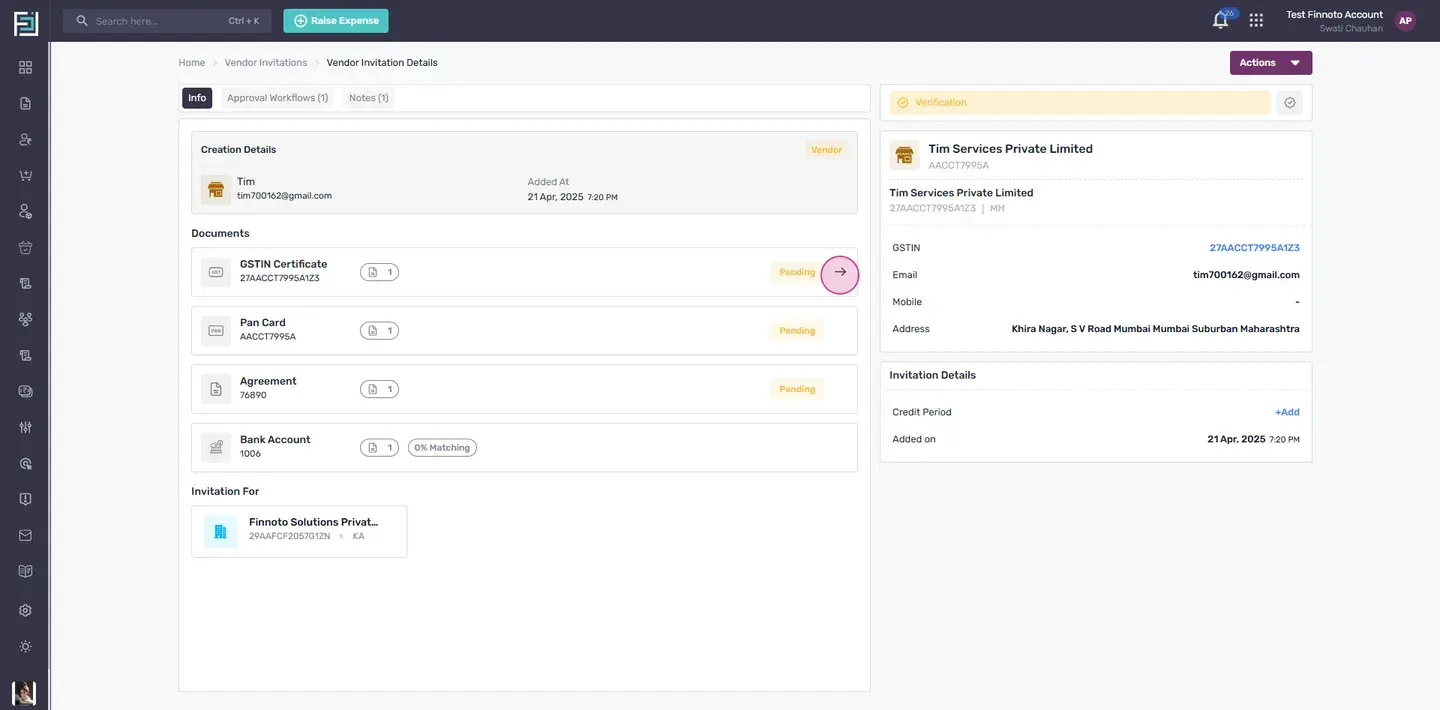
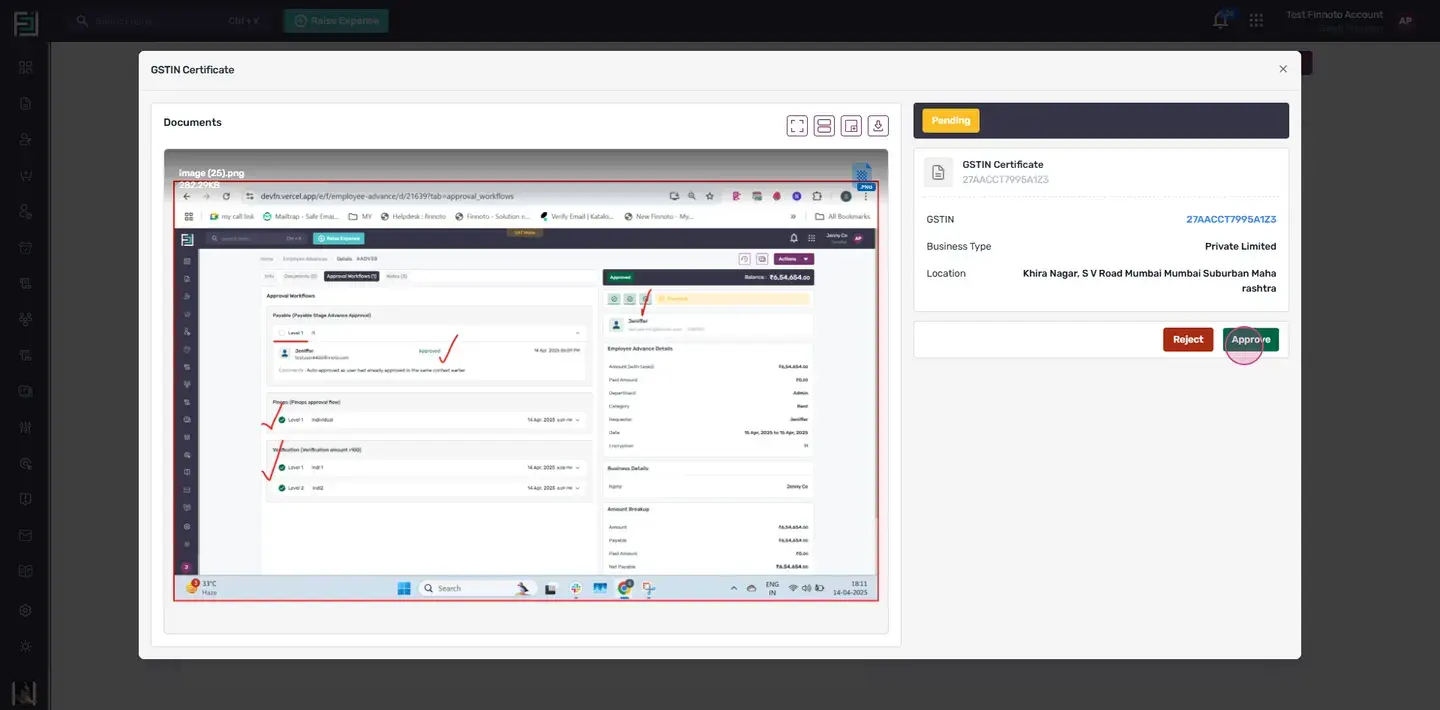
If the AP user wants to reject the documents, they can do so.
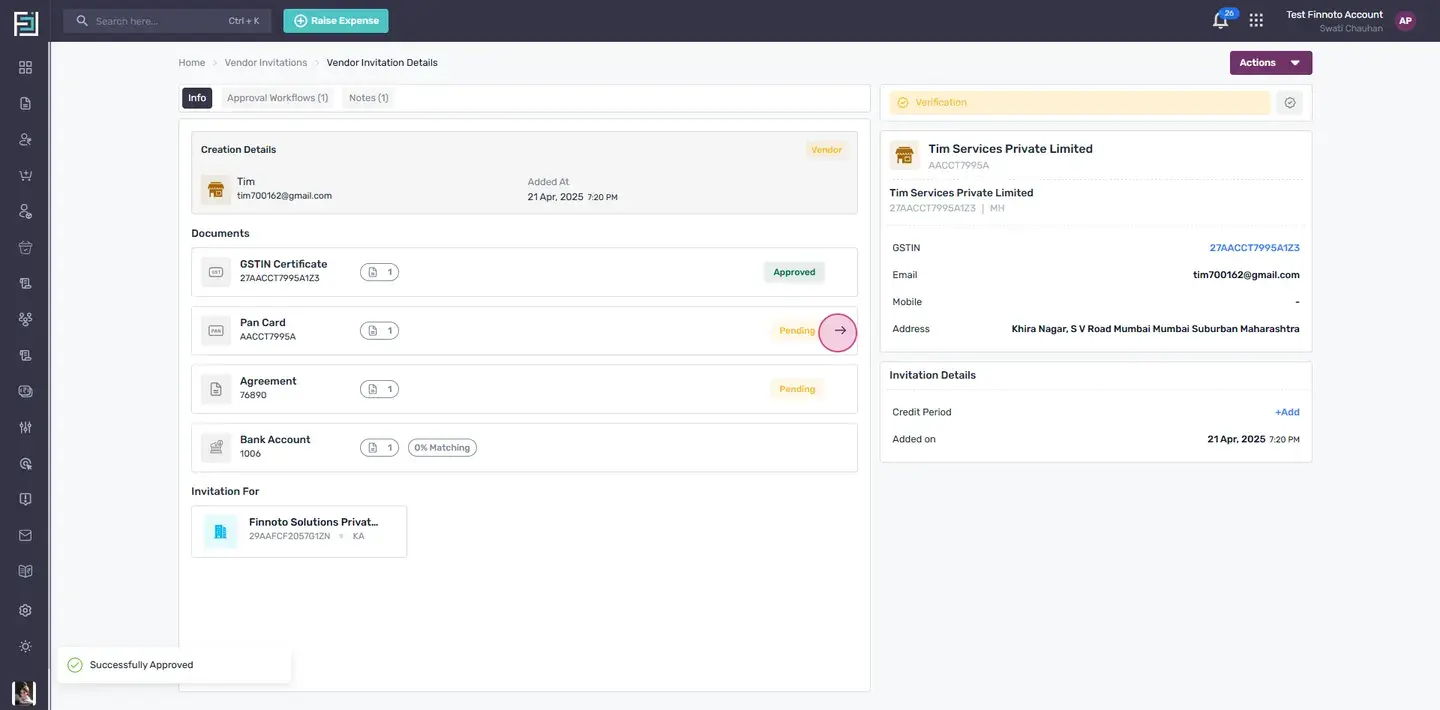
If the invitation is not approved, the vendor can resubmit the documents.
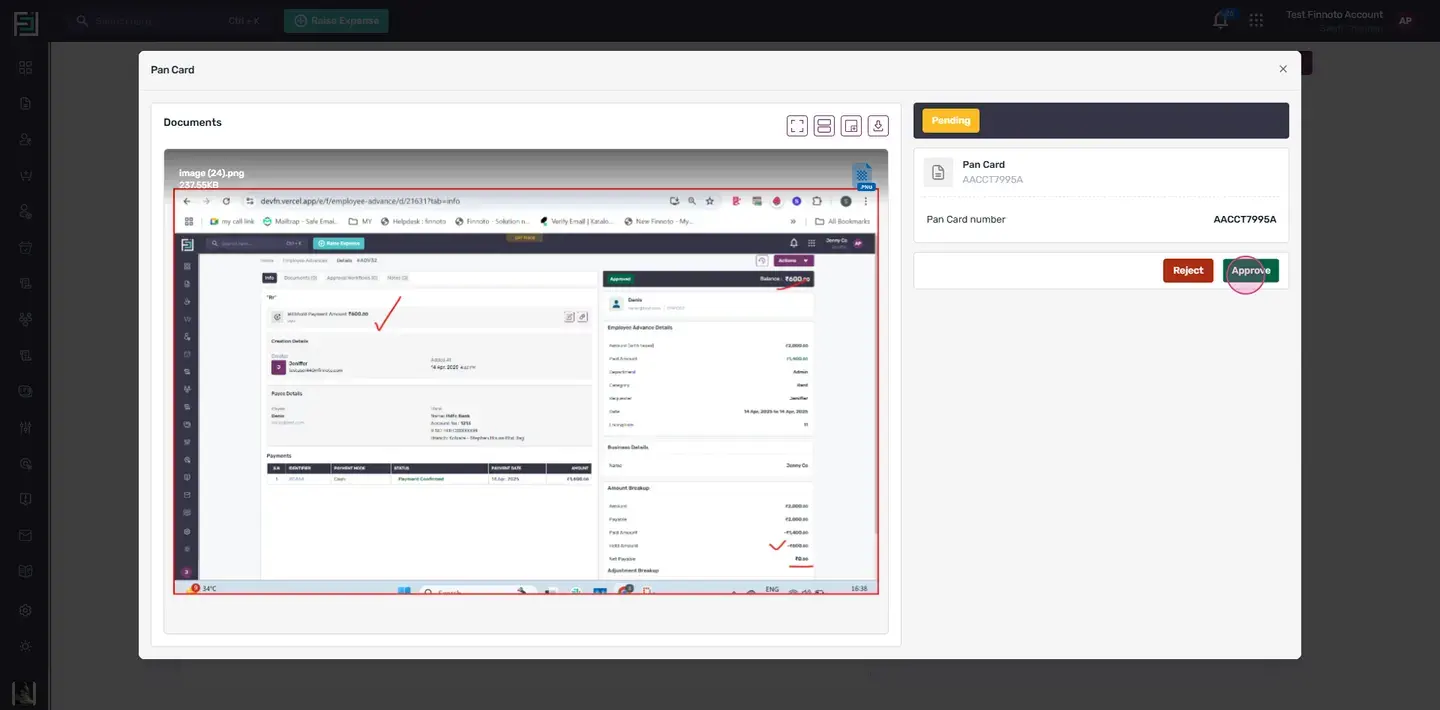
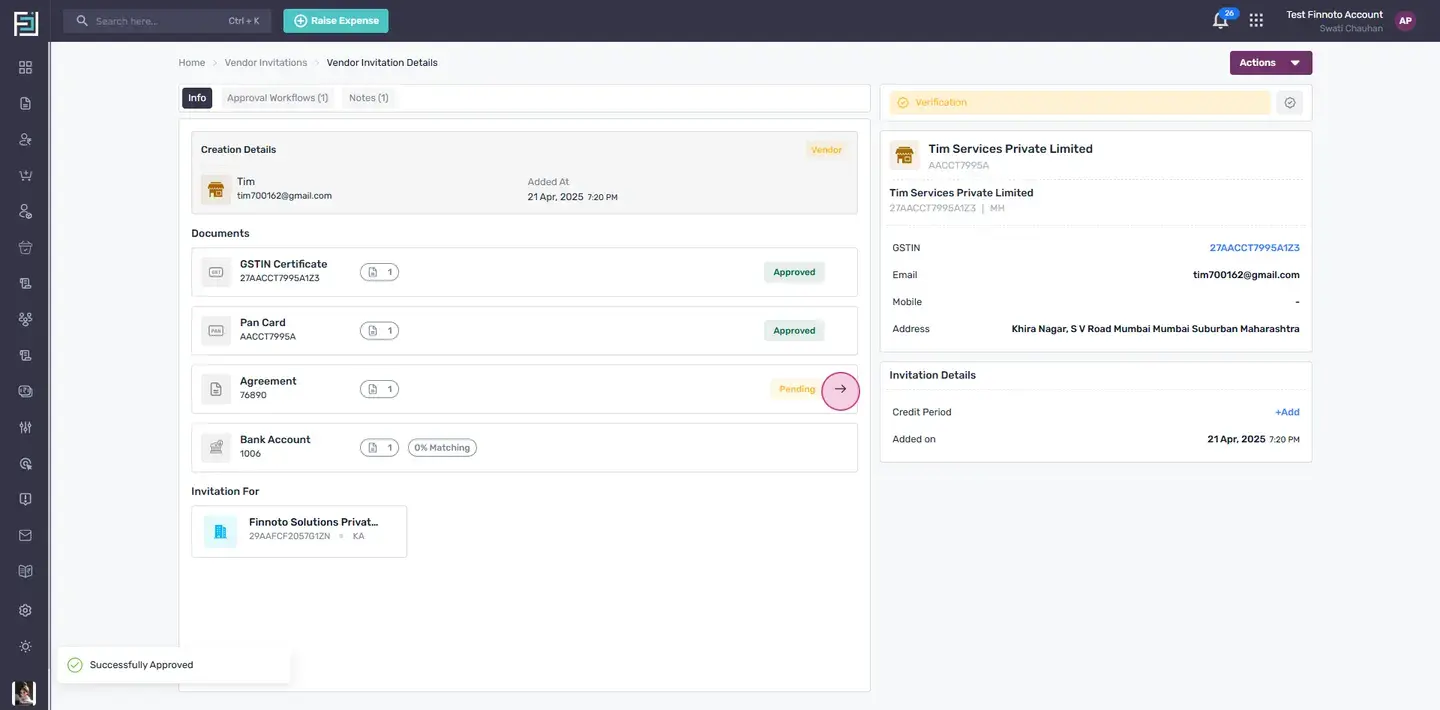
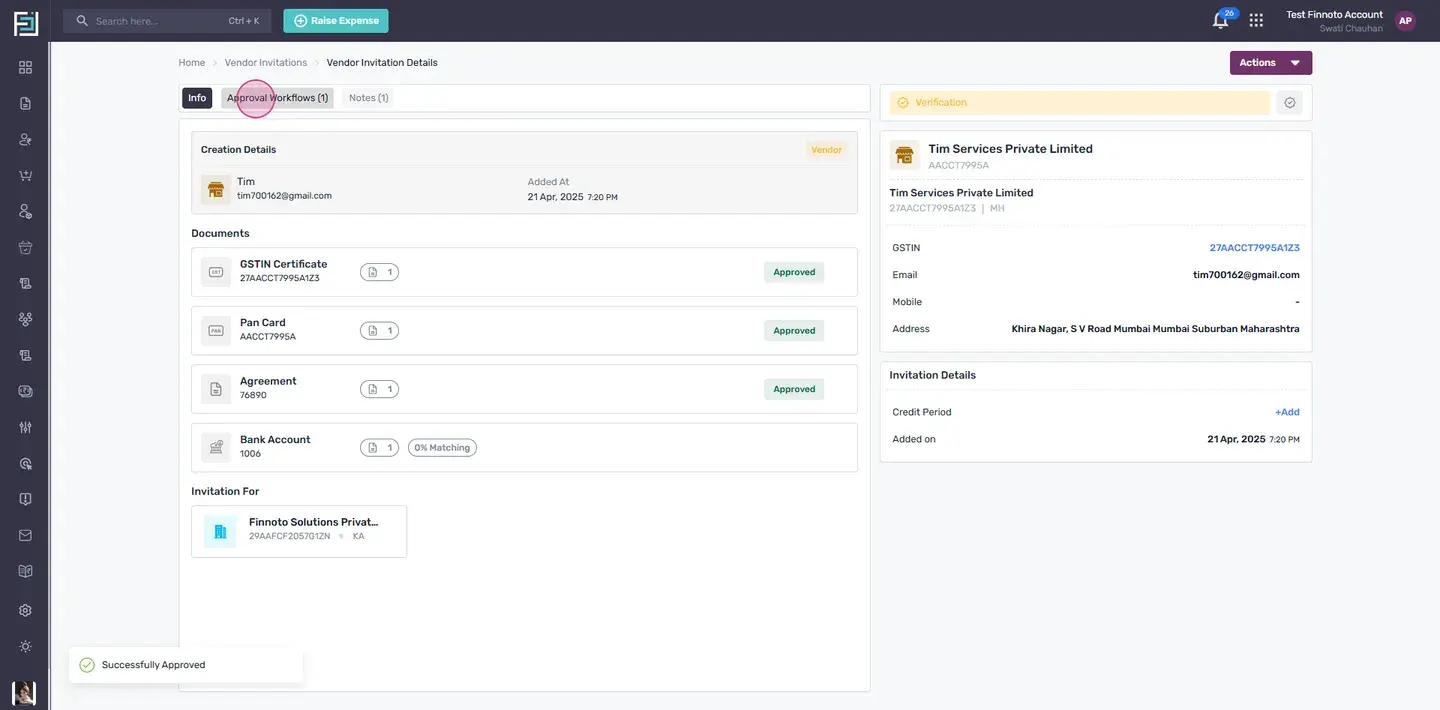
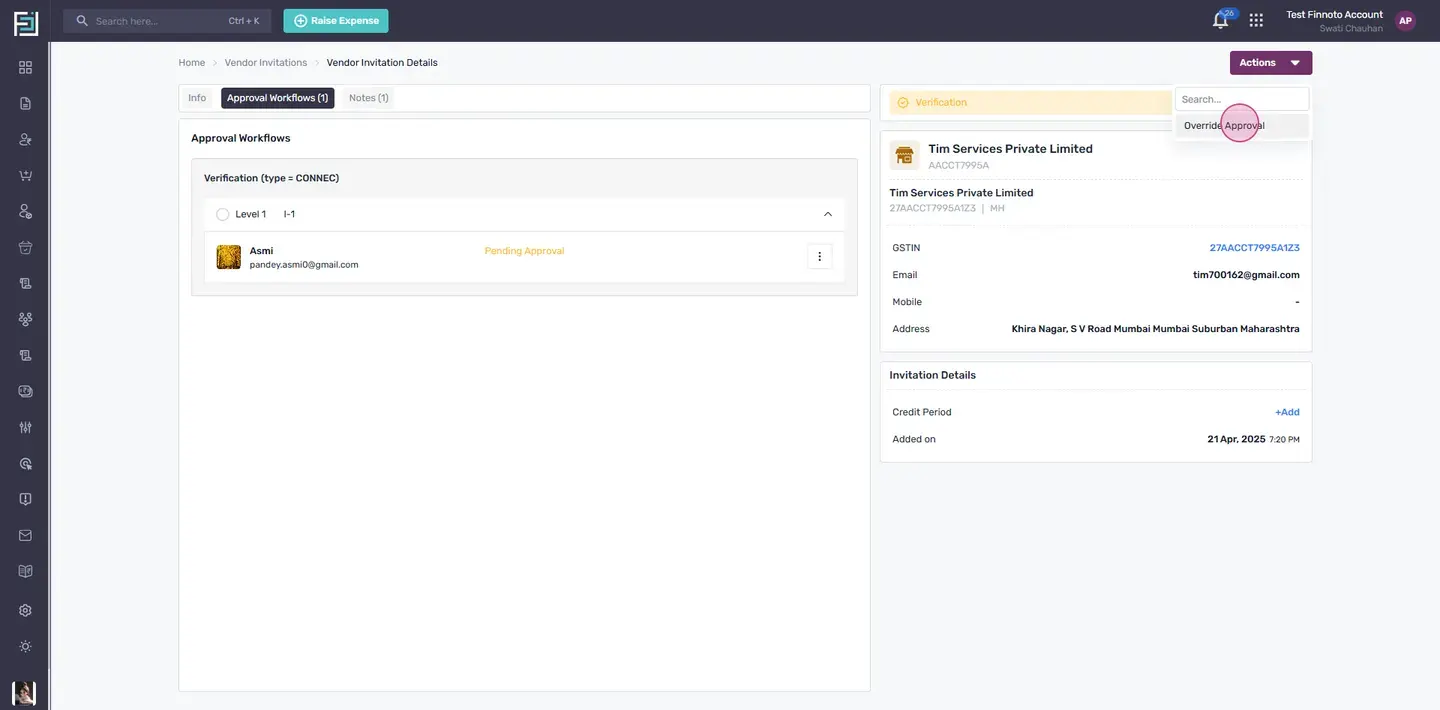
Once the invitation is accepted, it will appear in the approved section under invitations. The client will appear in the My Clients section. The vendor can now raise an invoice.
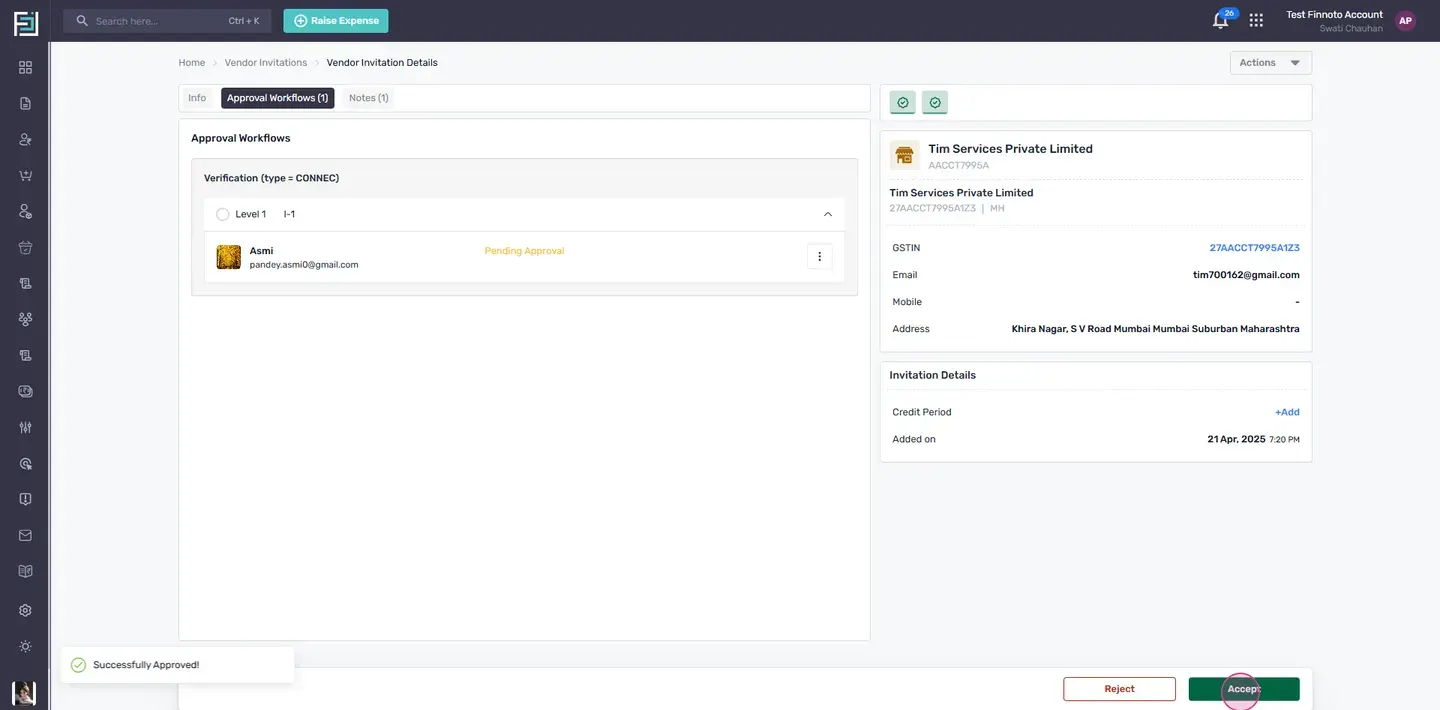
That's it! You've successfully onboarded a vendor on the Finoto portal.