Add an employee
Create an employee record so they can log in, raise expenses and be routed for approvals.
Last updated on
Transcript
How to create an Employee on the Finnoto portal? In this section, you will learn how to add a new employee to the system.
Follow the steps below to successfully create an employee with the required details.
Step 1: Accessing the HR Section: To create an Employee: Click on "Create Employee" from the Quick Start menu. OR Alternatively, navigate to the HR tab and click on the "Employees" option from the dropdown menu
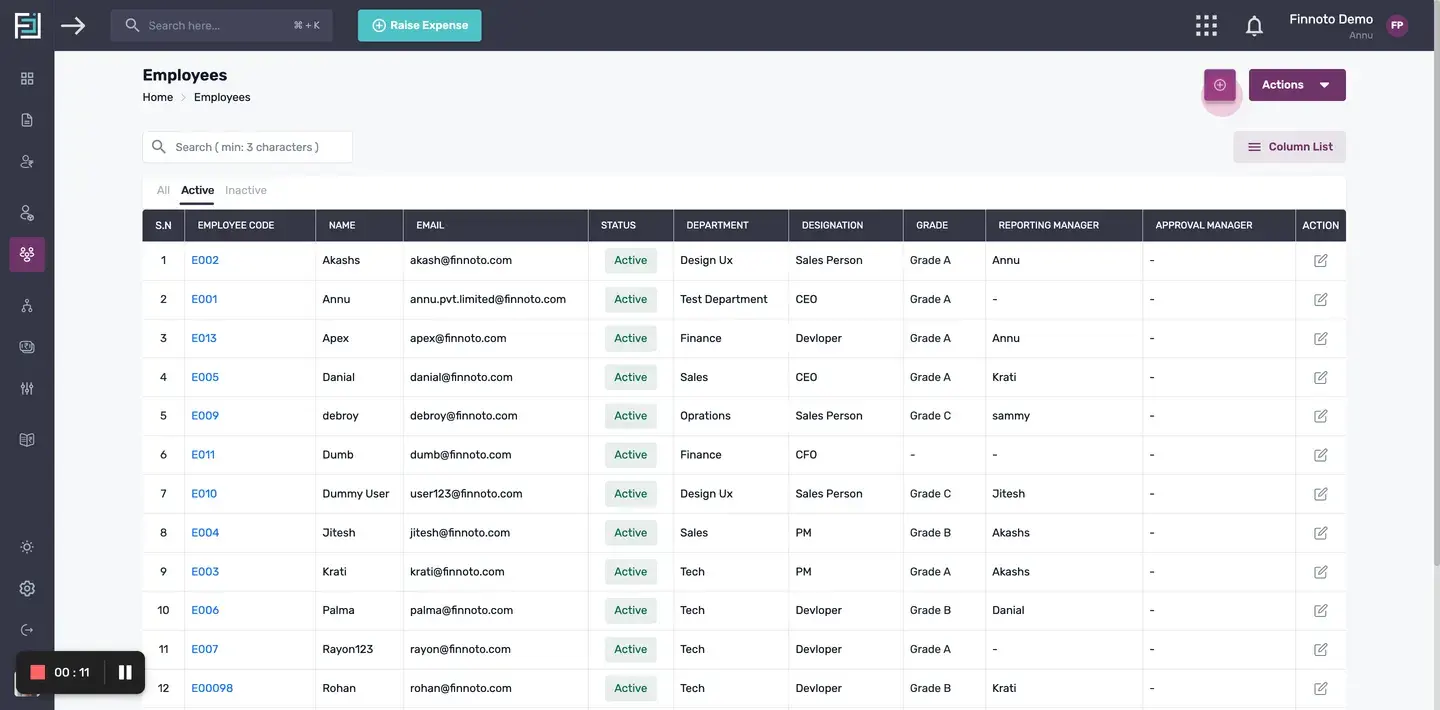
Locate "+Add" button: On the Employees page, locate and click on the "+ Add Employee" button.
The employee creation form.
The employee creation form will appear on the screen.
Fill in the mandatory details.
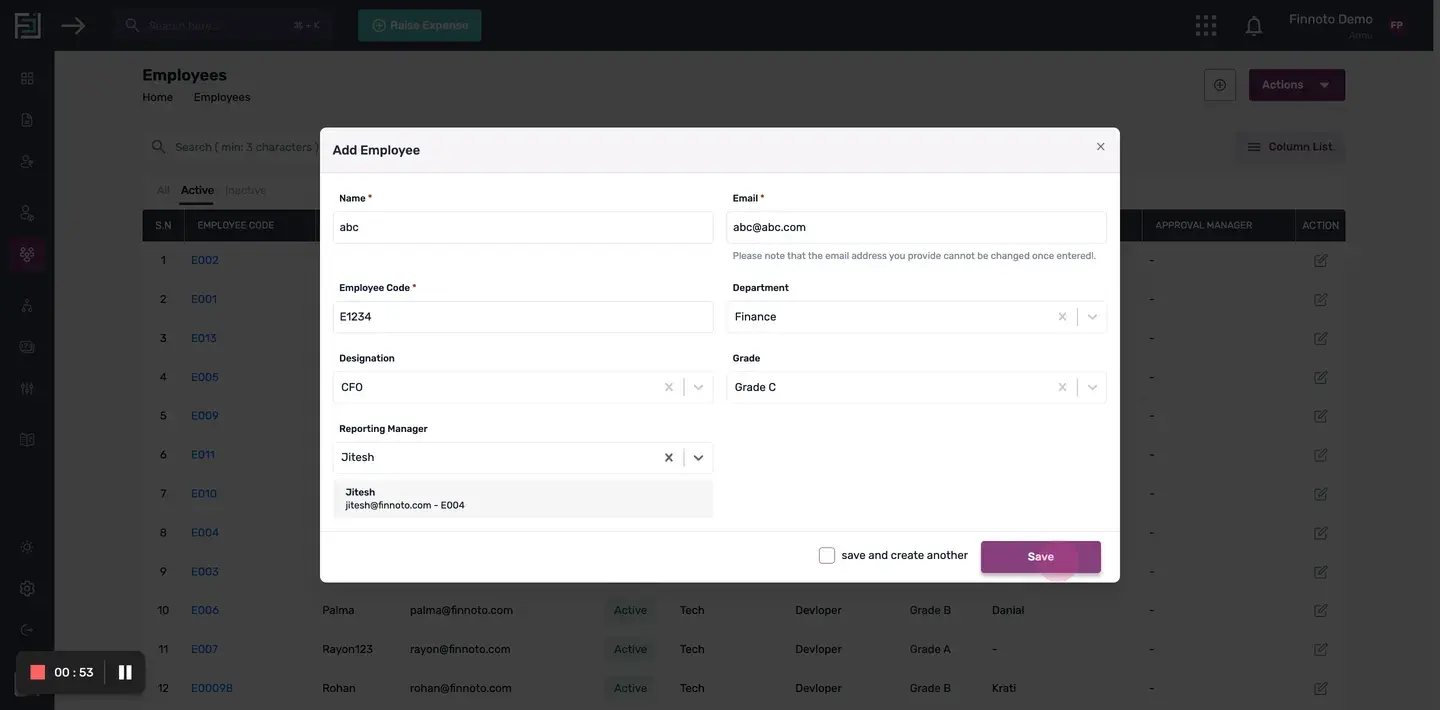
Fill in the required information, such as the employee's name, email, and employee code.
Selecting Department,Designation,Grades and Reporting Manager.
Choose the appropriate department, designation,grade and reporting manager for the employee from the respective dropdown menus.
Saving the Employee: Check the "Save and Create Another" checkbox if you want to add another employee. else click on the "Save" button to save the employee.
Editing the Employee.
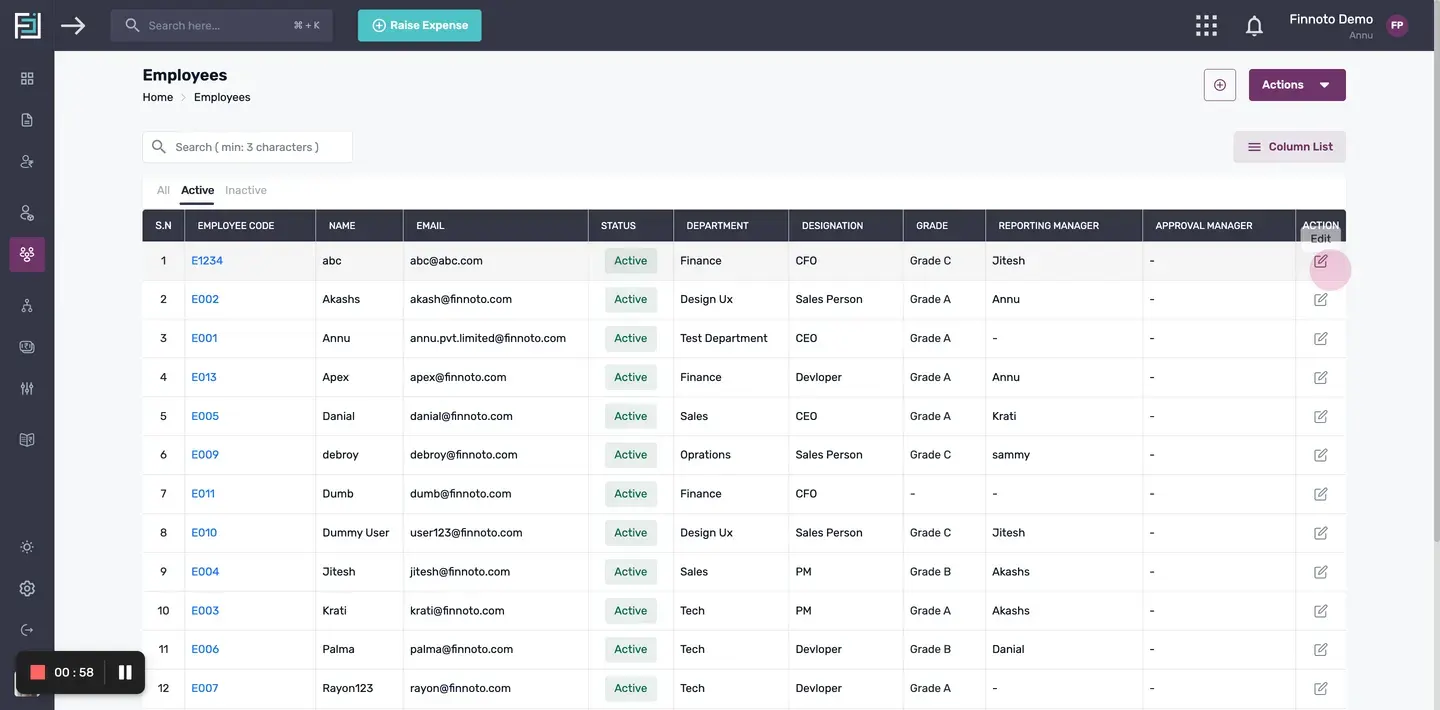
If you need to make any changes to the newly saved employee, you can do so by selecting the "Edit" option.
By following these steps, you can easily create a new employee in Finnoto and manage their details efficiently.
How to create an Employee on the Finnoto portal? In this section, you will learn how to add a new employee to the system.
Follow the steps below to successfully create an employee with the required details.
Step 1: Accessing the HR Section: To create an Employee: Click on "Create Employee" from the Quick Start menu. OR Alternatively, navigate to the HR tab and click on the "Employees" option from the dropdown menu
Locate "+Add" button: On the Employees page, locate and click on the "+ Add Employee" button.
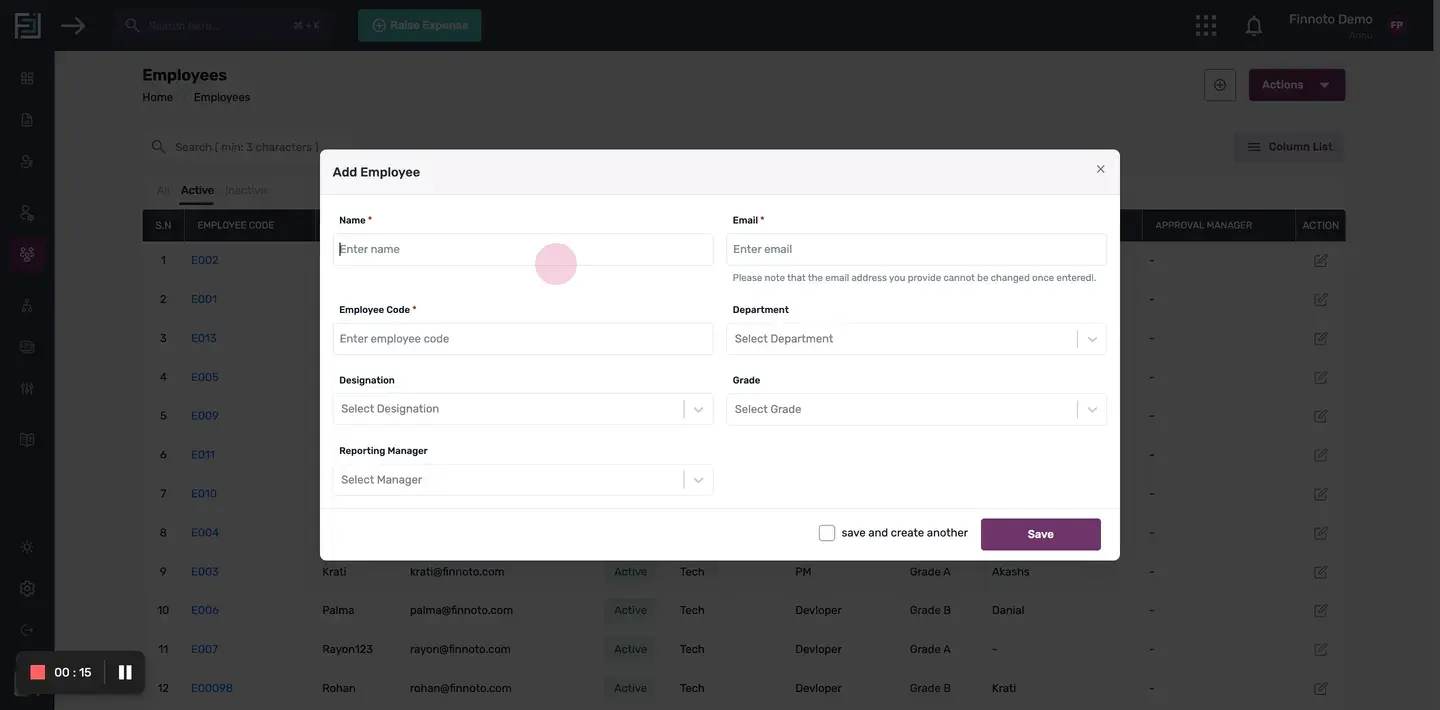
Fill in the mandatory details
Fill in the required information, such as the employee's name, email, and employee code.
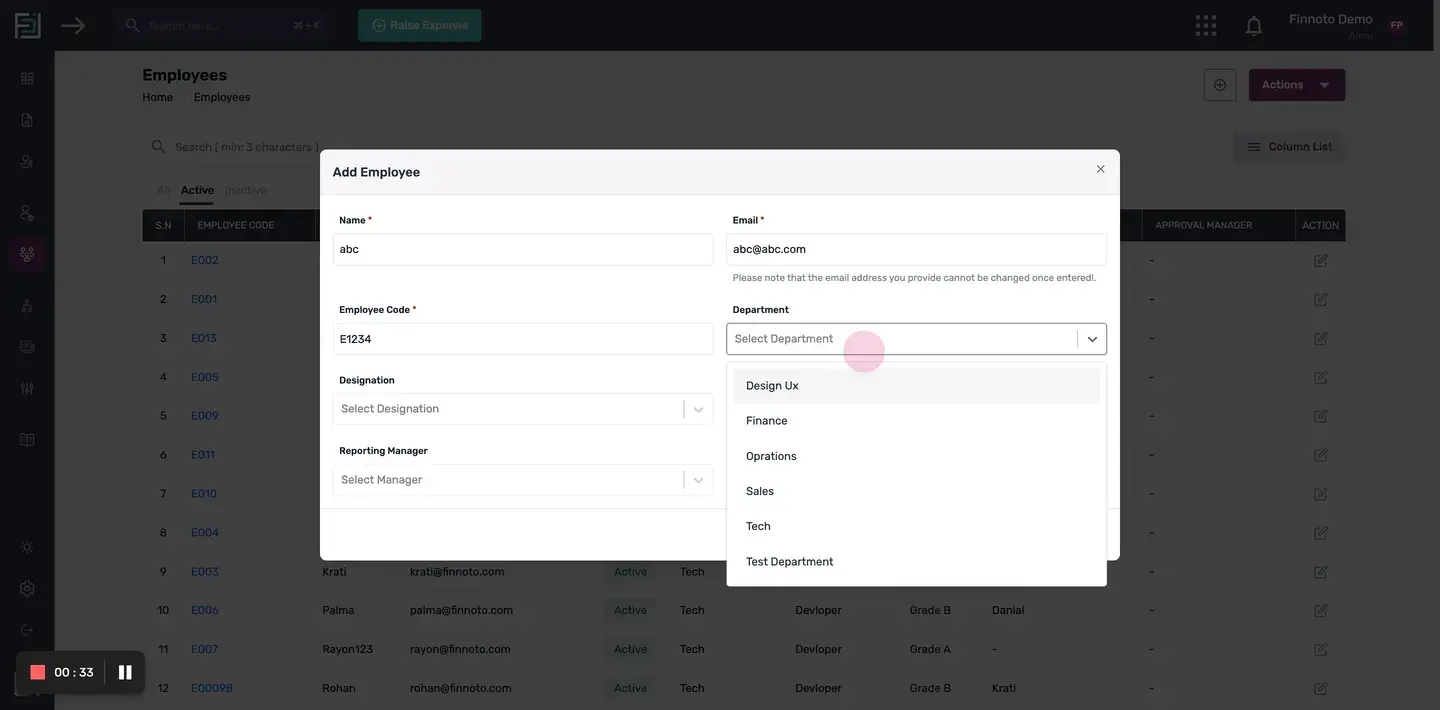
Selecting Department,Designation,Grades and Reporting Manager
Choose the appropriate department, designation,grade and reporting manager for the employee from the respective dropdown menus.
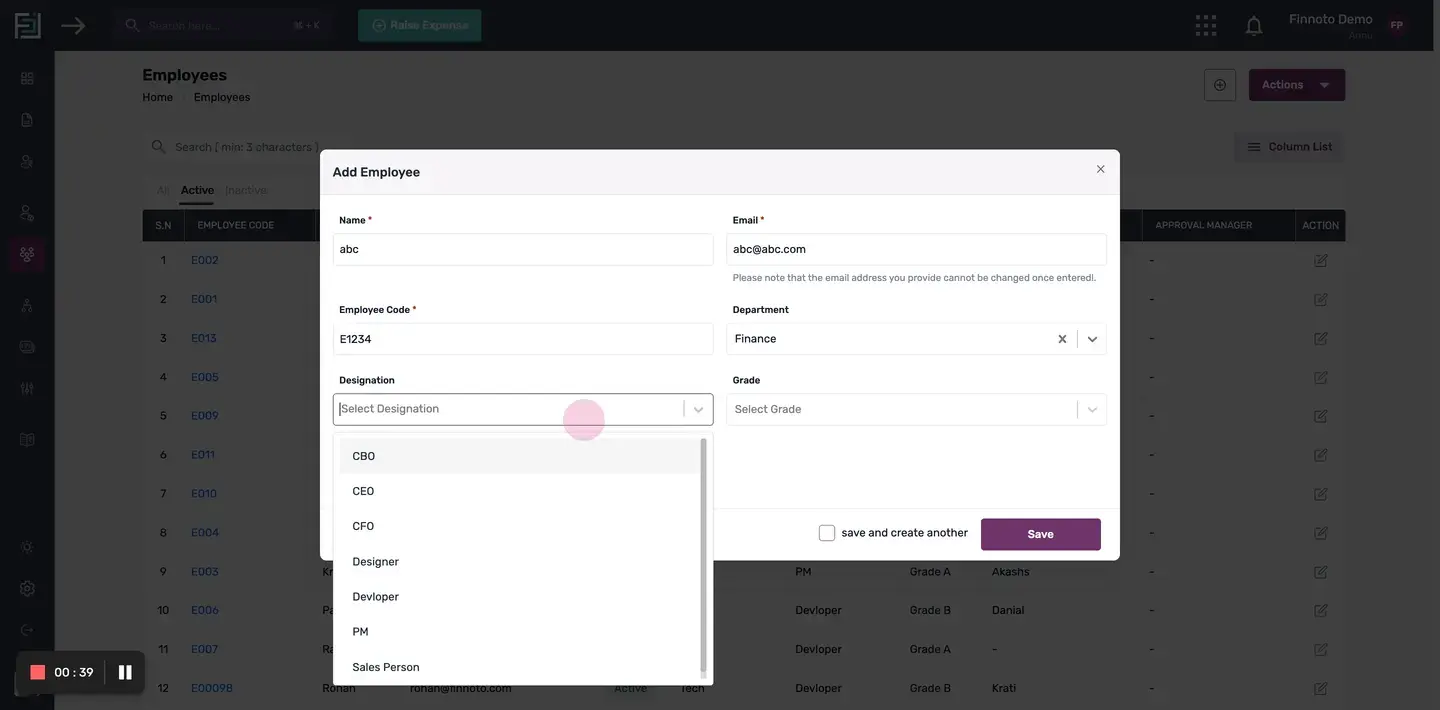
Saving the Employee: Check the "Save and Create Another" checkbox if you want to add another employee. else click on the "Save" button to save the employee.
Editing the Employee
If you need to make any changes to the newly saved employee, you can do so by selecting the "Edit" option.
By following these steps, you can easily create a new employee in Finnoto and manage their details efficiently.