Add grades
Define employee grades that drive policy limits and approval flows.
Last updated on
Transcript
How to add Grades on the Finnoto portal? In this article, you will learn how to add a new grade to the system. Employee grades are used to categorize and differentiate employees based on their roles and responsibilities within the organization.
Follow the steps below to successfully create a grade with the required details.
Accessing the Employee Grades Menu.
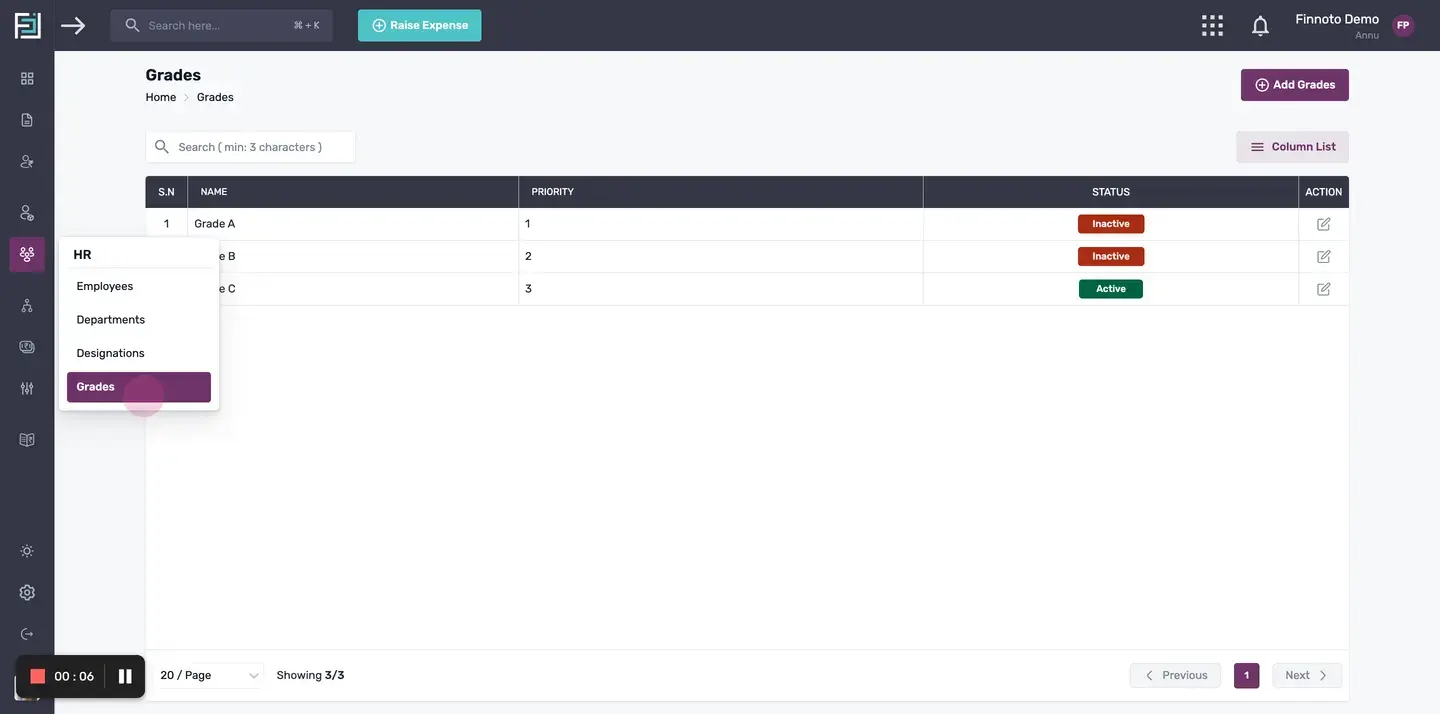
To begin, navigate to the HR menu and select "Grades". OR Alternately,Click on "Add Grade" from the Quick Start menu.
Creating a New Employee Grade.
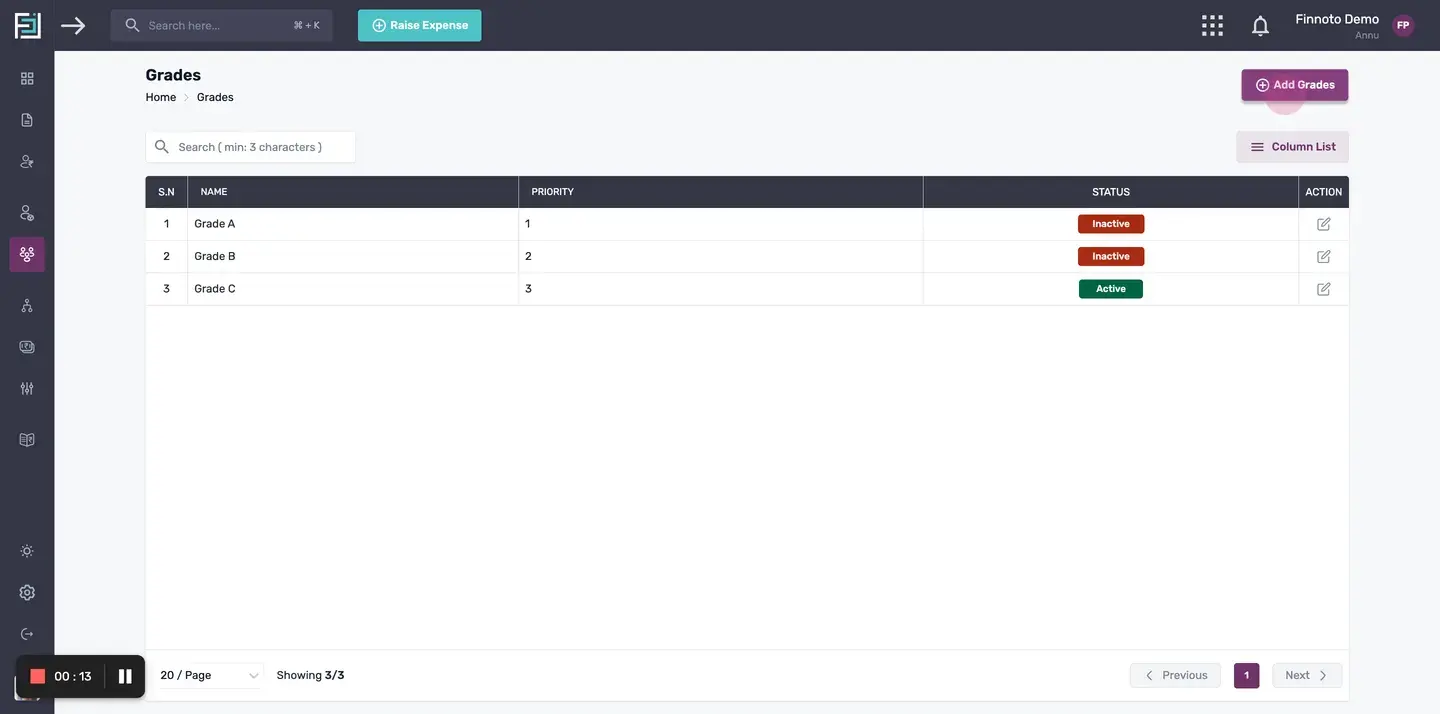
Once you are on the Grades page, click on the "Add Grade" button located at the top right corner of your screen.
Entering Grade Details.
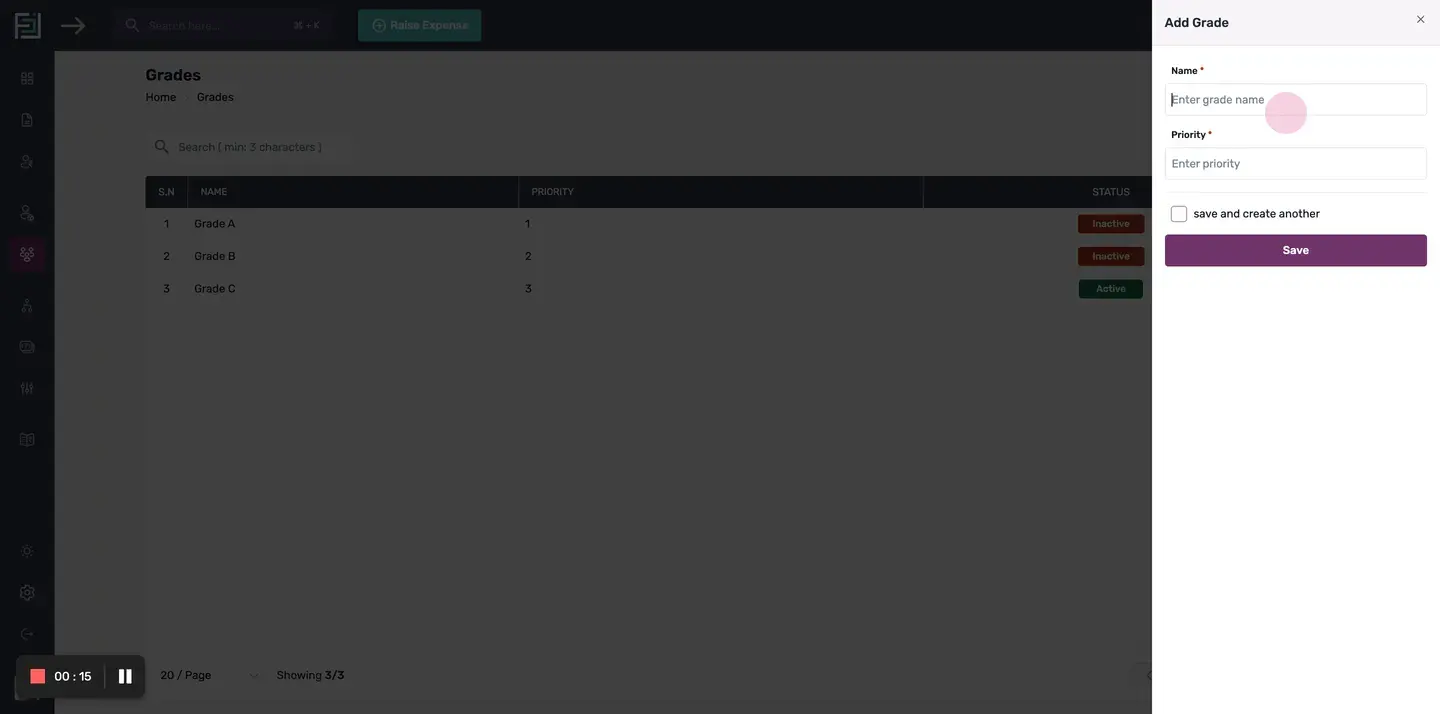
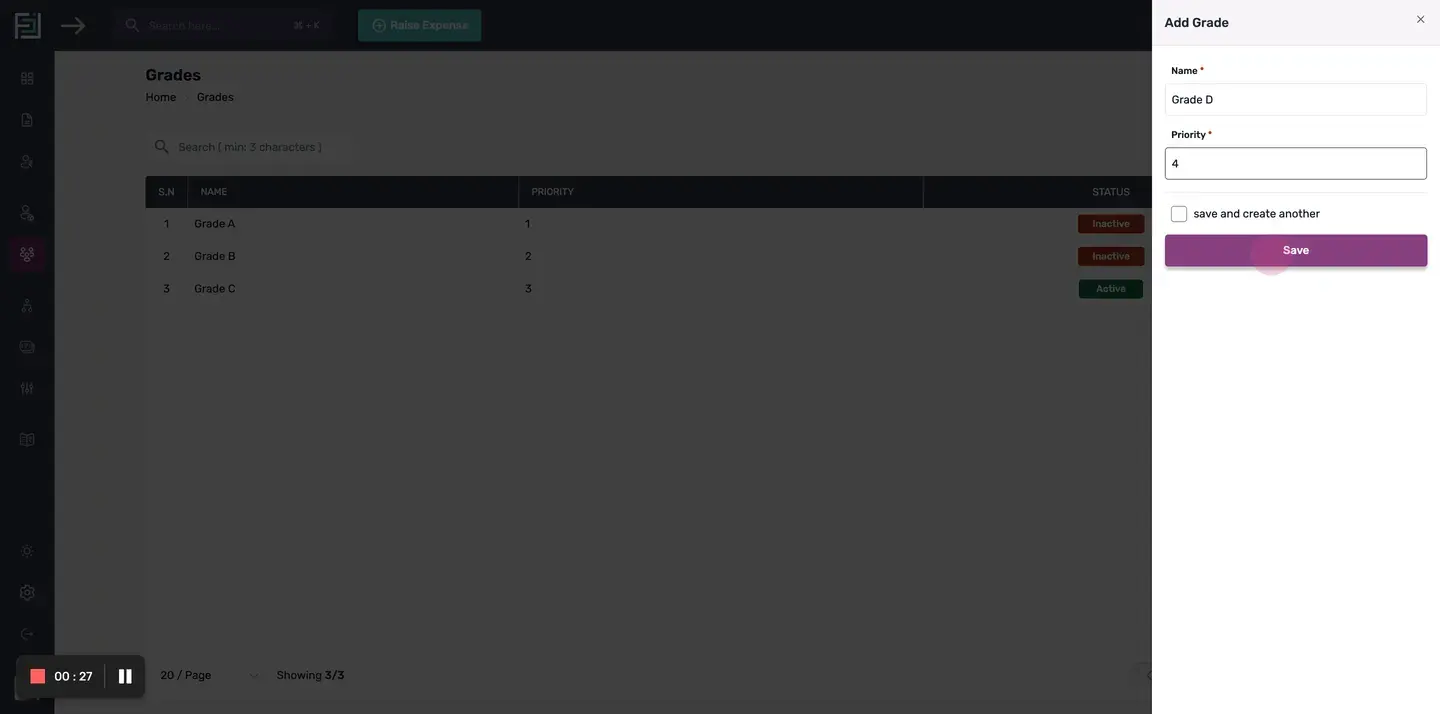
In the following page, enter the name or title of the grade in the provided field.
Setting Grade Priority.
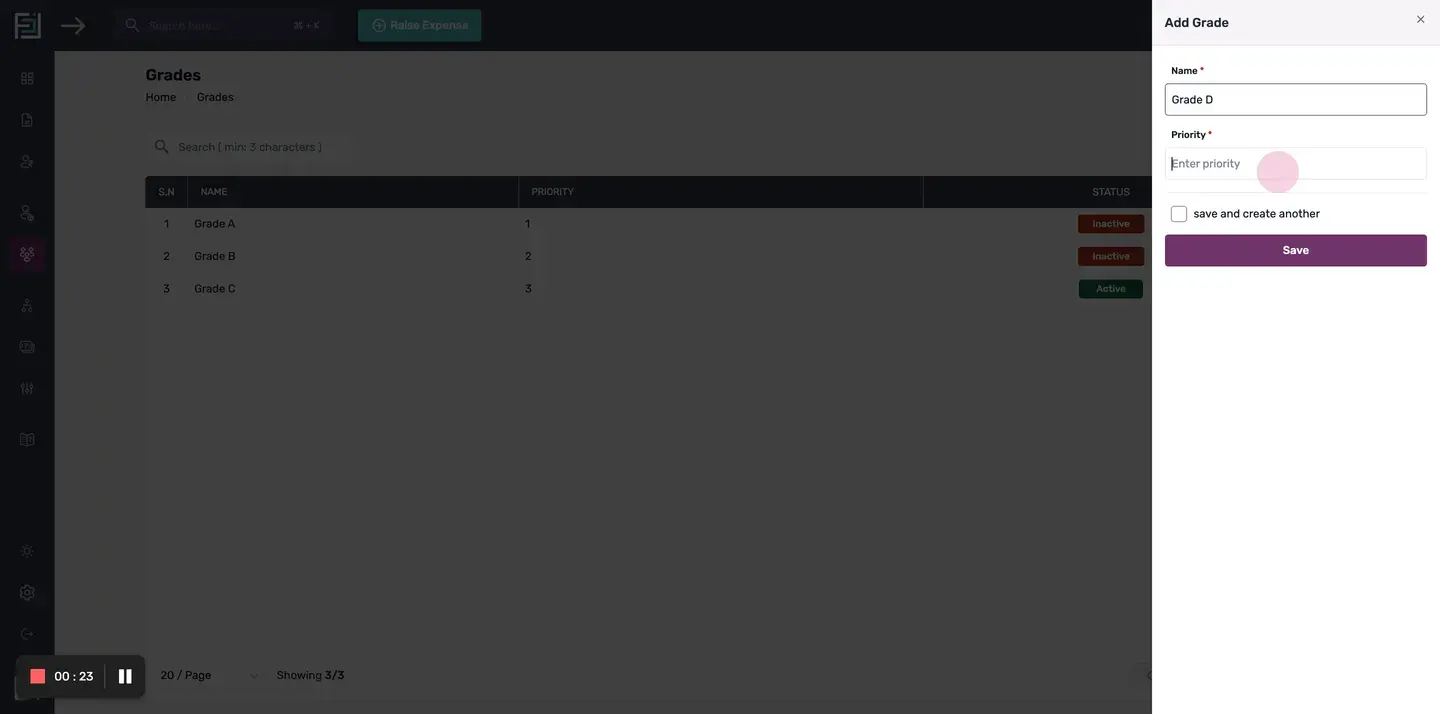
Next, specify the priority of the grade by entering a numerical value. This will determine the hierarchy of the grades within the system.
Saving the Grade.
After entering the necessary details, click on the "Save" button to create the new employee grade.
Editing an Existing Grade.
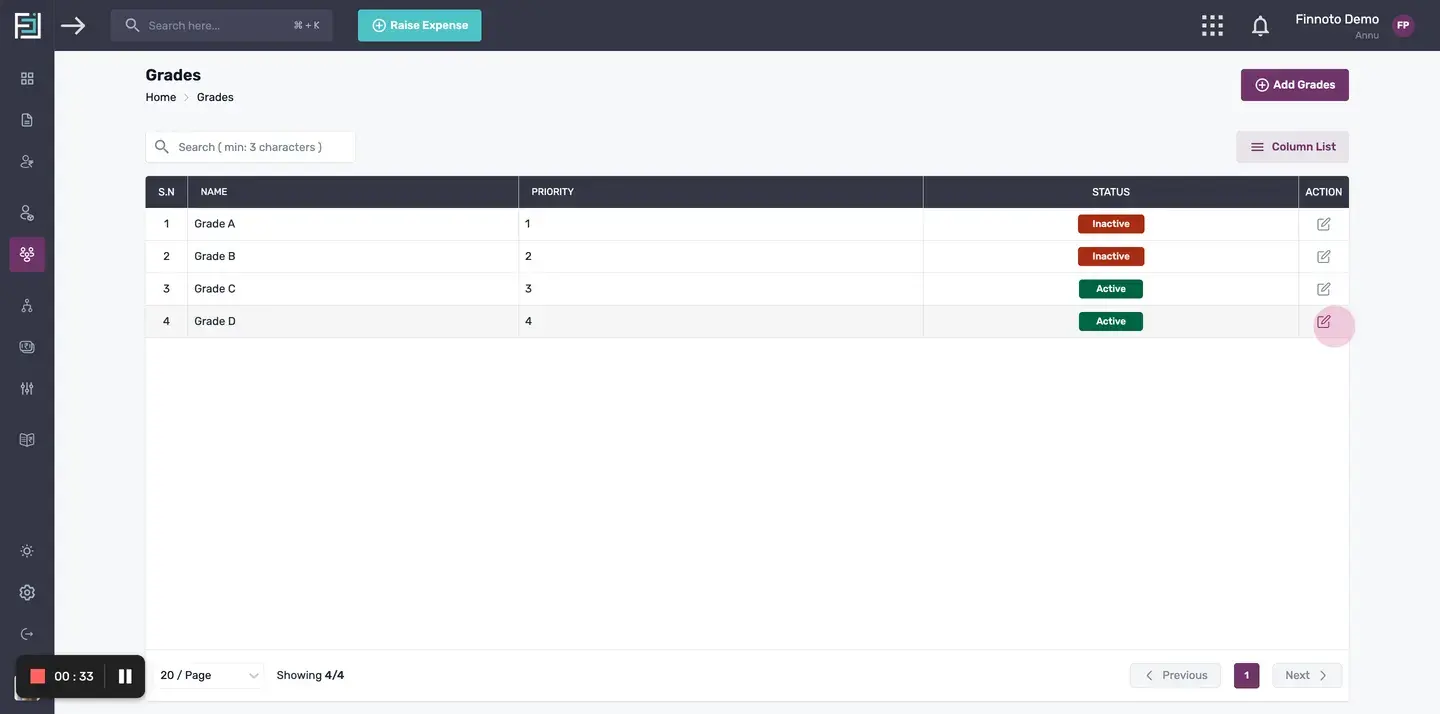
To make changes to a previously created grade, locate the grade in the list and click on the "Edit" button. Modify the grade details as required.
Activating or Inactivating a Grade.
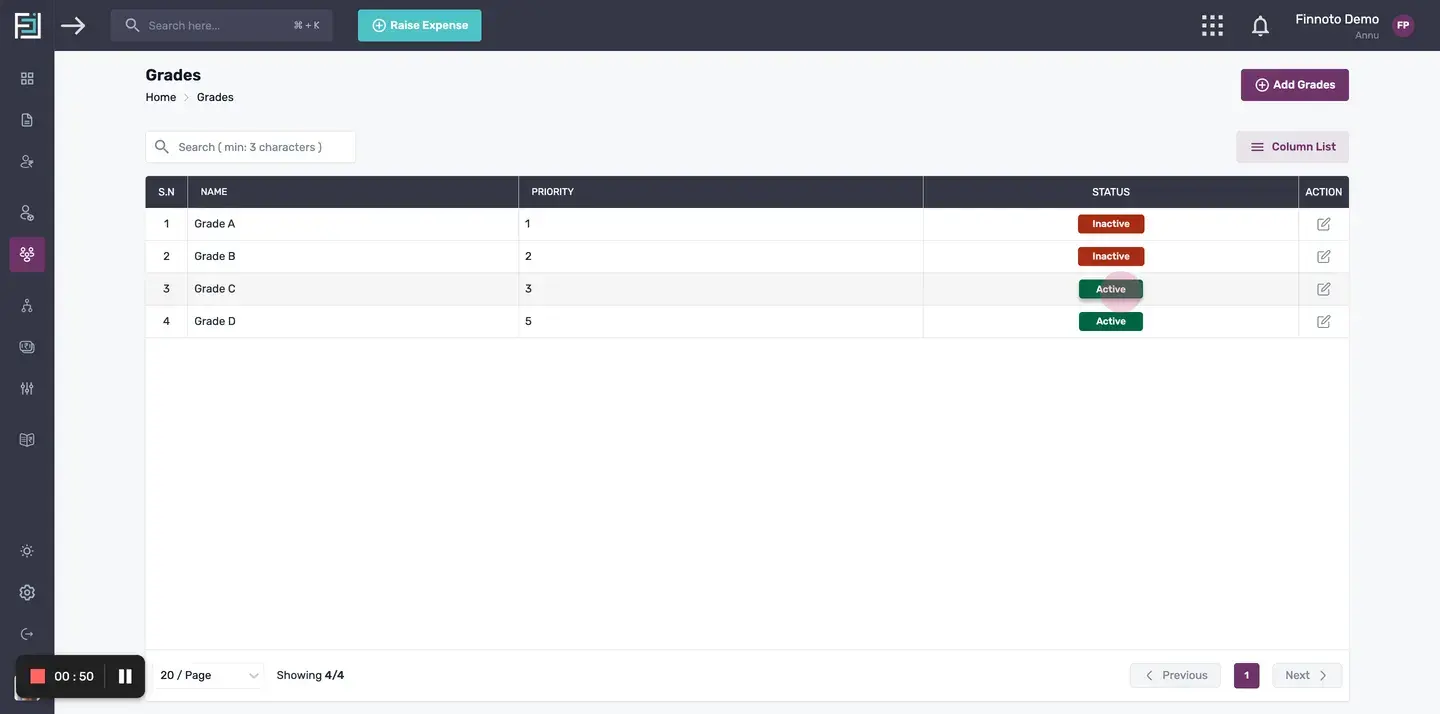
To activate or inactivate a grade, locate the grade in the list and click on the "Active" button. This will toggle the status of the grade accordingly.
By following these steps, you can easily create, edit, and manage employee grades in Finnoto. Properly categorizing employees based on their roles and responsibilities will help streamline HR processes and ensure efficient management of your organization's workforce.
How to add Grades on the Finnoto portal? In this article, you will learn how to add a new grade to the system. Employee grades are used to categorize and differentiate employees based on their roles and responsibilities within the organization.
Follow the steps below to successfully create a grade with the required details.
Accessing the Employee Grades Menu
To begin, navigate to the HR menu and select "Grades". OR Alternately,Click on "Add Grade" from the Quick Start menu.
Creating a New Employee Grade
Once you are on the Grades page, click on the "Add Grade" button located at the top right corner of your screen.
Entering Grade Details
In the following page, enter the name or title of the grade in the provided field.
Setting Grade Priority
Next, specify the priority of the grade by entering a numerical value. This will determine the hierarchy of the grades within the system.
Saving the Grade
After entering the necessary details, click on the "Save" button to create the new employee grade.
Editing an Existing Grade
To make changes to a previously created grade, locate the grade in the list and click on the "Edit" button. Modify the grade details as required.
Activating or Inactivating a Grade
To activate or inactivate a grade, locate the grade in the list and click on the "Active" button. This will toggle the status of the grade accordingly.
By following these steps, you can easily create, edit, and manage employee grades in Finnoto. Properly categorizing employees based on their roles and responsibilities will help streamline HR processes and ensure efficient management of your organization's workforce.